Viewing 30 results - 31 through 60 (of 106,489 total)
  • Author
    Search Results
  • #1496729

    In reply to: error

    This reply has been marked as private.

    Hi,
    so after few days with the hoster support and deactivating the firewall, im coming back.
    In advance thk for your help, the issue is maybe near the end.

    So now i can save under ENFOLD settings everything is find at this point and Google verifying recaptcha works.
    But i have a very last (but big) issue:

    If i edit and update home page, on front end: only first half of the page display (only occure with homepage)
    I have to edit again and load a previous version and save to restore.

    So i tested cloning the homepage, make some updates and save, this is very strange because not only this cloned page load only first half (and enterely loose the rest if go back to modify) but the homepage itself (not the coned ones) have an error load the first banner image! For info i didn’t edit it in this test, just edit the cloned ones.
    To resum this issue is: making update on a page and save makes erasing a part of the codes.

    To finish, maybe it’s important, on the WP webpages list, in front of an old homepage it displays the text: homepage but the real one isn’t this one.

    I really need that we fix this soon because i can’t make any uptdate on my homepage! And i spend so much time on this issue…

    • This reply was modified 1 week, 6 days ago by jb84.
    • This reply was modified 1 week, 6 days ago by jb84.
    #1496698

    Hi Ismael,
    thank you for the reply.
    I have added the css. The text turns into italics but the category does not disappear. I have also deflagged the option to show the category in the Blog Layout section. The category actually does not appear if I turn the general blog style into default. But it shows if I use “elegant”.
    About the photo, the single article style is set to “single post with small featured image”, but the image does not show in the category page, whatever blog style I use. It shows in the article page, though it is not small but normally quite large. I can see no other settings attaining to images in the Blog Layout section.

    The excerpt that is showing at present is the summary text (the text added in the summary box at the bottom of the article page in the back end). I was wondering if it was possible to show a few lines of the article text itself after the summary, not the whole text.

    Best regards,
    Elena

    Hi,

    Thank you for the inquiry.

    The image seems to be resizing correctly when we checked. Would you mind providing a screenshot of the issue? You can use platforms like FreeImage, ImgBB, PostImages or Dropbox to upload and share the screenshot.

    Best regards,
    Ismael

    #1496690

    Topic: error

    Matt Shane
    Guest

    Hi –

    I have the latest version and updated license key. I am trying to make simple copy and image changes but am getting a JASON error each time I try to save in the builder after making a simple copy or image change. Can you please assist? Thanks.

    Matt

    #1496689

    Topic: error

    Matt Shane
    Guest

    Hi –

    I have the latest version and updated license key. I am trying to make simple copy and image changes but am getting a JASON error each time I try to save in the builder after making a simple copy or image change. Can you please assist? Thanks.

    Matt

    #1496688

    Hey elenagrassi,

    Thank you for the inquiry.

    Looking at the site, the blog is using the elegant style. You can add the following code to the Enfold > General Styling > Quick CSS:

    To hide the category label above the title:

    
    .archive .av-heading-wrapper .blog-categories {
        display: none;
    }
    

    To make the excerpt text italic:

    
    .archive .entry-content-wrapper .entry-content p {
        font-style: italic;
    }
    

    To show the featured image below the title, try to adjust the Enfold > Blog Layout > Blog Layout and Blog Styling settings.

    Regarding showing the first few lines of article content before the “Continua a leggere” button — looking at the category page, the excerpt is already showing. If you want to show the whole content, you’ll have to modify the theme files.

    Please make sure to purge the cache before testing.

    Best regards,
    Ismael

    Hey Damenwahl,
    You have a jQuery error:
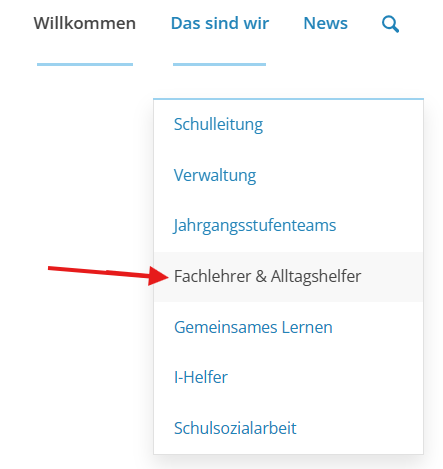
    Uncaught Error: Syntax error, unrecognized expression: #fachlehrkr%C3%A4fte
    This is from your menu item:
    BcNzNcP.png
    Try removing the ä from the link.

    Best regards,
    Mike

    EDIT: I checked, and it is an image element in fact!

    I pasted it below.

    I am trying some CSS, but for no avail.

    • This reply was modified 2 weeks ago by MORTULGAAH.

    Hey MORTULGAAH,

    I don’t think that there is a fix for that, since I’m guessing that the featured image is set as a background?

    Best regards,
    Rikard

    MORTULGAAH
    Participant

    When post featured image is displayed in full size, it normally fills the viewport width, as it should.

    However, when I try to increase the page size with ctrl++, it the page around it increases, but the featured image remains the original – fit size.

    Is there way to circumvent this? It is for a webcomic.

    Hey bleistift,

    Thank you for the inquiry.

    We can’t reproduce the SVG upload issue on our end. Using an SVG image as a logo works the same as uploading any image format. For the logo size, you can set Header > Header Layout > Header Size to custom pixel value, then adjust the value of the Header Custom Height field. Please check the screenshot below.

    View post on imgur.com

    Let us know the result.

    Best regards,
    Ismael

    #1496655

    Hi,

    Have you tried moving the Image element inside a Column element? This should limit the size of the SVG relative to the size of the column.

    Best regards,
    Ismael

    #1496638

    I just add those SVG images as image block. I guess the builder is resizing it automatically to 100% dependig the block split like 1/2 ode 1/3 a.s.o.

    #1496632

    In reply to: video aspect ratio

    HI
    – that got rid of the gray bands, but stretches the image/text when the window is resized.
    Not sure it’s an issue – I guess that’s the only way to get it to fill the container since it’s not in the correct ratio.
    Maybe it’s better to get the video in 16:9 format?
    thanks
    Nancy

    • This reply was modified 2 weeks, 3 days ago by Munford.
    • This reply was modified 2 weeks, 3 days ago by Munford.
    • This reply was modified 2 weeks, 3 days ago by Munford.
    • This reply was modified 2 weeks, 3 days ago by Munford.
    #1496630

    how did you “when i add a SVG icon to a page,”

    if it is an Enfold Element like image or image with hotspot ect. – Enfold actually has CSS rules within avia-builder.css / avia-builder.min.css for these cases.
    if you like to influence the preview inside textblock and backend:

    you can set via child-theme functions.php that preview size.

    function admin_head_mod(){
    echo '<style type="text/css">
      .wp-admin .avia_textblock img[src*=".svg"] {width: 80px !important;height: auto !important;}
    </style>';
    }
    add_action('admin_head', 'admin_head_mod');

    the point is the even not inline svgs need an absolute dimension ( % and auto will not work )

    but:

    this part where enfold loads this css for the preview window is inside: class-template-builder.php
    there are filters we can use to influence the preview now.

    place a file custom-preview-fix.css inside enfold-child/css/

    add_filter('avf_preview_window_css_files', function($css) {
        $css[ get_stylesheet_directory_uri() . '/css/custom-preview-fix.css' ] = 1;
        return $css;
    }, 999);

    and have inside custom-preview-fix.css:

    #av-admin-preview img[src*=".svg"]:not([is-svg-img="true"]) {
      width: auto;
      height: auto;
      max-width: 100%;
      display: block;
    }
    
    #av-admin-preview .alignleft { float: left; margin: 0 20px 20px 0; }
    #av-admin-preview .alignright { float: right; margin: 0 0 20px 20px; }
    #av-admin-preview .aligncenter { display: block; margin-left: auto; margin-right: auto; }
    #1496597

    Hi,
    To disable the Linked Image Overlay, go to Theme Options > Advanced Styling > Linked Image Overlay > Disable Overlay

    Best regards,
    Mike

    #1496594
    infoflammablestudio
    Participant

    https://i.ibb.co/vxB9KR1y/image.png

    Can I please have a transparent background without border. And would love to know the best workaround before that is added.

    Also I noticed another bug.

    Condition:
    Button Background Light Transparent Background.
    Border set to None.
    Issue: The button will get a white border when hovered.

    #1496589

    Well, FF said it couldn’t load font files, as I uploaded only SVG. Uploaded font files later on, and god the images on FF, but it is still very slow. Gotten only woff2 error in FF; but that was not even in incomoon pack.

    The launch is tomorrow, I will have to fall back to built in stuff..

    If you have ideas, please pass them on.

    Also, I found css bug on image with highlights. The shrinked view sows arrow that is not cut, and on the images themselves, the arrow is black and goes into the white bogy of the tooltip.

    #1496586

    As my site is live, I add to remove it. I have just created a new page, https://chaudun.com/0-wine/, with the element. I want it full width and on brown background, to replace the Horizontal gallery because I need a title under the image.
    Txxxxx

    Hey Quazione,
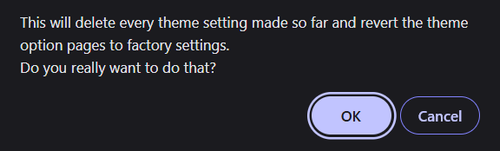
    Sorry to hear that you have experienced this setback, clicking the Reset button gives this warning:
    BzKqp19.md.png
    We also have a theme option to hide this button:
    BzKMPMN.md.png
    But unfortunately once you have approved of the reset there is no recover method, you will need to preform a site restore from your full backup.
    You will not be able to restore a partial database.

    Best regards,
    Mike

    Quazione
    Participant

    Hello Kriesi Team,

    After accidentally using the Enfold “Reset” option, we experienced a major issue with our media.

    What happened:

    • Immediately after the reset, all images and graphics disappeared from the website.
    • The WordPress Media Library is now empty.

    Current findings:

    • All media files still physically exist on the server.
    • Verified via FTP (FileZilla) under:
      • <i>/wp-content/uploads/</i>
    • Files are present in their original folders (year/month structure).
    • File names are unchanged and match what was previously uploaded.

    Conclusion so far:

    • This appears to be a database/media index issue, not actual file deletion.
    • It seems the Media Library entries (attachments) were removed or disconnected during the reset.

    What we need help with:

    • Is it possible that the Enfold reset removed or affected WordPress media database entries?
    • What is the recommended way to re-sync or rebuild the Media Library from existing files?
    • Is there a known Enfold-related process that could have triggered this behavior?

    Additional context:

    • This occurred at the same time as a full theme options reset.
    • No manual deletion of media files was performed.
    • The issue impacts all existing content that previously referenced these images.

    This has effectively broken all visual elements across the site, so any guidance on restoring the Media Library from existing files would be greatly appreciated.

    Thank you,<br>
    Armen

    Hey Michael F,
    I only see three images, not four. One is much larger than the other two. Please use images that are the same size, preferably small.

    Best regards,
    Mike

    #1496556

    Hello! Thanks for the response.

    I used Deluxe Managed WordPress Hosting, which does include auto backups. I have used this for as long as I can remember, and haven’t run into this issue until recently- could that be it?

    I have included a screenshot of my plugins and my performance set up. I accidentally ran two image compression plugins at the same time, but that was AFTER I had issues with the color section, so that was not related to the issue.

    I did the following to try to resolve the issue and did not have success:

    Disabled “css file compression and merging”, as well as “javascript file compression and merging.” I

    Turned on”Delete Old CSS And JS Files?

    Screenshot in private content.

    #1496536
    valerieh
    Participant

    Hello-

    My website is at valparker.com. I have color sections at the top of each page for the hero image.

    Once a week, randomly, the color sections go white, making the text unreadable. I have tried clearing caches, setting a minimum height to these sections, etc. Nothing seems to keep it consistently correct and occasionally the colors sections will return to their deep gray color with me just logging in and clicking to edit the page.

    I’ve included a screenshot link of what the pages look like when the color section is no longer dark.

    #1496529
    morijksen
    Participant

    Hi all,

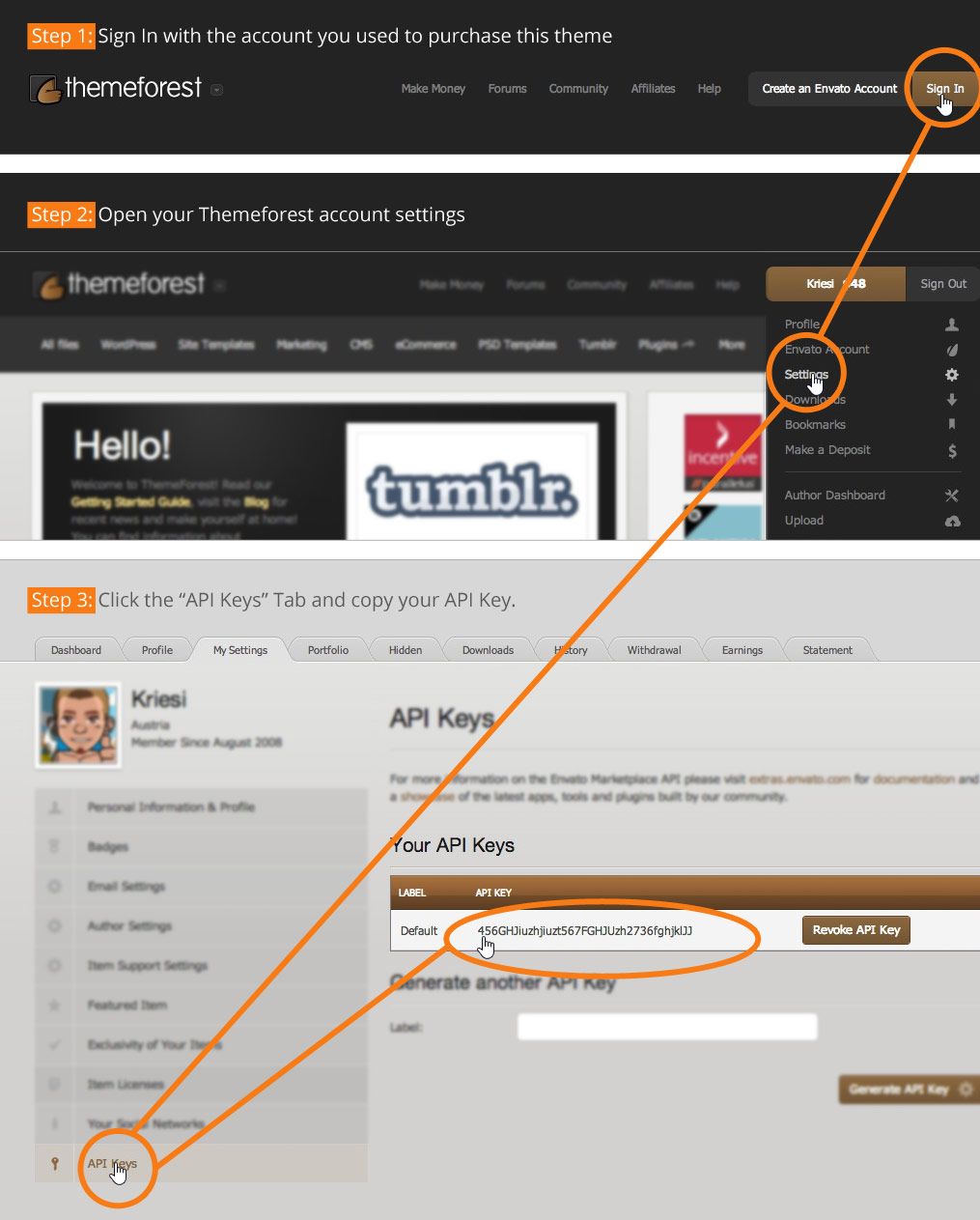
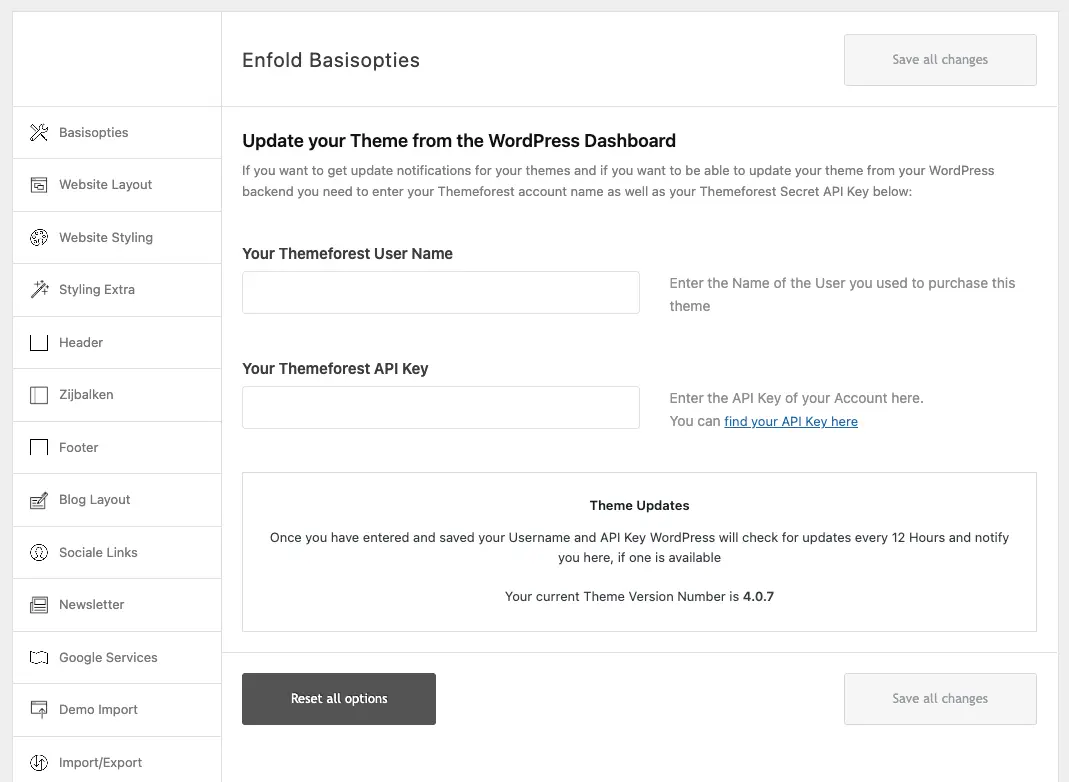
    I’ve bought the Enfold template through themeforest. However, the instructions from the plugin (https://moniquerijksen.nl/wp-content/themes/enfold/framework/images/layout/FIND_API.jpg) are not up to date anymore. I cannot upload my license to the plugin settings, because the fields don’t match.

    Does anyone know how I can add my license to update the plugin? I cannot update my php version now because the site keeps crashing. I’ve mailed Kriesi support a bunch of times but got no answer whatsoever. Any answer is highly appreciated.

    This is the current set up: https://moniquerijksen.nl/wp-content/uploads/2026/04/screenshot-2026-04-02-at-11-14-45.webp

    Thank you very much.

    #1496519

    In reply to: video aspect ratio

    Hi,

    Thank you for the update.

    Adding this css code should help get rid of the gris bar, but it will distort the image a bit. Based on our checks, the distortion is not really visible. Please make sure to purge the cache before checking.

    #top .av-video-slide iframe, #top .av-video-slide embed, #top .av-video-slide object, #top .av-video-slide video {
        object-fit: fill;
    }

    Best regards,
    Ismael

    #1496508

    Hi,

    1. The images will only display the image text inside the lightbox, it doesn’t support the layout in your screenshot unfortunately.

    2. We can give you CSS to use, but your images will likely lose their aspect ratio, or appear skewed.

    Best regards,
    Rikard

    #1496489

    Hi,

    Thank you for the update.

    This css code should help:

    #top #header_meta .phone-info {
        position: absolute;
        right: 50px;
        top: 80px;
    }

    Result:

    BKAvFTb.md.png

    Best regards,
    Ismael

Viewing 30 results - 31 through 60 (of 106,489 total)