

Forum Replies Created
-
AuthorPosts
-
Hi,
That is odd, I thought it was full-width yesterday? It looks like it is set at Enfold Theme Options > Layout > Maximum Container width 1310px, please try changing to 100%Best regards,
MikeOctober 13, 2019 at 9:22 pm in reply to: Change color desktop menu items when hovered or selected #1147620Hi,
Thank you for the feedback, I adjusted the css to this:@media only screen and (min-width: 989px) { .header_color .sub_menu>ul>li>a, .header_color .sub_menu>div>ul>li>a:hover, .header_color .main_menu ul:first-child > li > a:hover, #top .header_color .main_menu .menu ul .current_page_item > a:hover, #top .header_color .main_menu .menu ul .current-menu-item > a:hover, #top .header_color .sub_menu li ul a:hover { color: #be1717 !important; } }Please clear your browser cache and check.
Best regards,
MikeHi,
Sorry for the late reply, I tested the test contact form that I had added with only the name & email address fields and it again worked while your large form didn’t, so I Enabled the Avia Layout Builder Debugger and copied your form to the test page a started removing elements until your form worked and isolated that when the fields that were validated with “valid number” were changed to “not empty” the form worked:
Telefoonnummer:
Aantal medewerkers:
Aantal aanwervingen per jaar:
so I made this change to your active form and it is now working, please check.
I will let the dev team know about this so they can check this validation, thank you for your patience throughout this issue.Best regards,
MikeHi,
I found that if I try to load your site without the “www” in your url it will not load, but adding the “www” loads the site, which is fine for me but since you posted the url both ways it explains why sometimes I thought your site was down.
Anyways, I tried to login again to investigate further but I couldn’t, please check.Best regards,
MikeHi,
Glad we were able to help, we will close this now. Thank you for using Enfold.For your information, you can take a look at Enfold documentation here
For any other questions or issues, feel free to start new threads in the Enfold forum and we will gladly try to help you :)Best regards,
MikeHi,
Thank you for the login, I reset your site and uploaded the 2017 Demo images and slider for the layerslider, and then tried to install the demo, but I got this server error:
Failed to load resource: the server responded with a status of 500 () admin-ajax.php
I assume that this could be due to your security settings since the demo files are pulled from our server, and even though I uploaded the images via ftp, the importer still tries to get them from ours and giving errors.
So I edited the importer .xml file so the importer would install the images from your server where I had uploaded them, which worked without error, but I still had to adjust some minor theme settings, this was expected for this type of import “hack”.
You will need to follow the steps in the woocommerce setup wizard to finish activating it, but that should be all.
Please clear your browser cache and check, and let us know if we can close the thread.Best regards,
MikeHi,
Thanks for your feedback and the screenshots, I adjusted the css and included the #808080 color for the search icon and burger menu icon to match your topbar phone number.@media only screen and (max-width: 988px) { #av-burger-menu-ul a .avia-menu-text,#av-burger-menu-ul a .av-submenu-indicator { color: #fff !important; } #av-burger-menu-ul a:hover .avia-menu-text,#av-burger-menu-ul a:hover .av-submenu-indicator { color: #333 !important; } .html_av-overlay-side-classic #top .av-burger-overlay li li .avia-bullet, .html_av-overlay-side.av-burger-overlay-active #top .av-hamburger-inner, .html_av-overlay-side.av-burger-overlay-active #top .av-hamburger-inner::before, .html_av-overlay-side.av-burger-overlay-active #top .av-hamburger-inner::after { background-color: #808080 !important; } #menu-item-search a:before { color: #808080 !important; } }Please clear your browser cache and check.
Best regards,
MikeHi,
Please try this code in the General Styling > Quick CSS field or in the WordPress > Customize > Additional CSS field:#top #wrap_all #main blockquote,#top #wrap_all #main blockquote p,#top #wrap_all #main blockquote a { font-family: 'georgia' !important; border-left-width: 2px !important; }After applying the css, Please clear your browser cache and check.
Best regards,
MikeHi,
Sorry for the late reply, if I understand correctly you are using the Enfold Photography Portfolio and I will assume we are trying the B&W effect on the portfolio items on the portfolio page So the reason why the css you found on the forum is not working for you is most likely because it was a css grayscale filter and for this masonry element the image is a background image applied with a “url” and not the “img” that the filter needs.
But we can “fake” the grayscale with this css, only when it is not hovered, so on hover your color image will show:a.av-masonry-entry.isotope-item .av-masonry-outerimage-container:not(:hover) { -moz-filter: url("data:image/svg+xml;utf8,<svg xmlns=\'http://www.w3.org/2000/svg\'><filter id=\'grayscale\'><feColorMatrix type=\'matrix\' values=\'0.3333 0.3333 0.3333 0 0 0.3333 0.3333 0.3333 0 0 0.3333 0.3333 0.3333 0 0 0 0 0 1 0\'/></filter></svg>#grayscale"); -o-filter: url("data:image/svg+xml;utf8,<svg xmlns=\'http://www.w3.org/2000/svg\'><filter id=\'grayscale\'><feColorMatrix type=\'matrix\' values=\'0.3333 0.3333 0.3333 0 0 0.3333 0.3333 0.3333 0 0 0.3333 0.3333 0.3333 0 0 0 0 0 1 0\'/></filter></svg>#grayscale"); -webkit-filter: grayscale(100%); filter: gray; filter: url("data:image/svg+xml;utf8,<svg xmlns=\'http://www.w3.org/2000/svg\'><filter id=\'grayscale\'><feColorMatrix type=\'matrix\' values=\'0.3333 0.3333 0.3333 0 0 0.3333 0.3333 0.3333 0 0 0.3333 0.3333 0.3333 0 0 0 0 0 1 0\'/></filter></svg>#grayscale"); }Please try this code in the General Styling > Quick CSS field or in the WordPress > Customize > Additional CSS field, and then clear your browser cache and check.
This will effect all of your masonry portfolio items.
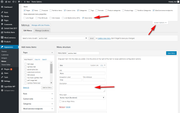
via GIPHYFor the menu text “Where the heart is” please go to WordPress > Appearance > Menu and open the “Screen Options” tab at the very top right corner, and check the box “Description” then a new menu field will show for every menu item, I believe that is were you will find the text.
Best regards,
MikeHey Thomas,
Sorry for the late reply, if I understand correctly the issue is only with the mobile menu. Please try this code in the General Styling > Quick CSS field or in the WordPress > Customize > Additional CSS field:.html_av-overlay-side #top #wrap_all .av-burger-overlay-scroll #av-burger-menu-ul .av-active-burger-items a { color: #fff !important; } #top #wrap_all #header #av-burger-menu-ul > li.av-active-burger-items.av-show-submenu > a,#top #wrap_all #header #av-burger-menu-ul > li.av-active-burger-items.av-show-submenu > .sub-menu > .av-show-submenu > a { color:#333 !important; }this css will change the mobile menu text to white when the menu opens and change it to brown when the background is white, such as when a menu item is activated.
After applying the css, Please clear your browser cache and check.
Please see the screenshot in Private Content area.Best regards,
MikeHey cabinplant,
Sorry for the late reply, unfortunately, there is not a way to do this.
We can remove all text with some javascript if you wish that.Best regards,
MikeHi,
Glad to hear, we will close this now. Thank you for using Enfold.Best regards,
MikeHi,
Sorry, I couldn’t login please check.
Response: 331 User xxx@xxx OK. Password required
Response: 530 Login authentication failed
I tried as:
http://ftp.xxx (no http)
xxx
plain ftp
ftp over tls
sftpBest regards,
MikeHi,
I tried searching your page for a block quote, but I couldn’t find one, please post the text, an admin login may be helpful too.Best regards,
MikeOctober 12, 2019 at 11:51 pm in reply to: Guenni007 now says goodbye as an active participant of this forum. #1147464Hey bmklei,
Thanks for the link and login, I checked your custom.css file and your General Styling > Quick CSS field & WordPress > Customize > Additional CSS field & your Enfold Theme Options > Advanced Styling but I don’t see where you included your H1 font-family.
But examining your page source code I find that your font-family isfont-facewhich is likely the brake.font-family: 'font-face','HelveticaNeue','Helvetica Neue','Helvetica-Neue',Helvetica,Arial,sans-serif; }Do you have any ideas were the font has been adjusted, such as a plugin?
Is your server caching also? Please ask your webhost about clearing and temporarily turning off your server cache.Best regards,
MikeHi,
Thank you for the login, I believe that your IP protection has blocked the import of the images.
My IP is in the Private Content area, please provide FTP access so I can upload the images and reset and reinstall your demo.Best regards,
MikeHi,
Please see new euro standards outlined here that we are working on and seem higher than ADA. Sorry, the conversation is in German, please use Google translate.Best regards,
MikeHey MiikkaSalminen,
Sorry for the late reply and thanks for the link. I’m not sure what you are trying to do, because I see that you are using the latest theme version and your site seems built so it is not a demo you are looking for.
So why are you trying to download the theme to your site? For what result?
If this is a language issue where “download” = “update” you do not need to update as you have the latest version.Best regards,
MikeOctober 12, 2019 at 10:11 pm in reply to: Change color desktop menu items when hovered or selected #1147453Hi,
Please try this code in the General Styling > Quick CSS field or in the WordPress > Customize > Additional CSS field:@media only screen and (min-width: 989px) { .header_color .sub_menu>ul>li>a, .header_color .sub_menu>div>ul>li>a, .header_color .main_menu ul:first-child > li > a, #top .header_color .main_menu .menu ul .current_page_item > a, #top .header_color .main_menu .menu ul .current-menu-item > a, #top .header_color .sub_menu li ul a { color: #be1717 !important; } }this will apply the color to only desktop menus
Best regards,
MikeHey Joan Vidal,
Sorry, but we are not updating or selling Eunoia anymore, please see this post for further info.
Since you made your purchase in 2014 we can not upgrade you to Enfold for free or discount.
We can send you a copy of Eunoia, but it will be the same version. I would recommend downgrading your WordPress to v4.9.8 and PHP to v5.6
Or we would love to see you join us with Enfold, but you will basically have to recreate your site as it is not a simple upgrade to move to Enfold.Best regards,
MikeHey Candace Loy,
Welcome back, this is true, Enfold is the only theme now. Please see this post for further explanation.Best regards,
MikeHi,
Please try this code in the General Styling > Quick CSS field or in the WordPress > Customize > Additional CSS field:#top:not(.home) #socket .copyright { display: none !important; }Best regards,
MikeHey alexbonesteel,
Thanks for the link, I’m not seeing your product images on your page in desktop unless I click on your page. It seems due to this error:

which seems to be triggered by “touchstart”
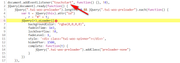
Please ensure that Enfold Theme Options > Performance > Load jQuery in your footer is not checked, and also ensure that your caching plugin is not loading your jQuery in the footer, and then disable Enfold Theme Options > Performance > JS & CSS file merging and compression and clear your browser cache, and check.
Otherwise please disable your plugins and clear your browser cache to see if that corrects.Best regards,
MikeHey MikeTandySwag,
Please adjust your Column > Border > Border Radius to 20px

Best regards,
MikeHey dataminegroup,
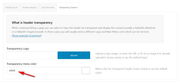
To change the menu color for the transparency menu please adjust at Enfold Theme Options > Header > Transparency Options > Transparency menu color
Best regards,
MikeHey Dzimnikov,
Thank you for the login, to change the menu color for the transparency menu please see Enfold Theme Options > Header > Transparency Options > Transparency menu color
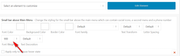
To make the “MASON DEAN NY” text bold, please see Enfold Theme Options > Advanced Styling > Small bar above Main Menu and change the font-weight to 900
To add in the text “Next Event: July 26-28, 2019” at the top left, I assume that you mean that in the Phone Number or small info text field you want Next Event: July 26-28, 2019 at the top left and MASON DEAN NY in the top right, so your Phone Number or small info text field will look like:<span class="info-left">Next Event: July 26-28, 2019</span> <span class="info-right">Sponsored by <a href="http://www.masondean.nyc/"><b>MASON DEAN NY</b></a> </span>and your css will look like:
#header_meta > div > .phone-info,#header_meta > div > .phone-info > span {
width: 100% !important;
float: none !important;
display: inline !important;
}
.phone-info span.info-right {
float:right !important;
line-height: 30px;
}
.phone-info span.info-left {
float:left !important;
line-height: 30px;
}
For your last question, the color of transparent menu is for the color of the menu text, please see above.
So to change your header to have a little white transparency, your css would look like:#top .av_header_glassy.av_header_transparency #header_main { background-color: rgba(255,255,255,0.25) !important; }I added all of these changes for you, please clear your browser cache and check.
Best regards,
MikeHey alwaysrome,
Sorry, our demos are not created with the duplicator plugin, please provide admin and ftp access in the Private Content area so we can investigate. Also what host are you using?Best regards,
MikeHey adamghart,
Thanks for the link, I see your site looks full-width now, but how was it before?
Please see the screenshot in Private Content area.
Please provide more details and an admin login in the Private Content area so we can be of more assistance.Best regards,
MikeOctober 12, 2019 at 3:45 pm in reply to: customizations (theme options) are no visible, nor can they be set #1147410Hey ictsystem,
Thanks for the login, I viewed your homepage as an admin logged in and as a logged out user, but I found no difference.
I was also able to see your theme options and make changes, please see the screenshot in Private Content area.
I was also able to make changes in your Advanced Layout Builder, without issue. I was able to change colors and Google fonts.
Please describe one element that is not working correctly as an example and include screenshots and let us know what browser you are using.Best regards,
Mike -
AuthorPosts
