

Forum Replies Created
-
AuthorPosts
-
Hi,
Sorry, I couldn’t find any way to disable swipe on a site, but from my research changing the “overflow” may help, please try this css:#top.page-id-1522 #av-tab-section-1.av-tab-section-container { overflow: unset !important; }Best regards,
MikeHi,
Please try this solutionBest regards,
MikeHi,
Sorry but it seems that we have limited access, your theme settings are not visible along with woocommerce and more, so we can’t see what needs adjusting to make your pagination work.Best regards,
MikeHi,
Glad we could help, I assume we can close this now, but I like to ask first.
Is there anything else we can assist with on this issue?Best regards,
MikeHi,
To remove the order around the button, Please try this code in the General Styling > Quick CSS field or in the WordPress > Customize > Additional CSS field:#top #wrap_all .avia-button.avia-color-light, #top #wrap_all .avia-button.avia-color-dark { border-width: 0px !important; }To remove the gap, please try this css:
.avia-caption-content p,h2.avia-caption-title {
margin: 0px !important;
}
Best regards,
MikeHi,
Glad we were able to help, we will close this now. Thank you for using Enfold.For your information, you can take a look at Enfold documentation here
For any other questions or issues, feel free to start new threads under Enfold sub forum and we will gladly try to help you :)Best regards,
MikeHi,
Since you are using the product grid have you set the pagination and the bottom of the options?
I assume that you have but just need to check. In my research, I found another possible solution here.
Is it possible for us to login as admin to assist? If so please include admin login in the Private Content area.Best regards,
MikeHi,
Thank you for your explanation, so please try this:
in your footer > copyright field please use this code:<span class="mobile-copy">© 2019 RMS SICHERHEITSANSTALT</span><span class="desk-copy">© 2019 Copyright – RMS Sicherheitsanstalt</span>[nolink]Then in your Quick CSS, please use this css:
@media only screen and (max-width: 767px) {
    .desk-copy {display: none;}
}
@media only screen and (min-width: 768px) {
    .mobile-copy {display: none;}
 }
Now you will have different copyright text showing for different devices.
Using these classes you can also change the color of the text, font-size, and much much more!Best regards,
MikeHi,
Sorry, I don’t mean to irritate you, I’m only trying to help, and get a full understanding of the issue.
In my experienced Mac and PC are not always the same, so this info helps. Thank you.
I will ask a team member with a Mac to take a look.Best regards,
MikeHi,
To remove the border around the ticket area, Please try this code in the General Styling > Quick CSS field or in the WordPress > Customize > Additional CSS field:table.tribe-events-tickets { border-style: hidden !important; }Best regards,
MikeHi,
Sorry, it seems that my speed typing app tried to “auto correct” what I was typing, the last line of my post above should have been that we can not put each button on it’s own line, this is because the first two buttons are in one div. My goal with the css above was to remove the bottom margin of the third button so they are all in one line.
So when I check now this has been accomplished, Please see the screenshot in Private Content area. If you did understand that this is what I was trying to do and still don’t see this, then please clear your browser cache.Best regards,
MikeHi,
The conditional tag wp_is_mobile() is not recommended for css because of how it works, here is a good post on it
Please try this instead, it seemed to work in my test on our demo:function remove_mobile_cart_link(){ ?> <script> (function($){ $(document).ready(function(){ var width = $(window).width(), height = $(window).height(); if ((width <= 768)) { $('a.cart_dropdown_link').removeAttr('href'); } else {} }); })(jQuery); </script> <?php } add_action('wp_footer', 'remove_mobile_cart_link');Best regards,
MikeApril 16, 2019 at 3:04 am in reply to: 404 error loading themes/enfold/images/background-images/ios-linen-dark.png #1091183Hi,
Interesting that this is not happening on your staging site because if I recall correctly they are both on the same server with the same settings. Is this image set in your functions.php with a add action like this?add_action('wp_head', function() { echo '<link rel="icon" sizes="32x32" href="/ios-linen-dark.png">'; });and if so please try changing the path to absolute, this is the full url.
If the image is added in your header.php, or wherever, still try changing the path.Best regards,
MikeHi,
Thank you for the login, well my idea doesn’t seem to be having much success in correcting this, and it looks like your site is live and taking orders now so I don’t want to dig too deep guessing and affect your orders.
Now in your first post when everything was working correctly, was the site on a staging or localhost, or was it in maintenance?Best regards,
MikeHey ilonka78,
When I take a look at your site it looks like your css is working, I don’t see any extra space between your sections. I do see some overlap, so you may want to adjust again. Please see the screenshot in Private Content area.
Please try clearing your browser cache.Best regards,
MikeHi,
Glad Nikko was able to help, unless there is anything else we can help with on this issue, shall we close this then?Best regards,
MikeHey Robin Ferris,
Typically this means that your PHP Max Upload Size is too small.
Please ask your webhost to change your site setting to these:PHP Version: 7.0.x
PHP Time Limit: No limit
PHP Memory Limit: 256M
PHP Post Max Size: 50M
PHP Max Upload Size: 20MBest regards,
MikeHey Thảo,
That is great news, you are looking at the “Enfold Construction Demo” which is a free demo inside of “Enfold”
Please go here to purchase.
You will also get 6 months of support in our support forum.
I recommend upgrading to a full year of support by checking the box: “Extend support to 12 months”
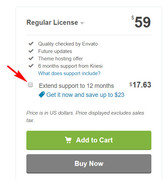
Please let us know if there is anything else we can help with.Best regards,
MikeHi,
Thanks for the login, once I logged in and then cleared my browser cache your logo appeared, so I assumed that you just solved this?Best regards,
MikeHi,
Ok, so I looked up the same product you had in your screenshot and I got the same as you.
So to change the text “This is only an estimate. Prices will be updated during checkout.”
to: “Your total including shipping. No additional fees”
Try adding this code to the end of your functions.php file in Appearance > Editor:function custom_script(){ ?> <script> (function($){ $(document).ready(function(){ $( "p.woocommerce-shipping-destination" ) .text( "Your total including shipping. No additional fees" ); }); })(jQuery); </script> <?php } add_action('wp_footer', 'custom_script');Best regards,
MikeHi,
Thanks that helped a lot :)
Ok so ticket cosy & number of tickets is one element (screenshot 1) the “buy now” can be adjusted down (2) but to each on their own line.#top .tribe-events-event-cost form { margin-bottom: 0px !important; }input[type=text].tribe-ticket-quantity { display: inline !important; width: 40% !important; margin-bottom: 0px !important; }Best regards,
MikeHi,
I’m sure I can change any text, but I didn’t see it. Please look at my screenshot and add your own so I can help.
It probably right in my face :)Best regards,
MikeHi,
Thank you for your feedback, that is a big difference in what I thought.
Ok, so I checked out the link in mobile and didn’t find any issues, I also tried clicking on the map, thinking that was part of the issue. Perhaps I’m still not clear.
I should say that I have no issues clicking on the title icons to see the next element in mobile, mobile is working as I would expect. Please note that I have an Android, so if this turns out to be another iPhone issue I going to pull my hair out :)
Ok, so can you please make a video of the issue on your mobile?
This would help so much, for Android, I found the app: Screen Recorder – No Ads which works great. But for iOS, you will have to search for one yourself.
I hope we can get this/me sorted out :)Best regards,
MikeHi,
Sorry, perhaps we have a difference in language here, I can help you create different text based on screen size, and many other things.
It is very easy, but I’m not sure how to help you.
Please show me with screenshots what you want to see in mobile, and on desktop, Then please include an admin login to your site so I can do it.
This may be very easy once I understand :)Best regards,
MikeApril 15, 2019 at 12:35 am in reply to: change the word "Mostra dettagli" in the product sheet #1090780Hi,
Glad we were able to help, we will close this now. Thank you for using Enfold.For your information, you can take a look at Enfold documentation here
For any other questions or issues, feel free to start new threads under Enfold sub forum and we will gladly try to help you :)Best regards,
MikeHi,
If it’s good for you we can keep this thread open, but can you do me a favor, Please include your URL and admin login in the Private Content area with each post.
You see your posts are pagination for me so sometimes I have to search back 3 pages to find your site info, that’s why I keep posting it myself. I don’t save anyone’s login to my browser and I don’t try to remember this stuff because I typically help about 50 different sites a day.
Thanks :)
Anyways, I took a look at your cart, but I don’t see any address as a shipping estimate, Please see the screenshot in Private Content area.
I suspect this is based on cookies the site has placed on your browser, but as you know I have worked a lot on your site, including test purchases and my ad/cookie blocker is “off” for your domain. So I assume you have made many test purchases.
Please try logging out and using “incognito” mode, or depending on your browser it might be called “private” mode,
to see if you still see this info.Best regards,
MikeHi,
Yes, I use the ID’s of the element’s
I look at your crosses again, but every part of both crosses is clickable and changes the mouse to a “hand”, meaning link.
So to help, I’ll need to know your device width in pixels, the OS of the device, and the browser of the device.Best regards,
MikeHi,
Please include an admin login in the Private Content area so we can be of more assistance.Best regards,
MikeHi,
I believe that what you are asking for is text in the copyright area that is only seen on mobile?
In that case you will need to use a “span” tag with a class that will only show on mobile, because of your css:
so start with adding your text in the copyright field between these tags:<span class="mobile-only">Your copyright mobile text</span>Then please use this css in your Quick CSS:
@media only screen and (min-width: 767px) {
span.mobile-only {
display: none !important;
}
}
Please let us know how this works for you.
Best regards,
Mike -
AuthorPosts
