

Forum Replies Created
-
AuthorPosts
-
Hi,
Thanks for the feedback, The css is working for be in Chrome, but I now see that it is not working in Firefox or Edge.
When you say that if you add the css to WordPress > Customize > Additional CSS it leads me to think that you have an error somewhere in your css. Please include an admin login in the Private Content area so we can investigate further.Best regards,
MikeAugust 26, 2019 at 3:20 am in reply to: advanced layerslider elements in mobile view not appearing until I scroll #1130807Hi,
Thanks for the feedback, please check the layerslider settings for the slide, it seems that it is triggered by a scroll.
If you can’t find the setting please export the slider to DropBox and link to the Private Content area so we can examine it closer.Best regards,
MikeHi,
Thank you for the login to the dev site, I realized that I forgot to add the animation css for the Mac (-webkit-), then I added it to the Quick CSS and tested it on Windows & Mac and it worked good. Please check and try clearing your cache.
Please see the screenshots in the Private Content area.#top.page-id-655 .ls-slide-backgrounds { width:100%; height:100%; color:black; font-weight:bold; animation: myanimation 10s infinite; -webkit-animation: myanimation 10s infinite; } @keyframes myanimation { 0% {background-color: red;} 25%{background-color:yellow;} 50%{background-color:green;} 75%{background-color:brown;} 100% {background-color: red;} } @-webkit-keyframes myanimation { 0% {background-color: red;} 25%{background-color:yellow;} 50%{background-color:green;} 75%{background-color:brown;} 100% {background-color: red;} }I took a look at your slider but I couldn’t make sense of how it works, I don’t get questions about layerslider advanced settings, sorry. But I did remove the animation css that was in the first slide style field, hoping that it would work better, but it didn’t.
Sorry I couldn’t be more help with it.Best regards,
MikeHi,
Thank you for the mock-up image, first, please look in your custom css and remove this css which makes the date & comments meta red:.date-container,.comment-container a { color: #b41528 !important; }Then add this code to the end of your functions.php file in Appearance > Editor:
function new_custom_script(){
  ?>
  <script>
(function($){
  $(document).ready(function(){
$( '.post-entry' ).each(function() {
$( this ).find( '.blog-categories.minor-meta' ).css({'color':'#969696','font-size': '17px','font-weight': 'bold','margin-top':'20px'}).insertBefore( $(this).find('h2.post-title.entry-title ') );
$( this ).find( '.post-meta-infos' ).css({'border-top':'2px solid #b41528','color':'#969696','font-size': '17px','font-weight': 'bold','margin-top':'0px'}).insertBefore( $(this).find('h2.post-title.entry-title ') );
});
});
})(jQuery);
</script>
<?php
}
add_action('wp_footer', 'new_custom_script');
Best regards,
MikeHey Thomas,
Enfold also uses shortcodes in it’s core, and you can use the shortcodes if you wish, such as adding an element to a post or page that was built with the WordPress Classic Editor. If you look at the toolbar in the Classic Editor you will see the “shortcode wand” which you can get the shortcodes from:
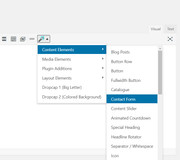
but unfortunately, Propulsion and Enfold don’t use the same shortcodes.Best regards,
MikeHey Rami,
Thanks for the link to your page, please see the screenshot in Private Content area, so on your page you have an orange angle element, and the way that it is created to have an angle is that it has in invisible part that is a little bigger than what you see, in the screenshot you will see it is blue. So to correct you could move the orange section down until you can click the buttons, or we can force the buttons on top of the invisible section with a z-index rule in css.Please try this code in the General Styling > Quick CSS field or in the WordPress > Customize > Additional CSS field:
#top.home #av_section_1 > div > div.av-extra-border-element.border-extra-diagonal {
	    z-index: 0 !important;
}
#top.home #av_section_1 > div > div.av-extra-border-element.border-extra-diagonal .av-extra-border-inner {
	    background-color: rgba(252, 170, 58, 1) !important;
}
#top.home #av_section_1 > div.av-section-color-overlay-wrap > div.container > main > div > div > div.avia-buttonrow-wrap.avia-buttonrow-center {
	z-index: 50 !important;
}
Best regards,
MikeHi,
Glad to hear that this helped, I typically write the css to affect only one section, in this case, the code will only work on your special heading on your home page, I thought there was only one there, but if you add a custom class in your element options for developers for the special heading, such as “elqu” then you can add it to the css like this:#top.home h3.av-special-heading-tag.elqu strong { text-shadow: -4px 1px 7px rgba(0,0,0,0.65); }Please note that the element options for developers field should only contain one word that will become the “class”, and not the actual css.
If the above tip doesn’t work, please add your one-word “class” to the special heading “element options for developers” field in the element, and I will examine your page and give your the correct css.
Also please include a link to your site in the Private Content area, so I don’t have to look it up again.Best regards,
MikeHey antiguanice,
Please try this code in the General Styling > Quick CSS field or in the WordPress > Customize > Additional CSS field:.slide-entry .slide-meta-time.updated { display: none !important; }Best regards,
MikeAugust 25, 2019 at 12:29 am in reply to: Could i use the enfold element implemented subscription in Widget Area? #1130664Hey jack000486,
Yes, you can add the contact form into a widget. To do this please use the shortcode wand to create the contact form:
then adjust the form as you wish, when you click save the shortcode will be added to the post so you can copy:
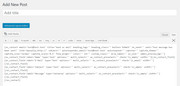
then you can add the shortcode into a html code widget:
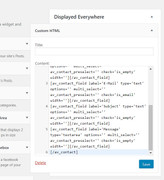
and then it will work on any page or post:
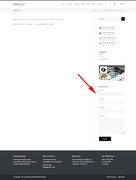
Best regards,
MikeHey Bill Ladd,
Thank you for contacting us, so you have php v5.5.40 using the Enfold v3.1.5, you are in a tricky spot, because php 5.5.40 will have to be updated for the current version, 4.5.7, but Enfold v3.1.5 will not work with v7.
So please update to v5.6.x, which will work with both, then you can update to the latest Enfold via ftp.The easiest and safest way to do this is to download the newest version from Theme Forest and rename your current theme at /wp-content/themes/enfold/ to “enfold-old” via ftp then upload the new “enfold” and check that your site is working correctly.
Once you are happy you can delete the “enfold-old” via ftp, (not the WP theme page)
Should for some reason you wish to roll-back to the old version, it’s easy to do, simply rename the new “enfold” to “enfold-new” via ftp and then rename “enfold-old” to “enfold” then refresh your page.
Please don’t try to overwrite the theme folder, as this will leave old files behind and cause errors.After you update the theme you can then update the PHP version to v7.x and everything should work well.
As for installing the new them next to the old one and switch back and forth, it seems that you could do that, I have not thought of that before, but I don’t foresee an issue with that.
I assume you will make a full backup first, then go to the theme panel and Export the Theme Settings File
Here is a screenshot of the current version theme panel, the setting should look similar, but I don’t have v3.1.5 to show you:
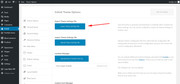
Then when you install the new theme you may need to import the theme settings file, I pretty sure the new theme will not get the settings automatically. But afterward, each time you switch back and forth the themes will use their own settings.If this doesn’t work out you can always install the new one on your localhost, or on a new server.
That is about all I can think of, please let us know if this works or if you have any other questions.Oh, yes you will need to purchase a new license Thank you.
Best regards,
MikeHey Diana,
Sorry, but with that version of Enfold you will have to update via ftp due to some issues with how Theme Forest changed from using an API to a Token. After you update you will have to create a Token, please follow these steps to create the token.To update via ftp: The easiest and safest way to do this is to download the newest version from Theme Forest and rename your current theme to “enfold-old” via ftp then upload the new “enfold” and check that your site is working correctly.
Once you are happy you can delete the “enfold-old” via ftp, (not the WP theme page)
Should for some reason you wish to roll-back to the old version, it’s easy to do, simply rename the new “enfold” to “enfold-new” via ftp and then rename “enfold-old” to “enfold” then refresh your page.
Please don’t try to overwrite the theme folder, as this will leave old files behind and cause errors.If you don’t feel comfortable doing this please include ftp access so we can assist.
Best regards,
MikeAugust 24, 2019 at 11:07 pm in reply to: After installing plugin woocommerce front from website shows a 500 error page #1130657Hi,
Thanks for the login and ftp access, I tried activating woocommerce and the frontend of the site crashed as you said, but the backend stayed available so I tried deactivating most plugins without success. I checked for an error log via ftp but didn’t find one.
Please ask your webhost to check the server error log to see if they see a cause for this.Best regards,
MikeHey n13oss,
Thanks for the link & the image, this is a little strange as there is no padding or margin, I see that it is in a text block element, does this occur if you use a code block element?
Please try this code in the General Styling > Quick CSS field or in the WordPress > Customize > Additional CSS field:#top.page-id-154 .flex_column.av_one_half.avia-builder-el-2 img, #top.page-id-154 .flex_column.av_one_half.avia-builder-el-4 img { margin-top: -8px !important; }Best regards,
MikeAugust 24, 2019 at 9:55 pm in reply to: After installing plugin woocommerce front from website shows a 500 error page #1130651Hey dekoff,
This is from only activating the official woocommerce? Please include an admin login & FTP access in the Private Content area so we can investigate.Best regards,
MikeHey Giuseppe,
Please try this code in the General Styling > Quick CSS field or in the WordPress > Customize > Additional CSS field:#top.home h3.av-special-heading-tag strong { text-shadow: -4px 1px 7px rgba(0,0,0,0.65); }it is hard to see but it is there, Please see the screenshot in Private Content area.
Perhaps another idea is to add a background box behind the white text:
#top.home #av_section_2 > div.av-section-color-overlay-wrap > div.container > div > div > div > div.flex_column.av_three_fifth {
	border-radius: 10px !important;
    background-color: rgba(0,0,0,.5);
    padding: 20px;
}
Please see the second screenshot in Private Content area.
I hope this helps.Best regards,
MikeHey jougr,
This is an interesting idea, I searched the WordPress plugin library and found: Copy Anything to Clipboard this looks like it will work well for you.
I also found two articles that explain how to do this if you feel comfortable with some lite coding: Copy to clipboard in Javascript & Copy Text Button in WordPress
I hope this helps.Best regards,
MikeHi,
Glad to hear clearing your cache or disabling caching plugins helped.
I see that you are using JetPack, please note that this plugin also causes strange issues sometimes. I also see that your PHP version is 5.6.40 which is on the edge of causing issues too. What I mean is that this used to be safe to use, but since WordPress v5.2.2 WordPress recommends v7.x and I’m starting to see issues resolving when they update their PHP. Please keep this in mind and consider updating in the near future.Ok, so now about the element preview, the element preview is meant to be an approximation of the element, it is not exact, one factor that you may be experiencing is that your content is adjusted to show in the small preview area. I have a large screen today, which looks different than when I use my small laptop screen. I hope this makes sense.
I looked at some of your different elements to find one that was previewing 13px, but I didn’t find it, which element do you mean?Best regards,
MikeHi,
Thank you for the login, Here is how to add the post meta to an Advanced Layout Builder post via shortcode like this:
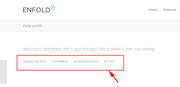
First add this function to your functions.php:function post_meta_shortcode(){ ob_start(); echo "<span class='post-meta-infos'>"; $markup = avia_markup_helper(array('context' => 'entry_time','echo'=>false)); echo "<time class='date-container minor-meta updated' $markup>".get_the_time(get_option('date_format'))."</time>"; echo "<span class='text-sep text-sep-date'>/</span>"; if ( get_comments_number() != "0" || comments_open() ){ echo "<span class='comment-container minor-meta'>"; comments_popup_link( "0 ".__('Comments','avia_framework'), "1 ".__('Comment' ,'avia_framework'), "% ".__('Comments','avia_framework'),'comments-link', "".__('Comments Disabled','avia_framework')); echo "</span>"; echo "<span class='text-sep text-sep-comment'>/</span>"; } $taxonomies = get_object_taxonomies(get_post_type($the_id)); $cats = ''; $excluded_taxonomies = apply_filters('avf_exclude_taxonomies', array('post_tag','post_format'), get_post_type($the_id), $the_id); if(!empty($taxonomies)) { foreach($taxonomies as $taxonomy) { if(!in_array($taxonomy, $excluded_taxonomies)) { $cats .= get_the_term_list($the_id, $taxonomy, '', ', ','').' '; } } } if(!empty($cats)) { echo '<span class="blog-categories minor-meta">'.__('in','avia_framework')." "; echo $cats; echo '</span><span class="text-sep text-sep-cat">/</span>'; } echo '<span class="blog-author minor-meta">'.__('by','avia_framework')." "; echo '<span class="entry-author-link" '.avia_markup_helper(array('context' => 'author_name','echo'=>false)).'>'; echo '<span class="vcard author"><span class="fn">'; the_author_posts_link(); echo '</span></span>'; echo '</span>'; echo '</span>'; echo '</span>'; return ob_get_clean(); } add_shortcode( 'sc_post_meta', 'post_meta_shortcode' );Then add this shortcode into a code block element and add the custom class “meta-shortcode” to the code block element:
[sc_post_meta]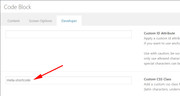
Then add this css into your Enfold Theme Options > General Styling > Quick CSS field:#top.single-post .post-entry .meta-shortcode .blog-categories { display: inline-block !important; top: 0 !important; }I have added this to your site for the post in the Private Content area and it is working, please review.
Best regards,
MikeAugust 24, 2019 at 4:23 pm in reply to: How to Realize Bullet Window Effect by Button element? #1130619Hi,
Glad we were able to help, we will close this now. Thank you for using Enfold.For your information, you can take a look at Enfold documentation here
For any other questions or issues, feel free to start new threads in the Enfold forum and we will gladly try to help you :)Best regards,
MikeHi,
Thanks for the feedback, so are you saying that the css for the background color is not working for you at all?
Please see the video in the Private Content area of what I’m seeing, I’m using Windows 10 & Chrome.
I assume that you tried to clear your browser cache.I’m not sure what you mean by “it’s the only way to offset the transparent header on this initial layer” when the header is transparent the elements are set under it, such as in our 2017 Demo
So I tried to find out why I couldn’t find the “Play-by-Scroll” on my install and it seems that this is a premium feature, correct?
I went to view it at the layer slider site and their demo did the same flashing for me, in fact I had the hardest time to even see the demo because if I scrolled down a little the slider would show almost out of view above and if I scrolled up some to see it, it would disappear only after some back a forth was I able to see it.
So I can see that this flashing is the slider and not the Enfold theme.
As a vistor to the layer slider demo page I imagine what I would think if I didn’t know what was about to happen, I would have felt that their slider was broken and a little confused.
Please see the second video.Best regards,
MikeAugust 24, 2019 at 3:16 pm in reply to: Icon list animation not working in tab section when clicking on a link #1130608Hi,
Please try updating your theme with the beta version in the Private Content area.
The easiest and safest way to do this is to rename your current theme to “enfold-old” via ftp then upload the new “enfold” then refresh your page.
Should for some reason you wish to roll-back to the old version, it’s easy to do, simply rename the new “enfold” to “enfold-new” via ftp and then rename “enfold-old” to “enfold” then refresh your page.
Please don’t try to overwrite the theme folder, as this will leave old files behind and cause errors.Best regards,
MikeHi,
Please see the setting at Enfold Theme Options > General Styling > Socket > Socket background color
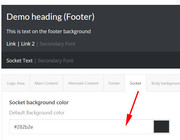
Best regards,
MikeHi,
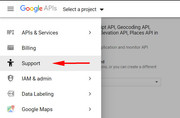
I tried your API and see that it is not working, but I’m not sure why yours is not working and mine is, the screenshot above is the only settings page in Google maps that I can find. Since this error seems to be with your Google account, I recommend contacting Google API support, they will be able to review your account and see why you can’t create a valid API
Best regards,
MikeHi,
Thank you for the link, the page with the pencil is actually a category archive page, and clicking the pencil takes you to the actual post.
To add the social share buttons to a category page please edit the enfold/archive.php page on line 90 and look for:get_template_part( 'includes/loop', 'index' ); } ?> <!--end content--> </main>and change to:
                        get_template_part( 'includes/loop', 'index' );
                    }
                    echo do_shortcode("[av_social_share title='Share this entry' style='' buttons='custom' share_facebook='aviaTBshare_facebook' share_twitter='aviaTBshare_twitter' share_gplus='aviaTBshare_gplus' share_linkedin='aviaTBshare_linkedin' share_mail='aviaTBshare_mail' custom_class='' admin_preview_bg='' av_uid='av-670mc8'] ");
                    ?>

				<!--end content-->
				</main>
or make a backup of your archive.php file and try uploading this replacment file:
https://www.dropbox.com/s/ct4k9l7xw04xa4p/archive_with_social_share.zip?dl=0Best regards,
MikeHey webdesign,
Sorry anchor links do not register a page load event in browsers, so the back button is not triggered. This is how browsers are programed and a theme or webpage can not change this.Best regards,
MikeHi,
Can we see your post? I not sure which pencil icon you mean, this is how it looks on my site:

Best regards,
MikeHey Kathy,
The “Nice Blog” layout is created by using the Classic Editor for your posts and in the theme settings: Enfold Theme Options > Blog Layout > Single Post Style > Single post with big preview image (featured image)
It also uses the Enfold Theme Options > Blog Layout > Blog Styling > Modern Business
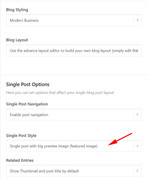
I see that you are using the Advanced Layout Builder for your blog posts and Enfold Theme Options > Blog Layout > Single Post Style > Single post with small preview image (featured image)
This is why you have the small image to the left of your posts.
If you want to still use the Advanced Layout Builder for your posts you can manually create the layout for the posts and use the Enfold Theme Options > Blog Layout > Single Post Style > Single post with big preview image (featured image) for the blog page layout, but you may need to use some css to hide the featured image on the post because your manually added big image at the top will show with the featured image.
On Advanced Layout Builder posts the related posts section will not show at the bottom of the page, but if you add this shortcode in a code block element you can create it.[avs_related_entries]I hope this helps.
Best regards,
MikeAugust 24, 2019 at 7:24 am in reply to: Page content loading in front of Revolution Slider slideshow instead of below it #1130557Hi,
Glad we were able to help, we will close this now. Thank you for using Enfold.For your information, you can take a look at Enfold documentation here
For any other questions or issues, feel free to start new threads in the Enfold forum and we will gladly try to help you :)Best regards,
MikeHi,
Glad we were able to help, we will close this now. Thank you for using Enfold.For your information, you can take a look at Enfold documentation here
For any other questions or issues, feel free to start new threads in the Enfold forum and we will gladly try to help you :)Best regards,
MikeHi,
Thank you for the link, It looks like you are not showing the footer on your homepage, you are only showing the socket, which is the part below your footer. This is why the footer color is not showing. It also seems that you are using the elementor plugin with Enfold, we are not sure how well this will work, you may find conflicts with Enfold’s built-in Advanced Layout Builder.
To remove the theme credit I added [nolink] into your socket copyright field. Please check.Best regards,
Mike -
AuthorPosts
