

Forum Replies Created
-
AuthorPosts
-
Hi,
We will close this now. Thank you for using Enfold.For your information, you can take a look at Enfold documentation here
For any other questions or issues, feel free to start new threads in the Enfold forum and we will gladly try to help you :)Best regards,
MikeHi,
The dev team has released a fix for the Contact Form Validation iOS bug,
Please try to create a backup copy of the file at:
\enfold\config-templatebuilder\avia-shortcodes\contact\contact.js
and replace with this contact.js
Then clear your browser cache and any cache plugin, and check.
Please note that js files can be hard to clear from caching and minifying plugins, so please try a few times.Best regards,
MikeHi,
The dev team has released a fix for the Contact Form Validation iOS bug,
Please try to create a backup copy of the file at:
\enfold\config-templatebuilder\avia-shortcodes\contact\contact.js
and replace with this contact.js
Then clear your browser cache and any cache plugin, and check.
Please note that js files can be hard to clear from caching and minifying plugins, so please try a few times.Best regards,
MikeHi,
Thanks for the feedback and the video. Since this modification is working for you perhaps you could place the footer.php in your child theme?
Sorry, but I have not been able to reproduce the error, so I can’t suggest a core change that can’t be reproduced.
I hope this makes sense and is reasonable.Best regards,
MikeHi,
Glad we were able to help, we will close this now. Thank you for using Enfold.For your information, you can take a look at Enfold documentation here
For any other questions or issues, feel free to start new threads in the Enfold forum and we will gladly try to help you :)Best regards,
MikeHi,
We would be happy to take a look, but please log into the support forum and include an admin login in the Private Content area so we can be of more assistance.
Right now you seem to be using our Pre-sales contact form.
If you have not created a support forum account please register here kriesi.at/support/register with your item purchase code .
Then go to: https://kriesi.at/support/enfold
Scroll to the bottom of the page to open a new ticket.Best regards,
MikeSeptember 10, 2019 at 5:28 am in reply to: Fatal error after updating Enfold to current version #1136337Hi,
Sorry not really sure, please include an admin login in the Private Content area so we can investigate further.
Is this a staging site, can we disable plugins to test?Best regards,
MikeHi,
Thank you @Guenni007Best regards,
MikeHi,
Thanks for your feedback, I have viewed the element on mobile and it seems to work correctly while it is in view, when scrolling down out of view the element does reset to the first position, but this doesn’t seem to be an inconsistent behavior.
The bullets in box 6 are showing for me, are there other bullets? I had to customize the element to show bullets because the element itself is an unordered list so bullet points are disabled.
The boxes are the size of the content.Best regards,
MikeHi,
Sorry I tried to research this but couldn’t find a solution, the closest I found was:jQuery('.mfp-wrap').magnificPopup({ type: 'inline', disableOn: 767, closeOnBgClick:false, closeBtnInside:true, });but it doesn’t work nor any adjustments I applied.
You could change the css above from 90% width to 100% width, that would leave no place for the user to click, but then I’m not sure what the advantage is to using a popup over a new page?
Yes, the modal’s content should reload on open because it’s the same as opening a new tab.Best regards,
MikeHi,
Please try this code also in the General Styling > Quick CSS field or in the WordPress > Customize > Additional CSS field:#top #avia-menu ul.sub-menu li a:hover { background-color: #F1F1F1 !important; }Best regards,
MikeSeptember 10, 2019 at 3:56 am in reply to: Masonry Gallery element leaves first and last image out #1136313Hi,
Thanks for your feedback, I missed that because I was looking at the first position, but actually there are 12 images showing, 2 images are not missing, by resizing the images down to 175px you now have room for 14 images or 7 columns :)
Please change your masonry settings to allow 14 images to show.Best regards,
MikeHi,
Thank you for the password, I see that on mobile taping the images actually opens them into lightbox, so one possibility is to disable that and then use css to show the text overlay on “active” which seems to work with a tap in my test:@media only screen and (max-width: 790px) { a.av-masonry-entry:active .av-inner-masonry-content.site-background { opacity: 1 !important; } }but then you would lose the image in a lightbox, which for mobile may be better. Another possibility is to add your text into the “caption” of your image so it will show under the image in lightbox. We can add some css to hide the caption on desktop devices if you wish.
Best regards,
MikeHi,
Glad we were able to help, we will close this now. Thank you for using Enfold.For your information, you can take a look at Enfold documentation here
For any other questions or issues, feel free to start new threads in the Enfold forum and we will gladly try to help you :)Best regards,
MikeHey alanjameswright,
Thanks for the login, I took a look at your homepage and found that the text in your text element had inline styles, that is it had css code to force it to be a certain size or color or anything else. When you look at your text element in the backend it looks like the plain text in the visual tab, but if you switch to the text tab you would see the coding wrapping the text.
Please see the screenshots in the Private Content area.
Often this can happen if you copy and paste into the visual tab, try pasting into the text tab, if this was the case.
I cleaned up the text for you and saved the page, and now the font size you picked in the other options works.Best regards,
MikeHi,
Bitte versuchen Sie diesen Code auch im Feld Allgemeines Styling> Schnelles CSS oder im Feld WordPress> Anpassen> Zusätzliches CSS#top #avia-menu ul.sub-menu li ul li a { background-color: #F1F1F1 !important; }— Translated with Google —
Please try this code also in the General Styling > Quick CSS field or in the WordPress > Customize > Additional CSS field:
#top #avia-menu ul.sub-menu li ul li a { background-color: #F1F1F1 !important; }Best regards,
MikeHey tizianafrison,
Sorry for the late reply, I have taken a look at your site and for the top color section, I used the font size adjustments for mobile devices so the font will be a little smaller and not go off the page. Please see screenshot 1 below.
For the slider below I first added this css to make the caption area a little taller so the text would not be tiny and then I made the caption width 50% so it would not be over the images:@media only screen and (max-width: 768px) { #top.home #av_section_2 > div > .template-page.content { padding: 0 !important; } #top.home #es-home .av-slideshow-caption { width: 50% !important; } #top.home #es-home,#top.home #es-home .avia-slideshow-inner, #top.home #es-home li { height: 300px !important; } }Then I used the same technique as above and changed the font size for mobile “tablets” as an example, that is up to 767px please see screenshot 2 below. If you clear your browser cache and adjust it to about 750px-760px you will see the result, screenshot 3 below.
The easiest way to pick the font sizes is to open two tabs one with the page backend to make adjustments, and one with a mobile preview, screenshot 4 below. Just make an adjustment, save and refresh the preview to see if you like it.Now, these steps still need to be done for small mobile devices 320px-430px so please try to follow these steps to adjust the font sizes as in screenshot 2 to a way you like it.
Just let us know if you need a hand.Best regards,
MikeHey Hans-Jörg Ott,
Vielen Dank, dass Sie sich mit uns in Verbindung gesetzt haben. Für die meisten Demos sind keine Plugins erforderlich, für einige ist WooCommerce für die Shopfunktionalität und BBPress für die Forumfunktionalität erforderlich. Die Church-Demo benötigt das kostenlose Plugin für den Veranstaltungskalender Das kostenpflichtige WooCommerce Bookings plugin für Buchungsfunktionen ist jedoch nicht erforderlich.
Hier ist ein Screenshot aus dem Thema, damit Sie selbst sehen können:
https://i.postimg.cc/zXmrTY18/demos.jpg— Translated with Google —
Thank you for contacting us, most of the demos do not require any plugins, some need WooCommerce for shop functionality, and BBPress for forum functionality, The Church demo needs free The Events Calendar plugin, and the Spa, Hotel, and Travel demos also recommend the paid WooCommerce Bookings plugin for booking functionality, but it’s not required.
Here is a screenshot from inside the theme so you can see for yourself:
https://i.postimg.cc/zXmrTY18/demos.jpgBest regards,
MikeSeptember 9, 2019 at 12:16 am in reply to: Weird behaviour when using Avia builder comments element #1135764Hi,
Thanks for the link, the thought behind this message is to give your commentors some feedback that their comment has been received. Often blog comments will give no feedback so users think that something went wrong and post a few times, then you will have all of these duplicate comments to work through.
But I was going to help remove the message for you so I made a comment at the link in the Private Content area and it seemed to publish right away until I refreshed the page in which it was gone, so I didn’t get the message. But this action is even better because if I was a spam bot I would have left thinking my job was done.
Anyways, as I didn’t get the message I’m not sure how you want to proceed.Best regards,
MikeHi,
Glad Guenni007 was able to assist, and thanks for using Enfold.Best regards,
MikeHey Sanja Marinkson,
Welcome, please register your support account here kriesi.at/support/register with your item purchase code .Then go to https://kriesi.at/support/enfold
and scroll to the bottom of the page to open a new ticket.
Best regards,
MikeHey Aaron Casteel,
Thanks for contacting us, our support forum is a paid service for licensed users, but I may be able to shed some light on your issue.
I assume from your post that your theme version is quite old such as v4.0.7 or earlier, and your WordPress version is up to date v5.2.x, In this case the theme will not work correctly because it’s not WordPress v5 ready, so you will need to update.
I will take a quick look if you send a link to your site so I can confirm my assumptions.
If this is true then you are in luck because today we are having a birthday sale and when you purchase a license you also get 6 months of support in our forum to get your site updated and running smoothly.Best regards,
MikeHi,
Glad we were able to help, we will close this now. Thank you for using Enfold.For your information, you can take a look at Enfold documentation here
For any other questions or issues, feel free to start new threads in the Enfold forum and we will gladly try to help you :)Best regards,
MikeHi,
Thanks for the feedback, I see that when a pdf link is added the page throws a 403 error, as you stated.
I tested adding a pdf link with the media button in a text element, adding the pdf link manually, adding the pdf link in a code block element, none worked without error. What did work was shorting the link with bitly.comSince a 403 is a server error please ask your web host to see if there are any clues in the error log, and ensure that the file and fold permissions are correct, all folders should be 755 and all files should be 644
Unfortunately, I couldn’t reproduce this error on my test site so it’s going to be a little trickier to solve.
Best regards,
MikeHi,
Entschuldigung, Google Translate ist diesmal etwas ungeeignet. Möchten Sie eine andere Farbe oder dieselbe Farbe?
Ich sehe die gleiche Farbe. Bitte beachten Sie den Screenshot im Bereich Private Inhalte.— Translated with Google —
Sorry Google Translate is a little not good this time, do you want a different color, or you want the same color?
I see the same color. Please see the screenshot in Private Content area.Best regards,
MikeHi,
Yes, this means you have the update, try opening the style.css at:
\enfold\style.css
and change line 4 to: Version: 4.6.1
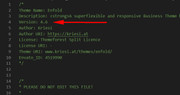
it’s the only thing you are missing :)Best regards,
MikeHi,
Thank you for your suggestions and tips I’m sure it will be helpful to others.Best regards,
MikeSeptember 8, 2019 at 9:07 pm in reply to: Masonry Gallery element leaves first and last image out #1135725Hi,
Thank you for the feedback, I checked your custom.css and found that the old css was still active above the new css, sorry I should have been clearer, I commented out the old css and now the empty item is gone.
Please clear your browser cache and check.Best regards,
MikeSeptember 8, 2019 at 8:56 pm in reply to: URGENT!! V 4.6 Problem: Videos Not Appearing In Color Sections-NEED ROLLBACK #1135723Hi,
For rolling back I would recommend using your cPanel “file manager” or FTP to rename your parent theme “enfold” folder to “enfold-new” or anything else and the upload your v4.5.7 files to “enfold” – this assumes that your parent theme folder was the proper “enfold” and not customized.
Your settings will not be lost as they are stored in the database, and you have been adding all of your customizations to your child theme – correct?Best regards,
MikeHey ALPS4U,
Thanks for the link to the video that you referred to for updating, I assume that you followed the steps of uploading the zip file via the file manager and then extracting? Unfortunately, this overwrote your current theme files in the same folder and left some outdated and unused files in the theme folder, causing the error. If you notice in the video at 2:48 he didn’t have a “enfold” folder so when he extracted it created a new “clean” folder.The easiest and safest way to do this is to download the newest version from Theme Forest and rename your current theme to “enfold-old” via ftp, or in your case, the “file manager” then upload the new “enfold” zip file and extract to create a new “enfold” folder and check that your site is working correctly.
Once you are happy you can delete the “enfold-old” via ftp or “file manager”, (not the WP theme page)
Should for some reason you wish to roll-back to the old version, it’s easy to do, simply rename the new “enfold” to “enfold-new” via ftp or “file manager” and then rename “enfold-old” to “enfold” then refresh your page.
Please don’t try to overwrite the theme folder, as this will leave old files behind and cause errors.Best regards,
Mike -
AuthorPosts


