Hi pixeet2016
Please follow this step by step guide here for a manual update via FTP (which is the best solution in my opinion right now):
1) Make a full backup of your website using a backup plugin.
2) Safe the backup somewhere outside from the webserver of your website (e.g. on your local computer or in any cloud storage you trust).
3) Sign out from your WordPress website.
4) Go to your themeforest account, sign in and download the updated Enfold v4.5 to your computer. Extract it and search for the file enfold.zip. Extract this file as well to already have your folder ready to be uploaded.
5) Sign in to FTP or SFTP using FileZilla or any other tool which is able to do that.
6) Go to the folder ./wp-content/themes and search for “enfold”. If you want, you can download the enfold folder to your computer as well (just in case you want to restore if afterwards which is easier like that than using the whole backup).
7) Delete the folder enfold via FTP. This may take 5-10min, depending on the server speed obviously.
8) Wait until it is finished and the enfold folder is gone. If that is the case, upload the “new” enfold folder including v4.5 to your website in the same directory.
9) Sign in to your WordPress website again and go to the Enfold tab (or the one from your child theme). Scroll down to the tab called Theme Update.
10) Your current API token will not work anymore as Envato changed some stuff on their API. Therefore you need to remove your current key and generate a new private key as visible in your themeforest account under “Settings” -> “API keys”. Go to https://build.envato.com and follow the steps there. To me, https://kriesi.at/documentation/enfold/how-to-install-enfold-theme/#toggle-id-5 was also very helpful (scroll down a bit there to find out about the permissions your private API key needs in order to check for future Enfold updates). Without these permissions it will not work.
11) After revalidating your new private key within the Enfold update tab, you should see a blue rectangle saying when it could be checked for the last time.
12) Done!
I hope this helps!
Feel free to ask me in case you need any assistance.
Best regards
Michael
Hi heideo and buddy1
In addition to what Rikard already posted:
Please follow this step by step guide here for a manual update via FTP (which is the best solution in my opinion right now):
1) Make a full backup of your website using a backup plugin.
2) Safe the backup somewhere outside from the webserver of your website (e.g. on your local computer or in any cloud storage you trust).
3) Sign out from your WordPress website.
4) Go to your themeforest account, sign in and download the updated Enfold v4.5 to your computer. Extract it and search for the file enfold.zip. Extract this file as well to already have your folder ready to be uploaded.
5) Sign in to FTP or SFTP using FileZilla or any other tool which is able to do that.
6) Go to the folder ./wp-content/themes and search for “enfold”. If you want, you can download the enfold folder to your computer as well (just in case you want to restore if afterwards which is easier like that than using the whole backup).
7) Delete the folder enfold via FTP. This may take 5-10min, depending on the server speed obviously.
8) Wait until it is finished and the enfold folder is gone. If that is the case, upload the “new” enfold folder including v4.5 to your website in the same directory.
9) Sign in to your WordPress website again and go to the Enfold tab (or the one from your child theme). Scroll down to the tab called Theme Update.
10) Your current API token will not work anymore as Envato changed some stuff on their API. Therefore you need to remove your current key and generate a new private key as visible in your themeforest account under “Settings” -> “API keys”. Go to https://build.envato.com and follow the steps there. To me, https://kriesi.at/documentation/enfold/how-to-install-enfold-theme/#toggle-id-5 was also very helpful (scroll down a bit there to find out about the permissions your private API key needs in order to check for future Enfold updates). Without these permissions it will not work.
11) After revalidating your new private key within the Enfold update tab, you should see a blue rectangle saying when it could be checked for the last time.
12) Done!
I hope this helps!
Best regards
Michael
Hi Raffaella and Richard
Please follow this step by step guide here for a manual update via FTP (which is the best solution in my opinion right now):
1) Make a full backup of your website using a backup plugin.
2) Safe the backup somewhere outside from the webserver of your website (e.g. on your local computer or in any cloud storage you trust).
3) Sign out from your WordPress website.
4) Go to your themeforest account, sign in and download the updated Enfold v4.5 to your computer. Extract it and search for the file enfold.zip. Extract this file as well to already have your folder ready to be uploaded.
5) Sign in to FTP or SFTP using FileZilla or any other tool which is able to do that.
6) Go to the folder ./wp-content/themes and search for “enfold”. If you want, you can download the enfold folder to your computer as well (just in case you want to restore if afterwards which is easier like that than using the whole backup).
7) Delete the folder enfold via FTP. This may take 5-10min, depending on the server speed obviously.
8) Wait until it is finished and the enfold folder is gone. If that is the case, upload the “new” enfold folder including v4.5 to your website in the same directory.
9) Sign in to your WordPress website again and go to the Enfold tab (or the one from your child theme). Scroll down to the tab called Theme Update.
10) Your current API token will not work anymore as Envato changed some stuff on their API. Therefore you need to remove your current key and generate a new private key as visible in your themeforest account under “Settings” -> “API keys”. Go to https://build.envato.com and follow the steps there. To me, https://kriesi.at/documentation/enfold/how-to-install-enfold-theme/#toggle-id-5 was also very helpful (scroll down a bit there to find out about the permissions your private API key needs in order to check for future Enfold updates). Without these permissions it will not work.
11) After revalidating your new private key within the Enfold update tab, you should see a blue rectangle saying when it could be checked for the last time.
12) Done!
I hope this helps!
Feel free to ask me in case you need any assistance.
Best regards
Michael
Notice: Undefined index: muted in /home1/assista6/public_html/fsbomarketingexperts/wp-content/themes/enfold/framework/php/function-set-avia-frontend.php on line 613
Who can fix this for me? I have searched and searched for an answer and none of them match my situation. Here is the screen shot and log for both host and site.
Hi,
Opps, there was also one at line 1076 in \enfold\framework\php\function-set-avia-frontend.php
But I tested by adding the line numbers to the text and for a “no result search” line 1083 shows:

For a successful search line 1072 shows:
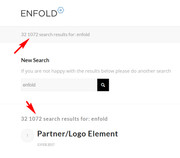
Best regards,
Mike
Hey Michael,
I searched the theme for “search results for” here are the results:
line 607 in \enfold\config-woocommerce\config.php
line 1072 & 1083 in \enfold\framework\php\function-set-avia-frontend.php
line 446 in \enfold\framework\php\class-breadcrumb.php
I’m thinking line 1072 & 1083 are the ones you want, but the other ones will be helpful too :)
Best regards,
Mike
Hi guys
My goal is to fully customize/change all the labels on the Enfold search result page.
So far, I managed to change the following:
1) Title and paragraph above the search input field in the file search.php
2) Placeholder text for the search if clicked in the header in the file searchform.php
3) “No search results” title and search tips below it in the file loop-search.php
The only thing which is missing and that I could not find so far is the h4 title “search results for: [search term]”.
Which file do I have to edit in order to change this label?
Thanks a lot and best regards
Michael
Hey James,
Please try starting each search with “Enfold” and use the Boolean search operator “AND” like this if you wanted to search topics about the header color:
enfold AND header AND color
but please note that the words “header” and “color” are very common in css code snippets, so this search returned 1600 topics.
I would recommend using Google with the word “enfold” as the first word and then a natural language question, Google is very good at returning a relevant result.
This is how I search the forums and I often see results that are only a few hours old.
Best regards,
Mike
I’m trying to incorporate Eonet Live Search on my site. The search is displaying the categories but not the content (see image below).

I installed it on a fresh install of Enfold, did not work. Then I installed it on a different theme and it displayed perfectly.
Suggestions?
Hi,
After updating Enfold the search and view box seems to be a little too long and a little too tall. See http://www.hikingwithdean.com/events. I already reached out to TEC support and they say “(Enfold) has some sort of configuration for the Events Calendar that includes some CSS code or settings that is causing the issues you’re seeing…I’m willing to bet that finding and removing that CSS code (or disabling the setting) will make things look right again.”
An observation: According to my recollection, the heading “Events for October 2018” was not there before the update. Strange.
My custom.css is the same before and after update (default). Where to look?
Thanks
Hey designyvr,

The code is in the /enfold/includes/loop-search.php file.
Best regards,
Victoria
Hello Enfold,
In Enfold support, here are some many pages, could tell me how to search topic of Enfold support only? not other themes.
In the right up corner, there is a search function, but it seems to search all themes’ topic?
Thank you and best regards,
James Chan
After two tries I got the oAuth verified. Slow and buggy.
Permissions for the token should be:
This token has access to:
View and search Envato sites
Download your purchased items
List purchases you’ve made
This is directly from their plugin. So I don’t know why you’re telling folk to add the other variables.
Also, when you go to Enfold Theme Update and click “Check Manually” you get bounced to the dashboard – I am sure this is NOT supposed to work this way.
Hello Everyone,
thanks for the quick response. Did simply update it manually. Should have searched the Forum a little bit more for the same error.
After the manual update I created the new API Key, as in Documentations.
Update Enfold 4.5
Cheers
Hannes
-
This reply was modified 7 years, 5 months ago by
 oberreiter9.
Hey aiko-logi,
Please try adding this code to the Quick CSS section under Enfold > General Styling or to your child theme’s style.css file:
CSS Snippet:
/* CSS - Hide search icon */


@media only screen and (max-width:480px) {

.responsive #top #menu-item-search {
  display: none;
}

}
Best regards,
Vinay
Dear support
I´ve searched the enfold forum but couldn´t find a solution for my problem. What I did:
1 ) created a overview page with avia layout editor to show 2 different product categories and worked out how to sort them correctly.
2) after this I defined this page to be the shop page in woocommerce seetings which works fine
see link 1 in private content
PROBLEM 1
now the customers logo (at the top right) is covered with this archive page and not fully shown
see link 2 in private content (that´s how it should look like
PROBLEM 2
when a user is on this shop page (link 1) the menu isn´t clickable any more
any ideas?
thanks for this great theme and ever better support from you guys
Hi Olga,
Glad to hear that.
Try adding this php code at the bottom of your functions.php:
remove_action( 'woocommerce_before_single_product_summary', 'avia_add_image_div', 2);
remove_action( 'woocommerce_before_single_product_summary',  'avia_close_image_div', 20);

add_action( 'woocommerce_before_single_product_summary', 'avia_add_image_div2', 2);
add_action( 'woocommerce_before_single_product_summary',  'avia_close_image_div2', 20);

if(!function_exists('avia_add_image_div2'))
{
	function avia_add_image_div2()
	{
		$nolightbox = '';
		$icon = '';

		if( avia_woocommerce_version_check( '3.0.0' ) )
		{
			if( current_theme_supports( 'wc-product-gallery-lightbox' ) )
			{
				$nolightbox = 'noLightbox';
			}
			else if( current_theme_supports( 'avia-wc-30-product-gallery-feature' ) )
			{
				$nolightbox = 'noHover';
				$icon = '<div class="avia-wc-30-product-gallery-lightbox" '.av_icon_string('search').' ></div>';
			}
		}

		get_sidebar();
		echo '<div class="' . $nolightbox . ' single-product-main-image alpha">' . $icon;
	}
}


if(!function_exists('avia_close_image_div2'))
{
	function avia_close_image_div2()
	{
		global $avia_config;
		if(is_product()) {
		$avia_config['currently_viewing'] = "shop_single";
		}
		echo "</div>";
	}
}
then inside the WP Dashboard, go to Enfold > General Styling > Quick CSS and add this code:
#top.single-product #main .sidebar {
    border: none;
}

#top.single-product #main .sidebar .inner_sidebar.extralight-border {
    margin-left: 0;
}
Hope this helps.
Best regards,
Nikko
Hi,
Thank you for sharing the screenshot, There is simply not enough space to display the elements in the mobile header. In your case, we can hide the search and cart icons. Please try adding this code to the Quick CSS section under Enfold > General Styling or to your child theme’s style.css file:
CSS Snippet:
/* CSS - Hide search and cart */


@media only screen and (max-width:480px) {

.responsive #top #menu-item-shop,
.responsive #top #menu-item-search {
  display: none;
}

}
Best regards,
Vinay
well sir … partly i found a solution on forum and use this in this quick CSS
@media only screen and (max-width:767px) {
  .responsive #top.rtl #wrap_all .main_menu {
    left: 0;
  }

  .responsive #top.rtl #wrap_all .main_menu .avia-menu.av-main-nav-wrap.av_menu_icon_beside {
    border-left: 0;
    border-right: solid 1px #e2e2e2;
    margin-left: 0;
    margin-right: 25px;
    padding-left: 0;
    padding-right: 25px;
  }

  .responsive.html_cart_at_menu #top .main_menu .menu>li:last-child {
    margin-right: 0;
    padding-right: 0;
  }
}
but i still have some problems on this site … I Want to disable social Icons from Header …
In desktop version , I set the social Icons on the top bar and make them in white color and that’s very good
but as you see , in mobile version they appear in white space next to the menu icon after the search icon with that Ugly separator
I Want to disable the separator and social Icons on HEARER in mobile version at all
Also , I Have a problem in photo slider as you see below the header ( on mobile version )…
in English version , I set the high of slider is 300px, and the slider crop the photos in very perfect way
in Arabic Version (RTL) : when I set the high of slider ( any value) , it isn’t show the whole photo , there is a problem like in this sample …..
http://www.ninargrill.com/wp-content/uploads/2018/10/ninar-ar.png
Thank you in advanced, and so sorry for my bad english …
PS : I Use Enfold 3 years ago till now , and I Have a lot of problems on RTL Issues also, and I Post some of it in other posts,
Thank You
Hi Support,
Having same issues as other: 4.5 successfully installed via FTP, but the Envato API personal token won’t validate.
I”ve tried recreating the personal token 3 times, with the permissions as detailed; I’ve also tried adding the Envato market plugin, and had success validating via “Single Item Tokens (Advanced)” – “All Single Use OAuth Personal Tokens have been verified.”, but the “Activate Envato API Connection” validation keeps returning:
“Incorrect token permissions, please generate another token or fix the permissions on the existing token.
Please ensure only the following permissions are enabled:
View and search Envato sites
Download your purchased items
List purchases you’ve made”
The “Enfold Child Theme Options” page also returns the above error.
Is it ok now that the All Single Use…” has been validated? Or do I still need to carry on trying to get the API validation?
Best regards,
Paul
Hi!
After manually updating from 4.4.1 to 4.5 I registered an envato private token, as explained here. I entered the token in enfold, but I got this message:
Last time we checked the token we were not able to connected to Envato:
Purchases could not be accessed
Username could not be accessed (needed for your information only)
E-Mail could not be accessed (needed for your information only)
I checked all settings and permissions. I created a new token, but I always get the same error message. My Token permissions:
This token has access to:
View and search Envato sites
View your Envato Account username
View your email address
Download your purchased items
Verify purchases of your items
List purchases you’ve made
What else can I do?
See the login credentials in Private Content.
Thanks a lot!
Hi @KWiesner
Please try this step-by-step guide here which is a manual update via SFTP or FTP:
1) Make a full backup of your website using a backup plugin.
2) Safe the backup somewhere outside from the webserver of your website (e.g. on your local computer or in any cloud storage you trust).
3) Sign out from your WordPress website.
4) Go to your themeforest account, sign in and download the updated Enfold v4.5 to your computer. Extract it and search for the file enfold.zip. Extract this file as well to already have your folder ready to be uploaded.
5) Sign in to FTP or SFTP using FileZilla or any other tool which is able to do that.
6) Go to the folder ./wp-content/themes and search for “enfold”. If you want, you can download the enfold folder to your computer as well (just in case you want to restore if afterwards which is easier like that than using the whole backup).
7) Delete the folder enfold via FTP. This may take 5-10min, depending on the server speed obviously.
8) Wait until it is finished and the enfold folder is gone. If that is the case, upload the “new” enfold folder including v4.5 to your website in the same directory.
9) Sign in to your WordPress website again and go to the Enfold tab (or the one from your child theme). Scroll down to the tab called Theme Update.
10) Your current API token will not work anymore as Envato changed some stuff on their API. Therefore you need to remove your current key and generate a new private key as visible in your themeforest account under “Settings” -> “API keys”. Go to https://build.envato.com and follow the steps there. To me, https://kriesi.at/documentation/enfold/how-to-install-enfold-theme/#toggle-id-5 was also very helpful (scroll down a bit there to find out about the permissions your private API key needs in order to check for future Enfold updates). Without these permissions it will not work.
11) After revalidating your new private key within the Enfold update tab, you should see a blue rectangle saying when it could be checked for the last time.
12) Done!
I hope this helps! Feel free to ask me in case you need any assistance.
Best,
Michael
@saucyhotdesign and @laptophobo, please try the following step-by-step procedure which is a manual theme update via SFTP or FTP:
1) Make a full backup of your website using a backup plugin.
2) Safe the backup somewhere outside from the webserver of your website (e.g. on your local computer or in any cloud storage you trust).
3) Sign out from your WordPress website.
4) Go to your themeforest account, sign in and download the updated Enfold v4.5 to your computer. Extract it and search for the file enfold.zip. Extract this file as well to already have your folder ready to be uploaded.
5) Sign in to FTP or SFTP using FileZilla or any other tool which is able to do that.
6) Go to the folder ./wp-content/themes and search for “enfold”. If you want, you can download the enfold folder to your computer as well (just in case you want to restore if afterwards which is easier like that than using the whole backup).
7) Delete the folder enfold via FTP. This may take 5-10min, depending on the server speed obviously.
8) Wait until it is finished and the enfold folder is gone. If that is the case, upload the “new” enfold folder including v4.5 to your website in the same directory.
9) Sign in to your WordPress website again and go to the Enfold tab (or the one from your child theme). Scroll down to the tab called Theme Update.
10) Your current API token will not work anymore as Envato changed some stuff on their API. Therefore you need to remove your current key and generate a new private key as visible in your themeforest account under “Settings” -> “API keys”. Go to https://build.envato.com and follow the steps there. To me, https://kriesi.at/documentation/enfold/how-to-install-enfold-theme/#toggle-id-5 was also very helpful (scroll down a bit there to find out about the permissions your private API key needs in order to check for future Enfold updates). Without these permissions it will not work.
11) After revalidating your new private key within the Enfold update tab, you should see a blue rectangle saying when it could be checked for the last time.
12) Done!
I hope it helped! Feel free to ask me in case you need any assistance.
Best,
Michael
Hi Seichinha
This time, it is impossible to update Enfold to v.4.5 via the WP dashboard due to API changes from Envato itself. You have to do it manually via FTP.
Let me describe it step-by-step here:
1) Make a full backup of your website using a backup plugin.
2) Safe the backup somewhere outside from the webserver of your website (e.g. on your local computer or in any cloud storage you trust).
3) Sign out from your WordPress website.
4) Go to your themeforest account, sign in and download the updated Enfold v4.5 to your computer. Extract it and search for the file enfold.zip. Extract this file as well to already have your folder ready to be uploaded.
5) Sign in to FTP or SFTP using FileZilla or any other tool which is able to do that.
6) Go to the folder ./wp-content/themes and search for “enfold”. If you want, you can download the enfold folder to your computer as well (just in case you want to restore if afterwards which is easier like that than using the whole backup).
7) Delete the folder enfold via FTP. This may take 5-10min, depending on the server speed obviously.
8) Wait until it is finished and the enfold folder is gone. If that is the case, upload the “new” enfold folder including v4.5 to your website in the same directory.
9) Sign in to your WordPress website again and go to the Enfold tab (or the one from your child theme). Scroll down to the tab called Theme Update.
10) Your current API token will not work anymore as Envato changed some stuff on their API. Therefore you need to remove your current key and generate a new private key as visible in your themeforest account under “Settings” -> “API keys”. Go to https://build.envato.com and follow the steps there. To me, https://kriesi.at/documentation/enfold/how-to-install-enfold-theme/#toggle-id-5 was also very helpful (scroll down a bit there to find out about the permissions your private API key needs in order to check for future Enfold updates). Without these permissions it will not work.
11) After revalidating your new private key within the Enfold update tab, you should see a blue rectangle saying when it could be checked for the last time.
12) Done!
I hope this helps! Feel free to ask me in case you need any assistance.
Best,
Michael
I’m on the Downloads page of Themeforest, but only see the Enfold download, nothing about v4.5. Where would I find that specific file?
Jon
EDIT: Doing a search of Enfold v4.5 yeilded nothing, but Enfold 4.5 got me to a page that then got me to another page that shows info for 4.3 and 4.4, but nothing on 4.5, and no link to download anything about 4.3 or 4.4. Here’s the page I did find: https://themeforest.net/item/enfold-responsive-multipurpose-theme/4519990?s_rank=1
-
This reply was modified 7 years, 5 months ago by
 gatehealing.
Hi KaISBC,
Here is the code you can put in Enfold > General Styling > Quick Css, if it does not work, put into themes/enfold/css/custom.css
.search-result-counter + .big-preview {
    width: 30%;
}
If you need further assistance please let us know.
Best regards,
Victoria
Hey Axel,
Thank you for using Enfold.
1.) Did you set your posts page as blog in the Enfold > Theme Options panel? Are you using the Advance Layout Builder? Please post the site url so that we can check the current setup of the site.
2.) What do you mean by “add-to-any”? Please provide a screenshot or a link.
3.) Unfortunately, we don’t or we can’t provide support for third party plugins as stated on our support policy. Please contact the plugin author for more info.
4.) We need to see the current blog style and layout. Please provide the blog page url.
5.) There is a font size option in the Enfold > Advanced Styling panel.
6.) You can also edit the main menu style in the Enfold > Advanced Styling panel.
We don’t usually entertain more than one question on a single thread because multiple questions can become a bit confusing and difficult for other users who are searching for the same answer. We kindly ask that you open separate threads in the future. Thank you for understanding.
Best regards,
Ismael
Updating from 4.4.1 to 4.5 via (S)FTP manually works like a charm
However, the steps to get there are quite a lot. Let me describe it step-by-step here:
1) Make a full backup of your website using a backup plugin.
2) Safe the backup somewhere outside from the webserver of your website (e.g. on your local computer or in any cloud storage you trust).
3) Sign out from your WordPress website.
4) Go to your themeforest account, sign in and download the updated Enfold v4.5 to your computer. Extract it and search for the file enfold.zip. Extract this file as well to already have your folder ready to be uploaded.
5) Sign in to FTP or SFTP using FileZilla or any other tool which is able to do that.
6) Go to the folder ./wp-content/themes and search for “enfold”. If you want, you can download the enfold folder to your computer as well (just in case you want to restore if afterwards which is easier like that than using the whole backup).
7) Delete the folder enfold via FTP. This may take 5-10min, depending on the server speed obviously.
8) Wait until it is finished and the enfold folder is gone. If that is the case, upload the “new” enfold folder including v4.5 to your website in the same directory.
9) Sign in to your WordPress website again and go to the Enfold tab (or the one from your child theme). Scroll down to the tab called Theme Update.
10) Your current API token will not work anymore as Envato changed some stuff on their API. Therefore you need to remove your current key and generate a new private key as visible in your themeforest account under “Settings” -> “API keys”. Go to https://build.envato.com and follow the steps there. To me, https://kriesi.at/documentation/enfold/how-to-install-enfold-theme/#toggle-id-5 was also very helpful (scroll down a bit there to find out about the permissions your private API key needs in order to check for future Enfold updates). Without these permissions it will not work.
11) After revalidating your new private key within the Enfold update tab, you should see a blue rectangle saying when it could be checked for the last time.
12) Done!
I hope this helps anybody who has/had issues with updating Enfold to version 4.5.
Feel free to ask me in case you need any assistance.
Updating from 4.4.1 to 4.5 via (S)FTP manually works like a charm
However, the steps to get there are quite a lot. Let me describe it step-by-step here:
1) Make a full backup of your website using a backup plugin.
2) Safe the backup somewhere outside from the webserver of your website (e.g. on your local computer or in any cloud storage you trust).
3) Sign out from your WordPress website.
4) Go to your themeforest account, sign in and download the updated Enfold v4.5 to your computer. Extract it and search for the file enfold.zip. Extract this file as well to already have your folder ready to be uploaded.
5) Sign in to FTP or SFTP using FileZilla or any other tool which is able to do that.
6) Go to the folder ./wp-content/themes and search for “enfold”. If you want, you can download the enfold folder to your computer as well (just in case you want to restore if afterwards which is easier like that than using the whole backup).
7) Delete the folder enfold via FTP. This may take 5-10min, depending on the server speed obviously.
8) Wait until it is finished and the enfold folder is gone. If that is the case, upload the “new” enfold folder including v4.5 to your website in the same directory.
9) Sign in to your WordPress website again and go to the Enfold tab (or the one from your child theme). Scroll down to the tab called Theme Update.
10) Your current API token will not work anymore as Envato changed some stuff on their API. Therefore you need to remove your current key and generate a new private key as visible in your themeforest account under “Settings” -> “API keys”. Go to https://build.envato.com and follow the steps there. To me, https://kriesi.at/documentation/enfold/how-to-install-enfold-theme/#toggle-id-5 was also very helpful (scroll down a bit there to find out about the permissions your private API key needs in order to check for future Enfold updates). Without these permissions it will not work.
11) After revalidating your new private key within the Enfold update tab, you should see a blue rectangle saying when it could be checked for the last time.
12) Done!
I hope this helps anybody who has/had issues with updating Enfold to version 4.5.
Feel free to ask me in case you need any assistance.
Updating from 4.4.1 to 4.5 via (S)FTP manually works like a charm
However, the steps to get there are quite a lot. Let me describe it step-by-step here:
1) Make a full backup of your website using a backup plugin.
2) Safe the backup somewhere outside from the webserver of your website (e.g. on your local computer or in any cloud storage you trust).
3) Sign out from your WordPress website.
4) Go to your themeforest account, sign in and download the updated Enfold v4.5 to your computer. Extract it and search for the file enfold.zip. Extract this file as well to already have your folder ready to be uploaded.
5) Sign in to FTP or SFTP using FileZilla or any other tool which is able to do that.
6) Go to the folder ./wp-content/themes and search for “enfold”. If you want, you can download the enfold folder to your computer as well (just in case you want to restore if afterwards which is easier like that than using the whole backup).
7) Delete the folder enfold via FTP. This may take 5-10min, depending on the server speed obviously.
8) Wait until it is finished and the enfold folder is gone. If that is the case, upload the “new” enfold folder including v4.5 to your website in the same directory.
9) Sign in to your WordPress website again and go to the Enfold tab (or the one from your child theme). Scroll down to the tab called Theme Update.
10) Your current API token will not work anymore as Envato changed some stuff on their API. Therefore you need to remove your current key and generate a new private key as visible in your themeforest account under “Settings” -> “API keys”. Go to https://build.envato.com and follow the steps there. To me, https://kriesi.at/documentation/enfold/how-to-install-enfold-theme/#toggle-id-5 was also very helpful (scroll down a bit there to find out about the permissions your private API key needs in order to check for future Enfold updates). Without these permissions it will not work.
11) After revalidating your new private key within the Enfold update tab, you should see a blue rectangle saying when it could be checked for the last time.
12) Done!
I hope this helps anybody who has/had issues with updating Enfold to version 4.5.
Feel free to ask me in case you need any assistance.