

Forum Replies Created
-
AuthorPosts
-
Hi,
Sorry for the late reply, I’m not sure I understand correctly, is this what you are looking for?

Best regards,
MikeHi,
Sorry for the late reply and thanks for sharing your solution.
Shall we close this then?Best regards,
MikeNovember 9, 2019 at 8:48 pm in reply to: Error with sticky header mobile in new Enfold version #1155240Hey mofix,
Sorry for the late reply, and thanks for the link. It looks like your issue is with this css:@media only screen and (max-width: 767px){ .responsive #top #main { padding-top: 0 !important; margin: 0; } }It needs to be:
@media only screen and (max-width: 767px){
.responsive #top #wrap_all #main {
    padding-top: 80px !important;
    margin: 0;
}
}
If you can’t find the first code just try adding the second code in the General Styling > Quick CSS field or in the WordPress > Customize > Additional CSS field.
After applying the css, Please clear your browser cache and check.Best regards,
MikeNovember 9, 2019 at 8:29 pm in reply to: woocommerce single project page layout official solution #1155239Hey HeeHA,
Sorry for the late reply, please try this solution:
Try adding this code to the end of your functions.php file in Appearance > Editor:add_action('init','ava534345953_init', 50); function ava534345953_init() { add_action( 'woocommerce_after_single_product_summary', 'avia_add_sidebar', 25); } function avia_close_image_div() { global $avia_config; echo "</div> "; } function avia_add_sidebar() { if(is_product()) { $avia_config['currently_viewing'] = "shop_single"; get_sidebar(); } }Then add this code in the General Styling > Quick CSS field or in the WordPress > Customize > Additional CSS field:
//add right sidebar to woo product page
.single-product-main-image {
    width: 25%;
}

.single-product-summary {
    overflow: hidden;
    width: 45%;
    float: left;
    margin-right: 5%;
}

.single-product .sidebar {
    width: 25%;
}
Before:

After:
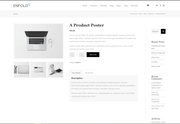
Best regards,
MikeHi,
Sorry for the late reply, I tried to take a look at your page but can not without a login, which is not working. Please check.Best regards,
MikeNovember 9, 2019 at 7:56 pm in reply to: Create a dropdown menu on regular button in the page (not menu) #1155235Hi,
Sorry for the late reply, the css on the CodePen page had to be adjusted because it didn’t account for other css included on the page with a higher specificity. I have combined the html and the css to be used within a code block element, just copy all of this code and add to a code block element and it should work fine.<style> .dropdown { position: relative; display: inline-block; text-align: left; width: 132px; } .dropdown-text { cursor: pointer; position: absolute; text-indent: 10px; line-height: 32px; background-color: #eee; border: 1px solid #ccc; border-radius: 3px; box-shadow: 0 1px 0 rgba(255,255,255, .9) inset, 0 1px 3px rgba(0,0,0, .1); width: 100%; color: #333; } .dropdown-text:after { position: absolute; right: 6px; top: 15px; content: ''; width: 0px; height: 0px; border-style: solid; border-width: 5px 4px 0 4px; border-color: #555 transparent transparent transparent; color: #333; } .dropdown-text, #top #main ul.dropdown-content a { color: #333; text-shadow: 0 1px #fff; } #top #main input.dropdown-toggle[type='text'] { font-size: 0; z-index: 1; cursor: pointer; position: absolute; top: 0; border: none; padding: 0; margin: 0 0 0 1px; background: transparent; text-indent: -10px; height: 34px; width: 100%; color: #333; } #top #main input.dropdown-toggle[type='text']:focus { outline: 0; } #top #main ul.dropdown-content { -webkit-transition: all .25s ease; -moz-transition: all .25s ease; -ms-transition: all .25s ease; -o-transition: all .25s ease; transition: all .25s ease; list-style-type: none; position: absolute; top: 32px; padding: 0; margin: 0; opacity: 0; visibility:hidden; border-radius: 3px; text-indent: 10px; line-height: 32px; background-color: #eee; border: 1px solid #ccc; width: 140px; } #top #main ul.dropdown-content a { display: block; text-decoration: none; } #top #main ul.dropdown-content a:hover { background: #e8e8e8; } #top #main input.dropdown-toggle[type='text']:hover ~ .dropdown-text, #top #main input.dropdown-toggle[type='text']:focus ~ .dropdown-text { background-color: #e8e8e8; } #top #main input.dropdown-toggle[type='text']:focus ~ .dropdown-text { box-shadow: 0 1px 3px rgba(0,0,0, .2) inset, 0 1px 0 rgba(255,255,255, 0.8); z-index: 2; } #top #main input.dropdown-toggle[type='text']:focus ~ .dropdown-text:after { border-width: 0 4px 5px 4px; border-color: transparent transparent #555 transparent; } #top #main ul.dropdown-content:hover, #top #main input.dropdown-toggle[type='text']:focus ~ .dropdown-content { opacity: 1; visibility:visible; top: 42px; } </style> <p><i>To show/hide menu, I'm using :focus instead of checkbox so when you click somewhere else then menu will be hidden :).</i></p> <div class="dropdown"> <input class="dropdown-toggle" type="text"> <div class="dropdown-text">Account</div> <ul class="dropdown-content"> <li><a href="#">Settings</a></li> <li><a href="#">Projects</a></li> <li><a href="#">Log out</a></li> </ul> </div>expected results:

Best regards,
MikeNovember 9, 2019 at 7:02 pm in reply to: Issue with responsive optimization at mobile devices / urgent customer project #1155234Hi,
Sorry for the late reply, I tested your page on my Android phone checking both landscape and portrait, but I was unable to recreate your error. Please see the video in the Private Content area.Best regards,
MikeNovember 9, 2019 at 6:42 pm in reply to: Grid row mobile responsiveness not working properly #1155233Hi,
Sorry for the late reply, but I was not able to reproduce your screenshots unless I changed the width of a browser without refreshing, which doesn’t give an accurate view of the page on mobile. Is this how you are testing?
Please see the screenshots in Private Content area of 3 different mobile sizes, 320px, 425px, and 768px
I do see that we can improve the tablet view, 768px, as seen in the last screenshot, by removing most of the padding from the cells with css, which will allow the text to show better.@media only screen and (min-width: 767px) and (max-width: 967px) { .av-layout-grid-container .flex_cell.no_margin.av_one_third { padding: 90px 20px 90px 20px !important; } }After applying the css, Please clear your browser cache and check.
Best regards,
MikeHi,
Sorry for the late reply, I have taken a look at your “desktop page” and at the response from the plugin developer. So on your page I see that no css is loading, and the plugin developer said they “removed the css for the dashboard page” to solve an issue with plugin buttons not working? I was not able to login as admin to take a look, please include in the Private Content area.
Also please disable all cache plugins including Autoptimize, and the Enfold Theme Options > Performance > JS & CSS file merging and compression settings and clear your browser cache.Best regards,
MikeHi,
Sorry for the late reply, about your footer icons animation not occurring until the cookie is accepted, it looks to me that the script is stopping due to “essb_subscribe_logging” which looks like it is from “/plugins/easy-social-share-buttons3/”
I don’t see in your previous posts that you tried disabling your plugins, have you tried this on your staging site?Best regards,
MikeHi,
Glad we were able to help, we will close this now. Thank you for using Enfold.For your information, you can take a look at Enfold documentation here
For any other questions or issues, feel free to start new threads in the Enfold forum and we will gladly try to help you :)Best regards,
MikeHey aebli,
Sorry for the late reply, Please try this code in the General Styling > Quick CSS field or in the WordPress > Customize > Additional CSS field:#top.page-id-218 .all_colors .image-overlay-inside{display: block !important;} #top.page-id-218 a.avia_image:hover .image-overlay.overlay-type-extern { left: -5px!important; top: 0px!important; overflow: hidden!important; display: block!important; height: 100%!important; width: 100%!important; }After applying the css, Please clear your browser cache and check.
This css is set for your one page in the Private Content area so to not conflict with other pages, also I notice that some of the logos have a smaller height than the overlay icon, I recommend resizing your images so they are square.
Best regards,
MikeNovember 9, 2019 at 11:46 am in reply to: Enfold: Latest version of Event Calendar not working with Counter #1155200Hey CampCarysbrook,
Sorry for the late reply, I tried to login to your dev site, but the access is not admin so I can’t see any settings or backend of the page. Please adjust to admin.Best regards,
MikeHi,
This has been adjusted so it will also work on your homepage:#top.page-parent #main > div.sidebar_left > div,#top.page-child #main > div.sidebar_left > div { background-color: #717377 !important; } #top.page-parent #main > div.sidebar_left > div > main,#top.page-child #main > div.sidebar_left > div > main { background: #ffffff url(/wp-content/uploads/2019/11/main-content-bg.png) top right no-repeat scroll !important; } #main #after_section_1 > div { padding-left: 0 !important; } #after_section_1 > div > div { padding-left: 15px !important; }After applying the css, Please clear your browser cache and check.
Best regards,
MikeNovember 8, 2019 at 11:26 am in reply to: Change the color for each menue incl. the mouse over color #1154921Hi,
Sorry for the late reply to change the button font size and color please adjust your custom css, please look for:.avia-menu-text { font-size: 14px !important; color: #777777 !important; font-weight: normal !important; letter-spacing: 0.07em !important; text-transform: uppercase !important; }to remove the border, try adding this css:
#top #wrap_all .header_color .av-menu-button-colored > a .avia-menu-text {
    border-color: transparent !important;
}
to remove the red background for your sub-menu items please adjust your custom css, please look for:
#menu-item-11106 .avia-menu-text {
background-color: #6A1A35 !important;
}
#menu-item-11105 .avia-menu-text {
background-color: #8D5560 !important;
}
and change to:
#menu-item-11106 > .avia-menu-text {
background-color: #6A1A35 !important;
}
#menu-item-11105 > .avia-menu-text {
background-color: #8D5560 !important;
}
Best regards,
MikeHi,
Ok, I added this css:#main > div > div { background-color: #717377 !important; } #main > div > div > main { background: #ffffff url(/wp-content/uploads/2019/11/main-content-bg.png) top right no-repeat scroll !important; }Please clear your browser cache and check.
Best regards,
MikeHi,
Oh, try adding this css and clear your browser cache:#main > div > div { padding-left: 0 !important; } #main > div > div > main { padding-left: 15px !important; }Since you are adding your css to your child theme styles.css, after you add the go to your Quick CSS and add a blank space and save, this will force your css to be rebuilt, then clear your browser cache.
Best regards,
MikeHi,
I tested again and added an item (Ownes Cross) and saved and again I got no error messages and it was successful
what browser and connection are you using?Best regards,
MikeHi,
Sorry, but I don’t have an iPhone, but I did try to research a “web-kit” solution which is for IOS, and perhaps this will work, see near the bottom for #Faking it here is a another example.Best regards,
MikeHi,
Glad Rikard could help, we will close this now. Thank you for using Enfold.For your information, you can take a look at Enfold documentation here
For any other questions or issues, feel free to start new threads in the Enfold forum and we will gladly try to help you :)Best regards,
MikeNovember 7, 2019 at 12:40 pm in reply to: Updating to ENFOLD Version 4.6.2 from Version 4.2.6 #1154600Hi,
Thank you for the feedback, when I look at your sidebar I do see the background-image covering the whole area, but as I understand we are not seeing the whole width of the image, see screenshot 1 below, but because of the size of the image if we force the full width it is no longer full height, see second screenshot below.
This is the css I used to force full width:@media only screen and (min-width: 1024px) { #top #main .sidebar { background: #717377; background-image: url(/wp-content/uploads/2019/11/menu-bg.png)!important; min-height: 100%!important; background-repeat: no-repeat!important; background-size: contain!important; } }You could change your image to 240×830, image linked below.
Best regards,
MikeHi,
Here is an example of the code you would need, and a little more complex one but I recommend getting help with this because you could block yourself and the good traffic you want if done incorrectly.
Thank you for your understanding.Best regards,
MikeHi,
That’s odd, because the author is there under the title and before the categories, I’m sure that you cleared your browser cache, and the only difference is that the parent container that holds the author and categories has some padding to the top of it.
I carefully reviewed your css and removed the padding and the previous css that made the padding necessary, so now the author should be showing for your screen reader only on the posts, such as the link you sent above.
Please clear your browser cache and check.I tried to investigate this possible issue and found that in Windows at least that the screen reader maybe using it’s own cache:
In document mode, the user is interacting with a cached copy of the web page, read more here so I’m not sure if this a factor for you here, but please check if you can clear your screen reader cache.Best regards,
MikeHi,
Thank you for the feedback, that explains why your WordPress > Tools > Site Health Status says “Some files are not writable by WordPress”
but as I posted above I was not able to reproduce your error on your site, I was able to save your menu.
Are you still unable to save your menu?Best regards,
MikeHi,
Thanks for the link, I’m not sure which background your trying to change, based on the color above it looks like the sidebar, is this correct?
If you don’t have a layerslider try to not add the class “#after_layer_slider_1” in your css.Best regards,
MikeHi,
Try adding this code to the end of your functions.php file in Appearance > Editor:function remove_woo_relate_products(){ remove_action( 'woocommerce_after_single_product_summary', 'avia_woocommerce_output_related_products', 20); } add_action('init', 'remove_woo_relate_products', 10);Then clear your browser cache and check.
Best regards,
MikeHi,
Thank you for the admin access, so the issue was that the title was being added twice by to different elements, here is the updated code that I added to solve:function remove_tooltip_title(){ ?> <script> jQuery(window).load(function(){ jQuery('.av-masonry-entry').removeAttr('title'); jQuery('.av-masonry-image-container').removeAttr('title'); }); </script> <?php } add_action('wp_footer', 'remove_tooltip_title');Please clear your browser cache and check.
Best regards,
MikeHi,
Ok, I removed the code that hid the author on single pages and added some padding to it so that it would not be hidden behind the title.
Please clear your browser cache and check.Best regards,
MikeHi,
Glad to hear this is helpful, I didn’t remove any Quick CSS, I only copied the css I thought was needed and added it to the code block of this page so that it would be easier for you to copy in the future. So I added this css to the code block, please check.#top.page-id-17448 #after_full_slider_1 .template-page.content { padding-top: 0px !important; } @media only screen and (max-width: 425px) { #top.page-id-17448 #av_section_1 > div > div { padding-top: 0px !important; } }Best regards,
Mike -
AuthorPosts
