

Forum Replies Created
-
AuthorPosts
-
Hey Misko,
Thank you for your patience I can help you define a different color for your bold text with css, but I would like to point out that there are typically two ways that “bold” is expressed, the strong tag and the b tag, the strong tag is more common these days, but some people and older plugins might use the b tag. Also since you didn’t link to your site I can’t tell if you are using any other plugins that might be affecting the “bold” color or any custom font styling, which is what occurs on this site, when we look at our side we see this:

because we see the Enfold side, but from your side, you see the additional style added by the BB Press plugin:

Anyways, my point is that other things can be at play and it can be difficult to blindly write some css, but I will try :)
So this example will change strong tag to a rust color #c3512f in the #main which is below the #header. There is a possibility that an H1 link that has a strong tag may be a different color, and if that is the case please link to the page you are having trouble with.
Please try this css in the WordPress > Customize > Additional CSS field as it has the highest priority:#top #wrap_all #main strong, #top #wrap_all #main b { color: #c3512f; }After applying the css, please clear your browser cache and any caching or minifying plugins and check.
Best regards,
MikeMay 9, 2021 at 8:21 pm in reply to: URGENT; serious problems saving page after making changes in tab sections #1299181Hi,
Glad to hear that you have this sorted out, we will close this now. Thank you for using Enfold.Best regards,
MikeHi,
Thank you for your patience and for the link to your site, the social icons that I see on the page are from the AddToAny Share Buttons plugin, so I would imagine the easiest solution would be to disable this plugin, but assuming that you don’t want to do this you could try this css in the General Styling > Quick CSS field or in the WordPress > Customize > Additional CSS field:#top #main .addtoany_share_save_container { display:none; }After applying the css, please clear your browser cache and check.
Best regards,
MikeHey Susanne,
Glad to hear this has been sorted out, we will close this now. Thank you for using Enfold.
For any other questions or issues, feel free to start new threads in the Enfold forum and we will gladly try to help you :)Best regards,
MikeHey helban,
Thank you for your patience and the link to your page, with the way that flex works with row or column reverse, or even order, the rows you are creating need to be wrapped in a container so the inner elements can be ordered or reversed. For this reason, we have the Grid Row element, to use this in your situation you would add the Grid Row and 4 cells:

and then use the Set Cell Size option to set your 2/5+1/5+1/5+1/5

and then add your inner cell content

for this example I will clone the Grid Row 3 times and use the Set Cell Size option to alternate the rows for desktop as in your example 1/5+1/5+1/5+2/5, then for the mobile css it will be easier to add custom IDs to each of the Grid Rows in the Advanced Tab > Developer Settings

I recommend using lower case letters only and each ID must be different and unique to your whole site, for this example I’m using one, two, three.

Then for the mobile flex column reverse of this one row you would use this css in the General Styling > Quick CSS field or in the WordPress > Customize > Additional CSS field:@media only screen and (max-width: 767px) { #two { display: flex; flex-direction: column-reverse; } }
I hope this helps.Best regards,
MikeHey kamporo,
Thank you for your patience and the link to your example site, I was able to achieve something similar on an Enfold 2017 demo:

This was the css I used, please try using it to model for your site:#header_main { width: 70% !important; margin: auto !important; } .header_bg { background-color: transparent !important; } .av-logo-container { background-color: #fff !important; }Best regards,
MikeHey cristinagrafik,
Thank you for your patience and for the login, for the widget to work you need to add a Mailchimp API

Best regards,
MikeHi,
Thank you for your patience and thank you for the link to your site. So I was not able to emulate this but I was able to see this with browserstack.com which uses real devices virtually, but I only have a trial account so I can only test for one minute per device, anyways, I found that the H1 text at the top of your page is wrapped with a <em> tag which seems to have a disabled display on the iPhone which could be corrected with css but I noticed that your css is a cached version from perhaps WP-Rocket and it looks like you are also using the theme compressed options and lazyloading.
So first please disable all caching, minifying, compression, lazyloading, and etc by disabling the plugins and theme optons and set the Enfold Theme Options > Performance > Delete old CSS and JS files option and clear your browser cache on your iPhone and check again, and leave it like this should we need to check.
So one of the tags that didn’t show on the iPhone was underline which on Chrome is shown by the user-agent, that is that it doesn’t specificity needed to be set for display, I believe that Safari also does the same, but perhaps the minification has broken the css so we will see once you have done the above.Best regards,
MikeMay 8, 2021 at 8:32 pm in reply to: Install Demo – cURL error 28: Connection timed out after 10001 milliseconds #1299125Hey CVFPB,
Thank you for your patience, I see that you are trying to install the “default demo” this demo doesn’t include most of the images:
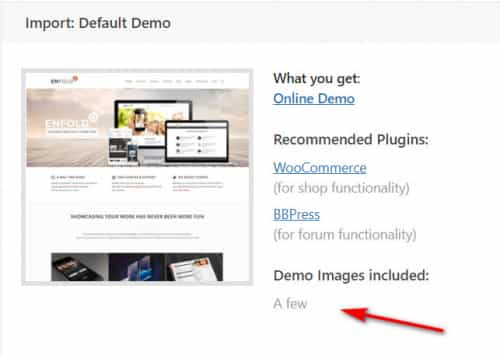
Please try installing the “2017 demo” as it includes the images and sliders. Now if you try that and still can’t install the “2017 demo” due to a cURL error please ensure that you have no plugins installed while you are installing the demo, the Yoast SEO plugin has been known to cause this error. Other plugins could also cause this. Are you using a “Bare Metal” server where you are setting everything up? If so please check your secure PHP options:
allow_url_fopen = on
allow_url_include = on
register_globals = on
If this doesn’t help I don’t know all of the possible server configurations and that would be outside of our support, but I can recommend manually installing the 2017 demo by first importing the demo on a localhost and copying the images to your online host via FTP using the same directory structure then editing the .xml demo file found at \wp-content\themes\enfold\includes\admin\demo_files\enfold-2017.xml by replacinghttp://kriesi.at/themes/enfold-2017/files/withhttps://Your-Domain.com/wp-content/uploads/in a plain text editor such as vscode, please note the trailing slash and the https if your site is using https this should replace about 243 instances, the rest of the link should remain the same, such as/2015/07/marker3.pngbecause you uploaded the images using the same directory structure.
After all of this you will still need to do a little tweaking such as setting the correct menu in the menu options and sorting out the footer widgets, but you will be changing this anyways, since you have been using Enfold since 2017 I sure you know your way around the options :)
If you don’t have a localhost set up and want the images I can get them for you with my localhost, I have never failed to install a demo on my localhost in all of these years, except for the “default demo” because those files are not there, as I understand it we didn’t have the image license to include them in the demos so the demo says they are not included.
My point here is that I have seen a couple of webhosts that will not connect to our server, I don’t know why, but this solution with a localhost works and will get you on track to building your site.Best regards,
MikeHi,
Thank you for your patience and the login to your test server, the footer widgets that are showing are the “dummy widgets” that are typically shown when no widgets are picked such as when a new demo is installed. Typically this error occurs when the theme doesn’t see any elements in the footer widgets, or there is some other conflict. So in your case you are using a page as a footer, and I took a look at the normal settings and also tried resaving them since you moved this install from another server but I don’t see what the issue could be. I see that your child theme is very modified with quite a few modified theme files and I don’t feel comfortable trying to debug each one of these modifications, and I don’t feel that it would help you to suggest deactivating your child theme and plugins to see if the footer page works correctly because it obviously does on your old server, so the only suggestion I can think of is to check your modified child theme files for a hardcoded link to your old server or some other resource that is not loading.
It stands to reason that since this is a clone of a working site and moving it is what has broken it, it could be your PHP version on the new server?Best regards,
MikeMay 8, 2021 at 4:32 pm in reply to: Hide header when scrolling down, show when scrolling up #1299118Hey Tobias,
Thank you for your patience, please see this solution from Guenni007 I have tested it on this demo test and it seems to still work well.Best regards,
MikeHey hooman80,
Thank you for your patience, and thanks for the link to your page. I don’t have an iPad or an iPad Pro and you said that when you test the iPad size, 1024px, that the social footer does show and that it was only the actual device that it doesn’t show on. So I tested on browserstack.com which connects to actual devices, so they say, and tested your page horizontally and vertically with an iPad Pro and I saw the social footer, please see the screenshots in the Private Content area.
Can you include a screenshot of what you are seeing horizontally and vertically so we can get a better sense of what the issue is, such as is the whole footer not showing, or is it just the icons not showing, etc?
Now browserstack.com only lets me test on iPad Pro versions once each for one minute, and what I noticed was I kept getting “service unavailable” for your domain and at times it was loading very slow, which could be with you in the UK and I’m in the US, and you have a login to see the page and I’m trying to connect virtually and so on…
My point is perhaps it is not the actual device but the connection to the page that the device has? Anyways some screenshots would help.Best regards,
MikeHi,
Thank you for your patience and the link to your sidebar news widget, so in this screenshot of your current source code please note that the current width & height of the image is 36px, and the “sizes” attitude has the max-width set to 36px, Red Arrows, but you also have a 180px source image available, Yellow Arrow

So I prepose this jQuery script to change the source image used to the 180px version which will give you a larger image and keep it looking crisp.function newsbox_custom_script() { ?> <script> (function($){ $(document).ready(function(){ $('.sidebar .newsbox .news-thumb img.size-widget').attr('width', '180'); $('.sidebar .newsbox .news-thumb img.size-widget').attr('height', '180'); $('.sidebar .newsbox .news-thumb img.size-widget').attr('sizes', '(max-width: 180px) 100vw, 180px'); $('.sidebar .newsbox .news-thumb').css({'height': '180px','width': '180px'}); }); })(jQuery); </script> <?php } add_action('wp_footer', 'newsbox_custom_script');
Now if you want the image larger you could regenerate the thumbnails so you would have a larger option for a source and adjust the script, or if you don’t need the image to be very crisp you can adjust the last line of the script (css) to suit.Best regards,
MikeMay 7, 2021 at 1:12 pm in reply to: Copyright Edit, Makes Background Image in Footer Disappear #1298943Hi,
Thank you for the feedback, please try disabling Enfold Theme Options > Performance > JS & CSS file merging and compression and at the bottom of the performance settings page enable the Enfold Theme Options > Performance > Delete old CSS and JS files and then clear your browser cache and any cache plugin, and check.
If this corrects then you can reset the performance settings back to the way they were.
I noticed that this css was in your merged css file twice:#top .all_colors .image-overlay-inside { display: none }If this is in any of your Quick CSS or custom css, please remove.
This this doesn’t help please try this code in the General Styling > Quick CSS field or in the WordPress > Customize > Additional CSS field:#top .all_colors .overlay-type-extern > .image-overlay-inside { display: block !important; }and then clear your browser cache and check, this should correct.
Best regards,
MikeHi,
Glad we were able to help, we will close this now as it is quite long and covers several issues from multiple sites and thus becoming hard to follow. Typically we ask to start a separate thread for each request so it is easier for everyone to follow along. Thank you for using Enfold.
For any other questions or issues, feel free to start a new thread in the Enfold forum and we will gladly try to help you :)Best regards,
MikeMay 7, 2021 at 12:14 pm in reply to: Preventing spam robots from sending emails between team members on contact page #1298928Hi,
Sorry I have not seen any plugins that would do this and if you have like a million of email links all over the site as you posted above I can see how a plugin that would change these on the fly would be a performance issue.Best regards,
MikeMay 6, 2021 at 1:42 pm in reply to: Copyright Edit, Makes Background Image in Footer Disappear #1298788Hi,
Glad to see that Guenni007 was able to help you with this, and it seems that your question has been resolved, shall we close this thread then?Best regards,
MikeMay 6, 2021 at 1:17 pm in reply to: Preventing spam robots from sending emails between team members on contact page #1298783Hey Peter,
Thank you for your patience, it sounds like you are placing the team members email addresses as plain text in the element, and spam bots will find this, there is not a specific Enfold thing to do to prevent “scrapping” which is what this is called. But you can try a hexadecimal converter

This typically works well, another approach would be to use images for the email addresses but don’t make the images clickable links unless you encode them because the bots will find the links.
Perhaps you should reconsider why the company officers, such as the CEO, want their emails shown to the public, I would imagine that the CEO has a “gatekeeper”? If the company is small or wants to have an “we are assemble” look/feel then I recommend encoding the emails like above and also ask the reader to add something to the message and use email filters to filter the email inbox.
Most people who are going to email you don’t mind an extra step to help fight spammers.Best regards,
MikeMay 6, 2021 at 12:33 pm in reply to: image with hotspots – some hotspots don't work until reload #1298777Hi,
Good catch, glad to hear that this is sorted out now we will close this now, and thank you for using Enfold.For your information, you can take a look at Enfold documentation here
For any other questions or issues, feel free to start new threads in the Enfold forum and we will gladly try to help you :)Best regards,
MikeHi,
Thank you for the screenshot, it seems that the issue occuurs for smaller mobile screens, 320px – 375px, to correct this please try this css:@media only screen and (max-width: 376px) { #menu-item-shop .cart_dropdown_link { padding: 0 !important; } .responsive.html_cart_at_menu #top .main_menu .menu>li:last-child { padding-right: 0 !important; margin-right: 0 !important; } .responsive #top #header_main > .container .main_menu .av-main-nav > li > a { padding: 0 0 0 8px !important; } .responsive.html_bottom_nav_header.html_cart_at_menu #top #wrap_all #header_main .main_menu { right: 120px !important; } }After applying the css, please clear your browser cache and check.
Best regards,
MikeMay 6, 2021 at 11:41 am in reply to: Avia Layout Builder, Product Slider: show Title + Except and hide stars review #1298767Hi,
I have heard back from the team and added this function to your functions.php:add_action( 'woocommerce_after_shop_loop_item_title', 'wc_add_short_description' ); function wc_add_short_description() { global $product; ?> <div class="product-short-description" itemprop="description"> <?php echo apply_filters( 'woocommerce_short_description', $product->get_short_description() ) ?> </div> <?php }This allows the “short description” to show, please check your test page to see this is action.
Best regards,
MikeMay 5, 2021 at 3:26 pm in reply to: image with hotspots – some hotspots don't work until reload #1298608Hi,
I didn’t make any adjustments in your theme settings, but you will note above I pointed out that you were manually disabling template builder elements including the Image with Hotspots Element which you are using on this page. I recommend disabling all of your caching plugins and JS minifying and compression in the theme and allow all elements to load
jQuery is not defined typically means that the script is loading before jQuery, jQuery has to load first so the script can use it.Best regards,
MikeHi,
Glad that helped, if I understand correctly it would not matter if it was a JS file that you linked to or the script added directly, both will still be loaded anytime the class wc-pao-addon-custom-price is found, but I believe what you want to do is to limit the searching of that class, and thus the JS overhead related to it.
I recommend adding the page class of single product pages that will contain the wc-pao-addon-custom-price class, by adding the top most page class the JS will stop looking for your class sooner instead of searching the whole page.jQuery(document).ready(function(){ jQuery('#top.single-product .wc-pao-addon-custom-price').val("0"); });Now with that expectation I do not see your class wc-pao-addon-custom-price on the test page we have been looking at, so if it is another page or a cart page you would want to use the topmost page class for that page. I hope that makes sense.
Best regards,
MikeHi,
Well that makes more sense 😊
Please try this css then:#top #main .single-product-summary .wc-pao-addon-wrap > .wc-pao-addon-input-multiplier { width: 43px; height: 43px; line-height: 43px; }and clear your browser cache and any caching plugin, you will note I didn’t use !important; in the css because I didn’t think it was neassary, but if you have trouble you can use it like this:
#top #main .single-product-summary .wc-pao-addon-wrap > .wc-pao-addon-input-multiplier {
   width: 43px !important;
   height: 43px !important;
   line-height: 43px !important;
}
and if you still have trouble try the css in the WordPress > Customize > Additional CSS field as it has priority.
Best regards,
MikeMay 4, 2021 at 1:42 pm in reply to: image with hotspots – some hotspots don't work until reload #1298272Hi,
Perhaps I misunderstood about your “Significant Trees” hotspots, so when you have those hotspots set as transparent there is no indication that there is something there to mouse-over, except for the map image, so I thought that you thought that the hotspots were not working there, thus my pointing out that the hotspots were transparent.
Now I believe that you want the “Significant Trees” hotspots transparent so I reverted my test page, linked below, to show that while the hotspots are transparent, the mouse-over effect does show the popups.

(the image above links to a gif that shows the mouse-over popup)
Please clear your browser cache and check the test page linked below.Best regards,
MikeHi,
Well I don’t see that you have the css applied to your site right now, but when I inject it via the browser this is how it looks:

Please try the css in the WordPress > Customize > Additional CSS field as it has priority

Best regards,
MikeHi,
Thank you for your patience, the FTP account that you created is assigned to the user that you created so we don’t have access to the WordPress directory that we need to upload the files. Please see this documentation step 4 where it says:To give this user access to the entire account, enter nothing but a forward slash (/)
please correct this so we can upload the images and such. I tried to import the xml for the church demo and it mostly worked but it’s not fully there, I may want to reset the site to try again, unless it is close enough for you to work with?
I believe the main issue for your site is that the PHP ZipArchive Extension is not enabled on your server, you should ask GoDaddy to enable this, this is a common PHP extension that should always be enabled on every server everywhere, don’t let them tell you differently. I believe if you get this enabled and reset the site and try to import again all should go well.Best regards,
MikeHi,
Please try this and clear your browser cache:#top #main .single-product-summary .quantity input.plus, #top #main .single-product-summary .quantity input.minus, #top #main .single-product-summary .quantity input.qty { width: 33px; height: 33px; line-height: 33px; }Best regards,
MikeHey CharlieTh,
You can create a fadein effect on most any element with css keyframes like this:#top.home #av_section_1 { animation: fadein 6s; } @keyframes fadein{ 0% { opacity:0; } 50% { opacity:0; } 60% { opacity:0.1; } 100% { opacity:1; } }So as an example, the linked test home page in the Private Content area has a color section at the top with a background image

the css above is set to fadein over 6 seconds but the keyframes has the opacity set to zero for 50% of the time, so the first 3 seconds the element is hidden, then at the 60% mark the element is slowly started to show for the remaining time.
You can try different timings and opacity to get the effect you like.Best regards,
MikeMay 2, 2021 at 8:42 pm in reply to: Image overlay problem – it is not going until the end of the page #1297807 -
AuthorPosts
