Hello Ismael
Thank you for the help. It is working but i wonder how i can also disable the top row of icons which seems to be duplicate of icons which are already there.
Its called:
Iconfont: Entypo Fontello Enfold (Default)
and contains like 12-15 icons
Ok, what did I do wrong? :) I couldn’t find the code that you suggested to remove and added the one that you suggested to add and nothing changed.
This is the current CSS code that I have for the the sliders:
#top .avia-slideshow-arrows.avia-slideshow-controls a {
border-radius: 25px;
font-weight: bold;
font-size: 18px;
background:#transparent;
width: 45px;
height: 30px;
}
I also tried to change background from #transparent to #a6a6a6 !important but still nothing.
Thanks again!
Hey extraeyes,
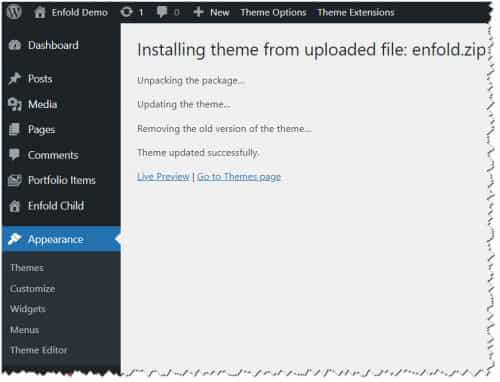
The old version 5.6.6 will not automatically update, to update your version of Enfold you will need to download the latest installable WP version from your Theme Forest account and upload it to your WordPress ▸ Appearance ▸ Themes ▸ Add Themes ▸ Add New

after you choose the zip file and click install, you will see a This theme is already installed message because you are updating, you can continue

then you will see the Theme updated successfully message.
For your other issue see this post.
Best regards,
Mike
Hi Ismael,
thank you for your help! :) I suspected it had something to do with Ninja after reading this threat: https://kriesi.at/support/topic/theme-editor-option-under-appearance-has-disappeared-in-enfold-4-8-2/. But perhaps there is a completely different reason for this. I provide login data and a screenshot in the private field.
Kind regards,
ebenanders
Hello, I have a transparent header, with a colour section on my page with a fulll size image set to align with the top.
The image however only goes partially behind the header, there is a black area at the top of the header.
When i scroll the page you can see the image moves up.
How can i make the Colur Section start at the top of the page inline with the top of the header
Hey Shari,
Thank you for the inquiry.
The arrows are there but they are barely visible because the background is transparent due to this css code.
#top .avia-slideshow-arrows.avia-slideshow-controls a {
    background: #fff0 !important;
}
You can either remove the modification or add this code in the Enfold > General Styling > Quick CSS field.
#top .avia-slideshow-arrows.avia-slideshow-controls a {
    background: #a6a6a6 !important;
}
Best regards,
Ismael
Hi,
Great, I’m glad that you found a solution. Please let us know if you should need any further help on the topic, or if we can close it.
Best regards,
Rikard
Hi,
If you have questions outside the current topic, then please open a new thread.
Best regards,
Rikard
Hi,
how can I use the Burger-Menu in a widget or in the footer or anywhere on the site? Is there a shortcode to implement it?
“Different menu for different pages” isn’t helpful because its site-specific.
I need a solution to show the Burger-Menu (and/or the Desktop-Menu!) within the footer and/(!)/or sidebars ((optional within a accordeon). Therefore I need a general solution I can use flexible…
Thanks
Hey Elisa,
I don’t think that updating gradually would make any difference to be honest, I would suggest that you update to the latest version directly. The update to 7.1 has to be done manually from the version you are running, please refer to my replies in this thread: https://kriesi.at/support/topic/enfold-4-5-theme-update-update-failed-download-failed-a-valid-url-was-not-pro/#post-1021541
You can either update manually via FTP: https://kriesi.at/documentation/enfold/how-to-install-enfold-theme/#theme-update, or upload the theme as if it was new under Appearance->Themes->Add New Theme.
If that doesn’t work then please try to delete the whole theme folder, then replace it with the new version. Make sure that you have backups of the site before starting updating.
Also please read this after you have updated: https://kriesi.at/documentation/enfold/theme-registration/
Best regards,
Rikard
Hi,
Try this instead:
@media only screen and (max-width: 767px) {
    .responsive #top.page-id-254 #wrap_all .slide-entry {
        width: 100%;
        margin-left: 0%;
        padding-bottom: 20px;
    }
}
Best regards,
Mike
Hi,
If you are not using a child theme you could use the WP Code plugin then add a new snippet, in the top right corner use the PHP snippet as the code type:

and ensure that it is activated, then add the above code and save.
Best regards,
Mike
Hey limedrop,
Try this CSS in your Enfold Theme Options ▸ General Styling ▸ Quick CSS field:
@media only screen and (max-width: 767px) {
    .responsive #top.page-id-254 #wrap_all .slide-entry {
        width: 100%;
        margin-left: 0%;
    }
}
Please ensure to copy the code from the forum and not an email notification so the symbols are not converted.
After applying the css, please clear your browser cache and check.
Best regards,
Mike
Hey extraeyes,
To make this font-size 20px

this css works:
#top #wrap_all .all_colors h2.woocommerce-loop-product__title {
	font-size: 20px;
}
but it will not remove the H2, which it sounds like this is what you want to do.
If you want this H2 to be a “p” instead, try adding this code to the end of your child theme functions.php file in Appearance ▸ Editor:
function change_woocommerce_product_title_tag_in_product_slider() { ?>
  <script>
(function($) {
  $(function() {
    function replaceElementTag(targetSelector, newTagString) {
      $(targetSelector).each(function(){
        var newElem = $(newTagString, {html: $(this).html()});
        $.each(this.attributes, function() {
          newElem.attr(this.name, this.value);
        });
        $(this).replaceWith(newElem);
      });
    }
    replaceElementTag('h2.woocommerce-loop-product__title', '<p></p>');
  });
}(jQuery));
</script>
  <?php
}
add_action( 'wp_footer','change_woocommerce_product_title_tag_in_product_slider', 99 );
Best regards,
Mike
Hi Ismael,
thanks for your link. This works: https://codepen.io/dimsemenov/pen/kXGxJv
But: The arrows ar missing again. We are one big step further and have JPG and MP4 with captions and opening in lightboxes. How can I have them grouped with arrows to go from one to the next?
  <div class="isotope">
    <a class="test" title="Test title1" href="xxx.mp4?iframe=true">Vid1</a>
    <a class="test" title="Test title2" href="xxx.mp4?iframe=true">Vid2</a>
    <a class="test" title="Test title3" href="xxx.jpg?iframe=true">Img1</a>
  </div>
Script:
(function($){
$(document).ready(function() {
$('.test').magnificPopup({
  type: 'iframe',

  iframe: {
     markup: '<div class="mfp-iframe-scaler">'+
                '<div class="mfp-close"></div>'+
                '<iframe class="mfp-iframe" frameborder="0" allowfullscreen></iframe>'+
                '<div class="mfp-title">Some caption</div>'+
              '</div>'
  },
  callbacks: {
    markupParse: function(template, values, item) {
     values.title = item.el.attr('title');
    }
  }

});
});
})(jQuery);
Do you have an idea how to merge the lightboxes as you have done with your script before?
Kind regards,
Daniel
Hi ENFOLD Support-Team,
it took some time to get a Testserver but now it’s done and I would ask you again to check our website and tell me, where we made a mistake. I’ll repeat again the Problem:
The fold/unfold function does not work in our Enfold-template. It is displayed as a preview during creation, but not on the page. No initial text is shown and clicking “Weiterlesen” does not open the text but jumps to the top of the page.
You can see this on the Frontpage of our DIZI-Intranet in the middle of the page. There are 3 columns with an image and the Link “Weiterlesen”. Instead of just the Link there should be some Text. You can see this in the backend.
I also have one or two more questions which I will post each in its own thread.
Thanks in advance and greetings from Hannover, Germany
Ruth
Hey Sven,
The fixed header on mobile devices has never been an option because the Dev Team has always felt that it takes too much space on mobile devices, over the years the only option was to add some custom css to achieve this.
To have a fixed header on your site and have a small header so it doesn’t take up as much space you can try this css, I specifically created it for your site and it works in my tests.
@media only screen and (max-width: 989px) {
    .responsive #top #wrap_all #header_main .container.av-logo-container {
        height: 40px !important;
        line-height: 40px;
    }
    #header_meta .container {
    		min-height: 12px;
		}
		#header_meta .phone-info {
    		line-height: 12px;
    		padding: 0;
		}
		#header_meta {
    		min-height: 12px;
		}
		#header_main {
			height: 40px;
			line-height: 40px;
		}
		.responsive #top #header_main>.container .main_menu .av-main-nav>li>a,
		.responsive #top #wrap_all .main_menu {
        height: 40px;
        line-height: 40px;
    }
    .responsive .logo img, .responsive .logo svg {
        max-height: 40px;
        padding: 0;
    }
    .responsive #top .logo,
    .responsive #top .logo a {
    		height: 40px !important;
    }
    .avia-section-huge .content, .avia-section-huge .sidebar {
    		padding-top: 50px;
    		padding-bottom: 50px;
		}
		.responsive.html_mobile_menu_tablet #top #header_main>.container .main_menu .av-main-nav>li>a, .responsive.html_mobile_menu_tablet #top #wrap_all .av-logo-container {
        height: 40px;
        line-height: 40px;
    }
    .responsive #top #wrap_all #header {
    position: fixed !important;
  	}
  	.responsive.html_mobile_menu_tablet.html_header_top #top #main {
        padding-top: 60px !important;
  	}
}
Please ensure to copy the code from the forum and not an email notification so the symbols are not converted.
After applying the css, please clear your browser cache and check.
If you have any trouble disable your WP Rocket plugin and the Enfold Theme Options ▸ Performance ▸ JS & CSS file merging and compression and enable Enfold Theme Options ▸ Performance ▸ Delete old CSS and JS files. then check again.
Feel free to adjust to suit.
I also notice that your revolution slider doesn’t show on page load, only after the page is scrolled or clicked, this is due to your WP Rocket plugin lazy load, you should add an exclusion for the slider or disable the WP Rocket lazy load option.
Best regards,
Mike
Hi Rikard,
sorry i’m very late for answering your Question.
here is a photo of my page on an Android phone – unfortunately, everything is misaligned. On Apple phones, tablets, and desktops, everything works perfectly.”
https://www.andrea-krause.de/wp-content/uploads/2025/05/Android.jpeg
thank you for your help and
Best regards,
Andrea
Hey Sven,
Your site is reporting a 404 error (file not found) for your icon fonts:

This affects your social icons and the other icons on your page:

It looks like the only fonts loading are from this location: /wp-content/uploads/themepunch/gfonts/ which may be from a plugin, or perhaps your WP Rocket plugin is causing the fonts to not load.
The first step is to disable all of your plugins and check again. If this doesn’t help leave all of your plugins disabled and include a admin login so we can examine.
I see that you are using a child theme, if you have a old copy of header.php or footer.php in your child theme, please remove these, as this is the top reason for errors after updating.
Best regards,
Mike
Hi,
On your second page in the source code the word “Batliner” has ­ twice in the word:

this causes a problem for Guenni007’s script, I pointed this out for you in your other thread. At the time you said you thought it was from the plugin: Data Tables by Supsystic.
Did you try disabling the plugin?
Soft hyphen (­) This character is not rendered visibly; instead, it suggests a place where the browser might choose to break the word if necessary. In HTML, you can use to insert a soft hyphen.
Since your first page doesn’t seem to use the plugin I think that it probably was adding the Soft hyphen.
Best regards,
Mike
Ok -on re-reading my last post I can see that a little bit of extra code has been tacked onto the end of the paypal addresses at the top and bottom when it appears on the forum.
So -I did as you suggested, made a code box and pasted the code in directly from Paypal, clicked ‘update and then ‘preview changes’ and again I got the wrong button layout:

I went back and checked the code -it had not changed. So I added a text box, pasted the code into the code tab and then saved and previewed. Again I got the odd button layout. I closed WordPress and went straight to the actual Test page at https://follies.org.uk/index.php/test/
Now I get two buttons, both correct. So it works this way, but why does the preview show incorrectly? Also, how did you get those button views withthe Endolf logo above them as shown in your naswer? I’ve never seena preview like that.
Hi,
The snippet that you posted above was not in a code wrap, so it is common in the forum for the quotes to be changed and also in the WordPress text field, since the forum uses WordPress. It is easy to see the diffence when a plain text editor is used such as VS code. So I’m not sure if you posted the incorrect code or if the forum text field changed it, this is why I posted the code in a code block for you above.
But as I pointed out above, using the text block and then viewing the code in the visual tab will change the code because of the added script running in the backend of your site, there is no way to stop this, so the correct solution is to use the code block element instead. See my post above.
The other solution would be to use the shortcode for the button above, which you could use in a text element, if you really needed to do that.
Try following the steps in my post above and you will see that if you do not use the visual tab for your code snippet, the button will work correctly, but if you ever edit the element again in the future you will see the error again, there is no way to stop this.
So I recommend either using the code block element, or the shortcode function above.
Best regards,
Mike
Hi,
1:
@media only screen and (max-width: 767px) {
#top #header .phone-info {
	padding-top: 0;
}
#menu-item-1413 a {
	padding-bottom: 0;
}
#avia2-menu {
	line-height: 10px;
}
}
2:
@media only screen and (max-width: 767px) {
#top #wrap_all .social_bookmarks li a {
  line-height: 30px!important;
  min-height: 30px!important;
  font-size: 30px!important;
  }

  #top #wrap_all .social_bookmarks li {
  height: 30px!important;
  width: 50px!important;
  }

  #top #wrap_all .social_bookmarks {
      height: 35px!important;
  }
}
Please ensure to copy the code from the forum and not an email notification so the symbols are not converted.
After applying the css, please clear your browser cache and check.
Best regards,
Mike
When using pictures / sliders on one side and an other element on the other side in one row I’m desperate. I don’t see any reasonable enfold setting option to control the max heights of elements in one row. (1,2)
For example yo use an image/slider on the left and another element on the right. You have no control to limit the height of the left image / slide. It works only in big resolutions (3) and looks ugly below (4). It’s just displayed much too larger and this up to landscape mode. Have not found a setting, work-around, css code to solve this problem. Even media queries doesn´t work properly.
Do you have Solution?
Hey Sven,
It has always been hidden on screens smaller than 767px to save space, it is not specific to landscape or portrait, it is only that some mobile devices happen to be larger than 767px in landscape mode. To show on all screens try this CSS in your Enfold Theme Options ▸ General Styling ▸ Quick CSS field:
@media only screen and (max-width: 767px) {
    .responsive #scroll-top-link {
        display: block;
    }
}
Please ensure to copy the code from the forum and not an email notification so the symbols are not converted.
After applying the css, please clear your browser cache and check.
Best regards,
Mike
Scroll does top button is set by default and works as it should. But you see this arrow only until mobile landscape mode (1) not portrait. (2)
Why can’t you see the portrait mode?
How to fix it?
Hi,
To have a smaller font size for the magazine titles, try this CSS in your Enfold Theme Options ▸ General Styling ▸ Quick CSS field:
#top #wrap_all .all_colors h3.av-magazine-title {
	font-size: 12px;
}
adjust to suit and clear your browser cache

Best regards,
Mike
Thanks! Can you help with these please?;
1. How do I reduce space between address and phone number in the header?: https://img.savvyify.com/image/reduce-space.9wb5f
2. How to show Social Media icons larger on mobile view at the top
I have been using enfold for quite some time. recently I started building a new site with it for work. I am using a grid row but it will not stack properly on mobile. I have set Column Behaviour When Fullwidth to “individually select position for each column” and then have gone and numbered each column accordingly.
In this example the image is set to 2 and the text box with button is set to 1 because I want the image to stack below the text box on mobile but instead the image is showing up on top.