Hi,
Thank you for the update.
We couldn’t find the favicon tag on the page when we checked. It should look something like this:
<link rel="icon" href="http://site.com/favicon.svg" type="image/x-icon">
If you can provide the login details in the private field, we’ll look into this further. Please make sure that Appearance > Theme File Editor is accessible.
Best regards,
Ismael
Hey steviger,
Thank you for the inquiry.
You may need to adjust the background-position and right padding a bit. Please try this css code:
.av_searchform_wrapper {
    border: #2c7d95 1px solid!important;
    border-radius: 40px!important;
    background-image: url('https://www.steviger.nl/wp-content/uploads/2025/07/vergrootglas.webp');
    background-repeat: no-repeat;
    background-position: right 20px center;
    padding-right: 50px;
}
To disable the ajax response container, include this:
#top .ajax_search_response {
    display: none !important;
}
View post on imgur.com
Best regards,
Ismael
Hi,
If the images are not accessible via a direct URL, then they will not be available in a slider either. Try uploading the images again and replace them in your slides.
You have header.php and footer.php in your child theme, please replacing those files with the parent theme files, then add your customisation back in.
Best regards,
Rikard
Obviously, you have more faith in a moderator than in an experienced participant. There is no danger of trying one of them – and if that doesn’t work, testing the other solution.
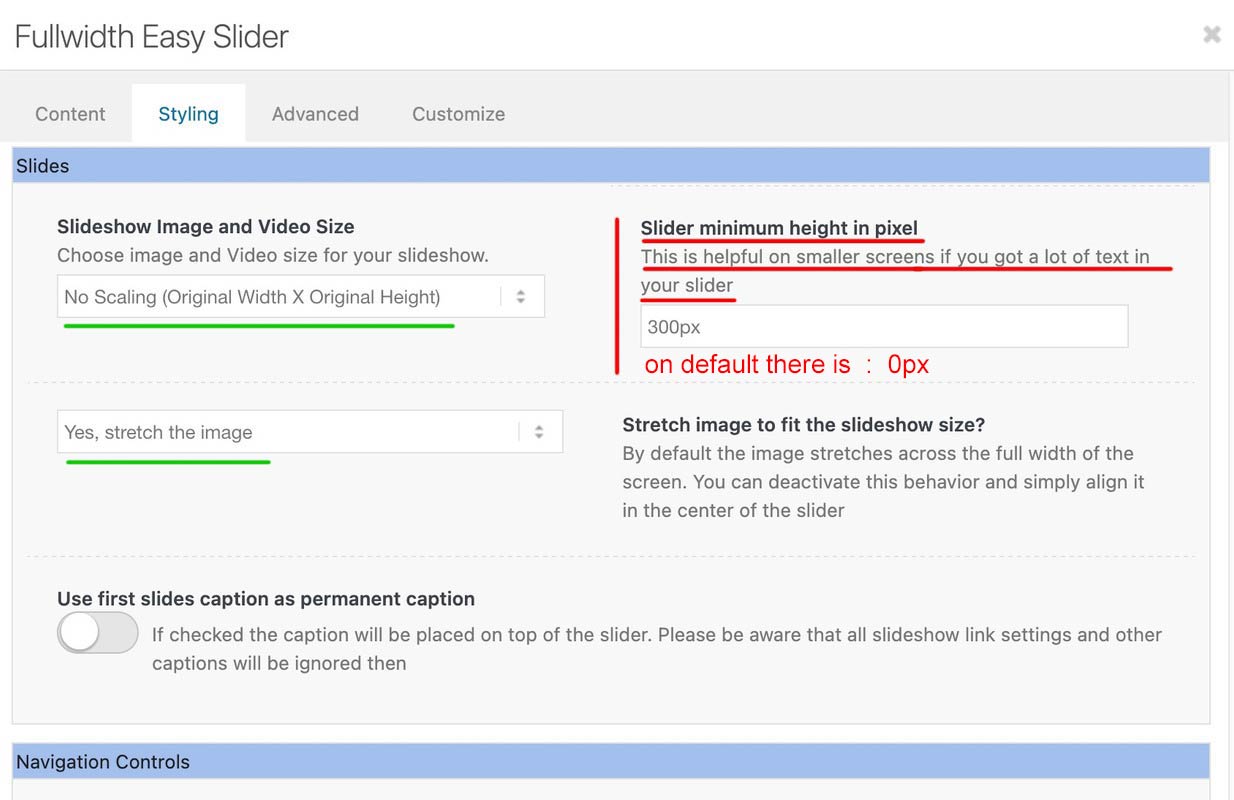
A full-width slider is responsive by default, so there’s no reason to define heights or minimum heights here. Only if the content of the color section gets bigger in height than the height of the background-video (or background-image). See here for example – there a min-height would be nice: https://kriesi.at/themes/enfold-wedding/
I can’t provide any more proof of this than the video, which shows a screen width of 320px.
So if you say that you have removed this minimum height from the color section, and have removed this one rule from the quick css; have saved everything, then it can actually only be due to a caching tool or to the Enfold own (merged or minified css) settings that I still see these settings in your source code.
I’m going to take a break from here.
Last hint – you can force my results if you place inside your quick css instead:
#top.home #wrap_all #full_slider_1,
#top.home #wrap_all #full_slider_1 .avia-slideshow,
#top.home #wrap_all #full_slider_1 .avia-slideshow-inner,
#top.home #wrap_all #full_slider_1 .avia-slide-wrap {
  min-height: unset !important;
  height: unset !important;
}
Hi guys,
A pretty straight forward question. How can I properly right position a background image (icon) with a right padding in the searchbox?
I’ve done it several times with other projects but after half a day trying, I can’t seem to get it to work this time.
This is the CSS so far:
.av_searchform_wrapper {
border: #2c7d95 1px solid!important;
border-radius: 40px!important;
	background-image: url('https://www.steviger.nl/wp-content/uploads/2025/07/vergrootglas.webp');
  background-repeat: no-repeat;
  background-position: right center;
	padding-right:30px;
}

#top #s{background:#fff!important;}
And, while I’m on it…. How can I hide the Ajax search response because this no longer works
#top #searchform .ajax_search_response, .ajax_load {
display: none !important;
}
Thanks in advance!
Regards,
Steven
Hello,
I’m working on a new design for an existing site currently running Enfold 7.1.1 but when I try to edit style options within certain elements, like uploading a custom background image for a row or a cell container, or editing the padding or font size for a button, none of the styles appear in the frontend.
Hi,
Try adding this code to the end of your child theme functions.php file in Appearance ▸ Editor, If you are not using a child theme you could use the WP Code plugin then add a new snippet, in the top right corner use the PHP snippet as the code type:

and ensure that it is activated, then add the bellow code and save.
Please ensure to copy the code from the forum and not an email notification so the symbols are not converted.
function custom_script() { ?>
  <script>
  document.addEventListener("DOMContentLoaded", function () {
  const termDescription = document.querySelector(".archive .term-description");
  const productsGrid = document.querySelector(".archive .products.columns-3");

  if (termDescription && productsGrid && productsGrid.parentNode) {
    productsGrid.parentNode.insertBefore(termDescription, productsGrid.nextSibling);
  }
});
</script>
  <?php
}
add_action( 'wp_footer', 'custom_script', 99 );
Sorry, I don’t read your language in the screenshot, now that I can translate your live page it does make sense. :)
Best regards,
Mike
Hi,
Perhaps this will be easier, try adding this code to the end of your child theme functions.php file in Appearance ▸ Editor, If you are not using a child theme you could use the WP Code plugin then add a new snippet, in the top right corner use the PHP snippet as the code type:
and ensure that it is activated, then add the below code and save.
function custom_menu_by_page_name($args) {
    // Only modify the main header menu
    if ($args['theme_location'] != 'avia') {
        return $args;
    }

    // Get current page object
    if (is_page()) {
        global $post;
        $page_slug = $post->post_name;

        // Map of page slugs to custom menu names
        $menu_switches = array(
            'about-us'     => 'rick-sherman',
            'faq'     	   => 'rick-sherman',
            'contact'      => 'sherman-sound',
            'help'         => 'sherman-sound',
            // Add more as needed
        );

        // Check if the current page slug is in our list
        if (array_key_exists($page_slug, $menu_switches)) {
            $menu_name = $menu_switches[$page_slug];
            $menu_obj = wp_get_nav_menu_object($menu_name);

            if ($menu_obj) {
                $args['menu'] = $menu_obj->term_id;
            }
        }
    }

    return $args;
}
add_filter('wp_nav_menu_args', 'custom_menu_by_page_name');
in the code under $menu_switches = array( you see four page names with the menu name, such as:
'about-us' => 'rick-sherman',
change the page “slugs” or names to suit and the menu names, whatever pages or posts that you don’t add to the code will use your default menu.
Please ensure to copy the code from the forum and not an email notification so the symbols are not converted.
Best regards,
Mike
All you need is to get rid of the min-height option – the fullwidth slider is a responsive slider !
for the caption it might be neccessary to have for very small screens smaller font-sizes – or to set a part (f.e. the avia-caption-content to display:none )
you got a rule :
@media only screen and (max-width: 489px) {
  .avia-slideshow li img {
    width: 100%;
    background-size: cover;
    height: 200px;
    object-fit: cover;
    left: 30px !important;
    position: relative;
    overflow: visible;
  }
}
Remove the rules given to you by ismael first because …
remove the left position – and height – otherwise you will have a gray bar on the left ;)
then there are some min-height properties:
inline-styles
@media only screen and (max-width: 489px) {
  .home #full_slider_1, .home #full_slider_1 .avia-slideshow,
  .home #full_slider_1 .avia-slideshow-inner, .home #full_slider_1 .avia-slide-wrap {
    min-height: 200px;
    height: 200px !important;
  }
}
and enfold css:
@media only screen and (max-width: 479px) {
  .home #full_slider_1,
  .home #full_slider_1 .avia-slideshow,
  .home #full_slider_1 .avia-slideshow-inner,
  .home #full_slider_1 .avia-slide-wrap {
    min-height: 300px;
  }
}
don’t know where they come from. But if you like to see the full width of the image – these settings are suboptimal.
Hi, thanks for getting back to me.
I agree with your point on the image, but if you check the link in the private area (Screenshot 2025-07-09 122422), you’ll see that the image does exist.
Also, when I preview the Project Home under the Imported Group in LayerSlider, the image displays perfectly (Screenshot 2025-07-09 122733).
I’ve added the SFTP details in the private area for you to access the child theme, along with the file path for this test site.
Let me know if you need anything else. Thanks
Hi,
1. The images in the slider don’t seem to exist on your site, example in private.
2. You need to set your own menu under Appearance->Menus, otherwise the theme will default to showing all pages.
3. The Appearance->Customise menu is not active on your site, please activate it or provide FTP login details so that we can check the content of your child theme.
Best regards,
Rikard
if you follow that little link on enfold options:
(these two cards icon)

you will see on that wiki page a good overview; and in detail a browser support. Best Format seems to be png.
a svg has a bad support.
you can manually add them if you put this to your child-theme functions.php:
function add_icons_to_head(){
?>
  <link rel="icon" type="image/png" href="/wp-content/uploads/icons/your-favicon-image.png">
  <link rel="apple-touch-icon" type="image/png" href="/wp-content/uploads/icons/your-apple-touch-icon.png">
<?php
}
add_action('wp_head', 'add_icons_to_head');
You are free to select the names and paths of your PNGs.
Hey Folks,
i am desperatly trying to move the category description below the products in enfold but till now i failed misserably as enfold is jsut super stubborn with this topic. I actually need this for 3 different shops…
The optimum would look like this:
– Category Image
– Category Title
– Products
– Category description
and all that without destroying the side bar.
What i tryed:
Writing functions (always ends up NOT removing the top description)
Overwriting the Wootemplate which ends up in double images at the top no title and then the normal stuff from enfold
https://stackoverflow.com/questions/22105230/move-category-description-to-bottom-of-page-on-wordpress
Why is Enfold so stubborn with this? It makes 0 sense to show a long description before the products as it it very user unfriendly but one needs the description for seo purposes. I also wanna avoid using css to “hide” it as google does not like this when we display the text again and its a very unclean way to do that. If theres no other way it would also be ok for me do move everything (not jsut the description) below the product loop but without just hiding it at the top part.
What can we do? Any help is highly appreciated.
Kind regards
Patrick
Hi,
Thanks for the update. Enfold does not alter uploaded images in any way, and looking at your site it feels like there is a plugin or third party code which is altering them in some way. Could you try to check your site and find anything that might be doing that?
Best regards,
Rikard
Hi,
I’ve recently transferred a website over from a previous supplier. The theme version they were using was quite outdated, so I’ve purchased the latest version from you in order to bring everything up to date. This was advised to do in pre-sale questions to you.
The site is now up and running, but I’m having a couple of issues:
Layer Slider images aren’t displaying on the homepage – I can see the images correctly within the Layer Slider plugin, but they’re not appearing on the live site.
Menu: this will not display as should from the original site
Footer widgets are not displaying – I’m unable to get any of the footer widgets to show up on the site.
I’ve included both sets of login credentials in the private content section for you to take a look.
Thanks in advance for your help!
Hi,
Yes, that’s the drawback of using the css rule. You can set the background-size to contain to make the image fully visible, but that would bring back the original issue.
Another option is to decrease the height of the slider so that its aspect ratio matches the slider image. Please remove the previous css code and replace it with:
@media only screen and (max-width: 489px) {

  /* Add your Mobile Styles here */
  .avia-slideshow li img {
    width: 100%;
    background-size: cover;
    height: 200px;
    object-fit: cover;
    left: 30px !important;
    position: relative;
    overflow: visible;
  }

  .home #full_slider_1,
  .home #full_slider_1 .avia-slideshow,
  .home #full_slider_1 .avia-slideshow-inner,
  .home #full_slider_1 .avia-slide-wrap {
    min-height: 200px;
  }

  .home #full_slider_1,
  .home #full_slider_1 .avia-slideshow,
  .home #full_slider_1 .avia-slideshow-inner,
  .home #full_slider_1 .avia-slide-wrap {
    min-height: 200px;
    height: 200px !important;
  }
}
Best regards,
Ismael
Hey jmbernstein,
Assuming that there are no customizations in the functions.php of the parent theme and you are not using a Child Theme, but your WordPress is up to date you can follow these steps:
To update your version of Enfold you will need to download the latest installable WP version from your Theme Forest account and upload it to your WordPress ▸ Appearance ▸ Themes ▸ Add Themes ▸ Add New

after you choose the zip file and click install, you will see a This theme is already installed message because you are updating, you can continue.

then you will see the Theme updated successfully message.
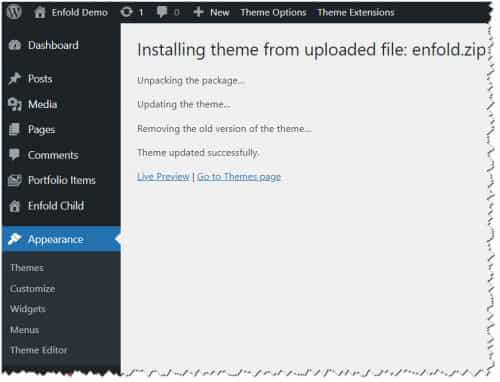
While I don’t expect any issues with updating the theme, I recommend testing on a staging site first to ensure that it works well.
Best regards,
Mike
Note: the section Working With Us is Easy
Talk (1) is missing the (1) in green on a mobile device, Q: how do I make it visible? (Tested on a Samsung Galaxy s24.
RE: You can apply the same font size to the “Hi, I’m Robert” heading, remove the 30px padding, and delete the horizontal separator element after it to reduce the space between the heading and the text below.
I’m not seeing these options under: https://blgenvironmental.com/wp-admin/post.php?post=1104&action=edit&classic-editor
The Text Block Content is configured as an H@ header under the content tab. The styling and advanced tabs have no settings for Padding.
Side Question: How do upload images and screenshots in this support system?
Please advise.
Hi,
Thank you for the update.
The Appearance > Theme File Editor is not accessible when we checked. Please enable it or provide the FTP details in the private field so we can edit the theme files. Have you tried adjusting the Appearance > Customize > WooCommerce > Product Images settings?
Best regards,
Ismael
Hey Loveronika,
Thank you for the inquiry.
Try to add this css code to adjust the size of the slider image.
@media only screen and (max-width: 489px) {
  /* Add your Mobile Styles here */
  .avia-slideshow li img {
    width: 100%;
    background-size: cover;
    height: 300px;
    object-fit: cover;
  }
}
Please toggle or temporarily disable the Enfold > Performance > File Compression settings in order to make sure that the changes take effect.
Let us know the result.
Best regards,
Ismael
Hi,
Thanks for that. Could you try going through your process again to check if it works please? It looks like you will have to upload new images, as there seems to be problems with the images that are already uploaded. If it works as expected now, then the problem is likely due to the WebP Express, or Autoptimize plugins.
Best regards,
Rikard
Hey extraeyes,
I don’t understand your issue, if it is only in the backend, you didn’t proved backend access.
Perhaps some screenshots of the issue would help.
To add a screenshot please try using an Screenshot service and pasting the image URL in your post.
Best regards,
Mike
Hi,
If you want the font to be 200px and the menu items closer and to the left, try this CSS in your <strong style=’color:#000′>Enfold Theme Options ▸ General Styling ▸ Quick CSS field:
#top #av-burger-menu-ul {
    text-align: left;
    padding-left: 20px !important;
}
.html_av-overlay-full #av-burger-menu-ul li {
padding: 10px;
}
#top #wrap_all #av-burger-menu-ul li {
    font-size: 200px;
}
After applying the css, please clear your browser cache and check.

Best regards,
Mike
Hey shop802,
Try adding this code instead to the end of your child theme functions.php file in Appearance ▸ Editor:
function my_datepicker_limits() {
    ?>
    <script type="text/javascript">
    jQuery(document).ready(function($){

        // Use a short delay to wait for Enfold to initialize the datepicker
        setTimeout(function() {
            var $dateField = $('.avia_datepicker'); // Adjust this if needed

            if ($dateField.length && $dateField.data('datepicker')) {
                $dateField.datepicker('option', {
                    minDate: new Date(2025, 7, 8),  // August 8, 2025
                    maxDate: new Date(2025, 7, 18)  // August 18, 2025
                });
            } else {
                console.warn("Datepicker not initialized or selector not found.");
            }
        }, 500); // delay to allow Enfold scripts to finish

    });
    </script>
    <?php
}
add_action('wp_footer', 'my_datepicker_limits', 30);

Best regards,
Mike
Hi,
It will not show on a page with posts, and as noted in the documentation, if you use the ALB for your posts it will not show, only if you use the classic WP post format.
It would then show like this:

Best regards,
Mike
Hey Oriano,
Try adding this code to the end of your child theme functions.php file in Appearance ▸ Editor:
add_filter('avf_title_args', 'remove_blog_prefix_from_title', 10, 2);
function remove_blog_prefix_from_title($title, $id = null) {
    if (is_single() && strpos($title['title'], 'Blog -') === 0) {
        // Remove "Blog -" prefix
        $title['title'] = trim(str_replace('Blog -', '', $title['title']));
    }
    return $title;
}
If you are not using a child theme you could use the WP Code plugin then add a new snippet, in the top right corner use the PHP snippet as the code type:
and ensure that it is activated, then add the above code and save.
Best regards,
Mike
On a French-language website, where I have deliberately chosen not to have a specific page for the blog, when I open a single article, in the “main-title entry-title” reads: Blog – A la une
How can I change main-title entry-title ?
For example, if I wanted “À la une” instead of “Blog – A la une”?
(See attach image on Private Content)
Best regards,
Oriano
We also have been trying to use the theme option to show up the author and is not working for us.
We are just talking about showing author name, image and then click for the full info (the basic option). And this is not working



