Hi,
Thank you for the feedback.
Try to replace the modification with the following code:
.avia_recaptcha_v3 fieldset {
    display: flex;
    flex-wrap: nowrap;
    align-items: flex-start;
    flex-direction: row;
}

.avia_recaptcha_v3 .form_element {
    flex: 0 0 calc(33.333% - 10px);
    margin-right: 15px;
}

.avia_recaptcha_v3 .av-recaptcha-area {
    position: absolute;
    bottom: -80px;
    left: 0;
    width: 100%;
}

.avia_recaptcha_v3 .av-google-badge-message {
    display: none;
}
Make sure to purge the cache before testing.

Best regards,
Ismael
Hey,
Sure, please see the images attached:
1. Recette_Images.jpg is my goal, a legend below each image. So I have filled in the legend here, as you can see on image legend.png

2- You can see in the same folder the mobile version, the image is full width which is perfect but the height is cut, I would like full height.
Tx!
And additional question: on mobile, my images are cut vertically, hox to get them 100% height?
Tx a lot
Marine
Hello,
I have created a shop page in Wowstore plugin (frontend image is attached). When I visit the shop page individually it works well. However, when I try to insert this shop page in my current Main Page, nothing happens. No products, no images, and no filters. Only blank screen. I use custom layout to insert the page with no luck. How can I get the shop page created through Wowstore to be seen on my own Main Page? Thank you very much in advance….

-
This topic was modified 3 weeks, 2 days ago by
 a_edemirci.
-
This topic was modified 3 weeks, 2 days ago by a_edemirci.
-
This topic was modified 3 weeks, 2 days ago by a_edemirci.
Hello,
I have added this element in my page, tried to enter the legend for 2 images but they dont appear and I dont see where to fix it.
Can u help?
Tx!
Marine
Hi,
Thank you for the inquiry.
We couldn’t reproduce the issue when we checked the site on a mobile emulator. The mobile menu is correctly visible, overlaying above the content. Which browser are you using?
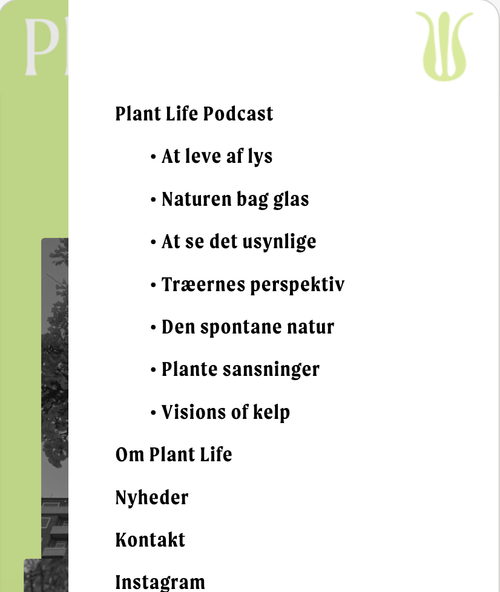
Best regards,
Ismael
Hey Advantage09,
It looks like you have enabled the Alternate Menu For Mobile
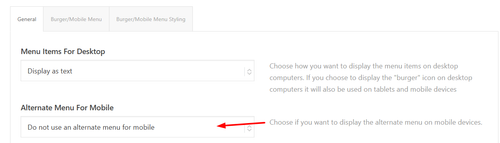
But it is the same menu items as your main menu, so it is not needed and you can disable it.
Best regards,
Mike
The site we have had working for a year or so has suddenly stopped working after a WordPress update. It now appears broken with the header images not appearing along with other css issues. No matter what i have tried to do to correct this it hasn’t fix it. Yet if i preview the home page for example this displays correctly, but the live site is displaying incorrectly? Could i ask one of the support team to take a look over the site and come back to me as soon as possible please with a fix?
Look forward to your reply.
Thanks, Rikard, for your quick response. Actually, I think I figured it out. Well, with the help of ChatGTP. I’ve added this code to Quick CSS:
.custom-image-padding {
    padding-right: 7px;
}
Seems successful in adding 7px padding to right side of images in class “custom-image-padding”.
Hey steviger,
Do you mean like this:

try this instead:
@media only screen and (max-width: 767px) {
    .responsive .logo svg {
        transform: translateX(38%) translateY(63%);
    }
}
Best regards,
Mike
Hi,
When I checked using the Enfold > Layout Builder > Show advanced Options > Debug Mode I found on Post 1785 that you have a unclosed strong tag:
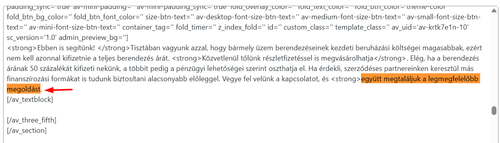
Correcting this solved.
I see that you have many templates saved:
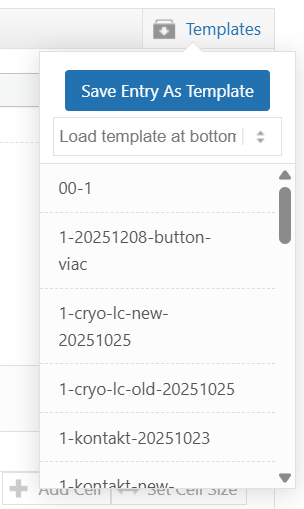
Note that if any of these have unclosed tags they will cause issues on additional pages that you use them on. They can not be repaired, you would need to delete them and rebuild them.
I also note that you are using the Advanced Editor Tools plugin and recall back when it was called TinyMCE Advanced there were issues with it, not sure if they have been resolved in the plugin’s current build, but it may be worth considering.
I also tried to reproduce this on my test site, but was unable to without purposely forcing unclosed tags.
Best regards,
Mike
Hey Valerie,
Your woo shortcode to display the products was using cropped images
[products=3]
I added this to your child theme to use the uncropped images:
add_filter( 'avf_wc_before_shop_loop_item_title_img_size', 'avf_wc_before_shop_loop_item_title_img_size_mod', 10, 1 );
function avf_wc_before_shop_loop_item_title_img_size_mod( $thumbnail_size ) {
    return 'woocommerce_thumbnail';
}
Best regards,
Mike
Hey Lance,
If you point out an example image on your site, then it will be easier for us to give you exact code.
Best regards,
Rikard
A simple question: How do I use custom CSS to add padding to the right edge of a class of images in the Classic Editor?
Thanks!
Lance
Hello Support!
I would appreciate some help with a display issue with woo commerce product page on my site. I’ve made all the woo formats but it looks like Enfold may be overriding them. The problem is that the first product image in the grid displays correctly, but the images in the next two containers are cut off. It looks like the containers are not all the same size, but the images are the same height and width.
I also tried a couple of code fixes in CSS but that didn’t fix it either. This is the latest:
/* Force consistent image heights */
.woocommerce ul.products li.product a img {
height: 250px; /* Adjust height as needed */
object-fit: cover; /* Ensures image covers area without stretching */
}
/* Force equal product container heights */
.woocommerce ul.products li.product {
display: flex;
flex-direction: column;
justify-content: space-between;
}
Thank you for looking into this for me!
Valerie
Hey klvnstudios,
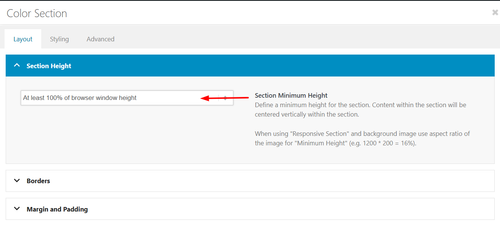
I don’t see this on my screen, but if I emulate a larger screen I see a white space at the bottom. This is not part of the page and is due to limited page content. To correct set the height of your color section to At least 100% of browser window height.
Best regards,
Mike
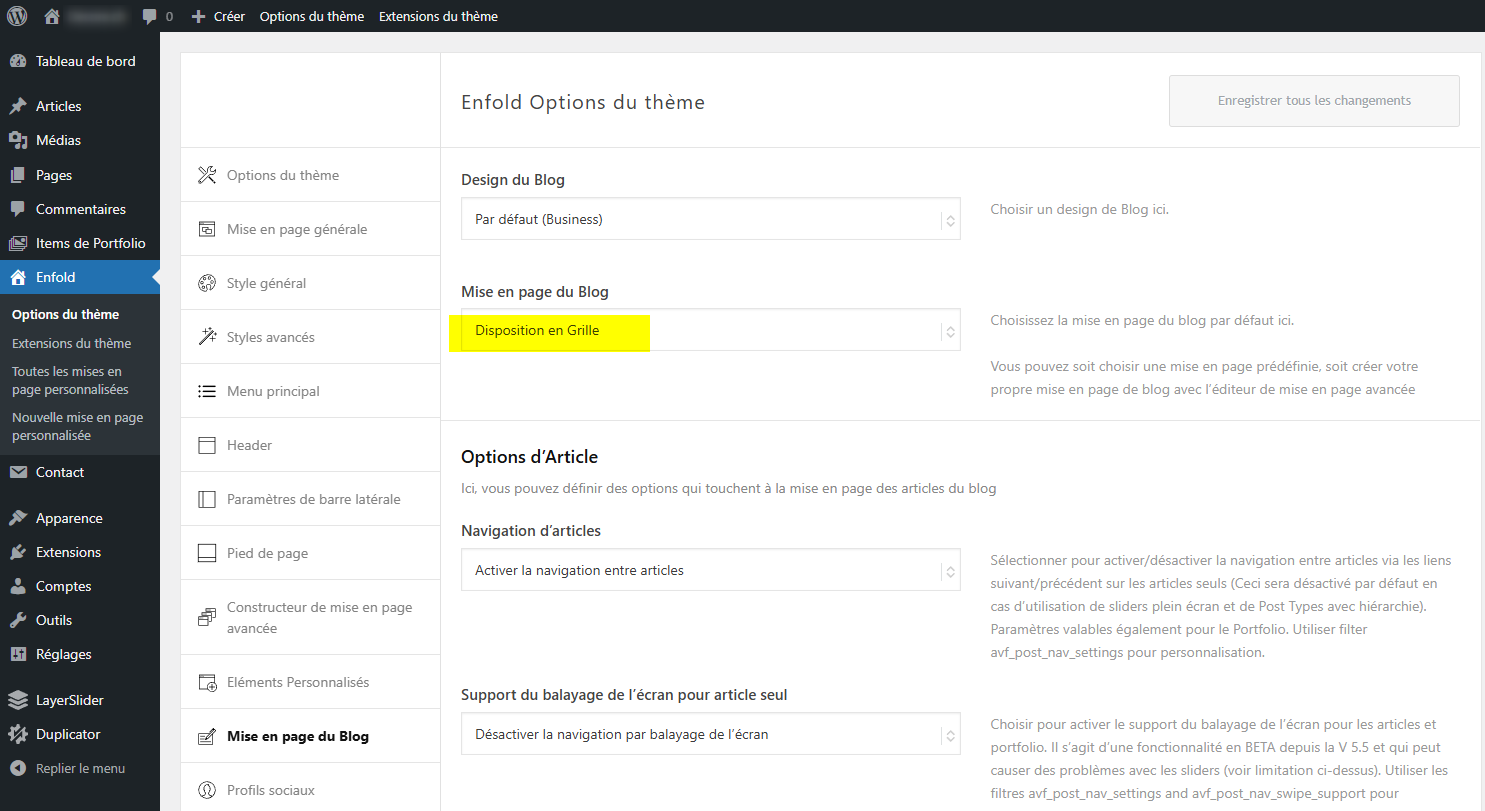
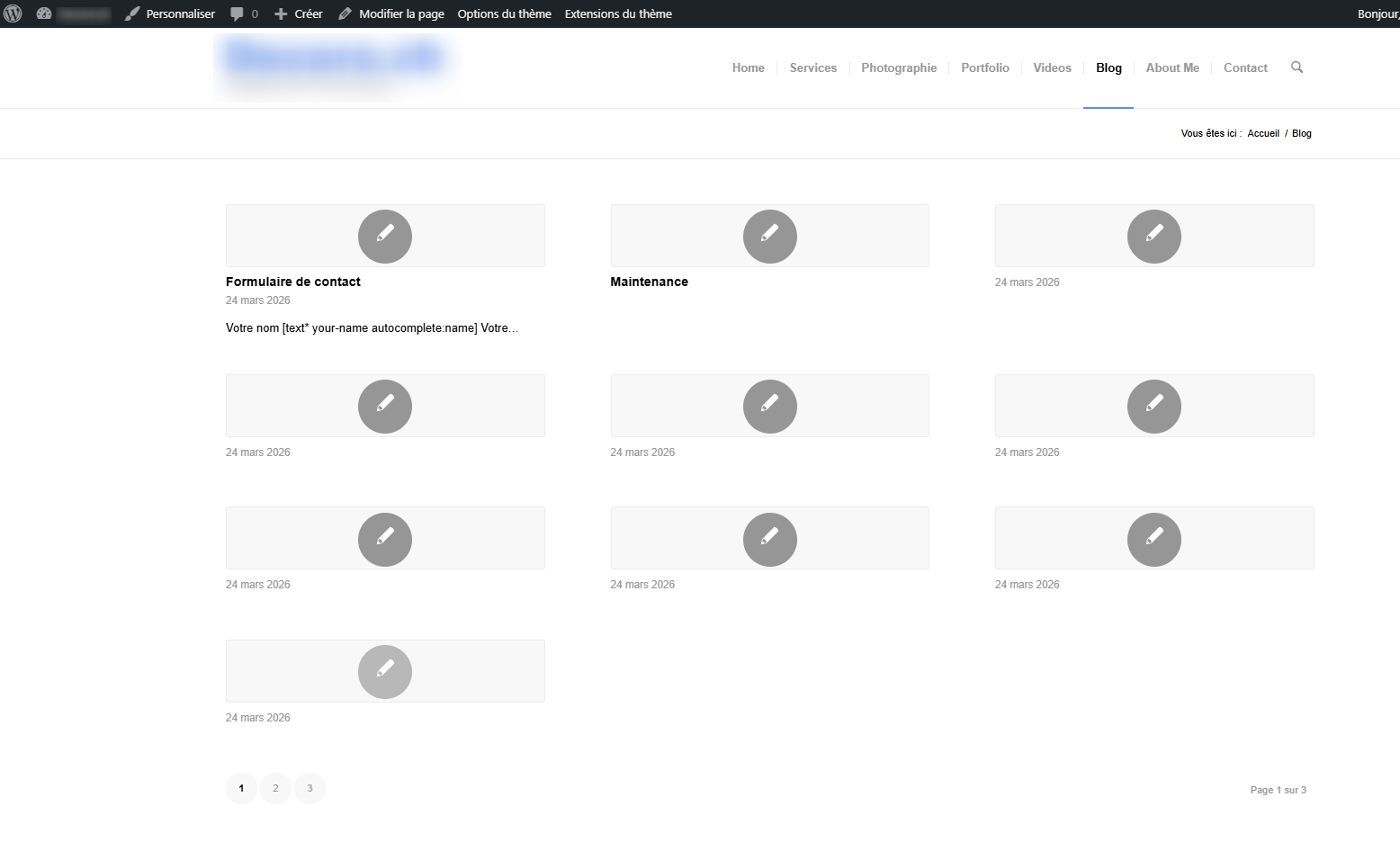
If I choose a grid layout for my blog page and my site doesn’t contain any blog posts, the “Blog” page displays a lot of unrelated elements.
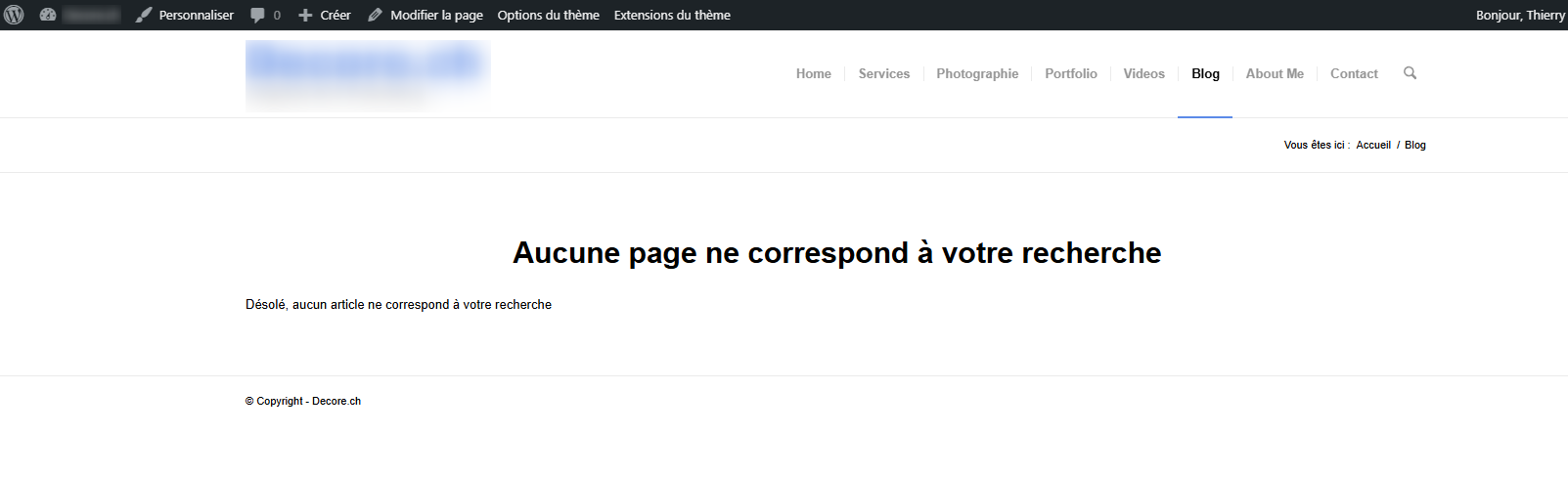
However, if I choose the default layout or any layout other than “Grid,” my “Blog” page behaves correctly, displaying that there is no content.
Can you explain if this behavior is normal?
Best regards
Hi,
Actually it is:
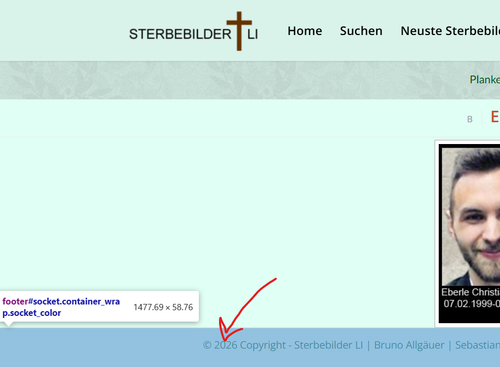
The extra space is not apart of the page, it’s because you don’t have enough content and the page is too short:
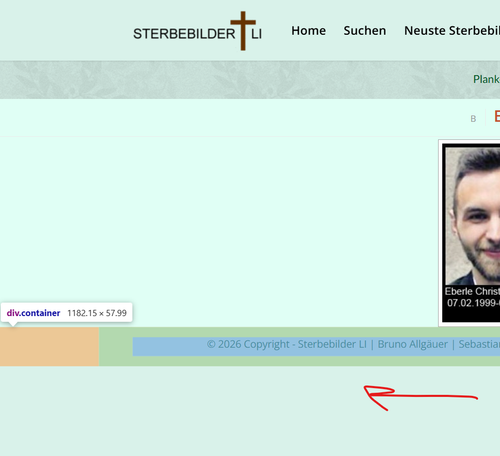
Change the height in your color section to 100% page height, instead of no height.
Best regards,
Mike
Let’s try another page
The color isn’t the same at the top of the image and below the copyright notice.
Hey Elena,
It looks like you want the font size to be 14px, but you have a Advanced Styling set to 18px which overrides it:
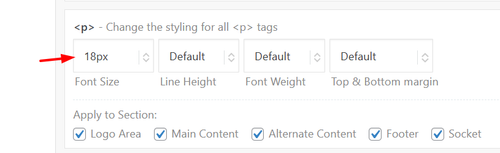
Since this size is for your whole site, try this css just for the testimonials:
#top .all_colors .avia-testimonial-content p em {
    font-size: 14px;
}
Best regards,
Mike
Hi,
I do not see the samething as you:

Try clearing your cache.
Best regards,
Mike
Hi Ismael,
I am not sure what image you are talking about because when checking the dimensions of the uploaded images of the two pages in the media library they both were bigger than what you mention.
Anyhow, I have cut and resized the images to respect the 16:7 proportions and they now look rather ok. It all depends though on how large the browser window is. If I enlarge the window some parts get cut out, but I guess that’s normal.
Thank you for your help.
Best regards,
Elena
Hey Elena,
Thank you for the inquiry.
The slider area on renders at 1702x760px on our end, but the uploaded image is only 1500x840px and with a different aspect ratio compare to the slider area — which is why part of the image is getting cut off.
To fix this, please upload a new slider image that is at least 1702x760px with an aspect ratio of approximately 16:7 (or 2.24:1) as the safest option going forward.
Let us know the result.
Best regards,
Ismael
Hello,
in a few pages of my website I am using a full screen slider (though with one single image at the moment).
I would like to increase the height of the slider because some important parts of the image are not visible, but I have not found a way to do it.
Is that possible? Or maybe you can suggest other solutions.
Pages are and
Admin credentials attached in case needed.
Best regards,
Elena
Hi,
When I check it looks like you removed the background image from the socket.
Best regards,
Mike
Hey Antonio,
Use the Use first slides caption as permanent caption option.
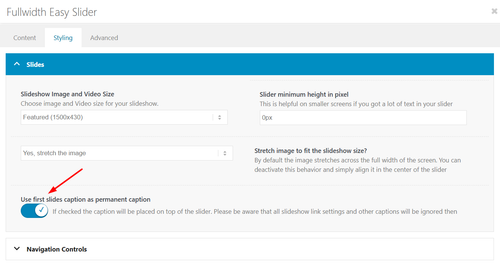
Best regards,
Mike
Hey mjrielly,
Typically the solution is to apply css height so all of the testimony slides will have the same height, and also calculate the needed height for each screen size. The following javascript will do this automatically for you. Add the following code to your child theme functions.php file. If you are not using a child theme you could use the WP Code plugin then add a new snippet, in the top right corner use the PHP snippet as the code type:
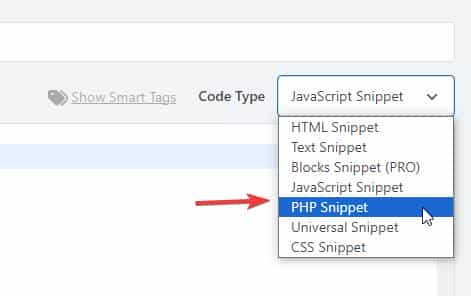
then add the following code and save.
function equalise_testimonial_heights() { ?>
  <script>
(function () {

  function equaliseTestimonialHeights() {

    const row = document.querySelector('.avia-testimonial-row');
    if (!row) return;

    const slides = row.querySelectorAll('.avia-testimonial');
    if (!slides.length) return;

    slides.forEach(function (slide) {
      slide.style.height = '';
    });

    let maxHeight = 0;
    slides.forEach(function (slide) {
      const h = slide.offsetHeight;
      if (h > maxHeight) maxHeight = h;
    });

    slides.forEach(function (slide) {
      slide.style.height = maxHeight + 'px';
    });
  }

  function debounce(fn, delay) {
    let timer;
    return function () {
      clearTimeout(timer);
      timer = setTimeout(fn, delay);
    };
  }

  if (document.readyState === 'loading') {
    document.addEventListener('DOMContentLoaded', equaliseTestimonialHeights);
  } else {
    equaliseTestimonialHeights();
  }

  window.addEventListener('resize', debounce(equaliseTestimonialHeights, 150));

})();
</script>
  <?php
}
add_action( 'wp_footer', 'equalise_testimonial_heights', 99 );
Best regards,
Mike
Not sure how to describe this, but here goes. :)
I have a testimonial inside a Testimonial Element inside a Color Section. I am using a background image in the Color Section. Some testimonials contain multiple lines of text. This causes the Color Section to expand and contract (height) every time a new testimonial appears.
Is there a way to keep this from moving? I’ve messed around with every combination of settings, but I can’t figure it out.
Thanks for any help!
 Adam Golden
Guest
Bug Report, I don’t need support or help.
Description:
The filesize column added by avia_media_gallery in class-media.php displays a stale file size when an attachment’s underlying file has been replaced or converted after upload.
Steps to reproduce:
1. Upload a JPEG or PNG image
2. Programmatically convert it to WEBP or AVIF — update _wp_attached_file postmeta to point to the new file, update _wp_attachment_metadata[‘file’] and _wp_attachment_metadata[‘filesize’], update post_mime_type, and delete the original file
3. Visit wp-admin/upload.php in list view
4. The filesize column shows the original file’s size, not the converted file’s size
Expected: The column shows the size of the current file on disk, as returned by filesize( get_attached_file( $post_id ) )
Actual: The column shows a stale size — the original file no longer exists on disk, yet the old size is displayed
Cause: avia_media_gallery appears to cache or calculate the file size at upload time rather than reading it fresh at render time, or reads from a stale source that isn’t updated when the attachment file is replaced.
Verified: get_attached_file( $post_id ) returns the correct new file path, the file exists on disk, and filesize() on that path returns the correct size. WordPress core’s _wp_attachment_metadata[‘filesize’] is also correct. The issue is specific to Enfold’s column rendering.
Workaround: Hooking manage_media_custom_column at priority 20 and replacing the output with a direct filesize( get_attached_file() ) call produces the correct value.



