Viewing 30 results - 1,981 through 2,010 (of 11,206 total)
  • Author
    Search Results
  • #1263238
    phex_
    Participant

    Hi there,
    I’ve recently bought Enfold, I’ve configured many things as I wanted but I found a weird behavior on the blog page.
    If you go in the link attached and you click in the bottom to go on the second page, all works fine.
    But if you want to return on the first page, the button “1” doesn’t work, do you have a solution?

    Many thanks

    #1263232

    I updates that, but the problem remaint. I removed all tags.

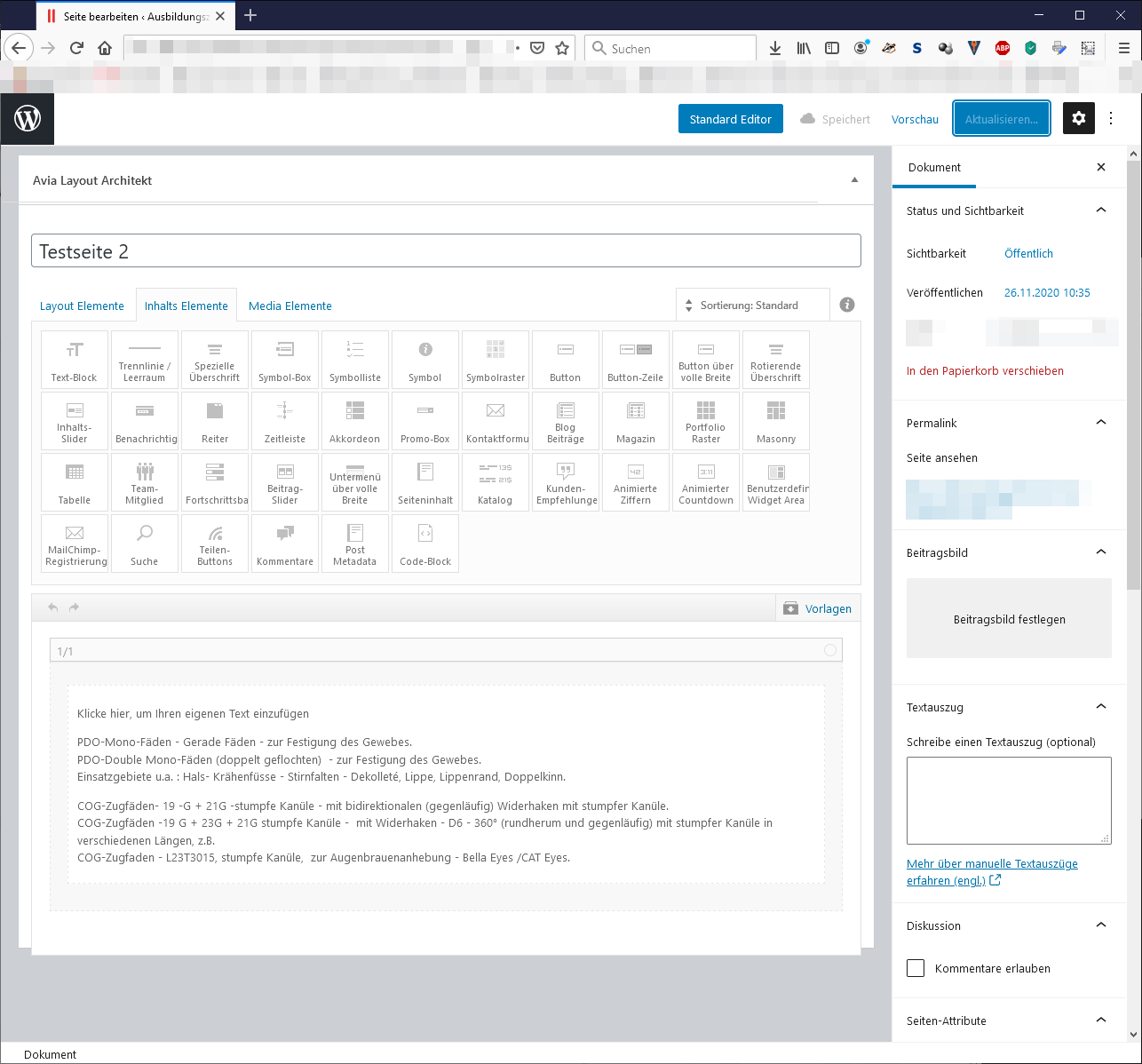
    PDO-Mono-Fäden - Gerade Fäden - zur Festigung des Gewebes.
    PDO-Double Mono-Fäden (doppelt geflochten)  - zur Festigung des Gewebes.
    Einsatzgebiete u.a. : Hals- Krähenfüsse - Stirnfalten - Dekolleté, Lippe, Lippenrand, Doppelkinn.
    
    COG-Zugfäden- 19 -G + 21G -stumpfe Kanüle - mit bidirektionalen (gegenläufig) Widerhaken mit stumpfer Kanüle.
    COG-Zugfäden -19 G + 23G + 21G stumpfe Kanüle -  mit Widerhaken - D6 - 360° (rundherum und gegenläufig) mit stumpfer Kanüle in verschiedenen Längen, z.B.
    COG-Zugfaden - L23T3015, stumpfe Kanüle,  zur Augenbrauenanhebung - Bella Eyes /CAT Eyes.

    I made an empty test-page, added a 1/1-element, inserted a text-area and copied this text inside.
    Update / Aktualisieren-Button stays greyed-out.

    • This reply was modified 5 years, 3 months ago by hanenm.
    #1263188

    Hey natashainbox2016,

    Thanks for giving us admin access.
    You’re still using Enfold 3.8.4, please update it to the latest version.
    Please backup your site first, then try to do the following steps:
    1. Login to ThemeForest and download the Enfold theme, right-click over the downloaded zip file and extract/unzip it.
    2. It should generate a new folder, open it and look for the enfold folder
    3. Right-click the enfold folder then zip it, here’s a tutorial on how to create a zip file in windows: https://www.howtogeek.com/668409/how-to-zip-and-unzip-files-on-windows-10/ (this should create enfold.zip
    4. Log in to WordPress as and Admin.
    5. Install and activate a maintenance plugin and put your site in Maintenance mode.
    6. Go to Appearance > Themes, switch to a default WordPress theme like TwentyTwenty then delete Enfold.
    7. Click on the ADD NEW button.
    8. Click on the UPLOAD THEME button.
    9. Click BROWSE and choose enfold.zip file
    10. Click the INSTALL NOW button and switch to Enfold or your child theme.
    11. Remove the maintenance mode then deactivate and remove the maintenance plugin.

    Best regards,
    Nikko

    #1263053
    mel_moataz
    Participant

    Hi,

    I am using Enfold theme on my site K-palms.community and installed USP Forms plugin (pro). I noted an issue that when I use Richtext form for USP, the Add Media button does not work. I tried the same with the Twenty-Twenty them and the button worked without changing any other settings.

    Is it a known issue with the theme, or is there a work around to help this issue.

    #1263038

    Hey Jamie,

    Please try adding this code to the Quick CSS section under Enfold > General Styling or to your child theme’s style.css file:

    CSS Snippet:

    
    @media only screen and (max-width: 480px) {
    .avia-cookie-consent .avia-cookie-consent-button.avia-cookie-consent-button-3 {
        margin-top: 5px;
    }}


    Best regards,
    Yigit

    #1262996
    MichaelNickel
    Participant

    Dear Enfold team,
    I encountered an issue with pagination/page numbering, when I use the “magazine” section in the layout builder.

    The issue manifests on the second page. Obviously the pagination circle for “page 1” does not link to page 1, but links to page 2. So once on page 2, it is nort possible to naviate back, except using the browser back button.
    Interestingly, the links to page 2 and onwards are always correct. Ony the link to page 1 is always the link of the current page (e.g. 2 on page to, 3 on page 3 and so forth …)

    Here is an example:

    Any solution suggested? Urgently need one, since I just started to make use of this element frequently …

    Thank you so much

    #1262685

    Hey starlaknapp,

    Please go to Enfold > Advanced Styling > (Select an element to customize) set to Small bar above Main Menu, then click on Edit Element button.
    Then a setting should appear, then change the Font Family.
    Hope this helps.

    Best regards,
    Nikko

    #1262675

    Hi yohanna16,

    Please backup your site first, then try to do the following steps:
    1. Login to ThemeForest and download the Enfold theme, right-click over the downloaded zip file and extract/unzip it.
    2. It should generate a new folder, open it and look for the enfold folder
    3. Right-click the enfold folder then zip it, here’s a tutorial on how to create a zip file in windows: https://www.howtogeek.com/668409/how-to-zip-and-unzip-files-on-windows-10/ (this should create enfold.zip
    4. Log in to WordPress as and Admin.
    5. Install and activate a maintenance plugin and put your site in Maintenance mode.
    6. Go to Appearance > Themes, switch to a default WordPress theme like TwentyTwenty then delete Enfold.
    7. Click on the ADD NEW button.
    8. Click on the UPLOAD THEME button.
    9. Click BROWSE and choose enfold.zip file
    10. Click the INSTALL NOW button and switch to Enfold or your child theme.
    11. Remove the maintenance mode then deactivate and remove the maintenance plugin.

    Best regards,
    Nikko

    #1262637

    Rikard,

    I changed that to an H1 as we discussed. I wanted to include a screen shot I took from Bing. It tells me I have two instances of having an H1 on the home page of NaturalStressManagement.com So I’m getting conflicting data. You spotted how I was missing the H1 but Bing says (see screenshot) I have an issue.

    Can you tell me how to proceed?

    Didn’t know how to get you a screen shot but here is the Bing/Home page data below I cut pasted

    –></head><body id=”top” class=”home page-template-default page page-id-5477 rtl_columns stretched lato theme-enfold woocommerce-no-js avia-woocommerce-30″ itemscope=”itemscope” itemtype=”https://schema.org/WebPage&#8221; ><div class=’av-siteloader-wrap av-transition-enabled av-transition-with-logo’><div class=’av-siteloader-inner’><div class=’av-siteloader-cell’>Loading<div class=’av-siteloader’><div class=’av-siteloader-extra’></div></div></div></div></div><div id=’wrap_all’><header id=’header’ class=’all_colors header_color dark_bg_color av_header_top av_logo_left av_main_nav_header av_menu_right av_custom av_header_sticky_disabled av_header_shrinking_disabled av_header_stretch_disabled av_mobile_menu_phone av_header_searchicon_disabled av_header_unstick_top av_minimal_header av_bottom_nav_disabled av_alternate_logo_active av_header_border_disabled’ role=”banner” itemscope=”itemscope” itemtype=”https://schema.org/WPHeader&#8221; ><div id=’header_meta’ class=’container_wrap container_wrap_meta av_icon_active_left av_extra_header_active av_secondary_right av_phone_active_right av_entry_id_5477′><div class=’container’><ul class=’noLightbox social_bookmarks icon_count_6′><li class=’social_bookmarks_twitter av-social-link-twitter social_icon_1′><span class=’avia_hidden_link_text’>Twitter</span><li class=’social_bookmarks_facebook av-social-link-facebook social_icon_2′><span class=’avia_hidden_link_text’>Facebook</span><li class=’social_bookmarks_linkedin av-social-link-linkedin social_icon_3′><span class=’avia_hidden_link_text’>LinkedIn</span><li class=’social_bookmarks_pinterest av-social-link-pinterest social_icon_4′><span class=’avia_hidden_link_text’>Pinterest</span><li class=’social_bookmarks_youtube av-social-link-youtube social_icon_5′><span class=’avia_hidden_link_text’>Youtube</span><li class=’social_bookmarks_instagram av-social-link-instagram social_icon_6′><span class=’avia_hidden_link_text’>Instagram</span><div class=’phone-info ‘><span><h3>Call Mateja 561 299 1028</h3></span></div></div></div><div id=’header_main’ class=’container_wrap container_wrap_logo’><ul class = ‘menu-item cart_dropdown ‘ data-success=’was added to the cart’><li class=’cart_dropdown_first’><span aria-hidden=’true’ data-av_icon=’’ data-av_iconfont=’entypo-fontello’></span><span class=’av-cart-counter ‘>0</span><span class=’avia_hidden_link_text’>Shopping Cart</span><!–<span class=’cart_subtotal’><span class=”woocommerce-Price-amount amount”><bdi><span class=”woocommerce-Price-currencySymbol”>$</span>0.00</bdi></span></span>–><div class=’dropdown_widget dropdown_widget_cart’><div class=’avia-arrow’></div><div class=”widget_shopping_cart_content”></div></div><div class=’container av-logo-container’><div class=’inner-container’><span class=’logo’>HOLISTIC COACHING INTERNATIONAL</span><nav class=’main_menu’ data-selectname=’Select a page’ role=”navigation” itemscope=”itemscope” itemtype=”https://schema.org/SiteNavigationElement&#8221; ><div class=”avia-menu av-main-nav-wrap”><ul id=”avia-menu” class=”menu av-main-nav”><li id=”menu-item-255″ class=”menu-item menu-item-type-post_type menu-item-object-page menu-item-has-children av-menu-button av-menu-button-colored menu-item-top-level menu-item-top-level-1″><span class=”avia-bullet”></span><span class=”avia-menu-text”>About Mateja</span><span class=”avia-menu-fx”><span class=”avia-arrow-wrap”><span class=”avia-arrow”></span></span></span><ul class=”sub-menu”><li id=”menu-item-54″ class=”menu-item menu-item-type-post_type menu-item-object-page”><span class=”avia-bullet”></span><span class=”avia-menu-text”>Why Mateja Petje</span><li id=”menu-item-246″ class=”menu-item menu-item-type-post_type menu-item-object-page”><span class=”avia-bullet”></span><span class=”avia-menu-text”>Mateja Petje Background</span><li id=”menu-item-244″ class=”menu-item menu-item-type-post_type menu-item-object-page”><span class=”avia-bullet”></span><span class=”avia-menu-text”>Philosophy & Approach</span><li id=”menu-item-57″ class=”menu-item menu-item-type-post_type menu-item-object-page”><span class=”avia-bullet”></span><span class=”avia-menu-text”>Mateja Petje Media Interviews</span><li id=”menu-item-52″ class=”menu-item menu-item-type-custom menu-item-object-custom menu-item-has-children av-menu-button av-menu-button-colored menu-item-top-level menu-item-top-level-2″><span class=”avia-bullet”></span><span class=”avia-menu-text”>Services</span><span class=”avia-menu-fx”><span class=”avia-arrow-wrap”><span class=”avia-arrow”></span></span></span><ul class=”sub-menu”><li id=”menu-item-240″ class=”menu-item menu-item-type-post_type menu-item-object-page”><span class=”avia-bullet”></span><span class=”avia-menu-text”>Holistic Psychotherapy Mateja Petje</span><li id=”menu-item-241″ class=”menu-item menu-item-type-post_type menu-item-object-page”><span class=”avia-bullet”></span><span class=”avia-menu-text”>Stress Management Coaching</span><li id=”menu-item-3155″ class=”menu-item menu-item-type-post_type menu-item-object-page”><span class=”avia-bullet”></span><span class=”avia-menu-text”>Mateja Petje Coaching Packages</span><li id=”menu-item-56″ class=”menu-item menu-item-type-post_type menu-item-object-page”><span class=”avia-bullet”></span><span class=”avia-menu-text”>Energy Healing-Spiritual Counseling</span><li id=”menu-item-237″ class=”menu-item menu-item-type-post_type menu-item-object-page av-menu-button av-menu-button-colored menu-item-top-level menu-item-top-level-3″><span class=”avia-bullet”></span><span class=”avia-menu-text”>Testimonials</span><span class=”avia-menu-fx”><span class=”avia-arrow-wrap”><span class=”avia-arrow”></span></span></span><li id=”menu-item-236″ class=”menu-item menu-item-type-post_type menu-item-object-page av-menu-button av-menu-button-colored menu-item-top-level menu-item-top-level-4″><span class=”avia-bullet”></span><span class=”avia-menu-text”>Mateja Petje Client Resources</span><span class=”avia-menu-fx”><span class=”avia-arrow-wrap”><span class=”avia-arrow”></span></span></span><li id=”menu-item-39″ class=”menu-item menu-item-type-post_type menu-item-object-page av-menu-button av-menu-button-colored menu-item-top-level menu-item-top-level-5″><span class=”avia-bullet”></span><span class=”avia-menu-text”>Blog</span><span class=”avia-menu-fx”><span class=”avia-arrow-wrap”><span class=”avia-arrow”></span></span></span><li id=”menu-item-55″ class=”menu-item menu-item-type-post_type menu-item-object-page menu-item-has-children av-menu-button av-menu-button-colored menu-item-top-level menu-item-top-level-6″><span class=”avia-bullet”></span><span class=”avia-menu-text”>Contact Mateja Petje</span><span class=”avia-menu-fx”><span class=”avia-arrow-wrap”><span class=”avia-arrow”></span></span></span><ul class=”sub-menu”><li id=”menu-item-301″ class=”menu-item menu-item-type-post_type menu-item-object-page menu-item-privacy-policy”><span class=”avia-bullet”></span><span class=”avia-menu-text”>Opt In for Free Videos-Privacy Policy</span><li class=”av-burger-menu-main menu-item-avia-special “> <span class=”av-hamburger av-hamburger–spin av-js-hamburger”> <span class=”av-hamburger-box”> <span class=”av-hamburger-inner”></span> Menu </span> </span> <span class=”avia_hidden_link_text”>Menu</span> </div></nav></div></div> <!– end container_wrap–></div><div class=’header_bg’></div> <!– end header –></header><div id=’main’ class=’all_colors’ data-scroll-offset=’0′><div class=’stretch_full container_wrap alternate_color light_bg_color title_container’><div class=’container’><h1 class=’main-title entry-title ‘>Home</h1><div class=”breadcrumb breadcrumbs avia-breadcrumbs”><div class=”breadcrumb-trail” ><span class=”trail-before”><span class=”breadcrumb-title”>You are here:</span></span> <span class=”trail-end”>Home</span></div></div></div></div><div class=’main_color container_wrap_first container_wrap fullsize’ style=’ ‘ ><div class=’container’ ><main role=”main” itemprop=”mainContentOfPage” class=’template-page content av-content-full alpha units’><div class=’post-entry post-entry-type-page post-entry-5477′><div class=’entry-content-wrapper clearfix’><div class=”flex_column av_one_half flex_column_div av-zero-column-padding first avia-builder-el-0 el_before_av_one_half avia-builder-el-first ” style=’border-radius:0px; ‘><section class=”av_textblock_section ” itemscope=”itemscope” itemtype=”https://schema.org/Creati

    #1262502

    Hey rvga,

    Here is the code you can put in Enfold > General Styling > Quick Css,  if it does not work, put into themes/enfold/css/custom.css

    
    #top .main_color .avia-color-theme-color.avia-size-small {
        font-size: 10px;
    }
    

    https://share.getcloudapp.com/BluQgOAj but you have this css that tells that button to have a font-size of 40px. You need to change that.

    If you need further assistance please let us know.
    Best regards,
    Victoria

    #1262475

    hi ismael,

    well, i think there´s a huge problem right now.
    yesterday i installed for a new customer a brand new wordpress/enfold installation.
    links in pivate section.

    so as you can see:
    even in blog (not portfolio) we have this issue.
    you can jump on the button “2” (that works fine). but not back to “1” anymore.

    and i didn´t tuned anything until now.

    i think it´s the same logic-bug.

    +++

    to your post above: i haven´t checked that today, but i´ll will it do tomorrow. i´ll let you know.

    thanks a lot,
    felixl

    #1262397

    In reply to: Menu Styling is broken

    Hi Saru82,

    Please backup your site first, then try to do the following steps (this is just a workaround):
    1. Login to ThemeForest and download the Enfold theme, right-click over the downloaded zip file and extract/unzip it.
    2. It should generate a new folder, open it and look for the enfold folder
    3. Right-click the enfold folder then zip it, here’s a tutorial on how to create a zip file in windows: https://www.howtogeek.com/668409/how-to-zip-and-unzip-files-on-windows-10/ (this should create enfold.zip
    4. Log in to WordPress as and Admin.
    5. Install and activate a maintenance plugin and put your site in Maintenance mode.
    6. Go to Appearance > Themes, switch to a default WordPress theme like TwentyTwenty then delete Enfold.
    7. Click on the ADD NEW button.
    8. Click on the UPLOAD THEME button.
    9. Click BROWSE and choose enfold.zip file
    10. Click the INSTALL NOW button and switch to Enfold or your child theme.
    11. Remove the maintenance mode then deactivate and remove the maintenance plugin.

    Best regards,
    Nikko

    #1262391

    Hi Mike,

    Please backup your site first, then try to do the following steps:
    1. Login to ThemeForest and download the Enfold theme, right-click over the downloaded zip file and extract/unzip it.
    2. It should generate a new folder, open it and look for the enfold folder
    3. Right-click the enfold folder then zip it, here’s a tutorial on how to create a zip file in windows: https://www.howtogeek.com/668409/how-to-zip-and-unzip-files-on-windows-10/ (this should create enfold.zip
    4. Log in to WordPress as and Admin.
    5. Install and activate a maintenance plugin and put your site in Maintenance mode.
    6. Go to Appearance > Themes, switch to a default WordPress theme like TwentyTwenty then delete Enfold.
    7. Click on the ADD NEW button.
    8. Click on the UPLOAD THEME button.
    9. Click BROWSE and choose enfold.zip file
    10. Click the INSTALL NOW button and switch to Enfold or your child theme.
    11. Remove the maintenance mode then deactivate and remove the maintenance plugin.

    Best regards,
    Nikko

    #1262156

    In reply to: Adding HTML to Menu

    Hey WellStrategic,
    Sorry for the late reply and thanks for the link to your site, I see that you have added the button & phone link into the Enfold Theme Options > Header > Extra Elements > Phone Number or small info text field, to add the phone icon before the phone number please try adjusting your HTML to include this before the phone number text:
    [av_font_icon icon='ue854' font='entypo-fontello' size='20px'][/av_font_icon]
    this is the phone number icon shortcode, if you want an image then use a image source tag with the link to the image, like this:
    <img src="https://img.icons8.com/ultraviolet/20/000000/phone.png"/>
    After updating your code please clear your browser cache and check.

    Best regards,
    Mike

    #1262090

    In reply to: Conflict with FacetWP

    Hi Mike,
    no, FacetWP filters change the wonderful Enfold +/- buttons back to Woo up/down arrows.You can check this by using a filter on https://weingut-bischof.at/wein-shop/ in the dark grey section above the shop. The question is, how to prevent this (see the comments of FacetWP support).
    Thanks and best regards
    Stefan

    #1262024

    Hey Emiel,

    Here is the code you can put in Enfold > General Styling > Quick Css,  if it does not work, put into themes/enfold/css/custom.css

    
    #top .avia-builder-el-6 .avia-button-fullwidth {
        border: #ccc 1px solid;
    }
    

    But you need to add a custom class to that button in the Developer settings.

    If you need further assistance please let us know.

    Best regards,
    Victoria

    #1261906

    In reply to: Gallery Loading Issues

    Hi tlscaliti,

    I see, themeforest’s legacy API keys aren’t working anymore and tokens are used instead.
    Enfold 4.2’s backend still uses the legacy API key for updates which is not working anymore that’s why you’re not getting any updates.
    You can see our changelog here, to track the versions: https://kriesi.at/documentation/enfold/changelog/
    To update to the latest version of Enfold you can do the following (since you are using a staging site, you can skip the maintenance part, only do it on the live site):
    1. Login to ThemeForest and download the Enfold theme, right-click over the downloaded zip file and extract/unzip it.
    2. It should generate a new folder, open it and look for the enfold folder
    3. Right-click the enfold folder then zip it, here’s a tutorial on how to create a zip file in windows: https://www.howtogeek.com/668409/how-to-zip-and-unzip-files-on-windows-10/ (this should create enfold.zip
    4. Log in to WordPress as and Admin.
    5. Install and activate a maintenance plugin and put your site in Maintenance mode.
    6. Go to Appearance > Themes, switch to a default WordPress theme like TwentyTwenty then delete Enfold.
    7. Click on the ADD NEW button.
    8. Click on the UPLOAD THEME button.
    9. Click BROWSE and choose enfold.zip file
    10. Click the INSTALL NOW button and switch to Enfold or your child theme.
    11. Remove the maintenance mode then deactivate and remove the maintenance plugin.
    Once update is done, generate an envato token and register your theme so you can check for new updates and update it via theme options, check further information on this here: https://kriesi.at/documentation/enfold/theme-registration/ (do this on the live site, no need for the stage site)

    Best regards,
    Nikko

    mmsdev
    Participant

    When on Enfold theme only logged in users are able to make a payment. If you are not logged in you will get a message “We were unable to process your order, please try again. “. We are trying to find the issue and this is only happening when on Enfold theme. Other themes are working fine.
    You can check the problem by going to https://schoolofelectronicmusic.com/music-production/free/ and pressing enroll now button at the bottom.
    You will be taken to checkout page were if you fill the form and click Enroll now button you will get the error.
    We found that the issue is caused by wc-ajax requests returning 403 forbidden.
    Please provide assistance on how to solve the issue.

    #1261778
    Dave
    Participant

    Hi could anyone at enfold pls answer my question over on the post below? it is regarding woo commerce bundles and enfold theme?

    After changing the file /enfold/config-woocommerce/woocommerce-mod.js at line 80 to this //avia_apply_quant_btn(); it appears the buttons did get removed however the buttons return if the user removes an item or changes the qty?

    Hey Jeffrey Trujillo,

    Thanks for contacting us!
    The problem that you are having is compatibility between WordPress 5.5.3 and Enfold 3.5.4 (which is really an old version of Enfold, released in April 2016)
    You can check all the versions in our changelog: https://kriesi.at/documentation/enfold/changelog
    Please update to the latest version of Enfold and make sure to have a backup first.

    To update to the latest version of Enfold you can do the following:
    1. Login to ThemeForest and download the Enfold theme, right-click over the downloaded zip file and extract/unzip it.
    2. It should generate a new folder, open it and look for the enfold folder
    3. Right-click the enfold folder then zip it, here’s a tutorial on how to create a zip file in windows: https://www.howtogeek.com/668409/how-to-zip-and-unzip-files-on-windows-10/ (this should create enfold.zip
    4. Log in to WordPress as and Admin.
    5. Install and activate a maintenance plugin and put your site in Maintenance mode.
    6. Go to Appearance > Themes, switch to a default WordPress theme like TwentyTwenty then delete Enfold.
    7. Click on the ADD NEW button.
    8. Click on the UPLOAD THEME button.
    9. Click BROWSE and choose enfold.zip file
    10. Click the INSTALL NOW button and switch to Enfold or your child theme.
    11. Remove the maintenance mode then deactivate and remove the maintenance plugin.
    Once update is done, generate an envato token and register your theme so you can check for new updates and update it via theme options, check further information on this here: https://kriesi.at/documentation/enfold/theme-registration/

    Best regards,
    Nikko

    #1261642
    premedia
    Participant

    Hello. I had the “Contact Form 7” form setup for the last couple of years – and there was frustration with the ReCaptcha and my clients getting blocked – so I have gone back to using the basic ENFOLD Contact Form.

    NOTE:
    I am running Enfold V4.4
    WordPress V4.9.16

    I wanted to use the colour and border and hover styling that you kindly helped me set up on the CF7 form SUBMIT button – so I wanted to replicate that same styling on the Enfold contact form SUBMIT button.

    Shown below was my CSS as used on the CF7 form:-
    Can you please let me know what CSS I need to setup to get the same colours and borders and padding etc on the ENFOLD Submit button?
    I would be grateful for your help and look forward to hearing from you.
    Thanks
    Peter

    ******************CSS – I previously used for styling CF7 **********

    /* CF7 Submit Button CSS Styles */
    .wpcf7 input[type=submit] {
        padding:15px 45px;
        background:#FCE228;
        color:#232323;
        font-size:16px;
        font-weight:bold;
        border:1px solid #232323;
        cursor:pointer;
        -webkit-border-radius: 3px;
        border-radius: 3px;
       margin-top: 20px;
    }

    /* CF7 Submit Button CSS Hover Styles */
    .wpcf7 input[type=submit]:hover {
        background-color: #232323;
        color: #FCE228;
        border:1px solid #232323;
    }

    #1261597

    Hi,

    1) – Please refer to this post – https://kriesi.at/documentation/enfold/child-theme/ and switch to child theme
    – Edit functions.php file of your child theme and add following code

    add_filter('avia_load_shortcodes', 'avia_include_shortcode_template', 15, 1);
    function avia_include_shortcode_template($paths)
    {
      $template_url = get_stylesheet_directory();
          array_unshift($paths, $template_url.'/shortcodes/');
    
      return $paths;
    }

    – Go to /enfold/config-templatebuilder/avia-shortcodes/buttons_fullwidth and copy buttons_fullwidth.php file to your child theme inside /shortcodes/ folder
    – Open buttons_fullwidth.php file on your child theme and find following line

    $content_html .= "<span class='avia_iconbox_title' >{$atts['label']}</span>";

    and change it to following

    $content_html .= "<h2 class='avia_iconbox_title' >{$atts['label']}</h2>";

    2) Please add following code to bottom of Quick CSS field in Enfold theme options > General Styling tab

    #top .avia-button-fullwidth .av-button-description.av-button-description-below {
        padding-top: 10px;
    }

    Best regards,
    Yigit

    #1261479

    if you do not want to influence all fullwidth buttons on all pages – you should give to those fullwidth-buttons a custom-class.
    in my case i use for that : fullwidth-specialbutton

    because of the inline setting of most of those values we had to use !important on most of the rules

    #top .fullwidth-specialbutton .avia-button.avia-button-fullwidth {
      padding: 40px !important;
      margin: 40px 30px !important;
      width: calc(100% - 60px) !important; /*** this has to correspond to your margin (left/right) settings ***/
      background-color: yellow;
      color: #333 !important;
      border-radius: 20px !important;
      border: 2px solid #333 !important;
      box-shadow: 2px 2px 15px #333;
      -webkit-transition: all 0.5s ease;
      transition: all 0.5s ease
    }
    
    #top .fullwidth-specialbutton .avia-button.avia-button-fullwidth:hover {
      background-color: darkblue;
      color: #FFF !important;
      -webkit-transition: all 0.5s ease;
      transition: all 0.5s ease
    }
    
    /*** this background is on enfold for highlite status - we do that with hover-style ***/
    #top .fullwidth-specialbutton .avia-button.avia-button-fullwidth .avia_button_background {
      display: none
    }
    
    #top .fullwidth-specialbutton .avia-button.avia-button-fullwidth .avia_iconbox_title, 
    #top .fullwidth-specialbutton .avia-button.avia-button-fullwidth .avia_button_icon {
      font-size: 50px !important;
    }
    #1261472
    uribinsted
    Participant

    Hi,
    We had some CSS code that set 2 logos at the header.
    I updated the theme version and the header got broken, can you help me fix it?

    
    span.logo {
        padding: 5px;
    }
    ul#menu-item-shop {
        display: none;
    }
    #top .header_color .current-menu-item a {
    color: #21356a !important;
    }
    .page-id-206 .iconbox_content {
        background-color: rgba(0,0,139,0.4)!important;
    }
    .inner_product.main_color.wrapped_style.noLightbox.av-product-class-minimal {
        WIDTH: 365PX;
    }
    div#product-sec2 .av-section-color-overlay:before {
        position: absolute;
        content: '';
        width: 100%;
        height: 100%;
        top: 0;
        left: 0;
        background: linear-gradient(301deg,rgba(255,255,255,0) 0,rgba(255,255,255,0) 38%,rgba(13,92,155,0.99) 38%,rgba(13,92,155,0.99) 100%);
        filter: progid:DXImageTransform.Microsoft.gradient(startColorstr='#00ffffff',endColorstr='#d9489fac',GradientType=1);
        z-index: 2;
    }
    #tested .avia-builder-el-45 {
        border-top: none!important;
        border-left: none!important;
        border-bottom: none!important;
    }
    #tested .avia-builder-el-47{
     border-top: none!important;
        border-left: none!important;
        border-bottom: none!important;
    }
    #tested .avia-builder-el-49{
     border-top: none!important;
        border-left: none!important;
        border-bottom: none!important;
    }
    #tested .avia-builder-el-51{
     border-top: none!important;
        border-left: none!important;
        border-bottom: none!important;
    }
    div#product-specification .av-section-color-overlay:before {
        position: absolute;
        content: '';
        width: 100%;
        height: 100%;
        top: 0;
        left: 0;
        background: linear-gradient(294deg,rgba(255,255,255,0) 0,rgba(255,255,255,0) 33%,rgba(0,113,155,0.99) 33%,rgba(0,113,155,0.99) 100%);
        filter: progid:DXImageTransform.Microsoft.gradient(startColorstr='#00ffffff',endColorstr='#007faf',GradientType=1);
        z-index: 2;
    }
    table.avia-table.avia-data-table.avia-table-1.avia-builder-el-56.el_after_av_textblock.avia-builder-el-last.avia_pricing_minimal {
        background: none;
      
    }
     #top .main_color .avia-data-table.avia_pricing_minimal td {
        color: #ffffff!important;
        border: none!important;
        border-bottom: 1px solid #ffffff!important;
        font-size: 18px!important;
        text-align: left!important;
    }
    .page-id-3970 input.button {
        background-color: #0c5c9c!important;
        color: #ffffff!important;
    }
    .page-id-3970 textarea#avia_6_1 {
        height: 111px!important;
    }
    .page-id-4036 textarea#avia_6_1 {
        height: 111px!important;
    }
    .page-id-4036 input.button {
        background-color: #0c5c9c!important;
        color: #ffffff!important;
    }
    table.avia-table.avia-data-table.avia-table-1.el_after_av_textblock.avia-builder-el-last.avia_pricing_minimal {
        background: none;
    }
    .para-text{
        line-height: 25px;
    text-align: center;
    font-size:17px;
    }
    div#acc-cause .av-section-color-overlay:before {
        position: absolute;
        content: '';
        width: 100%;
        height: 100%;
        top: 0;
        left: 0;
        background: linear-gradient(315deg,rgba(35,145,201,0.9) 0,rgba(35,145,201,0.6) 37%,rgba(13,92,155,0.99) 37%,rgba(13,92,155,0.99) 100%);
        filter: progid:DXImageTransform.Microsoft.gradient(startColorstr='#00ffffff',endColorstr='#d9489fac',GradientType=1);
        z-index: 2;
    }
    @media only screen and (width:2000px) {
    .col-lg-2.last-icon {
       margin-right: 7%;
    }
    }
    #top .avia-logo-element-container .slide-entry {
        padding: 40px;
    }
    
    #top .av_header_transparency #header_meta {
        background: transparent;
        box-shadow: none;
        border-bottom: 0px solid rgba(255,255,255,0.25);
    }
    
    #top .av_header_with_border.av_header_transparency #header_main {
        border: 0px solid rgba(255,255,255,0.25);
        border-left: none;
        border-right: none;
        border-top-color: transparent;
    }

    Thanks

    Uri

    #1261391
    Josh
    Participant

    Hey guys, having an oddball issue here;
    I have woocom installed on this site we’re working on and when you go through the checkout the “Place Order” button at the bottom of the page appears then vanishes. You can see it if you reload the page while at the footer.

    Please advise if this is not an Enfold issue, if i should talk to WooCommerce about it. Credentials in private content.

    • This topic was modified 5 years, 3 months ago by Josh.
    #1261348

    Hi Yigit, Testing some more, enfold seems to work fine with the quantity + – buttons on standard products in woocommerce but not with the “woocommerce-product-bundles” plugin. If I wanted to get enfold to work with this plugin what would i need please? is it javascript? or php? Does enfold plan on any type of fix for this plugin please as it is part of the woocommerce family?

    Also removing the – and + buttons from the theme as you instructed doesn’t stop them coming back once you update your cart as they reappear if i change the qty from 1 to 2 for example or if I have multiple products and remove one. Any help to fix this issue will be greatly appreciated.

    • This reply was modified 5 years, 3 months ago by Dave.
    #1261305

    In reply to: Gplus logo in header?

    Hey,

    Please check functions.php file of your child theme for code very similar to this one – https://kriesi.at/documentation/enfold/social-share-buttons/#how-to-add-custom-social-icons-to-enfold-options and delete it.

    If you would like us to look into it, please create temporary admin logins and post them here privately :)

    Cheers!
    Yigit

    #1261286

    Hey,

    Please try adding this code to the Quick CSS section under Enfold > General Styling or to your child theme’s style.css file:

    CSS Snippet:

    
    .html_header_sidebar #top #header .av-menu-button-colored:hover {
        opacity: 1;
    }


    Best regards,
    Yigit

    #1261281
    PAUL BERGIN
    Guest

    Hi
    I am considering purchasing Enfold again. My client wants an availability calendar but not a payment gateway/Check out for it. Your Enfold Hotel theme has a calendar where you can choose check in and check out dates and it gives you a total price, which is perfect. There doesn’t seem to be a payment option which is also fine. Is the calendar customizable so that it is not linked to a check out cart but still gives the user their price for their dates query. Rather than a ‘BOOK NOW” button it I would use a “ENQUIRE NOW’ button which would take you to a contact/enquiry form. I basically don’t want a check out cart showing in the top right corner because it doesn’t actually look like a proper payment/e-commerce page that you are taken to.
    Thanks
    Paul

    #1261216

    In reply to: Button

    Hi,

    Thanks for that. Please try the following in Quick CSS under Enfold->General Styling:

    .page-id-1973 #av-layout-grid-1 .avia-button:hover {
        opacity: 1;
        pointer-events: none;
    }

    The newsletter and article de blog buttons don’t have any effect on hover on my end.

    Best regards,
    Rikard

Viewing 30 results - 1,981 through 2,010 (of 11,206 total)