Hey Nomad,
Thanks for the link to your example, but you can achieve this with a text element below a button element without any extra css:

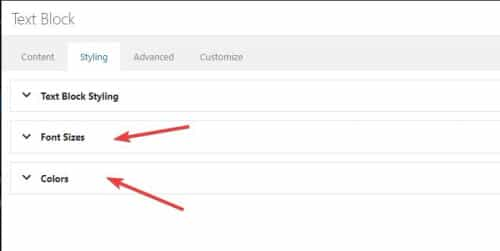
You can change the font size and color of the text block in the style tab:
or change it with inline css in the text block.
Best regards,
Mike
This reply has been marked as private.
Hi,
Thank you for your patience and the explainion with links to examples, the first example could be achieved by using the Advanced Layout Builder elements to create your product page.
Your first example page starts with class information such as images, table, a slider and text elements, you can use the layout elements for these, and then add your “product price” element under these with your “product purchase button”, and at the botton add the “related products” element.
I’m having trouble understanding your language on your product page example so I’m not so sure what you mean by “placing the city” first, but I think you mean the drop down options for the products:

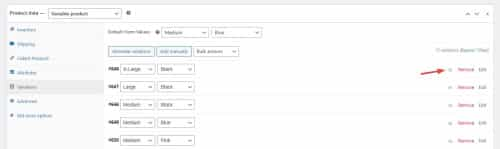
these can be moved in the product variations in the backend by draging them:
The sign up form on the example page uses the WooCommerce Box Office plugin, I don’t have experience with it but here is a link to it’s documentation. There maybe other free WordPress plugins that will do the same job but I don’t know or tested any. WooCommerce Bookings might be another option, I recommend that you research different plugins to find one that meets your needs and try to test them with Enfold before buying anything expensive as not all plugins work well with Enfold, sometimes you will need to test first to ensure there won’t be a conflict.
I hope this helps.
Best regards,
Mike
Hey laptophobo,
Thank you for the link to your demo site, perhaps using a text element and a image element in the same column with Grid CSS would be a good solution:

Try adding the custom class grid-column to a full width column, and add the custom class grid-image-right to the image element inside the column. Then add your text element inside the column but we won’t use a custom class for it.
Add this CSS in your Enfold Theme Options ▸ General Styling ▸ Quick CSS field:
@media only screen and (min-width: 768px) {
.grid-column {
    display: grid;
    grid-template-columns: repeat(12,1fr);
    grid-template-rows: auto;
    grid-column-gap: 1pc;
    -webkit-box-align: center;
    -ms-flex-align: center;
    align-items: center;
}
.grid-image-right {
	display: grid;
    grid-column-start: 4;
    grid-column-end: span 9;
    grid-row: 1;
}
.grid-column .av_textblock_section {
	display: grid;
    grid-column-start: 1;
    grid-column-end: span 5;
    grid-row: 1;
    padding: 8%;
    color: #000;
    background-color: #eee;
    z-index: 1;
}
}
and adjust the colors to suit.
Now below 767px, for mobile the image and text will be stacked:

and for tablet and above the text offset will be consistent:

I tried to do this with the image caption but it didn’t work well with the image element structure and the caption field doesn’t allow HTML and buttons easily like the text element so this may be more useful.
Best regards,
Mike
Hey laptophobo,
Thank you for the link to your demo site, perhaps using a text element and a image element in the same column with Grid CSS would be a good solution:
Try adding the custom class grid-column to a full width column, and add the custom class grid-image-right to the image element inside the column. Then add your text element inside the column but we won’t use a custom class for it.
Add this CSS in your Enfold Theme Options ▸ General Styling ▸ Quick CSS field:
@media only screen and (min-width: 768px) {
.grid-column {
    display: grid;
    grid-template-columns: repeat(12,1fr);
    grid-template-rows: auto;
    grid-column-gap: 1pc;
    -webkit-box-align: center;
    -ms-flex-align: center;
    align-items: center;
}
.grid-image-right {
	display: grid;
    grid-column-start: 4;
    grid-column-end: span 9;
    grid-row: 1;
}
.grid-column .av_textblock_section {
	display: grid;
    grid-column-start: 1;
    grid-column-end: span 5;
    grid-row: 1;
    padding: 8%;
    color: #000;
    background-color: #eee;
    z-index: 1;
}
}
and adjust the colors to suit.
Now below 767px, for mobile the image and text will be stacked:
and for tablet and above the text offset will be consistent:
I tried to do this with the image caption but it didn’t work well with the image element structure and the caption field doesn’t allow HTML and buttons easily like the text element so this may be more useful.
Best regards,
Mike
Hi guys,
I am working on a site where the SEO requiremens are strict. All of the links on the clients old site have specific title attributes which I need to apply to new links on the new website based in Enfold.
Icon List links
I’d like to use the Icon list to create these links but there is no input box on the Icon List Element for Link title attribute. On buttons and button rows you can set your own link title attribute in the Enfold interface.
Is it possible to have this function added to icon list links so I can set a custom title attribute for the links?
(Tell me to go away if this isnt posible)
I am currently using :before to add an icon before each link in a text box instead – Just so I can set title text metadate for each link.
Hi matt507,
Thanks for giving us admin credentials.
I have checked it and the reason why the “Add to cart” button is not showing is because the regular price is not set.
Once you add a regular price, add to cart shows (though not in red color, it can be changed via css).
The regular price from B2B plugin that you use does not seem to activate the “Add to cart” button, I tried to switch to a default theme and then check on the spare parts category page (link in private content), if “Add to cart” will show up but it does not seem to show it as well.
Enfold only shows buttons that woocommerce displays, so I think the main issue seems to be with WordPress 6.2 and B2B plugin, please try to check with B2B support as they should be able to assist you more on the issue.
Best regards,
Nikko
Hey ballindigital,
Thanks for your patience and the link to your site, to make the Add to Basket button lager and change it’s style you can try some css like this:
#top.woocommerce-page .main_color .button[name=add-to-cart] {
	 background-color: #ffd1ed;
	 width: 200px;
	 font-size: 16px;
}

I’m not sure how you want to style the button, please explain further if you need more help with it.
#2 where on the page do you want the second Add to Basket button, in the Description?
#3 I don’t see a link to your example site, but even with only 4 images on mobile I don’t believe the info would be “above the fold” perhaps moving the images after the info on mobile would achieve what you would like? If so try this css:
@media only screen and (max-width: 767px) {
  #top.single-product .product {
  display: flex !important;
  flex-wrap: wrap !important;
  }
  #top.single-product .single-product-main-image {
      order: 2 !important;
  }
  #top.single-product .single-product-summary {
      order: 1 !important;
  }
}
After applying the css, please clear your browser cache and check.
Best regards,
Mike
This reply has been marked as private.
This reply has been marked as private.
Hi,
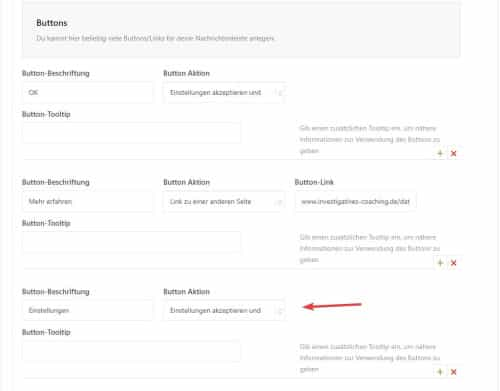
I recommend following our documentation and you can have three buttons in the cookie bar and name them as you wish, just click the green plus sign to add more buttons

Please note that we ask that each thread stays “on topic” and different threads are used for multiple questions, this helps future users find solutions easier and multiple Moderators assist you with a solution, thank you for understanding.
Best regards,
Mike
This reply has been marked as private.
Hi,
Thank you for the info.
It appears that the code was added to fix the default buttons on WordPress 6.1. You can find the CSS rule in the file located at themes/enfold/css/base.css around line 305:
#top a:where(:not(.wp-element-button)) {
	text-decoration: none;				/*	WP 6.1 fix   */
}
Please maintain the CSS modification that overrides the base style for now.
Best regards,
Ismael
Hey BeeCee,
Try adding this code to the end of your child theme functions.php file in Appearance ▸ Editor:
function trigger_alb_on_load_for_page(){
	?>
	<script>
	window.addEventListener('DOMContentLoaded', function() {
	(function($){
		if ($('body.wp-admin.post-new-php.post-type-page').length > 0){
			setTimeout(function(){
			$("#avia-builder-button").trigger('click');
			},300);
		}
	})(jQuery);
    });
	</script>
	<?php
}
add_action('admin_head-post-new.php', 'trigger_alb_on_load_for_page');
Please ensure to copy the code from the forum and not an email notification so the symbols are not converted.
In my test a timeout of 300 ms (less than half a second) is required for the ALB button to be available, so if this doesn’t work for you try increasing the “300” to a higher number.
Also ensure you are not deferring jQuery with a caching plugin or in theme options, such as Enfold Theme Options ▸ Performance ▸ Load jQuery in your footer
Best regards,
Mike
This reply has been marked as private.
The Edit Enfold Advanced Layer button is missing from edit a page
You cant see the Enfold Advanced Layer widgets on the page.
Any ideas?
Hi there
I am facing the same problem as 2 months ago (https://kriesi.at/support/topic/avia-layout-builder-spinning-as-soon-as-i-add-a-download-button/). Same behavior of the Avia Layout Builder but it’s not about the SSL/https://.
I deactivated all Plug-Ins, increased the memory limit, and made sure I have the most recent version of WordPress and the Enfold theme as I did the last time.
Any idea what’s the problem now?
Regards,
Lilo
The button to submit a review in WooCommerce does not show up. I had a problem with the stars not showing up in the reviews, and it turned out to be a problem with Enfold–which you fixed on my site and later included the fix in the subsequent Enfold update. The button has been there before (over 70 reviews posted), but it is gone.
Here is an example. Go to this page: https://chanimaluniversity.com/product/certified-channel-manager-ccm/
click on the Reviews tab. and you’ll see comments, but the “Submit Review” button that used to be there is gone. All the settings are correct, it worked before, but after an Enfold update the button is gone. BTW, you can see the stars are back (thank you), but the alignment is off–but I can live with that.
I’ll post a login to the live site so you can investigate.Thanks.
-
This topic was modified 2 years, 12 months ago by
 tedfinch.
Hey rixi,
Thank you for the link to your site, since most of the link on your site are to anchor links on your homepage I recommend enabling the “back to top” button for mobile devices, try this CSS in your Enfold Theme Options ▸ General Styling ▸ Quick CSS field:
@media only screen and (max-width: 767px){
.responsive #top #scroll-top-link {
    display: block;
}
}
Please ensure to copy the code from the forum and not an email notification so the symbols are not converted.
After applying the css, please clear your browser cache and check.
Best regards,
Mike
Hi, I updated Enfold from version 4.8.5 to version 5.5 today and got a critical error – the start page was blank and simply showed the error. The error message in the mail was:
Ein Fehler vom Typ E_COMPILE_ERROR wurde in der Zeile 49 der Datei /usr/local/www/apache24/noexec/—website-name-replaced—see private content for website adresse–/website/wp-content/themes/enfold/config-templatebuilder/avia-shortcodes/chart/chart.php verursacht. Fehlermeldung: Access level to avia_sc_chart::shortcode_insert_button() must be public (as in class aviaShortcodeTemplate)
The website is unfortunately still running on PHP 7.4.30. I have contacted the hoster to ask him to update to 8.1
The WordPress version is 6.2 and all plugins are up to date
Can you tell from the error message why this is happening?
Thanks a lot in advance.
Best regards,
Sara
Hi,
Thank you for the link to your test page, I accepted the cookie consent bar button, then the page auto reloaded, then I filled out the contact form and got the success message:

Please give this a try.
Best regards,
Mike
no , i dit not add any code in the functions.php file?
can i not just remove this text somewhere? it must be sómewhere, isnt it?
why cant i just update via the updatebutton? i see the options is now unavailable at Enfold – Theme Update? how come?
best regards, jelle vanhijfte
Awesome. I removed the PHP and now show the original Enfold layout (below the like button). Thanks for all this new CSS!
Example:
Hello Mike,
Thank you for your help! My local hosted website is online again now, the url and login changend so please look at the private content box under this reply.
The problem is not in the slideshow itself, but in all the elements below the slideshow, so on the rest of the page!
If you want to take another look at the Enfold demo I linked, then scroll down to the phrase “Traveling was never easier!” is approximately at the top of the screen and the slideshow itself is therefore no longer visible. If you now wait a few seconds until the photo is switched in the slideshow, you will see a slight vibration in the text. But the vibration can also be seen in the buttons (like the button called All destinations) in the slideshow element itself.
On my own website, however, the effect is much more disturbing. If you look at the text “Fotograaf Groningen bedrijfsfotografie” and the text below it (Home page) you will see it vibrate every time a photo changes in the slideshow. I set the slideshow to 2 seconds so you can see it better and faster, but at 5 seconds the same thing happens.
KInd regards,
Alwin
Hi red2design,
The current version you are using is still using the old API (username and API key) which envato has already deprecated therefore you can’t update it with the usual method.
You can do the following process instead:
First make a backup:
– Site Backup: https://kriesi.at/documentation/enfold/backup-wordpress-site/
– Theme Settings Backup: https://kriesi.at/documentation/enfold/backup-theme-settings/
Option 1: Use Envato Market to update your site
– link: https://envato.com/market-plugin/
Option 2: Update manually
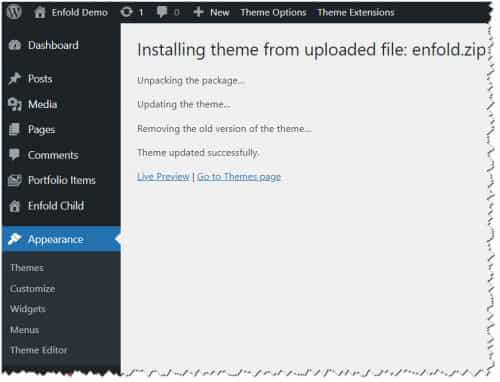
1. Login to ThemeForest and download the Enfold theme, right-click over the downloaded zip file and extract/unzip it.
2. It should generate a new folder, open it and look for the enfold folder
3. Right-click the enfold folder then zip it, here’s a tutorial on how to create a zip file in windows: https://www.howtogeek.com/668409/how-to-zip-and-unzip-files-on-windows-10/ (this should create enfold.zip
4. Log in to WordPress as and Admin.
5. Install and activate a maintenance plugin and put your site in Maintenance mode.
6. Go to Appearance > Themes, switch to a default WordPress theme like TwentyTwenty then delete Enfold.
7. Click on the ADD NEW button.
8. Click on the UPLOAD THEME button.
9. Click BROWSE and choose enfold.zip file
10. Click the INSTALL NOW button and switch to Enfold or your child theme.
11. Remove the maintenance mode then deactivate and remove the maintenance plugin.
Then register the theme by following the instructions in https://kriesi.at/documentation/enfold/theme-registration/
Once this is done, the next time you update, you’ll only need to go to Enfold > Theme Updates and click on the Update button.
Once it is updated please let us know if the issue still persists.
Also, the password is incorrect but I think the problem should be fixed by updating to the latest version since Enfold 4.1 was released July 2017 while PHP 7.4 was released November 2019, so incompatibility would most likely occur.
Best regards,
Nikko
Hey adepreter,
Please go to Enfold Theme Options ▸ Privacy and Cookies ▸ Cookie Consent Message Bar ▸ Buttons
You have 5 options and can add more buttons by clicking the green plus sign:

Best regards,
Mike