-
AuthorSearch Results
-
September 10, 2023 at 7:50 pm #1418676
Hi,
For your other issue your images are in a portrait size and the element is showing a landscape size, so you could change the image size of the image used.
The category page is using the “portfolio” image size, so try using the Simple Image Sizes plugin and change the image size in the WordPress ▸ Dashboard ▸ Settings ▸ Media ▸ Media Settings options, look for portfolio size and change the size and disable cropping:

and click the Save Changes button at the bottom of the page, then use the Regenerate Thumbnails plugin, to regenerate all of your images (thumbnails), this plugin works better than the built-in option of the other plugin, as it sometimes stalls if you have a lot of images.Best regards,
MikeSeptember 10, 2023 at 5:59 pm #1418664Hi,
If you are using a child theme then yes leave the code in the functions.php, otherwise I recommend the WPcode plugin this plugin supports PHP code snippets, JavaScript code snippets, & CSS code snippets and you will not lose your code when you update as you would if the code is in your parent theme functions.php.
To change it into a button using the magic wand in the Post editors we will need to change the function a little to use do_shortcode
Here is an example that I tested on my yest site and works, you can change the button code to suit your needs:add_action("ava_after_content", function() { if (is_singular('post')) { echo do_shortcode("[av_button label='Back to Bolg' icon_select='yes' icon='ue830' font='entypo-fontello' icon_hover='aviaTBicon_hover' link='manually,#' link_target='' size='medium' position='center' label_display='' title_attr='' size-text='' av-desktop-font-size-text='' av-medium-font-size-text='' av-small-font-size-text='' av-mini-font-size-text='' margin='' margin_sync='true' padding='' padding_sync='true' av-desktop-margin='' av-desktop-margin_sync='true' av-desktop-padding='' av-desktop-padding_sync='true' av-medium-margin='' av-medium-margin_sync='true' av-medium-padding='' av-medium-padding_sync='true' av-small-margin='' av-small-margin_sync='true' av-small-padding='' av-small-padding_sync='true' av-mini-margin='' av-mini-margin_sync='true' av-mini-padding='' av-mini-padding_sync='true' color_options='' color='theme-color' custom_bg='#444444' custom_font='#ffffff' btn_color_bg='theme-color' btn_custom_grad_direction='vertical' btn_custom_grad_1='#000000' btn_custom_grad_2='#ffffff' btn_custom_grad_3='' btn_custom_grad_opacity='0.7' btn_custom_bg='#444444' btn_color_bg_hover='theme-color-highlight' btn_custom_bg_hover='#444444' btn_color_font='theme-color' btn_custom_font='#ffffff' btn_color_font_hover='white' btn_custom_font_hover='#ffffff' border='' border_width='' border_width_sync='true' border_color='' border_radius='' border_radius_sync='true' box_shadow='' box_shadow_style='0px,0px,0px,0px' box_shadow_color='' animation='' animation_duration='' animation_custom_bg_color='' animation_z_index_curtain='100' hover_opacity='' sonar_effect_effect='' sonar_effect_color='' sonar_effect_duration='1' sonar_effect_scale='' sonar_effect_opac='0.5' css_position='' css_position_location=',,,' css_position_z_index='' av-desktop-css_position='' av-desktop-css_position_location=',,,' av-desktop-css_position_z_index='' av-medium-css_position='' av-medium-css_position_location=',,,' av-medium-css_position_z_index='' av-small-css_position='' av-small-css_position_location=',,,' av-small-css_position_z_index='' av-mini-css_position='' av-mini-css_position_location=',,,' av-mini-css_position_z_index='' id='' custom_class='' template_class='' element_template='' one_element_template='' av_uid='' sc_version='1.0' admin_preview_bg='']"); } }, 10);Best regards,
MikeSeptember 9, 2023 at 1:59 pm #1418552Hi,
Thank you for the code snipptes, I see that you have added the Form Embed Code which is the iframe in the second code block and in the first code block you have the old button as the trigger.
I believe that your new popup code uses a different trigger to call the popup.
As I review your video I only see you use the “copy embed code” button, please also include the code from the “copy form link” button:

Please add this to the trigger code block, that is the first one with the button so we can see the popup working correctly, then I can examine how the trigger works and work out a why for it to be like the button you want it to be.Best regards,
MikeSeptember 9, 2023 at 10:08 am #1418536In reply to: Cant tell question in support forum
Hey Mathias,
Please use this link to open a new thread, or click this button: https://imgur.com/a/AnoSPNb.
Best regards,
RikardSeptember 9, 2023 at 3:41 am #1418527Hey bonsaimedia,
The quantity buttons are intentionally disabled or hidden on mobile devices due to the space limitation.
Please try the css in these threads:Best regards,
MikeSeptember 8, 2023 at 12:50 pm #1418455In reply to: Main menu and footer
Hi,
Did you register a custom social icon using the filters as described in the documentation? If you want to adjust the style of the social icons, please check the documentation below.
// https://kriesi.at/documentation/enfold/social-share-buttons/#custom-styled-social-icons
Best regards,
IsmaelSeptember 7, 2023 at 6:18 am #1418320In reply to: Main menu and footer
Hey Lene,
Thank you for the inquiry.
You can adjust the height of the current menu indicator using the following css code.
.avia-menu-fx {
    height: 4px;
    width: 100%;
}
And to add a custom social icon to the theme, please check the following documentation.
Best regards,
IsmaelSeptember 6, 2023 at 5:57 pm #1418286Hey ashleyknow,
Thank you for your patience, when I use an Android device to view your check out page I only see the red “Proceed to checkout” button and it works correctly, please see the first screenshot in the Private Content area.
But on Windows laptop I see another blue button below it that overlays the red button so it can not be clicked, and the blue button doesn’t work when it is clicked, see the second screenshot.
I assume that the blue button is the ApplePay that you are talking about, and perhaps it doesn’t work for me because I don’t have an apple, but to allow this to not interfere with the standard payment button try this CSS in your Enfold Theme Options ▸ General Styling ▸ Quick CSS field:#top.woocommerce-cart #wcpay-payment-request-button { padding-top: 60px; }After applying the css, please clear your browser cache and check.
Best regards,
MikeSeptember 6, 2023 at 11:16 am #1418254In reply to: Customization X button
Hi,
Please add the following to the bottom of Functions.php file of your child theme ( https://kriesi.at/documentation/enfold/child-theme/ ) or as a new snippet using the Code Snippets ( https://wordpress.org/plugins/code-snippets/ ) plugin:
add_action('ava_after_main_container', 'new_ava_after_main_container'); function new_ava_after_main_container(){ if(is_page(8779)){ echo '<div class="custom-back-button"><span class="av_font_icon av-lm7ig98k-65ba33b015b6384fd3901ea03a4bd5d6 avia_animate_when_visible av-icon-style- avia-icon-pos-left av-no-color avia-icon-animate avia_start_animation avia_start_delayed_animation"><a href="LINK_TO_YOUR_HOMEPAGE" class="av-icon-char" aria-hidden="true" data-av_icon="" data-av_iconfont="entypo-fontello"></a></span></div>'; } }You can use the “is_page” condition to target your Boats page. The “8779” is ID of the page you shared in your initial post. If you want to display the button on another page, you’ll need to update the “8779” in the code.
Then, you’ll need to update the “LINK_TO_YOUR_HOMEPAGE” in the snippet to the link of your homepage.
After that, add the following code to the bottom of the Quick CSS field in Enfold theme options > General Styling
.custom-back-button {
  position: fixed;
  top: 50px;
  left: 20px;
  z-index: 99;
  background-color: #1a1a1a;
  opacity: 0.7;
  padding: 90px 30px 40px 30px;
}

.custom-back-button .av_font_icon {
font-size: 80px;
margin: 0;
}
You’ll need to use jQuery to hide/display the button when scroll down/up.
We cannot help you fine-tune this. If you need further assistance, please consider to hire a freelance developer for the task.
Best regards,
YigitSeptember 5, 2023 at 6:00 pm #1418190Hi,
I checked your cPanel Administration WordPress, and you can see the database and user for each install by clicking the blue database button:

so you can delete the user and database for these safely, it’s good to check that they are not sharing the database user accounts.
So I would use the option to uninstall and delete the database & user & directory, and then clone the original main install to create your new ones.
I also checked your products but they all look like they are published and none are in draft, please try changing the ones you don’t want to show to draft status, this should make them not visible on the frontend, if they are please let us know which ones and where you are seeing them, such as the “shop page”Best regards,
MikeSeptember 4, 2023 at 4:43 pm #1418077In reply to: Customization X button
Hi,
You can add a header widget area by referring to this post https://kriesi.at/documentation/enfold/header/#adding-a-header-widget-area, place a Custom HTML widget inside it, and add your custom button to it using HTML.
Unfortunately, such customization would be out of the scope of our support so we cannot help you with that.
Regards,
YigitSeptember 4, 2023 at 4:41 pm #1418076Hi,
Try using the cPanel Softaculous Administration WordPress Clone option to clone the main site into your other sites.

When you click the clone button it will ask you where you want to clone it, then you can add the directory you want, such as /en/, /de/, /fr/, ect.

Best regards,
MikeSeptember 2, 2023 at 8:55 pm #1417907Hi,
Thanks for your patience and the link to your site, I found that the Enfold Theme Options ▸ Performance ▸ Disable jQuery Migrate was enabled and this didn’t allow the cookie bar to work correctly.
In my testing I cleared your WPRocket cache many times and then the cookie buttons worked correctly, I also enabled the cookie badge so I would know when the WPRoket cache was cleared.
But now in a second test the buttons are not working and the badge is not showing and the WPRocket cache is not clearing, it looks like you have a CDN, perhaps on your server, please check and clear.
If you can’t clear the WPRocket cache so the cookie badge shows, try disabling WPRocket and clearing your server cache.Best regards,
MikeSeptember 2, 2023 at 8:24 pm #1417904In reply to: Word press editor not supported
Hi,
If the Classic Editor is removed from WordPress and only the Block Editor is shown the ALB button will still show

WordPress may not update the Classic Editor, but that is not the same as removing the Classic Editor.Best regards,
MikeSeptember 1, 2023 at 12:12 pm #1417800In reply to: Creating individual Sidebars
Hey Anna_Tewes,
Thank you for the inquiry.
Have you tried creating a new widget area (sidebar) in the “Enfold Custom Widget Area” section? You should find a single field for the widget area name and a “Add Widget Area” button.
Best regards,
IsmaelAugust 30, 2023 at 8:34 am #1417506moonswamp
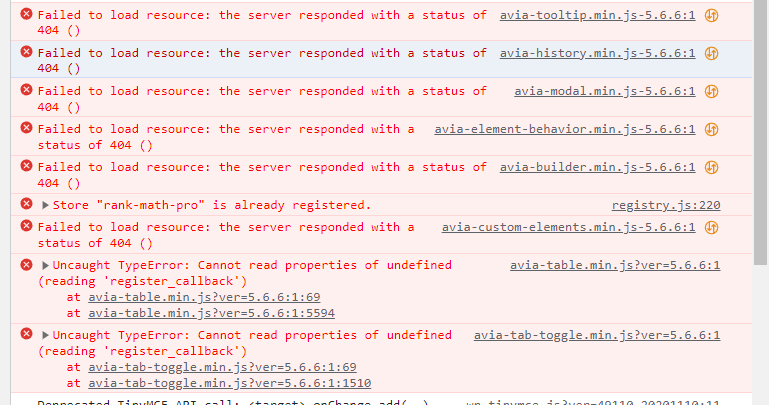
ParticipantI encountered a serious issue while trying to publish or edit a new blog post in the backend. The editor displays the following error message: “Failed to initialize plugin: avia_builder_button.”
I used the F12 key to inspect the error and found that many files are missing, such as:
/wp-content/themes/enfold/config-templatebuilder/avia-template-builder/assets/css/avia-modal.min.css-5.6.6
/wp-content/themes/enfold/config-templatebuilder/avia-template-builder/assets/css/avia-custom-elements.min.css-5.6.6
/wp-content/themes/enfold/config-templatebuilder/avia-template-builder/assets/js/avia-builder.min.js-5.6.6please check the image: https://i.postimg.cc/DZ0FWjjW/20230830143315.png
There are many files like this. Upon closer inspection of the file formats, I noticed that these files have a version number appended at the end, but the format is incorrect. This is preventing them from loading and resulting in a 404 error!
This issue is very critical. Please assist in resolving it!
P.S. I just created an admin account so you can login to check it!
August 29, 2023 at 7:55 pm #1417483In reply to: Spacing of 2 buttons next to one another header
Hey jasonlthornton,
Thank you for the link to your site, when two buttons are in the menu some css is added so they are closer together, try this CSS in your Enfold Theme Options ▸ General Styling ▸ Quick CSS field so there is more space:.av-menu-button + .av-menu-button { margin-left: 0; }if you want more space you are adjust like this:
.av-menu-button + .av-menu-button {
    margin-left: 10px;
}
After applying the css, please clear your browser cache and check.
Best regards,
MikeHey Jelka,
You can click this button: https://imgur.com/a/AnoSPNb
Or follow this link to open a new thread.
Best regards,
RikardAugust 29, 2023 at 2:32 am #1417367In reply to: Header Button Menu element text color
Hi jasonlthornton,
Please try to add this CSS code in Enfold > General Styling > Quick CSS:
#top #header #avia-menu .av-menu-button .avia-menu-text {
    color: black;
}
Hope it helps.
Best regards,
NikkoAugust 25, 2023 at 9:41 pm #1417169This reply has been marked as private.August 24, 2023 at 3:55 pm #1417069In reply to: Key licence
Hi Natacha,
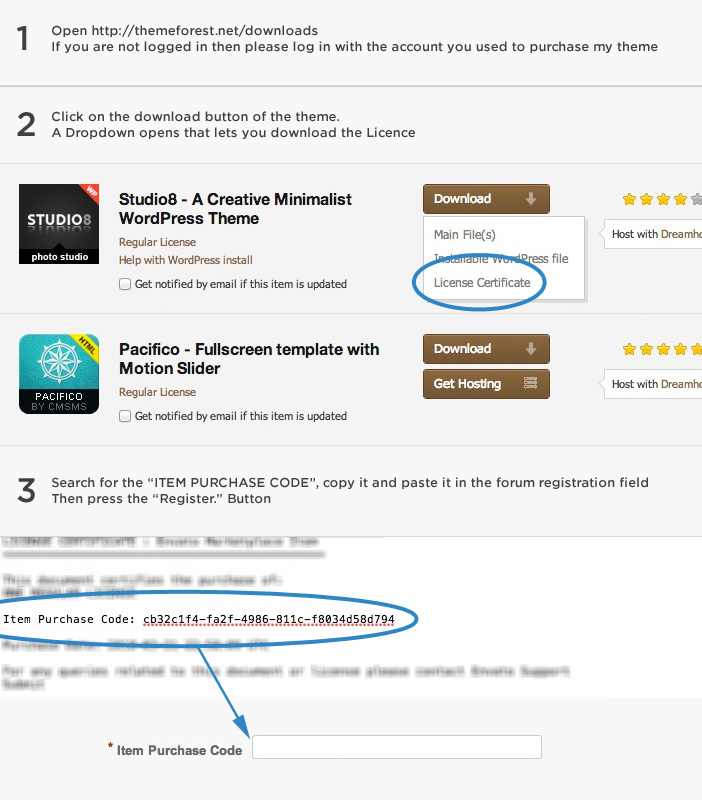
You can find it on the ThemeForest Downloads page ( https://kriesi.at/wp-content/uploads/2013/09/registration_steps.jpg ) or on this page https://themeforest.net/item/enfold-responsive-multipurpose-theme/4519990/support below the Go to item support button.
You can use your Purchase Code to register to our support forum at https://kriesi.at/support/register/. After logging in, you can start new threads at https://kriesi.at/support/forum/enfold#new-post.
Best regards,
YigitAugust 24, 2023 at 1:42 pm #1417052In reply to: second font will overwrite first font after import
Hi Nikko,
sure!
I click on left side in black area on enfold, than import/export and by the last button on loading fontsmany greetings rixi
August 24, 2023 at 7:17 am #1417023Topic: Shopping Cart Preview on mouse hover not working
in forum EnfoldNonSuch
ParticipantHi support team,
I’m using latest Enfold with WooCommerce on WordPress 6.3, when I mouse hover over the cart shopping item (after add to cart) I don’t see the correct preview. This cart preview however is working fine while using Appearance -> Customize option from WordPress menu.
Please see attached screenshots:
Working correctly with Appearance -> Customize View
https://drive.google.com/file/d/1AaADLOZCkAk2QkUupLR3CxkCoInbOwHU/view?usp=sharingNot working in normal view
https://drive.google.com/file/d/1r8z53ht19v2NtvkxDmlcrtffU2O2vhGV/view?usp=sharingI disabeld “Enable AJAX add to cart buttons on archives” option in woocommerce settings. I tested this also with different resolutions and browsers, as well as changing “Header Shopping Cart Icon” in Shop Options of Enfold settings menu without success.
Ismael from the support team advised me to disable file compression as well as cache plug in (did not fix the issue). He also asked me to open a new topic for this issue (here is the original post: https://kriesi.at/support/topic/shopping-cart-preview-on-hover-does-not-work/ )
Thanks for your help!
August 23, 2023 at 5:59 pm #1416976In reply to: Move Submit Form Button
Hi,
Ok, thanks for the login, I added a custom class to your contact form hidden-field

and then I added an Empty Line element to your form:

then I added this css to your Enfold Theme Options ▸ General Styling ▸ Quick CSS field.hidden-field .av-form-empty-line { display: none; }and now the button is as you wish:

Please clear your browser cache and check.
If you want so extra space between the form and the button, remove the css I added, I was not sure how close you wanted the button.Best regards,
MikeAugust 22, 2023 at 11:28 pm #1416886In reply to: Privacy policy buttons
Hi,
Very good, we will close this thread as complete for the cookie bar customization into a cookie popup as you asked for, your welcome.
As for your new cookie management question, please see our cookie documentation, were you will see that you can change or add buttons to say whatever you want them to say, the “functionality” cookie would be like Google fonts & Google Maps the “marketing” cookie, would be like Google Analytics or any third party tracking that you have installed.
I recommend using the provided cookie options in the theme settings, and rename or add buttons as the options allow, as it may be very difficult to completely redesign the cookie management panel. If you feel the cookie management panel is inadequate or needs further features, please submit a Github Feature Request as it is for users to place requests and follow them as they are reviewed.
If you need further help after reviewing the documentation, please open a new thread and try to explain what you want to achieve in detail. Thank you for your understanding and patience.Best regards,
MikeAugust 22, 2023 at 5:33 pm #1416869In reply to: Shopping Cart Preview on hover does not work
Hello support team,
I realize this is an old topic, but I seem to be facing the exact same issue as OP (judging by his shared picture).
I’m using latest Enfold with WooCommerce on WordPress 6.3, when I mouse hover over the cart shopping item I don’t see the correct preview. This cart preview however is working fine while using Appearance -> Customize option from WordPress menu.Please see attached screenshots:
Working correctly with Appearance -> Customize View
https://drive.google.com/file/d/1AaADLOZCkAk2QkUupLR3CxkCoInbOwHU/view?usp=sharingNot working in normal view
https://drive.google.com/file/d/1r8z53ht19v2NtvkxDmlcrtffU2O2vhGV/view?usp=sharingOP mentioned removing ‘Disable Cart Fragments’ fixed the issue. I never disabeld these cart fragments. I disabeld “Enable AJAX add to cart buttons on archives” option in woocommerce settings. I tested this also with different resolutions and browsers, as well as changing “Header Shopping Cart Icon” in Shop Options of Enfold settings menu without success.
Please advise,
thank you.-
This reply was modified 2 years, 7 months ago by
NonSuch.
August 22, 2023 at 11:59 am #1416848In reply to: Privacy policy buttons
Hi,
To add some space between the red buttons in Settings ▸ Cookie and Privacy Settings add this css to your Enfold Theme Options ▸ General Styling ▸ Quick CSS field:@media only screen and (max-width: 384px) { .avia-cookie-consent-modal-buttons-wrap .avia-cookie-consent-button.avia-cookie-consent-button-4 { margin-bottom: 20px; } }After applying the css, clear your browser cache and check.

Best regards,
MikeAugust 22, 2023 at 2:55 am #1416819In reply to: Privacy policy buttons
August 22, 2023 at 1:18 am #1416810In reply to: Privacy policy buttons
Hi,
I fixed the buttons for you, Please note that iPhones can be hard to clear the cache, often you need to also clear the history to fully purge the cache, following these steps for Safari and note Step 4 where you will Clear the History.
If you don’t see it on desktop then logout and use a incognito browser:


Best regards,
MikeAugust 21, 2023 at 6:33 pm #1416780In reply to: Privacy policy buttons
Hi,
To adjust for these changes, please remove all of the precious code and use this instead:#top .avia-cookie-consent.avia-cookiemessage-bottom { bottom: unset; left: unset; margin: 0; position: fixed !important; top: 50%; left: 50%; transform: translate(-50%, -50%); } #top .avia-cookie-consent.avia-cookiemessage-bottom .container { transform: translate(0,30%); } #top .avia-cookie-consent .avia-cookie-consent-button { display: block; width: 40%; margin: 10px auto; } #top .avia-cookie-consent p { display: block; padding-bottom: 20px; font-size: 18px; } #top .avia-button.avia-cookie-consent-button { border-radius: 50px; } @media only screen and (max-width: 767px) { #top .avia-cookie-consent.avia-cookiemessage-bottom { width: 90%; height: 80%; } #top .avia-cookie-consent .avia-cookie-consent-button { width: 90%; } } @media only screen and (min-width: 768px) { #top .avia-cookie-consent.avia-cookiemessage-bottom { width: 50%; height: 50%; } }Please ensure to copy the code from the forum and not an email notification so the symbols are not converted.
After applying the css, please clear your browser cache and check.
Best regards,
Mike -
This reply was modified 2 years, 7 months ago by
-
AuthorSearch Results
-
Search Results
-
I encountered a serious issue while trying to publish or edit a new blog post in the backend. The editor displays the following error message: “Failed to initialize plugin: avia_builder_button.”
I used the F12 key to inspect the error and found that many files are missing, such as:
/wp-content/themes/enfold/config-templatebuilder/avia-template-builder/assets/css/avia-modal.min.css-5.6.6
/wp-content/themes/enfold/config-templatebuilder/avia-template-builder/assets/css/avia-custom-elements.min.css-5.6.6
/wp-content/themes/enfold/config-templatebuilder/avia-template-builder/assets/js/avia-builder.min.js-5.6.6please check the image: https://i.postimg.cc/DZ0FWjjW/20230830143315.png
There are many files like this. Upon closer inspection of the file formats, I noticed that these files have a version number appended at the end, but the format is incorrect. This is preventing them from loading and resulting in a 404 error!
This issue is very critical. Please assist in resolving it!
P.S. I just created an admin account so you can login to check it!
Hi support team,
I’m using latest Enfold with WooCommerce on WordPress 6.3, when I mouse hover over the cart shopping item (after add to cart) I don’t see the correct preview. This cart preview however is working fine while using Appearance -> Customize option from WordPress menu.
Please see attached screenshots:
Working correctly with Appearance -> Customize View
https://drive.google.com/file/d/1AaADLOZCkAk2QkUupLR3CxkCoInbOwHU/view?usp=sharingNot working in normal view
https://drive.google.com/file/d/1r8z53ht19v2NtvkxDmlcrtffU2O2vhGV/view?usp=sharingI disabeld “Enable AJAX add to cart buttons on archives” option in woocommerce settings. I tested this also with different resolutions and browsers, as well as changing “Header Shopping Cart Icon” in Shop Options of Enfold settings menu without success.
Ismael from the support team advised me to disable file compression as well as cache plug in (did not fix the issue). He also asked me to open a new topic for this issue (here is the original post: https://kriesi.at/support/topic/shopping-cart-preview-on-hover-does-not-work/ )
Thanks for your help!