Viewing 30 results - 331 through 360 (of 11,218 total)
  • Author
    Search Results
  • #1448446

    Hi,

    Thank you for the update.

    Try to replace the selector “.home” with “.page-id-362”.

    .page-id-362 .av-image-caption-overlay-center p {
        border-radius: 3px;
        padding: 10px;
        font-size: 12px;
        text-decoration: none;
        display: inline-block;
        border-bottom-style: solid;
        border-bottom-width: 1px;
        margin: 3px 0;
        line-height: 1.2em;
        position: relative;
        font-weight: normal;
        text-align: center;
        max-width: 100%;
        color: var(--enfold-main-color-button-font);
        background: var(--enfold-main-color-button-border);
        transition: all 0.4s ease-in-out;
        box-shadow: none;
        border: 0;
        padding: 25px 50px 23px;
        font-size: 28px;
        min-width: 200px;
    }
    

    Please make sure to purge the cache before checking the page.

    Best regards,
    Ismael

    #1448051

    Hi,

    Thanks for the update. If you only want the CSS to apply to the home page, then you can use this instead:

    .home .av-image-caption-overlay-center p {
        border-radius: 3px;
        padding: 10px;
        font-size: 12px;
        text-decoration: none;
        display: inline-block;
        border-bottom-style: solid;
        border-bottom-width: 1px;
        margin: 3px 0;
        line-height: 1.2em;
        position: relative;
        font-weight: normal;
        text-align: center;
        max-width: 100%;
        color: var(--enfold-main-color-button-font);
        background: var(--enfold-main-color-button-border);
        transition: all 0.4s ease-in-out;
        box-shadow: none;
        border: 0;
        padding: 25px 50px 23px;
        font-size: 28px;
        min-width: 200px;
    }

    Best regards,
    Rikard

    #1447792

    Hey Monika,

    Thank you for the inquiry.

    You can use this css code to adjust the style of the caption overlay.

    .av-image-caption-overlay-center p {
        border-radius: 3px;
        padding: 10px;
        font-size: 12px;
        text-decoration: none;
        display: inline-block;
        border-bottom-style: solid;
        border-bottom-width: 1px;
        margin: 3px 0;
        line-height: 1.2em;
        position: relative;
        font-weight: normal;
        text-align: center;
        max-width: 100%;
        color: var(--enfold-main-color-button-font);
        background: var(--enfold-main-color-button-border);
        transition: all 0.4s ease-in-out;
        box-shadow: none;
        border: 0;
        padding: 25px 50px 23px;
        font-size: 28px;
        min-width: 200px;
    }
    

    Best regards,
    Ismael

    #1447747

    In reply to: several problems …

    Hello Mike,
    thanks for your reply and sorry for only responding now.

    1) Yes, we had previously used the WP Fastest Cache plugin. I’ll try it out again in a few days.

    2) Blog settings: When I do it this way, exactly what we don’t want happens. If you click on a blog category, all articles with full text appear one below the other. See in your demo: https://kriesi.at/themes/enfold-2017/category/personal/

    This is not how it should be, but like this: https://sii-talents.de/category/buecher/

    3) I don’t know which plugin this should be. Can I simply delete it in the custom CSS?

    to 4) If I do that, ALL buttons are in the selected colors. But only one button should have the “color 1” or “theme subtle color”, which I want to select independently of the “main color > font color for links, text initials and other elements”.
    Where is the theme sub-style color generally set? I have never seen this anywhere in all my years of using Enfold.

    Best regards,
    Susanne

    Hi,
    For the Separator / Whitespace element you use Short Separator position left
    Enfold Support 5989
    result
    Enfold Support 5991
    For the button it is large, no icon Theme Color Subtle
    Enfold Support 5993
    result
    Enfold Support 5995

    Best regards,
    Mike

    #1447367

    In reply to: several problems …

    Hey Susanne,
    1) do you mean the caching plugins were preventing your site from knowing that a update was available for the theme? I have not heard of this issue before, but you could try the WP Fastest Cache plugin, or when Envato (Theme Forest) notify you that an update is available you could disable your plugin and then check for the update.
    2) In my demo the “blog” page is selected as the “blog”
    Enfold Support 5967
    and that page uses ALB elements to create the blog
    Enfold Support 5969
    please see our demo here
    3) on your site it looks like you have custom css added causing the dark color, perhaps it is from a plugin:

    a:visited {
                    color: #333333;
                }

    Enfold Support 5971
    4) if you want to override the color for all buttons try this:

    #top .main_color .avia-color-theme-color-highlight,
    #top .main_color .avia-color-theme-color {
    	background-color: red;
    	border-color: red;
    }

    adjust to suit

    Best regards,
    Mike

    #1447261

    Hey craig374,

    Please try the following in Quick CSS under Enfold->General Styling:

    #custom_html-2 button {
      background-color: var(--enfold-header-color-primary);
      color: var(--enfold-header-color-constant-font);
      border-radius: 3px;
    }
    
    #custom_html-2 button:hover {
      color: #000;
    }

    Best regards,
    Rikard

    #1447166

    Topic: several problems …

    in forum Enfold
    tiefenschaerfe
    Participant

    Good morning!
    I have several problems on sii-talents.de – I hope you can help.

    1) I had to uninstall the CAching plugins because they were preventing the site from updating. Which plugin do you recommend so that it still works?

    2) Blog display (this is a problem on all websites): My goal is to have a custom blog layout. Like here: https://sii-talents.de/aktuell/
    But:
    If it is set in the Enfold theme options that the blog should be displayed on a specific page, then it is not possible to have “a grid layout” for the blog layout when clicking on a category. The blog articles then appear completely below each other. That is stupid.
    So I play a trick and don’t select a page as a blog in the Enfold theme options, simply design a blog page that is not set as such and select the “grid layout”. But that’s not good for search engines! So how can my goal be achieved?

    3) Concerns the menu in the socket: After clicking on a menu item, the font turns dark gray and then the visitor does not see the menu link – the background is also dark gray. But: this is not done in the layout settings. The font is set to white in all cases.

    4) The main color is set for the font color for links, text initials and other elements. Other elements are button colors, e.g. in slideshows. How can I separate this without having to set the button color separately on each individual page?

    best regards
    Susanne

    michaeldgilbert
    Participant

    Hello,

    This website will intermittently not load the background images, color sections, or button colors. It ends up pretty black and white. This problem is intermittent, but happening frequently enough that it’s an issue. I can’t recreate it on demand, but often when I check the site, it is not loading these features. Some days it works fine. Others times, it won’t load correctly on any device despite no changes to the site.

    I can provide screenshots from multiple devices of the issue, if needed.

    I believe WordPress, Enfold, and plugins are update date.

    Any ideas?

    Thank you in advance,
    Michael

    #1446808

    Topic: Styling a flipbox

    in forum Enfold
    hallo352
    Participant

    Dear support team,

    I would like to realise a flipbox with the following styling:
    front side: H3 headline
    back side: description text + button
    Please see an example what I mean in the link below.
    How can I realise this design in Enfold?

    Many thanks
    Tanja

    Hey Tanja,
    Try using the shortcode wand
    block editor classic block shortcode wand
    which will let you use the button element to build your button like your others so they match.
    Or you could use Avia Layout Builder Debugger so you can view the shortcode of the other buttons.
    The shortcode that you used above doesn’t have all of the attributes for the colors, size, etc.

    Best regards,
    Mike

    #1446475

    In reply to: Video on mobile

    Hey birte5,
    Thanks for your patience, with I check your video “Roar”, linked below, on Android mobile the video will play in screen with the fullscreen button, this video is not autoplay:
    Enfold Support 5918
    Enfold Support 5920
    Enfold Support 5922
    I don’t have a iPhone so I don’t know if it is different. Please check this page and see if this is the same for you.

    Best regards,
    Mike

    #1446469

    In reply to: Yoast SEO

    Hey Anne,
    I believe that you are referring to this highlighting button:
    Enfold Support 5914
    These will work on pages created with the WordPress Editor but not on pages created with the Advanced Layout Builder because it can not highlight text inside of elements.
    I don’t know of any other plugins with this feature.
    For some features you will need to ensure that the Enfold Theme Options ▸ SEO Support ▸ Preprocessing Shortcodes In Header ▸ allow to preprocess shortcodes is enabled.
    Enfold Support 5916

    Best regards,
    Mike

    Jambar
    Participant

    I think these two might be related, but lets start with the full width issue.

    I have had to make some pages on the Gutenberg block editor with Spectra addon as the avia Advanced Layout Builder button suddently went missing. As you can see in this image, full width is not full with. The background colours do not stretch to the top or the bottom.

    Enfold General layout is set to stretched.

    Ive also tried adding this code in quick CSS and theme customise CSS based on an old post, but it did not help.

    `#top .fullsize .template-blog .post .entry-content-wrapper > *,
    #top .fullsize .template-blog .post .entry-content-wrapper {
    max-width: 100%;
    }

    Front end and admin panel images showing not full width:
    CleanShot 2024-05-24 at 14.27.59
    CleanShot 2024-05-24 at 14.32.21

    Hey Tanja,

    Thank you for the inquiry.

    You can use this css code to adjust the style of the submit button in the footer widget:

    #footer .field-wrap>div input[type=checkbox], #footer .field-wrap button, #footer .field-wrap input[type=button], #footer .field-wrap input[type=submit] {
        width: auto;
        border-radius: 3px;
        padding: 10px;
        font-size: 16px;
        text-decoration: none;
        display: inline-block;
        border-bottom-style: solid;
        border-bottom-width: 1px;
        margin: 3px 0;
        line-height: 1.2em;
        position: relative;
        font-weight: 400;
        text-align: center;
        max-width: 100%;
        color: var(--enfold-alternate-color-button-font);
        border-color: var(--enfold-alternate-color-button-border);
        background-color: var(--enfold-alternate-color-primary);
        min-width: 180px;
    }

    Best regards,
    Ismael

    #1445022

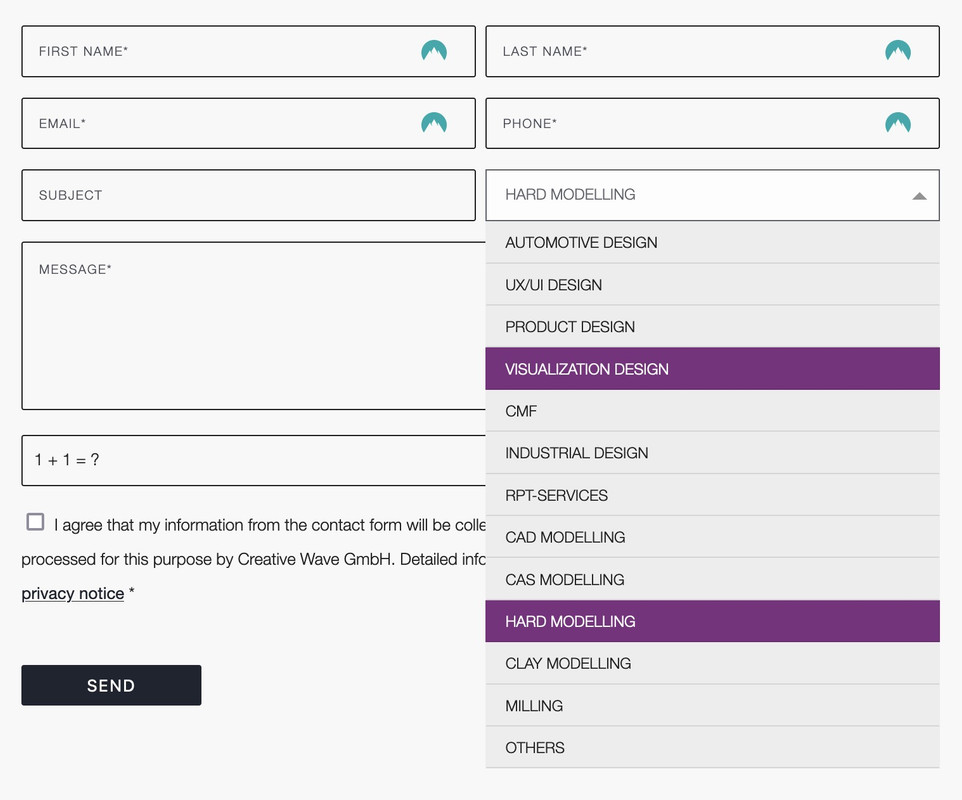
    you can only influence the select box ( as check boxes, radio buttons etc. ) by replacing the original html by a different html structure.

    put this to your child-theme functions.php:
    ( it is specific to your form – because the selector for that form element is given by the ID: #element_avia_6_1
    on other form elements it might be a different ID )

    function style_select_options(){
    ?>
    <script>
    window.addEventListener("DOMContentLoaded", function () { 
        (function($) {     
            $('.avia_ajax_form #element_avia_6_1').addClass('custom-select');
        })(jQuery);
    
        var x, i, j, l, ll, selElmnt, a, b, c;
        /* Look for any elements with the class "custom-select": */
        x = document.getElementsByClassName("custom-select");
        l = x.length;
        for (i = 0; i < l; i++) {
          selElmnt = x[i].getElementsByTagName("select")[0];
          ll = selElmnt.length;
          /* For each element, create a new DIV that will act as the selected item: */
          a = document.createElement("DIV");
          a.setAttribute("class", "select-selected");
          a.innerHTML = selElmnt.options[selElmnt.selectedIndex].innerHTML;
          x[i].appendChild(a);
          /* For each element, create a new DIV that will contain the option list: */
          b = document.createElement("DIV");
          b.setAttribute("class", "select-items select-hide");
          for (j = 1; j < ll; j++) {
            /* For each option in the original select element,
            create a new DIV that will act as an option item: */
            c = document.createElement("DIV");
            c.innerHTML = selElmnt.options[j].innerHTML;
            c.addEventListener("click", function(e) {
                /* When an item is clicked, update the original select box,
                and the selected item: */
                var y, i, k, s, h, sl, yl;
                s = this.parentNode.parentNode.getElementsByTagName("select")[0];
                sl = s.length;
                h = this.parentNode.previousSibling;
                for (i = 0; i < sl; i++) {
                  if (s.options[i].innerHTML == this.innerHTML) {
                    s.selectedIndex = i;
                    h.innerHTML = this.innerHTML;
                    y = this.parentNode.getElementsByClassName("same-as-selected");
                    yl = y.length;
                    for (k = 0; k < yl; k++) {
                      y[k].removeAttribute("class");
                    }
                    this.setAttribute("class", "same-as-selected");
                    break;
                  }
                }
                h.click();
            });
            b.appendChild(c);
          }
          x[i].appendChild(b);
          a.addEventListener("click", function(e) {
            /* When the select box is clicked, close any other select boxes,
            and open/close the current select box: */
            e.stopPropagation();
            closeAllSelect(this);
            this.nextSibling.classList.toggle("select-hide");
            this.classList.toggle("select-arrow-active");
          });
        }
    
        function closeAllSelect(elmnt) {
          /* A function that will close all select boxes in the document,
          except the current select box: */
          var x, y, i, xl, yl, arrNo = [];
          x = document.getElementsByClassName("select-items");
          y = document.getElementsByClassName("select-selected");
          xl = x.length;
          yl = y.length;
          for (i = 0; i < yl; i++) {
            if (elmnt == y[i]) {
              arrNo.push(i)
            } else {
              y[i].classList.remove("select-arrow-active");
            }
          }
          for (i = 0; i < xl; i++) {
            if (arrNo.indexOf(i)) {
              x[i].classList.add("select-hide");
            }
          }
        }
    
        /* If the user clicks anywhere outside the select box,
        then close all select boxes: */
        document.addEventListener("click", closeAllSelect); 
    
    });
    </script>
    <?php
    }
    add_action('wp_footer', 'style_select_options');
    

    after that for quick.css:

    /*the container must be positioned relative:*/
    .custom-select {
      font-family: inherit;
      text-transform: uppercase;
    }
    
    .custom-select select {
      display: none !important;
    }
    
    #top .select-selected {
      background-color: var(--enfold-main-color-bg);
      border-color: var(--enfold-main-color-primary);
      border-width: 1px;
      height: 41px;
      font-size: 12px;
      color: var(--enfold-main-color-primary);
      opacity: 0.7
    }
    
    /*style the arrow inside the select element:*/
    .select-selected:after {
      position: absolute;
      content: "";
      top: 18px;
      right: 10px;
      width: 0;
      height: 0;
      border: 6px solid transparent;
      border-color: #666 transparent transparent transparent;
    }
    
    /*point the arrow upwards when the select box is open (active):*/
    .select-selected.select-arrow-active:after {
      border-color: transparent transparent #666 transparent;
      top: 12px;
    }
    
    /*style the items (options), including the selected item:*/
    .select-items div,
    .select-selected {
      color: #FFF;
      padding: 2px 15px 2px;
      border: 1px solid transparent;
      border-color: transparent transparent rgba(0, 0, 0, 0.1) transparent;
      cursor: pointer;
      user-select: none;
    }
    
    /*style the items (options), including the selected item:*/
    .select-selected {
      padding: 5px 15px 2px;
    }
    
    /*style items (options):*/
    .select-items {
      position: absolute;
      background-color: #ddd;
      top: 100%;
      left: 0;
      right: 0;
      z-index: 99;
      font-size: 12px
    }
    
    /*hide the items when the select box is closed:*/
    .select-hide {
      display: none;
    }
    
    .select-items div:hover, .same-as-selected {
      background-color: #7d2a7e;
      color: #fff !important;
    }

    Looks then this way – but you can now style each option and pseudo states to your needs:

    • This reply was modified 1 year, 11 months ago by Guenni007.
    #1444525

    In reply to: frames the same width?

    Hey schweg33,
    Try this CSS in your <strong style=’color:#000′>Enfold Theme Options ▸ General Styling ▸ Quick CSS field:

    @media only screen and (max-width: 1224px) { 
    #top.home .avia-button.avia-size-small {
    	min-width: 100%;
    } 
    }

    Please ensure to copy the code from the forum and not an email notification so the symbols are not converted.
    After applying the css, please clear your browser cache and check.

    Best regards,
    Mike

    Richard Mohun
    Guest

    This is not a usable subscription form – the actual subscription button only come visible if you point over the button area – otherwise its invisible. Also the boxes for entering email seems to have a white font against a white background so you can’t see what you are typing……
    (checked using Firefox and Safari)

    Puts a big doubt in my mind whether to buy Enfold

    Richard Mohun

    STAY UPDATED ON NEW THEME RELEASES.
    SUBSCRIBE TO OUR NEWSLETTER!
    (We keep your Email address private and we do not spam – promised)

    Hi,
    You can try and since most of these you are not using on your site you can disable them at Enfold Theme Options ▸ Performance ▸ Disable Template Builder Elements
    Enfold Support 5736
    Blue means that it is disabled, you should see text next to the button unused or in use to help you so you don’t disable elements in use:
    Enfold Support 5738

    Best regards,
    Mike

    #1442646

    Hey northorie,

    Thank you for the inquiry.

    You can add mew buttons for cookie bar in the Enfold > Privacy & Cookies > Cookie Handling > Buttons section. Simply click the green plus icon (+) to add a new button.

    Best regards,
    Ismael

    annesite
    Participant

    Hi,

    I just updated Enfold 5.7.1 but now all the texts in my boutons changed of color.
    Normaly they are in white, now they disappear or are in blue.

    Can you help me ?

    Thanks in advance,

    Hey sailentpooN,
    Thank you for your patience and the link to your slider, I recommend using the LayerSlider for your situation, I created a test page linked below so you can see that it will work better and I linked the LayerSlider export file of my example if you want to try it on your site, just use the import project button in the LayerSlider:
    Enfold Support 5716

    Best regards,
    Mike

    Hey AlyssaMandy,
    To fade-in try this CSS in your Enfold Theme Options ▸ General Styling ▸ Quick CSS field:

    .avia_transform .active-slide .avia-caption-title, 
    .avia_transform .active-slide .avia-caption-content, 
    .avia_transform .active-slide .avia-slideshow-button-2, 
    .avia_transform .active-slide .avia-slideshow-button {
        -webkit-animation: avia-fadein 0.7s 1 cubic-bezier(0.175, 0.885, 0.320, 1.275) !important;
        animation: avia-fadein 0.7s 1 cubic-bezier(0.175, 0.885, 0.320, 1.275) !important; 
    }

    Please ensure to copy the code from the forum and not an email notification so the symbols are not converted.
    After applying the css, please clear your browser cache and check.

    Best regards,
    Mike

    mfuji
    Participant

    Hi,
    My website has been slow lately and cannot pass Google’s core web vitals test. Currently I am using host server’s optimization tool, and this is the slowest file.
    URL https://www.interactiongreen.com/wp-content/uploads/siteground-optimizer-assets/siteground-optimizer-combined-css-b925f36671b15d7d50e5a5f98e150a37.css

    I am assuming that this is large because of the “the extensive CSS content on my site.” However, because I knew that Enfold is slow, I only use a couple of features within Avia Layout builder like gallery, buttons, magazine and occasional video. I enable lazy loading, disable animation, use “load upon access” for the video. I have no customized features. I don’t know that else I can do to make my CSS content smaller. Why is Enfold CSS content so large? As I don’t use most of the features anyway to improve speed, is there any way I can exclude CSS I don’t use?

    Also, it was my understanding that I should disable features on Enfold’s “Website Performance And Optimization” when I use a third party performance optimizer. (which is what I do now) Currently, CSS File Merging And Compression, Javascript File Merging And Compression among other features are disabled on Enfold.
    But as I cannot speed up my site, I wonder if I should enable some of these features. Please let me know.

    AlyssaMandy
    Participant

    Hello, I have loaded the church demo and the fullwidth easy slider animation on the frontpage is set so that the title, caption and buttons slide onto the screen. I would like to change this so that the elements fade in instead, such as in this example: https://kriesi.at/documentation/enfold/example-of-animated-slider-title-captions-and-buttons/

    Where can I adjust this? Thank you.

    Hi,

    Thanks for that. Please try the following in Quick CSS under Enfold->General Styling:

    @media only screen and (max-width: 767px) {
    .home .avia-fullscreen-slider .caption_bottom .slideshow_caption {
        bottom: 250px;
    }
    .home .slideshow_inner_caption .avia-slideshow-button.avia-button {
        background-color: #a37652;
        color: white;
        border-radius: 10px;
    }
    }

    Best regards,
    Rikard

    GWS
    Participant

    Hi, I’m having a similar problem to the one I had in 2019 with the Enfold / WordPress updates affecting the way the child theme functions.php is supposed to work. The link to that ticket is https://kriesi.at/support/topic/error-with-enfold-child-theme-functions-php-move-search-icon-since-wp5-2-upgrade/

    When I performed the updates the search box is now appearing in the top left above the logo where it is not supposed to be. The search box in the top bar to the right is where we have placed the search icon. In Enfold’s child theme functions.php, we have been using the following:

    function av_move_search(){
    ?>
    <script>
    /* appends search button to the top secondary menu */
    jQuery(window).load(function(){
    jQuery(“#menu-item-search”).detach().appendTo(‘#header_meta .sub_menu ul’)
    });
    </script>
    <?php
    }
    add_action(‘wp_footer’, ‘av_move_search’);

    It has worked fine except for the glitchy problem in 2019, which we resolved by rolling back the WordPress version and then waiting a bit to update. This time though I thought I’d leave it for you to see so you can advise us on a better approach for when this happens. Could you please take a look? Thank you.

    Hi,

    Thank you for the info.

    You may need to check this thread: https://kriesi.at/support/topic/no-in-smart-quantity-woo-plugin/#post-1435087

    The plugin might be conflicting with the theme’s custom quantity button. This can be fixed by editing the enfold/config-woocommerce/woocommerce-mod.js file and removing this code around line 131:

    avia_apply_quant_btn();
    

    Best regards,
    Ismael

    #1441076

    In reply to: SearchWP

    Hi,
    Thank you for your patience, I set the function above back to the original code from the documentation and then added a custom searchform.php file to your child theme with this:

    <?php
    if( ! defined( 'ABSPATH' ) )   { exit; }
    
    global $avia_config;
    
    
    // Modify the search parameters for custom search URL
    $search_params = apply_filters('avf_frontend_search_form_param', array(
        'placeholder'   => __('Search', 'avia_framework'),
        'search_id'     => 'swps',  // Changed from 's' to 'swps'
        'form_action'   => home_url('/') . '?swp_form%5Bform_id%5D=1', // Appended custom query string
        'ajax_disable'  => false
    ));
    
    $disable_ajax = $search_params['ajax_disable'] == false ? '' : 'av_disable_ajax_search';
    
    $icon = av_icon_char('search');
    $class = av_icon_class('search');
    ?>
    
    <form action="<?php echo $search_params['form_action']; ?>" id="searchform" method="get" class="<?php echo $disable_ajax; ?>">
        <div>
            <input type="submit" value="<?php echo $icon; ?>" id="searchsubmit" class="button <?php echo $class; ?>" />
            <input type="text" id="s" name="<?php echo $search_params['search_id']; ?>" value="<?php echo esc_attr(get_search_query()); ?>" placeholder="<?php echo esc_attr($search_params['placeholder']); ?>" />
        </div>
    </form>
    

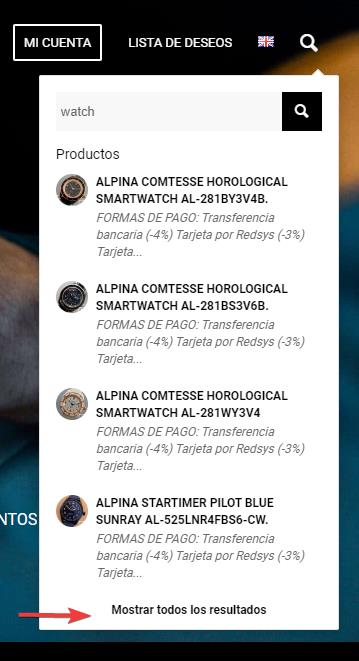
    now your ajax form “Show all results” link points to ?swp_form%5Bform_id%5D=1&swps=
    Enfold_Support_5602.jpeg
    and lands on your custom SearchWP results page:
    Enfold_Support_5604.jpeg

    Best regards,
    Mike

    #1441061

    Hey peterolle,
    To remove the “Add to Cart” button that changes to “Read More” for products without a price and add the class single_button to the div avia_cart_buttons so the button is centered add this code to the end of your child theme functions.php file in Appearance ▸ Editor:

    add_action('woocommerce_before_shop_loop_item', 'start_custom_output_buffer', 9);
    function start_custom_output_buffer() {
        ob_start();
    }
    add_action('woocommerce_after_shop_loop_item', 'modify_and_end_custom_output_buffer', 25);
    function modify_and_end_custom_output_buffer() {
        $output = ob_get_clean();
        global $product;
        if ('' === $product->get_price()) {
            $output = str_replace("avia_cart_buttons", "avia_cart_buttons single_button", $output);
        }
        echo $output; 
    }
    add_filter('woocommerce_loop_add_to_cart_link', 'custom_woocommerce_loop_add_to_cart_link', 10, 2);
    function custom_woocommerce_loop_add_to_cart_link($button, $product) {
        if ('' === $product->get_price()) {
            return '';
        }
        return $button;
    }
    

    Please ensure to copy the code from the forum and not an email notification so the symbols are not converted.
    This is the expected results:
    Enfold_Support_5600.jpeg

    Best regards,
    Mike

Viewing 30 results - 331 through 360 (of 11,218 total)