
Viewing 30 results - 3,361 through 3,390 (of 11,207 total)
  • Author
    Search Results
  • #1109016

    Hey Royden,

    Please try the following in Quick CSS under Enfold->General Styling:

    .home #full_slider_1 .avia-slideshow-button-2 {
      top:0 !important;
    }

    Best regards,
    Rikard

    #1109001

    Hi,

    Thank you for the info.

    The gallery should be hidden on page load. You can use the following css code to do that.

    .my-custom-gallery { display: none; }
    

    Turn on the custom css class field first so that you can apply a special class attribute (ex: my-custom-gallery) to the gallery.

    // https://kriesi.at/documentation/enfold/intro-to-layout-builder/#turn-on-custom-css-class-field-for-all-alb-elements

    You can then create a custom script that will toggle the visibility of the gallery when someone clicked on the “photo” button. The following function should help.

    // http://api.jquery.com/toggle/

    Best regards,
    Ismael

    #1108828
    seerifee
    Participant

    Hello,

    how can i insert the footer like in the Demo:

    With the “Button to go to TOP” and in full width?

    Thank you

    #1108807

    Hi Victoria,
    thanks, but it does not work, the buttons are still to small – and I cannot find themes/enfold/css/custom.css
    And further more, what do you mena with mockup? Didn’t you understand what I mean? If my english is too bad, I will open a support ticket in german – shall I? I try to explain better. The website is http://www.leonpluto.de, I put the lig in data into private info, too.

    2. And the font in the footer column 4 (with impressum and dateschutz) is different to the other columns, if you look at the page, you ll see the difference. I want the fonts in the columns all at the same size – Where can I change it?

    3. I want to show the social buttons in the FOOTER bigger, too- they are too small and I want to show them in the middle?? How can I change (I don#t know how to eplain better.)

    4. I want to adjust the theme to responsive – so, do I have to adjust each single objekt in the same – or ist there a special function? – I Mean: Where can I adjust the the seems lokks at mobile view good?

    5. Where can I adjust responisve options, when I don’t want to show 2 posts in a row, but just one (startpage) – just give a try, you’ll see it, whne you look at the page on monile view

    6. I had to hide the slider in the start page at mobile view – but now the space is too much between menu and the next object. How can I adjust this? – just give a try, you’ll see it, when you look at the page with mobile view

    7. I want to show social buttons in the header or footer at mobile view – at the moment they are hidden – how can I achieve this?

    8. And new: the space at mobile view beetween content an footer is too large. How can I adjust this?

    • This reply was modified 6 years, 9 months ago by Wondergirrrl.
    #1108625

    Hey Richard,

    The site looks good on my end. You may not see the changes until the cached files are cleared in your browser.

    Please perform the below steps to clear the browser cache:

    1. Disable “merging and compression” for CSS and JS files from Enfold > Performance.
    2. If a caching plugin is installed check the plugin settings and clear the cache and deactivate the plugins for testing purpose.
    3. Hard refresh by pressing Ctrl + Shift + F5 on your browser or press the F12 key to open chrome dev tools and right click on the refresh button and select “Empty Cache and Hard Reload”.

    Best regards,
    Victoria

    #1108565
    dchambat
    Participant

    I have installed and activated Enfold 4.5.7 on WordPress 5.1.1.
    I have also selected “Use WP Classic Editor” in the Enfold Theme Options.

    When I’m in page editor, I see the button “Advanced Layout Editor”, but when I click on it, nothing happens.

    Please help, thank you!

    #1108533

    Hi,

    Thank you for writing to us.

    I logged in to your site and checked for the issue the mobile menu looks fine on my android device.

    However, you can check out all the settings for the burger menu here.

    You may not see the changes until the cached files are cleared in your browser.

    Please perform the below steps to clear the browser cache:

    1. Disable “merging and compression” for CSS and JS files from Enfold > Performance.
    2. If a caching plugin is installed check the plugin settings and clear the cache and deactivate the plugins for testing purpose.
    3. Hard refresh by pressing Ctrl + Shift + F5 on your browser or press the F12 key to open chrome dev tools and right click on the refresh button and select “Empty Cache and Hard Reload”.

    Best regards,
    Vinay

    #1108527

    Hi,

    Thank you for writing to us.

    To add a PDF file on all products which can be downloaded without buying the product you can create a download button in the product description.

    You have to manually add the pdf to each product page.

    You can also follow @Guenni007 method in that case too just create pdf download links for each product.

    If you add it as a product then it cannot be downloaded without purchasing.

    Hope this helps.

    Best regards,
    Vinay

    Hi,

    Thank you for contacting us.

    The logo and the header look good when I scroll the page. You may not see the changes until the cached files are cleared in your browser.

    Please perform the below steps to clear the browser cache:

    1. Disable “merging and compression” for CSS and JS files from Enfold > Performance.
    2. If a caching plugin is installed check the plugin settings and clear the cache and deactivate the plugins for testing purpose.
    3. Hard refresh by pressing Ctrl + Shift + F5 on your browser or press the F12 key to open chrome dev tools and right click on the refresh button and select “Empty Cache and Hard Reload”.

    Best regards,
    Vinay

    #1108444
    robertosantoli
    Participant

    I have a bug with Enfold, latest version, and WordPress (always in the latest version).

    Both in articles, pages and in products, I first see the cover image of the content and then the whole right side menu and then the content title appears and any buttons to add to the cart.

    So with the option “Sidebar on the Smartphone” in Enfold (Child), the menu goes to fit between the cover image and the title of Articles, Pages, Products and WordPress contents.

    #1108381
    AD
    Participant

    Hi there,

    I’m using the “App Demo” version of the Enfold theme and on the home page the “Color Section” with the ‘header.png’ image (computers/phones/watches image) has negative margin-top by default. When the negative margin-top is increased and the Color Section overlaps the button above it the button is not clickable.
    I tried to give different z-indexes to the color sections with id’s but it didn’t make a difference. Would you be able to help with making the button clickable while keeping the positioning with the negative margin-top?

    Thanks!

    #1108355
    Kelly Erickson
    Participant

    Hey Enfold! Have I mentioned how much I love you?

    I have just a couple of questions:

    1) Change Transparent & Glassy Header (set as sticky) behavior so that it is has:
    – no borders/lines below
    – no animation when you scroll down (menu indicator is fine)
    – 0.9 transparency of header when you scroll down (to match what it is when you’re at the top)

    2) Underlines! In order to be WCAG compliant I need EVERY single hyperlink underlined. Headers, footer links, socket, text boxes, widgets – all of that. I don’t want buttons or icons to underline (all the code I’ve found so far seems to conflict with that part). I know I’ve brought this up before but I just seem to run into this issue consistently.

    Thank you thank you thank you!

    #1108239

    In reply to: Button Label Bug

    Hi webfacile,

    I think the problem is here:

    label='Plus d'info'

    You can’t use special characters inside, please download, install and activate this plugin: Special Character Translation plugin
    then use this shortcode:

    [av_button label='Plus d###34### info' link='manually,#' link_target='_blank' size='large' position='center' label_display='' icon_select='yes' icon='ue816' font='entypo-fontello' color='theme-color' custom_bg='#444444' custom_font='#ffffff' av_uid='' custom_class='' admin_preview_bg='']

    If you want to know more about this plugin you can check: https://kriesi.at/documentation/enfold/intro-to-layout-builder/#using-special-characters

    Best regards,
    Nikko

    #1108233
    Guenni007
    Participant

    multiline menu with shrinking header
    (The values refer to two lines – more than two lines work, but there we have to make some compromises. because the size of the shrunken header limits the number of lines – so for 3 lines it would be an alternative to have the menu-items centered horizontaly)

    How to give a custom-class to a menu-item:

    On dashboard – appearance – menus we had on the very top a slide-out button “Screen Options” with options to set for menu-dashboard
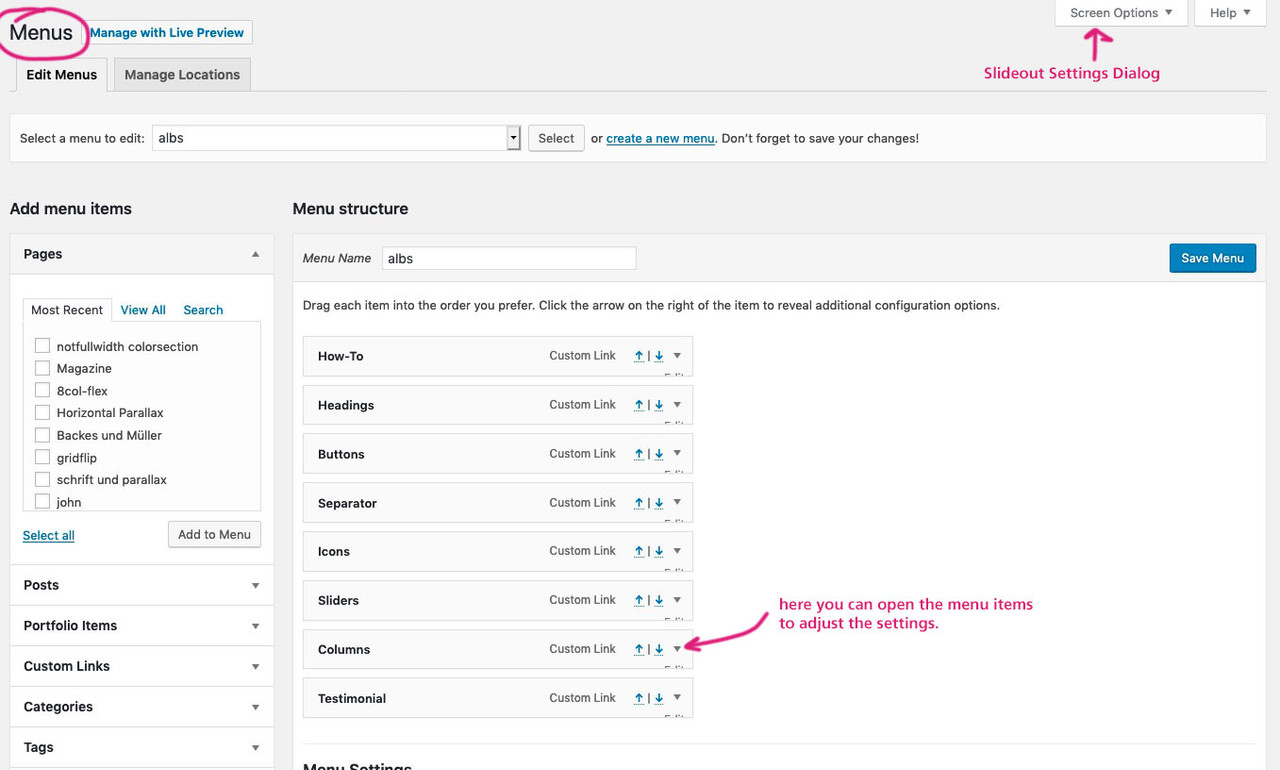
    so press this “Screen Options” slide-out settings dialog and mark the things you like to have for menu-styling
    we need for it the “CSS Classes” – each menu-item has that little arrow on the right side
    (see my comment in the image: here you can open the menu items to adjust the settings)

    you will see for one menu-item the following:
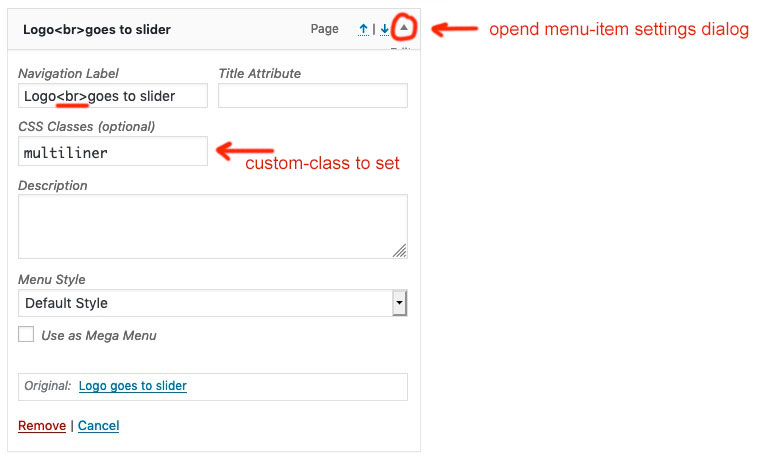
    on that “Navigation Label” input field you can put in what you like to have (even image links – you know that)
    for multiline you can use the br-tag ( <br> ).
    Put in the CSS Classes input field : multiliner

    these are all menu-settings to have

    __________

    We now had to bind the shrink calculation to the padding-top for menu-items and set the line-height to a different amount then the default one for oneliners

    So upload a copy of the avia-snippet-sticky-header.js Script to your enfold-child/js folder (on default there is no js folder – create one ) – this one will be used for your enfold installation now.

    and we need this snippet to have a child-theme shrinking script:

    add_action( 'wp_enqueue_scripts', 'wp_change_sticky_header_script', 100 );
    function wp_change_sticky_header_script() {
       wp_deregister_script( 'avia-sticky-header' );
       wp_enqueue_script( 'avia-sticky-header-child', get_stylesheet_directory_uri().'/js/avia-snippet-sticky-header.js', array('avia-default'), $vn, true);
    }

    Goto Dashboard – Appearance – Editor
    here you have your child-theme files – and now on the js subfolder the new script.
    Under “Theme Files” you can click on this script because we had to insert some new code:

    Find the line (on default Enfold 4.5.7 it is line 54) : topbar_height = header.find('#header_meta').outerHeight(),

    under that line insert:

    multiliner_padding = header.find('#avia-menu .multiliner > a'),
    multiliner_lh = 20, // set the desired line-height for the multilines

    now find (on default Enfold 4.5.7 it is line 92) : logo.css({'maxHeight': newH + 'px'});

    insert after :

    
    multiliner_padding.css({'padding-top': newH/2 - multiliner_lh/2 + 'px', 'line-height': multiliner_lh + 'px'});

    save that file by click on “update file”
    thats it

    ___________

    in order for the new changes to take effect, you may need to refresh the merged files
    Enfold (Child) – Performance – check that “Delete old CSS and JS files?” and “Save all changes”
    refresh your browser chache too please.

    See a working example on : https://webers-testseite.de/cynthia/

    #1108202

    Hi,

    Please try adding this code to the Quick CSS section under Enfold > General Styling or to your child theme’s style.css file:

    CSS Snippet:

    
    .avia-button {
        border: none!important;
    }


    Best regards,
    Yigit

    #1107886

    Actually discovered I didn’t need the custom code in the end – as was configurable in Enfold Styling settings!

    One query though, for the Page below, the pink Avia buttons, there is no setting in that element to add a hover color state – is there any way of doing this?
    Thanks!

    #1107863
    pixar24
    Participant

    By mistake I pressed the button “reset all options” at the Enfold theme options.

    This is totally my mistake, but:
    can’t you put this button is a less prominent place ? I mistook it for a save button.
    Before executing the reset, could you show a warning popup asking us if we are sure this can be reset ?
    The button is pushed in a blink of an eye and the consequenses are big !

    karinorage
    Participant

    Hi,
    I am using a child-theme, but there is some css I which I cannot override, which is the “display:block;” in this section in the table.css in
    /wp-content/themes/enfold/config-templatebuilder/avia-shortcodes/table
    @media only screen and (max-width: 767px)
    {
    .responsive div .avia_responsive_table .avia-data-table table,
    .responsive div .avia_responsive_table .avia-data-table tbody,
    .responsive div .avia_responsive_table .avia-data-table tr,
    .responsive div .avia_responsive_table .avia-data-table td,
    .responsive div .avia_responsive_table .avia-data-table th{display:block;border-top:none; border-right:none; border-left:none; text-align: center;}
    .responsive .avia_responsive_table .avia-data-table{border-style:solid; border-width: 1px;}
    .responsive .avia_responsive_table .avia-data-table .avia-pricing-row .avia-desc-col{text-align: center;}
    .responsive .avia_responsive_table .avia-data-table .avia-button-row, .responsive .avia_responsive_table .avia-data-table tr:first-child th{display:none;}
    .responsive .avia_responsive_table .avia-data-table td:before {
    display:block;
    font-style: italic; font-size: 11px;
    }

    How can I change this without actually editing /wp-content/themes/enfold/config-templatebuilder/avia-shortcodes/table/table.css?

    Thanks,
    Karin

    • This topic was modified 6 years, 9 months ago by karinorage.
    davidetoffa
    Participant

    Dear Support team,

    I use the child theme control panel to modify the content page stile:
    – font type
    – font size
    – font color

    But unfortunately the changes dosen’t show online.
    It seems the changes I do in backend doesn’t affect the frontend.

    Even the “Go UP” button dosen’t appear on mobile view of the website.

    Could you help me?
    Best Regards

    #1107170

    Some times I don’t understand moderators and the knowledge that they have. Sorry for this comment but is true, a lot of times your solutions aren’t the good ones or simply no solution for some simple think. Maybe your support team isn’t telling you the good answers.

    The javascript solution isn’t a good one because “nofollow” is just to tell google that the link doesn’t need to follow and index and google bot knows when some attributes are added via javascript and drop a little bit in search points because isn’t good practice.

    Enfold have ‘nofollow’ for button links by default, but is deactivated. You only need to add:

    
    add_theme_support('avia_rel_nofollow_for_links');
    

    to functions.php and the option appear in Open Link in new Window? selector.

    A little bit of deep code navigation in av_button shortcode file shows me the solution.

    Enjoy

    #1107149

    Hi sustainable-environments,

    To change the image size there are 2 options to do this, either via plugin which is easier or via functions.php which requires some php code.
    The plugin option is to use this plugin: https://test.wordpress.org/plugins/simple-image-sizes/ after installing and activating it, go to Settings > Media.
    Then modify the featured_large (based on the image size above) then adjust its width and height and save, then click on the regenerate button.

    The code option, first requires a child theme and in its functions.php add this code:

    add_filter( 'avf_modify_thumb_size', 'enfold_customization_modify_thumb_size', 10, 1 );
    function enfold_customization_modify_thumb_size( $size ) {
      $size['featured_large'] = array('width'=>1500, 'height'=>630);
      return $size;
    }

    Just modify width and height (the values I put there are the default values) and save the file.
    Re-upload the image afterwards.

    Hope this helps.

    Best regards,
    Nikko

    #1107063

    Hey Pas7o,

    Thank you for using Enfold.

    As much as possible, make sure that the size of the product images are the same. You can then set the minimum height of the product title container using the following css code. Just add it in the Quick CSS field.

    #top .inner_product_header {
        min-height: 132px;
    }

    You can do the same for the product button container.

    .avia_cart_buttons.single_button {
        min-height: 58px;
    }

    Best regards,
    Ismael

    #1106658
    pantoni
    Participant

    Hi guys
    Just trying to target and set the color states for the Contact Form SEND button (default and hover state) independent of all other elements.Can’t seem to do this within the ‘General Styling’ config… unless I’m missing something?

    Are you able to help – url below…

    Thanks!

    #1106614

    … me too! Want to display a Read More Button.

    In further enfold versions this was possible! Therefore ist should be possible without hireing a Freelancer. Can you please give us a a codesnippet (for the Childs function) that can do this?

    #1106443
    eogiles
    Participant

    I am trying to update from 4.5.2 to 4.5.7 and every time I press button to run the update it says download failed.
    I created a new Envato key and made sure all the correct permissions are set and it still fails.
    I also installed the Envato Market plugin and tried to update using that. The “Test API Connection” works fine but the update of Enfold fails.

    #1106364

    In reply to: Install Demo

    Hi,

    @youi2005
    To open a new thread, please go here and click the full width blue button at the top of the screen. Then explain your issue and include admin login and url in the Private Content area so we can be of more assistance.

    Best regards,
    Mike

    #1106301

    In reply to: Überlappung Promobox,

    Hi,

    Please try adding this code to the Quick CSS section under Enfold > General Styling or to your child theme’s style.css file:

    CSS Snippet:

    
    @media only screen and (max-width: 1300px){
    .responsive .av_promobox .avia-button, .responsive .av_promobox .avia-button-wrap {
        width: 100%;
        margin-top: 4px;
        position: relative;
        top: 0;
        left: 0;
        text-align: center;
        float: none;
    }}


    Best regards,
    Yigit

    #1106215

    Hey noyaholidays,
    Sorry but I can’t see your page, it redirects back to my localhost, please check your url, perhaps an admin login will help us see your settings.
    If you are using a child theme, typically when css is added to the child theme style.css and the css merging is on in the Enfold Theme Options > Performance > JS & CSS file merging and compression the merged file needs to be re-built by saving the theme options again. Sometimes the big blue button “save all changes” is not available to click, so try adding a blank space to the Quick CSS to active the button.
    I recommend not using any merging or caching plugins while building your site.

    Best regards,
    Mike

    #1106210

    Hi,
    Glad to hear that it’s mostly working, typically when css is added to the child theme style.css and the css merging is on in the Enfold Theme Options > Performance > JS & CSS file merging and compression the merged file needs to be re-built by saving the theme options again. Sometimes the big blue button “save all changes” is not available to click, so try adding a blank space to the Quick CSS to active the button.
    I recommend not using any merging or caching plugins while building your site.
    Please try this, and if you still need some help, Please include an admin login in the Private Content area so we can examine.

    Best regards,
    Mike

    #1106137

    Hey Carolin,

    The site looks good on my end. You may not see the changes until the cached files are cleared in your browser.

    Please perform the below steps to clear the browser cache:

    1. Disable “merging and compression” for CSS and JS files from Enfold > Performance.
    2. If a caching plugin is installed check the plugin settings and clear the cache and deactivate the plugins for testing purpose.
    3. Hard refresh by pressing Ctrl + Shift + F5 on your browser or press the F12 key to open chrome dev tools and right click on the refresh button and select “Empty Cache and Hard Reload”.

    Best regards,
    Victoria

Viewing 30 results - 3,361 through 3,390 (of 11,207 total)