-
AuthorSearch Results
-
February 12, 2020 at 2:46 pm #1183894
Hi,
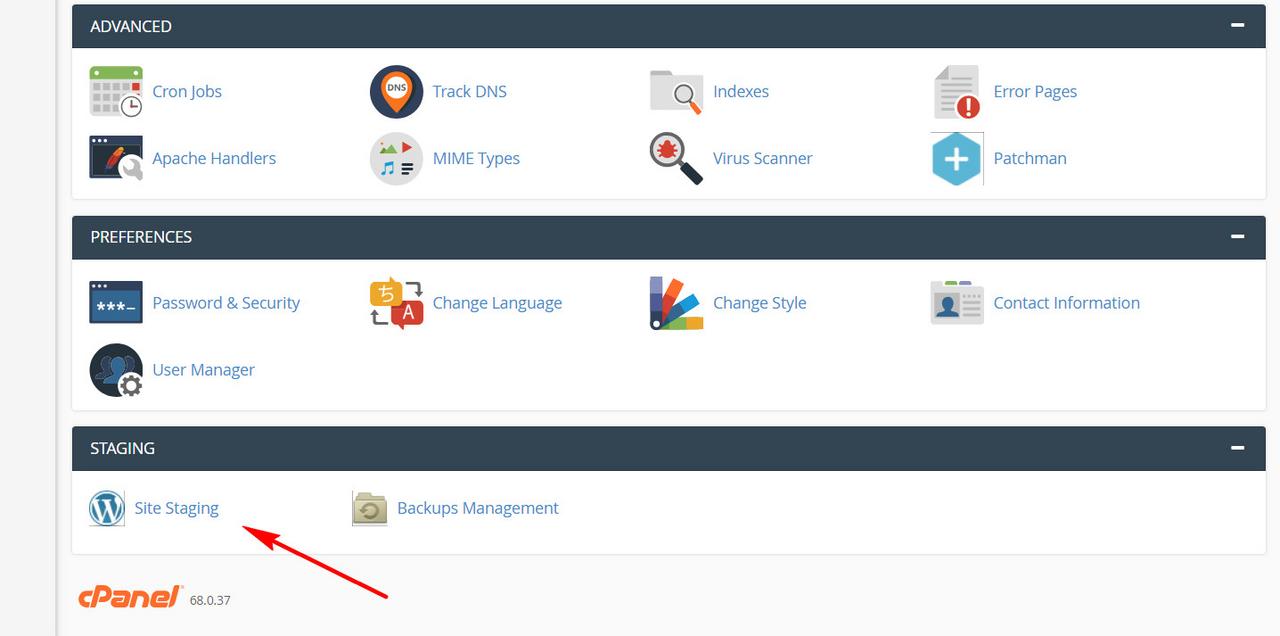
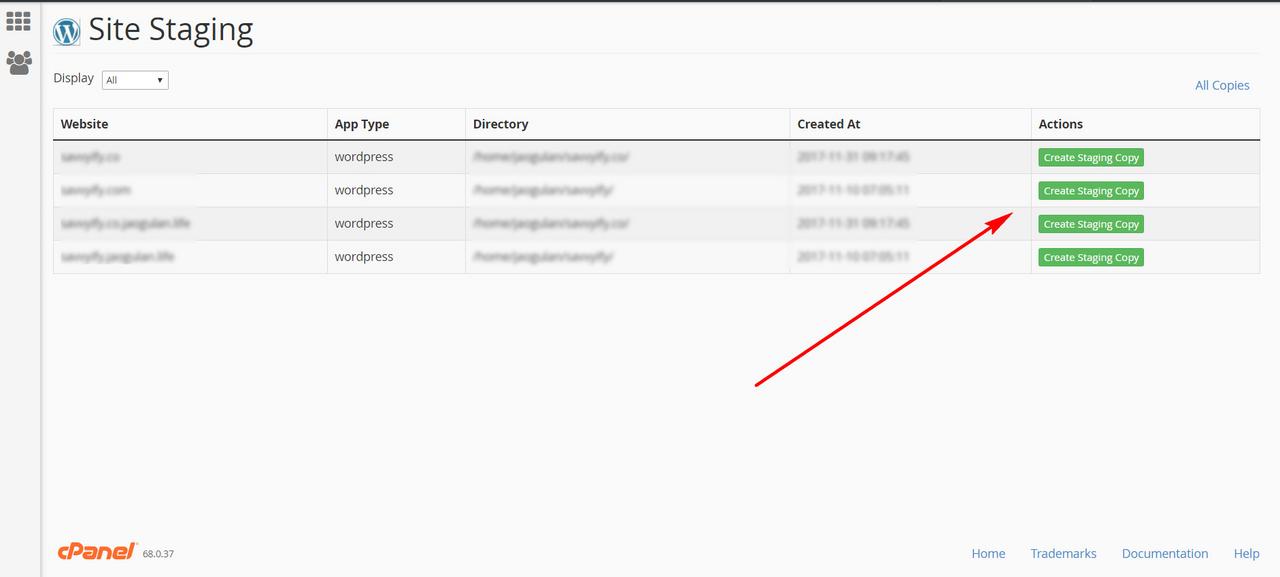
Sorry, the images are showing as thumbnails for me, but here is direct links to the images.
https://i.postimg.cc/kgKB0bbr/staging-1.jpg
https://i.postimg.cc/nLxCph4X/staging-2.jpg
We will keep this open to hear back from you.Best regards,
MikeFebruary 12, 2020 at 2:20 am #1183718In reply to: Hide featured image on single portfolio… recursively
Hi!
Thank you for the update.
Should I try to update the above filter provided by Mike to include this condition on image size?
Yes, that is correct. You can add the condition inside the filter that @Mike suggested above.
function avf_disable_portfolio_featured_image( $html, $post_id, $post_image_id, $image_size ) {
    if(is_singular('portfolio') && $image_size == 'entry_with_sidebar') {
    	$html = '';
    }
    return $html;
}
add_filter( 'post_thumbnail_html', 'avfdisable_portfolio_featured_image', 10, 4 );
Best regards,
IsmaelFebruary 11, 2020 at 2:00 pm #1183471In reply to: Big preview image won't resize
Hi,
Thank you for the update.
We would like to try and adjust the thumbnail size but the account above doesn’t have admin rights, so we couldn’t access the Settings > Media panel. Please set the user role to admin or provide a different user with admin rights.
Best regards,
IsmaelFebruary 11, 2020 at 1:47 pm #1183462In reply to: Hide featured image on single portfolio… recursively
Hi!
Thank you for the update.
You can add a condition inside the filter based on the value of the image size used in the get_the_post_thumbnail function. For example, in the related posts section the name of the thumbnail is square, so the condition will look something like the following.
if($size != 'square') {
   return '';
}
// https://developer.wordpress.org/reference/hooks/post_thumbnail_html/
Cheers!
IsmaelFebruary 10, 2020 at 11:45 am #1183004In reply to: Hide featured image on single portfolio… recursively
Well, thank you Mike, that’s a start.
Since I want to hide featured images on portfolios only (not blog posts nor other custom posts), I could change it like this:function disable_portfolio_featured_image( $html, $post_id, $post_image_id ) { if(is_singular('portfolio')) { return ''; } else return $html; } add_filter( 'post_thumbnail_html', 'disable_portfolio_featured_image', 10, 3 );But there’s still a glitch.
Using this code not only hides featured image on top of page, it also hides featured images on a “related posts” at page bottom (which is a 4 items “portfolio grid” Enfold element).
I don’t see how I could limit the effect to .entry-content-header .page-thumb .wp-post-image (except using some CSS, I don’t want to hide it, I want to prevent it loading).Using a function would be great, but if it’s not possible (without overriding loop-portfolio-single.php), I guess the MySQL request could still be something worth doing. I’m just not very confortable with.
February 7, 2020 at 2:44 pm #1182317In reply to: Hide featured image on single portfolio… recursively
Hey Julien,
Try adding this code to the end of your functions.php file in Appearance > Editor://disable featured image function disable_featured_image( $html, $post_id, $post_image_id ) { if(is_single()) { return ''; } else return $html; } add_filter( 'post_thumbnail_html', 'disable_featured_image', 10, 3 );Best regards,
MikeFebruary 6, 2020 at 4:04 pm #1182038In reply to: Magazine Element duplicating Video on Navigation
Thanks for this. I now understand why there is this image duplication and the functionality limitations.
I do need the thumbnails there and so after reading your response I realised I can just add a CSS hack and display:none the arrow buttons either side so the user just can’t scroll, and therefore, wont see the error. Targeted just on this area using a class.So in a way you triggered the answer! … and thank you very much indeed for your time and assistance. You must be deluged!
February 6, 2020 at 3:05 pm #1182022In reply to: Magazine Element duplicating Video on Navigation
Hi,
Sorry for the late reply and thanks for the login, the way the lightbox works is it gets all of the images, so in this case is it is getting the thumbnail and the featured image from the post, if you uncheck the “Display Thumbnails” option in the element then the lightbox only shows the image once, which id from the link, but the magazine element then doesn’t show the thumbnail on the front end.
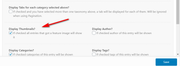
but I’m sure you want to show the image in the magazine element.
I tried removing the second image or classes or links with javascript but that just produced a blank slide where the second image would have been, so you still had to click twice. I also tried to simulate a double click when the arrows were clicked but that didn’t work either. So I’m not sure we can change this but I will try to research some more.
Please try unchecking the “Display Thumbnails” option in the element to see how the front end looks and behaves, and try removing the featured image from the posts to see if that corrects the behavior of the magazine element.Best regards,
MikeFebruary 6, 2020 at 8:44 am #1181968In reply to: Video from YouTube doesn't load
Hello,
@Ismael, I haven’t edited anything. Just added the video module, a thumbnail, and that’s it. I also updated to v.4.7.2 and it didn’t help.
@LUPE_1222, thank you for your input, but I have disabled Enfold’s cookie consent messages. So that’s not related.Best,
February 4, 2020 at 8:11 pm #1181505Topic: Blog Thumbnail & Large Image sizes changed with update
in forum EnfoldWSI_Gordon
ParticipantNot sure if this was a theme update or a WP update but the images sizes for blog thumbnails and featured images recently changed. You can see a sample of this here: https://strunkaccess.com/blog/
For single blog posts the featured image has gotten narrower. https://strunkaccess.com/focus-on-reg-e-opt-in-now-more-important-than-ever/
All of the images have been cropped to 1200×675 which worked perfectly before and now the square thumbnail cuts off the sides and the narrow featured image cuts off the top and bottom.
Please advise if this is something that will be corrected or something we need to accommodate for moving forward.
February 4, 2020 at 5:19 pm #1181372In reply to: display problem masonery label
http://www.magiciens-des-ecoles.com/photos/ I want the image like this which is the same theme Thumbnails
I added screenshots of the 2 sites that I did with the same theme and I can’t do the same again, there is a problem somewhere, I don’t know whereFebruary 4, 2020 at 4:57 pm #1181359In reply to: display problem masonery label
##################################################################
/*
* Register additional image thumbnail sizes
* Those thumbnails are generated on image upload!
*
* If the size of an array was changed after an image was uploaded you either need to re-upload the image
* or use the thumbnail regeneration plugin: http://wordpress.org/extend/plugins/regenerate-thumbnails/
*/$avia_config[‘imgSize’][‘widget’] = array(‘width’=>36, ‘height’=>36); // small preview pics eg sidebar news
$avia_config[‘imgSize’][‘square’] = array(‘width’=>180, ‘height’=>180); // small image for blogs
$avia_config[‘imgSize’][‘featured’] = array(‘width’=>1500, ‘height’=>430 ); // images for fullsize pages and fullsize slider
$avia_config[‘imgSize’][‘featured_large’] = array(‘width’=>1500, ‘height’=>630 ); // images for fullsize pages and fullsize slider
$avia_config[‘imgSize’][‘extra_large’] = array(‘width’=>1500, ‘height’=>1500 , ‘crop’ => false); // images for fullscrren slider
$avia_config[‘imgSize’][‘portfolio’] = array(‘width’=>495, ‘height’=>400 ); // images for portfolio entries (2,3 column)
$avia_config[‘imgSize’][‘portfolio_small’] = array(‘width’=>260, ‘height’=>185 ); // images for portfolio 4 columns
$avia_config[‘imgSize’][‘gallery’] = array(‘width’=>845, ‘height’=>684 ); // images for portfolio entries (2,3 column)
$avia_config[‘imgSize’][‘magazine’] = array(‘width’=>710, ‘height’=>375 ); // images for magazines
$avia_config[‘imgSize’][‘masonry’] = array(‘width’=>705, ‘height’=>705 , ‘crop’ => false); // images for fullscreen masonry
$avia_config[‘imgSize’][‘entry_with_sidebar’] = array(‘width’=>845, ‘height’=>321); // big images for blog and page entries
$avia_config[‘imgSize’][‘entry_without_sidebar’]= array(‘width’=>1210, ‘height’=>423 ); // images for fullsize pages and fullsize slider
$avia_config[‘imgSize’] = apply_filters(‘avf_modify_thumb_size’, $avia_config[‘imgSize’]);$avia_config[‘selectableImgSize’] = array(
‘square’ => __(‘Square’,’avia_framework’),
‘featured’ => __(‘Featured Thin’,’avia_framework’),
‘featured_large’ => __(‘Featured Large’,’avia_framework’),
‘portfolio’ => __(‘Portfolio’,’avia_framework’),
‘gallery’ => __(‘Gallery’,’avia_framework’),
‘entry_with_sidebar’ => __(‘Entry with Sidebar’,’avia_framework’),
‘entry_without_sidebar’ => __(‘Entry without Sidebar’,’avia_framework’),
‘extra_large’ => __(‘Fullscreen Sections/Sliders’,’avia_framework’),);
February 4, 2020 at 3:47 pm #1181319In reply to: display problem masonery label
thank you so much
but I still have a problem displaying the thumbnail of the portfolio category which does not automatically get to the right formatFebruary 4, 2020 at 3:08 am #1181122Regenerating the thumbnails AND the php code to change the optimizing of images fixed the issues.
Thank you!
February 3, 2020 at 5:22 am #1180791Hi,
The default size in the lightbox without adding the modification above seems to be quite enough to exhibit the quality of the images (see link below).
// https://imgur.com/a/xVkZKrn
Please note that the css code above will not actually enlarge the image — it will only stretch it, but the actual dimension of the image will stay the same. If you want to change the default size of the lightbox thumbnail, go to the Settings > Media panel and adjust the dimension of the Large thumbnail. You’ll have to regenerate the images afterwards (https://wordpress.org/plugins/regenerate-thumbnails/), or upload them again.
Best regards,
IsmaelFebruary 2, 2020 at 3:16 pm #1180670Topic: Featured image blog post
in forum EnfoldpattyNE
ParticipantHello,
I have read in some of the older forum posts that it is not possible to have a featured image look like this on my single blog posts using the advance editorIs that still the case? I cant get my featured image to show up at all. When I try to insert an image using the advanced editor, I only get a thumbnail
Are they any workarounds to getting an image that looks like your example?
Thank you!February 1, 2020 at 9:05 pm #1180547In reply to: Layer Slider on mobile
Hi,
Thanks for the screenshot, but that is a different class and rule:ls-thumbnail-slide{ display: none!important; }vs
.ls-slide {
    visibility: hidden !important;
}
On your live site please check the visibility of the slider in these plases:
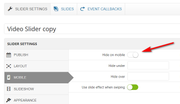
I took a closer look at your homepage on the test site, and I see you have included strange classes that don’t seem to belong to a plugin, are you migrating from a different theme? The source code includesdata-slideshow="true"
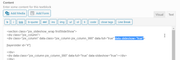
since it is calling a different slideshow where the layerslider is, I wonder if there is a conflict somehow?
On the test site I recreated your homepage using the Advanced Layout Builder, please the url in the Private Content area.
Please clear your browser cache and check this with your mobile device to see if this works for you.
As I understand the iPhone can be difficult to clear the cache, please try a couple of times.Best regards,
MikeFebruary 1, 2020 at 6:51 am #1180456In reply to: Masonry Portfolio Thumbnail Image Dimensions Help
Hey Nikko. I thought all our portfolio featured images had been uploaded with 1920 x 1080 dimensions. After reviewing your response, I realized we uploaded the wrong dimensions for the Reptopia image. I just replaced it with a version with 1920 x 1080 dimensions and now the last portfolio thumbnail is aligning left as desired.
Thanks so much for catching this oversight on our part.
February 1, 2020 at 4:41 am #1180445Let me ask this, Is there a way to change the container size and what will that impact in a negative way?
Thanks!
PS – Or is there a better option such as a slider with thumbnails?
-
This reply was modified 6 years, 1 month ago by
MichaelAlbany.
January 31, 2020 at 9:31 pm #1180420In reply to: Masonry Portfolio Thumbnail Image Dimensions Help
Thanks Nikko. It seems to be working great.
One more question. How do we make, via CSS, the last portfolio thumbnail image in a 2 or multi-column layout align left instead of right? See this screenshot for reference: https://ibb.co/Hr4fDcz
Thanks!
January 31, 2020 at 8:54 pm #1180415In reply to: Bilder in den Grids unscharf
Yes obviously 450px wasn’t enough. After I increased to 800 all worked fine. Even hadn’t to regenerate thumbnails.
Thanks
DirkJanuary 31, 2020 at 3:10 am #1180140In reply to: Bilder in den Grids unscharf
Hey dirkmiddeldorf,
Thank you for the inquiry.
That is the default thumbnail size used in the catalogue pages. If you want to change it, go to the Appearance > Customize > Woocommerce > Product Images panel and look for the Thumbnail width field. If in case it didn’t work, install the following plugin, then adjust the size of the shop_catalog thumbnail in the Settings > Media panel. You will have to regenerate or reupload the images after the adjustment.
// https://wordpress.org/plugins/simple-image-sizes/
Best regards,
IsmaelJanuary 29, 2020 at 10:03 pm #1179609In reply to: accessibility: blog posts component
it would appear to be part of
config-templatebuilder\avia-shortcodes\postslider.phpthat the Blog Posts actually renders the item with, not blog.php.
$output .= $thumbnail ? "<a href='{$link}' data-rel='slide-".avia_post_slider::$slide."' class='slide-image' title=''>{$thumbnail}</a>" : '';it’s the
$thumbnailpart we need to change in this instance to remove thealtthe correct method seems to be passing
falseto the alt parameter in the third argument
$thumbnail = get_the_post_thumbnail( $the_id, $image_size, array( 'alt' => false ));we don’t really want to edit core theme files and I imagine this solution would normally be preferable, using a regex
add_filter( 'post_thumbnail_html', 'remove_thumbnail_alt', 10, 5 );
function remove_thumbnail_alt( $html, $post_id, $post_thumbnail_id, $size, $attr ) {
    $html = preg_replace( '/(alt)=\"(.*?)\"\s/', "", $html );
    return $html;
}
however I’m not sure we can run this function for only the blog posts entries
if we need to add a conditional to the core
postslider.phpfile output to remove the alt if a title is available in the pod text, we need to make it a conditional on these render types
title, excerpt_read_more, title_read_moretherefore for now I’ve added a patch to
postslider.php// patch: remove alt on image if there is a title output on the pod // $thumbnail = get_the_post_thumbnail( $the_id, $image_size ); $hasTitle = in_array($contents, ['title', 'excerpt', 'excerpt_read_more', 'title_read_more']); $thumbnail = get_the_post_thumbnail( $the_id, $image_size, ($hasTitle ? array('alt' => false) : null));again we’d rather not edit core theme files, but I see no other solution really using filters/hooks
January 29, 2020 at 6:24 pm #1179506In reply to: Hamburger menu next to default menu in enfold
Thanks for the reply Ismael.
I ended up making the default menu display as a (hamburger) icon in the Main Menu general settings. Then I created a secondary menu and used CSS based on this topic (https://kriesi.at/support/topic/secondary-menu-location/) to re position the secondary menu to the left of the default menu icon and to disappear at screen widths of 767px and lower. All seems well for now.
Do you think this CSS based solution is sufficient? I put a link to the dev site for you in the private content section so you check and let me know if the coding and functionality seem correct.
Also, we’d like to add some social media icons to the default hamburger menu overlay screen just below the last vertically stacked menu item as well as our png logo image in the top left corner of the overlay screen. See this screenshot for reference purposes: https://ibb.co/hMHDvfD
Lastly, any chance you can provide some input on the following masonry image size topic I started? Thanks.
-
This reply was modified 6 years, 1 month ago by
killyman.
January 28, 2020 at 4:43 pm #1179074In reply to: Masonry Portfolio Thumbnail Image Dimensions Help
UPDATE JANUARY 28, 2020
I tried changing the Masonry settings from Perfect Grid to Flexible Masonry and noticed that the thumbnails were now displaying correctly with the 16:9 ratio and no cropping.
However, now when a new featured image is uploaded to a Portfolio item, the outputted masonry thumbnail image is shrunk down by about 85%. The previously uploaded featured images from older Portfolio items remain the correct size and consistency.
Screenshot for reference purposes here: https://ibb.co/TWJ2hfh
Any help would be much appreciated.
January 28, 2020 at 3:48 pm #1179047Hi,
Thank you for following up. This may not be realized anytime soon because of how the theme or WordPress handle images in general. Usually, newly added elements utilize existing thumbnails, so we don’t have to generate or register another image size.
You can always disable some of the thumbnails if necessary because WordPress will automatically load the original version of the image if the specified thumbnail is not found. Please check the following thread.
// https://perishablepress.com/disable-wordpress-generated-images/#disable-other
// https://kriesi.at/support/topic/disable-creation-of-multiple-file-resoltuions-on-media-upload/#post-1172543Best regards,
IsmaelJanuary 28, 2020 at 6:49 am #1178884In reply to: Setting up a Maintenance Page
Hi,
Thanks for the clarification. If you import another demo then it will overwrite your theme settings, so don’t do that. If you only need the one page then please activate debug mode in order to see builder shortcodes: https://kriesi.at/documentation/enfold/intro-to-advanced-layout-builder/#debug-mode, then add this shortcode to a new page:
[av_section color='main_color' custom_bg='' src='https://kriesi.at/themes/enfold-coming-soon/files/2014/09/people_town_dark.jpg' attachment='17' attachment_size='full' attach='fixed' position='center center' repeat='stretch' video='' video_ratio='16:9' min_height='100' min_height_px='500px' padding='large' shadow='no-border-styling' bottom_border='no-border-styling' id='' av_uid='av-a05tt']

[av_one_fourth first av_uid='av-9e6p9']

[/av_one_fourth][av_one_half min_height='' vertical_alignment='' space='' custom_margin='' margin='0px' padding='0px' border='' border_color='' radius='0px' background_color='' src='' background_position='top left' background_repeat='no-repeat' animation='' mobile_display='' av_uid='av-8vqyt']

[av_image src='https://kriesi.at/themes/enfold-coming-soon/files/2014/09/logo_coming_soon-80x80.png' attachment='16' attachment_size='thumbnail' align='center' animation='pop-up' link='' target='' styling='no-styling' caption='' font_size='' appearance='' av_uid='av-8blw1'][/av_image]

[av_heading tag='h1' padding='10' heading='<strong>Coming Soon</strong><br/>to a place near you!' color='custom-color-heading' style='blockquote modern-quote modern-centered' custom_font='#ffffff' size='44' subheading_active='subheading_below' subheading_size='15' custom_class='' av_uid='av-7ev6p']
Lorem ipsum dolor sit amet, consectetuer adipiscing elit. Aenean commodo ligula eget dolor. Aenean massa. Cum sociis natoque penatibus et magnis dis parturient montes, nascetur ridiculus mus.sellus dolor. Maecenas vestibulum mollis
[/av_heading]

[/av_one_half][av_one_fourth min_height='' vertical_alignment='' space='' custom_margin='' margin='0px' padding='0px' border='' border_color='' radius='0px' background_color='' src='' background_position='top left' background_repeat='no-repeat' animation='' mobile_display='' av_uid='av-6tdkp']

[/av_one_fourth][av_hr class='invisible' height='100' shadow='no-shadow' position='center' custom_border='av-border-thin' custom_width='50px' custom_border_color='' custom_margin_top='30px' custom_margin_bottom='30px' icon_select='yes' custom_icon_color='' icon='ue808' font='entypo-fontello' av_uid='av-63275']

[av_countdown date='10/02/2019' hour='12' minute='0' min='1' max='5' align='av-align-center' size='' style='av-trans-light-style' av_uid='av-5iwqh']

[av_hr class='invisible' height='100' shadow='no-shadow' position='center' custom_border='av-border-thin' custom_width='50px' custom_border_color='' custom_margin_top='30px' custom_margin_bottom='30px' icon_select='yes' custom_icon_color='' icon='ue808' font='entypo-fontello' av_uid='av-hj11']

[av_one_fourth first av_uid='av-4hd45']

[/av_one_fourth][av_one_half min_height='' vertical_alignment='' space='' custom_margin='' margin='0px' padding='0px' border='' border_color='' radius='0px' background_color='' src='' background_position='top left' background_repeat='no-repeat' animation='' mobile_display='' av_uid='av-3s5v1']

[av_contact  (Email address hidden if logged out) ' title='' button='Notify me on Launch' on_send='' sent='Thank you!' link='manually,http://' subject='' autorespond='' captcha='' color='av-custom-form-color av-light-form' av_uid='av-3c201']
[av_contact_field label='Name' type='text' options='' check='is_empty' width='element_third' av_uid='av-2fvwd'][/av_contact_field]
[av_contact_field label='E-Mail' type='text' options='' check='is_email' width='element_third' av_uid='av-7rhh'][/av_contact_field]
[/av_contact]

[av_textblock size='21' font_color='custom' color='#ffffff' av_uid='av-1kl79']
<p style="text-align: center;">Want to get notified once we are ready to launch? Leave us your mail address and we will!</p>
[/av_textblock]

[/av_one_half][av_one_fourth min_height='' vertical_alignment='' space='' custom_margin='' margin='0px' padding='0px' border='' border_color='' radius='0px' background_color='' src='' background_position='top left' background_repeat='no-repeat' animation='' mobile_display='' av_uid='av-156kl']

[/av_one_fourth][/av_section]
Best regards,
RikardJanuary 28, 2020 at 2:26 am #1178847In reply to: Animated gif as preloader image
Hi,
Thank you for the inquiry.
We adjusted the URL in the preloader field so that it points to the original version of the animated image instead of the thumbnail. It is working properly now.
Best regards,
IsmaelJanuary 27, 2020 at 10:56 pm #1178820Topic: Masonry Portfolio Thumbnail Image Dimensions Help
in forum Enfoldkillyman
ParticipantTrying to configure the Portfolio masonry thumbnail images to be 16:9 ratio. I’ve got images that are 1280 x 720 pixels but the masonry outputted thumbnails are cropped vertically. How does one go about maintaining the 16:9 ratio where no part of the image will be cropped or distorted?
Link to screenshot of the settings I have for the Masonry section: https://ibb.co/0926jSd
Link to screenshot of Portfolio page with cropped thumbnails and one sample 16:9 image I overlaid in Photoshop for reference purposes: https://ibb.co/10MwqDZ
January 27, 2020 at 4:54 am #1178566In reply to: Multiple Image Sizes on Upload
Hi,
I know, i dont have any fullpage slider or fullpage backgrounds. So is it reasonable that i can delete this pictures from Enfold creating and from the database?
Yes, you can delete the thumbnails that the site don’t actually use. You can manually do it by removing the thumbnail registration from the functions.php file or use the following plugin to set the height and width of certain thumbnails to 0.
// https://wordpress.org/plugins/simple-image-sizes/
After the plugin activation, go to the Settings > Media panel, look for the name of the thumbnails that you want to disable, set their width and height to zero, update or save the changes, then regenerate the thumbnails.
Best regards,
Ismael -
This reply was modified 6 years, 1 month ago by
-
AuthorSearch Results
-
Search Results
-
Not sure if this was a theme update or a WP update but the images sizes for blog thumbnails and featured images recently changed. You can see a sample of this here: https://strunkaccess.com/blog/
For single blog posts the featured image has gotten narrower. https://strunkaccess.com/focus-on-reg-e-opt-in-now-more-important-than-ever/
All of the images have been cropped to 1200×675 which worked perfectly before and now the square thumbnail cuts off the sides and the narrow featured image cuts off the top and bottom.
Please advise if this is something that will be corrected or something we need to accommodate for moving forward.
Topic: Featured image blog post
Hello,
I have read in some of the older forum posts that it is not possible to have a featured image look like this on my single blog posts using the advance editorIs that still the case? I cant get my featured image to show up at all. When I try to insert an image using the advanced editor, I only get a thumbnail
Are they any workarounds to getting an image that looks like your example?
Thank you!Trying to configure the Portfolio masonry thumbnail images to be 16:9 ratio. I’ve got images that are 1280 x 720 pixels but the masonry outputted thumbnails are cropped vertically. How does one go about maintaining the 16:9 ratio where no part of the image will be cropped or distorted?
Link to screenshot of the settings I have for the Masonry section: https://ibb.co/0926jSd
Link to screenshot of Portfolio page with cropped thumbnails and one sample 16:9 image I overlaid in Photoshop for reference purposes: https://ibb.co/10MwqDZ