Hi,
We updated the code above. It should now apply the original image URL instead of the portfolio thumbnail.
Have you tried disabling the plugins temporarily? It is possible that one of the plugins is causing the lightbox to fail.
Best regards,
Ismael
Thank you.
Please, how do I remove “Enfold WordPress Theme by Kriesi” in the copyright section of my website?
Also, when on mobile, the distance between heading and paragraph are a bit much on the portfolio page. How can I adjust the responsiveness?
Lastly, Please how do I change the name of the author on a blog post; and make the new additions in the short stories section show a larger image thumbnail?
Kind regards,
Quwam
-
This reply was modified 4 years, 9 months ago by
 qkel94.
Hi,
Welcome back! It’s been a while.
Have you tried editing the Image elements and re-selecting the square thumbnail? You may need to do this manually for every image element.
We also noticed that a “resize” parameter or query var is prepended to the image URL, which might be causing the issue. Did you install an image optimization plugin?
Best regards,
Ismael
Hi Danielle,
Sorry, apparently I have forgot to paste the link :)
This is the one I was referring to – https://wordpress.org/plugins/simple-image-sizes/. After activating the plugin, you can go to Settings > Media, update image sizes and then click regenerate thumbnails button at the bottom
Best regards,
Yigit
Hey,
Thanks for contacting us!
Could you please use this plugin and increase the size of “featured_large” images and regenerate thumbnails?
Currently your image is 1500x700px and increasing the size would display it sharper :)
Best regards,
Yigit
Hey ishish,
Thank you for the inquiry.
Would you like to increase the size of the lightbox image? The default thumbnail used for the lightbox is called the Large thumbnail, which can be adjusted in the Settings > Media panel. After the size adjustment, you have to upload the images again or regenerate them using a plugin.
// https://wordpress.org/plugins/regenerate-thumbnails/
Best regards,
Ismael
Hi,
The plugin is outdated but it works properly. If you do not want to use it, then you will have to modify the functions.php file and adjust the dimension of the thumbnail manually. Around line 193, you will see this code.
$avia_config['imgSize']['entry_with_sidebar'] 	= array('width'=>845, 'height'=>321);		            	// big images for blog and page entries
$avia_config['imgSize']['entry_without_sidebar']= array('width'=>1210, 'height'=>423 );						// images for fullsize pages and fullsize slider
Adjust the width and height value, then regenerate the thumbnails, or upload the images again. This plugin will help with the thumbnail regeneration.
// https://wordpress.org/plugins/regenerate-thumbnails/
Best regards,
Ismael
Thank you, Yigit. That works, but removes the “Show Details” option I had added — https://kriesi.at/support/topic/how-to-add-an-add-to-cart-button-in-product-list-option-thumbnail-zoom/
My earlier request was to have an “add to Cart” button, or “Show Details” button set up. That is essential for this project. Is there a way to add that and remove the description?
I need the image, title, price, and an “Add to Cart” and/or “Show Details” button.
Thank you.
Hi Yigit,
thanks for your help.
I tried using the Blog Posts element and copied one post (not published) to find the right settings coming close to the layout in your Demo.
Could you please check it? Something must be missing and not all posts (we have only 5 yet) are displayed.
We used tags as well, but for now I used Taxonomy > Category and Grid Layout with 4 cols, manual Thumbnail Size and Title only. For the Filter I chose All Posts and for Offset duplicates not allowed.
It would be great showing them all with maximum 6 of the newest in the future and no duplicates.
Best regards,
Dirk
Dear Ismael,
Thanks for looking into this. Your provides CSS does it look a little better – but it is still not working.
I also see a lot of <br> when viewing the thumbnail of the post – but those <br> are NOT present in the text.
And please notice the following.
– Those extra <br> are only on thumbnails visible after clicking on Load more!
– When clicking Load more, the screen is “flickering” indicating some code loops – probably where the extra br are being added.
If you are not able to find the problem on the post, in edit mode, please escalate this issue as it seems to be a bug in the theme. No extra CSS should be needed to make the portfolio work.
https://docs.google.com/uc?export=download&id=1Pycp-8cbZgB1adTDdo0koyuiw-c9yheI 
Regards,
Chrilles
Hey w_archer,
Thank you for the inquiry.
That is the default size of the featured images on post with sidebar. To adjust it, you may need to install the following plugin, activate it, go to the Settings > Media panel, look for the entry_with_sidebar thumbnail, adjust its size, then regenerate the thumbnails.
// https://wordpress.org/plugins/simple-image-sizes/
Best regards,
Ismael
Hey,
For some reason the featured image of my posts is being cropped at the top and bottom. It looks normal when i click on it and expand it to the lightbox. I have tried regenerating the thumbnails without success.
How can i fix this?
Hi peterolle,
For Post Slider Image, just edit it then go to Styling > Preview Image > Preview Image Size set to Choose the preview image size manually (select thumbnail size)
Then you can pick what image size you want to use in Select custom preview image size
Hope this helps.
Best regards,
Nikko
Hallo zusammen. Ich habe hier eine Galerie eingefügt: https://derbetrieb.at/toller-erster-markttag/
Plan wäre, dass alle Fotos untereinander mit großem Abstand in voller Breite angezeigt werden. Die Überlagerung sollte deaktiviert sein und die Bildbeschreibung unterhalb angezeigt werden, ganz ohne Thumbnails. Also ohne Lightbox. Irgendwie bekomme ich das nicht hin. Was mache ich falsch?
Welche Einstellungen sind dafür die richtigen? Danke, Alexander
i know that filter : avf_modify_thumb_size – and i can change the masonry size to f.e.:
function enfold_customization_modify_thumb_size( $size ) {
$size['masonry'] = array('width'=>1210, 'height'=>1210, 'crop' => false);
return $size;
}
add_filter( 'avf_modify_thumb_size', 'enfold_customization_modify_thumb_size', 10, 1 );
but that will need a recalcultion of that size to take effect on my existing masonries.
isn’t there a way to have by that a new-size :
add_image_size( 'new-size', 1210, 1210, false );

function my_custom_sizes( $sizes ) {
    return array_merge( $sizes, array(
        'new-size' => __( 'New Size' ),
    ) );
}
add_filter( 'image_size_names_choose', 'my_custom_sizes' );
and to set this new-size as source for masonry thumbnails?
______
For Example
On av-helper-masonry.php i can see that function: prepare_loop_from_entries
there we have : $img_size = 'masonry';
is it possible to use the filter avf_masonry_loop_entry_content to change here the source ?
Thanks
Hi,
Thank you for your patience and the link to your sidebar news widget, so in this screenshot of your current source code please note that the current width & height of the image is 36px, and the “sizes” attitude has the max-width set to 36px, Red Arrows, but you also have a 180px source image available, Yellow Arrow

So I prepose this jQuery script to change the source image used to the 180px version which will give you a larger image and keep it looking crisp.
function newsbox_custom_script() { ?>
    <script>
(function($){
  $(document).ready(function(){
$('.sidebar .newsbox .news-thumb img.size-widget').attr('width', '180');
$('.sidebar .newsbox .news-thumb img.size-widget').attr('height', '180');
$('.sidebar .newsbox .news-thumb img.size-widget').attr('sizes', '(max-width: 180px) 100vw, 180px');
$('.sidebar .newsbox .news-thumb').css({'height': '180px','width': '180px'});
 });
})(jQuery);
</script>
    <?php
}
add_action('wp_footer', 'newsbox_custom_script');

Now if you want the image larger you could regenerate the thumbnails so you would have a larger option for a source and adjust the script, or if you don’t need the image to be very crisp you can adjust the last line of the script (css) to suit.
Best regards,
Mike
Rather than having the product page open upon click of the image, I would like an add to cart button to display within the list.
I would also like the ability to zoom or open the lightbox by clicking on the thumbnail so that the user can better view the image.
Can you direct me to CSS or a plugin to achieve this?
Hello,
When I use
.rtl .av-magazine-thumbnail {
    float: right;
    margin-right: 0;
    margin-left: 15px;
}
The title under the first entry disappears (first entry is displayed bigger). Everything else is okay
-
This reply was modified 4 years, 10 months ago by
 FlatText. Reason: added first entry option
Hi,
We added this snippet in the functions.php file to replace the description with the actual product archive title.
add_action( 'init', 'avia_woocommerce_full_width_category_images', 50 );
function avia_woocommerce_full_width_category_images()
{
   	remove_action( 'ava_after_main_container', 'avia_woocommerce_shop_banner', 11 );
	remove_action( 'ava_after_main_container', 'avia_woocommerce_big_cat_banner', 11 );
	add_action( 'ava_after_main_container', 'avia_woocommerce_big_cat_banner_child_theme', 11);
	//add_action( 'ava_after_main_container', 'avia_woocommerce_shop_banner_child_theme', 11);

	function avia_woocommerce_shop_banner_child_theme()
	{
		global $avia_config;

		if(is_shop() || (is_product_category() && avia_get_option('shop_banner_global') == "shop_banner_global") && !isset($avia_config['woo-banner']))
		{
			$options = avia_get_option();

			if( isset( $options['shop_banner'] )  && ( $options['shop_banner'] == 'av-active-shop-banner' ) )
			{
				$bg 		= $options['shop_banner_image'];
				$overlay 	= $options['shop_banner_overlay_color'];
				$opacity 	= $options['shop_banner_overlay_opacity'];
				$description= wpautop($options['shop_banner_message']);
				$font 		= $options['shop_banner_message_color'];

				echo avia_woocommerce_parallax_banner($bg, $overlay, $opacity, $description, $font);
			}
		}
	}

	function avia_woocommerce_parallax_banner_child_theme($bg, $overlay, $opacity, $description, $font)
	{

		if(is_numeric($bg))
		{
			$bg = wp_get_attachment_image_src($bg, 'full');
			if(is_array($bg) && $bg[0] != "") $bg = $bg[0];
		}

		if($font) $font = "style='color:{$font};'";
		if($bg) $bg = "background-image: url(".$bg.");";

		$output = "";

		$output .='
<div id="av_product_description" class="avia-section main_color avia-section-large avia-no-border-styling avia-full-stretch av-parallax-section av-section-color-overlay-active avia-bg-style-parallax container_wrap fullsize" data-section-bg-repeat="stretch" '.$font.'>';
		$output .='
<div class="av-parallax  avia-full-stretch" data-avia-parallax-ratio="0.3">';
		$output .='
<div class="av-parallax-inner" style="'.$bg.' main_color background-attachment: scroll; background-position: 50% 50%; background-repeat: no-repeat;">';
		$output .='</div>
';
		$output .='</div>
';

		$output .='
<div class="av-section-color-overlay-wrap">';
		if(!empty($overlay))
		{
			$output .='
<div class="av-section-color-overlay" style="opacity: '.$opacity.'; background-color: '.$overlay.'; "></div>
';
		}

		$output .='
<div class="container">';
		$output .='<main class="template-page content av-content-full alpha units">';
		$output .= "
<h1>".get_the_archive_title()."</h1>
";
		if(false) $output .= "
<h1>".$description."</h1>
";
		$output .='</main></div>
</div>
</div>
';

		return $output;
	}

	function avia_woocommerce_big_cat_banner_child_theme()
	{
		if(is_product_category())
		{
			global $wp_query, $avia_config;

			if(isset($wp_query->query_vars['taxonomy']))
			{
				$term = get_term_by( 'slug', get_query_var($wp_query->query_vars['taxonomy']), $wp_query->query_vars['taxonomy']);
				if(!empty($term->term_id))
				{
					$description 	= term_description() ;
					$style 			= get_woocommerce_term_meta($term->term_id, 'av_cat_styling');
					$attachment_id 	= get_woocommerce_term_meta($term->term_id, 'thumbnail_id');

					$overlay 	= get_woocommerce_term_meta($term->term_id, 'av-banner-overlay');
					$font 		= get_woocommerce_term_meta($term->term_id, 'av-banner-font');
					$opacity 	= get_woocommerce_term_meta($term->term_id, 'av-banner-overlay-opacity');

					if(!empty($style))
					{
						remove_action( 'woocommerce_before_shop_loop', 'woocommerce_taxonomy_archive_description', 11 );
						echo avia_woocommerce_parallax_banner_child_theme($attachment_id, $overlay, $opacity, $description, $font);
						$avia_config['woo-banner'] = true;
					}
				}
			}
		}
	}
}
Best regards,
Ismael
Hi there
I have a minor problem that has been bugging me for a while.
The site in question (included in the “Private Content” section below) is using the blog post content element to display latest “posts”. We’ve set it up to only display the post title. No description, no thumbnail etc. Just the title.
However, regardless of how many posts are set to be displayed (doesn’t make a difference if it’s 2 or 5), the text of the bottom one always gets cut off.
I thought I could fix it by adding a separator/whitespace, however this doesn’t fix it at all, so the problem seems to lie with the actual blog post element itself.
I presume there was an edit to CSS somewhere that has impacted this, however I can’t seem to find exactly the element that is causing this issue.
Any help would be greatly appreciated!
Hi, Bought the theme long time back and just started working on my website (+5years almost – well, dnt ask me why :D)… love your theme!!! Everyone loves it…
I want to add a thumbnail image for my posts to come up in the ‘posts slider’ but I don’t see the option on the right side control panel. Understood I can enable it from the ‘Screen options’ on the top right but I can’t see that option too when I edit pages or posts… kindly help…
Best regards, Jyothis
My PHP version: 7.4.18
thanks!!! i can confirm that the problem appears to be only for images that were uploaded since last theme update
if i deactive the wp optimize plugin (was there from the start) it works again if we upload new pictures, truly weird
will replace all the pics uploaded since and that should work now with wp optimize disabled
any idea about that other thing i mentioned where if you click the “big image on top” the lightbox only shows the current image not the rest of the gallery? if you click on the thumbnail it shows all gallery in the lightbox to click through
link to old site where that still works and new site with described behavior in private field
Hi,
Would you mind providing a screenshot of the “section”? Please use imgur or dropbox for the screenshot.
You cannot move the lightbox image but you can enlarge it to make sure that the size is the same as the actual size uploaded. To do that, go to the Settings > Media panel and adjust the dimension of the Large thumbnail. And again, you have to regenerate the thumbnail as suggested above.
Best regards,
Ismael
Hi,
Thank you for restoring the site.
It works fine when we select older images or images that have been uploaded earlier. In the above page, we duplicated the gallery, remove the current images and selected older images. The duplicated gallery displays the selected thumbnail size. (see private field)
It is possible that the new images have been affected by a media or an image optimization plugin, but we cannot be sure. Please try to remove the new images and upload them again while the plugins are deactivated.
Best regards,
Ismael
Hey,
You are welcome!
1- Which browser and device are you experiencing this issue? I checked your page on Firefox, Chrome, Safari and Opera however it does not flicker on my end.
2- It is loading cropped version of the images however that is not the case on my local installation. Have you chose full sized images when creating your gallery? If you are, could you please use this plugin – https://wordpress.org/plugins/simple-image-sizes/ and increase the size of “masonry” image sizes and regenerate thumbnails?
Regards,
Yigit
Thank you, my CSS master aka Yigit :)
Spot on, it all worked perfectly, but there are three issues:
1. The code above is now applying to all masonry galleries across the whole website. Like, the homepage, we would like to keep it with 3 columns, but this code forces them to 1 column only. Perhaps we can keep that code and add a custom ID attribute? Or even better… find a code that will allow Avia Builder to work as expected: 1, 2, 3 or 4 columns for example? It seems the iPad on Portrait is the one that is not working by default (bug?)
2, The page is flickering when it loads. Probably the image resizing? Page URL in private.
3. A different topic, but kind of related.
Because we are showing one column, the featured images from the portfolio are kind of zoomed and their quality is poor.
I guess this is because the theme is loading a smaller image size (thumbnail or similar). Is there a way to display a better quality image? I guess this is related to the size we set for thumbnails, etc. under WordPress settings but I’m not sure.
I am sending you the pages in private.
Thank you
-
This reply was modified 4 years, 10 months ago by
 sitesme. Reason: One more issue found
Hey petschka,
Thank you for the inquiry.
What do you mean by “section” exactly? Are you referring to the lightbox option? Please provide a screenshot (using imgur or dropbox) and a link to the page containing the masonry element. We would like to check it.
If it is about the lightbox images, try to adjust the Large thumbnail size in the Settings > Media panel, then regenerate the images or upload them again.
// https://wordpress.org/plugins/regenerate-thumbnails/
Best regards,
Ismael
Hi,
– To remove the “Category:” prefix, use this in the functions.php file.
add_filter("get_the_archive_title_prefix", "__return_empty_string");
– If you want to move the description back to its original place, remove this line from the avia_woocommerce_parallax_banner function.
if($description) $output .= "".$description."

";
Add this code in the functions.php file.
add_action("after_setup_theme", function() {
    add_action( 'woocommerce_archive_description', 'woocommerce_taxonomy_archive_description', 10 );
    add_action( 'woocommerce_product_archive_description', 'woocommerce_product_archive_description', 10 );
}, 20);
After that, use this css code to remove the default page thumbnail.
.tax-product_cat .page-thumb {
    display: none !important;
}
– You cannot override a config file in the child theme directory.
Best regards,
Ismael
Hi,
@thp: We do not have a list of elements yet, but you can assume that every shortcode or template file that contains the Av_Responsive_Images class and is using its methods should render responsive images.
For example, the enfold/config-templatebuilder/avia-shortcodes/image/image.php file should contain this line, which outputs an image markup with the srcset attribute.
return Av_Responsive_Images()->make_content_images_responsive( $output );
It can be easily done using any text editors’ search feature. In Microsoft VS Code for example, just hit CTRL + SHIFT F in Windows, or CMD + SHIFT + F in Mac to search for the Av_Responsive_Images in every files in the theme.
You can also assume that every template that is using the get_the_post_thumbnail or the wp_get_attachment_image function will render responsive images or an image with the srcset attribute.
Best regards,
Ismael
maybe this could be an informative topic: https://kriesi.at/support/topic/beitragsbild-eines-blogbeitrags-automatisch-anzeigen/#post-1202606
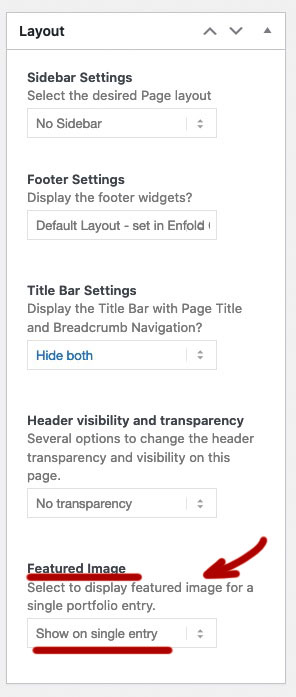
this little Snippet enables you to set even on alb based portfolios/posts the featured image if meta-box is set to : “show on single entry”:
function avf_template_builder_content_postimage_mod($content = ""){
  if(is_singular('post')   && ( '1' != get_post_meta( get_the_ID(), '_avia_hide_featured_image', true ) ) ||
     is_singular('portfolio') &&  ( '1' != get_post_meta( get_the_ID(), '_avia_hide_featured_image', true ) ) ) {
        $featuredImage = get_the_post_thumbnail( $the_id, 'entry_with_sidebar' );
        $content = '<div class="post-image">' .$featuredImage. '</div>' . $content ;
      }
  return $content;
}
add_filter('avf_template_builder_content', 'avf_template_builder_content_postimage_mod', 10, 1);
on that line: $featuredImage = get_the_post_thumbnail( $the_id, 'entry_with_sidebar' );
you decide what dimension the source of the image has ( entry_with_sidebar ) is 845×321