This reply has been marked as private.
Hi,
Please edit your custom CSS and add following class to your Heading7 CSS code
.avia-content-slider .slide-meta time
So it would look as following
.heading7, h7, .avia-content-slider .slide-meta time {
  color: inherit;
  font-family: 'Open Sans Light; font-size: 15p';
  letter-spacing: 4pt;
}
And add following class to your “aoki-template_line-button”
#top .read-more-link .more-link
Best regards,
Yigit
Hi,
Thanks for the update. You can add as many CSS classes as you wish, just remember to give them unique names:
.orange-13 {
  font-size: 13px;
  color: #ff0000;
}
Best regards,
Rikard
Hey Susanne,
The tag on the front page is h1, and on the sub page it’s h2, and you have this CSS applying to the h2 on mobile:
@media only screen and (max-width: 479px) {
.responsive #top .slideshow_caption h2 {
    font-size: 20px !important;
}
}
How do you want to change the h1 for mobile?
Best regards,
Rikard
Hi,
Thanks for that. Please try the following in Quick CSS under Enfold->General Styling:
.av-masonry-container .av-masonry-entry-content {
  font-size: 14px;
}
Best regards,
Rikard
Dear Kriesi-Team,
i built a masonry-gallery showing “Textauszug” on mouseover. It works fine, but i prefer a smaller fontsize.
Best regards
Manfred
Hi,
Thanks for the update. There’s no way of doing that using presets in the default editor as far as I know, you would have to use classes in your markup for example:
<p class="black-18">Black 18 content</p>

<p class="gray-16">Gray 16 content</p>
Then add this CSS to Quick CSS:
.black-18 {
  font-size: 18px;
  color: #000;
}

.gray-16 {
  font-size: 16px;
  color: #ddd;
}
Best regards,
Rikard
Hi Yigit,
I reply to this: “Enfold theme options > Advanced Styling options override Typography options. So I went to Enfold theme options > Advanced Styling and set H1 font size to default.
Then I went to Enfold theme options > General Styling > Typography and added px to font sizes. They should be inserted as “50px” instead of “50”.”
When it was just done with H1 Headline it worked. But when I do the same settings (differnt font sizes..) for H2, it doesn’t work anymore. :(
Would be great if you could have a look at that again.
Best regards
Josephine
-
This reply was modified 4 years, 2 months ago by
 josk-design.
Hey Josephine,
Thanks for the information!
Enfold theme options > Advanced Styling options override Typography options. So I went to Enfold theme options > Advanced Styling and set H1 font size to default.
Then I went to Enfold theme options > General Styling > Typography and added px to font sizes. They should be inserted as “50px” instead of “50”.
Please review your website :)
Best regards,
Yigit
Hey Tilman,
Thank you for your question, the icon grid subtitle has a H6 tag and your general settings have set a font size of 45px for the H6 tag which will override the element settings.
I assume you have used the advanced styling option to set the font size for the H6 tag, correct?

If so please disable this, or if you are using this option for other elements try this code in the General Styling ▸ Quick CSS field or in the WordPress ▸ Customize ▸ Additional CSS field to override it:
#top #wrap_all #main .main_color .avia-icon-grid-container h6.av_icongrid_subtitle {
	font-size: 13px;
}
adjust the font size to suit, then after applying the css, please clear your browser cache and check.
Best regards,
Mike
Hi,
I don’t know why, but the font size of the text isn’t changed..
I don’t know where’s the problem?
HI,
on my page below the subtitle font appears too big.
E.G. “Sparring”, Feedback von außen, Hinweise
the font size does not change, although if I adjust this in the icon grid settings via backend.
What can I do?
Thx a lot & best regards Tilman
Nikko – I think you misunderstood him. He sets the sizes there for the headings and p-tag, and the settings then in the alb are not taken into account in his opinion.
This:
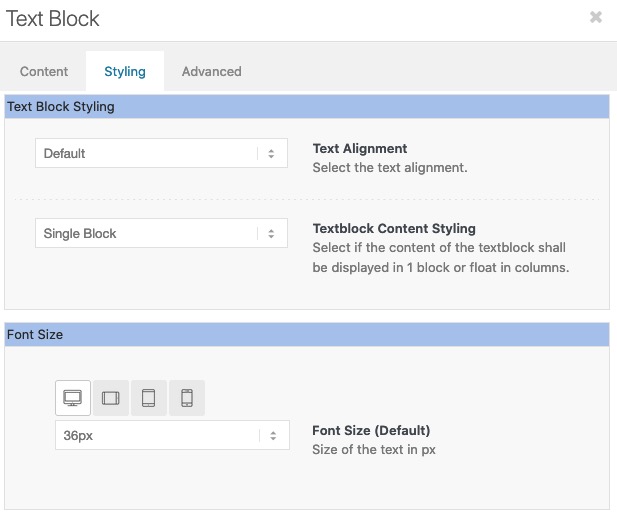
settings in the text block alb element for the font size only affect the p-tag not the headings used in the text block.
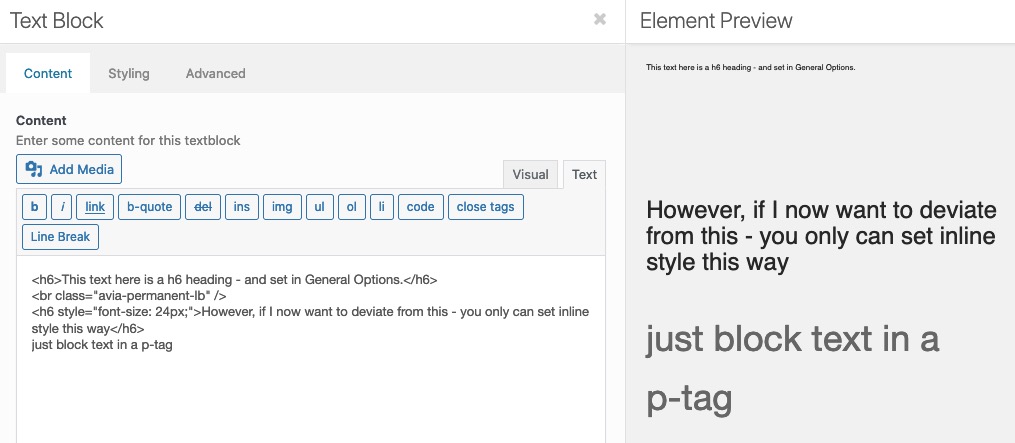
If you got heading alb – they will be overwritten by that inline-style – and the p-tag in the text-block alb will be overwritten too. But headings used in a text-block will have the settings from that options you mentioned above. You only can overwrite those settings inline – by
( click to enlarge )
Hi,
1.I have the enfold child theme activated and tried to change the font size of the main menu but it doesn’t work.
I have tried everything you have noticed in the support.
Please can you help me?
2. And I have used the Layer Slider to prepare a nice slider, which isn’t so high that it is in the main menu and logo. But it doesn’t work with the simple slider and the other thing is, that the logo and main menu bar change strange, when I then scroll down.
Please can you help me here too?
Thanks and best regards,
Evellyn
Hallo!
In WordPress / .css / html. bin ich ein totaler Neuling! Ich bin Grafik Designerin und erstelle gerade eine Website anhand dessen ich mir WordPress beibringe. Extrem wichtig ist mir Typografie. Ich habe bei “erweitertes Styling” den H1 etc. Formaten verschiedene Schriftattribute zugeordnet.
Nun habe ich das Problem, dass auf kleineren Devices die große Schrift (H1 = 50px, H2 = 40px) noch zu groß ist und die Spalten nicht kleiner werden). (link siehe Private Content)
Ich möchte gerne, dass es sich “fluid” der jeweiligen Screengöße anpasst. Gibt es da ein .css für?
Viele Grüße
Josephine
PS Nun habe ich gerade gedacht, ich hätte eine Lösung gefunden, hat aber leider nicht funktioniert.
unter
> Enfold child > theme optionen > Allgemeines Styling > Typography
Ich habe in den theme editor folgendes eingetragen: add_theme_support( “avia_options_extended_typography” ); und ins .php das aus dem link hier: https://github.com/KriesiMedia/enfold-library/blob/master/actions%20and%20filters/Layout/avf_el_styling_responsive_font_size_skip.php
Dann habe ich beim H1 selector folgendes eingetragen:
Font size: Standard 50 Medium 35 Klein 20 Very small 300
Leider hat sich nichts getan, als ich das Fenster verkleinert habe bzw. es am Handy angeschaut habe. Es geht ja auch eigentlich nicht nur um die Schriftgröße, sondern auch um die Spaltenbreite, glaube ich…
-
This topic was modified 4 years, 2 months ago by josk-design.
Hi Alex,
I have tested the settings however I am not getting the same result as you have.
The Font Size option in General Styling > Typography > Advaced Options, is working as intended and changing the Font Size for example in Text Block overrides it which is working correctly.
Is there a specific element you’re using that this is not working?
Best regards,
Nikko
Dear Team,
Hope you are having a good year so far :)
Just came across an issue that has been driving me crazy.
It seems like the theme has now a new feature in: General Styling >>> Typography >>> Advanced Options, where one can set universal font sizes for H1-6 and P.
The problem is that once you touch those setting, no matter what you do, it is not possible to change the size of a given H1-6 and P locally in the setting of the given text box.
Checked custom CSS, and all possible setting I could find but still cannot find a fix.
I would really love to have a universal setting for all texts instead of having to adjust every single text window with custom CSS. The field would get too long and impossible to work with.
Hope I make sense.
Thank you!
Alex
Hi,
Glad to hear this helped, you can style the buttons, for example to change the font-size try this css:
#top #main .avia-slideshow-button {
	font-size: 20px;
}
you could also use this to adjust the font family to any that you have installed, if you need further help adjusting add some test text to your page using the font family you want the buttons to be for us to see.
Best regards,
Mike
Hey elisa_polidori,
If you would like to change the Masonry Gallery “Load More” button text to “See all photos”, try adding this code in the General Styling ▸ Quick CSS field or in the WordPress ▸ Customize ▸ Additional CSS field:
#top #main a.av-masonry-pagination.av-masonry-load-more {
	font-size: 0px;
}
#top #main a.av-masonry-pagination.av-masonry-load-more:before {
	content:"See all photos";
	font-size: 13px;
}
After applying the css, please clear your browser cache and check.
Best regards,
Mike
Hallo Günter! Ich antworte hier mal auf diesen thread, weil ich neu im Forum bin und nicht mehr weiß, wie ich einen neuen thread erstellen kann. (Wo kann man das??) In WordPress / .css / html. bin ich ein totaler Neuling.
Ich bin Grafik Designerin und erstelle gerade eine Website anhand dessen ich mir WordPress beibringe. Extrem wichtig ist mir Typografie. Ich habe bei “erweitertes Styling” den H1 etc. Formaten verschiedene Schriftattribute zugeordnet.
Nun habe ich das Problem, dass auf kleineren Devices die große Schrift (H1 = 50px, H2 = 40px) noch zu groß ist und die Spalten nicht kleiner werden). (link siehe Private Content)
Ich möchte gerne, dass es sich “fluid” der jeweiligen Screengöße anpasst. Gibt es da ein .css für?
Viele Grüße
Josephine
PS Nun habe ich gerade gedacht, ich hätte eine Lösung gefunden, hat aber leider nicht funktioniert.
unter
> Enfold child > theme optionen > Allgemeines Styling > Typography
Ich habe in den theme editor folgendes eingetragen: add_theme_support( “avia_options_extended_typography” ); und ins .php das aus dem link hier: https://github.com/KriesiMedia/enfold-library/blob/master/actions%20and%20filters/Layout/avf_el_styling_responsive_font_size_skip.php
Dann habe ich beim H1 selector folgendes eingetragen:
Font size: Standard 50 Medium 35 Klein 20 Very small 300
Leider hat sich nichts getan, als ich das Fenster verkleinert habe bzw. es am Handy angeschaut habe. Es geht ja auch eigentlich nicht nur um die Schriftgröße, sondern auch um die Spaltenbreite, glaube ich…
-
This reply was modified 4 years, 2 months ago by josk-design.
Hey josk-design,
If you are want to add an ID to a Text Block element, then you can do that in the Advanced Tab in the element option. You can an ID like this in the ID field:
my-id
Then you can use that ID in Quick CSS:
#my-id {
  font-size: 24px;
  font-weight; 200;
}
Best regards,
Rikard
Hi,
the problem is that the content on several pages is not shown as it should appear. For example, pictures are not shown, background colors are not shown, or text font, text size and text color are not shown as they should. I am using the Avia Layout Editor.
I noticed that when the page is still saved as a draft all appears correctly but after changing to published, the above mentioned problems.
– I am using latest WP
– I updated the theme Enfold, but that did not solve the problem. Now using Enfold 4.8.8.1
– I changed php from 7.4 to 8.0, but that did not solve it. So I did go back to 7.4 for now.
– php memory limit is set to 256 MB. Server allows up to 512 MB.
Please help asap.
Thank you.
Hi!
Ich bin totaler WordPress, html und css Neuling aber als Designerin sehr an Typografie interessiert, sodass ich unbedingt lernen möchte, wie man WordPress Themes mittels css. verändern kann. Ich habe es schon geschafft, kleine Änderungen hinzukriegen indem ich in den Quellcode von chrome geschaut habe und dann ccs. snippets in >Design >Customizer > zusätzliches css. reingeschrieben habe.
Was ich nun möchte ist folgendes:
Ich möchte in einen Text-Block CSS einfügen ( Font-size 24 px und font-weight: 200; ). Beim Reiter „Erweitert“ gibt es die Möglichkeiten
1. eine benutzerdefinierte ID einzutragen.
2. die benutzerdefinierte CSS Klasse einzutragen
3. sperrbare benutzerdefinierte CSS Klasse einzutragen
Was muss ich eintragen?
Hallo, ich weiß nicht, wie ich einfach so meine Frage schreiben kann, ohne auf einen thread zu antowrten, deswegen gehe ich hier einfach mal auf reply. Ich bin totaler WordPress, html und css Neuling aber als Designerin sehr an Typografie interessiert, sodass ich unbedingt lernen möchte, wie man WordPress Themes mittels css. verändern kann. Ich habe es schon geschafft, kleine Änderungen hinzukriegen indem ich in den Quellcode von chrome geschaut habe und dann ccs. snippets in >Design >Customizer > zusätzliches css. reingeschrieben habe.
Was ich nun möchte ist folgendes:
Ich möchte in einen Text-Block CSS einfügen ( Font-size 24 px und font-weight: 200; ). Beim Reiter „Erweitert“ gibt es die Möglichkeiten
1. eine benutzerdefinierte ID einzutragen.
2. die benutzerdefinierte CSS Klasse einzutragen
3. sperrbare benutzerdefinierte CSS Klasse einzutragen
Was muss ich eintragen?
Hi,
Thanks for the update. Please try the following in Quick CSS under Enfold->General Styling:
.avia_textblock h6, .avia_textblock h6 a {
    font-size: 16px;
    color: #666666;
}
Best regards,
Rikard
Hi
We have whitespace displaying at the top when viewing on mobile phone.
We have disabled the menu using code found in a previous support thread;
.special_amp { color: inherit!important; font-family: inherit; font-size: inherit; }
@media only screen and (max-width: 767px) {
.av-main-nav-wrap {
display:none !important;
}
}
Please help! Thanks
Hey,
Thanks for contacting us!
Please add following code to Quick CSS field in Enfold theme options > General Styling tab
.single-product .price bdi,
.single-product .price bdi span {
     font-size: 16px;
}
.single-product .quantity {
     display: none;
}
If that does not help, please create temporary admin logins and post them here privately so we can look into it :)
Best regards,
Yigit
Hi there,
I have a woocommerce product which is created using the avia layout builder, and wish to utilise the product purchase button under the plugin additions tab. How can I:-
1. Alter the font size of the price and price symbol only
2. totally remove the div. quantity section, or limit it to one in this section.
Its important this is for this product only
Refer to the attached screenshots to see what I mean. many thanks
Hi folks.
I don’t understand why I am able to change almost everything on my full width sub-menu with the CSS below (the font size, the font weight, the color…) but I cannot change the thickness of the border.
#top .av-subnav-menu > li > a {
	font-size: 16px;
	font-weight:bold;
	font-family: 'Lato'!important;
        color: #6bad4e;
        border-width:1px!important;
	}
Why the border-width cannot be adjusted with this CSS?
THX!
Bye,
A.-
Hey Mike,
Thanks for contacting us!
Please add following code to Quick CSS field in Enfold theme options > General Styling tab
#top #wrap_all .tribe-events-button {
  font-size: 13px;
  margin-right: 5px;
  display: inline;
}
Best regards,
Yigit



