

Forum Replies Created
-
AuthorPosts
-
Hi,
Glad we were able to help, we will close this now. Thank you for using Enfold.For your information, you can take a look at Enfold documentation here
For any other questions or issues, feel free to start new threads in the Enfold forum and we will gladly try to help you :)Best regards,
MikeHi,
Sorry for the late reply, the strings for the text are in
\enfold\lang\de_DE.po
around lines 29139 under#: enfold/includes/admin/register-admin-options.php:1164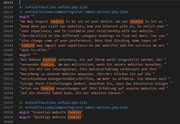
They are in the same place in de_DE_formal.poBest regards,
MikeHi,
Sorry for the late reply, I have not had any feedback on your “page loading behavior” but I do still expect to hear back. We thank you for your patience.
About your timeline animation which page is that on? I clicked through your pages but I didn’t see it.Best regards,
MikeHey Michael,
Sorry for the late reply, do you have a url to a demo page?
I tried to recreate this on my localhost with no luck.Best regards,
MikeHey guttogjente,
Sorry for the late reply, please change your code to this:var sidebar = document.getElementsByClassName("widget_nav_menu");Could you add your whole code here?
Best regards,
MikeApril 21, 2019 at 2:00 am in reply to: My header background image in the logo area is not displayed #1092994Hey Markus,
Sorry for the late reply, I adjust the css some and removed the trailing rules, it was showing as an error.
Please clear your browser cache and check.Best regards,
MikeHey alexbay,
Sorry for the late reply, Please try this code in the General Styling > Quick CSS field or in the WordPress > Customize > Additional CSS field:.header_color .header_bg { background-color: transparent !important; } @media only screen and (max-width: 766px) { .responsive #top #main {margin-top: -80px!important;} #top #wrap_all .av_header_transparency {background-color: transparent!important;} div#header_main > .container {display: block !important;} }Best regards,
MikeHey alexbay,
Sorry for the late reply, one way to add some text into the burger menu is to create a menu item with a custom class and only show it for screens smaller than 768px or mobile displays. Please read more here.
Or if your html/text is already on your page somewhere, you can add it to your burger menu with jQuery. But we will need to see your site to find the correct elements. Please read more here.
Or you can add a widget area inside of your header and hide it for desktops. Please read more here. But we’ll also need to see your site.
Please let us know if you would like some help with one of these methods.Best regards,
MikeApril 21, 2019 at 12:46 am in reply to: Enfold Design (Enfold 2017, Logo, Column inside distance) #1092990Hi,
I took a look at your columns in your screenshot that has the 80px padding for desktop, and that you want to be less for mobile.
I assume you tried using a percentage instead of a px size? But we can adjust these columns with css for mobile screens, it would be easier to add a custom class to all of the columns that you want to target. Without a custom class we have to find something in common with them all, so I see that most of them are “three fifth columns” and tested this css:@media only screen and (max-width: 767px) { div.flex_column.av_three_fifth { padding: 15px !important; } }which worked on your “leistungen-social-media” page. Please give it a try and adjust to suit. Be sure to clear your browser cache, and if it doesn’t work at first also try the css in the WordPress > Customize > Additional CSS field.
Best regards,
MikeHi,
I took a look at your page and I believe changing your css:#top .av_header_scrolldown.av_header_transparency { opacity: 0; margin-top: -250px !important; }to:
#top .av_header_scrolldown.av_header_transparency nav.main_menu {
    opacity: 0 !important;
}
would work better for you, but it’s hard to test with your css in place. Please try this but if it don’t work please include admin login in the Private Content area so we can be of more assistance.
Best regards,
MikeHi,
I took a look at your pages but some of them are not showing the product as I would expect, I understand that you want the paypal button to show on the checkout page, but not the product page.
Please try this code in the WordPress > Customize > Additional CSS field:#top.single-product .zoid-outlet { display:none !important; }Best regards,
MikeHi,
Please try this instead:#top .avia-gallery .avia-gallery-thumb a:after { content: '+'; color: #d89fde; font-size: 45px; font-weight: bold; position: absolute !important; width: 35%; height: 40%; display:flex!important; flex-direction:row!important; align-items: center!important; justify-content: center!important; }Best regards,
MikeHi,
Thanks for the icon zip file, but I see that it only contains svg files and no font files.
So you will need to convert these at the Fontello site as a custom font.
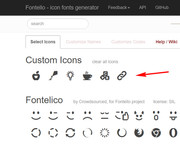
and then import the new zip file, I did this for you and your new icons are ready, please check:

Best regards,
MikeHi,
I took a look at your page and cloned your portfolio element then set it to only one image and then set the visibility to mobile only. I then changed the other one to desktop visibility only.
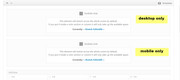
Please clear your browser cache and check, then examine the settings should you want to do this again in the future.Best regards,
MikeHey imriky,
I took a look at your page but I didn’t see the 1px line on the first tab item. Can you please include a screenshot of it so I’m sure I’m looking in the right place?
To solve your tab titles please try this css:@media only screen and (max-width: 767px) { #top .av-section-tab-title { padding: 10px 10px 0px 10px !important; } }As for your Quick CSS, perhaps you have an error in your css, such as a missing bracket. An easy way to check is to copy all of your Quick CSS and enter in into your WordPress > Customize > Additional CSS this will check for errors and alert you.
If this doesn’t help, then please include admin login in the Private Content area and list one css rule that is not working and what page we can see it on, so we can investigate.Best regards,
MikeHey webmonnik,
Here is a script that fires an alert box on the form success:function custom_script(){ ?> <script> //triger an alert when the contact form class "avia-form-success" is added the div "ajaxresponse" //this gives an alert box popup. $(function() { var button = $('.button') , response = $('.ajaxresponse') ; button.on('click', function() { response.addClass('avia-form-success'); $(document).trigger('ajaxAlert'); }); $(document).on('ajaxAlert', function() { alert("The response has been given"); }); }); </script> <?php } add_action('wp_footer', 'custom_script');so you can just modify the last trigger for your needs, without testing I believe it would look like this:
function custom_script(){
  ?>
  <script>
$(function() {
  var button = $('.button')
      , response = $('.ajaxresponse')
  ;

 button.on('click', function() {
    response.addClass('avia-form-success');
    $(document).trigger('ajaxAlert');
  });
  $(document).on('ajaxAlert', function() {
    dataLayer.push({'event' : 'formSubmitted', 'formName' : 'Name form});
  });
});
</script>
<?php
}
add_action('wp_footer', 'custom_script');
Please give this a try.
Best regards,
MikeHey Carolin,
Thanks for the login, I took a look at your page and found that at mobile you slider was only 92px high which is not enough room for your text, so I increased it to 150px and the text seems to fit good now. Please clear your browser cache and check.
You will see on your page a new code block with this code in it:<style> @media only screen and (max-width: 767px) { #full_slider_1 > div > ul > li > a > img { min-height: 150px !important; } } </style>This is what is making the changes, I added it here until you had a chance to review, if you want to delete it and add the css to your Quick CSS, that would be fine:
@media only screen and (max-width: 767px) {
#full_slider_1 > div > ul > li > a > img {
min-height: 150px !important;
}
}
Best regards,
MikeHi,
Thank for the login, I took a look at your post and found that the “Mozart’s Holiday Light Show” is the last active post, so there is no “Next” post to show on the right side, the next post is in draft status.
Your last post will always only have the left side “Prev” link. Similar to how the first post will only have the right side “Next” link.
I hope this explains how the Next & Prev links work.Best regards,
MikeHi,
I took a look at your elements and found that you have this css causing the large white space:@media only screen and (max-width: 767px) { #av_section_3 .flex_column_table .flex_column.av_one_fourth:nth-child(odd) { width: 48% !important; float: right !important; padding: 20px 1px 1px 1px !important; min-height: 268px !important; } }Please note your min-height: 268px !important; is forcing a min-height, 160px would be better, as long as it doesn’t effect other elements.
Please try to make this adjustment and clear your browser cache.Best regards,
MikeHi,
OK, I found the correct directory and did the same steps, Please clear your browser cache and check :)Best regards,
MikeHi,
Please note that with css targeting just h3, h2, & h4 will be overwritten by any rule that is also targeting a class, such as “h3.custom_class”
Please give us one example of what you would like to do, and admin access so we can demo for you.Best regards,
MikeHey Erdrol,
Tracking downloads requires changing the code a little, you’ll want to add an “Event” to the code. Here’s the official Google Analytics link to do this, but this link may explain it better.
While these are intended to capture all downloads, another way is to change your download link to trigger the “event”.
You can also add a custom class to your download links and use a script like this to trigger the event:function track_comment(){ ?> <script> $('.form-submit .submit[type="submit"]').on('click', function() { ga('send', 'event', 'button', 'click', 'comment'); }); </script> <?php } add_action('wp_footer', 'track_comment');this example was used to track comment submitions, so please adjust to suit.
Best regards,
MikeHi,
Thanks for the cPanel login, I found that your actual theme folder is in a different directory, Please see the screenshot in Private Content area.
So I uploaded the new theme and renamed them as before, it seems to be working fine, but please check.
If all is fine then please delete the “enfold-old” via the cPanel, or I could do it for you :)Best regards,
MikeHi,
Thank for the login, I see that your css in the Quick CSS, I saved the theme options “save all settings” button one more time, and then checked your element on Firefox, Edge, and Chrome incognito. and the price was not showing.
Please see the screenshot in Private Content area.
I also tested logging out in the same window and then checking and the price was not showing, but it does on the product page as you wanted, (second screenshot).
I assume you are experiencing a cache issue, please try clearing your cache or use incognito.Best regards,
MikeHi,
Thank you, I took a look at your slider and see that the opacity is set to zero, so the images are hidden.
So I added this css to correct:#top .aviaccordion-slide img { opacity: 1 !important; }Please clear your browser cache and check.
As for the cause to this, I see that the images have “jetpack” lazy load on them.
So you could try to disable your lazy load, or jetpack, or you could just use this css to solve.
Lazy load does sometimes cause some small issues, but if this is the only issue you have right now using the css may be good for you.Best regards,
MikeHi,
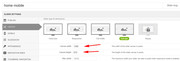
Glad to hear, I took a look at your site and changed your desktop version from using the “hide on mobile” option to using the “hide under” option and set it to 900px.
This is because it gives you better control. So this makes your break point 900px which is good, but please look at your mobile version for tablets, your caption is still too large. Please see the screenshot (1) in Private Content area.
Please try setting your “slider canvas” to 890px-625px and then adjust your caption size.
Best regards,
MikeHi,
One way to correct this would be to create a second slider for mobile only, this way you can create a mobile-optimized version.
Then use the screen options to hide one slider and show the other based on screen size.Best regards,
MikeHi,
Sorry for the late reply I couldn’t find the page in you screenshot, and I couldn’t find the exact same separator, but for the ones I did find this should work.
Please try this code in the General Styling > Quick CSS field or in the WordPress > Customize > Additional CSS field:#top #main .av-vertical-delimiter { border-color: #c71456 !important; }Best regards,
Mike -
AuthorPosts
