

Forum Replies Created
-
AuthorPosts
-
Hey vmrayner,
I see that your title is not showing and the other one is, but it seems to be correct. Please include an admin login in the Private Content area so we can investigate.Best regards,
MikeHey msraji,
Thanks for the login, I added this css to your WordPress > Customize > Additional CSS field:@media only screen and (max-width: 767px) { #top .header_color .av-hamburger-inner, #top .header_color .av-hamburger-inner::before, #top .header_color .av-hamburger-inner::after { background-color: #640000 !important; } }and cleared your cache plugin, and your burger menu now shows, Please clear your browser cache and check.
Best regards,
MikeHi,
Please try this code in the General Styling > Quick CSS field or in the WordPress > Customize > Additional CSS field:.mfp-gallery .mfp-image-holder .mfp-figure { pointer-events: none !important; } .mfp-gallery button.mfp-arrow { display: none !important; }This will remove the arrows and a second click on the enlarged image will close it.
Please clear your browser cache and check.Best regards,
MikeHey JennyGr,
Have you tried to use an Advanced Layout Builder page to add your layerslider at the top, and a blog element below it?
Perhaps we could demonstrate on a test page for you, with an admin login.Best regards,
MikeMay 26, 2019 at 9:49 pm in reply to: Where can I edit the Enfold version of the WooCommerce Checkout Page Layout #1104358Hey Tanja,
I don’t see that we modify the checkout page template, here is where we keep our modified files:
\enfold\config-woocommerce
Have you tried modifying the woocommerce plugin checkout file?
Can you include a screenshot of what and where to move exactly?Best regards,
MikeMay 26, 2019 at 9:33 pm in reply to: Logos in Footer Widget – Partner Logos element shortcode #1104356Hey JennyGr,
To give the images a white background, Please try this code in the General Styling > Quick CSS field or in the WordPress > Customize > Additional CSS field:#top .custom-html-widget .avia-logo-grid .slide-entry-wrap img,.footer_color .custom-html-widget .avia-content-slider .slide-image { background-color: #fff !important; background: #fff !important; }To rearrange the logos you will need to move the top one to the bottom, but to create a line break might be a little trickier because they are meant to be inline. Please include an admin login in the Private Content area so we can investigate this further.
After you add the css, Please clear your browser cache and check.Best regards,
MikeMay 26, 2019 at 9:15 pm in reply to: WordPress 5.2 and latest Enfold? Working ok together? Safe to upgrade? #1104353Hi,
Glad @michaelH was able to help, we will close this now. Thank you for using Enfold.For your information, you can take a look at Enfold documentation here
For any other questions or issues, feel free to start new threads in the Enfold forum and we will gladly try to help you :)Best regards,
MikeHi,
Glad Victoria could help, we will close this now. Thank you for using Enfold.For your information, you can take a look at Enfold documentation here
For any other questions or issues, feel free to start new threads in the Enfold forum and we will gladly try to help you :)Best regards,
MikeHey robertoKM,
Thanks for the login, I looked at your page backend but I don’t see a comment element.
When you create a page or post with the Advanced Layout Builder you will need to manually add the comment element to the page. Please try this.Best regards,
MikeHey Joe,
I tested your css on my localhost and the mobile menu worked fine, please link to your page so we can investigate further. Perhaps an admin login will allow us to correct faster.Best regards,
MikeHey DC0001,
Thank you for the login, first I see that your HR negative height overlaps your paypal buttons making them hard to click, then your first two buttons are missing parameters for paypal, your last button is missing the “form” tag to make it work.
Please see the screenshot in Private Content area.
I believe that adding the paypal button code to a text block element may have worked the first time you saved, but reopening and saving striped some of the code from the button. I recommend using a code block element instead and getting new button code from paypal.
Also please review the paypal docs to ensure you have included all of the parameters.
I don’t see that this is due to the items being in 3 columns.
Please let us know if using the code block elements cause any new issues, you could clone your page by saving as a template to a new test page and we could assist.Best regards,
MikeHey Manuela,
Thanks for the login, I checked your css and see that you wanted you paragraph text to be 15px, I disabled your file merging at Enfold Theme Options > Performance > JS & CSS file merging and compression and the css is now working.
While you are creating your site please leave this disabled, when you are done you can enable again and the merged files will be re-created with the new css.Best regards,
MikeHey Tobias,
Please include an admin login in the Private Content area so we can be of more assistance.Best regards,
MikeMay 26, 2019 at 7:58 pm in reply to: How to remove the Alt text in the Masonry gallery when hovering over an image #1104339Hey Jandabi,
Please include an admin login & FTP access in the Private Content area and I will place the code for you. Also include a link to your masonry page so I can ensure it is working for you. This code will remove the alt text from all images, is that what you want, or just the masonry?
I believe Google will still see your alt text, just not your visitors.Best regards,
MikeMay 26, 2019 at 7:44 pm in reply to: Mobile transparent menu losing transparency on returning to the top #1104337Hey BC_mne,
Thanks for the link, when I check your site and scroll back to the top the header changes back to transparent. Which browser are you using?Best regards,
MikeHey Bossburg,
This seems to be a duplicate request, I have responded to your other thread, let’s continue there.
Thanks for your patience and understanding.Best regards,
MikeHey Bossburg,
Which demo are you trying to install? Please include an admin login in the Private Content area so we can be of more assistance.Best regards,
MikeHey DROR,
Please try this code in the General Styling > Quick CSS field or in the WordPress > Customize > Additional CSS field:@media only screen and (max-width: 442px) { .av-large-gap.av-fixed-size .av-masonry-entry .av-inner-masonry { left: 25px !important; } }Best regards,
MikeHi,
Glad we were able to help, we will close this now. Thank you for using Enfold.For your information, you can take a look at Enfold documentation here
For any other questions or issues, feel free to start new threads in the Enfold forum and we will gladly try to help you :)Best regards,
MikeHi,
Entschuldigung für die späte Antwort, ich habe festgestellt, dass das Entfernen dieses Codeblocks die Seite repariert hat:<script id='elopage-script' src='https://elopage.com/assets/badges.js'></script> <div class="elopage-badge-wrap" data-username="malinakorbach" data-bgcolor="rgb(255, 255, 255)" data-fontfamily="Open Sans" data-fontcolor="#fffff" data-btncolor="rgb(246, 52, 116)" data-btnfontfamily="Open Sans" data-btnfontcolor="#fff" data-btntext="Gönn dir einen Abend nur für dich!" data-products="29398" data-locale="de" data-embedcheckout="off" data-badge="ElopageBadgeProductSlide"></div>Ich habe den Code wiederhergestellt, damit Sie versuchen können, ihn selbst zu entfernen
— Translated with Google —
Sorry for the late reply, I found that removing this code block fixed the page:
<script id='elopage-script' src='https://elopage.com/assets/badges.js'></script> <div class="elopage-badge-wrap" data-username="malinakorbach" data-bgcolor="rgb(255, 255, 255)" data-fontfamily="Open Sans" data-fontcolor="#fffff" data-btncolor="rgb(246, 52, 116)" data-btnfontfamily="Open Sans" data-btnfontcolor="#fff" data-btntext="Gönn dir einen Abend nur für dich!" data-products="29398" data-locale="de" data-embedcheckout="off" data-badge="ElopageBadgeProductSlide"></div>I have restored the code so you can try removing it yourself
Best regards,
MikeHi,
Thank you for the feedback, I will let the dev team know, since G+ is shutting down and I will recommend whatsapp for them to review.Best regards,
MikeHi,
Glad we were able to help, we will close this now. Thank you for using Enfold.For your information, you can take a look at Enfold documentation here
For any other questions or issues, feel free to start new threads in the Enfold forum and we will gladly try to help you :)Best regards,
MikeHi,
Glad to hear, we will close this now. Thank you for using Enfold.For your information, you can take a look at Enfold documentation here
For any other questions or issues, feel free to start new threads in the Enfold forum and we will gladly try to help you :)Best regards,
MikeHi,
Thank you, Please try this code in the General Styling > Quick CSS field or in the WordPress > Customize > Additional CSS field:@media only screen and (max-width: 767px) { .responsive #top .slideshow_caption { right: 0 !important; width: 40% !important; left: unset !important; } }Please clear your browser cache and check.
Best regards,
MikeHi,
Thanks for the test site and login, it seems you are not getting the class “header-scrolled” applied to the “#header” ID on your posts nor the correct css.
I have tried to isolate the issue by removing all of your custom css in Quick CSS & custom.css without luck. I also tried examining your custom functions.php code but I didn’t see anything to cause this, but there is quite a lot there, and I could have missed it. Are there any other files that you edited?
I did find that using your post content and creating a new page solves the issue, please see the link in the Private Content area, so it seems something is only targeting posts, I’m stumped.
To further investigate please try removing your custom functions or file customizations and see if the post header action is restored.
Or try installing a clean version without customizations to see if the error still occurs, I couldn’t reproduce this error on my localhost with posts.Best regards,
MikeHi,
Glad we were able to help, we will close this now. Thank you for using Enfold.For your information, you can take a look at Enfold documentation here
For any other questions or issues, feel free to start new threads in the Enfold forum and we will gladly try to help you :)Best regards,
MikeHi,
Thank you for the login, I compared your site with the “Church Demo” and found that the floral-dark.png was added with css:.footer_color { background: #658529 url(//kriesi.at/themes/enfold-church/wp-content/themes/enfold/images/background-images/floral-dark.png) top center repeat scroll; }So I uploaded the image to your media library and added it to your color section, Please clear your browser cache and check.
I’m not sure why this is not showing in your list of backgrounds, but in the theme settings you can upload the image again and it should show:
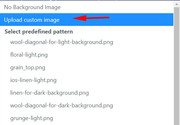
Best regards,
MikeHi,
Thank you for the login, I checked one of your widget items (CHRISTMAS 2018) to see why the excerpt was not showing and found that you created the post with the Advanced Layout Builder.
In order to show an excerpt for this post you will need to add a manual excerpt by going to the top of the post page and clicking the “screen options” tab/button and check the excerpt box:
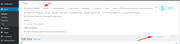
this will show an excerpt field below the post that you can add text to.
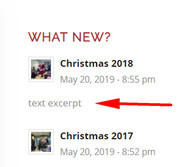
I do see that your category choice is not working, but I note that you have a “visibility” option that I don’t:
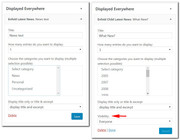
I believe this is from your “Conditional Menus” plugin, please try disabling to test, a similar plugin that does work with Enfold is: Widget OptionsBest regards,
Mike -
AuthorPosts
