

Forum Replies Created
-
AuthorPosts
-
Hi,
You can remove the Enfold link by adding [nolink] into the Enfold Theme Options > Footer > Copyright field.
You can also add new links into this field.
If you want the links to float left, then add a custom class to your link and add css for floating:.custom-class { float:left !important; }Best regards,
MikeHi,
On your “events” page to only show the title, choose “Only Title” in the blog element options.
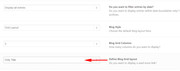
Then we will hide the categories with this css:.blog-categories.minor-meta { display: none !important; }Please clear your browser cache and check the first blog element on your events page.
Best regards,
MikeHi,
@formwild your code in your child theme functions.php should look like this:function custom_more_script(){ ?> <script> (function($){ $(document).ready(function(){ $(".more-link").text("Über das Buch"); }); })(jQuery); </script> <?php } add_action('wp_footer', 'custom_more_script');If this doesn’t work for you then we will need to login to examine it closer.
Please open a new thread so we can assist, and include your admin login in the Private Content area, but as this is not your thread your login info will not be private if posted here.Best regards,
MikeJune 18, 2019 at 12:12 pm in reply to: How to Hide Elemetns or adjust font size under Screen Options for Ipad Pro #1111275Hi,
Please ensure that your custom classes are enabled at: Enfold Theme Options > Layout Builder > Show element options for developers

Then as you edit each element a new field will show at the bottom of the screen for custom classes or sometimes custom IDsBest regards,
MikeHi,
Glad we could help, unless there is anything else we can help with on this issue, shall we close this then?Best regards,
MikeJune 17, 2019 at 1:07 am in reply to: Product Page with Avia Layout Architekt, Variable Product missing #1110879Hi,
Sorry for the late reply, in the theme options at: Enfold Theme Options > Shop Options > Product gallery there are two choices, WooCommerce gallery and Enfold gallery. Please give this a try.Best regards,
MikeHi,
To add a bottom line, Please try this code in the General Styling > Quick CSS field or in the WordPress > Customize > Additional CSS field:.js_active .top_tab .tab { border-bottom: solid .5px !important; }Best regards,
MikeJune 17, 2019 at 12:02 am in reply to: How to Hide Elemetns or adjust font size under Screen Options for Ipad Pro #1110875Hey webworm72,
You can use these media queries:/* ----------- iPad Pro ----------- */ /* Portrait and Landscape */ @media only screen and (min-width: 1024px) and (max-height: 1366px) and (-webkit-min-device-pixel-ratio: 1.5) { } /* Portrait */ @media only screen and (min-width: 1024px) and (max-height: 1366px) and (orientation: portrait) and (-webkit-min-device-pixel-ratio: 1.5) { } /* Landscape */ @media only screen and (min-width: 1024px) and (max-height: 1366px) and (orientation: landscape) and (-webkit-min-device-pixel-ratio: 1.5) { }Try adding a custom class or ID to the text area and then we can set the size in percentages like:
font-size: 70% !important;Best regards,
MikeHey ezmob,
Please don’t set your homepage as your 404 page, a 404 error code will also be given. Please try using a custom page with a link to your homepage or your top article.Best regards,
MikeJune 16, 2019 at 11:17 pm in reply to: Change 'Blog – Latest news' in breadcrumbs to something else #1110872Hey Jillian,
Try adding this code to the end of your functions.php file in Appearance > Editor:function custom_script(){ ?> <script> (function($){ $(document).ready(function(){ $('.main-title.entry-title a').each(function() { var text = $(this).text(); $(this).text(text.replace('Blog - Laatste Nieuws', 'News')); }); }); })(jQuery); </script> <?php } add_action('wp_footer', 'custom_script');this script looks for exact phrases so I added your “Blog – Laatste Nieuws” for you, please adjust “News” to suit.
Best regards,
MikeHi,
Sorry for the late reply, odd that they don’t at least have a default style. Right now it’s 100% width which is ok when it’s in the sidebar, but on your page it may look better as two columns. Please try this code in the General Styling > Quick CSS field or in the WordPress > Customize > Additional CSS field:#my-auctions-2 { width: 47% !important; display: inline-block; } #watchlist-auctions-3 { width: 47% !important; float: right; }Then clear your browser cache and any cache plugin, and check.
Best regards,
MikeJune 16, 2019 at 8:26 pm in reply to: IconFont Manager: Uploading fontello font server error #1110865Hi,
Sorry for the late reply, I have tried to import a font from your media library to your Custom Font Manager and this worked well. But I see that you seem to have a mix of fonts and icon fonts in your media library, perhaps you tried to import the wrong one?Best regards,
MikeHi,
I believe that you are using a blog element on your blog page, which has it’s own settings. The Enfold Theme Options > Blog Layout > Blog meta elements controls the elements showing on the built-in blog page which is set at Enfold Theme Options > And where do you want to display the Blog?Best regards,
MikeHi,
Sorry, I meant that I would like to login and edit the copyright field to see why your Privacy Policy link is not working.
The login above only lets me see the page, not edit.Best regards,
MikeHi,
You can see the changelog here there were a lot of changes but nothing really stands out to me as a cause.
It looks like your custom plugin was created with ACF, does ACF have any debugging tools?Best regards,
MikeHi,
Thank you for the login, I was able to also ftp in and upload the theme for you.
I then activated Enfold for you, you can start building or import a demo, I checked your PHP settings again and everything seems fine now.Best regards,
MikeHi,
I didn’t find a filter for it but I did write this javascript to replace the image url with the title url.
Try adding this code to the end of your functions.php file in Appearance > Editor:function archive_img_link(){ ?> <script> (function($){ $(document).ready(function(){ $(".entry-content-wrapper").each(function(){ var posturl = $(this).find("h2.post-title.entry-title a").attr("href"); $(this).find(".big-preview.multi-big a").attr("href", posturl); }); }); })(jQuery); </script> <?php } add_action('wp_footer', 'archive_img_link');Please give this a try and also check other pages and posts for conflicts.
Best regards,
MikeHey mirotck,
Please try this code in the General Styling > Quick CSS field or in the WordPress > Customize > Additional CSS field:#top #header .av-main-nav > li > a { background-color: #fff !important; }Best regards,
MikeJune 16, 2019 at 3:56 pm in reply to: Got the message – Your homepage cannot be indexed by search engines #1110802Hi,
Glad Rikard could help you get it sorted out. Shall we close this thread then?Best regards,
MikeHi,
The related posts is not included automatically with the Advanced Layout Builder posts. But you can add it with a shortcode just be sure that your post shares tags with other posts, as this is what the element uses to get the other posts.
Try adding this code to the end of your functions.php file in Appearance > Editor:function related_posts_shortcode( $attr ) { ob_start(); get_template_part( 'includes/related-posts' ); return ob_get_clean(); } add_shortcode( 'rpost', 'related_posts_shortcode' );and then add this code in a “code block” element to display the related posts element:
[rpost]Best regards,
MikeHi,
Thanks for sharing your solution, your “-webkit-transform: none);” has a stray “)” otherwise it looks good.Best regards,
MikeHi,
Thanks for sharing your solution, we will close this now. Thank you for using Enfold.Best regards,
MikeHey mirotck,
Thanks for the link, I see that your logo has a lot of white space to the left, can you move your logo over some?
Please see the screenshot in Private Content area.Best regards,
MikeJune 16, 2019 at 2:40 pm in reply to: Advanced Layout Editor Not Resolving Post Sidebar Properly #1110792Hey StrategyDriven,
Thank you for the link to your site, I couldn’t login because of this message: “WordPress Login Temporarily Disabled”
Your page looks like it is using a full-width grid at the bottom of the page. Sidebars will always show below full-width elements.
Please try removing this and see if your sidebar returns to it’s placement.Best regards,
MikeHi,
Thank you for the login to your site, but I was not able to login to your ftp or strato, please check.
I did notice that your PHP Limit was 1200 which may not be enough time to unpack all of the files, please ask strato to change it to no limit. Or try uploading the files manually via ftp or in your “file manager”
the enfold directory needs to be in the themes directory, like this:
/wp-content/themes/enfold/
Then you can activate it in the themes panel.Best regards,
MikeHey mirotck,
Please try going to Enfold Theme Options > Advanced Styling and choose Main Menu Links then check the box at the bottom “Apply only to active state” and set your colors.
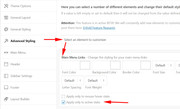
Please clear your browser cache and check.Best regards,
MikeHey birgitthaler,
Thanks for the login, Please try this code in the General Styling > Quick CSS field or in the WordPress > Customize > Additional CSS field:.mfp-arrow,.mfp-counter { display: none !important; } .mfp-container { pointer-events: none !important; }This will only allow one image to be seen.
Best regards,
Mike -
AuthorPosts
