

Forum Replies Created
-
AuthorPosts
-
Hi,
I reviewed the link in Chrome and Firefox and they both seemed to work, and the slide seems to be centered. Perhaps try clearing your browser cache.
Your new concept would help with loading times.Best regards,
MikeJune 28, 2019 at 4:59 am in reply to: Trying to Add JS Particles Background via Enfold theme #1114157Hi,
It looks like the function you posted may work, Try adding the code to the end of your functions.php file via ftp, this way if it produces an error you can then remove the code via ftp to correct.Best regards,
MikeHi,
Thanks for the login, but password seems to be not correct. Please check.Best regards,
MikeHi,
Do you mean that this doesn’t remove the date from the page, or that the date is still showing in Google?
Please include an admin login in the Private Content area so we can investigate.Best regards,
MikeHi,
Please include FTP access in the Private Content area so we can test the latest beta version that includes the latest patches.Best regards,
MikeHi,
When I check your site I see the text instead of the flags

Perhaps try clearing your browser cache.Best regards,
MikeJune 28, 2019 at 3:54 am in reply to: Put GDPR checkbox & text under submit button not before – how? #1114147Hi,
I have checked your site again and I would like to see your backend, Please include an admin login in the Private Content area.Best regards,
MikeHi,
Thanks for the screenshot, I added this css:#menu-item-3129 > div { left: -600px !important; }and it seem to be working, Please clear your browser cache and check.
Please see the screenshot in Private Content area.Best regards,
MikeHi,
Sorry for the late reply, I have corrected the logo with this css:#top .av_header_transparency.av_alternate_logo_active .logo a > img { opacity: 1 !important; filter: alpha(opacity=1); } #header_main > div > div > span > a > span > img { display: none !important; }To hide the menu in transparency, I added this css:
#top .av_header_transparency.av_alternate_logo_active .main_menu {
  display: none !important;
}
Please clear your browser cache and check.
Best regards,
MikeHi,
Sorry for the late reply, I reviewed your site via ftp and the theme folder seems to be correct. I also checked the file in the error and it seems to be related to the file compression.
But I would like to review your backend again but it seems the login needs to be renewed, please check.
Did your webhost say they could restore your site from a backup a few days ago when it was working?Best regards,
MikeHi,
Glad to hear #1 is solved :)
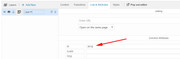
For #2 I added the ID to the layerslider in Layerslider > Slides > (first slide) Link & Attributes > ID
and I disabled the Slider Settings > Slideshow and turned off “Start only in viewport”
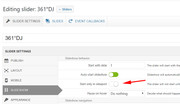
now the link in the Private Content area wil direct to the slider after 2 seconds (this is due to the “Page scroll to id” plugin)
Please clear your browser cache and check.
Please follow these steps to create new links to other sliders :)Best regards,
MikeHi,
Thank you for the input, can we have an admin login to evaluate?
Please include in the Private Content area.Best regards,
MikeHi,
Sorry for the late reply, I tried the shortcodes in a code block element and found that this shortcode created the grid style that you were looking for:[auctions_watchlist], [auctions_watchlist per_page="12" columns="4" order="desc" orderby="meta_value" order="desc"]Please check and adjust to suit using the shortcodes in the link that you have posted above.
Best regards,
MikeHi,
Thank you for your patience, I have found that in the menu options you can show the language text instead of the flags:
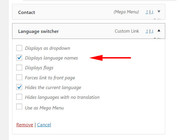
This also displays in the mobile menu, so it seems to solve two issues at the same time.
Please check :)Best regards,
MikeHi,
#1: I took a look at your layerslider “361dj” in Firefox on Win10 and found no flickering. I also checked with Chrome on Win10 and found the same.
#2: I checked a link to this section in Chrome, Firefox, & Edge and it seemed to work fine, please check the link in the Private Content area.Best regards,
MikeHi,
It seems that I didn’t get your earlier post, what I mean by “root” is the core of your site such as “your-site.com/”
I would be happy to review your issue if you post your admin login and ftp access in the Private Content area.Best regards,
MikeHi,
Please download the latest version from your Theme Forest account.Best regards,
MikeJune 25, 2019 at 3:24 am in reply to: Preventing Fullwidth Break Point on Mobile for Specific Sections #1113084Hi,
Typically, I write solutions to be specific so to not conflict with other pages and elements.
But if you would like to try this across your whole site, please try this css:@media only screen and (max-width: 767px) { div .av_one_fifth { margin-left: 6% !important; width: 15.2% !important; } div .av_one_fifth { margin-left: 0% !important; width: 15.2% !important; } }If this doesn’t work please post a link to the new page so we can examine.
Best regards,
MikeHi,
Glad to hear this is solved! :)
We will close this now. Thank you for using Enfold.For your information, you can take a look at Enfold documentation here
For any other questions or issues, feel free to start new threads in the Enfold forum and we will gladly try to help you :)Best regards,
MikeHi,
Typically when FileZilla reports a failed transfer I retry to upload the file and that solves, naturally, a failed file can cause an issue.
While this may not be your issue, please re-try to rule it out.
If it doesn’t help please include an admin login and ftp access so we can investigate.Best regards,
MikeHi,
I’m glad to hear that the problem is solved, was the issue with the PHP ZipArchive Extension?
I just like asking to help others who will read this in the future :)Best regards,
MikeJune 24, 2019 at 5:44 am in reply to: Cannot Update Post With .pdf Contained in The Text, Showing 404 Error #1112833Hi,
I tried to change the link and got this error:/wp-admin/admin-ajax.php Failed to load resource: the server responded with a status of 404 (Not Found)a 404 on admin-ajax.php typically is due to either a security plugin or wrong file permissions.
Please ask your webhost why the server is giving a 404 on admin-ajax.php, they can see why in the server logsBest regards,
MikeHey Junms1,
Please try removing the media query so it will apply to all screen sizes, like this:.js_active .av-elegant-toggle .toggler { padding: 35px 40px 30px 35px !important; }or if the padding needs to be different for desktop, we can leave the original css and add this css with a different value:
@media only screen and (min-width: 768px) {
.js_active .av-elegant-toggle .toggler {
    padding: 35px 40px 30px 35px !important;
}
}
please adjust to suit.
Best regards,
MikeJune 24, 2019 at 5:08 am in reply to: Cannot Update Post With .pdf Contained in The Text, Showing 404 Error #1112828Hi,
Thanks for the login, so if I understand correctly, the pdf for the “Download Inclusions” link doesn’t exist?
I took a look at your media library and indeed didn’t find the file.If I understand correctly you wish to change this link to a pdf that does exist, which pdf would that be?
Best regards,
MikeJune 24, 2019 at 4:23 am in reply to: Force new line in title when in responsive (Accordion) #1112821Hi,
Glad we were able to help, we will close this now. Thank you for using Enfold.For your information, you can take a look at Enfold documentation here
For any other questions or issues, feel free to start new threads in the Enfold forum and we will gladly try to help you :)Best regards,
MikeHi,
Please try this code instead in the General Styling > Quick CSS field or in the WordPress > Customize > Additional CSS field:#top #header, #top #header.av_header_glassy.av_header_transparency .header_bg { background-color: #000; opacity: 0.3; filter: alpha(opacity=10); }Best regards,
MikeJune 24, 2019 at 4:13 am in reply to: Force new line in title when in responsive (Accordion) #1112816Hi,
The 40px value is the right padding to move the text more to the left.
These values are top, right, bottom, leftBest regards,
MikeHi,
Glad Victoria could help, we will close this now. Thank you for using Enfold.For your information, you can take a look at Enfold documentation here
For any other questions or issues, feel free to start new threads in the Enfold forum and we will gladly try to help you :)Best regards,
MikeJune 24, 2019 at 3:52 am in reply to: Force new line in title when in responsive (Accordion) #1112808 -
AuthorPosts
