

Forum Replies Created
-
AuthorPosts
-
Hey StephanPfluegler,
Thank you for the image, Some users have been nice enough to update the German language files for this and will be included in the next update, for now you can download the de_DE.po & de_DE.mo files from the link in the Private Content area.
Then with FTP go to \wp-content\themes\enfold\lang\ and save copies of your current de_DE.po & de_DE.mo files (just in case)
and then upload the two new ones.
Then clear your browser cache and check.You can also check this post which seems to have the latest German files, these will be in the next update
Best regards,
MikeHey mooshonov,
Sorry for the late reply, I have looked at your page and found no 403, are you still experiencing this? Can you include a screenshot?Best regards,
MikeNovember 11, 2019 at 12:11 am in reply to: Theme update problem – theme doesn't have style.css stylesheet #1155429Hey davlash,
Sorry for the late reply, this sounds like the zip file you are trying to upload has a folder in it called “MACOSX” which is a mirror of the zip, please delete this folder and try again. If you have an issue with this please include a DropBox link of the file in the Private Content area and I will take a look at it for you.Best regards,
MikeHey SteveVanHerreweghe,
Sorry for the late reply, I see that you are using v4.5.7, which as I recall had a couple of minor issues, please update to the latest version.
Please note with your version you will need to update manually via FTP, The easiest and safest way to do this is to download the newest version from Theme Forest and rename your current theme folder to “enfold-old” via ftp then upload the new “enfold” folder and check that your site is working correctly.
Once you are happy you can delete the “enfold-old” folder via ftp, (not the WP theme page)
Should for some reason you wish to roll-back to the old version, it’s easy to do, simply rename the new “enfold” folder to “enfold-new” via ftp and then rename “enfold-old” to “enfold” then refresh your page.
Please don’t try to overwrite the theme folder, as this will leave old files behind and cause errors.Best regards,
MikeHey solid__snake,
Sorry for the late reply, unfortunately I found no information about bedzzle, and checking their site I didn’t see anything about it working with WordPress.
Sorry but I’m unable to advise.
For Enfold you would only need one regular license, which will also give you 6 months of support in our forum, but I would recommend upgrading to a full year of support at check out, because it’s only a little more and it’s a great value that is not available later.Best regards,
MikeHey Maria Vallarelli,
Thank you for writing to us, unfortunately I found no information about bedzzle, and checking their site I didn’t see anything about it working with WordPress.
Sorry but I’m unable to advise.
For Enfold you would only need one regular license, which will also give you 6 months of support in our forum, but I would recommend upgrading to a full year of support at check out, because it’s only a little more and it’s a great value that is not available later.Best regards,
MikeHi,
I assume that you mean the widget in the footer, I added this css:#newsbox-12.widget a.news-link span.news-time { display: none !important; }Please clear your browser cache and check.
Best regards,
MikeNovember 10, 2019 at 11:25 pm in reply to: How to remove Additional info and SKU from a product page? #1155418Hi,
Glad we were able to help, we will close this now. Thank you for using Enfold.For your information, you can take a look at Enfold documentation here
For any other questions or issues, feel free to start new threads in the Enfold forum and we will gladly try to help you :)Best regards,
MikeHi,
Please try this code in the General Styling > Quick CSS field or in the WordPress > Customize > Additional CSS field:#menu-item-5112 > a > .avia-bullet,#menu-item-5153 > a > .avia-bullet,#menu-item-5111 > a > .avia-bullet { display: none !important; } #menu-item-5112 > a > .avia-menu-text,#menu-item-5153 > a > .avia-menu-text,#menu-item-5111 > a > .avia-menu-text { font-size: 17px !important; line-height: 1.1em !important; font-weight: 900 !important; } #menu-item-5112 > a ,#menu-item-5153 > a ,#menu-item-5111 > a { padding-left: 0 !important; }Best regards,
MikeHi,
Sorry for the late reply, thanks for the login, first I recommend not using the built-in screen options for your situation, and I noticed that both of your sections have the same ID, so I changed this for you to reduce conflicts.
Now the reported media queries for the iPad Pro 9.7 is 768px Portrait, and 1024px Landscape, and you want this device to see the same image both ways, so your first media query for smallest devices will go up to 1030px, to give us a little wiggle room, and then anything over 1031px will see the second image for desktops.@media only screen and (max-width: 1030px) { #top #wrap_all #ueber-desktop { display:none !important; } } @media only screen and (min-width: 1031px) { #top #wrap_all #ueber-mobile { display:none !important; } }I have applied this for you and tested by emulating a tablet on my desktop, please clear your browser cache and check.
Please note that my understanding is that iPads are harder to clear the cache, so please try a couple of times.Best regards,
MikeHi,
Sorry for the late reply, Jordan’s css worked for me when I tested, I made a couple of adjustments based on your screenshots,
Please try this code in the General Styling > Quick CSS field or in the WordPress > Customize > Additional CSS field:@media only screen and (max-width: 1440px) { nav.main_menu { display: block !important; } #avia-menu .menu-item,#sub_menu1 { display: none !important; } .av-burger-menu-main.menu-item-avia-special { display: block !important; } }After applying the css, Please clear your browser cache and check.
Please see the screenshot in Private Content area.Best regards,
MikeHi,
Sorry for the late reply, Please try this code in the General Styling > Quick CSS field or in the WordPress > Customize > Additional CSS field:#top.page-id-1065 #av_section_1 > div > div > div > div > div.avia-table.main_color.avia-pricing-table-container.avia_show_empty_cells.avia_pricing_default.avia-table-1.avia-builder-el-8.el_after_av_heading.el_before_av_hr > div:nth-child(3) > ul > li.avia-heading-row { background-color: #317B0E !important; border-color: #317B0E !important; } #top.page-id-1065 #av_section_1 > div > div > div > div > div.avia-table.main_color.avia-pricing-table-container.avia_show_empty_cells.avia_pricing_default.avia-table-1.avia-builder-el-8.el_after_av_heading.el_before_av_hr > div:nth-child(4) > ul > li.avia-heading-row { background-color: #9C9D9D !important; border-color: #9C9D9D !important; }Best regards,
MikeHi,
@darnott75 is this what you are trying for:
https://i.postimg.cc/25nqGrRs/2019-11-10-134400.png#top #header_main > .container .main_menu .av-main-nav > li > a { height: 60px !important; line-height: 60px !important; } #menu-item-489 { clear: left !important; }Best regards,
MikeHi,
Sorry for the late reply, is this what you are trying for?
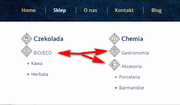
is it only these three items, or all items in the last two rows?
Are you adding any more items to these columns?Best regards,
MikeHey geraldinetay27,
Sorry for the late reply, typically the portfolio items should be shown in the masonry list
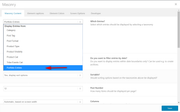
I also see that your portfolio element is not showing the category option, is your theme a first install or did you update from an older version?
Please try deactivating your plugins to see if that solves, if not try reinstalling the theme.The easiest and safest way to do this is to download the newest version from Theme Forest and rename your current theme folder to “enfold-old” via ftp then upload the new “enfold” folder and check that your site is working correctly.
Once you are happy you can delete the “enfold-old” folder via ftp, (not the WP theme page)
Should for some reason you wish to roll-back to the old version, it’s easy to do, simply rename the new “enfold” folder to “enfold-new” via ftp and then rename “enfold-old” to “enfold” then refresh your page.
Please don’t try to overwrite the theme folder, as this will leave old files behind and cause errors.Best regards,
MikeHi,
Sorry for the late reply, have you tried uploading your font in the theme settings “Import” > “Custom Font Manager”?Best regards,
MikeNovember 10, 2019 at 6:33 pm in reply to: How to remove Additional info and SKU from a product page? #1155366Hey gb,
Please try this code in the General Styling > Quick CSS field or in the WordPress > Customize > Additional CSS field:.tabs.wc-tabs,.product_meta { display: none !important; }Best regards,
MikeHey StephanPfluegler,
You can probably get the menu items pretty close by using css to add extra space between the menu groups and changing the font sizes, but each time you add or remove menu items you would need to rewrite the css. The items at the top of the menu would be much tricker, and require some javascript.Best regards,
MikeHey Matteo Bazzani,
Thank you for contacting us, when you buy Enfold at Theme Forest you would have to create an account there and then download it from your account.
So head on over to your account and download it.
Then for technical support please register here kriesi.at/support/register with your item purchase code .
Then go to the support forum at: https://kriesi.at/support/enfold and scroll to the bottom of the page to open a new ticket.Best regards,
MikeNovember 10, 2019 at 5:45 pm in reply to: woocommerce single project page layout official solution #1155355Hi,
Glad we were able to help, we will close this now. Thank you for using Enfold.For your information, you can take a look at Enfold documentation here
For any other questions or issues, feel free to start new threads in the Enfold forum and we will gladly try to help you :)Best regards,
MikeHey Pappasdg,
Thanks for the login, it looks as if the mobile menu is not being created but I can’t tell what is causing this because the login doesn’t seem to have admin access, please check. Meanwhile please try disabling your plugins to see if any of them are causing this.
I see that you are using the Ultimate Member plugin, are you using it’s conditional menus, it seems there used to be an issue with the menus and Enfold, so let us know if disabling it brings the mobile menu back.Best regards,
MikeHi,
Glad to hear, thanks for using Enfold.
For your information, you can take a look at Enfold documentation here
For any other questions or issues, feel free to start new threads under Enfold sub forum and we will gladly try to help you :)Best regards,
MikeNovember 10, 2019 at 1:42 pm in reply to: contact form deavtivated error message Google Recaptcha #1155333Hey mynick,
Sorry for the late reply, I have checked your 3 pages and after the cookie is accepted the contact forms work correctly on reload, I recommend enabling the setting “Auto Reload Page”.
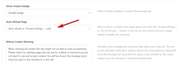
The use of this setting depends on the many other privacy settings that have been selected.
I also note that on two of your sites you have the errorjQuery is not definedthis can also cause the scripts to not run correctly, please check that you are not loading jQuery in the footer, there are many ways this can happen, via a caching plugin, theme settings, or minifying plugins, etc.Best regards,
MikeHi,
Wir entschuldigen uns für die verspätete Antwort und freuen uns, dass Sie ein Update durchführen konnten. Es gab einen bekannten Fehler in der von Ihnen verwendeten Version und ein manuelles Update war erforderlich. Jetzt haben Sie das Richtige Berechtigungen für Ihr Token. Sie sollten keine zukünftigen Probleme haben.— Translated with Google —
Sorry for the late reply and glad you were able to update, there was a known error in the version you had and a manual update was necessary, but now that you have updated and assigned the correct permissions to your token you should have no future issues.
Best regards,
MikeHi,
Sorry for the late reply, from this post it looks like you can add the Currency Switcher with this shortcode[currency_switcher]
Please read the article and give it a try.Best regards,
MikeNovember 10, 2019 at 12:32 pm in reply to: woocommerce single project page layout official solution #1155316Hi,
Thanks for the link and screenshot, so currently the mobile brake point for the page is 767px, so we will change it to 1399px, at that point there is plenty of room for the 3 columns.
Please try this css:@media only screen and (min-width: 768px) and (max-width: 1399px){ #top .sidebar_right.template-shop .single-product-summary,#top .sidebar_right.template-shop .single-product-main-image.alpha { width: 60% !important; } #main > div.container_wrap.sidebar_right.template-shop > div { padding: 0 10px !important; } }After applying the css, Please clear your browser cache and check.
Best regards,
MikeHi,
Glad we were able to help, we will close this now. Thank you for using Enfold.For your information, you can take a look at Enfold documentation here
For any other questions or issues, feel free to start new threads in the Enfold forum and we will gladly try to help you :)Best regards,
MikeHey Hooge-AGS,
Sorry for the late reply, in my tests images in the layerslider are not marked as “attached” and it also seems that some other images may not be too. I do not believe this is an “Enfold” issue, it is how the images are uploaded and how WordPress records this, it seems that if the images are uploaded to the media library and then later used WordPress doesn’t always create an “attachment” page which is were the “attach” comes from. But if the image is uploaded at the time of creation they are “attached”
While I have not fully tested this I didn’t want you to try deleting all of your “unattached” images and files.Best regards,
MikeNovember 10, 2019 at 3:52 am in reply to: woocommerce single project page layout official solution #1155275 -
AuthorPosts

