
-
AuthorSearch Results
-
June 5, 2025 at 10:01 pm #1485128
In reply to: Theme Update Issue – Version (99.99.99)
Hi,
Typically that is where you would install the latest theme from your Envato (Theme Forest) account.
But there is no v99.99.99, so my concern is that your current install has been tampered with. Someone modified it.
I recommend creating a full backup first, files & database, in your webhost tool, not a plugin.
Then backup your theme settings under Enfold->Import/Export, and manually copy your Quick CSS and WordPress ▸ Customize ▸ Additional CSS to a plain text file.
Then try installing the current version like this:
Download the latest installable WP version from your Theme Forest account and upload it to your WordPress ▸ Appearance ▸ Themes ▸ Add Themes ▸ Add New

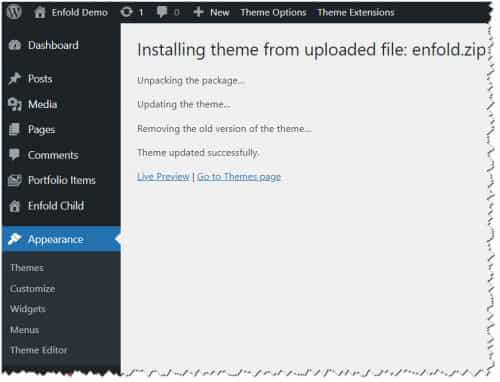
after you choose the zip file and click install, you will see a This theme is already installed message because you are updating, you can continue

then you will see the Theme updated successfully message.
Best regards,
MikeJune 5, 2025 at 9:46 pm #1485124In reply to: updating old Enfold theme
Hi,
If you bought the theme in your Envato (Theme Forest) account, then you can download the updates. Support in the forum is different.
If your developer bought the theme and you don’t have an Envato (Theme Forest) account, then you will need to purchase a new license.
I do not expect any issues when updating from 4.2.1 to 7.1.1, but as good practice you should first make a full backup of your site, files and database.
Please use your webhost backup tool and not a plugin, most plugins do not restore well.
To update your version of Enfold you will need to download the latest installable WP version from your Theme Forest account and upload it to your WordPress ▸ Appearance ▸ Themes ▸ Add Themes ▸ Add New
after you choose the zip file and click install, you will see a This theme is already installed message because you are updating, you can continue
then you will see the Theme updated successfully message.
Best regards,
MikeJune 5, 2025 at 5:49 am #1485102Hi,
At first, it’s probably a trade-off between quality and performance when it comes to images. The filter we suggested above was added to balance the two and give users the option to adjust them based on their requirements. If we’re not mistaken, setting the quality to the maximum didn’t previously result in thumbnails with overly large file sizes, or we would never have set it as the default. It’s only recently that this has been happening or reported. Please keep the quality around 70 for now, then use an image compression plugin (Smush, Shortpixel etc) to further optimize the images.
We’ll forward this thread to our channel.
Best regards,
IsmaelJune 5, 2025 at 5:34 am #1485101In reply to: Customize blog grid
Hey itsjona,
Thank you for the inquiry.
Did you add this css code?
.slide-image {
    display: block;
    height: 400px;
    line-height: 400px;
    overflow: hidden;
}
This stretches the height of the image container, creating space between it and the post title. Please remove the css or adjust the values of the height and line-height properties.
Best regards,
IsmaelJune 5, 2025 at 5:29 am #1485100In reply to: Elements in rows /// desktop to mobile
Hi,
If you want the left image to be taller or larger on smaller screen sizes, try adding another image element with a taller aspect ratio. The current image is a bit square and gets squeezed disproportionately in height compared to the right widget because it’s inside a smaller column (1/4 width). After adding the other image, you can toggle the visibility of both images on different screen sizes using Advanced > Responsive > Element Visibility options.
You can also add this css code to adjust the width of the column containing the image.
@media only screen and (max-width: 1024px) {

  /* Add your Mobile Styles here */
  #top .flex_column.av-acgfsc-cb6752318e4619c3295e6429d893dcfc {
    width: 50%;
    margin-left: 0;
  }
}
After adding the css:
Best regards,
IsmaelJune 4, 2025 at 8:30 pm #1485084In reply to: Attach picture to support chat
Hey jkos,
You can upload images to an array of different services online. For example Google Drive, Dropbox, Imgur, Snipboard etc. Then you can link to the image in your reply.
Best regards,
RikardJune 4, 2025 at 4:33 pm #1485080In reply to: Background image issues.
Nevermind. I figured out my background image on my own.
June 4, 2025 at 8:53 am #1485067Hi Ismael, thanks for your help.
I inserted your code in the function file, then I tried to load the same image and you see the result here.
Definitely better.But now the question I ask you is: Why Enfold set the image quality to 100%?.
Best regards,
OrianoJune 4, 2025 at 4:29 am #1485052Hi,
Thanks for reaching out.
The theme automatically increases the image quality to 100%, but the WordPress default is only 82%. This can be adjusted by using the following filters in the functions.php file:
add_filter("avf_jpeg_quality", "avf_set_quality_mod", 9999, 1);
add_filter("avf_wp_editor_set_quality", "avf_set_quality_mod", 9999, 1);
function avf_set_quality_mod($quality) { $quality = 60; return $quality;}
We recommend setting this to 70 or lower, then install an image compression plugin such as ShortPixel or Smush to further reduce file size and optimize the images. You may need to regenerate the thumbnails after the quality adjustment.
— https://wordpress.org/plugins/force-regenerate-thumbnails/
Best regards,
IsmaelJune 4, 2025 at 4:24 am #1485051In reply to: Big issue with latest version
Hey!
As mentioned earlier, the theme is configured to set a higher image quality than the WordPress default, which explains why the generated thumbnails are larger in file size. It’s also worth clarifying that image uploading and compression are handled entirely by WordPress, not the theme. This should be the same across all WordPress installations, so what you’re seeing isn’t specific to this theme.
Have you tried adjusting the default compression level to 60 or lower? This should help further lower the file size of generated thumbnails and optimize them.
After lowering the quality value to 60 or below, you can further enhance site performance by installing an image optimization plugin such as ShortPixel, Imagify, or Smush. This is a fairly standard practice in WordPress optimization, so it’s a bit surprising it wasn’t already suggested by your technical team.
For more information on site optimization, please feel free to refer to the following links.
— https://gtmetrix.com/wordpress-optimization-guide.html
— https://wpengine.com/resources/improve-wordpress-site-speed/Regards,
IsmaelJune 4, 2025 at 3:54 am #1485048In reply to: Google Map Tooltip Size Issue
Hey ronduring,
Thanks for reaching out.
Would you mind providing a screenshot of the issue and a link to a test page so we can check it? You can use platforms like Savvyify, Imgur or Dropbox to upload and share the screenshot. Here are the steps to follow:
1.) Visit the website of your chosen platform, such as Savvyify, Imgur or Dropbox.
2.) Locate the option to upload a file or an image.
3.) Select the screenshot file from your computer or device and upload it to the platform.
4.) After the upload is complete, you will be provided with a shareable link or an embed code.
5.) Copy the link or code and include it in your message or response to provide us with the screenshot.Thank you for taking the time to share the screenshot. It will help us better understand the issue you’re facing and provide appropriate assistance.
Best regards,
IsmaelJune 3, 2025 at 3:37 pm #1485032I uploaded the same file to a WordPress installation with default theme (TwentyTwentyTwo) and to a WordPress installation with Enfold theme.
This is the disheartening result
😳What do you advise us to do?
Best regards,
OrianoJune 3, 2025 at 3:03 pm #1485031orianos
ParticipantEnfold generates files twice or larger than the original file uploaded to WordPress.
Example →I’ve seen other tickets with the same issue.
I have reset the default image quality back to 80, but that doesn’t significantly fix the issue.Does this increase in file size generated by Enfold seem normal to you? :(
Best regards,
OrianoJune 3, 2025 at 12:56 pm #1485024In reply to: Big issue with latest version
For example, Lazy Load doesn’t start working from the photos at the bottom of the page but already blocks the first image, presenting the user with an unloaded site, with a hole where the photo should be. It should slow down the loading of the last photos, not the first one. The technicians have explained all the problems with the theme and that it causes significant slowdowns.
It seems we will be forced to redo the entire site.
However, I wonder why you continue to make updates without improving performance.June 3, 2025 at 11:25 am #1485016In reply to: Big issue with latest version
Good morning, the page https://easyzanzibar.com/dove-alloggiare-a-zanzibar/ loads a large image even when opened on mobile. In your test, you show me that it should use a 218 Kb image in the desktop slide, while my optimized image is 141 kb. If it then always uses the large image on mobile, what kind of optimization is that?
The technical programmers who are trying to solve the problem of a very slow site and CPU that exceeds the limit have sent me reports stating: ‘Enfold is a heavy and outdated theme for a site like yours.’
If this is the case, I have to eliminate Enfold from all four of my websites and completely redo them.
Does it turn out that Enfold creates problems with slow loading and high CPU demand for sites like ours?
AI answers:
Regarding your question about Enfold:
Yes, it is a known issue that the Enfold theme can sometimes cause slow loading times and high CPU usage for some websites. This can be due to several factors:
Theme Features: Enfold is a feature-rich theme, and while this offers a lot of flexibility, it can also lead to more code and assets that need to be loaded, potentially slowing down the site. Some of these features, if not used, can still contribute to the load.
Image Handling: As you’ve noticed, how the theme handles images across different devices can impact performance. If the theme isn’t correctly serving optimized images for mobile, it can significantly slow down loading times on those devices.I would like to understand from you if there is anything that can be done to avoid redoing everything
June 3, 2025 at 5:57 am #1484993In reply to: Big issue with latest version
Hi,
Thank you for the update. We were able to reproduce this on our end. To lower the file size, you can reset the default image quality back to 82 or lower by using the filter that we mentioned above.
add_filter("avf_jpeg_quality", "avf_set_quality_mod", 9999, 1);
add_filter("avf_wp_editor_set_quality", "avf_set_quality_mod", 9999, 1);
function avf_set_quality_mod($quality) { $quality = 82; return $quality;}
After adding this code, the file size of the largest thumbnail decreased by more than half. If you want to make it smaller, use a lower quality value.
For more info about the filter, please check this link: https://developer.wordpress.org/reference/hooks/jpeg_quality/
Best regards,
IsmaelJune 2, 2025 at 6:26 am #1484963In reply to: Logo overlay top bar menu
Hi,
Thank you for the screenshots.
You need to set the Enfold > Header > Header Layout > Menu and Logo Position setting to Logo Left, Menu Right, then add the following css code to adjust the logo image size and allow it to overflow the header container.
.logo, .logo a {
    overflow: visible;
    height: 100px;
}

.logo img, .logo svg {
    max-height: 150px !important;
    height: 150px;
}
Best regards,
IsmaelJune 2, 2025 at 6:17 am #1484962In reply to: Logo overlay top bar menu
June 2, 2025 at 5:48 am #1484958In reply to: Image full width
Hey Erin,
Thank you for the inquiry.
Is there any possible to show entire image ( no cut any part) in slide?
If you need the whole image to display on all screen sizes, you can use the Fullwidth Easy Slider instead of the Fullscreen Slider. You can also place the Image element inside a Color Section and set its container width to 100%. Please check this link for more info.
— https://kriesi.at/documentation/enfold/color-section/#color-section-with-100-content-width
Best regards,
IsmaelJune 2, 2025 at 5:29 am #1484956In reply to: Big issue with latest version
Hi,
@soniavoice: Would you mind providing the original source of the image so we can upload it on our end? When we uploaded a 4.8MB PNG image directly to an Image element using the Advanced Layout Builder, the resulting full-size thumbnail is only 2MB — less than half the original size. It’s possible that is a plugin or custom script interfering with the WordPress media uploader on your installation.Best regards,
IsmaelJune 2, 2025 at 5:08 am #1484954Topic: Image full width
in forum EnfoldSkytaya2727
ParticipantHi,
I have a question about full screen slide.
In mobile view, this is huge size and weird cut of image.You can see this link: https://brightmindskid.com/home-2-2/
Is there any possible to show entire image ( no cut any part) in slide?
OrWhen you click this: https://brightmindskid.com/, there is image between paragraph, but it is not full size.
Can you help me to show full screen size which means that has to be no margin left or right side?Which way is easy to show? Let me know,
June 2, 2025 at 12:53 am #1484949In reply to: Background image issues.
Hey Mike,
We have some good progress. I changed the text padding-left from pixel to percentage. Now no matter how I change the shape of the page the text keeps the creative indentation I want. Thank you for showing me that. I also added some line breaks to the end of my text to allow the background image more room to show.
Still struggling with the background image. Your test page looked like this..
/Users/j-birdteching/Desktop/Contact-test-desktop.jpgThis is what I am hoping to achieve.
/Users/j-birdteching/Desktop/Jkos-contact.jpg
I know some people like a more vertical window and some like a more horizontal window so, fit, distort, stretch, fill, whatever you call it, I would like to always see the entire background image. The image is abstract enough to be able to handle considerable distortion.
/Users/j-birdteching/Desktop/contact-vert.jpg/Users/j-birdteching/Desktop/contact-horizontal.jpg
The next challenge is getting this page to look good on a phone. Is having a separate contact page just for phones something we should be considering?
Doing the left margin by percentage did work for the phone but, I think having 50-60% margin padding on a phone is unrealistic.
The font would have to be a micro font. lol
/Users/j-birdteching/Desktop/contact-phone-2.jpgThe test page you made looks like this on my phone. I could live without the text having the creative indentation and just being uniformly left, right or center justified but, the page didn’t scroll down to see the rest of the text.
/Users/j-birdteching/Desktop/test-contact-phone.jpgWe’ll see what the background image looks like on the phone after we make adjustments to the desktop.
Thank you,
JasonJune 1, 2025 at 7:33 pm #1484943In reply to: Timeline mobile
Hey rixi,
I notice that on mobile not all of the dates show, only every other one, so to correct try adding this code to the end of your child theme functions.php file in Appearance ▸ Editor, if you are not using a child theme you could use the WP Code plugin then add a new snippet, in the top right corner use the PHP snippet as the code type:

and ensure that it is activated, then add the bellow code and save.function custom_timeline_script_for_mobile() { ?> <script> document.addEventListener('DOMContentLoaded', () => { // Check if there are any .av-milestone-even elements const milestones = document.querySelectorAll('.av-milestone-even'); if (milestones.length === 0) return; // Exit if no milestones found // Define the media query for screens smaller than 989px const mediaQuery = window.matchMedia('(max-width: 989px)'); // Function to reorder elements const reorderMilestones = () => { if (mediaQuery.matches) { milestones.forEach(milestone => { const date = milestone.querySelector('.av-milestone-date'); const icon = milestone.querySelector('.av-milestone-icon-wrap'); const content = milestone.querySelector('.av-milestone-content-wrap'); // Ensure all elements exist before reordering if (date && icon && content) { milestone.innerHTML = ''; milestone.appendChild(date); milestone.appendChild(icon); milestone.appendChild(content); } }); } }; reorderMilestones(); mediaQuery.addEventListener('change', reorderMilestones); }); </script> <?php } add_action( 'wp_footer', 'custom_timeline_script_for_mobile', 99 );Then I notice that one of your content boxes has too much padding for the list:

Try this CSS in your Enfold Theme Options ▸ General Styling ▸ Quick CSS field:@media only screen and (max-width: 989px) { .av-no-preview ul.avia-timeline-vertical .av-milestone-content li { padding: 0; } }
Changing the content padding and font size of the title and content may also help:@media only screen and (max-width: 989px) { .avia-timeline-boxshadow .av-milestone-contentbox { padding: 1em; } #top #wrap_all .all_colors h4.av-milestone-title { font-size: 20px; } .av-milestone-content p, .av-milestone-content li { font-size: 12px; line-height: 18px; } }
Try this and adjust to suit.Best regards,
MikeJune 1, 2025 at 6:58 pm #1484940In reply to: Background image issues.
Hey jkos,
When you set the background image to Scale to fit it scales image, so the whole image is always visible, this includes the height. Which is why the image does not reach the sides.
At Stretch to fit it stretches the image width to cover the page, less the 50px padding that the page has by default.
The height of your column is not set so the content is determining the height, but you have little content so the whole background image is not shown. If you set the column height to 150% then it will show.
But I recommend trying the color section instead because the background image will then be full width. I created a test page linked below to demonstrate.
Since the color section wants to vertically center the content, I added this css to the bottom of the page so your content will be higher:.responsive #top #wrap_all .avia-section.av-minimum-height-99vw .container { display: flex; justify-content: center; margin-top: 15%; max-width: fit-content; }The reason your text is off the screen for mobile is because your text has 800px padding, which is larger than a mobile screen:

to correct this you could change it to a percentage, or for this I created a css grid for two columns to achieve the layout without padding, and on mobile the grid is stacked. See the test page below.
For others, this is the HTML for the two columns:<div class="parent"> <div class="div1"> first column text </div> <div class="div2"> second column text </div> </div>and this is the css:
@media screen and (max-width: 789px) {
  .parent{
      grid-template-columns: 1fr;
      grid-template-rows: 1fr;
   }
}
@media screen and (min-width: 790px) {
.parent {
display: grid;
grid-template-columns: repeat(2, 1fr);
grid-template-rows: 1fr;
grid-column-gap: 0px;
grid-row-gap: 0px;
}

.div1 { grid-area: 1 / 1 / 2 / 2; }
.div2 { grid-area: 1 / 2 / 2 / 3; }
}
Best regards,
MikeJune 1, 2025 at 5:02 pm #1484939In reply to: Button Place
Hi,
Sorry for the late reply, when I check on my Android the buttons look aligned correctly:


Best regards,
MikeJune 1, 2025 at 4:52 pm #1484937In reply to: Editor field does not exist
Hi,
It doesn’t look like the plugin is preventing the editor:

Try checking your wp-config.php file for define(‘DISALLOW_FILE_EDIT’, true); via FTP and change to define(‘DISALLOW_FILE_EDIT’, false);Best regards,
MikeJune 1, 2025 at 4:27 pm #1484932In reply to: ENFOLD Update is not possible
Hi,
I’m not sure why your theme is not manually updating, each of the errors are for a different language file that can not be copied, perhaps your file permissions are not correct. Directories should have 755 permissions and files should have 644 permissions. Try asking your webhost to check your permissions.
Or you could try updating via FTP, but if the permissions are not correct, you may have more errors the next time that you update.As for your Token for automatic updates, your username and email don’t seem correct:

are you sure that you have used the correct Token permissions?

I see that you also have the Envato Market plugin, but it also gives a “Updating failed. The file could not be copied” error which maybe also due to file permissions, so I would check with your webhost.
Best regards,
MikeMay 31, 2025 at 4:38 pm #1484902In reply to: The theme is not updating?!?
Hey Ventsislav Krastev,
Envato has a limit of the number of update checks in a 24 hour period, so if you click the update button too many times, you may need to wait 24 hours before checking again. That is assuming that your Token was created with the correct permissions
The https://envato.com/market-plugin/ requires a lower set of permissions and sometimes is easier to use. Alternatively, you can download the latest installable WP version from your Theme Forest account and upload it to your WordPress ▸ Appearance ▸ Themes ▸ Add Themes ▸ Add New
after you choose the zip file and click install, you will see a This theme is already installed message because you are updating, you can continue
then you will see the Theme updated successfully message.
If you have further issues please register to our support forum here with your Purchase Code and create a new thread and include a admin login for us to review your site.
Please note that we don’t have access to your Token in Envato, so if there is an error with your Token creation you will need to carefully review our documentation on generating a Envato Personal Token and try again.Best regards,
MikeMay 31, 2025 at 4:17 pm #1484901In reply to: Wie kann ich das Template Enfold updaten?
Hi,
The old version 5.2.1 will not update automatically in the theme update due to changes that Envato made during the change from the API key to the Token. To update your version of Enfold you will need to download the latest installable WP version from your Theme Forest account and upload it to your WordPress ▸ Appearance ▸ Themes ▸ Add Themes ▸ Add New
after you choose the zip file and click install, you will see a This theme is already installed message because you are updating, you can continue
then you will see the Theme updated successfully message.
Once you update to the latest version you will have no problems updating in the future.Best regards,
MikeMay 31, 2025 at 4:00 pm #1484899In reply to: Column Accordion/Slider-like ability?
Hey syberknight-tb,
Unfortunately, we don’t have an element that will achieve this for you in the theme, while there are many plugins that may work for you, when I check some of them they don’t quite match, but if you spend more time testing each one you may find one.
I was able to create something that may work for you using javascript and HTML in a shortcode, on mobile it shows 1 1/2 team member cards with prev & next arrows and loop when you click to the end:

on tablet it shows 2 1/2 cards:

and on desktop it shows 3 1/2 cards:

As is it holds 8 cards, you can add more or have less, you will need to edit the HTML to add your images and text, hopefully you will be able to do this:

Try adding this code to the end of your child theme functions.php file in Appearance ▸ Editor, If you are not using a child theme you could use the WP Code plugin then add a new snippet, in the top right corner use the PHP snippet as the code type:
and ensure that it is activated, then add the code below and save.function team_carousel_shortcode() { ob_start(); ?> <div class="carousel-container"> <button id="prevBtn">←</button> <div class="carousel"> <div class="carousel-track"> <!-- START: Team Members --> <div class="card"> <img src="/people-2-2-300x300.jpg" alt="Member 1"><p>Member 1<br>A short bio for the team member</p></div> <div class="card"> <img src="/people-2-2-300x300.jpg" alt="Member 2"><p>Member 2<br>A short bio for the team member</p></div> <div class="card"> <img src="/people-2-2-300x300.jpg" alt="Member 3"><p>Member 3<br>A short bio for the team member</p></div> <div class="card"> <img src="/people-2-2-300x300.jpg" alt="Member 4"><p>Member 4<br>A short bio for the team member</p></div> <div class="card"> <img src="/people-2-2-300x300.jpg" alt="Member 5"><p>Member 5<br>A short bio for the team member</p></div> <div class="card"> <img src="/people-2-2-300x300.jpg" alt="Member 6"><p>Member 6<br>A short bio for the team member</p></div> <div class="card"> <img src="/people-2-2-300x300.jpg" alt="Member 7"><p>Member 7<br>A short bio for the team member</p></div> <div class="card"> <img src="/people-2-2-300x300.jpg" alt="Member 8"><p>Member 8<br>A short bio for the team member</p></div> <!-- END: Team Members --> </div> </div> <button id="nextBtn">→</button> </div> <style> .carousel-container { position: relative; width: 80%; overflow: visible; margin: auto; } .carousel { overflow: hidden; width: 100%; } .carousel-track { display: flex; transition: transform 0.5s ease-in-out; } .card { box-sizing: border-box; padding: 10px; background: #e8e8e8; margin: 5px; border-radius: 8px; text-align: center; box-shadow: 0 4px 10px rgba(0,0,0,0.1); } @media only screen and (max-width: 767px) { .card { flex: 0 0 62%; } } @media only screen and (min-width: 768px) and (max-width: 1800px) { .card { flex: 0 0 38%; } } @media only screen and (min-width: 1801px) { .card { flex: 0 0 28%; } } .card p { color: #000; } .card img { width: 100%; height: auto; object-fit: cover; border-radius: 100%; } #nextBtn, #prevBtn { position: absolute; top: 50%; transform: translateY(-50%); color: #000; border: 2px solid #000; padding: 10px; cursor: pointer; z-index: 10; } #prevBtn { left: -50px; } #nextBtn { right: -50px; } </style> <script> document.addEventListener('DOMContentLoaded', function () { const track = document.querySelector('.carousel-track'); const cards = document.querySelectorAll('.card'); const prevBtn = document.getElementById('prevBtn'); const nextBtn = document.getElementById('nextBtn'); let currentIndex = 0; let cardWidth = cards[0].offsetWidth + 20; function updateCarousel() { const shift = currentIndex * cardWidth; track.style.transform =translateX(-${shift}px); } function moveToNext() { currentIndex++; if (currentIndex >= cards.length) { currentIndex = 0; } updateCarousel(); } function moveToPrev() { currentIndex--; if (currentIndex < 0) { currentIndex = cards.length - 1; } updateCarousel(); } nextBtn.addEventListener('click', moveToNext); prevBtn.addEventListener('click', moveToPrev); window.addEventListener('resize', () => { cardWidth = cards[0].offsetWidth + 20; updateCarousel(); }); }); </script> <?php return do_shortcode(ob_get_clean()); } add_shortcode('team_carousel', 'team_carousel_shortcode');Then add this shortcode in a code block element on your page:
[team_carousel]
Feel free to adjust the colors in the css in the code.Best regards,
Mike -
AuthorSearch Results
-
Search Results
-
Enfold generates files twice or larger than the original file uploaded to WordPress.
Example →I’ve seen other tickets with the same issue.
I have reset the default image quality back to 80, but that doesn’t significantly fix the issue.Does this increase in file size generated by Enfold seem normal to you? :(
Best regards,
OrianoTopic: Image full width
Hi,
I have a question about full screen slide.
In mobile view, this is huge size and weird cut of image.You can see this link: https://brightmindskid.com/home-2-2/
Is there any possible to show entire image ( no cut any part) in slide?
OrWhen you click this: https://brightmindskid.com/, there is image between paragraph, but it is not full size.
Can you help me to show full screen size which means that has to be no margin left or right side?Which way is easy to show? Let me know,


