This reply has been marked as private.
Thanks Peter.
If you have any idea why the images in my first content pane (inside the 3x 1/3 columns) aren’t showing on IE8 please let me know. It has something to do with making them links, if I remove the anchor tag the images come back.
That’s the last remaining issue I found with 2.2+.
Cheers,
Jason
Ok, so when i centered the logo, it threw much of my responsiveness out of whack. I am adding media queries and so far so good with everything (except the iPad [portrait] view). The menu seems to have disappeared altogether.
Here is a screenshot in iPad portrait view : http://postimg.org/image/xy03o4mab/
Here’s my url to the site : http://goo.gl/GbgbhY
Thank you for help guys.
Hey Ismael,
you can consider this thread resolved :)
Ygit solved the problem: https://kriesi.at/support/topic/post-video-view-broken/
Thanks
Hi!
Here the code:
[av_section color='main_color' custom_bg='' src='' position='top left' repeat='no-repeat' attach='scroll' padding='default' shadow='no-shadow' id='']
[av_one_half first]
[av_hr class='invisible' height='50' shadow='no-shadow' position='center']
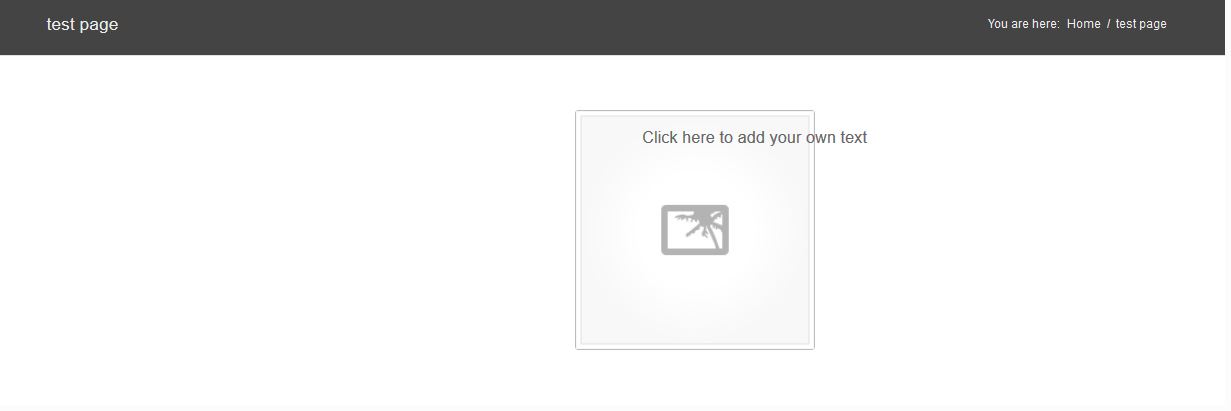
[av_image src='https://xxxxxxxxxxxx.com/themes/xxxxxxxxxxxxxxx/config-templatebuilder/avia-template-builder/images/placeholder.jpg' attachment='' align='center' animation='left-to-right' link='' target='no']
[/av_one_half][av_one_half]
[av_textblock]
Click here to add your own text
[/av_textblock]
[/av_one_half][/av_section]
When i remove the white space above the image it looks ok – with this code it looks like: http://www.pizzeriainnsbruck.at/wp-content/uploads/diverse-daten/problem-enfold.JPG
iT LOOKs like the image centers of the hole page instead of the 1/2 Element.
Whne i use a Image of the reght side it dont appear. It appears outside the website. because it goes tho the center of the website again – but this time the center is outside the website :) I dont understand this…. weird
ONE IMPORTANT POINT:
THE PROBLEM IS ONLY ON FIREFOX 24!!!!!!!!!!!!!!!
WITH IE AND CHROME IT LOOKS FINE…..
Hope you find the bug and i can move on. Thank you so much!
-
This reply was modified 12 years, 5 months ago by
 chooseone.
Hey,
bumping into a new customer project I’d like to drop a note (maybe as an idea) for a different portfolio approach.
First, a quick layout shot:

What I like to achieve is a custom grid view showing the portfolio categories. Within the categories will be a simple slider showing up to n entries (maybe there should be a limitation to the entries because of load time) with basic sliding (left/right), headline and linked to the item itself.
So the viewer may hop straight into an item or choose the portolio category to display the standard grid.
The approach itself is meant to be implemented on the homepage. It will be done within a child theme extending both the avia builder and the portfolio class. If you’re interested, I’ll drop the code once it’s finished. Takes some time, just started with layout process.
Regards,
Joschi
Hi!
Please add following code to Quick CSS in Enfold theme options under Styling tab
#top .product div.images img { width: auto; }
Cheers!
Yigit
Remove:
.grid-image img {
height: 191px;
}
Its stretching the images now instead of helping them :)
Hey!
Do you mind creating a temporary admin login and posting here privately?
Best regards,
Yigit
Hi!
Enfold doesn’t support such a layout on product pages. You’d need to rewrite major code parts in /wp-content/themes/enfold/config-woocommerce/config.php to build a right sidebar template. I’d suggest to stick with the default layout or to hire a developer if you really need such a layout. However note that you probably need to create a complete new layout because the sidebar on the right and the image on the left take too much space away and you need to find another place for the product description text, etc.
Best regards,
Peter
If I edit full page slider on demo page http://kriesi.at/themes/enfold/homepage/home-v7-one-page-portfolio/ the second image has a button section at the bottom of edit content. I don’t seem to have the button option when I try to recreate.
Mike
If someone have the same problem have to:
deactivate the cache plugin
go the page and delete the image and put an other time the image
I do this for: http://www.thelayout.it/sito-web-gratis/sito-web-gratis-roma and no i can see alt tags and title
i don’t do this for http://www.thelayout.it/sito-web-gratis/sito-web-gratis-torino and i can’t see tags anc title.
I think problem is solved. And you? :)
I think i’ve find the problem…it was the cache plugin that:
1 give problems with icons
2 don’t let the tamplate put alt and title in the images
now it seems ok, can you test please? thx thx thx
Sure,sorry i do a mistake. I’ve updated now you can. Thx
Hey!
I tried to log in but it seems like you just created an subscriber account and not an admin account. Please make sure the user can edit pages, etc.
Cheers!
Peter
Hi guys, now i try your suggestions about icons, when i will end i’ll write to you the result.
What about the alt tags and title in the images? What i have to do to solve the problem?
Regards
Omar
-
This reply was modified 12 years, 5 months ago by
 thelayout.
Hi Ismael,
I apologize, I do not speak good English.
Please see these screenshots:
1) Blog with articles. Some items show “Featured Image”: http://i.imgur.com/vTqH0tg.jpg
2) I click on “Read More”, I view the full article. The “Featured Image” has disappeared: http://i.imgur.com/8RnVBaU.jpg
If it is possible I would like this, but only on Post Video format.
I ask because this change is perhaps the only way to fix this bug: http://egotheme.tv/2013/10/video-post-broken/
I opened a discussion on 5th October, but seems to be no solution that works: https://kriesi.at/support/topic/post-video-view-broken/
I’ve also updated the new version 2.3.2, I was hoping that the bug was fixed. But the bug is still there.
Thanks
-
This reply was modified 12 years, 5 months ago by
 macrunner.
Hello!
Maybe, can you paste the contents of it?
Cheers!
Josue
Tried that, Im thinking now it maybe something to do int he .htaccess file, but I’m not very failure with it.
Hi,
I think you need to change it manually, in each layer.
Regards,
Josue
Hey macrunner!
What do you want to do? Remove the featured image on the blog overview page? The title of the thread and your inquiry is a bit contradictory. Can you please be more clear? A link to the blog and the post with a video format will help.
Best regards,
Ismael
Our site is hosted at http://www.sparkind.com/sparkindustries and work just fine until I changed the Site Address (settings>general) to “http://sparkindustries.net/” (which is where the public will look for it)
And now the slider images are looking for the files or: http://sparkindustries.net/sparkindustries/wp-content/uploads/2013/10/backgnd.png
instead of
http://sparkind.com/sparkindustries/wp-content/uploads/2013/10/backgnd.png
How do I change where the slider looks for the images?
thanks
Hi!
The most ideal would be 495×400 for the 2 or 3 column portfolios which would also work for the 4 columns as well. The theme will re-size them to the needed size if they are bigger which is also best since the single portfolio page layouts users typically create are going to be using one of the larger gallery sizes.
As long as the parent image is using the same proportions then when it re-sizes smaller it will keep its quality and stay in line with everything.
Best regards,
Devin
The full set of icon debugging steps are all in this topic: https://kriesi.at/support/topic/icons-still-not-working-in-firefox-and-ie/
If the refreshing cache, re-saving styles etc doesn’t work then Kriesi’s htaccess step should do it.
This reply has been marked as private.
Can I change the opacity of a color section. I’d like to reduce the opacity of the white color sections and see what it would look like when the sections scrolls over the top section image.
Mike
http://abspilates.wpengine.com/ (hosted on WPengine)
Hey bivvo!
I’m not quite sure what you mean. The portfolio single pages let you choose however you want the layout to look. So you can add whatever you want to the them.
Regards,
Devin
ah that’s awesome, sorry I didn’t realise that. Works much better now.
One last question, how would I make the font smaller or not even visible just for mobile phones as the captions pretty much covers the image when viewed on a phone, thank you (not ipads this size will be fine)
I tried adding
.avia-caption-title h2 {
font-size: 10px;
}
but didn’t work, my knowledge is limited on this sorry, cheers
Genius thanks !
Only thing now I’ve noticed this slider does not work well in responsive, when I shrink the browser window width or check on my phone the captions jump outside and below the images?
Without this code change the captions stay on the image but completely cover them when its phone size. Is there a way to turn the captions off when it gets to a certain size, or shrink the captions ?
This happens with or without the code change: the line with the little dots you can press to change the slider image goes way below, it doesn’t seem to stay tight below the images
Thanks again for all the help
Hello!
Try adding this code to the Quick CSS:
.post-entry-138 div .av_one_fifth {
margin-left: 2% !important;
width: 18% !important;
}
Regards,
Josue