Viewing 30 results - 2,551 through 2,580 (of 10,096 total)
  • Author
    Search Results
  • #1047948

    In reply to: Change image sizes

    Hi,

    Please add following code to Functions.php file of your child theme

    add_filter( 'avf_modify_thumb_size', 'enfold_customization_modify_thumb_size', 10, 1 );
    function enfold_customization_modify_thumb_size( $size ) {
    $size['widget'] = array('width'=>250, 'height'=>250);
    $size['portfolio'] = array('width'=>250, 'height'=>250);
    $size['entry_with_sidebar'] = array('width'=>250, 'height'=>250);
    return $size;
    }

    Then regenerate thumbnails using this plugin – https://wordpress.org/plugins/regenerate-thumbnails/.
    You can find default sizes in Functions.php file of Enfold parent theme by searching “imgSize”

    Best regards,
    Yigit

    #1047647

    Hi Rikard,
    got it. Solved the problem. I found following code in the functions.php of my child-theme. I removed it. Now the single product pages are okay. Do you think deleting this part of the code will be a problem in future?
    Best regards,
    Sonja

    /* Woocommerce 3.0.0 Compatibility Fix
    Remove Enfold’s custom functions that conflict with the new image display in WooCommerce 3.0.0*/
    global $woocommerce;
    if( version_compare( $woocommerce->version, ‘3.0.0’, “>=” ) ) {
    function avia_woocommerce_gallery_thumbnail_description($img, $attachment_id, $post_id, $image_class ) {
    return $img;
    }
    function avia_woocommerce_post_thumbnail_description($img, $post_id){
    return $img;
    }
    }

    add_action( ‘after_setup_theme’, ‘mmx_avia_woocommerce_settings’ );
    function mmx_avia_woocommerce_settings(){
    global $avia_config;
    $avia_config[‘shop_single_column_items’] = 5;
    $avia_config[‘shop_single_column’] = 5;
    }

    add_filter(‘woocommerce_format_content’, ‘yanco_remove_inline_terms’, 10, 2);
    function yanco_remove_inline_terms( $apply_filters, $raw_string ) {
    if( is_checkout() ) {
    return ”;
    }
    return $apply_filters;
    }

    #1047243

    Hi cg,

    thank you very much for the guideline, your the men! Since I am personally not smart enough to code, I sadly cant follow all of the steps . After one eternity I found the code, but its verrrry long and i have now idea what to do and where.

    Could someone from the enfold team maybe help out?

    I really appreciate your help cg but i understand you have a familie and cant hold hand with me here ;)
    This is the code i found:

    if (!class_exists(‘avia_newsbox’)) { class avia_newsbox extends WP_Widget { var $avia_term = ”; var $avia_post_type = ”; var $avia_new_query = ”; function __construct() { $widget_ops = array(‘classname’ => ‘newsbox’, ‘description’ => __(‘A Sidebar widget to display latest post entries in your sidebar’, ‘avia_framework’) ); parent::__construct( ‘newsbox’, THEMENAME.’ Latest News’, $widget_ops ); } function widget($args, $instance) { global $avia_config; extract($args, EXTR_SKIP); echo $before_widget; $title = empty($instance[‘title’]) ? ” : apply_filters(‘widget_title’, $instance[‘title’]); $count = empty($instance[‘count’]) ? ” : $instance[‘count’]; $cat = empty($instance[‘cat’]) ? ” : $instance[‘cat’]; $excerpt = empty($instance[‘excerpt’]) ? ” : $instance[‘excerpt’]; $image_size = isset($avia_config[‘widget_image_size’]) ? $avia_config[‘widget_image_size’] : ‘widget’; if ( !empty( $title ) ) { echo $before_title . $title . $after_title; }; if(empty($this->avia_term)) { $additional_loop = new WP_Query(“cat=”.$cat.”&posts_per_page=”.$count); } else { $catarray = explode(‘,’, $cat); if(empty($catarray[0])) { $new_query = array(“posts_per_page”=>$count,”post_type”=>$this->avia_post_type); } else { if($this->avia_new_query) { $new_query = $this->avia_new_query; } else { $new_query = array( “posts_per_page”=>$count, ‘tax_query’ => array( array( ‘taxonomy’ => $this->avia_term, ‘field’ => ‘id’, ‘terms’ => explode(‘,’, $cat), ‘operator’ => ‘IN’) ) ); } } $additional_loop = new WP_Query($new_query); } if($additional_loop->have_posts()) : echo ‘<ul class=”news-wrap image_size_’.$image_size.'”>’; while ($additional_loop->have_posts()) : $additional_loop->the_post(); $format = “”; if(empty($this->avia_post_type)) $format = $this->avia_post_type; if(empty($format)) $format = get_post_format(); if(empty($format)) $format = ‘standard’; $the_id = get_the_ID(); $link = get_post_meta( $the_id ,’_portfolio_custom_link’, true) != “” ? get_post_meta( $the_id ,’_portfolio_custom_link_url’, true) : get_permalink(); echo ‘<li class=”news-content post-format-‘.$format.'”>’; //check for preview images: $image = “”; if(!current_theme_supports(‘force-post-thumbnails-in-widget’)) { $slides = avia_post_meta(get_the_ID(), ‘slideshow’, true); if( $slides != “” && !empty( $slides[0][‘slideshow_image’] ) ) { $image = avia_image_by_id($slides[0][‘slideshow_image’], $image_size, ‘image’); } } if(current_theme_supports( ‘post-thumbnails’ ) && !$image ) { $image = get_the_post_thumbnail( $the_id, $image_size ); } $time_format = apply_filters( ‘avia_widget_time’, get_option(‘date_format’).” – “.get_option(‘time_format’), ‘avia_newsbox’ ); echo ““; $nothumb = (!$image) ? ‘no-news-thumb’ : ”; echo “<span class=’news-thumb $nothumb’>”; echo $image; echo “</span>”; if(empty($avia_config[‘widget_image_size’]) || ‘display title and excerpt’ != $excerpt) { echo “<strong class=’news-headline’>”.get_the_title(); if($time_format) { echo “<span class=’news-time’>”.get_the_time($time_format).”</span>”; } echo ““; } echo ““; if( ‘display title and excerpt’ == $excerpt ) { echo “<div class=’news-excerpt’>”; if(!empty($avia_config[‘widget_image_size’])) { echo ““; echo “<strong class=’news-headline’>”.get_the_title().”“; echo ““; if($time_format) { echo “<span class=’news-time’>”.get_the_time($time_format).”</span>”; } } the_excerpt(); echo “</div>”; } echo ‘‘; endwhile; echo ““; wp_reset_postdata(); endif; echo $after_widget; } function update($new_instance, $old_instance) { $instance = $old_instance; $instance[‘title’] = strip_tags($new_instance[‘title’]); $instance[‘count’] = strip_tags($new_instance[‘count’]); $instance[‘excerpt’] = strip_tags($new_instance[‘excerpt’]); $instance[‘cat’] = implode(‘,’,$new_instance[‘cat’]); return $instance; } function form($instance) { $instance = wp_parse_args( (array) $instance, array( ‘title’ => ”, ‘count’ => ”, ‘cat’ => ”, ‘excerpt’=>” ) ); $title = strip_tags($instance[‘title’]); $count = strip_tags($instance[‘count’]); $excerpt = strip_tags($instance[‘excerpt’]); $elementCat = array(“name” => __(“Which categories should be used for the portfolio?”, ‘avia_framework’), “desc” => __(“You can select multiple categories here”, ‘avia_framework’), “id” => $this->get_field_name(‘cat’).”[]”, “type” => “select”, “std” => strip_tags($instance[‘cat’]), “class” => “”, “multiple”=>6, “subtype” => “cat”); //check if a different taxonomy than the default is set if(!empty($this->avia_term)) { $elementCat[‘taxonomy’] = $this->avia_term; } $html = new avia_htmlhelper(); ?> <p><label for=”<?php echo $this->get_field_id(‘title’); ?>”><?php _e(‘Title:’, ‘avia_framework’); ?> <input class=”widefat” id=”<?php echo $this->get_field_id(‘title’); ?>” name=”<?php echo $this->get_field_name(‘title’); ?>” type=”text” value=”<?php echo esc_attr($title); ?>” /></label></p> <p> <label for=”<?php echo $this->get_field_id(‘count’); ?>”><?php _e(‘How many entries do you want to display: ‘, ‘avia_framework’); ?></label> <select class=”widefat” id=”<?php echo $this->get_field_id(‘count’); ?>” name=”<?php echo $this->get_field_name(‘count’); ?>”> <?php $list = “”; for ($i = 1; $i <= 20; $i++ ) { $selected = “”; if($count == $i) $selected = ‘selected=”selected”‘; $list .= “<option $selected value=’$i’>$i</option>”; } $list .= “</select>”; echo $list; ?> </p> <p><label for=”<?php echo $this->get_field_id(‘cat’); ?>”><?php _e(‘Choose the categories you want to display (multiple selection possible):’, ‘avia_framework’); ?> <?php echo $html->select($elementCat); ?> </label></p> <p> <label for=”<?php echo $this->get_field_id(‘excerpt’); ?>”><?php _e(‘Display title only or title & excerpt’, ‘avia_framework’); ?></label> <select class=”widefat” id=”<?php echo $this->get_field_id(‘excerpt’); ?>” name=”<?php echo $this->get_field_name(‘excerpt’); ?>”> <?php $list = “”; $answers = array( ‘show title only’ => __( ‘show title only’, ‘avia_framework’ ), ‘display title and excerpt’ => __(‘display title and excerpt’, ‘avia_framework’) ); foreach ( $answers as $key => $answer ) { $selected = “”; if( $key == $excerpt ) $selected = ‘selected=”selected”‘; $list .= “<option $selected value=’$key’>$answer</option>”; } $list .= “</select>”; echo $list; ?> </p> <?php } } }

    • This reply was modified 7 years, 3 months ago by Nu-Vision.
    #1047122

    Hi Mike

    I’m not sure whether it is complete. I got the code from here

    But it’s working OK for me. (although not so good in Firefox on a Mac)

    Many Thanks
    Regards
    Colin

    #1047012

    In reply to: Questions about Enfold

    This reply has been marked as private.
    netgo2017
    Participant

    Hi!
    I want to add a specified image (thumbnail). I click on color section / section background / insert image. Now i choose my image. In the attachement display settings i can choose, wich size of my image i want to display. Here I have the following options:
    – thumbnail – 80×80
    – medium 300 x 167
    – large 1030 x 635
    … and so on

    I have more versions of my image. how can I add these here?
    Thanks and regards
    Jörg

    #1046777

    Hi Mike

    Thanks for your reply

    I’m not using a plug-in for the product images just the standard Woocommerce product page with Woocommerce 3 gallery as set-up in the Enfold settings See image here

    I tried adding the code above but nothing appeared, except if I change the shop option to “Default Enfold Gallery” and then it shows 1 caption for the main image. My client wants the caption to change when the image changes, so he can reference the product code for each image.

    I’m not sure why nothing works

    The only thing I can get to work is the following code. which puts the caption above the image. When you click on each image the caption changes but the image moves down the page a bit further each time you click the next image.

    add_filter('woocommerce_single_product_image_thumbnail_html', 'thumb_add_caption', 10, 4 );
    function thumb_add_caption( $html, $id, $parent, $class) {
       $attachment = get_post( $id );
       $img_cap = "<div class=\"img-cap\"><span class=\"cap-text\">{$attachment->post_excerpt}</span></div>$html";
       return $img_cap;
    }

    Many Thanks
    Regards
    Colin

    #1046737

    Hi,
    Thank you Victoria this led to the solution for the standard woocommerce product page.
    Colin, your product page is behaving differently, and you don’t have the thumbnails div below your product image, so I’m not sure it will work for you. Are you using a plugin for your product image?
    Try adding this code to the end of your functions.php file in Appearance > Editor:

    function add_caption_below_product_image() {
    
    	echo '<h4 style="text-align: center;">';
    	$caption = get_post( get_post_thumbnail_id() )->post_excerpt;
    	echo $caption;
    	echo '</h4>';
    }
    add_action( 'woocommerce_product_thumbnails', 'add_caption_below_product_image' );

    2018-12-17-224836

    Best regards,
    Mike

    #1046329

    Hi,

    The gallery is using the “large” thumbnail by default. You should be able to adjust the thumbnail size in the Settings > Media panel. Regenerate the thumbnails after the adjustment.

    // https://wordpress.org/plugins/regenerate-thumbnails/

    Best regards,
    Ismael

    #1046243

    Hi Mike

    Thanks for your reply. That is very close to what we need. however, we are using the Woocommerce 3.0 Product Galley for this site but the CSS only seems to work with the Enfold gallery. We don’t want to change to the Enfold Gallery but if we do the descriptions show on the main image and the first thumbnail image See sample

    Many Thanks
    Regards
    Colin

    #1046168

    In reply to: Featured image blog

    Hi,

    The default thumbnail size is 495x400px. You can select a different thumbnail by setting the “Preview Image Size” to “manual”. It defaults to the “portfolio” thumbnail.

    Best regards,
    Ismael

    #1046113

    Hey So Evolve,
    Since you have quite a few images, it looks like the animation delay is holding up the bottom images from displaying. When I check with the Chrome dev tools, the images a downloaded fairly quickly.
    You could try this edit to reduce the animation delay.
    Or you could try this css to remove the animation:
    Please try this code in the General Styling > Quick CSS field or in the WordPress > Customize > Additional CSS field:

    .av-masonry-entry {
      visibility: visible !important; 
      opacity: 1 !important; 
    }
    .avia_desktop.avia_transform3d .av-masonry-entry.av-masonry-item-loaded .av-inner-masonry {
      -webkit-animation: none !important; 
      animation: none !important; 
    }
      
      .av-masonry-entry {
      opacity: 1 !important;
      visibility: visible !important;
      }

    Best regards,
    Mike

    #1045983
    nparent
    Participant

    After trying to tweak CSS, im am not able to remove date on thumbnails.

    Need help please.

    #1045519
    honest345
    Participant

    hi,dear.
    I use the Enfold,it always produce many thumbnails,but some of them are not used,so,how to disable wordpress creating unnecessary thumbnails.if the enfold can use the timthumb.php,It will be better。

    They are all created in Default editor . . . is it possible then for me to have thumbnail images show on my Blog Posts Page and in the themselves?

    J

    #1045489
    waveseven
    Participant

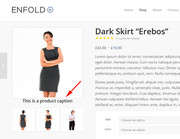
    Does anyone know how I can add the image caption, either at the bottom of the product image or between the product image and thumbnails on the Single product page (Woocommerce)?

    So the caption for the main image is displayed initially and then when a gallery thumbnail is clicked the image slides to the next one, and the text changes to show the caption for that image? Samples below

    Option 1

    Option 2

    I did see someone else ask this on this forum and they seemed to get it working but I cannot find that post now.

    Many Thanks
    Regards
    Colin

    #1045331

    In reply to: Image size blog

    Hey gabs01,

    Single post featured image size is 1210x460px and width is 355px in blog overview page, height adjusts.
    You could try the following:
    1. Install this plugin: https://wordpress.org/plugins/simple-image-sizes/
    2. Go to Settings > Media
    3. Change the entry_without_sidebar image size (increase its width / height).
    4. Regenerate the thumbnails by clicking the button at the bottom.

    Best regards,
    Yigit

    #1045210
    xxtita
    Participant

    Hi Team Kriesi,
    wp 5.0.1, enfold 4.5.1
    Tried to make a new post – with advanced layout builder – but post looks different to other posts. Thumbnail is missing, layout stretched.
    old post – https://nockberge-trail.com/nockberge-trail-die-skitourentraverse-mit-gepaeckservice/
    new post with advanced layout builder – https://nockberge-trail.com/nockberge-trail-gefuehrte-skitourendurchquerung-mit-wellnesshotel/
    How can i achieve to look all posts the same?
    thanks.

    I have featured images set on all posts already, but they don’t show up on mobile Blog Posts Page or individual posts. Are you saying I could manually create another version of all of my posts (150ish published, and another 105 waiting)with a picture in the body of the post itself? I could do that only for the posts that reference the images, but then my presentation would be inconsistent to the user (some would have pix, some would not–on mobile).
    Is there not a way to change the mobile view to have the featured image as a thumbnail on Blog Posts Page and Single Posts? (on mobile devices–tablets and desktop/laptop already does this).

    J

    #1044746
    w_archer
    Participant

    Hello,

    I need to make an 8 column website with a sidebar. I followed the steps here: https://kriesi.at/documentation/enfold/columns/#six-columns-or-more

    Now the sidebar gets pushed to the bottom of the page.

    I would be happy to make a 9th column and manually add the sidebar, but since the content of the sidebar is taller than the content of the 1-8 columns then the second row of 1-8 columns gets pushed down.

    Is there a way around this? By either making the colour section not full width or another way?

    I essentially need to make a grid of thumbnails, 8 coloumns accross and a few dozen rows. I would just use HTML but my client needs to be able to edit it.

    Thanks.

    gatehealing
    Participant

    I reference my featured images in some of my posts (i.e. ‘look at the child in this image. . . “) so not having a small image on the Blog Posts Page (and category archives) and individual post pages will be a bit confusing for my readers.

    So, is it possible for me to show a small or thumbnail image next to each post on the Posts Page (where it lists all posts), and an image at the top of the post on the individual post page?

    Thanks!
    Jon

    #1043142

    In reply to: WooCommerce cart table

    Hi,

    Please try adding this code to the Quick CSS section under Enfold > General Styling or to your child theme’s style.css file:

    CSS Snippet:

    @media only screen and (max-width: 480px) {
    .responsive .shop_table .product-quantity,
    .responsive table.shop_table .product-subtotal,
    .responsive table.shop_table.cart .product-thumbnail {
        display: block;
    }}


    We only provide support to our registered users, so please request purchase code from your client and register to our support forum for your future inquiries :)

    Best regards,
    Yigit

    #1043087

    In reply to: shortcode for gallery

    Hi,

    Yes, you should be able to see the image ids in the Media > Library. Put them as the value of the shortcode’s “ids” attribute.

    Example image id:

    http://site.com/wp-admin/upload.php?item=3504
    http://site.com/wp-admin/upload.php?item=3505
    >http://site.com/wp-admin/upload.php?item=3506
    

    Example shortcode:

    [av_gallery ids='3504, 3505, 3506' style='big_thumb' preview_size='portfolio' crop_big_preview_thumbnail='avia-gallery-big-crop-thumb' thumb_size='portfolio' columns='5' imagelink='lightbox' lazyload='avia_lazyload' av_uid='av-jgesnq4m' custom_class='av-gallery-style-1' admin_preview_bg='']
    

    Best regards,
    Ismael

    #1042961
    KatrienW
    Participant

    Hi team Kriesi

    I’ve been trying to figure out how to display the product categories in a client Woocommerce shop above the category thumbnails on the shop homepage. (Link)

    As you can see, the titles are now displayed below the images, but my client would like the category names to be displayed above those images. Do you have a piece of code or something to fix this?

    Thanks so much!

    #1042186

    Thank you! The only problem is that the blurry images apply to all product images,and there are a lot of them. Can’t I just regenerate thumbnails after putting in the above code or do I really have to upload all images again?

    Thanks!

    #1042019
    Maike
    Participant

    Hi, thanks again for this great & versatile theme (that I keep on using and recommending). For a client I finally got a chance to use the timeline element (see private link) – and now they are asking for a possibility to link the little thumbnails used for the timeline to bigger instances of the image (when klicked).
    How can I do this?
    Any code I can implement to make this possible?
    Thank you

    #1041789

    Hi,

    By bubble do you mean thumbnail? If so, please switch the code to following one

    @media only screen and (max-width: 767px) { 
    .search.search-results .search-result-counter {
        display: none;
    }
    .html_elegant-blog #top.search.search-results .post-entry .post-title, .html_elegant-blog #top.search.search-results .post-entry .post-meta-infos {
        margin-left: 0;
    }
    .search.search-results .template-search .entry-content-wrapper .entry-content {
        padding-left: 0;
    }}

    Best regards,
    Yigit

    #1041626

    Thanks Victoria, I can find the js file but I don’t know what I need to add or edit to make the testimonials speed slower. Please can you assist? This is the current js:

    (function($)
    {
    “use strict”;

    // ——————————————————————————————-
    // testimonial shortcode javascript
    // ——————————————————————————————-

    $.fn.avia_sc_testimonial = function(options)
    {
    return this.each(function()
    {
    var container = $(this), elements = container.find(‘.avia-testimonial’);

    //trigger displaying of thumbnails
    container.on(‘avia_start_animation’, function()
    {
    elements.each(function(i)
    {
    var element = $(this);
    setTimeout(function(){ element.addClass(‘avia_start_animation’) }, (i * 150));
    });
    });
    });
    }

    }(jQuery));

    zakthorpe
    Participant

    Hi,

    Since I updated to Enfold 4.5 the easy slider and full-width easy slider doesn’t show images.

    I have tried deleting the cache but that didn’t help.

    For some reason, my image and thumbnail sizes have also been reset.

    Any help would be greatly appreciated.

    I have created a user login for you if you need to access the backend.

    #1041466

    Hey TanSmi,
    Sorry for the late reply, for your situation I would recommend using the Simple Image Sizes plugin, you can set the image sizes that you don’t want to use to zero, and then use the built-in image regenerate to fix the images and thumbnails. This is better than deleting the images via ftp, because it will also fix them in the database.

    Best regards,
    Mike

Viewing 30 results - 2,551 through 2,580 (of 10,096 total)