Viewing 30 results - 961 through 990 (of 10,095 total)
  • Author
    Search Results
  • #1338073

    In reply to: Lazy Loading Question

    Ismael,

    This is a wordpress/theme topic.

    Check this out: https://make.wordpress.org/core/2020/07/14/lazy-loading-images-in-5-5/#highlighter_892127

    Copying certain interesting paragraphs:
    By default, WordPress will add loading=”lazy” to all img tags that have width and height attributes present. Technically this is handled on page output, similar to how responsive images are facilitated in WordPress by adding srcset and sizes attributes. To improve server-side performance of the two features, a new wp_filter_content_tags() function has been introduced so that img tags only need to be parsed once while then deferring the modifications to more specific functions related to the feature.

    By default, WordPress will add a loading=”lazy” attribute to the following images:

    images within post content (the_content)
    images within post excerpts (the_excerpt)
    images within text widgets (widget_text_content)
    avatar images (get_avatar)
    template images using wp_get_attachment_image() (wp_get_attachment_image)
    Developers can customize this behavior through various filters, the most foundational one being wp_lazy_loading_enabled, which receives the following parameters:

    $default: The boolean default of true to filter.
    $tag_name: An HTML tag name. While per current WordPress behavior this will always be img, it should be noted that the loading attribute is a generic attribute and may be expanded to support further elements, e.g. iframes, in the future.
    $context: A context string as additional parameters, indicating where the image technically comes from, usually a WordPress hook name. Based on how WordPress itself uses lazy-loading, the context can be one of the five values in parentheses in the list above.

    And it gives you what the Enfold switch does. Which is great. But then it goes on:

    In order to modify the loading attribute for very specific images, there are two different approaches, depending on the type of images:

    For images that appear within a content blob (e.g. the_content, the_excerpt, widget_text_content), another new filter wp_img_tag_add_loading_attr can be used, which receives the following parameters:

    $value: The loading attribute value, either “lazy” (default), “eager”, or false. If you want to disable lazy-loading for an image, it is strongly recommended to specify false so that the attribute is omitted altogether.
    $image: The entire image HTML tag with its attributes.
    $context: The context, similar as described for the other filter above.
    For example, if you would like to disable lazy-loading for a specific attachment image with ID 42 in size “large” within post content, you could use the following code snippet:

    And it gives you the snippet – but doing this is similar to my workaround for a specific image (taking the HTML that is the output and changing lazy to eager)

    Theme developers are recommended to granularly handle loading attributes for images anytime they rely on wp_get_attachment_image() or another function based on it (such as the_post_thumbnail() or get_custom_logo()), depending on where they are used within templates. For example, if an image is placed within the header.php template and is very likely to be in the initial viewport, it is advisable to skip the loading attribute for that image.

    And the Core Web Vitals issue was actually identified by them but it seems that on their experiment they didn’t consider all the 3rd party calls and javascript running times that can delay the LCP image from being loaded, so they write:
    “Experiments using Chrome for Android have shown that the impact of such loading=”lazy” images in the initial viewport on the Largest Contentful Paint metric is fairly small, with a regression of <1% at the 75th and 99th percentiles compared to non lazy-loaded images – yet it is a consideration to make where theme developers can apply some fine tuning for even better user experience.”

    So, maybe this could be a good new feature for Enfold? Allowing to Disable Lazy Loading on certain images from inside the Block Editor?

    What concerns me is that you don’t see this on your installation. As it seems to solve mine with my HTML insertion/loading eager workaround. And Enfold is amazing when it comes to the ALB as it allows you to Enable/Disable Loading Lazy on an single image basis. All that’s missing is applying the same to a native or non-ALB image.

    Please, let me know if my understanding of what is going on is correct. And if so, maybe this can help others who would like to implement my workaround or the one on functions.php that wordpress offers.

    Thank you so much!

    Havi

    #1337970

    Hi,

    I don’t think your measurements are correct. The Book image I just measured is over 500px tall

    We were referring to the featured images in the blog overview page. Please check screenshot 1 in the private field and look at the name of the thumbnail. FYI, WordPress automatically creates thumbnails of the original image and crops them based on the registered size of the thumbnails. The thumbnail that is used in the blog page is called “entry_without_sidebar“, which has a maximum size of 1210x423px. If you want to check how the size of the thumbnails are defined, edit the wp-content > themes > enfold > functions.php file and look for this code around line 223.

    $avia_config['imgSize']['entry_with_sidebar'] 	= array('width'=>845, 'height'=>321);		            	// big images for blog and page entries
    $avia_config['imgSize']['entry_without_sidebar']= array('width'=>1210, 'height'=>423 );						// images for fullsize pages and fullsize slider
    

    Did you follow our suggestions above about thumbnail size adjustment using the Simple Image Sizes plugin ? You should also upload images with the same size and aspect ratio for every posts to get a much more consistent result.

    I just measured it and it’s over 600px.
    https://staging7.investforbetter.org/circling-back-invest-for-better-one-year-later/

    You are looking at the “rendered size”, which is different compare to the “intrinsic size” or the actual size of the image. The actual size of the image in that post is only 700x394px, but since the layout requires the image to be stretched full width, you are seeing a much larger “rendered size”. (see screenshot 2)

    Best regards,
    Ismael

    #1337794
    Jules
    Participant

    I’m adding new videos to my site daily. Is there a way to automatically add the current date under the thumbnail for the video? Is there an Enfold Element I can use or HTML/CSS/Javascript?

    So what I’m envisioning is adding the Daily Video thumbnail and including the date for that day under the video. Then I will create a See All page (see below) where all the Daily Videos are stored and would like the same date to carry over here.

    Any guidance on this would be greatly appreciated.

    Best Regards,
    Julio

    • This topic was modified 4 years, 1 month ago by Jules.
    #1337412

    Hey erictuvel,

    Thank you for the inquiry.

    The maximum height of thumbnail on blog overview pages without a sidebar is only 423px. This thumbnail is called “entry_without_sidebar”. The maximum size of this thumbnail is set to 1210x423px by default, but it can be adjusted in the Settings > Media panel. You have to install the Simple Image Sizes plugin first. The plugin has not been tested on the latest version of WordPress but it works just fine. Make sure to regenerate the thumbnails after adjusting the thumbnail size.

    Best regards,
    Ismael

    Hi Ricard,
    thanks for keeping it open.
    I have updated the parent theme hoping that this will solve the remaining issues, but it did not. I am using a child theme.
    There is a problem with media upload, after the upload the thumbnail is not shown, instead just a light grey. And when I try to add the images to a page, then the image cannot be seen/loaded. ( I tried both jpg and pdf).
    Also I got a database connection error (wp-config.php) after making some changes, but database name, user and password are correct.
    Please let me know if you need any further information.
    Your support is much appreciated.
    Best regards

    #1337231

    is there any option i can add thumbnails below to easy slider, or there is any option for adding zoom facility in lightbox

    #1336674

    Hey sitibus,
    Thank you for your patience, to make the shop product thumbnail and container, and the product table transparent, please try this css:

    #top.single-product .woocommerce-product-details__short-description table,
    #top.single-product .woocommerce-product-details__short-description table tr {
    	background: transparent;
    }
    #top.woocommerce-shop .inner_product.main_color,
    #top.woocommerce-shop .inner_product_header {
    	background-color: transparent;
    }

    After applying the css, please clear your browser cache and check.

    Best regards,
    Mike

    #1336253

    this here is a temporarly remove of the title tag
    you must adopt your selector to what you need ! ( var links )

    function temporary_removal_title_tags(){
    ?>
    <script>
      window.onload = function() {
        //var links = document.querySelectorAll('a,img,div[title]');
          var links = document.getElementsByTagName("img");
          for (var i = 0; i < links.length; i++) {
              var link = links[i];
              link.onmouseover = function() {
                  this.setAttribute("org_title", this.title);
                  this.title = "";
              };
              link.onmouseout = function() {
                  this.title = this.getAttribute("org_title");
              };
              link.onclick = function() {
                  this.title = this.getAttribute("org_title");
              };
          }
      };
    </script>
    <?php
    }
    add_action('wp_footer', 'temporary_removal_title_tags');

    you see what the code does: it saves the original title to another attribute : org_title
    now if the mouse hovers – the title is empty but the original title is saved to another attribute.
    if you leave it ( mouseout ) the title is there again.
    And on click the title will be there for lightbox captions.
    the code above is only for images – but you see the commented line – you can have more selctors here.
    you can use the selectors Nikko mentioned above.

    See in action here with the enfold tooltip on the images: https://webers-testseite.de/gallery-with-8-images/
    normal behavior is here on Gallery with preview ( hove the thumbnails ): https://kriesi.at/themes/enfold-2017/elements/gallery/

    there will be both : enfold tooltip and browser tooltip by titles

    • This reply was modified 4 years, 1 month ago by Guenni007.
    #1335558
    TakiwaSoulArt
    Participant

    Hi,

    When entering the URL from my client (link in the private content) in the Facebook status field, the page loads, but the thumbnail is not displayed.
    Do you have any ides or solution?

    Thank you so much and sunny greetings

    Sabine

    #1335430
    khaeberle
    Participant

    Hello,

    I have the situation, that product images in the cart are not shown if I have a device with less than 425px width. They are displayed perfectly in wider resolutions.

    The shop uses WooCommerce 6.0.0 and Enfold 4.8.2 with a Child Theme.

    I tried the solution from a past thread in 2017, but the solution from back then did not change anything.

    Any ideas what I could try?

    regards,
    Karin

    Hey Cactusman07,

    Thank you for the inquiry.

    To change the thumbnail, you have to modify the single-portfolio.php file and look for this code around line 29.

     $avia_config['size'] = avia_layout_class( 'main' , false) == 'entry_without_sidebar' ? '' : 'entry_with_sidebar';
                        get_template_part( 'includes/loop', 'portfolio-single' );
    

    Replace “entry_with_sidebar” with “full”. You can also adjust the default size of the “entry_with_sidebar” thumbnail using the Simple Image Sizes plugin.

    Best regards,
    Ismael

      #1335336

      Hi Peter,

      It seems iOS devices apply the hover effect on the first tap and the link only functions on the second tap.
      Can you try to add this code:

      @media only screen and (max-width:568px) {
        #top .thumbnail_container .avia-product-hover {
          opacity: 1;
        }
      }

      The code only applies to mobile phones.

      Best regards,
      Nikko

      Cactusman07
      Participant

      On the ‘../portfolio-item/page – the image shown (from the feature image of that item) is not the full image but a thumbnail (x321) version. How do we change this so that the full feature image is shown and not some half hacked thumbnail image?

      Thanks.

      #1335140
      2funky
      Participant

      Hi,
      Problem om iphone with:
      – Works fine on PC and Android

      Hover effect on Overview Pages
      Do you want to display a hover effect on overview pages and replace the default thumbnail with the first image of the gallery?

      The user has to click twice on the image to enter the item, how do we solve it?

      Se ex. in private content

      #1334727
      THP Studio
      Participant

      Hey Gunter,

      Sorry, the other thread got closed or would I have continued there ( https://kriesi.at/support/topic/missing-scrset-in-alb-gallery/ ) but I have discovered 2 more ALB elements that produce image sizes problems with image proxy services like Imgix.

      One is when an image element has the setting turned on to link to the lightbox. In that case, it doesn’t return the right image size for the image (not the lightbox image). If you turn off linking to the lightbox, then the image returns the correct size.

      The second one is with the Team Member element. Actually, this element is missing the image selector dropdown under the Styling tab like most other elements have now (that’s just a side issue). But this element also returns the wrong value for image proxy services. It seems to be getting the image size using a whole other method to the other elements we’ve looked at.

      Is it possible to add the filter that you added for the masonry elements for these (and any other elements you suspect might have the same issues) for us please?

      If you have any questions please let me know.

      Thanks so much,

      Tim

      P.s. The updated srcset that you did the for Gallery thumbnails on hover doesn’t seem to be mentioned in the upcoming changelog – it will be included in the next update though, right?

      #1334643

      Hi,


      @G4Design
      : Happy new year! You can start a new thread or request using the form below.

      // https://kriesi.at/support/forum/enfold/#new-post

      Did you actually select the full size version of the logo before inserting it in the theme options? It is currently using the medium thumbnail, which has a maximum width of 300px by default.

      Best regards,
      Ismael

      My gosh Ismael, you’re great. We’re calling “thumbnail” two different things for sure: your function above does exactly what I wanted :-) The image in the Ligthbox now opens full screen, that’s awesome.

      SOLVED :) Thank you so much!

      Thanks @Ismael for your answer.

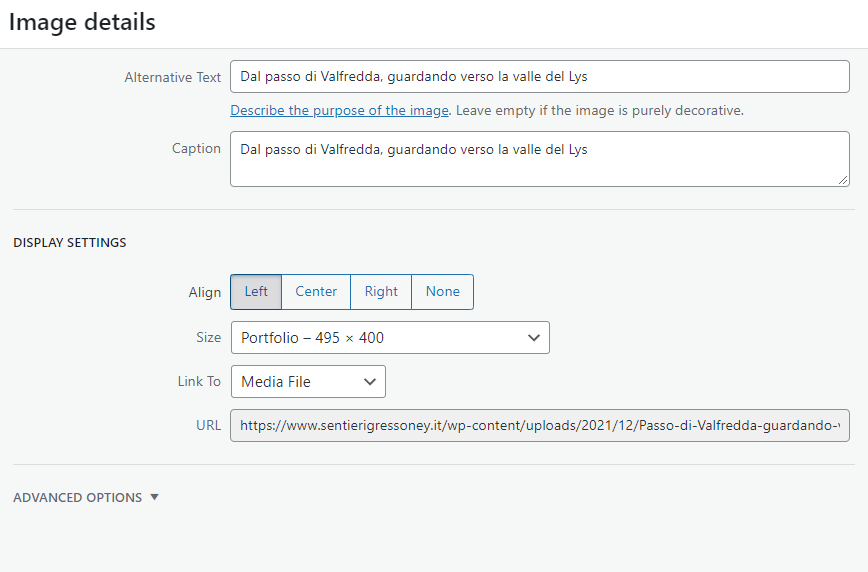
      You are right, my bad: I was comparing the Masonry gallery behaviour with the “Image element”, but actually I am not using an “image element”: I am using images embedded into a text box. See below, this are the configuration options I’ve got on this kind of images:

      Image details

      If I open this image by clicking on its thumbnail, it opens almost full screen (yes, I realized it does not use the Lightbox, it opens the “media file” directly).
      If I add the same image to a Masonry gallery and I open it by clicking on its thumbnail, it opens it in the lightbox (and it is smaller than the other one).

      My request is: would it be possible to change the behaviour of the lightbox so that it opens the images using the same size as the images opened from the “embedded in textbox” image?
      If you could set the “Masonry gallery” to open the images with the “Media file”, instead of using the Lightbox, I think the issue would be solved, but I understand it is not possible :-)

      In your answer you’re mentioning the “default lightbox thumbnail size” of the Masonry gallery, but the thumbnail is the small image in the gallery on which you’re clicking to open the image in the lightbox, isn’t it? If yes, I am totally fine with the thumbnail size of the Masonry gallery. I want to increase the size of the image in the lightbox, after you click on the thumbnail.

      I hope it is more clear now :-)

      Thanks & bye!
      A.-

      Hey Angelo,

      Thank you for the inquiry.

      We cannot reproduce the issue on our end. Both image and masonry element opens or displays the “large” thumbnail in the lightbox container.

      Did you set the Image element’s Advanced > Link Settings > Image Link? to “Open in Lightbox”, or did you manually specify the image URL?

      If you want to adjust the default lightbox thumbnail size for the masonry gallery, use this filter in the functions.php file.

      add_filter("avf_alb_lightbox_image_size", function($size, $context) {
          if($context = "avia_masonry") {
              $size = "full";
          }
          return $size;
      }, 10, 2);
      

      Default thumbnail size is “large”.

      Related thread: https://kriesi.at/support/topic/portfolio-eintrage-bilder-proportional-hochladen/

      Best regards,
      Ismael

      #1334465

      In reply to: Portfolio with Ajax

      Hi,

      Thank you for the update.

      The video is displaying correctly on our end as shown in the screenshot below (see private field). Out of the box, there is no option to set a text or tooltip for the portfolio grid items.

      To adjust the image size, edit the portfolio grid element, go to the Styling > Grid Settings tab and adjust the Portfolio Grid Image Size to the second option. You will then be able to select a specific thumbnail size. And as much as possible, you should also upload images with the same size and aspect ratio.

      Best regards,
      Ismael

      #1334269

      Topic: Portfolio with Ajax

      in forum Enfold
      edwindepianist
      Participant

      Hello!
      As you can see on my website media page (https://edwinvandenberg.com/media/) , I have setup a portfolio page with two items, a video and some images, using the Ajax option.

      Question 1: how do I set a text on hover on the thumbnails? And how do I get the thumbnails to be the same square size? Meaning like on this website: https://www.harrietkrijgh.com/media/

      Question 2:
      I have added the video short code for the Youtube video, but it doesn’t show the video itself. How come?

      Thank you.
      BR Edwin

      Jules
      Participant

      Let me explain what I’m hoping to accomplish. I’m trying to create a page for a Training Course, with 12 video-based Lessons. Can I have the video play at the top of the page, and add 12 thumbnails for the Lessons below it where when someone clicks on any of the Lessons, the video would play at the top of the page?

      Here is a basic mock-up for the Course Page . . .
      * Lesson Video [display at the top of the page
      * < Lesson Title >
      * By clicking on arrows on either side of Lesson Title, it would take you back to the previous title or on to the next title.
      * The Lesson Video, Lesson Title and brief text content for each would change as you switch between Lesson Videos.

      Here is a basic screenshot:
      https://postimg.cc/Z98RFZ9t

      Sorry if I’m not explaining this properly. Let me know if you need any additional information.

      Thank you for any help you can offer.

      Best Regards,
      Julio

      • This topic was modified 4 years, 2 months ago by Jules.

      Hi:

      Update:
      Exported the settings of the Parent Theme.
      Downloaded and Installed the Child Theme. Added the code mentioned above in the functions.php file of the Child Theme.
      I was not able to import *xml settings fil into the Child Theme (not permitted because of security reasons)
      Instead I used the button Import Parent Theme Settings.
      Result, besides the menu ( place + color) and color footer: excellent! I can adjust the color settings!

      Because I have about 900 images I used the Regenerate Thumbnails plugin.
      Cleared Cache from Firefox.

      I am very happy.. It works great!

      Thank you so much!

      Have a happy new year also!

      Best regards Reina

      Hey Reina Smallenbroek,
      Thank you for the link to your single portfolio item, I see that the featured image is using the 845×321 image, to use a larger image that is not cropped, try adding this code to the end of your child theme functions.php file in Appearance ▸ Editor:

      add_filter( 'avf_modify_thumb_size', 'enfold_customization_modify_thumb_size', 10, 1 );
      function enfold_customization_modify_thumb_size( $size ) {
        $size['entry_with_sidebar'] =array('width'=>1500, 'height'=>1500 , 'crop' => false);
        return $size;
      }

      this will only take effect on new uploaded featured images, or you can use the thumbnail regeneration plugin
      Then clear your browser cache and any cache plugin, and check.
      Our support forums are closed for the holidays, we will be back on Jan 3, at that time if you have any further questions please create a new thread and we will gladly try to help you. Thank you for using Enfold.

      Best regards,
      Mike

      #1333478

      Hey Ramon,
      Thank you for the link to your site, the closest I could come to your request is this script and css that shows the gallery image thumbnail alt tag on mouse-over:
      2021-12-19_005.jpg
      which works ok if the alt tag doesn’t contain too much text, since the image needs to be clickable to view the larger image above if there is too much text you can’t click the image.
      If you want to try this, add this code to the end of your functions.php file in Appearance ▸ Editor:

      function custom_gallery_tooltip_script() { ?>
          <script>
      (function($) {
      	setTimeout(function(){
        $("#top.single-product .flex-control-thumbs>li>img").wrap('<div class="alt-wrap"/>');
        $(".alt-wrap>img").each(function() {
          $(this).after('<span class="tooltip">' + $(this).attr('alt') + '</span>');
        });
      	},300);
      })(jQuery);
      </script>
          <?php
      }
      add_action('wp_footer', 'custom_gallery_tooltip_script');

      and this code in the General Styling ▸ Quick CSS field:

      .alt-wrap { 
        display: block;
        position: relative;
        margin: 0px;
      }
      .alt-wrap span.tooltip {
        opacity: 0;
        position: absolute;
        left: 0; right: 0; bottom: 0;
        margin: 0;
        color: #fff;
        padding: 5px;
        font-size: 10px;
        line-height: 12px;
        background-color: rgba(0,0,0,0.8);
        transition: all 300ms ease;
        transition-delay: 300ms;
      }
      .alt-wrap:hover > span.tooltip { 
        opacity: 1; 
        transition-delay: 0s;
      }

      Then clear your browser cache and any cache plugin, and check.

      Best regards,
      Mike

      #1333400

      Hey nexusgeografics,
      You can edit this file:
      /wp-content/themes/enfold/config-templatebuilder/avia-shortcodes/portfolio/portfolio.php
      on line 1084 find:
      $output .= "<{$link_markup[0]} data-rel='grid-" . avia_post_grid::$grid. "' class='grid-image avia-hover-fx'>{$custom_overlay} " . get_the_post_thumbnail( $the_id, $image_size, $image_attrs ) . "</{$link_markup[1]}>";
      cut and paste before line 1124:
      $output .= '<footer class="entry-footer"></footer>';
      then add a custom class to the “avia-arrow” it will point down instead of up, to do this edit line 1085 from this:
      $output .= ! empty( $title ) || ! empty( $excerpt ) ? "<div class='grid-content'><div class='avia-arrow'></div>" : '';
      to this:
      $output .= ! empty( $title ) || ! empty( $excerpt ) ? "<div class='grid-content'><div class='avia-arrow top-grid-title'></div>" : '';
      then add this css to your Quick CSS:

      .grid-entry .top-grid-title.avia-arrow {
          border: none;
          top: 49px;
          z-index: 1;
      }
      

      This is the results on my test site:
      2021-12-18_003.jpg
      Best regards,
      Mike

      #1333185
      THP Studio
      Participant

      Hey Gunter,

      I know you did a lot of work implementing srcset across the theme a while back, but I’ve just noticed an area that seems to have been skipped.

      If you look on the front end of an ALB gallery element displayed with Big image with thumbnails below it such as in the example link I’ve given, the first big image is loaded nicely and has srcset meaning a retina image can be displayed for HiDPI screens. Perfect.

      But if you hover over the thumbnails and then look at the big preview image that gets swapped in you’ll notice that the subsequent big previews don’t get srscet, and thus no retina images.

      On hover, it seems you have code that swaps things out and just ends up with one simple src tag instead of srcset.

      Could this be improved to include srscet please?

      If you have any questions please let me know, and thanks for your hard work.

      Tim

      #1333072
      peterolle
      Participant

      After updating all the “unchecked” information is showing up.

      Author, categories, tags, etc…

      I only need the thumbnail (and it is the only thing checked).

      Please share how to fix it because it is breaking my complete homepage layout.

      Thanks.

      #1332874
      navindesigns
      Participant

      How do I change the thumbnail dimension of the blog grid seen on this page – http://alexandere68.sg-host.com/blog

      The images are currently 495×400 but I would like it to be more of a rectangle dimension so less of the sides are cropped.

      Thanks

      Hi Günter, thanks for your response!

      Line 55 is:

      $content = ‘<div>’ . get_the_post_thumbnail( $post->ID, array( ‘width’=>300, ‘height’=> 300 ), array( ‘style’ => ‘margin-bottom: 15px;’ ) ) . ‘</div>’ . $content;

      It works fine with the earlier PHP version. Should I go ahead and try the new code or do you see something above that changes that?

      Thanks,
      Rob

    Viewing 30 results - 961 through 990 (of 10,095 total)