
Viewing 30 results - 931 through 960 (of 10,095 total)
  • Author
    Search Results
  • #1341914

    In reply to: Featured image size

    Hey gidantrip,

    Thank you for the inquiry.

    You can modify the enfold > single-portfolio.php file and change the thumbnail in this code around line 29.

     $avia_config['size'] = avia_layout_class( 'main' , false) == 'entry_without_sidebar' ? '' : 'entry_with_sidebar';
    

    Replace “entry_without_sidebar” with “full” or any thumbnails in the following list.

    square
    featured
    featured_large
    portfolio
    portfolio_small
    gallery
    magazine
    masonry
    entry_without_sidebar
    entry_with_sidebar
    shop_thumbnail
    shop_catalog
    shop_single 
    shop_gallery_thumbnail
    

    Best regards,
    Ismael

    Hey estherj6,

    Thank you for the inquiry.

    Did you set the home page as blog page in the Enfold > Theme Options panel? The home and blog page should be set in the theme options. If you edited the options in Settings > Reading panel, you may need to reset it back to default. You can then modify the index.php file to increase the number of columns in the grid.

      $atts = array(
    									'type'		=> 'grid',
    									'items'		=> get_option('posts_per_page'),
    									'columns'	=> 3,
    									'class'		=> 'avia-builder-el-no-sibling',
    									'paginate'	=> 'yes');
    

    Regarding the images, looks like the featured images have different sizes, which is why the generated thumbnails are not the same. The best solution is to upload images with the same sizes and aspect ratios to get a consistent grid.

    Best regards,
    Ismael

    #1341738

    Hi,

    Sorry about that. You can modify the themes/enfold/config-events-calendar/views/single-event.php or override it in your child theme, then edit this code around line 72.

    <?php echo tribe_event_featured_image( $event_id, 'entry_with_sidebar', false ); ?>
    

    You can replace the thumbnail “entry_with_sidebar” thumbnail with “full” or any size that you want. For more info about template customization, please check this link.

    // https://theeventscalendar.com/knowledgebase/k/customizing-template-files-2/

    Best regards,
    Ismael

    Mathuseo
    Participant

    Hello,

    I was looking for the blog layout for individual posts in the Enfold settings. Unfortunately, under “Style for single posts” I can’t find an option to remove the preview image that precedes the single post altogether. Setting it to display:none via CSS is not an option, since the image will still load.

    I don’t want the post image to be displayed at the top of the post at all, otherwise it often duplicates the image in the post, or we use post images that would simply be inappropriate for the top of the post at single level. Is there a code snippet to hide the post images at the top of the post altogether (without output in the HTML)?

    Thanks in advance and best regards,
    Marcel

    • This topic was modified 4 years ago by Mathuseo.
    #1341685
    StrategyDriven
    Participant

    Hi Rikard,

    Per your request, I’m starting this new thread…

    I’m having a problem with the Gallery on this webpage: https://www.structint.com/nde-inspection-services/. I have a 5 column gallery and it is being duplicated. Using the debugger, the code is:

    [av_gallery ids='1770,1769,1776,1772,1773' style='thumbnails' preview_size='portfolio' crop_big_preview_thumbnail='avia-gallery-big-crop-thumb' thumb_size='portfolio' columns='5' imagelink='lightbox' link_dest='' lightbox_text='caption' lazyload='deactivate_avia_lazyload' img_scrset='' html_lazy_loading='disabled' alb_description='' id='' custom_class='' template_class='' av_uid='av-v1pj' sc_version='1.0' admin_preview_bg='']

    Website admin login details are provided in the Private Content area.

    Any help is greatly appreciated.

    Thank you!

    All the Best,
    Nathan

    #1341590

    Hey acscreativenew,

    Thank you for the inquiry.

    The original image is actually displaying in the events page, not any thumbnail. Please check the screenshot in the private field.

    Best regards,
    Ismael

    #1341552

    Hi envis,

    Please replace the whole code with this, so it should target only the brand archives page:

    add_action( 'woocommerce_before_shop_loop', 'add_brand_woocommerce_before_shop_loop', 5 );
    function add_brand_woocommerce_before_shop_loop() {
    	if (is_tax('product_brand')) {
    		global $wp_query;
    		$brand_id = $wp_query->get_queried_object()->term_id;
    		$thumbnail_id = WC_Brands::get_term_meta( $brand_id, 'thumbnail_id', true );
    
            	$file_info = pathinfo( wp_get_attachment_url( $thumbnail_id ) );
    
    		if ( $thumbnail_id ) {
    	        	if ( $file_info['extension'] === 'svg' ) {
    		        	echo file_get_contents( wp_get_attachment_url( $thumbnail_id ) );
                    	} else {
    		        	$thumb_src = wp_get_attachment_image_src( $thumbnail_id, 'full' );
    		        	echo "<img src="{$thumb_src[0]}" />";
                    	}
    		}
    	}
    }

    Best regards,
    Nikko

    #1341071

    Hi envis,

    I think the issue is with the variable $size though I never got an issue on my end, please try to replace:

    $thumb_src = wp_get_attachment_image_src( $thumbnail_id, $size );

    with:

    $thumb_src = wp_get_attachment_image_src( $thumbnail_id, 'full' );

    Best regards,
    Nikko

    #1340987

    Nikko, I am pretty sure it has something to do with a SVG filetype. So I tried to do something like this: detect the filetype, then return the content of the SVG as source in the page or if PNG/JPG just use normal <img src.
    I don’t have the skills to do this right, but maybe you can make it work :)

    /**
     * Adds logo to brand page
     */
    
    add_action( 'woocommerce_before_shop_loop', 'add_brand_woocommerce_before_shop_loop', 5 );
    function add_brand_woocommerce_before_shop_loop() {
    	global $wp_query;
    	$brand_id = $wp_query->get_queried_object()->term_id;
    	$thumbnail_id = WC_Brands::get_term_meta( $brand_id, 'thumbnail_id', true );
    
            $file_info = pathinfo( wp_get_attachment_url( $thumbnail_id ) );
    
    	if ( $thumbnail_id ) {
    	        if ( $file_info['extension'] === 'svg' ) {
    		        echo file_get_contents( wp_get_attachment_url( $thumbnail_id ) );
                    } else {
    		        $thumb_src = wp_get_attachment_image_src( $thumbnail_id, $size );
    		        echo "<img src="{$thumb_src[0]}" width="{$thumb_src[1]}" height="{$thumb_src[2]}" />";
                    }
    	}
    }
    • This reply was modified 4 years ago by envis.

    Hi,
    I did some tests in pre-production and there is a small regression with the update Feb. 7th 2022 – Version 4.8.9.1
    On the same issue as in this post, with pdf media (and only pdf), after the upload the thumbnail is not shown, instead just a light grey.
    It was the same problem in version “August 9th 2021 – Version 4.8.6.1” and it was fixed since “August 16th 2021 – Version 4.8.6.2”.
    This is not blocking because pdf documents can be used for publications, but I still report this regression.
    Best regards
    Christophe

    #1340915

    I use Antispam Bee on that site. If I deactivate it then the line
    <textarea id="a941a68d79d5a981230e419af11a14d5" aria-hidden="true" name="comment" autocomplete="new-password" style="padding:0 !important;clip:rect(1px, 1px, 1px, 1px) !important;position:absolute !important;white-space:nowrap !important;height:1px !important;width:1px !important;overflow:hidden !important;" tabindex="-1"></textarea>
    disappears from the page.

    However… without that plugin active, and after a hard cache refresh, I still get the “Form elements do not have associated labels” error from Lighthouse, specifying this line:
    <textarea id="comment" name="comment" cols="45" rows="8" maxlength="65525" required="required"></textarea>
    which is the Enfold comment box.

    If I re-enable the plugin the Antispam code re-appears. If I run Lighthouse again, I still get the ‘no label’ error. When Lighthouse highlights what’s causing the error, it states:

    Failing Elements
    textarea#comment

    with a small thumbnail of the comment box. The ‘textarea#comment’ is a hyperlink to the code it thinks is a problem. If you click on that hyperlink, you get transferred to the Elements tab of Dev Tools, wherein the HTML code is displayed. It then automatically goes to the line of ‘problem’ code and highlights it in light blue. Guess what? It’s not the Antispam Bee line that’s highlighted, but the Enfold comment box, e.g.
    <textarea autocomplete="new-password" id="comment" name="ac76510e77" cols="45" rows="8" maxlength="65525" required="required"></textarea>

    So Lighthouse is saying it’s not Antispam Bee causing the error, but Enfold. When Lighthouse detects multiple errors on a page, e.g. ALT tags missing, it lists out all failing instances under Failing Elements. The only element ‘failing’ here is the Enfold textarea.

    When you say “We have checked the comment form on a fresh installation without a plugin and we didn’t find the same hidden textare below the actual comment field“, yes the hidden textarea won’t be there – but did you run Lighthouse on that page? I suspect if you did, you’d get the ‘no label’ error.

    Or you can try it yourself on the page (or any page on my site) that I referenced in the first post.

    Given your last reply, I’m at a loss to understand what’s going on here. Another Lighthouse bug perhaps?

    #1340899

    Nikko,

    Notice: Undefined variable: size in functions.php on line 66

    Line 66:
    $thumb_src = wp_get_attachment_image_src( $thumbnail_id, $size );

    Does this have to do with SVG image support?

    • This reply was modified 4 years ago by envis.
    #1340842

    Hi,

    Thank you for the update.

    You have to use the “full” thumbnail to display the original size of the featured image in the single post view.

    /*
    		 * retrieve slider, title and content for this post,...
    		 */
    		$size = 'full';
    

    Does this applies to any blog style I choose from the list?

    Are you trying to adjust the featured image in the actual post page? If yes, then the changes above should work. For the blog overview page, you may have to adjust a different file based on the selected blog style.

    Best regards,
    Ismael

    #1340813

    Hi envis,

    Yes, please replace this code:

    function add_brand_woocommerce_before_shop_loop() {
    	echo do_shortcode('[product_brand width="128px" height="128px" class="alignleft"]');
    }

    with:

    function add_brand_woocommerce_before_shop_loop() {
    	global $wp_query;
    	$brand_id = $wp_query->get_queried_object()->term_id;
    	$thumbnail_id = WC_Brands::get_term_meta( $brand_id, 'thumbnail_id', true );
    	if ( $thumbnail_id ) {
    		$thumb_src = wp_get_attachment_image_src( $thumbnail_id, $size );
    		echo "<img src=\"{$thumb_src[0]}\" width=\"{$thumb_src[1]}\" height=\"{$thumb_src[2]}\" />";
    	}
    }

    Best regards,
    Nikko

    #1340697

    Hey peterolle,

    Thank you for the inquiry.

    You have to modify the includes > loop-index.php file, look for this code around line 88 and adjust the thumbnail size from “entry_with_sidebar” or “entry_without_sidebar” to “full”.

    	/*
    		 * retrieve slider, title and content for this post,...
    		 */
    		$size = strpos( $blog_style, 'big' ) ? ( ( strpos( $current_post['post_layout'], 'sidebar' ) !== false ) ? 'entry_with_sidebar' : 'entry_without_sidebar' ) : 'square';


    Best regards,
    Ismael

    #1340693

    Hey agentur2c,

    Thank you for the inquiry.

    The size of the door images is only 260x185px. Have you tried selecting a different thumbnail or size in the the Styling > Gallery Settings > Image Size settings? Please edit the horizontal slider element, look for the settings that we mentioned above and select a different thumbnail.

    Best regards,
    Ismael

    #1340594
    cindybird52
    Participant

    I am suddenly unable to rearrange Gallery items that display thumbnails. I am using Gallery with Preview (large image above & thumbnails below).
    After adding 2 new images I cannot move them to become the first 2 images.
    The images previously were able to Drag & Drop – but they no longer move.
    Tested in Firefox & Chrome.
    Using latest Enfold and latest WP version.

    #1340308

    Hi,
    Glad to hear, it looks like the news thumbnail that is also the featured image for that post is getting the classes wp-caption featured , which has the extra margin that the above css adjusted for, I’m not sure why I will need to test more and let the Dev Team know of my findings. Either way, I don’t expect this to affect you further in the future.
    You can move your Quick CSS to your child theme stylesheet and comment out rules one at a time to check if they are still needed, this is probably a huge job :(
    Another option is to use the chrome extension CSS Used, this will output all of the css used for the page you are viewing, if you copy the code to a text file and check a page, a post, an event, etc then you can compare it to your Quick CSS and see if any rules are not used, probably still a big job :|
    I thought there used to be an extension that would output the un-used css from your stylesheet but I couldn’t find it, perhaps there is a plugin or a website that now does this, try searching for one as this would be the easiest solution :)

    Best regards,
    Mike

    #1340059
    CaptOM89
    Participant

    Hello,
    I’ve noticed just recently a strange phenomenon on my blog posts. On the sidebar of each post, the thumbnail image for that particular post (but not the other thumbnails) is somehow corrupted, or at least displaying incorrectly. They are squeezed horizontally. See examples:

    https://centerforworldmusic.org/2022/02/juan-carlos-blanco/

    https://centerforworldmusic.org/2022/01/laurel-grinnell-wilson/

    https://centerforworldmusic.org/2021/10/access-seniors/

    I’d appreciate suggestions as to how to fix this.

    Note: I’ve already regenerated the 36 x 36 thumbnails.

    Thanks! Lance

    #1339575

    Hi,

    Thank you for the access.

    We adjusted the css code in the Quick CSS field and temporarily disable the file compression settings. The cart page should now look exactly the same as the screenshot above. Please make sure to purge the cache before checking the page on mobile view.

    This is the updated code in the Quick CSS field.

    /* Kreditkartenfeld responsive */
    @media screen and (max-width: 767px) {
      .woocommerce table.shop_table thead {
        display: none;
      }
    
      .woocommerce table.shop_table td {
        display: block;
        text-align: right !important;
        border: 0px;
      }
    
      .woocommerce table.shop_table td::before {
        content: attr(data-title) ": ";
        font-weight: 700;
        float: left;
      }
    
      .woocommerce table.shop_table_responsive thead,
      .woocommerce-page table.shop_table_responsive thead {
        display: none;
      }
    
      .woocommerce table.shop_table_responsive tr td::before,
      .woocommerce-page table.shop_table_responsive tr td::before {
        content: attr(data-title) ": ";
        font-weight: 700;
        float: left;
      }
    
      .woocommerce table.shop_table_responsive tr td,
      .woocommerce-page table.shop_table_responsive tr td {
        display: block;
        text-align: right !important;
      }
    
      #top #payment div.form-row {
        padding-left: 0px !important;
      }
    
      /* Target the Credit Card */
      #stripe-card-element {
        width: 200px !important;
        margin-left: -20px;
      }
    
      /* Target the Expiry Date */
      .woocommerce-checkout-review-order #stripe-exp-element {
        background: #ffffff !important;
        margin: 5px 0px !important;
        padding: 10px 5px !important;
      }
    
      /* Target the CVC Code */
      .woocommerce-checkout-review-order #stripe-cvc-element {
        background: #ffffff !important;
        margin: 5px 0px !important;
        padding: 10px 5px !important;
        margin-left: -20px;
      }
    
      .responsive table.shop_table.cart .product-thumbnail {
        display: block !important;
      }
    
      .woocommerce .shop_table .woocommerce-cart-form__cart-item td::before {
        display: block;
      }
    
      .responsive #top table .product-name,
      .responsive #top table .product-price {
        border-color: #c4c4c4;
      }
    
      .woocommerce-cart-form__cart-item {
        border-bottom: 1px solid;
      }
    
      .woocommerce .shop_table .woocommerce-cart-form__cart-item .product-price::before,
      .woocommerce .shop_table .woocommerce-cart-form__cart-item .product-name::before {
        display: block;
      }
    
      .woocommerce .shop_table .woocommerce-cart-form__cart-item.actions::before {
        displaY: none;
      }
    }

    Best regards,
    Ismael

    #1339375

    I have the same issue. Also, thumbnail images are duplicated and cannot be removed.

    #1339371
    mfabes
    Participant

    I have 6 images in a gallery, but each thumbnail shows up twice underneath the big image. I’ve deleted the gallery and added back in even, but still shows up like that.

    #1339259

    Hi,

    the avia-shortcode-helpers folder, not the avia-shortcode folder ; won’t I need to adjust the function or to create a special sub-folder ?

    You can create a copy of the masonry helper file inside the child theme’s shortcodes folder. The theme will be able to recognize any shortcodes in that path.

    In the next path, we will add an action hook called avf_product_slider_html_list_before_item in the same file. You can use that to insert anything after the catalogue content.

    $text  = $image;
    					$text .= '<div class="av-catalogue-item-inner">';
    					$text .=	'<div class="av-catalogue-title-container">';
    					$text .=		"<div class='av-catalogue-title av-cart-update-title'>{$title}</div>";
    					$text .=		"<div class='av-catalogue-price av-cart-update-price'>{$price}</div>";
    					$text .=	'</div>';
    					$text .=	"<div class='av-catalogue-content'>{$content}</div>";
    					$text .= '</div>';
    
    					/**
    					 * Allows to call e.g.
    					 *		do_action( 'woocommerce_product_thumbnails' );
    					 * 
    					 * @since x.x.x
    					 * @param array $this->config
    					 * @param aviaShortcodeTemplate $this->sc_context
    					 */
    					do_action( 'avf_product_slider_html_list_before_item', $this->config, $this->sc_context );
    

    Best regards,
    Ismael

    #1338973

    Mike,
    I created a category under Daily Word –> Faith. I created a Post and Categorized it as “Daily Word” and “Faith” (see link below). Next I created a Post “Daily Word – By Topic” with images for different categories. Please only click on the first image for testing “Faith”. In these scenarios, the Post displays an image, but it’s the “Featured Image” I added for that particular post, which is a general image for Daily Word overall. I was hoping, The “God is Our Provider” image would appear.

    I’ve created another Post, added the Masonry Element; selecting the “Category” – “Daily Word” only. I added Featured Images on two of the three Posts and that’s all that displays (see link below). When you’re adding the Masonry Element, does it matter if it is a Post or Page?

    So I was hoping the test Post below would show the 3 images to these respective posts. However, what I see is two of the Featured Images and nothing on the third Post. Just curious, do I have to add the appropriate image for each Daily Word Post as Featured Image or is there another way to accomplish this?

    I’m reading through all your wonderful guidance you provided above, but I feel I’m missing something on my end. Just not clear to me why the appropriate Daily Word thumbnails are not displayed.

    Your guidance AGAIN would be greatly appreciated. I feel like I’m getting much closer.

    UPDATE: I reread your guidance above and you did mention adding Featured Images, so I did it. Check it out in the links below please and let me know if I’m missing anything that I should include.

    You mention that I could create a “year” category so I could have a “Daily Word By Years” element in the future. How exactly do you create a YEAR Category, and have a post where visitors can select which Year they would like to see?

    Thank you.

    Best Regards,
    Julio

    • This reply was modified 4 years, 1 month ago by Jules.
    #1338861
    mvservice
    Participant

    How can i remove featured image link in my single posts ?
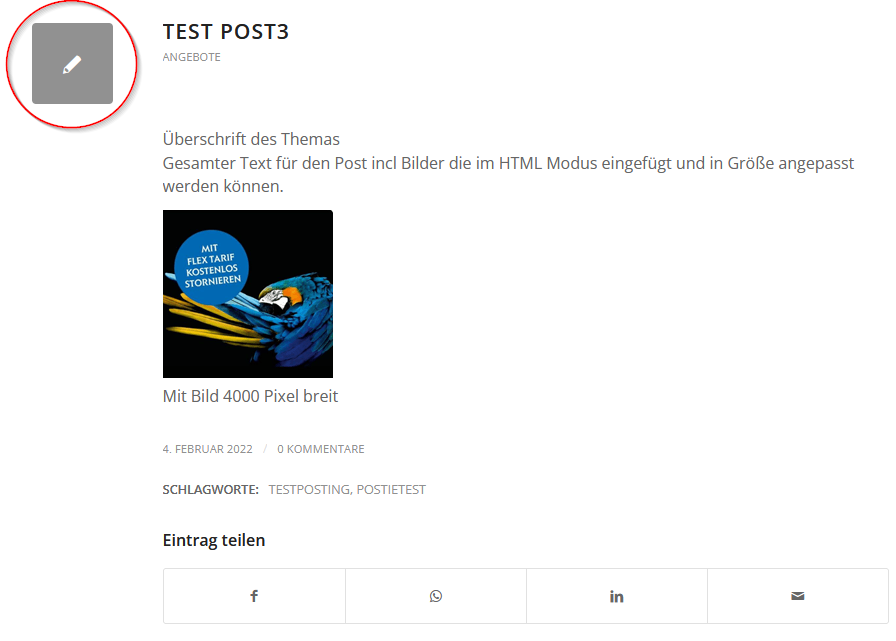
    example single post

    I want to keep the featured image on the blog archive page but not on the single post pages.
    https://mvservice.de/news/ >> this page is OK.

    I Included in the enfold child functions.php following code:

    Code snippets:

    //——————————————————–
    // PHP function – Remove featured image on all post page
    //——————————————————–

    function wordpress_hide_feature_image( $html, $post_id, $post_image_id ) {
    return is_single() ? ” : $html;
    }
    // add the filter
    add_filter( ‘post_thumbnail_html’, ‘wordpress_hide_feature_image’, 10, 3);

    This code only removed the featured image but not the link with the placeholder image

    Next step: I tried from Kriesi Documentation following change:

    Remove featured image link from single post
    To remove featured image link on single post, please add following code to bottom of Functions.php file of your child theme in Appearance > Editor
    add_filter(‘avf_post_featured_image_link’,’av_remove_featured_image_link’);
    function av_remove_featured_image_link(){
    if(is_single()){
    echo get_the_post_thumbnail( $current_post[‘the_id’], ‘featured’ );
    }

    >> This code removes the the featured images on the archive page !! and in the single post pages the link with placeholder image is still visible.

    Can you help?

    • This topic was modified 4 years, 1 month ago by mvservice.
    #1338679
    JaimBateman
    Participant

    Hello,

    On an e-commerce website I’m building for a client, we would like to use badges on product images. It works fine for the product gallery or the catalog ; but we would also like to use the product slider. But there, for some reason, the ‘woocommerce_product_thumbnails’ action (to which the badges are tied) is not called in the product slider
    Would it possible to add this possibility in what is now class-avia-product-slider ? I noticed that if I slip in the action on line 417, it works and the badges appear on the product picture in the slider. But I4m sure there is a more elegant (and viable…) way to do this…

    Thanks for the help !

    What my modification looks like (around line 417) :

    					$image = get_the_post_thumbnail( $product_id, 'square', array( 'class' => "av-catalogue-image av-cart-update-image av-catalogue-image-{$show_images}" ) );
    
    					$text  = $image;
    					do_action( 'woocommerce_product_thumbnails' );
    					$text .= '<div class="av-catalogue-item-inner">';
    					$text .=	'<div class="av-catalogue-title-container">';
    					$text .=		"<div class='av-catalogue-title av-cart-update-title'>{$title}</div>";
    					$text .=		"<div class='av-catalogue-price av-cart-update-price'>{$price}</div>";
    					$text .=	'</div>';
    					$text .=	"<div class='av-catalogue-content'>{$content}</div>";
    					$text .= '</div>';
    #1338646

    Hey Ismael, thank you for your information. Will try some things with the header image.

    Now back to the archive page image size:

    You write you can adjust the thumbnail size in the archive pages by editing the archive.php file directly. I already searched for a function loading the portfolio size but did not find it. Where do I find the line to change? The filter you sent is for functions.php but I would like to change the size in the archive.php directly and don’t now where exactly.

    Thanks for helping me out!

    #1338637

    Hey spooniverse,

    Thank you for the inquiry.

    Yes, you can adjust the thumbnail size in the archive pages by editing the archive.php file directly or by using the avf_post_slider_args filter.

    add_filter("avf_post_slider_args", function($args, $context) {
            if( $content == "archive" ) {
    	   $args["preview_mode"] = "custom";
               $args["image_size"] = "full";
            }
    	return $args;
    }, 10, 1);
    

    These are the available thumbnail sizes.

    square
    featured
    featured_large
    portfolio
    portfolio_small
    gallery
    magazine
    masonry
    entry_without_sidebar
    entry_with_sidebar
    shop_thumbnail
    shop_catalog
    shop_single 
    shop_gallery_thumbnail
    

    Adding an image to category template is possible but it will require significant amount of modifications. If you want to check how it has been implemented for the product categories, look for the avia_woo_edit_category_fields and the avia_woo_add_category_fields functions in the enfold/config-woocommerce/admin-options.php file. The functions are attached to thse hooks.

    // https://developer.wordpress.org/reference/hooks/taxonomy_edit_form_fields/
    // https://developer.wordpress.org/reference/hooks/taxonomy_add_form_fields/

    The actual banner function is in the enfold/config-woocommerce/config.php file.

    Best regards,
    Ismael

    #1338577

    Mike, thanks for this very helpful guidance. I will definitely try this out on some test “posts” to see how it works. So glad to have this knowledge now before I got too far down the road.

    Can you please point me to a resource on how to add Categories / Tags and how to create a Post and pull in content related to these Categories / Tags.

    Here is an example of what I’m hoping to achieve:
    https://www.iamsecond.com/film/
    Scroll down to “Stories By Topics”

    I’m assuming I would create the thumbnails with the respective Topics, but when you click on any of the Topics the Post that would appear would just pull from the respective Topic. As for example, if you click on the “Identity” Topic, the thumbnails would be pulled in. Is this what you meant when you reference the use of the Masonry Element?

    Thanks again for ALL your help, guide and instructions.

    Best Regards,
    Julio

    • This reply was modified 4 years, 1 month ago by Jules.
    #1338293

    @Mike, your detailed, informational, educational and helpful responses never cease to amaze me. Your continued support is greatly appreciated!

    As a novice to WordPress/Enfold, I must admit, I assumed that Posts were only used for Blogs :( I guess I should research a little more on when to use Pages vs. Posts :)

    Not sure which approach to take yet. We’ll be adding a new “Daily Word” each day, which includes an image with a link to a separate page. Eventually, there will be 365 in a year. As we add more images (i.e. thumbnails to videos), eventually I would like to categorize/tag (?) these with dates so visitors can eventually filter/select videos by Date (i.e. Year), along with other categories/tags (?); Topics (i.e. Faith, Hope, etc. etc.).

    With this in mind, how would you suggest that I accomplish this? I would like to build this in upfront to prevent rework.

    Thanks again for ALL your help!!!

    Best Regards,
    Julio

Viewing 30 results - 931 through 960 (of 10,095 total)