Hey navindesigns!
Thank you for the inquiry.
You can set a different thumbnail size in the Blog Posts element’s Styling > Appearance > Preview Image Size settings. The default size of the portfolio thumbnail, which is the thumbnail currently selected, can be also adjusted using the following plugin.
// https://wordpress.org/plugins/simple-image-sizes/
Best regards,
Ismael
How do I change the thumbnail dimension of the blog grid seen on this page – https://laserclinicsasia.com.sg/blog/
I would like it to be more of a rectangle dimension so there is no white space on the left and right. The exact size should be 520 px by 220px
Thanks
Thanks @Ismael, much appreciated.
Your solution has narrowed the gap between each element, which is fantastic, so thank you for that.
However, unfortunately it’s introduced a new problem – the thumbnail for the very first element no longer appears (you can only see the title). I’m guessing it gets cut-off somehow?
As a side note, I also note there seems to be a much bigger gap between the last element in the Masonry and the footer, which this change caused somehow.
I can’t believe how frustrating this is – it feels like 2 steps forward and 1 step back.
Any ideas?
Hi Guenni007, thanks again for all the help. The last message regarding the styling tab unfortunately doesn’t work for me. It’s something I tried initially and I was hoping that setting the “preview image size” would fix the issue, but it didn’t. I actually do not know what this option does to be honest. It either does something completely different that what I’m expecting it to do, or it doesn’t work and is buggy.
Anyway, I revisited the code you sent previously that should set the image to full size and I was able to get that to work. At first the code was not working but I removed the “if” statement and after I removed that code the feature images went to full size and resolution. I’m not sure if this will affect other parts of the website but so far it’s looking good. Here is the code I ended up using:
function custom_post_featured_image_link( $image_link, array $current_post, $size ){
    $image_link = get_the_post_thumbnail( $current_post['the_id'], 'full' );
  return $image_link;
}
add_filter( 'avf_post_featured_image_link', 'custom_post_featured_image_link', 10, 3 );
For now I think I am good to go. I really appreciate your help, thank you!
or do you realy mean “widget” – this is kind of technical term.
I now think you are talking about the postslider – and the thumbnails shown on this.
But be carefull – if you got a big list of portfolio – and each got a full resolution – performance will suffer on that.
Try this snippet in your child-theme functions.php:
f.e. on archiv pages like categories :
function custom_post_featured_image_link( $image_link, array $current_post, $size ){
  if(is_tag() || is_archive()){
    $image_link = get_the_post_thumbnail( $current_post['the_id'], 'full' );
  }
  return $image_link;
}
add_filter( 'avf_post_featured_image_link', 'custom_post_featured_image_link', 10, 3 );
Hi,
You could try to remove all your customisations, then add them back one by one, to see which function is causing the problem. I think this is something you shouldn’t need at all:
/*
Woocommerce 3.0.0 Compatibility Fix
Remove Enfold’s custom functions that conflict with the new image display in WooCommerce 3.0.0
*/
global $woocommerce;
if( version_compare( $woocommerce->version, ‘3.0.0’, “>=” ) ) {
function avia_woocommerce_gallery_thumbnail_description($img, $attachment_id, $post_id, $image_class ) {
return $img;
}
function avia_woocommerce_post_thumbnail_description($img, $post_id){
return $img;
}
}
Best regards,
Rikard
Hi Rikard,
I have tried restoring but I get critical errors. The host 123-reg say the problem is with the child theme I created for Enfold. Please can you look at my child theme functions,php code and see if it has errors. Apparently it is line 23. My child theme is called Orion I.T. Theme:
<?php
/*
* Add your own functions here. You can also copy some of the theme functions into this file.
* WordPress will use those functions instead of the original functions then.
*/
//set builder mode to debug
add_action(‘avia_builder_mode’, “builder_set_debug”);
function builder_set_debug()
{
return “debug”;
}
/* Add Custom class to all ALB elements */
add_theme_support(‘avia_template_builder_custom_css’);
/*
Woocommerce 3.0.0 Compatibility Fix
Remove Enfold’s custom functions that conflict with the new image display in WooCommerce 3.0.0
*/
global $woocommerce;
if( version_compare( $woocommerce->version, ‘3.0.0’, “>=” ) ) {
function avia_woocommerce_gallery_thumbnail_description($img, $attachment_id, $post_id, $image_class ) {
return $img;
}
function avia_woocommerce_post_thumbnail_description($img, $post_id){
return $img;
}
}
add_action( ‘woocommerce_single_product_summary’, function() {
echo ” – FREE SHIPPING IN THE UK!”;
}, 10);
Thanks Ismael.
Your solution is close to what I already had (and mentioned in my first post). I modified it slightly so it’s:
bottom: 230px;
(instead of 50px per your suggestion)
and I added:
@media only screen and (max-width: 767px) {
#top .av-masonry-outerimage-container .av-masonry-image-container {
    height: 50%;
This means both the thumbnail and title are exactly how I want them in terms of thumbnail image size and title is much closer to thumbnail, when viewing in mobile..
However, now the gap between elements is even bigger than before. Please see attached screenshot so you can see what I mean.
This is the problem I’ve had from the start – I was able to modify image height and move title so it’s directly under it’s thumbnail, and have different view settings for mobile vs desktop.
However, I can’t solve the problem where there’s such a big gap between each element, when viewing on mobile.
This is what I need help with.
BTW, when I say “each element”, I mean: thumbnail + it’s title = 1 element.
The page currently has 11 elements (ie articles).
Hope that makes sense, and hopefully you can help with this issue.
Thanks!
The setting at 70% “solves” the problem on desktop, but not on responsive (mobile view) – that’s what I’m trying to explain in my post above.
There is a big gap between thumbnail and title, when viewing on mobile.
I figured I could create a “mobile only” setting in CSS with “@media only screen and (max-width: 767px)” and set the height to 34%, as the thumbnail looks better (fits mobile screen better), however that still doesn’t fix the problem that there’s a gap between the thumbnail and title, so that’s what I need help with.
As I explained, I tried adding -250px margin-top to the title text, which kinda fixes the gap…however the other thumbnail/title elements don’t shift up with it – they stay fixed, so then the gaps are simply between each thumbnail/title.
I’m guessing I’m just missing something really obvious, so any help would be greatly appreciated!
Another launch a few weeks ago for Cherish Keepsakes
CherishKeepsakes Memorial Jewellery Maker Derbyshire UK
Cherish Keepsakes make sentimental jewellery that can include DNA items like loved ones ashes, breast milk, hair, wedding flowers and pet fur. The memorial items are cast in UV stable resin in a range of colours and designs.
The owner created the logo in Canva so we converted it from an SVG into an EPS and AI file for more portable use.
The font from the logo was also recovered, purchased and used as a custom font on the website.
Built on an optimised version of Enfold with WooCommerce. The site uses Paypal to take payments. We included Trust Index Review Aggregation servie to display reviews from their other selling platforms on the site and Smash Balloons Instagram Plugin as a live gallery of work.
The site includes modifications to WooCommerce:
-Add widget to main menu area so search bar is available on desktops
-Add a widget to the top of the product page so search can be added to mobile pages
-Modified search so it only searches products and includes SKUs
-Changed the breakpoint so the sidebar disappears on tablets
-Seperate the categories from the main shop loop for better navigation
Pagespeed and Web Vitals
The home page under testing scores up to 99/100 in Google Web Vitals mobile device testing and 100/100 on desktops.
This is the fastest WooCommerce website we have launched and this is largely down to the way the images are displayed (no slider).
The Think Jarvis optimised web framework includes some extra optimisation:
– VPS hosting with maximum resource allocation from IONOS
– Unique modifications to .htaccess and functions.php
– Caching plugin
– Additional image thumbnail generation
– WebP image generation and compression
– Login screen moved and password protected to prevent brute force attacks
– Jetpack Brute Force Protection
– Advanced contact form spam protection without using Google Recaptcha
Website design by Think Jarvis Swadlincote
-
This reply was modified 3 years, 10 months ago by
 thinkjarvis.
This is a followup to this prior thread:
https://kriesi.at/support/topic/masonry-perfect-grid-setting-images-are-zoomed/
The solution worked, however one thing I didn’t realize is that it added a big gap between the thumbnail and the title when viewing in responsive/mobile screen as well. This gap wasn’t so evident on desktop.
I realize I can change the suggested CSS to only apply to desktop view, using “@media only screen and (max-width: 767px)” modifier, and setting responsive/mobile to display the image at 100% height.
However, after I tested it, the image looks much better at an even smaller height percentage (for example 34%) when viewing in responsive/mobile screen resolution.
Unfortunately this makes the gap even larger between the thumbnail and the title.
I tried adding a “margin-top” to the title text (and adding a -250px value), which does work to move it to be below the thumbnail, but then there’s a major gap between each thumbnail/title grouping, so it also looks strange.
So, my question is – is there a way to make sure the title/description displays directly below the thumbnail, no matter what % the height of the thumbnail is set to, and that each subsequent thumbnail & title appear below each other, without major gaps?
Or at least, is there additional code I can add to the CSS to fix the appearance?
Any help would be greatly appreciated!
Hi,
I have an intro page for a blog made with the “Magazine” content element of the Avia Layout Builder. This creates a “Latest in the News” sidebar entry on each blog page, with small thumbnails of each blog entry arrayed vertically. I’ve noticed that when I have a caption on a featured image of a blog page, a fragment of that caption appears under the thumbnail of that featured image in this side bar. This looks messy.
Is there any way to prevent this caption fragment appearing on the magazine sidebar? Screenshot link below.
https://www.screencast.com/t/r8vqnpcKcS
This is the old story – often discussed here on board. On uploading images to the media library – the images are uncompressed ( jpgs do have that indeed – a compression ratio ) and then the new file-sizes generated by Enfold are calculated on that uncompressed source. Because Enfold code does not compress these generated files – the file-size is for the bigger images (1500px x 630px etc. ) often higher than the uploaded optimized jpgs.
Now what can we do against this. – We can change that behavior on Enfold by a child-theme functions.php snippet:
add_filter("avf_jpeg_quality", "avf_set_quality_mod", 9999, 1);
add_filter("avf_wp_editor_set_quality", "avf_set_quality_mod", 9999, 1);
function avf_set_quality_mod($quality) { $quality = 55; return $quality;}
Unfortunately, this snippet does not affect existing images in the media library. Here you would have to recalculate the thumbnails all over again. There are some plug-ins for this. I use the one provided by shortpixel. : Link
svgs – and i guess pngs will be skipped.
After recalculation you can remove the plugin. The snippet above will then compress each uploaded new image.
PS: Sorry – i did not follow Yigits link – so it only differs in the amount of compression. That is up to you what you need. If you are a photographer with f.e. fine color – gradients ( like skin tones ) or sharp contrasts you had to choose a less compression level.
see here an older post of mine with the plugin illustration: https://kriesi.at/support/topic/media-upload-and-enfolds-thumbnail-sizes/#post-1271808
in addition it gives you a code to hamper generating of all enfold image_sizes. But read comments on the code to understand that it is not advisable to suppress all image_sizes.
Hi Mike
It exactly is the problem that the lightbox has an empty title field. Even though I add text in the image title field in the media library, that text won’t be displayed as a caption in the lightbox.
Just to be clear how the image with hotspots media element opens image-links in the lightbox. Within the settings of a specific hotspot I set under “Anvanced” the hotspot link to manually, add the link of the image that has to be opened in the lightbox and set the link to be opened in the same window (see screenshot in private content).
On the frontend the link of hotspot number 7 looks for example like this:
<a href="https://www.mydomain.com/wp-content/uploads/2021/10/seminarraum.jpg" class="av-image-hotspot_inner lightbox-added">7</a>
If the link is an image, Enfold adds automatically the class lightbox-added by default.
If the link is a webpage…
<a href="https:// www.mydomain.com " class="av-image-hotspot_inner">7</a>
…then there is no class lightbox-added.
So, the class lightbox-added triggers the lightbox.
The whole concept of the image with hotspots media element is different to the masonry gallery media element where you have thumbnail images with the title attribute – taken from the media library – that is obviously sent to the lightbox. The image with hotspots media element only shows hotspots made with CSS that have no title attribute of the image they are linking to. That’s why no title can be sent to the lightbox.
At least this is my interpretation of what’s going on and it seems to be complicated.
Is there still a way to have captions if I link from a hotspot to an image that opens in the lightbox?
Kind regards
Ueli
Hey Gunter,
Recently we’ve encountered an issue with responsive images in the lightbox.
We can’t work out the cause, and have asked one of the hosts (we have sites on different hosts with the same issue) and they say it must be an issue with the responsive images setting in the theme. Turning off the Responsive Images setting fixes the issue, but then we lose retina/responsive images entirely.
If you look at the links below, you will see that images aren’t loading up properly. They should be pulling in image up to 1000px, but they are instead pulling in a cropped thumbnail size (flick through the gallery to see) of 200px or less.
We have this issue on 2 sites now, and are unable to work out the cause or the solution.
Really hoping you can help.
Thanks a lot
Tim.
-
This topic was modified 3 years, 10 months ago by
 THP Studio.
Hi,
This is possible but it will require modifications that are beyond the scope of support. You will have to directly modify or override the plugins/woocommerce/templates/content-product-cat.php file in order to display the actual products of a parent category instead of the subcategory thumbnails.
This documentation might help.
// https://woocommerce.com/document/template-structure/
Thank you for your patience.
Best regards,
Ismael
Hi,
Thank you for your patience and for the link to your site, I found that the reason this was happening is because the script that opens the hidden gallery targets the thumbnail class first_thumb but this class is added to the first thumbnail in each row and by default 5 columns are used for each row, so since you have 15 images in the gallery several will have this class and the default action of JQuery is to land on the last one.
One way to correct this is to change the number of columns used for the thumbnails, but the largest option is 12 so this doesn’t help you.
The other option is to change your script to target the :first thumbnail with the class first_thumb which is what I did for you, your script is now like this:
function text_link_to_gallery_lightbox() {
?>
<script type="text/javascript">
(function($) {
    $(document).on('click', '.text_to_lightbox a', function(event) {
        event.preventDefault();
        var linkTarget = $(this).attr('href');
        $(linkTarget).find("a.first_thumb:first").click();
    });
})(jQuery);
</script>
<?php
}
add_action('wp_footer', 'text_link_to_gallery_lightbox');
Now the lightbox does starts with the first image of the gallery order.
Best regards,
Mike
Thanks Mike, I don’t mind the linked image overlay but, I do find it strange that my Enfold theme options > Advanced Styling doesn’t look like your image. Mine does not have the Linked Image Overlay. Strange….
The code for removing titles on mouse-over worked. Thank you!
The four links at the bottom of page two don’t change color with mouse-over. I feel like I have that set to turn blue but, something is a miss. lol
Also still need help with the three images on page two. The desktop looks great but, the mobile version has micro thumbnails. lol
Would be great if we could get that to look like the desktop, please.
Thank you!
Jason
Making great progress!! Thank you for the grid element suggestion. That is working out well.
Just a couple more things to dial in, please.
In the desktop version, is it possible to have the titles NOT show up when hovering over an image?
Can I reduce the gap top & bottom on the row of three images?
(second page, portfolio item – Digital tech in Phoenix Arizona for professional still photography)
Lastly, the images on the mobile landing page are vertical and I think that looks awesome!
But when you click the bird to the next page… The row of three images look like micro thumbnails. LOL!!!
Can we get that page to look like desktop page?
Home/landing page is portfolio item: Phoenix digital tech
The second page with three images is portfolio item: Digital tech in Phoenix Arizona for professional still photography
Thanks again!
Hey Scout-Bri,
Thanks for the link to the old thread, the testimonials script is now in it’s own file at:
\wp-content\themes\enfold\config-templatebuilder\avia-shortcodes\testimonials\testimonials.js
try saving your current file to your desktop for fallback and create a new file with this code:
(function($)
{
	"use strict";

	// -------------------------------------------------------------------------------------------
	// testimonial shortcode javascript
	// -------------------------------------------------------------------------------------------
	$.fn.shuffle = function() {

		var allElems = this.get(),
			getRandom = function(max) {
				return Math.floor(Math.random() * max);
			},
			shuffled = $.map(allElems, function(){
				var random = getRandom(allElems.length),
					randEl = $(allElems[random]).clone(true)[0];
				allElems.splice(random, 1);
				return randEl;
		   });

		this.each(function(i){
			$(this).replaceWith($(shuffled[i]));
		});

		return $(shuffled);

	};

	$.fn.avia_sc_testimonial = function(options)
	{
		return this.each(function()
		{
			var container = $(this),
				elements = container.find('.avia-testimonial');
				$('.avia-testimonial').shuffle();


			//trigger displaying of thumbnails
			container.on('avia_start_animation', function()
			{
				elements.each( function(i)
				{
					var element = $(this);
					setTimeout( function(){ element.addClass('avia_start_animation'); }, (i * 150) );
				});
			});
		});
	};

}(jQuery));
Then clear your browser cache and any cache plugin, and check.
Note that clearing javascript cache may require a few tries.
Best regards,
Mike
an update on this issue: it seems we have fixed it just by using the “Regenerate Thumbnails” tool on Woocommerce. Even the new product thumbnail images added to the site now seem to be created correctly. Maybe there was a process stuck and by using that tool it just unstuck. We’ll let you know if there will be new issues on this matter, but for now we hope our example could help someone else with the same issue
Hi Nikko
Thanks for the response. That does fix the issue with the images, so thank you for that.
The only problem is that it meant it created a fairly large gap between the thumbnail and the title, so I modified your suggested 54% to 70% instead, and that seems to have helped.
It means the images are “mostly” recognizable (they are still a little “zoomed in”), and the gap between the thumbnail and title isn’t so big that it’s noticeable, so that’s the best compromise for now.
Thanks once again :)
Hi guys
I’ve setup a masonry on a page, and set to pull from a specific blog post category. I’ve set it to “Perfect Grid” setting, as I want it to display in clean, orderly rows where each entry is the same size (including title & description).
I’ve got it nearly exactly how I want it, however I noticed the post thumbnails are “zoomed” – ie it’s not displaying the full image. This results in some unusual images – you can’t really tell what the subject matter is etc.
I don’t know why this would happen, as I made sure the “Featured Image” for each post in that category was the exact same size.
Is it because I haven’t gotten the correct dimensions for my images? Please advise best dimensions, and I can create the images to suit.
Thanks!
Hi guys
I’m working on modifying a site, and added in a masonry element to a page. It will feature recent posts from a specific category.
It’s looking fairly nice after a few tweaks, however none of the posts are clickable. Not the thumbnail, not the title, not the description.
I also note the mouseover effects don’t seem to work – the effect seems to happen on all the posts at the same time, and isn’t triggered when I move my mouse over each element – it just stays that way.
I just updated Enfold to ver. 4.9.2.3 but that didn’t seem to make a difference.
(As a side note, I also note that after I updated, it messed up the full screen slider on the homepage – but I can’t figure out how/what changed)
Any help would be greatly appreciated!
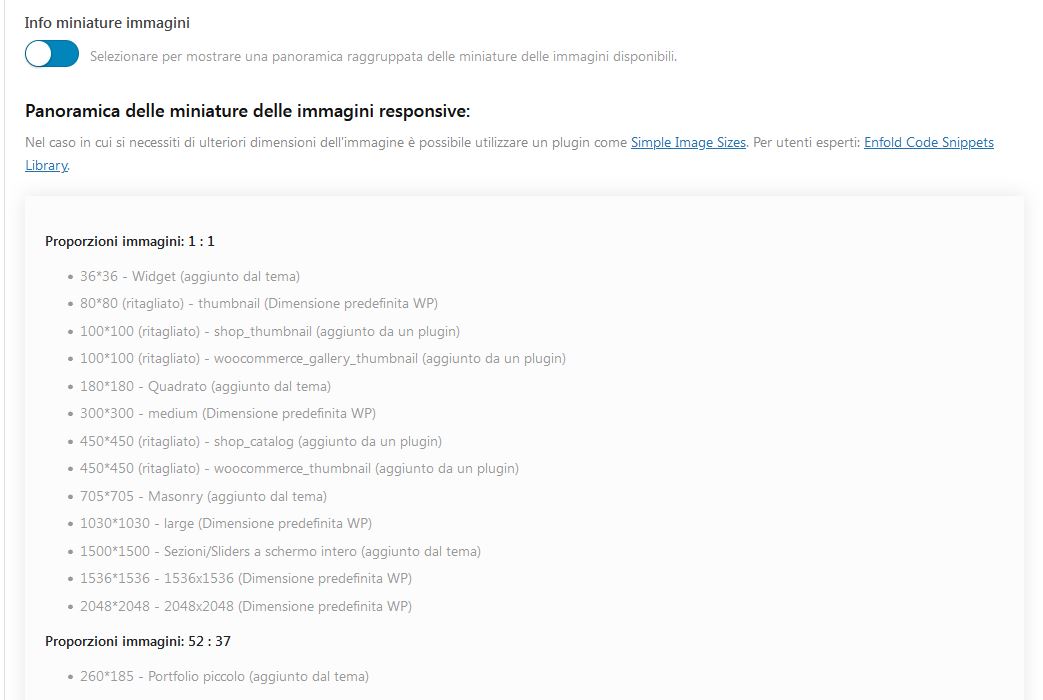
here are the details on the thumbnails, one of the broken sizes (450×450) seems to be created by Woocommerce:
Hey Caleb,
Thank you for the inquiry.
The maximum size of the featured image used in the single event pages is set to 1360x321px by default, but we can adjust it by using this filter in the functions.php file.
// adjust the size of the single events featured image
add_filter('post_thumbnail_size', 'avf_single_event_post_thumbnail_size');
function avf_single_event_post_thumbnail_size($size)
{
    if ( is_singular('tribe_events') ) {
        $size = 'full'; // Change to your desired image size.
    }

    return $size;
}
This should display the original version of the featured image.
Best regards,
Ismael
Hi,
but in the “perfect masonry” even with thumbnails “no scaling“ the images are cropped if they differ in ratio.
Best regards,
Vera
Hi BrendaSarg,
I have checked the link and I don’t see any duplicate on the link you gave.
Also for fixing the issue before this is what I posted I have removed the one thumbnail that is duplicate in the gallery that was the only thing I did.
Best regards,
Nikko
Hi, I am using the Events Calendar plugin with Enfold. I created an event and added a featured image to this event. However, the image being used on the Single Events template is too small and is cropping my image. Here is the event I am working with: https://www.zionrockbaptist.org/event/pastor-emeritus-james-c-edwards-appreciation/. I think Enfold is using the thumbnail or a smaller version of the featured image because the image is being cropped.
Here is a screenshot of the issue: https://share.getcloudapp.com/ApuXK9AA
I would like the image to be taller like the original file. Or just adjust the template to use the full-size image. I couldn’t find any CSS to fix this so I was hoping you could help me out a bit.
Is there a way to get the Single Events template to show the full size featured image? I appreciate any help you can offer. Thank you!
Also for information: if we manually create and upload those image thumbnails via FTP and overwrite the broken ones (with filesize 0), then they are shown correctly in homepage / shop



