Hi Ismael,
1) IMAGESIZE
Installed. It works for the single-post-thanks. You have to generate the thumbnail(s) new or upload it again.
b) BLOG OVERVIEW
Preference: Elegant, Advanced layout editor. Don´t know, what for a size of images to edit there. By inspecting it: class=big-preview single-big and inside class=attachment-no scaling size-no scaling wp-post-image
Do you have a final solution?
2) SINGLE POST IMAGE & LIGHTBOX
Thanks. Don´t know what you mean with second option, but it works for me. Last thing to that is: lightbox. How can I deselect the lightbox here? The first code snipped crashed the website. Do you have a final solution?
Best regards Sven
Hi,
1.) Please install and activate the following plugin then go to the Settings > Media panel. https://wordpress.org/plugins/simple-image-sizes/
2.) Edit the blog posts element and then set the Preview Image Size to the second option. A new option will appear that will let you select the thumbnail size for the blog overview page. For the actual post page, after installing the suggested plugin above, go to the Settings > Media panel then adjust the size of the “entry_with_sidebar” thumbnail. Regenerate the thumbnails afterwards.
Best regards,
Ismael
Hey gregclark!
Can you install and re-run the plugin Regenerate Thumbnails and let us know if that will fix your issue?
Thanks a lot
Cheers!
Basilis
Hey!
Can you try to use set Catalog Images and Single Product Images to 325px x 325px, Save it and run Regenerate Thumbnails? 334 x 334px appearing is actually scaled down from 450 x 450px that has been set (if you hover on it you should see Natural 450 x 450), as for the longer image you should see the natural size is 325 x 450px but since the image is being stretch in width to fill in the full width, and the height is also increased as a result to preserve the ratio of the image.
Cheers!
Nikko
How can I use a GIF animation as featured image
I found this piece of code, where it will insert the GIF, without changing the size, so that the GIF will show as featured image. If JPEG or other image file, it wil recize.
But where to put the code, or is there any other way to use GIF animations inside the Enfold theme?
<?php
$url = wp_get_attachment_url( get_post_thumbnail_id() );
$filetype = wp_check_filetype($url);
if ($filetype[ext] == ‘gif’)
{the_post_thumbnail(‘full’, array(‘class’ => ‘img-responsive’)); }
else
{the_post_thumbnail(‘medium’, array(‘class’ => ‘img-responsive’));}
?>
I re-upload the featured image. but no effect. Here a screenshot. The Thumbnail is still cropped in center.

Hi,
It’s possible to add a minimum height to the product items via css but it may distort some of the images. And looking at the product thumbnails, the size varies a lot so I don’t think this will work. Example:
http://fordtractorsales.co.uk/wp-content/uploads/2016/10/3247C-1-44×200.jpg
http://fordtractorsales.co.uk/wp-content/uploads/2016/10/41357-1-200×56.jpg
http://fordtractorsales.co.uk/wp-content/uploads/2016/10/4413-1-147×200.jpg
Again, the only solution is to upload images with the same size and aspect ratio. Or force the product thumbnails to be resized to a specific dimension with the “hard crop” parameter enabled.
// https://wordpress.org/plugins/simple-image-sizes/
Best regards,
Ismael
Hi Rikard,
The problem appears to be with portfolio entries that use flexible masonry. As you change the window size on the browser, the image gets resized to fit (same if you zoom). On my laptop, at normal screen resolution (Ctrl-0), Firebug tells me the image size is about 232x232px – Google Page Insights reports 183x183px probably because their virtual browser has a different screen resolution.
The other thing that bothers me is that the image thumbnail being loaded is 705x705px – why not choose a thumbnail a little closer to the actual render size.
Regards
Alan
Dear support team,
on our page https://www.hapkido.academy i experience incorrect display of video thumbnails in a portfolio raster (“adjust to content width”). This happens in Firefox, when i fully reload the site (shift + reload) and immediately scroll down to Videos. If the browser hasn’t rendered the page fully yet, it seems you forget to adjust the correct height of the video thumbnails once it has finished its work.
When i resize the browser window, the thumbnails’ heights is immediately corrected.
Is this a bug in your theme?
Am i doing something wrong?
I attached links of a sample output in case you can’t reproduce the effect instantly.
best regards,
Tom
The function to get the Short Description to display on the category thumbnail viz.
add_action( 'woocommerce_after_shop_loop_item_title', 'avia_shop_overview_extra_header_div_new', 20);
function avia_shop_overview_extra_header_div_new() {
	global $post;
	$text = '<div>' .$post->post_excerpt. '</div>';
	echo $text;
}
was actually provided by Yigit, one of your Enfold Support colleagues, in response to a previous question – https://kriesi.at/support/topic/woocommerce-grid-remove-price-and-add-product-short-description-instead/#post-680083
I have modified that function by using snippets from other Enfold questions/replies to get it to show the Short Description instead of the_excerpt, so I rather hoping that someone could suggest a further tweak to fix how the Short Description is currently being displayed…?
Hi,
You need to look at 2 things.
1. The product listing for Anniversary Waltz as per your imgur image. The Short Description is listed out one line after another. This is OK.
2. Then look at the thumbnail/summary for that product on the category page for Limited Edition Prints, as seen in my link here: http://imgur.com/a/GnzpS. (The menu structure has changed; the category page URL is – http://dev.jacksgallery.co.uk/product-category/limited-edition-prints/) To easily find the thumbnail/summary for the product Anniversary Waltz on the category page you should alter the “Sort by…” selector at the top of the page to “Sort by Name”, then the thumbnail should appear in the middle of the second row on the first page. When you see the thumbnail you will see the Short Description lines flow one after another and are not separated by line breaks as they are in the actual product, so this is wrong. This is what you can see in my imgur link above.
-
This reply was modified 9 years, 5 months ago by
 zimbo.
Hello!
We installed the “YITH Composite Products for WooCommerce” plugin and ran into a problem loading the product info after selecting an option (XHR request fails and gives status 500).
The YITH support came with a solution, could you put this in as a bugfix in a new release?
====
there was an error caused by the theme Enfold, I did a fix via ftp on the file :
/wp-content/themes/enfold/config-woocommerce/config.php, changing the code on line 1335 in this way:
if( has_post_thumbnail() && is_object( $product ) )
and now it works as you can see.
Turn this feedback to theme to avoid that my fix will be ovewritten by a theme update.
====
Cheers,
Nico
HI Ismael,
Yes I set the size of the catalogue images and rebuilt the thumbs. I know the better solution is upload images all the same size but this is a shop transferred over from Joomla which has 2288 products, all with old images of varying sizes.
What I want is the image to be responsive and fit centered within a square which size depends on the responsive layout. Once this works I will rebuild the thumbnails without hard crop. This way all products will line up evenly and show the full product image. At the moment it looks a mess.
Thanks
I have blog feed on the home page of a site and i’m currently using the blog style Single Author, small preview Pic. I need help with two changes I can’t see to figure out.
1. I need to make the blog thumbnail image 200px by 160px
2. The thumbnail needs to be on the left side similar to this http://realkenya.co.ke/blog/
The magazine element doesn’t work because it has to be able to have an excerpt. Can somebody please point me in the right direction. I’ve browsed this forum for about an hour and can’t figure it out. Thanks in advance.
Hi Yigit,
Thank you for the reply and much appreciated.
I have enclosed a screenshot of where I would like the text box http://imgur.com/a/HyYBZ
Basically, this will allow the product categories to be search engine friendly by adding more relevant text below the product subcategory thumbnails.
The problem Enfold has at the moment is the only place to p[ut the content is above the subcategories. The problem with this is you can only have a little text. Too much and it pushes the content down and looks unattractive.
It would be better to have the text in both places above and below – one for the H1 content and one below for the H2 content.
Thanks
Vincent
Hi there,
I need to add a blog to my homepage that mirrors the design of the blog page (small thumbnails to the left of the title and excerpt text). I’ve tried the advice in this post with no luck:
I also saw advice to use a sidebar but this won’t work for the homepage, where I do need the advanced editor to lay out all elements for the page. Can you help me get this sorted? Link below, scroll all the way down to see the blog feed.
Hi there,
My blog page isn’t displaying thumbnail images correctly. The image should take up the full thumbnail, instead it’s only covering part of the thumbnail and the rest is a green color pulled from my theme settings. Can you help me fix this? Thank you!
Please see this post/product.
The Short Description is written out on the product page as
Limited Edition Print
Giclee
Published in 2016
Supplied mounted
and that is how it displays on the above product page.
If I look at the Text version of the words (as opposed to Visual) there are no HTML Tags but on the rendered page there are <p> … </p> tags around each line so each displays on its own line – which is how it should be.
I have implemented the code below in functions.php to show the Short Description on the category summary page as seen here (scroll down/search for the Anniversary Waltz product, it’s the only one with a Short Desc) or there’s a screenshot here.
add_action( 'woocommerce_after_shop_loop_item_title', 'avia_shop_overview_extra_header_div_new', 20);
function avia_shop_overview_extra_header_div_new() {
	global $post;
	$text = '<div>' .$post->post_excerpt. '</div>';
	echo $text;
}
The Short Desc is appearing on the product thumbnail but the formatting is not correct. As you can see the text lines are not separated because no <p> or <br> tags are being inserted, and the 4 lines show one after another. If I try to manually insert a <p> in the Text editor, the WordPress editor strips them out again.
How can I get the Short Description to display properly on the category page i.e. each line on its own, as it does on the product page?
Hi,
Please try adding this code to the Quick CSS section under Enfold > General Styling or to your child themes style.css file:
.avia-post-nav .entry-image img {
    border-radius: 0 !imporatant;
    max-width: 120px !important;
}
Change the width to what size you want the thumbnails to display.
Best regards,
Jordan
Yup, I see it now too and fresh changes take immediate effect. Cool.
Hmm, I woulda sworn I’d shift-refreshed, not sure why it was sticky. Whatever.
New related question — how can I style the thumbnail image that appears when the tab slides out?
I wanna make it square, and might change the size, not sure. Thanks.
code is added to function.php and for some selected post images where regenerate. but no effect. the post thumbnails are still centered.
Hi Tyler!
Thank you for using Enfold.
I checked the site and I found out that the memory limit is set to 64M. The theme and additional plugins requires at least 128M in order to work properly.
// http://www.dailyblogging.org/wordpress/increase-wordpress-memory-limit/
For the thumbnail regeneration, please use this plugin instead.
// https://wordpress.org/plugins/force-regenerate-thumbnails/
Best regards,
Ismael
Hey!
Thank you for the info. Please add this code in the functions.php file.
function ava_image_sizes() {
	add_image_size('widget', 36, 36, array('right', 'center'));
}
add_action( 'after_setup_theme', 'ava_image_sizes', 11 );
Regenerate the thumbnails afterwards. https://wordpress.org/plugins/force-regenerate-thumbnails/
Cheers!
Ismael
Hello,
I have encountered a problem when uploading images, it only shows gray thumbnails but not the actual image as compared to others that were previously uploaded.
Kindly see the screenshot below:
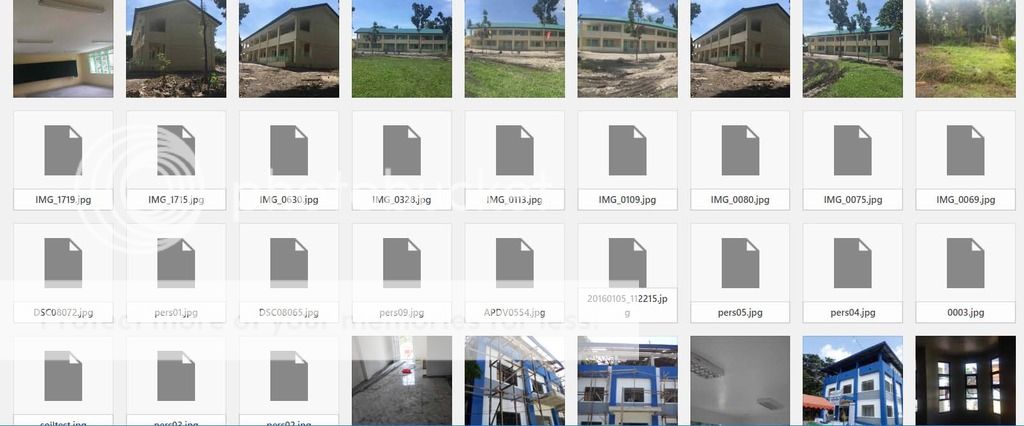
when i try to click one of these images it gives me an offline status of the image. the images seems doesnt exist.
Looking forward to hear from you soon.
thanks
Hi,
Try the following:
1. Install this plugin: https://wordpress.org/plugins/simple-image-sizes/
2. Go to Settings > Media
3. Change the entry_without_sidebar image size (increase its width / height).
4. Regenerate the thumbnails by clicking the button at the bottom.
Best regards,
Yigit
Hello,
I am using Enfold 3.8, WordPress 4.6.1
All the gallery thumbnails (sized as “square”) seem to overlap once the accordion is opened. Is there a possible fix?
Seems to happen in Firefox/Safari.
Thanks!
Troy
Hey!
Please use the following function, if it works for you or the plugin listed
add_filter( 'avf_modify_thumb_size', 'enfold_customization_modify_thumb_size', 10, 1 );
function enfold_customization_modify_thumb_size( $size ) {
$size['entry_with_sidebar'] = array('width'=>1210, 'height'=>560);
return $size;
}
then regenerate thumbnails – https://wordpress.org/plugins/regenerate-thumbnails/
or use the plugin
https://wordpress.org/plugins/simple-image-sizes
Regards,
Basilis
Hey!
I already checked your website however removing thumbnails only on posts that has no featured image looked ugly. You can use following code to hide the placeholder
span.news-thumb.no-news-thumb {
    opacity: 0;
}
Cheers!
Yigit
Hi bibbitybop!
Please add following code to Quick CSS in Enfold theme options under General Styling tab to remove thumbnails from your widget
span.news-thumb {
    display: none!important;
}
Regards,
Yigit
Hey!
That will make your thumbnails unclickable. Please go to Enfold theme options > Advanced Styling and edit “Linked Image Overlay ” and disable it :)
Regards,
Yigit



