Hi,
I have looked at a lot of the masonry problems thread, and I wanted to add a slight variation that is affecting one of my website (and not the other) : the thumbnails used for the blog masonry do not show up anymore. Only the beginning of the extract is visible, the title disapears too.
You can see what it looks like here :
https://centmillemilliards.com/wp/blog/
I’ve already tried regenerating the thumbnails, the shortcode.js fix found by Ismaël, and emptying the cache at every try, but to no avail.
Any idea what could be the problem, and if a fix is incoming ?
Thanks again !
After overwriting the files, I had some size issues that I fixed by using the following option:
Single product image 430 x 299 HARD Crop
After setting these Options I Forced Regenerate Thumbnails by using the plugin “Force Regenerate Thumbnails”
Some more issues:
1. Now there are related products on the single Product page which I removed earlier by the adding a function to the function.php
2. Some Buttons / Labels are in english and not in German
e.g.:
Additional information
Continue Shopping
Proceed Checkout
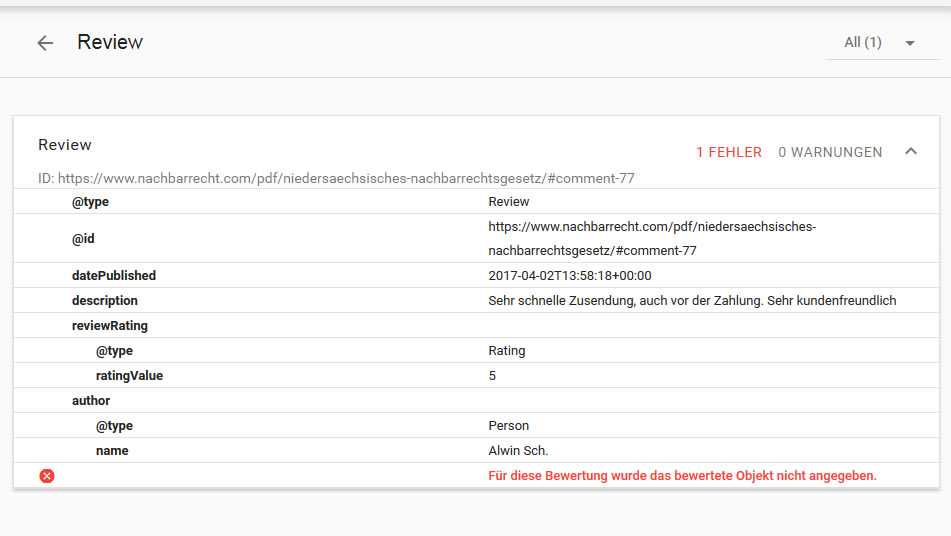
3. When testing the Rich snippets there appears an error with reference to the Review
https://www.nachbarrecht.com/bilder/richsnippeterror.jpg
-
This reply was modified 9 years ago by
 Oversberg.
Hello,
All images had disappeared not only on the slider but “ALL” the images/thumbnails too.
Need an urgent fix.
-
This reply was modified 9 years ago by
 Ope_Market.
same problem here ..
with the quick css it will show a product picture but with wrong resoultion. (its the thumbnail size picture ..120×120)
Hi, I have the same issue, all of the thumbnails are there but somehow the opacity has set to 0 and so they are not visible. I tried adding various css code but nothing works. Please help! Thanks.
Hey Dandelion222,
If you want to change the thumbnail size, you can see the options at Enfold Theme Options > Blog layout > Blog styling.
Best regards,
John Torvik
On my posts page the blurbs all show with a little square thumbnail next to them. And that thumbnail is created from the post’s featured image. Unfortunately, often the crop looks terrible as the system crops a long horizontal image into a square shape. Also, sometimes they are cut off.
Is there anyway to set the thumbnail myself? Or to have the thumbnail aspect ratio match that of the featured image?
The code does not “work”, it is more of an “oh shit!” band-aid patch. The main product image is using a stretched 120×120 Image, so it is basically pulling a gallery size thumbnail and stretching it into the main product image size. (450×999 default) so it looks abysmal.
NSFW Warning unless Sex Toys do not bother you, no pornography is displayed:
http://bareblissproducts.com/shop/
Added: .woocommerce-product-gallery {
opacity: 1 !important;
}
Still didn’t work, images are still blurry and the error message still showing.
Warning: Missing argument 3 for avia_woocommerce_gallery_thumbnail_description() in /home/mysite/public_html/wp-content/themes/enfold/config-woocommerce/config.php on line 1349
Warning: Missing argument 4 for avia_woocommerce_gallery_thumbnail_description() in /home/mysite/public_html/wp-content/themes/enfold/config-woocommerce/config.php on line 1349
Regards,
Mongiat
I added: div.product div.images {
opacity: 1!important;
}
The image shows up, but it’s the thumbnail and it’s stretched and blurry.
The following error messages show above the image:
Warning: Missing argument 3 for avia_woocommerce_gallery_thumbnail_description() in /home/mysite/public_html/wp-content/themes/enfold/config-woocommerce/config.php on line 1349
Warning: Missing argument 4 for avia_woocommerce_gallery_thumbnail_description() in /home/mysite/public_html/wp-content/themes/enfold/config-woocommerce/config.php on line 1349
[“mysite” added to above error messages, to keep private my register only website shopping cart]
How do I do this (regenerate thumbnails)?
Hi!
We have tested WooCommerce new version and we could not see any issue.
Can you please try Regenerate Thumbnails and see if that will fix the issue?
The data transfer should not have had any problems at all, because WooCommerce change files which Enfold
has nothing to do with it.
Try do that and lets see if the issue will be fixed
Regards,
Basilis
Meuwessen fix does work, but Pic is using the 120×120 thumbnail and then stretched, correct.
Hi Team Kriesi,
I’m testing the new Woocommerce 3.0 on a couple of staging sites.
I haven’t conducted loads of testing yet but one issue has immediately appeared that you’ll probably want to be aware of – no product images!
The woocommerce-product-gallery class has inline opacity: 0. Presumably there’s some js that’s supposed to trigger the transition. At the moment it remains at 0.
There’s also the message:
<figure class=”woocommerce-product-gallery__wrapper”>
<br>
<b>Warning</b>: Missing argument 3 for avia_woocommerce_gallery_thumbnail_description() in <b>/wp-content/themes/enfold/config-woocommerce/config.php</b> on line <b>1360</b><br>
<br>
<b>Warning</b>: Missing argument 4 for avia_woocommerce_gallery_thumbnail_description() in <b>/wp-content/themes/enfold/config-woocommerce/config.php</b> on line <b>1360</b><br>
…
Is this something you’re aware of?
I’m trying to turn OFF the tooltips for my portfolio page thumbnails. I’ve tried using this code, but it doesn’t work:
.avia-tooltip {
display: none;
}
You can see when you hover over the thumbnails on this page, the tooltip still displays:
Hi,
Please go to WooCommerce > Settings > Products > Display and change product images and then regenerate thumbnails using this plugin – https://wordpress.org/plugins/regenerate-thumbnails/
Best regards,
Yigit
HI everybody, i am in this situation: http://www.agevolaimprese.com/risorse-gratuite/
trying to reach this thumbnails look: 
I tried the solutions I found in this forum, but nothing works for my case.
Can you help me?
Thank you very much!
Hi Ismael,
Thanks a lot for this – I’ve regenerated the thumbnails accordingly and I’ll keep an eye out for the images on the post slider so hopefully any future images will be cropped properly.
Hey tzanten,
Thank you for using Enfold.
Please adjust the size of an existing thumbnail then use that instead of creating a new one. Note that the images may not still display in its actual dimension because of the default css style of the slider.
Best regards,
Ismael
Hey!
This is the image in one of the posts inside the post slider.
// DELETED
Please install the following plugin then go to the Settings > Media panel. Search for the “featured_large” thumbnail and enable the “crop” parameter. Update, save then regenerate the thumbnails afterwards.
// https://wordpress.org/plugins/simple-image-sizes/
Best regards,
Ismael
Hi!
I edited your gallery and changed big thumbnail image size. Please review your website now :)
Cheers!
Yigit
Hi.
The images in the gallery look awful, when you click own them to pop up they look fine and close to the original.
It is set to” big image with thumbnails below” and the big image is very poor.
Tried uploading various image sizes and quality but they all end ups looking rubbish.
Any advise please?
You can see the page we have the element on in the private content.
 Barry Kneller
Hi Rikard! Thanks for your reply. I am looking to make a portfolio page like the Masonry 3 Column Grid in Enfold but when you click on one of the items a video player will open up and play a video instead of displaying an image. I do not want it to link to another page, I want to put a picture as a thumbnail, name of the video underneath and have the player open right on top of the page similar to what you see in the Coalition theme.
I went thru the Enfold elements page and it is an amazing theme! I am considering both the Coalition and Enfold. I do think Coalition is more appropriate for what I am looking to achieve, but yes Enfold offers wonderful features and is beautiful.
Thanks!
Barry
Hey!
We are happy we can help!
If – for any reason you need to use the Thumbnail option for somewhere else to the template
you can use the following
get_the_post_thumbnail( $post->ID, array( 'width'=>150, 'height'=> 150 ), array( 'style' => 'margin-bottom: 15px;' ) )
Let us know if we can do anything else for you!
Cheers!
Basilis
Changing settings to 150×150 for Thumbnail photo solved the issue… thanks!
Hi Ismael – I think this must be a browser related issue in that case – the default for me on this subdomain is definitely “Thumbnail”.
It’s frustrating – but not the end of the world.
I’d hoped there was a setting I could have changed.
Thanks,
Mark
I’m using the latest news widget and I add this css code:
.image_size_widget .tweet-thumb img, .image_size_widget .news-thumb img {
width: 80px;
height: 80px;
}
.image_size_widget .news-thumb {
height: 80px;
width: 80px;
}
But I want that the thumbnail is not cropped (they are cropped also before the change).
How should I do?
Thanks
Hey Ismael,
Apologies it’s taken me so long to give an update on this….
After downloading the simple image sizes plugin and changing the “portfolio” thumbnail size as per your instructions, regenerating etc, there hadn’t been a change, but after going into each separate product and regenerating the image one by one finally they cropped!
Thanks.
I’ve checked the code tags from the front end of the website, and I found this code:
<div class='flex_column_table av-equal-height-column-flextable' >
<div  class=" flex_column av_one_third  flex_column_table_cell av-equal-height-column av-align-middle av-zero-column-padding first  avia-builder-el-3  el_after_av_submenu  el_before_av_two_third  avia-builder-el-first  " style='border-radius:0px; '><div style='padding-bottom:0px;' class='av-special-heading av-special-heading-h1  blockquote modern-quote  avia-builder-el-4  avia-builder-el-no-sibling '><h1 class='av-special-heading-tag'  itemprop="headline"  >Welcome</h1><div class='special-heading-border'><div class='special-heading-inner-border' ></div></div></div></div></a>
<div class='av-flex-placeholder'></div><div  class=" flex_column av_two_third  flex_column_table_cell av-equal-height-column av-align-middle av-zero-column-padding   avia-builder-el-5  el_after_av_one_third  el_before_av_one_full  " style='border-radius:0px; '><div class='avia-image-container  av-styling-   avia-builder-el-6  avia-builder-el-no-sibling  avia-align-right '  itemscope="itemscope" itemtype="https://schema.org/ImageObject"  ><div class='avia-image-container-inner'><a href='http://themanse.co.nz/booking/' class='avia_image'  ><img class='avia_image ' src='http://themanse.co.nz/wp-content/uploads/2014/10/TM-BOOK-WITH-US-BUTTON-01.png' alt='Book with us' title='Book With Us'  itemprop="thumbnailUrl"  /></a></div></div></div></div><!--close column table wrapper. Autoclose:  --></a>
There are two closing </a> tags that seem to have no matching tag. The elements in the Visual Builder are just a Special Heading in a 1/3 Column, and a Text Block containing a linked image in a 2/3 Column. The source in the Text Block has no issue, and the Special Heading isn’t even linked, so I don’t know how the extra tags are being put there or how to remove them, or whether they might come back once removed.
I can replace the page, but is there a better way? Thanks
-
This reply was modified 9 years ago by
 TerryGrow.
Hey JuanjoBarasoain,
can’t see any hover effect on the image, so seems you could achieve it. Don’t forget to clear browser cache and hard refresh a few times.
Try the following:
1. Install this plugin: https://wordpress.org/plugins/simple-image-sizes/
2. Go to Settings > Media
3. Change the image size in question (increase its width / height).
4. Regenerate the thumbnails by clicking the button at the bottom.
Best regards,
Andy