Hi
2 questions
1: how / where do I delete page template on the template list?
2. A template I built is not showing the content (title / blog) it should: Meinung Seite ist the template name.
See: https://jmbuettner.ch/meinung/?preview_id=101&preview_nonce=c38b70099c&preview=true&_thumbnail_id=559
the same content is visible if I to set the page on standart template.
please note that php has been modified by you on my request for full content of blog (see last thread).
regards
Dominic
Hi,
Add this css code to adjust the layout of the tag pages:
#top.tag .no_margin.av_one_third {
  float: none;
  margin-right: 2%;
  width: 31%;
  margin-bottom: 2%;
}

#top.tag .grid-sort-container {
  display: flex;
  flex-wrap: wrap;
  flex-direction: row;
}

#top.tag .grid-entry-title.entry-title {
  font-size: 1.2em;
  padding: 10px 13px;
}
Then add this code in the functions.php file to adjust the image thumbnail:
add_filter("avf_post_slider_args", function($atts, $context) {
  if( $context == "tag" ) {
    $atts['type']  = 'grid';
    $atts['preview_mode'] = 'custom';
    $atts['image_size'] = 'full';
  }
  return $atts;
}, 10, 2);
If you have any additional questions at this time we kindly ask that you open them up in a separate thread. The longer threads get in the forum, they become more difficult to support as they tend to drift off topic and they also make it troublesome for users trying to search for solutions. Keeping threads relevant to their original inquiry ensures that we can keep better track of what has been resolved and that users can more effectively find answers to similar issues they might be experiencing.
Thanks!
Best regards,
Ismael
Hey Angelo,
Thank you for the inquiry.
In the EN version, you may need to edit the Text Block containing the embedded attachment and manually adjust the image URL.
<a href="https://www.site.it/wp-content/uploads/2022/07/23-495x400.jpg" class="lightbox-added" style="position: relative; overflow: hidden; display: block;">
    <img
        decoding="async"
        aria-describedby="caption-attachment-18987"
        class="wp-image-11154 size-portfolio"
        title="Toward Stafal"
        src="https://www.site.it/wp-content/uploads/2022/07/23-495x400.jpg"
        alt="Toward Stafal"
        width="495"
        height="400"
        srcset="https://www.site.it/wp-content/uploads/2022/07/23-495x400.jpg 495w, https://www.site.it/wp-content/uploads/2022/07/23-845x684.jpg 845w"
        sizes="(max-width: 495px) 100vw, 495px"
    />
    <span class="image-overlay overlay-type-image" style="left: -5px; top: 0px; overflow: hidden; display: block; height: 409.062px; width: 513px;"><span class="image-overlay-inside"></span></span>
</a>
Currently, it is linked to this thumbnail:
https://www.site.it/wp-content/uploads/2022/07/23-495x400.jpg
Whereas the IT version links to the original version of the image:
https://www.site.it/wp-content/uploads/2022/07/23.jpg
Best regards,
Ismael
Hi folks.
If I click on the thumbnails of my images in the original (Italian) version of my website, images opens up in the right size. If I go to the English version of the page (I have translated my website with WPML), images open up in the same size as the thumbnail…
See here: italian page, https://www.sentierigressoney.it/sentieri/gressoney-saint-jean-sentiero-14-saint-jean-trinite/
If I click on this thumbnail…
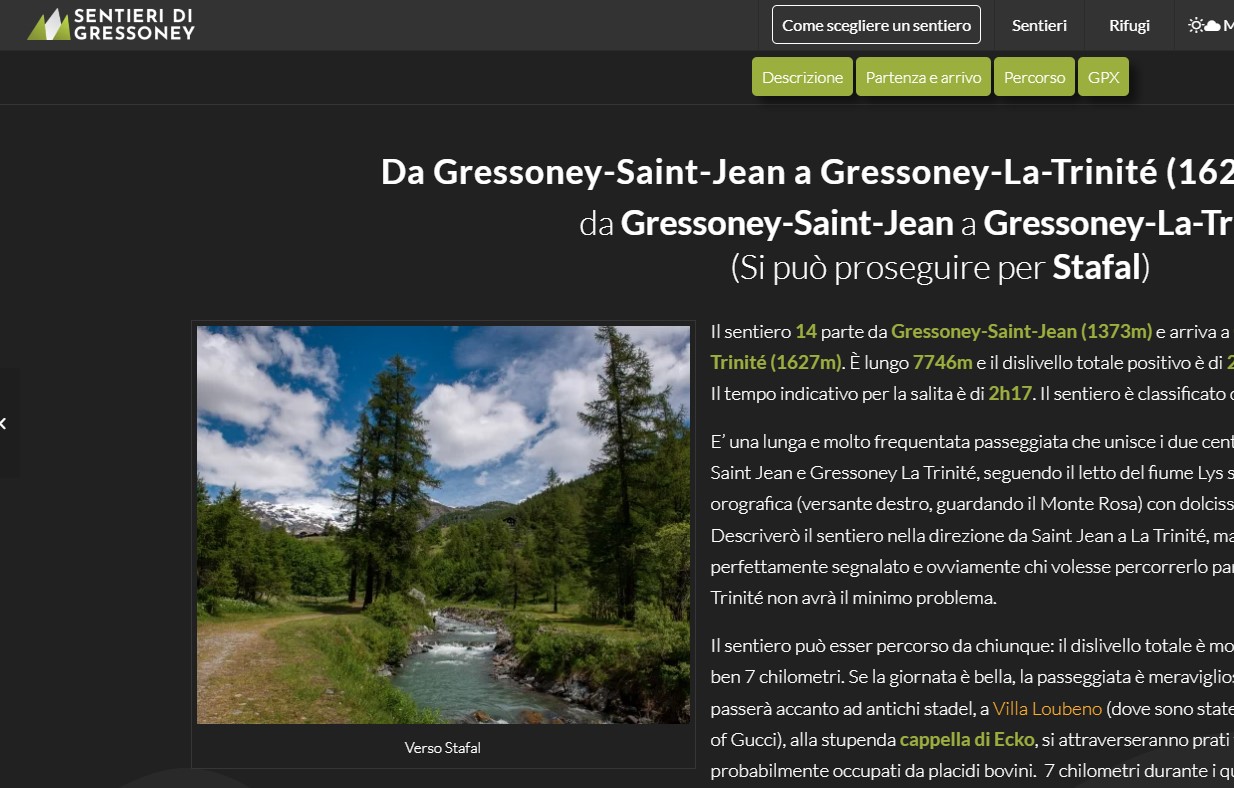
…the picture opens in the full media size.
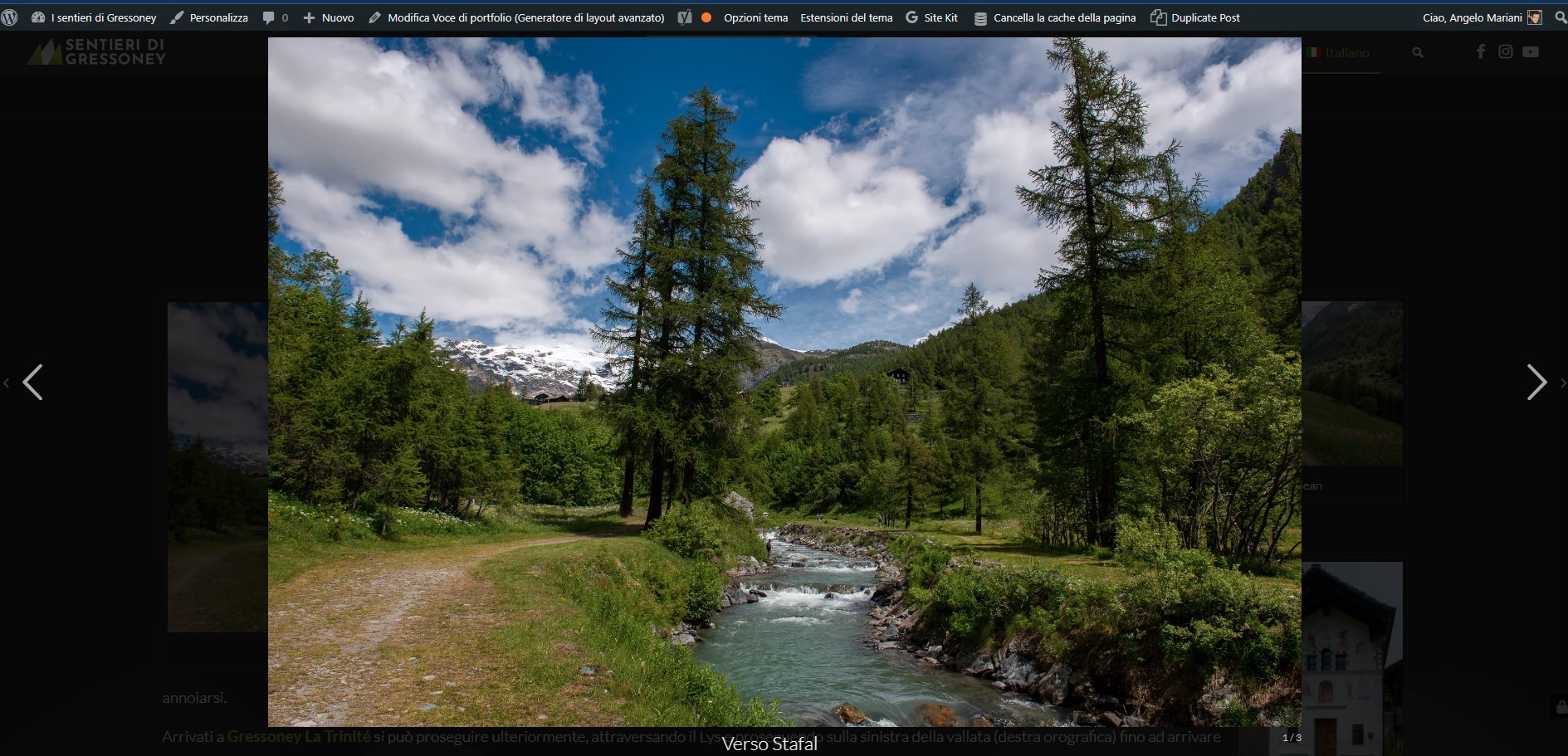
See the English version of the same page, https://www.sentierigressoney.it/en/sentieri/gressoney-saint-jean-to-gressoney-la-trinite-trail-14/
If I click on the same thumbnail…
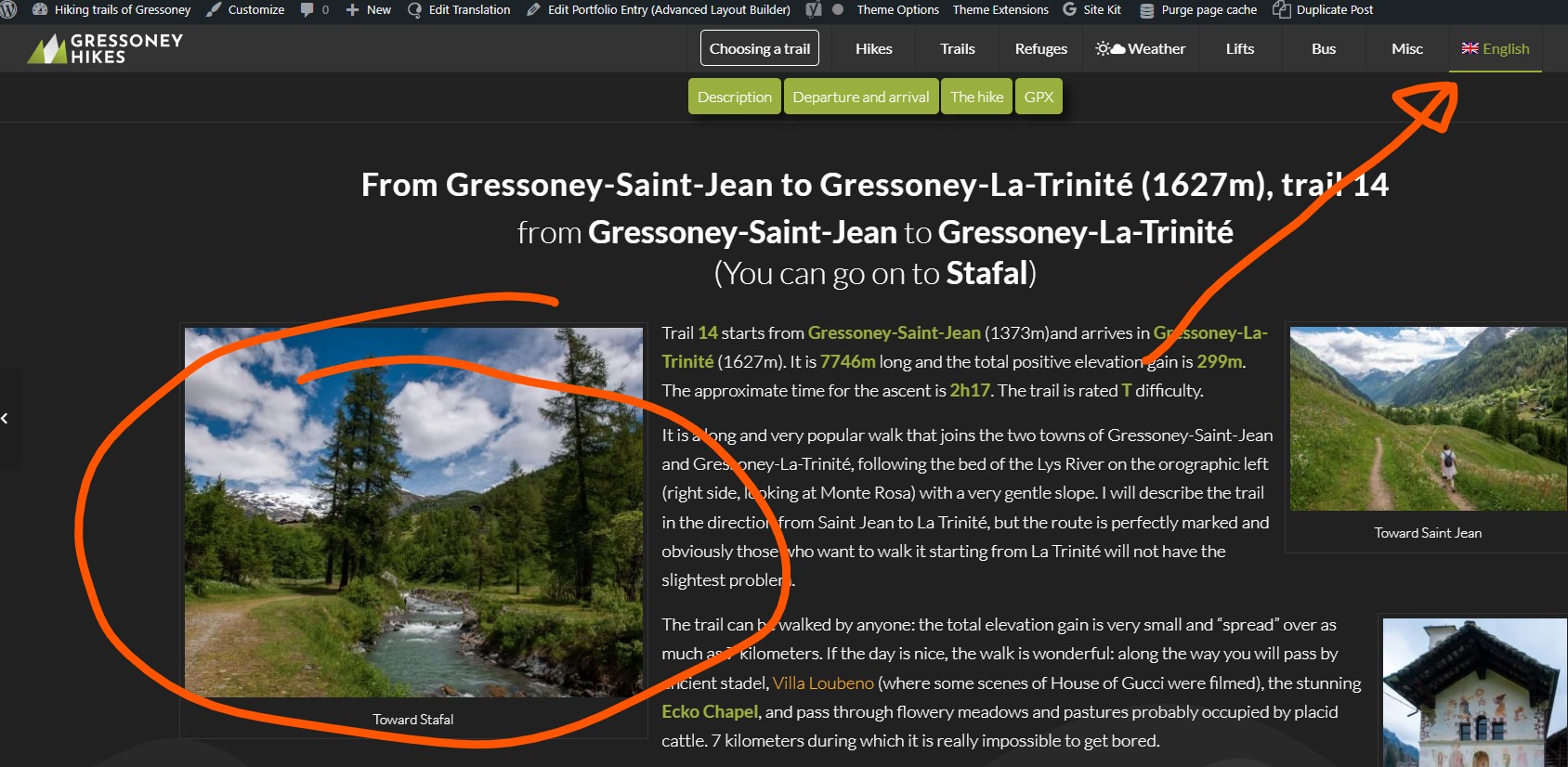
…the picture opens in the same size as the thumbnail.
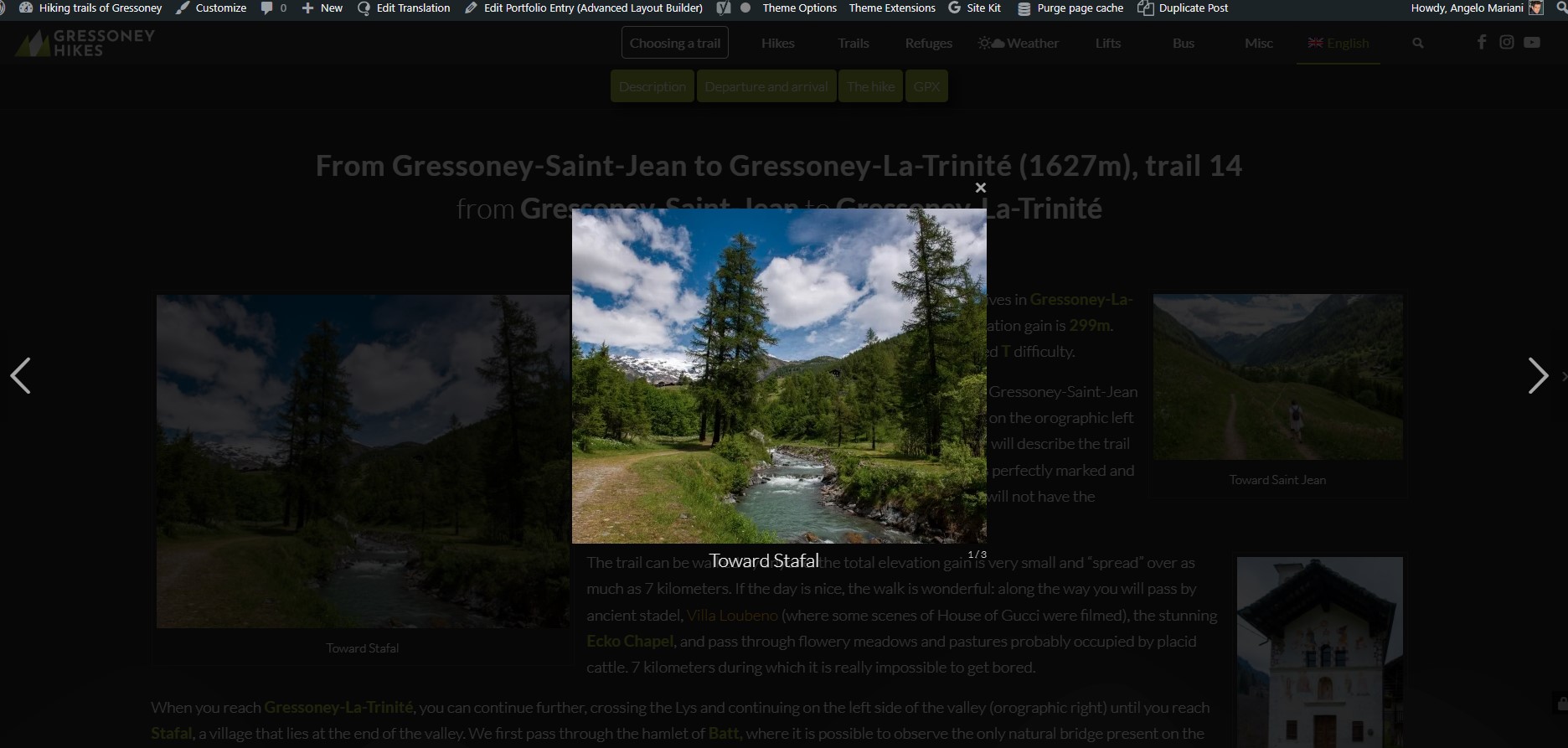
Honestly, I’ve never realized it before. I am quite sure it was not working like this some time ago, though…
I hope you can help me… gosh!
Thanks in advance!
Bye,
A.-
Hi,
Thank you for the update.
Yes, the theme resizes the logo and generates different thumbnails for it, but you have the option to select the original size before using it as a logo. Go to the Theme Options > Logo section, click the Upload button, select the image, and then look for the Attachment Details > Size settings.
Best regards,
Ismael
Hey Andreas,
Thank you for the inquiry.
The size of the logo image is 300x89px. Looks like you’ve selected one of the thumbnails. Please make sure to select the original version or size of the image before inserting it as logo.
Best regards,
Ismael
Hi Folks:
I used your CSS to display captions below gallery thumbnails, and it does work to do that. HOWEVER the caption text will not wrap. If the length of the caption text is longer than the thumbnail image is wide, instead of wrapping the text, the text stays on the same line pushing the container width out to match. This in turn causes the thumbnail image to be wider and proportionately taller, which throws everything out of whack.
What CSS can I apply to #top .avia-gallery .avia-gallery-thumb a:after that will allow content: attr(title) to wrap and not push the image container wider??? In case it’s relevant, I’m using Gallery Style: Small Thumbnails.
Thank you!
Scott
-
This topic was modified 2 years ago by
 scotthco.
Hi Mike,
Thanks for reporting back on the issues Ref. the ‘threefold’ reasons….
1. Agreed, that was the selected option – single post with small preview (featured) image.
2. Re. the div.blog-meta {display:none; }….. you gave me some CSS code on 18th March to hide the thumbnails in the sidebar. I can’t recall adding any blog-meta hide….I wouldn’t have known how to!! (although maybe I picked it up here…. https://kriesi.at/documentation/enfold/blog-post/#change-archive-categorytag-blog-style ….which I was advised to look at by Ismael)
3. Again, that custom function may have been added via advice taken from the documentation. Although I can’t honestly remember doing that. (it’s hard to log every move and keystroke!)
Unfortunately your pointers don’t quite resolve all my issues.
A. The micro preview images on the sidebar links are still showing. As I said earlier in the thread (18th March), I don’t want these ON THE LINKS. But I do want the featured image in the post.
B. When I have no featured image for a post…..why is a grey placeholder image inserted? No featured image means I don’t want an image….any image! The grey placeholder is ugly.
C. Can the featured image in the post be aligned left (with the body of the text), and with a bit more white space between it and the post title? Probably jusst some simple CSS, but not sure what the selector is.
The main thing is NOIT to have little square preview images (meaninglessly small) on the sidebar links.
Thanks
Hugh
Hey Martin,
Thank you for the inquiry.
You may need to adjust the maximum dimension of the entry_with_sidebar thumbnail. Add this code in the functions.php file:
function avf_customization_modify_thumb_size( $size ) {
      $size['entry_without_sidebar'] = array( 'width' => 9999, 'height' => 9999 );
      $size['entry_with_sidebar'] = array( 'width' => 9999, 'height' => 9999 );
      return $size;
}

add_filter( 'avf_modify_thumb_size', 'avf_customization_modify_thumb_size', 10, 1 );
Then use the this plugin to regenerate the thumbnails.
// https://wordpress.org/plugins/regenerate-thumbnails/
Best regards,
Ismael
Hi,
Thank you for the update.
Smaller images or thumbnails can significantly impact the quality of the rendered image. For example, if you have a container that is 500x500px in size and you attempt to cover it with an image that is only 50x50px, the resulting quality will appear pixelated, and a noticeable decrease in quality. To avoid this issue, you can use a different image, preferably one that is larger or at least the same dimension as the container.
Best regards,
Ismael
Hi there,
my next questions concerns the sidebar on my blogpost.
On the shared pics on Imgur (see below) you see the Blog page with the thumbnails of all blogposts. The sidebar on the right hand side contains a customized widget, that I have created and that shows an overview with links to my blogposts.
BUT: I want this overview to be shown in the sidebar of each single blogpost.
Yet, this doesn’t word like it works on the Blog page although I’ve put the settings in the same way (see pic).
What is my mistake resp. how can I make this work?
Thanks for helping me.
Regards,
Anne
Hey carmen,
Thank you for the inquiry.
https://faceclinic.es/equipo-medico/ – but I have only select medium size – but is blurry, h
Have you tried selecting the full-sized or the original version of the image instead of the medium size? Please note that WordPress automatically compresses images, resulting in a minor decrease in image quality, especially noticeable on smaller thumbnails.
Best regards,
Ismael
Mike,
I’ll set up a login for you shortly – will advise as follow up in this thread.
* Correct, I don’t want to show newsbox widget thumbnails. I’ve applied your CSS fix and that works nicely. But all the same I’d like to know HOW this works and WHY thumbnails were only showing on the blog page (News Stuff) and not on a post . Each have similar sidebars, so …..??
* Single posts – yes, I want featured images to show. Or at least I want to know why they are not showing when I’ve specifically chosen for them to show in the post admin! So rather than just a CSS fix or whatever, an explanation of WHY is more important – then I can handle it better as the blog section gets more intensive.
* Version – yes, just notified by Theme Forest yesterday, I’ll update as soon as I have a moment!
regards
Hugh
Hi,
If you would like us to investigate this further please include an admin login in the Private Content area so we can investigate, as I wrote above I can’t reproduce this on my demo site, so perhaps there is something else going on like a customization function or script or perhaps a plugin conflict, I’m not sure.
To be clear, you don’t want to show the newsbox widget thumbnails at all, correct? That is why I offered the css above as a quick solution.
As for your single posts, do you want the featured images to show?
I see that you are using v5.6.7 please also update to v5.6.12
Best regards,
Mike
Hi,
Thank you for your patience, the newsbox thumbnails don’t show on the post because the class “no-news-thumb” which is typically added when the featured image has been disabled on the post, I see on your posts the featured image and blog-meta is hidden, I don’t know why it is still showing on your blog page, I’m not able to reproduce this on my demo site, but I don’t know all of your settings and there are many combinations that can me used.
Nonetheless above you write the micro-thumbnails are way too small to be meaningful so to remove them from your blog page try this CSS in your Enfold Theme Options ▸ General Styling ▸ Quick CSS field:
.blog .avia-widget-container.newsbox .news-thumb  {
	display: none;
}
Best regards,
Mike
Yes, thanks, I was aware of the Latest Posts widget.
But what I’m asking is why ithe latest post links display differently in different views:
A. View the main blog page (News Stuff) – in the sidebar each latest post link has a small thumbnail pic (if the post uses a featured image)
B. Click on a link to view the full post – sidebar links of Latest Posts no longer display any thumbnail.
Why? Why (and where was it set up) do thumbnails display only on the blog front page (News Stuff) ? This behaviour is not controlled by the Misc > Widget Links in Advanced Styling.
See link below for example
Hi Ismael,
OK, got you there – thanks for that tip. (there’s an awful lot of options in Enfold so it can be tricky to understand what needs switching on or off!)
One other thing…..
On my page the blog shows a list of article excerpts, and in the right column the latest posts etc. The latest posts have a small square image in front of the title, presumably a micro-thumbnail of the post’s featured image.
When you click to go to an individual post, the right sidebar is still there with its list of latest posts, but without any micro-thumbnails. ?? Why is that?
To be honest, the micro-thumbnails are way too small to be meaningful – the plain text link is perfectly adequate. So how do I get rid of the micro-thuimbnails on the main blog page? (and why are they there, anyway?)
Finally, how do I style those ‘latest post’ links in the right sidebar? By default (according to the Enfold colour scheme), all links on the site should be coloured red. These links are not coloured. Why?
regards
Hugh
can you please test that snippet!
if you like to have 4 columns – just change it.
if you like to show the blog – then the context is not archive – it is index then ;)
PS: alb element = advanced layout builder element : if you use that – the element itself got some options to define the thumbnail size which is used.
but, as I suspected, you are not using this option
Hey downstreamproject,
Thank you for the inquiry.
The page is password protected so we were not able to check it. Did you apply featured images to your posts? Please check the documentation below for more info.
// https://wordpress.com/support/featured-images/#set-a-featured-image
// https://developer.wordpress.org/themes/functionality/featured-images-post-thumbnails/#setting-a-featured-image
Best regards,
Ismael
Hi,
Thanks for your patience and the details but I didn’t know what formatted as page link meant for SEMrush, but I found this article which says this typically means the image link goes to the image file, which is typically an error.
So I checked your homepage and your blog page but didn’t find this until I checked some of your blog posts, then I found some of your featured images on your single posts are linking to themselves, so try adding this code to the end of your child theme functions.php file in Appearance ▸ Editor:
function av_remove_featured_image_link($image) {
    if (is_single()) {
        $image = get_the_post_thumbnail( $current_post['the_id'], 'featured' );
    }
    echo $image;
}
add_filter('avf_post_featured_image_link','av_remove_featured_image_link', 10, 1);
and this should solve the issue.
Best regards,
Mike
Actually I think I have resolved this now. It seems the column count affects the output code by adding a “first_thumb” class to more than 1 thumbnail, so ive adjusted code to target the first thumbnail only now.
Thank you for the quick response.
can you put this in your child-theme functions.php:
function insert_a_whatsapp_button() {
?>
<script>
(function($){
	$( '#top' ).append('<div class="whatsapp-button"><a href="https://wa.me/3483883844?text=Salve,%20vorrei%20chiedere%20informazioni" target="_blank"><img width="80" height="80" src="https://srgl.it/aom/wp-content/uploads/2024/03/whatsapp_img-80x80.png" class="image wp-image-864 wa_img attachment-thumbnail size-thumbnail" alt="" style="max-width: 100%; height: auto;" decoding="async" srcset="https://srgl.it/aom/wp-content/uploads/2024/03/whatsapp_img-80x80.png 80w, https://srgl.it/aom/wp-content/uploads/2024/03/whatsapp_img-36x36.png 36w, https://srgl.it/aom/wp-content/uploads/2024/03/whatsapp_img.png 149w" sizes="(max-width: 80px) 100vw, 80px"></a></div>');
	$('.whatsapp-button').css({
		"position": "fixed",
		"bottom": "120px",
		"right": "20px",
		"z-index": "500",
	})
})(jQuery);
</script>
<?php
}
add_action('wp_footer', 'insert_a_whatsapp_button');
Hello,
In attempting to use the Video Media element, I expected a thumbnail of the video to show up (as it does for this particular video on other websites).
However, what I got is a big black square with the Vimeo URL in the upper left-hand corner.
Link in Private Content
Thanks in advance for your help!
My site is local right now, so no link. I am using Minimal Portfolio. On the portfolio main page, when All is selected, I want to see all of the items in all of the Portfolio Items, including all of the images in the Masonry Gallery media elements. So for instance, for Portfolio Item 1, I am using the Masonry Gallery with 20 images. For Portfolio Item 2, I am using the Masonry Gallery with 15 images. For Portfolio Item 3, I am using the Masonry Gallery with 10 images. When I am on the Portfolio page with All selected, I would want to see all 45 images (contents of everything). When I select Portfolio Item 1 (in smaller type, to the right of the subhead on the left) I would want to see the 20 images. When I select Portfolio Item 2, I would want to see the 15 images, and so forth. Right now I only see the featured image thumbnail for each Portfolio Item when I am on the main Portfolio page. So with my 4 Portfolio Items (which are the same as my Portfolio Categories), I only see the 4 thumbnails.
Hi , thanks for the reply.
We were trying to make the Gallery open from an ENFOLD Content Button Element on the page, so no gallery thumbnails in the page.
Gallery images only show when user clicks the Button to view the gallery.
Do you know of a way to create a gallery using the Content GALLERY ELEMENT – but hide the thumbnails on the page and use a Content BUTTON ELEMENT to open the gallery via a URL link for the button?
Basically we need a Button to open a lightbox gallery of images on the page, but do not want gallery thumbnails to show within the page content, until the gallery is requested by the visitor.
Hi,
Please see the link that Guenni007 posted above, and then reGenerate Thumbnails again, or try a plugin like TinyPNG
Best regards,
Mike
And what I mean by that is, I’m wondering if instead of seeing one thumbnail image from the set of images in a Portfolio Item, I see all of the images in the set of a Portfolio Item.
Hey joschro,
This sounds like you are linking to a page with a portfolio gallery on it and then clicking the thumbnail goes to the portfolio page.
In the menu you can directly link to a portfolio page, perhaps this is related to another post you had where the portfolio items were hidden in the menu page, perhaps that answer also solves this one?
Best regards,
Mike



