Dear team,
on my pag below I use 1) a content slider (middle section / Was Kunden über unsere Zusammenarbeit sagen:) and 2) a blogpost grid (bottom).
In order to get the titles of 1) white, I added thefollowing CSS
.avia-content-slider .slide-entry-title {
font-size: 25px !important;
color: white !important; }
But i want the blogpost titles 2) NOT to be in white.
How do I need to adjust the CSS acc.?
Thx a lot, Tilman
the rules set for av-grid-order-reverse and av-grid-order-individual overwrites the rules for av-medium-hide
You can of course argue that it makes no sense to set an order if you want to hide it anyway. – True, but sometimes you set screen-width options later in the good faith that the containers will no longer be displayed.
Maybe it’s too much of a storm in a teacup.
@media only screen and (max-width: 989px) {
	.responsive #top #wrap_all .av-layout-grid-container.av-flex-cells.av-break-at-tablet.av-grid-order-reverse {
		display: flex;
		flex-direction: column-reverse;
	}
	.responsive #top #wrap_all .av-layout-grid-container.av-flex-cells.av-break-at-tablet.av-grid-order-individual {
		display: flex;
		flex-direction: column;
	}
}

/***** versus   ( and of course the other screen width too ) ****/

@media only screen and (min-width: 768px) and (max-width: 989px) {
	.responsive.av-no-preview #top #wrap_all .av-medium-hide,
	.responsive.av-no-preview #top #wrap_all .av-medium-font-size-hidden,
	.responsive.av-no-preview #top #wrap_all .av-medium-font-size-title-hidden {
		display:none
	}
}
so i think that it is better to set those hide-options for screen-width setting to !important
Hello Guenni007,
I find that hosting Google Fonts locally, especially the variable fonts option, very complicated.
I spend a lot of time on this last days and came to the following conclusions:
– From a performance point of view its is better to not host Google Fonts locally. Yes, you will have 2 3th party connections less, but the page size is bigger when I host the fonts locally. For example around 285KB for Open Sans variable, while using Google’s CDN it is just around 44KB because Google uses a smart way to deliver the perfect font based on the user agent of the browser.
– I also found that my Web Vitals score is better when I use Google CDN instead of hosting locally.
So hosting Google fonts locally just for performance reasons seems not to be worth the effort, unless maybe when you use a lot of different fonts/styles.
Of course, from a legal point of view (GDPR) it might be the only option to host Google fonts locally. However, as far as I know using Google fonts is not forbidden yet in the EU (I live in the Netherlands). Maybe things will change in the near future, I don’t know.
it is easier to shift the button a littel to more distance from the bottom – and maybe on that case a less font-size.
Hi,
It is a page created with the Advanced Layout Builder, so you can edit it.
Our documentation explains that a Coming soon page or a Maintenance mode page both use the maintenance mode option and you just choose any page you wish to use.
The demo that you linked to is just a single page with a color section that has a background image, some text, an Animated Countdown element and a contact form:

If you already have a demo imported I would not recommend importing a second demo as it will change your settings, if this is your first and only import for your root domain then go ahead.
Please note in this demo the background image for the color section will need to be set, and the Animated Countdown will not show until you set the future date and time, by default it is a past date. So when you first look at it, it will just be a white screen because the text is white, but once you set the background image you will see the text.
Another option is to Enable the Avia Layout Builder Debugger that will add a box under the Advanced Layout Builder to enter or copy the page shortcode, you can add this shortcode:
[av_section min_height='100' min_height_pc='25' min_height_px='500px' shadow='no-border-styling' bottom_border='no-border-styling' bottom_border_diagonal_color='#333333' bottom_border_diagonal_direction='' bottom_border_style='' padding='large' custom_margin='0px' custom_margin_sync='true' av-desktop-custom_margin='' av-desktop-custom_margin_sync='true' av-medium-custom_margin='' av-medium-custom_margin_sync='true' av-small-custom_margin='' av-small-custom_margin_sync='true' av-mini-custom_margin='' av-mini-custom_margin_sync='true' svg_div_top='' svg_div_top_color='#333333' svg_div_top_width='100' svg_div_top_height='50' svg_div_top_max_height='none' svg_div_top_opacity='' svg_div_bottom='' svg_div_bottom_color='#333333' svg_div_bottom_width='100' svg_div_bottom_height='50' svg_div_bottom_max_height='none' svg_div_bottom_opacity='' color='main_color' background='bg_color' custom_bg='' background_gradient_direction='vertical' background_gradient_color1='#000000' background_gradient_color2='#ffffff' background_gradient_color3='' src='https://savvyify.com/enfold/coming-soon/wp-content/uploads/sites/8/2014/09/people_town_dark.jpg' attachment='23' attachment_size='full' attach='fixed' position='center center' repeat='stretch' video='' video_ratio='16:9' overlay_opacity='0.5' overlay_color='' overlay_pattern='' overlay_custom_pattern='' custom_arrow_bg='' css_position_z_index='' av-desktop-css_position_z_index='' av-medium-css_position_z_index='' av-small-css_position_z_index='' av-mini-css_position_z_index='' id='' custom_class='' template_class='' aria_label='' av_element_hidden_in_editor='0' av_uid='av-a1x9c' sc_version='1.0']

[av_one_fourth first av_uid='av-9gjw4']

[/av_one_fourth][av_one_half av_uid='av-8vhv8']

[av_image src='https://kriesi.at/themes/enfold-coming-soon/files/2014/09/logo_coming_soon-80x80.png' attachment='16' attachment_size='thumbnail' align='center' animation='pop-up' link='' target='' styling='no-styling' caption='' font_size='' appearance='' av_uid='av-83py0'][/av_image]

[av_heading tag='h1' padding='10' heading='<strong>Coming Soon</strong><br/>to a place near you!' color='custom-color-heading' style='blockquote modern-quote modern-centered' custom_font='#ffffff' size='44' subheading_active='subheading_below' subheading_size='15' custom_class='' av_uid='av-7hhy0']
Lorem ipsum dolor sit amet, consectetuer adipiscing elit. Aenean commodo ligula eget dolor. Aenean massa. Cum sociis natoque penatibus et magnis dis parturient montes, nascetur ridiculus mus.sellus dolor. Maecenas vestibulum mollis
[/av_heading]

[/av_one_half][av_one_fourth av_uid='av-6xyuw']

[/av_one_fourth][av_hr class='invisible' height='100' shadow='no-shadow' position='center' custom_border='av-border-thin' custom_width='50px' custom_border_color='' custom_margin_top='30px' custom_margin_bottom='30px' icon_select='yes' custom_icon_color='' icon='ue808' font='entypo-fontello' av_uid='av-6dkag']

[av_countdown date='10/02/2023' hour='12' minute='0' timezone='UTC' min='1' max='5' margin='' margin_sync='true' padding='' padding_sync='true' av-desktop-margin='' av-desktop-margin_sync='true' av-desktop-padding='' av-desktop-padding_sync='true' av-medium-margin='' av-medium-margin_sync='true' av-medium-padding='' av-medium-padding_sync='true' av-small-margin='' av-small-margin_sync='true' av-small-padding='' av-small-padding_sync='true' av-mini-margin='' av-mini-margin_sync='true' av-mini-padding='' av-mini-padding_sync='true' align='av-align-center' size='' av-desktop-font-size-title='' av-medium-font-size-title='' av-small-font-size-title='' av-mini-font-size-title='' size-text='' av-desktop-font-size='' av-medium-font-size='' av-small-font-size='' av-mini-font-size='' style='av-trans-light-style' color_numbers='' color_timeunit='' alb_description='' id='' custom_class='' template_class='' av_uid='av-5u01o' sc_version='1.0' admin_preview_bg='']

[av_hr class='invisible' height='100' shadow='no-shadow' position='center' custom_border='av-border-thin' custom_width='50px' custom_border_color='' custom_margin_top='30px' custom_margin_bottom='30px' icon_select='yes' custom_icon_color='' icon='ue808' font='entypo-fontello' av_uid='av-5bvnk']

[av_one_fourth first av_uid='av-49xao']

[/av_one_fourth][av_one_half av_uid='av-3nz68']

[av_contact email='' title='' button='Notify me on Launch' on_send='' sent='Thank you!' link='manually,http://' subject='' autorespond='' captcha='' color='av-custom-form-color av-light-form' av_uid='av-331gw']
[av_contact_field label='Name' type='text' options='' check='is_empty' width='element_third' av_uid='av-2su9g'][/av_contact_field]
[av_contact_field label='E-Mail' type='text' options='' check='is_email' width='element_third' av_uid='av-25qmk'][/av_contact_field]
[/av_contact]

[av_textblock size='21' font_color='custom' color='#ffffff' av_uid='av-1r2uk']
<p style="text-align: center;">Want to get notified once we are ready to launch? Leave us your mail address and we will!</p>
[/av_textblock]

[/av_one_half][av_one_fourth av_uid='av-102pc']

[/av_one_fourth][/av_section]
but you will still need to set the image.
Best regards,
Mike
here are some infos:
i tested it now with open sans – some online font transformators do not preserve all properties.
the downloadable ttf from googel font will do the job.
i got an command line tool ( it is from Google itself ) to convert ttf to woff2 – this will work too.
we can zip these two files and upload it to Custom Font Manager
It is worth converting the font file to woff2.
All modern browsers can handle this format and Roboto Flex, for example, is a good 1.7 MB in size as ttf, but only 0.7 MB as woff2.
try yourself with :Open Sans Variable
PS: Somewhat dissapointing: there are only very few variable serif fonts. If there are any, they are only variable in font-weight.
And let’s be honest – how often do you need a font-weight of about 425
Well this is correlated to a class that is set automatically on ampersand character.
the class is set to:
.special_amp {
  font-family: "Baskerville", "Palatino Linotype", "Palatino", "Times New Roman", serif;
  font-style: italic;
  font-size: 1.3em;
  line-height: 0.5em;
  font-weight: normal;
  color: inherit;
}
but that function is on functions-enfold.php line 970ff : avia_ampersand
so if in content an ampersand is set it will be changed to : <span class='special_amp'>&</span>
I have kind of find a solution!
I started from zero following these instructions again:
https://kriesi.at/support/topic/loading-google-fonts-locally-for-gdpr-compliance/
However, instead of using Font Squirrel to convert the .ttf file to woff and woff2 files I used this tool:
I uploaded the woff and woff2 files again, just with the Enfold Custom Font Manager, and now when you take a look at https://www.option-webdesign.nl the variable font can be changend from 300 to 800 in 1 steps, so 300-01-302… and so on. The variable font is working!
However, I do have 2 questions left:
– It seems that after all the only issue here was using Font Squirrel?
– I now have a file size of 274kKB for my Open Sans variable font:
https://www.option-webdesign.nl/wp-content/uploads/avia_fonts/type_fonts/opensans/opensans-variablefontwdthwght.woff2
Is that the normal font size for the Open Sans variable font? Maybe Guenni007 can answer that for me?
Thanks a lot :)
Alwin
Hey sroetheli,
Thank you for the inquiry.
You can adjust the style of the burger menu items in the Enfold > Advanced Styling panel. Look for the Menu Links in overlay/slide out in the dropdown, insert it, then adjust its style.
You can also use this css code.
.html_av-overlay-side #top #wrap_all .av-burger-overlay li a {
    line-height: 1.3em;
    height: auto;
    padding: 15px 50px;
    display: block;
    text-align: left;
    text-decoration: none;
    font-size: 20px;
}
Best regards,
Ismael
it is much easier to select such elements if they were separated only in one surrounding container.
Means if they were alone f.e. in one color-section. – next we do not need on grid-layout or on flex-layout the need to set same height option – we can do that on different ways.
It is alway a good practice to have for special solutions a unique selector – means f.e. a unique ID or class on that surrounding container.
so now let all as it is and put this to your child-theme quick css:
#top.page-id-5864 #av_section_2 .entry-content-wrapper .flex_column_table .av-flex-placeholder {
  display: none !important
}

#top.page-id-5864 #av_section_2 .entry-content-wrapper .flex_column_table {
  display: grid !important;
  grid-auto-flow: row;
  grid-auto-rows: 1fr;
  grid-template-columns: repeat(5, minmax(0, 1fr));
  gap: 20px;
}

#top.page-id-5864 #av_section_2 .entry-content-wrapper .flex_column_table .flex_column {
  width: unset !important;
  margin: 0 !important
}

@media only screen and (min-width:560px) and (max-width: 989px){
  #top.page-id-5864 #av_section_2 .entry-content-wrapper .flex_column_table {
    display: grid !important;
    grid-template-columns: repeat(3, minmax(0, 1fr));
    gap: 20px;
  }

  #top.page-id-5864 #av_section_2 .entry-content-wrapper .flex_column_table > .flex_column:nth-of-type(n+6) {
    left: calc(50% + 10px) /*** just if you like to center last 2 items *****/
  }
}

@media only screen and (min-width:320px) and (max-width: 559px){
  #top.page-id-5864 #av_section_2 .entry-content-wrapper .flex_column_table {
    display: grid !important;
    grid-template-columns: repeat(2, minmax(0, 1fr));
    gap: 10px;
  }

  #top.page-id-5864 #av_section_2 .entry-content-wrapper .flex_column_table .flex_column:last-of-type  {
    left: calc(50% + 5px) /*** just if you like to center last item *****/
  }

  #top.page-id-5864 #av_section_2 .entry-content-wrapper .flex_column_table .flex_column p {
    font-size: 17px;
    line-height: 24px
  }
}

@media only screen and (max-width: 319px){
  #top.page-id-5864 #av_section_2 .entry-content-wrapper .flex_column_table  {
    display: grid !important;
    grid-template-columns: 1fr;
    gap: 10px;
  }
}
5 to 3/2 to 2/2/1 screen sizes lower than 320px will end in 1 column layout.
just shrink your window size to see what happens on responsive case.
so – zunächst – bitte nicht bei den Enfold Optionen unter “Main Menü” die Option : “Append Search Icon To Main Menu” auswählen. Das wäre dann nämlich die Lupe.
Wie oben beschrieben das in die child-theme functions.php:
add_shortcode('avia_search', 'get_search_form');

function avf_add_search( $items, $args ){
  if ($args->theme_location == 'avia'){
	  $search = '<li id="menu-item-search" class="menu-item menu-search menu-item-top-level">';
	  $search .= do_shortcode('[avia_search]');
	  $search .= '</li>';
    $items =  $items . $search;
  }
  return $items;
}
add_filter( 'wp_nav_menu_items', 'avf_add_search', 10, 2 );
und das hier in das quick css:
.av-main-nav-wrap > ul:first-of-type {
  display: inline-flex !important;
  height: 100%;
}

#menu-item-search {
  line-height: 30px;
  position: relative;
}

#menu-item-search #searchform {
  position: relative;
  top: 50%;
  transform: translateY(-50%);
  height: 40px;
  line-height: 40px;
}

#top #searchform > div:first-of-type {
  position: relative;
  max-width: 200px;
  opacity: 1 !important;
  display: block !important;
}

#menu-item-search #searchform #s {
  padding: 10px 40px 10px 5px;
  font-size: initial;
  background-color: rgba(255,255,255,0.85);   /*** if you like to have transparency ***/
}

#top #searchform .ajax_search_response {
  background-color: rgba(255,255,255,0.85);
  position: absolute;
  top: 45px;
  padding: 10px 0;
  width: 100%;
}
hier kannst du sogar alle Home Varianten durchgehen – passt immer ( unter Home ist das Dropdown )
4 entspricht dann deiner Header Setzung.
https://basis.webers-testseite.de/home4/
OK, that works. Thanx
Can you explain why my code didnt work?
.page-id-32278 .av-caption-style-overlay .av-masonry-entry .av-masonry-entry-title {
font-size: 3em !important;}
eva
There are massive issues with your theme – probably update related.
Here what`s going on – explained on one single example – but there are more:
In page XY there should be a CSS class: <em>headerinoverlay</em>
The class is <strong>still in the database</strong>, in the table <strong>postmeta</strong>
[av_image src='https://......./wp-content/uploads/portrait.jpg' attachment='30256' attachment_size='full' copyright='' caption='yes' styling='' align='center' font_size='14' overlay_opacity='0.2'
overlay_color='#000000' overlay_text_color='#ffffff' animation='fade-in' hover='av-hover-grow' appearance='' link='lightbox' target='' title_attr='' alt_attr='' lazy_loading='enabled' id='' custom_class='' template_class=''
av_element_hidden_in_editor='0' av_uid='av-6j99wqx' sc_version='1.0' admin_preview_bg='']
<span class="headerinoverlay">TEXT
[/av_image]
The class <strong>is NOT in the actual HTML</strong> sourcecode.
<div  class='avia-image-container av-6j99wqx-4360db518504a459e880005aec5fa2b1 av-styling- av-hover-grow avia_animated_image av-animated-when-visible-95 fade-in avia-align-center  avia-builder-el-3  avia-builder-el-no-sibling  noHover av-overlay-on-hover'   itemprop="image" itemscope="itemscope" itemtype="https://schema.org/ImageObject" ><div class="avia-image-container-inner"><div class="avia-image-overlay-wrap"><a href="https://www………./wp-content/uploads/portrait.jpg" data-srcset="https://www………./wp-content/uploads/portrait.jpg 800w, https://www……./wp-content/uploads/portrait-80x73.jpg 80w, https://www......../wp-content/uploads/portrait-768x697.jpg 768w, https://www......../wp-content/uploads/portrait-705x640.jpg 705w" data-sizes="(max-width: 800px) 100vw, 800px" class='avia_image' ><div class="av-image-caption-overlay"><div class="av-caption-image-overlay-bg"></div><div class="av-image-caption-overlay-position"><div class="av-image-caption-overlay-center"><p>TEXT</p>
</div></div></div><img loading="lazy" class='wp-image-30256 avia-img-lazy-loading-30256 avia_image ' src="https://www......../wp-content/uploads/portrait.jpg" alt='Portrait' title='Portraitfoto'  height="726" width="800"  itemprop="thumbnailUrl" srcset="https://www......../wp-content/uploads/portrait.jpg 800w, https://www......../wp-content/uploads/portrait-80x73.jpg 80w, https://www......../wp-content/uploads/portrait-768x697.jpg 768w, https://www......../wp-content/uploads/portrait-705x640.jpg 705w" sizes="(max-width: 800px) 100vw, 800px" /></a></div></div></div></div><div class='flex_column av-6149og9-1350048edcab4a29bac43fd434ba5c8f av_two_third  avia-builder-el-4  el_after_av_one_third  avia-builder-el-last  flex_column_div av-zero-column-padding '     ><section  class='av_textblock_section av-kr20wrz8-63e74a5f33bc7afd1e2b9d372feba404'  itemscope="itemscope" itemtype="https://schema.org/BlogPosting" itemprop="blogPost" >
The class<strong> is NOT in the ALB</strong>
[av_image src='https://......./wp-content/uploads/portrait.jpg' attachment='30256' attachment_size='full' copyright='' caption='yes' styling='' align='center' font_size='' overlay_opacity='0.2'
overlay_color='#000000' overlay_text_color='#ffffff' animation='fade-in' hover='av-hover-grow' appearance='on-hover' link='lightbox' target='' title_attr='' alt_attr='' lazy_loading='enabled' id='' custom_class='' template_class=''
av_element_hidden_in_editor='0' av_uid='av-6j99wqx' sc_version='1.0' admin_preview_bg='']
TEXT[/av_image]
So there is no way to edit it or remove it cause i cant find.
When you compare the code from the database with the code from the ALB you will realize that there are also other things wich are different.
This (gone CSS) happened to a lot of CSS and this is a very serious problem.
Please fix it or tell me how i get my CSS back from the DB into the ALB!
Eva
I can’t set the H1 in responsive to 50px in the text block. Enfold only offers me a maximum of 40px. i need to be able to change the font for responsive divices. Besides, you can’t set letter spacing in advanced styling for H1-H6, but you can in “button styling”.? I work with versal latters and have to use letter spacing.
Hi,
Thanks for the feedback, this is the working css:
.page-id-32278 .av-masonry-entry .av-masonry-entry-title {
	font-size: 3em !important;
}
I created a test page using your shortcode above and it is working, feel free to adjust the font size to suit.
Best regards,
Mike
It was a typo – of course i meant masonry element.
The fact that i posted the CSS is a strong hint for it.
Read again please!
I need to change the font size only for the page with the .page-id-32278.
All other pages should show the masonry element like normal/standard/default
kind regards
Eva
Hey rixi,
Please try the following in Quick CSS under Enfold->General Styling:
span.av-seperator-icon {
  font-size: 30px;
}
Best regards,
Rikard
Hey Martin,
Please try this in Quick CSS:
#top #header .mega_menu_title a {
    font-size: 30px;
}
Best regards,
Rikard
thx – but this does not fix the issue – same appearance. also if I take grey instead of gray
PS: font size L2 i was able to fixe, so only the grey background for L2 items is still missing.
thx & cheers Tilman
-
This reply was modified 3 years, 6 months ago by
 oestersund.
-
This reply was modified 3 years, 6 months ago by oestersund.
no – i know now that i misunderstood your question – you do not want a two line menu – you want to have the menu-items labels in two lines.
Just a moment: …
Ismaels Code will work – if you got no shrinking header – but there are solutions for shrinking header too.
Just one moment – i think i got a more simple method now ! …
put in that Navigation Label of the menu-item:
( you only need those classes on the spans if you like to colorise them separatly or if they should have different font-styles )
<span class="firstline">Leistungen</span><span class="secondline">Portfolio</span>
give to the menu-item itself a class: twoliners
click to enlarge the image:
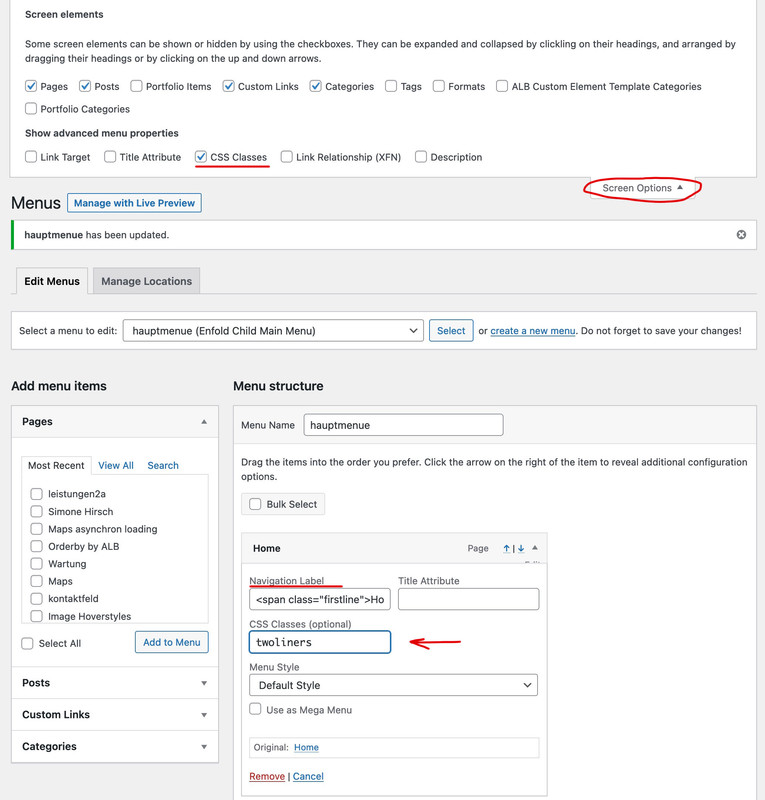
put this to your quick css
#avia-menu .twoliners.menu-item-top-level > a > .avia-menu-text {
  display: grid;
  height: 100%;
  grid-template-columns: 1fr;
  padding: 0px 10px !important;
}

#avia-menu .twoliners.menu-item-top-level > a > .avia-menu-text > span {
  justify-self: center;
  grid-column: 1 / 2;
  align-self: center;
}

#top #wrap_all #avia-menu .twoliners.menu-item-top-level.av-menu-button > a > .avia-menu-text  {
  gap: 3px 0;
}

#avia-menu .twoliners.menu-item-top-level > a > .avia-menu-text > span {
  line-height: 0px;
  text-align: center;
}

#avia-menu .twoliners.menu-item-top-level > a > .avia-menu-text > .secondline {
  color: #999;
  font-size: 1.1rem;
  font-style: italic;
}

#top #wrap_all #avia-menu .twoliners.menu-item-top-level.av-menu-button-colored > a > .avia-menu-text > .secondline {
  color: #ddd;
}
Maybe you have to adjust some padding or gap value for your header height.
See here the test page: https://consulting.webers-testseite.de/
PS : you had to style the hamburger yourself f.e.
#av-burger-menu-ul * {
  border: none !important;
}

#av-burger-menu-ul > li {
  margin: 10px 0 !important;
}

#top #wrap_all #av-burger-menu-ul .twoliners.av-menu-button > a {
  padding-left: 10px ;
}

#av-burger-menu-ul .twoliners > a > .avia-menu-text {
  display:grid;
  height:100%;
  grid-template-columns:1fr;
  gap: 10px
}

#av-burger-menu-ul .twoliners > a > .avia-menu-text > span {
  justify-self:left;
  grid-column:1 / 2;
  align-self:center;
}

#av-burger-menu-ul .twoliners > a > .avia-menu-text > span.secondline{
  padding-left: 10px;
  color: #ddd;
  font-size: 1.1rem;
  font-style: italic;
}
/****  etc. ****/
All of my headline rotator font sizes appear the same size, despite being set to 40+, 80+ and 150.
Page below shows examples of 3 headline rotator’s appearing the same font sizes — yet are all set drastically different.
yes – you can do that – or leave all as it is with buttons – and just remove the button styling on that:
body #people .avia-button {
  color: #000 !important;
  background-color: transparent;
  border-radius: none;
  padding: 0;
  font-size: 16px;
  border-bottom: none;
  text-align: left;
  background-color: transparent;
}

body #people .avia-button:before {
  content:"+ "
}

body #people .avia-button:active {
  outline: none;
  border: none;
}
Hi,
how can I change font color and font size? Especially the titles?
Thanks in advance and kind regards
Morcy
-
This topic was modified 3 years, 6 months ago by
 Morcy.
-
This topic was modified 3 years, 6 months ago by Morcy.
hm – yes but this was meant for main-menu on left or right position.
but i think there will be now a better solution – just a moment …
put this in your child-theme functions.php:
add_shortcode('avia_search', 'get_search_form');

function avf_add_search( $items, $args ){
  if ($args->theme_location == 'avia'){
	  $search = '<li id="menu-item-search" class="menu-item menu-search menu-item-top-level">';
	  $search .= do_shortcode('[avia_search]');
	  $search .= '</li>';
    $items =  $items . $search;
  }
  return $items;
}
add_filter( 'wp_nav_menu_items', 'avf_add_search', 10, 2 );
and this to your child quick css:
.av-main-nav-wrap > ul:first-of-type {
  display: inline-flex !important;
  height: 100%;
}

#menu-item-search {
  line-height: 30px;
  position: relative;
}

#menu-item-search #searchform {
  position: relative;
  top: 50%;
  transform: translateY(-50%);
  height: 40px;
  line-height: 40px;
}

#top #searchform > div:first-of-type {
  position: relative;
  max-width: 200px;
  opacity: 1 !important;
  display: block !important;
}

#menu-item-search #searchform #s {
  padding: 10px 40px 10px 5px;
  font-size: initial;
  background-color: rgba(255,255,255,0.85);   /*** if you like to have transparency ***/
}

#top #searchform .ajax_search_response {
  background-color: rgba(255,255,255,0.85);
  position: absolute;
  top: 45px;
  padding: 10px 0;
  width: 100%;
}

/******* if you got  transparency option ******/
#header.header_color.av_header_transparency #avia-menu #menu-item-search #searchform #s {
  background-color: rgba(255,255,255,0.35);
  color: #FFF !important;
}
#header.header_color.av_header_transparency #avia-menu ::placeholder {
  color: #FFF !important;
}
/*** end of transparency header setting ***/
Hi,
Please add the following CSS codes in Enfold > General Styling > Quick CSS:
1. (Required) I woiuld like to be #AEFB47 – there are lots of these.
#top .gfield_required {
    color: #AEFB47;
}
2. Section titles (APPLICANT INFORMATION, SPOUSE/PARTNER INFORMATION, BUSINESS/MANAGEMENT GOALS & OBJECTIVES, ETC) I woiuld like to be #AEFB4 – is there also a way to make this text larger?
#top .gsection_title {
    color: #AEFB47;
    font-size: 32px;
}
Just adjust the font size as you see fit (default size is 20px).
3. The submit button text i need black
#top .gform_wrapper .gform_button {
    color: black;
}
4. How do I remove the form title? The Title is RFC at the top
#top .gform_heading .gform_title {
    display: none;
}
Hope this helps :)
Best regards,
Nikko
Hey evas49,
Thanks for the ALB shortcode, but it is for a masonry element (not gallery), and your css works for it:
.av-caption-style-overlay .av-masonry-entry .av-masonry-entry-title {
	font-size: 3em !important;}
naturally, I had to remove the page ID.
But the title of this thread is for a masonry gallery, so for a masonry gallery you would use this css:
.av-masonry-entry .av-masonry-entry-title {
	font-size: 3em !important;}
I have tested it and it works for both the masonry gallery, and the masonry (not gallery).
Best regards,
Mike
Hi
i need to change the font size of “av-masonry-entry-title” in all single pages which contain a masonry gallery
I gave a class “kursmasonry” and made it like this:
#top .kursmasonry .av-caption-style-overlay .av-masonry-entry .av-masonry-entry-title {
	font-size: 1.7em !important;
	color: #f7f7f7 !important;}
IT WORKS
I have a page (overwiew) which has a masonry element (not gallery!).
Here i pull all pages – this is the overwiev of all classes and courses i give.
I need to have another font size here but it does not work
I work since hours but i cant make it work.
I even cant get it with the page id:
.page-id-32278 .av-caption-style-overlay .av-masonry-entry .av-masonry-entry-title {
	font-size: 3em !important;}
This is the code of the page:
[av_masonry_entries link='kurskategorie,3792,3790,3787,3788,3791,3789' wc_prod_visible='' wc_prod_hidden='hide' wc_prod_featured='' prod_order_by='' prod_order='' date_filter='' date_filter_start='' date_filter_end='' date_filter_format='yy/mm/dd' period_filter_unit_1='1' period_filter_unit_2='year' sort='yes' query_orderby='date' query_order='DESC' caption_elements='title excerpt' caption_styling='overlay' caption_display='always' size='fixed masonry' orientation='' image_size='masonry' gap='large' columns='2' av-medium-columns='' av-small-columns='' av-mini-columns='' items='12' paginate='load_more' color='' custom_bg='' overlay_fx='bluronhover' animation='' img_scrset='' lazy_loading='enabled' id='workshop' custom_class='' template_class='' av_uid='av-l306034u' sc_version='1.0']
regards
E.A
No – i cant give you acess to my localhost.
Please @rikard – don`t support here.
Thanx
Hi Alexander,
Thanks for contacting us!
Please add following code to Quick CSS field in Enfold theme options > General Styling tab
#sub_menu1 .avia-menu-text {
  color: white;
  font-size: 20px;
  background-color: red;
  padding: 10px;
  border-radius: 5px;
}
Regards,
Yigit
Hi,
We cannot reproduce #4. For the iconbox title, try to adjust the style of the H4 heading tag in the Enfold > Advanced Styling panel or use this css code.
h4 {
    font-size: 30px;
    line-height: 1.1em;
    margin-bottom: 4px;
}
To adjust the font size on mobile view or on smaller screens, add this css media query.
@media only screen and (max-width: 767px) {

  /* Add your Mobile Styles here */
  h4 {
    font-size: 20px;
    line-height: 1.1em;
    margin-bottom: 4px;
  }

}
Please make sure to toggle or temporarily disable the Enfold > Performance > File Compression settings after adding the changes.
Best regards,
Ismael
Hi Samuel,
Please try adding this CSS code as well:
#top .formkit-header h2 {
    line-height: 1.3;
}

#top .formkit-field fieldset {
    margin-bottom: 0;
}

#top .formkit-field input.formkit-input {
    font-size: 15px;
    margin-bottom: 0;
    padding: 12px;
}
Best regards,
Nikko



