

Forum Replies Created
-
AuthorPosts
-
Hi,
Perhaps, I also note that your test site doesn’t seem to have your child theme. Try exporting to your test site at WordPress > Tools > Export > All content and add your child theme to see if that still works.
When you installed WordPress originally for your live site, is there a chance that the install was for a special version of WordPress, such as an “optimized” or a special branded “version”? I ask because some webhosts will offer these “special” versions.
Is there a chance that the version of WordPress that you installed on the test site was the “official” version? Perhaps reinstalling WordPress on your live site would help?
I would recommend trying to export first because if that fails on the test site then it would point to something in the database.Best regards,
MikeFebruary 14, 2021 at 1:40 pm in reply to: Enfold: Blätterfunktion von Seite 2 + 3 zurück auf Seite 1 funktioniert nicht #1280412Hi,
Thank you for the login, I adjusted the enfold > framework > php > function-set-avia-frontend.php file as in this solution, and now the pagination is correct. When you update to the next version this correction will be included so no additional steps should be needed.
Please clear your browser cache and check.— Translated with Google —
Vielen Dank für die Anmeldung. Ich habe die Datei enfold> framework> php> function-set-avia-frontend.php wie in dieser Lösung angepasst und jetzt ist die Paginierung korrekt. Wenn Sie auf die nächste Version aktualisieren, wird diese Korrektur berücksichtigt, sodass keine zusätzlichen Schritte erforderlich sind.
Bitte leeren Sie Ihren Browser-Cache und überprüfen Sie.Best regards,
MikeHi,
Well, that is good news, so on the same server, on a different install, the latest Enfold and The Events Calendar plugin work correctly, so I take it that the only difference is the plugins, which is odd because we disabled the plugins on your non-working site, and that seems to be the only difference between the two, correct?Best regards,
MikeHi,
Glad we were able to help, we will close this now. Thank you for using Enfold.For your information, you can take a look at Enfold documentation here
For any other questions or issues, feel free to start new threads in the Enfold forum and we will gladly try to help you :)Best regards,
MikeHi,
Sorry for the very late reply, to add a “read more” link to your masonry elements you can use this script./* Add a "read more" link" to masonry elements */ function ava_custom_script_mod(){ ?> <script> (function($){ $(window).on('av-height-change', function() { $('.av-masonry-entry').each(function() { var more = $(this).find('.av-masonry-read-more'); var cont = $(this).find('.av-masonry-entry-content'); if( more.length == 1 ) return; cont.append('<div class="av-masonry-read-more">Read more</div>'); }); }); })(jQuery); </script> <?php } add_action('wp_footer', 'ava_custom_script_mod');This doesn’t effect the masonry gallery element because it doesn’t include the av-masonry-entry-content class.
Best regards,
MikeHi,
Sorry for the late reply, I disabled the previous css and added this css:.single-post #main > .container_wrap_first > .container { background-color: #fff; }Now your homepage and the “other pages” are looking correct, please clear your browser cache and check.
Best regards,
MikeHi,
Thanks for trying, I will ask for other ideas, but I feel that it is somehow related to your server, but I don’t know how.
I base this on testing on two live servers and my localhost, and these worked correctly, yet I don’t see any difference between these and yours.Best regards,
MikeFebruary 13, 2021 at 10:55 pm in reply to: Logo on the left and large menu on the top right #1280332Hi,
Sorry for the very late reply, and thanks for the screenshot, sorry I misunderstood about the main menu location.
I was going to try again but the login is not working and the site seems to be in maintenance mode. Please check.Best regards,
MikeFebruary 13, 2021 at 10:47 pm in reply to: Blog feature does not work on Enfold Theme with BigCommerce Headless active. #1280331Hi,
Sorry for the very late reply and thanks for the login, I was not able to edit your “News” page due to this error:
The site is experiencing technical difficulties. Please check your site admin email inbox for instructions.
Failed to load resource: the server responded with a status of 500 ()
I also got a 500 error when I tried to save a test page with a “post slider”, I also tested another test page with a text element and it saved until I added a masonry element which caused the same error as your “News” page.
I tested the BigCommerce plugin on my localhost and received a different error pointing to our built-in function for Woocommerce, and after some more research I found this thread, which points to this function on line 1166 in the\wp-content\themes\enfold\config-templatebuilder\avia-shortcodes\postslider\postslider.phpfile:if( function_exists( 'WC' ) ) { avia_wc_clear_catalog_ordering_args_filters(); $avia_config['woocommerce']['disable_sorting_options'] = false; }On my localhost I commented this line out like this and the element now works:
/*
			if( function_exists( 'WC' ) )
			{
				avia_wc_clear_catalog_ordering_args_filters();
				$avia_config['woocommerce']['disable_sorting_options'] = false;
			}
			*/
You can try this as a temporary solution, but note that each ALB element may have this block, such as the masonry element, so this line would also need to be commented out for those elements to also work.
So this is good news because in the linked thread that points this issue out the customer didn’t get back to us with info from the BigCommerce plugin, perhaps if you ask BigCommerce they have seen other themes with woocommerce checks and have a working function already.
If it turns out that they do I can submit it to the dev team to be added to Enfold.Best regards,
MikeFebruary 13, 2021 at 1:54 pm in reply to: several items highlighting on mouse over in a mega menu #1280255Hi,
Sorry for the very late reply and thanks for the login, I tested the different Enfold settings on my localhost and found that to have the small featured image next to the excerpt, like this:

you need to have the sidebar enabled on the blog page at: Enfold Theme Options > Sidebar Settings > Page Sidebar navigation > Sidebar on Blog Page
The full layout looks like this:

I enabled the sidebar on your site to enable this layout, and I had to disable this css in your Quick CSS to show the featured image:.blog-meta .small-preview { display: none; }While this works, your posts looked different so I put the settings back. Please try this yourself.
Best regards,
MikeHi,
Sorry for the late reply and thanks for the image and links. So I tested this on a clean WordPress install without Enfold, and I find that the original image you upload contains the “IPTC” data, but for every thumbnail that WordPress creates the “IPTC” data is not included.
WordPress original image:
https://getpmd.iptc.org/getpmd/html/stds/ipmd/?imgurl=https://savvyify.com/enfold/wp-content/uploads/2021/02/B7B3282.jpg
WordPress created image:
https://getpmd.iptc.org/getpmd/html/stds/ipmd/?imgurl=https://savvyify.com/enfold/wp-content/uploads/2021/02/B7B3282-1024×683.jpg
So this explains why you are having this issue, your two links above are pointing to one original and one thumbnail, aka WordPress created image.
Since WordPress doesn’t offer this functionality and Enfold doesn’t add it, I would recommend looking for a plugin.
I also notice that the “IPTC” data is not easily available in image software (on Windows) only EXIF is shown in my software.Best regards,
MikeHi,
Good idea, the dev team also suggests this. Please note, don’t try to overwrite the theme folder, as this will leave old files behind and cause errors.
The easiest and safest way to do this is to download the newest version from Theme Forest and rename your current parent theme folder to “enfold-old” via ftp then upload the new “enfold” folder via ftp and check that your site is working correctly.
Should for some reason you wish to roll-back to the old version, it’s easy to do, simply rename the new “enfold” folder to “enfold-new” via ftp and then rename “enfold-old” to “enfold” then refresh your page.
Once you are happy you can delete the “enfold-old” folder via ftp, (not the WP theme page).The idea is WordPress is looking for the installed theme “enfold” and changing the folder to “enfold-anything” via ftp, makes WordPress look for a new “enfold” folder, which you are uploading via ftp.
Best regards,
MikeHi,
1: Glad to hear.
2: Thanks for the screenshot, I note the your category options page includes a “custom permalink” option that I don’t have in my install:


So I believe this option is added by a plugin, please try disabling to see if the category links work correctly.
When you click on a blog post category it aggregates all posts with the same category, but post categories and product categories do not belong to the same category. Posts, Pages, Products, Portfolios, etc, are all different “post types” and do not share categories.
I hope this makes sense.
3: Yes, you can create a specific tag in Woocomerce for products, then if you choose this in the element it will only show these.Best regards,
MikeHi,
Thank you, unfortunately, I was not able to figure out why the countdown is not showing. I have asked the rest of the team for suggestions to what could be causing this.
Thank you for your patience.Best regards,
MikeFebruary 10, 2021 at 2:42 pm in reply to: several items highlighting on mouse over in a mega menu #1279476Hi,
Thanks for the link to your site, first lets step back and review your use of “automated”, so if you mean that you want something “automated” that will scan all of the links in your mega-menu and then match all of the ones that link to the same page, which could be many different links, and then highlight them all when one of them has mouseover.
To do this automatically without manually adding a unique class to each of the menu items for each of the matching links will require more customization than we can offer within our support scope.
But if, lets say, that you want all of the links to /the-art-of-repair/ to be highlighted when one has mouseover, and you manually add the class “same” to all of the menu items with links to that page, then we probably can make this work. If in this case to want the links to another page to behave the same, you would then create a second custom class, such as “sames”, and manually add these to the menu items.
The difference between the two is that in the first example the script scans and matches the menu links based on url, in the second example you are manually marking (identifying) which links are the same by adding the custom class.
So when you say “automated” I’m thinking of a “hands-off” approach, as in the first example, and this would be much more involved than what we can assist here.
I would also like to explain what you are seeing in the menu when you are on the /the-art-of-repair/ page, all of the menu items that link to the current page (the page you are on) have the “current-menu-item” class, automatically based on the current url, once the class is added the css does it’s job.
But there is no class added to the menu items when on a different page, so there is nothing for the css rules to work on.
I hope that explains what you are seeing and how it relates to the over-all menu function.So assuming that we will move forward with the second example where you will manually add the custom class “same” to all of the menu items that link to /the-art-of-repair/ page, when I check your mega-menu all of the items in the first column have the class “same”, but only one of these link to the /the-art-of-repair/ page, so you will need to adjust these, removing the custom class from all items except the ones linking to /the-art-of-repair/
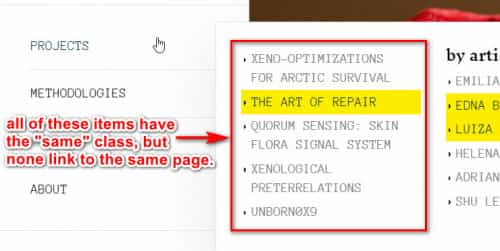
Best regards,
MikeHi,
Can you post a link to a test image with IPTC-data and post what the IPTC-data is so I can test this?Best regards,
MikeHi,
Thanks for your feedback, to change the width of the footer & socket only on the homepage, please try this css:.home #footer > .container, .home #socket > .container { max-width: 1310px !important; padding: 0 !important; }I see that you are using the ID styles, #styles, in a few of your color sections for your css, and while this works, I recommend changing these to a custom class because repeating the same ID on the same page can lead to other issues.
To add the background to the posts only try this css:.single-post #main > .container_wrap_first { background-image: url(https://jmcwebdesign.nl/switch/wp-content/uploads/2021/02/canvas.png); }Best regards,
MikeHi,
@in3sixty thank you for the login, you had the “nav bar” menu set as the main menu, which would also be the mobile menu by default, but you also had the “Alternate Menu for Mobile” set to the “nav bar”, I set this to “Do not use an alternate menu for mobile” and now your mobile menu shows correctly. Please check.
For future issues please open a new thread so we can assist, often a single reply is not enough to lead to a solution, and since this is not your thread, posting your login here will not be private and you will not see anything we write in the Private Content area.
Thank you for understanding.Best regards,
MikeHi,
@jcreklamy please try opening a new thread for your specific issue and include a admin login in the Private Content area.
Since this is not your thread posting your login here will not be private and you will not see anything we write in the Private Content area.
Thank you for understanding.Best regards,
MikeHi,
I don’t think that this is the way it works, I believe that you need to use a plugin to read the image data and import into WordPress. WordPress doesn’t extract this data by default, and Enfold doesn’t add this function.Best regards,
MikeHi,
I tried to install the TablePress plugin and the Responsive Tables Extension and I created a test table:

and it seems to be working correctly with this shortcode[table id=1 responsive="collapse" /]:

Please try exporting your table in the JSON format and upload to DropBox and link in the Private Content area so I can test your table on my localhost.

Best regards,
MikeHi,
Thanks, yes if your target market is in Ireland then I would recommend finding a webhost in Ireland, jumping from the US to Ireland can make a difference. You would want to make sure the servers are really in Ireland, the web host should publish this on their site.
But the two webpagetest’s I posted above test your servers from the same state in the USA, not from Ireland, so the FBT from the same geo location should not be anything over 1 second, yours was about 7.
Most webhosts will give you a month to test.
The FBT is due to your server not your site, you can not reduce your FBT.
If you have unsued plugins that are active, then disabling them could help over-all. For your videos you could try adding a fallback image and enable lazy loading, I believe this waits to load the videos until clicked.

But over-all after FBT your page is loading fairly even with videos, so I would try to solve the FBT first.Best regards,
MikeHi,
Thank you, please note that we find it easier for solutions to be found and to assist when each thread is focused on a single issue, so while this one seems to be sorted out now, we should close it, agree?
I took a look at your other thread and posted a solution there, we will continue there for that one.
Thank you for your patience and understanding.Best regards,
MikeHi,
Sorry for the very late reply and thanks for the link to your page and the plugin demo, in comparing your site with the demo I note that your table doesn’t include the class “collapsed” so I don’t believe your shortcode is setup correctly, if css was causing a conflict the class would still be there.

above you posted your shortcode[table id=1 responsive=collapse /]
but according to the plugin documentation it should be:
[table id=1 responsive="collapse" /]
Please try this.Best regards,
MikeHi,
#1: we do have this filter to set the “single-small” layout:add_filter('avf_blog_style','avia_change_category_blog_layout', 10, 2); function avia_change_category_blog_layout($layout, $context){ if($context == 'archive') $layout = 'single-small'; return $layout; }but before trying this please note that the different blog layouts display this differently, ie: business, elegant, & modern business:

also try the page with a sidebar, I believe there is one layout that only shows with a sidebar, it was either the small image above the title or beside it, I don’t remember right now.
so first try these settings as the image may show just by changing this, otherwise try the filter and then test these again.
If this doesn’t help, please include an admin login in the private content area so I can try some different settings and filters.
#2: to remove the author please try this css:.blog .text-sep.text-sep-cat,.blog .blog-author.minor-meta { display: none; }to remove only the “phoenix Diver” author, if there was multiple authors, first add this code to the end of your functions.php file in Appearance > Editor:
function custom_admin_author_script() { ?>
    <script>
(function($){
  $('.blog .post-entry').each(function() {
  $(this).find('.author > span > a').each(function(){
  	$('[href*="phoenix-divers"]').parentsUntil( ".entry-content-header" ).addClass('admin');
  });
  });
})(jQuery);
</script>
    <?php
}
add_action('wp_footer', 'custom_admin_author_script');
then add this css:
.blog .post-meta-infos.admin .text-sep.text-sep-cat,
.blog .blog-author.minor-meta.admin {
	display: none;
}
this removes the author and the backslash before it.
Best regards,
MikeHey jelle,
Sorry for the very late reply, for your “not” working color section the background attachment is set to “scroll”.
For the “working” site the color section is set to “fixed”.
In this context we want the background attachment to be “fixed” so the page scrolls over it, please give this a try.
💡Tip: if the options in the back end really do say “fixed”, then perhaps you added a script that is floating around that is meant to change the background attachment to “scroll” for Safari browsers, because “fixed” don’t work ~ if this doesn’t ring a bell, then it’s probably not that 🙂Best regards,
MikeHi,
Thank you for the feedback, ok glad the burger menu started working again. Please see below.Best regards,
MikeFebruary 8, 2021 at 12:01 am in reply to: How to disable menu delay on hover and on unhover #1278509Hi,
Sorry for the very late reply and thanks for sharing what you have found, I tried testing the normal dropdowns by first adding your anti-animation css above, then I resource blocked css & js in the browser to isolate the file causing the delay and it was \js\avia-snippet-megamenu.js, I then found starting at line 212 this function:currentItem.on('mouseleave', function() { sublist.stop().animate({opacity:0}, function() { sublist.css({visibility:'hidden'}); }); });please note that the
.animate()effect has a default duration of 400ms but we can set a time of zero like this:currentItem.on('mouseleave', function() { sublist.stop().animate({opacity:0},0, function() { sublist.css({visibility:'hidden'}); }); });please try making this change in your child theme avia-snippet-megamenu.js file and clear your browser cache.
btw: here’s another article about .animate() parameters if you wish to edit further.Best regards,
Mike -
AuthorPosts


