

Forum Replies Created
-
AuthorPosts
-
August 9, 2021 at 2:32 pm in reply to: Not sure how to customise burger menu according design specification #1315857
Hi,
Thanks for the feedback you can do that this way:#top .avia-bullet { border: none; padding:0; margin: 0 10px 0 0!important; } #top .avia-bullet:before { content: "\e812"; font-family: 'entypo-fontello'; font-size:11px; line-height:1em; position:absolute; top:10px; left:-3px; }this example replaces the arrow with a check mark, just replace the font-family & font code with yours.
If you wish to use an image instead just replace the font & content with a content url, for example:
content: url(https://img.icons8.com/officel/40/000000/plus-math.png);
and then adjust your size & position to suit.Best regards,
MikeHi,
I wrote the following css to include the font-size & font-family so that you can change if you wish, just remove if you don’t.
I also wrote the colors of the rows so you might change in the future, even though right now the third row is the only one that is different, the first rule is for the first row, the second rule is for the second and fourth rows, and the third rule is for the third row.#after_submenu_1.main_color .avia-table.avia-data-table .avia-heading-row:nth-child(1) > th { color: #662f1c; background-color: #efe6d0; font-size: 14px; font-family: alice; } #after_submenu_1.main_color .avia-table.avia-data-table .avia-heading-row:nth-child(2n+2) > th { color: #662f1c; background-color: #efe6d0; font-size: 14px; font-family: alice; } #after_submenu_1.main_color .avia-table.avia-data-table .avia-heading-row:nth-child(3) > th { color: #662f1c; background-color: #fffbf3; font-size: 14px; font-family: alice; }After applying the css, please clear your browser cache and check.
Best regards,
MikeHi,
Glad we were able to help, if you have any further questions please create a new thread and we will gladly try to help you. Thank you for using Enfold.Best regards,
MikeAugust 9, 2021 at 12:03 pm in reply to: How can i stay topbar menu fixed when the page is first opened/scrolled ? #1315828Hi,
Thanks for the feedback, on your homepage you have the Header visibility and transparency setting Header is invisible and appears once the users scrolls down
you need to change this to either No transparency or Transparent Header depending on which you prefer

Best regards,
MikeHi,
Glad that helped, please try including this css#top #fullscreen_slider_1 .slideshow_align_caption > h2 { margin-bottom: 0; line-height: 27.6px; } #top #fullscreen_slider_1 .avia-slideshow-button { margin: 0; } #top #fullscreen_slider_1 .slideshow_align_caption > br { display: none !important; }After applying the css, please clear your browser cache and check.
Best regards,
MikeAugust 9, 2021 at 11:00 am in reply to: Problems after putting social media icons & search box in the mobile menu #1315819Hi,
Glad we were able to help, if you have any further questions please create a new thread and we will gladly try to help you. Thank you for using Enfold.Best regards,
MikeAugust 9, 2021 at 1:02 am in reply to: Problems after putting social media icons & search box in the mobile menu #1315179Hi,
Thanks for the feedback, please try adding this css:@media only screen and (min-width: 641px) and (max-width: 1007px) { .av-burger-menu-main.menu-item-avia-special, .av-burger-menu-main.menu-item-avia-special:hover { z-index: 110; position: relative; } .av-main-nav { z-index: unset; } }Then clear your browser cache and check.
Best regards,
MikeAugust 8, 2021 at 11:31 pm in reply to: How can i stay topbar menu fixed when the page is first opened/scrolled ? #1315176Hi,
Sorry I’m not sure that I understand, the first url you gave is not working as a site, it seems to be a “parked domain”
the new url has a header and burger menu sticking to the top, as for the same with the homepage with that url, but neither page has a “topbar”.
Perhaps you can try explaining a little more in detail, maybe screenshots would also help.Best regards,
MikeHi,
Glad we were able to help, if you have any further questions please create a new thread and we will gladly try to help you. Thank you for using Enfold.Best regards,
MikeAugust 8, 2021 at 11:15 pm in reply to: Image with link. Hover zoom in center on the left instead of center #1315171Hi,
Glad we were able to help, if you have any further questions please create a new thread and we will gladly try to help you. Thank you for using Enfold.Best regards,
MikeHey mrwiz,
Thank you for your patience, this sounds like your webhost doesn’t have the PHP ZipArchive Extension enabled so WordPress can not extract the zip file. Please ask your webhost to enable it.Best regards,
MikeAugust 8, 2021 at 10:38 pm in reply to: Bug: Blog Grid Layout only shows 2.5 "lines" and then cuts of rest #1315168Hey joerka27,
Thank you for your patience and for the link to your site, I found that your caching plugin has this css rule setting the max-height of your blog element to 800px@media screen and (min-width: 768px){ .avia-content-slider-inner { min-height: 800px !important; max-height: 800px !important; }}please disable your caching plugin and the theme compressing and minification and find this custom rule in your Quick CSS or WordPress ▸ Customize ▸ Additional CSS and remove this.
Best regards,
MikeHey icphillips,
Thank you for your patience and the link to your site, the dev team released another update v4.8.6 to address this, I see you are using v4.8.5 please try this new update. Please also disable any caching plugins and the theme compressing and minification and resave the theme settings to rebuild the css files.Best regards,
MikeAugust 8, 2021 at 10:04 pm in reply to: How can i stay topbar menu fixed when the page is first opened/scrolled ? #1315164Hey koraytastan,
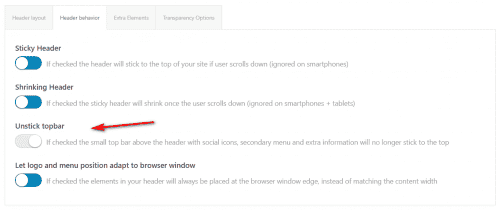
Thank you for your patience, I’m not sure if I can see your site but to make your topbar sticky disable the “Unstick topbar” option
Best regards,
MikeHi,
Glad to hear, well done!
If you have any further questions please create a new thread and we will gladly try to help you. Thank you for using Enfold.Best regards,
MikeHey Debra,
Thank you for your patience and the link to your site, but I was not able to login, please check:

I see that the blue background color of your accordion is from your caching plugin “wpo-minify” please try disabling your plugin and resaving your theme settings to rebuild the css files, then clear your browser cache.
What color is the accordion suppose to be?Best regards,
MikeAugust 8, 2021 at 9:47 pm in reply to: Uncaught SyntaxError: Unexpected token '!' Error after updating to Enfold 4.8.6 #1315158Hey onurkurtic,
Thank you for your patience and the link to your site, I don’t see your error in the console or in the DOM, were are you seeing the error?
I have not seen this elsewhere.Best regards,
MikeHi,
Thank you for your patience and the screenshots, I don’t have an iPad but I was able to reproduce it with my Chrome dev tools for the screen widths 1024px ▸ 1440px
at this size the heading text in the first column is over flowing the form, I recommend increasing the max-width of the container to allow the column a little more space.
Please try this code in the General Styling ▸ Quick CSS field or in the WordPress ▸ Customize ▸ Additional CSS field:@media only screen and (min-width: 767px) and (max-width: 1440px) { .responsive #top.page-id-14210 #main > #av_section_2 > .container { max-width: 95%; padding: 0; } }This seems to help a lot, another adjustment you could make is to reduce the heading font size a little:
@media only screen and (min-width: 767px) and (max-width: 1440px) {
	#top.page-id-14210 #wrap_all .av-inherit-size .av-special-heading-tag {
    font-size: 0.8em;
}
}
After applying the css, please clear your browser cache and check.
Best regards,
MikeHi,
I see this was solved in a duplicate thread, if you have any further questions please create a new thread and we will gladly try to help you. Thank you for using Enfold.Best regards,
MikeHi,
Glad Rikard could help, if you have any further questions please create a new thread and we will gladly try to help you. Thank you for using Enfold.Best regards,
MikeHi,
Glad Rikard could help, if you have any further questions please create a new thread and we will gladly try to help you. Thank you for using Enfold.Best regards,
MikeHey armyranger882002,
Thank you for your patience, the errors above are for WordPress core files, in my research this seems to be caused by the mysqli PHP extension is not enabled
I recommend asking your webhost for assistance, I have seen many issues with PHP v8 and would recommend sticking with v7.4 for now.Best regards,
MikeHi,
Glad we were able to help and thanks for the kind words, if you have any further questions please create a new thread and we will gladly try to help you. Thank you for using Enfold.Best regards,
MikeHi,
Thank you for the link to your site and for the test page, I found that the SiteGround Optimizer ▸ Lazy Load Media is the cause of the issue, I left the option enabled but you will find that disabling solves.Best regards,
MikeAugust 8, 2021 at 8:18 pm in reply to: Image Caption Overlay Text Color Changed with Update #1315140Hi,
Thank you for the link to your site, this seems to be a caching issue because when I click the Hummingbird ▸ See this page unminified in the admin toolbar the captions return to white. I tried clearing your cache but it didn’t solve so I added this css in the WordPress ▸ Customize ▸ Additional CSS field:#top.home .av-image-caption-overlay-center p { color: #fff; font-size: 24px; }and it did solve, it should not cause any problems in the future unless you want to change the color but I expect that you can remove it after a few more cache flushes, try checking in a week.
Best regards,
MikeAugust 8, 2021 at 7:49 pm in reply to: Image with link. Hover zoom in center on the left instead of center #1315136Hi,
Glad this helped, I also forward the feature request for the dev team to review. Unless there is anything else we can assist with on this issue, shall we close this then?Best regards,
MikeHi,
Try adding this code to the end of your child theme functions.php file in Appearance ▸ Editor:add_action( 'woocommerce_after_shop_loop_item_title', 'woocommerce_template_loop_add_to_cart', 10 );Best regards,
MikeHey Mohamad,
Thank you for your patience, can you please check the toggle “WHAT ARE THE 3 VOUCHERS GRANTED WITH THE COURSE?” as the content is not showing, perhaps there is a nested div error causing the issue.
Also can you include an admin login I would like to disable this script temporarily:jQuery(window).load(function(){ jQuery('.open-popup-link').addClass('no-scroll'); jQuery('.open-popup-link').magnificPopup({ type:'inline', midClick: true, callbacks: { beforeOpen: function () { jQuery('body').css("overflow-y", "hidden"); }, close: function() { jQuery('body').css("overflow-y", "auto"); }, }, }); });Can you also link to a couple of similar pages where this is not happening, on those pages are the toggles at the top of the page?
Best regards,
MikeAugust 8, 2021 at 3:32 pm in reply to: Problems after putting social media icons & search box in the mobile menu #1315120Hey coolicious,
Thank you for the link to your site,
#1 For mobile (425px) the social icons do not show as default, for tablet (768px) they do, but you have quite a few of them that push the burger menu and your 3 extra menu icons over on top of your logo, so perhaps you would like to hide the social icons until 1007px?@media only screen and (min-width: 767px) and (max-width: 1007px) { #top #header_main .main_menu > .social_bookmarks.icon_count_7 { display: none; } }The reason they disappear when the menu is clicked is because the script is moving the icons to the new location.
#2 To deactivate Ajax suggests, please see this post.
#3 to hide the search and show the burger menu between 767px ▸ 1007px, try this css:@media only screen and (min-width: 767px) and (max-width: 1007px) { #menu-item-42751 { display: none; } .responsive #top .av_mobile_menu_tablet #avia-menu.av-main-nav .menu-item-avia-special { display: block; } }After applying the css, please clear your browser cache and check.
Best regards,
MikeHey albadbdb,
Thank you for the link to your site, please try this code in the General Styling ▸ Quick CSS field or in the WordPress ▸ Customize ▸ Additional CSS field:#top #main .avia-slideshow-arrows a { top: 95%; } #top #main .avia-slideshow-arrows a.prev-slide { margin-left: 90px; } #top #main .avia-slideshow-arrows a.next-slide { margin-right: 90px; }I’m pretty sure this is where you wanted them but if not either adjust to suit or include a screenshot with where you want to see them.
Best regards,
Mike -
AuthorPosts
