Viewing 30 results - 136,381 through 136,410 (of 142,942 total)
  • Author
    Search Results
  • #198452
    HiDrew
    Participant

    Hi there – working on http://vitalshiftconsulting.netfirms.com/wp – the font customizations done for H1 and H2 are being applied on desktop screens, but not when the phone is viewed on the iPhone.

    Also – the logo doesn’t appear correctly either – it is cut off.

    Can you let me know how to fix these issues?

    Many thanks,
    Drew

    #198448
    #198446
    LD3
    Participant

    Hello Guys!

    The mobile menu is not displaying the top menu items from the ‘normal’ / default menu.

    Go here on mobile device in portrait orientation: http://www.pat-bach.com/breitercapital/
    For instance, the mobile menu list displays the Investment Management, Dynamic Portfolio, Elite Dividend Strategy, Client Story pages/menu items as selections, but not How We Help, which is the top menu item / page in that sits above Investment Management, Dynamic Portfolio, Elite Dividend Strategy, Client Story.

    Any help is appreciated. Thanks!
    -LD3

    #198437

    Hi theroyds!

    I found this topic with a quick google on the question which may help: http://wordpress.org/support/topic/plugin-woocommerce-trying-to-order-categories

    If not you can post in the WooCommerce support forums (where that topic is) to see if there is an updated solution.

    Regards,
    Devin

    #198430

    I’ll tag the topic for Kriesi to take a look at and post it on our internal blog. It could just be apple doing something goofy with iOS and the css3 value since w3 seems to think it should be covering the background no matter what.

    If you have any other questions or issues just let us know :)

    Going to close this topic of for now since we’ll be getting a big spike of support topics coming in with 3.8 in a few days.

    #198419

    In reply to: Custom Icon font size

    Hey markbener!

    You can change the icon size using this:

    .iconbox_top .iconbox_icon {
    font-size: 24px;
    line-height: 24px;
    }

    The color can be change with this:

    .main_color.iconbox_top .iconbox_icon {
    color: red;
    }

    Cheers!
    Ismael

    #198414

    Hi David!

    Your header background is already transparent. Please add this on your custom.css or Quick CSS to move the content upwards:

    #main {
    margin-top: -80px;
    }

    Cheers!
    Ismael

    #198411

    Hi Ismael – when I add that it fixes the bottom of the site, but the image no longer displays under the menu.
    I tried it with both removing the current ‘#main {padding-top: 0 !important;}’ and leaving it in with no luck.

    #198408

    Hi!

    Please add this on your custom.css or Quick CSS:

    #main {
    margin-top: -1px;
    }

    Adjust the negative top margin if necessary.

    Best regards,
    Ismael

    #198316

    So I believe this is a step in the right direction, as when I hover in certain areas around/over the image, it will start to rotate but then just stops. It still utilizes the default a:hover css.

    I guess the better question is: what css file would I look in to disable/comment out the default image a:hover css for the entire theme?

    Ive tried to inspect element in my browser, but cannot seem to find the specific class or it’s location.

    #198308

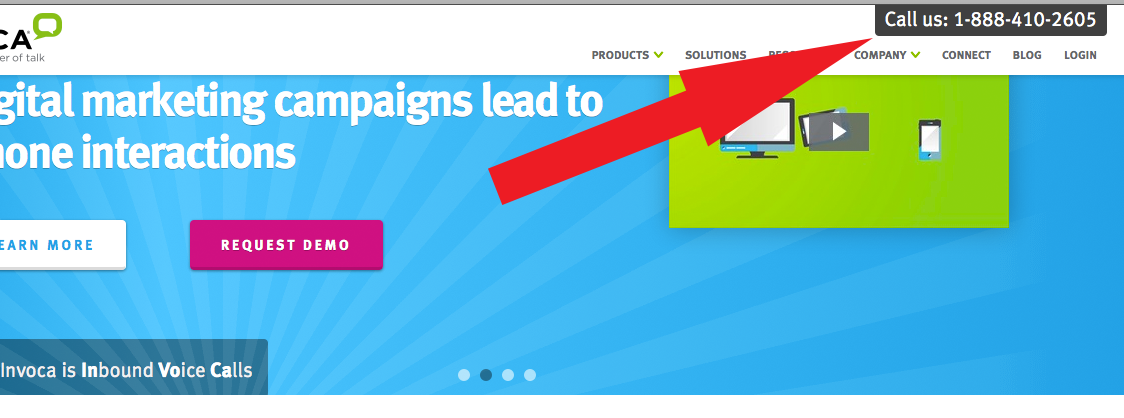
    HAVE A CALL TO ACTION AT THE TOP RIGHT OF THE MENU

    I suggest that all my clients have a call to action on the top right of their website, yet because I have this them I dont even have one. I think it would be really cool if you could incorporate it alot of people would appreciate this feature.
    I was looking at one website and theirs were at the top of their sticky.
    Call to action at top
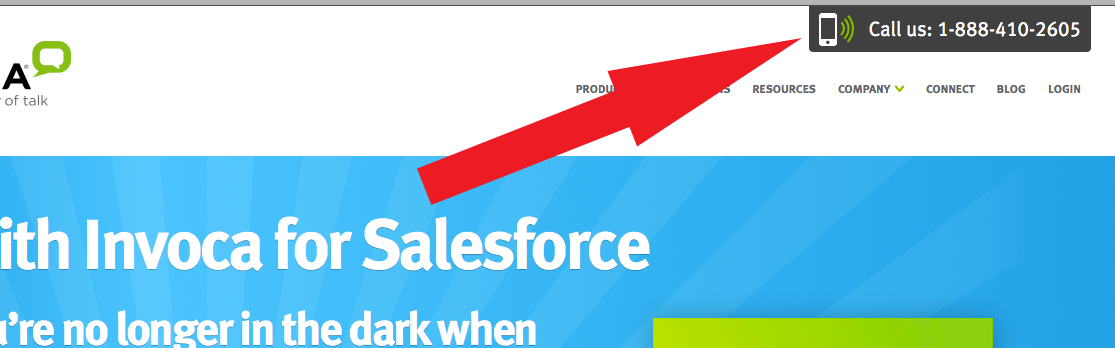
    And when you scroll up and the sticky menu shrinks the call to action shrinks as well:
    Scrolling Call to action

    #198284

    Hi!

    Please add following code to Quick CSS as well

    .widget_nav_menu a, .widget_nav_menu ul:first-child>.current-menu-item, .widget_nav_menu ul:first-child>.current_page_item { border-top-style: none; border-bottom-style: none; }

    Regards,
    Yigit

    EDIT: Please add following code to change background on hover

    #top .widget ul li a:hover { background-color: inherit; }
    • This reply was modified 12 years, 4 months ago by Yigit.
    #198267

    Hello again :)

    2. Worked but I think you missed the code for the top part with the menu and the logo. The background remains white 100% tried some myself but no luck. Please please check :)
    3. Worked!
    4. Worked!
    5. Worked!

    Thank you for your time!
    Andreas

    #198256
    sundialstudios
    Participant

    Hi – I found a previous post to make my main menu transparent using the following:

    .header_bg {
        background: rgba(255, 255, 255, 0.6) !important;
    }
    #main {
        padding-top: 0 !important;
    }

    My issue is now the slider isn’t totally full-screen. It looks like changing the top padding to 0 has slid the content that is under the full-screen slider up and now it is always visible. Is there a way to fix?

    The site under development is at http://sundialdev.com/ocgirlslax/

    #198250

    Hi!

    1)You are going to need to hire a freelance developer for that kind of customization as it is beyond the scope of support we can provide. You can also request quote here.
    2) Please add following code to Quick CSS as well

    #top .portfolio-preview-image .avia-gallery .avia-gallery-big { pointer-events: none;
    cursor: default; }

    Regards,
    Yigit

    #198241

    Hi!

    Please add following code to Quick CSS in Incarnation theme options under Styling tab

    #top .widget_nav_menu { padding-top: 30px; }
    .flex_column h3,  #top .widgettitle { color: white!important; }

    Cheers!
    Yigit

    #198193

    Hi!

    Please add following code to Quick CSS in Enfold theme options under Styling tab

    .portfolio-preview-content { display: none; }
    .portfolio-preview-image { width: 100%; }
    #top .portfolio-preview-image .avia-gallery .avia-gallery-big { height: auto!important; }

    Best regards,
    Yigit

    #198164

    Hey!

    Please add following code to Quick CSS in Enfold theme options under Styling tab

    @media only screen and (max-width: 1010px) { #top #main .sidebar { display: none; }}
    @media only screen and (max-width: 989px) and (min-width: 768px) {
    .responsive .container .nine.units {
    width: 670px; border: none!important; }}

    Cheers!
    Yigit

    #198163

    thanks josue, although this code will redirect me from teh mobile to the desktop then back to the mobile instantly. I think i may have to tool this a bit or write something more extensive to fit different scenarios. thanks for your help so far

    #198153

    Hi!

    Please add following code to Quick CSS as well
    2)

    .socket_color {
    background: rgba(255, 250, 250, 0.5) url(https://caleche.gr/wp-content/themes/enfold/images/background-images/dashed-cross-dark.png) center center repeat scroll;}
    #footer { background-color: rgba(255, 250, 250, 0.5); }

    3)

    #header_main { height: 89px; }
    .content { padding-top: 20px; }

    and please remove Horizontal ruler element from your page to decrease the space between text and lamp http://i.imgur.com/Utplp4Y.jpg
    4)

    .header_color .main_menu ul:first-child > li > a { font-weight: normal; }
    .header_color .main_menu ul:first-child > li.current-menu-item > a, .header_color .main_menu ul:first-child > li.current_page_item > a { font-weight: bold!important; }

    5)

    .socket_color a { color: red; font-weight: normal; }

    Cheers!
    Yigit

    #198140
    This reply has been marked as private.
    #198128

    Hey!

    1)Please add following code to Quick CSS in Enfold theme options under Styling tab

    .single-post .image-overlay { display: none!important; }
    .single-post .fullsize .big-preview.single-big { pointer-events: none; cursor: default; }

    2)

    .page-id-2457 .big-preview img { width: 700px; }

    3) Please refer to this post https://kriesi.at/support/topic/remove-comments/#post-188106

    Best regards,
    Yigit

    #198091

    Hi!

    Please add following code to Quick CSS as well

    .main_menu { margin-top: -30px; }
    .header-scrolled .main_menu { margin-top: 0; }

    Best regards,
    Yigit

    #198061

    Hi 500Webmaster!

    Please add following code to Quick CSS in Enfold theme options under Styling tab

    #top .avia-smallarrow-slider-heading> div { text-align: center; }

    Best regards,
    Yigit

    #198044

    Yigit, your image looks right, but after applying your code with the previous, all it seems to do is shrink the logo. Here’s my current code:

    /* Post top spacing fix */
    @media only screen and (max-width: 480px) {
    	.logo, .logo a, .logo img {
    		max-width: 75px !important;
    	}
    }
    
    @media only screen and (max-width: 767px) {
    	#header_main {
    		max-height: 100px;
    	}
    	
    	.mobile_active #advanced_menu_toggle {
    		top: 50px;
    	}
    	
    	.responsive .mobile_slide_out .logo {
    		position: relative;
    		top: 5px;
    	}
    	
    	.responsive.social_header .phone-info {
    		margin-top: 10px;
    	}
    }
    #198036

    In reply to: Masonry Portfolio

    Hi!

    Just an FYI to how our forums/queue system works: topics are shown to support by the oldest posted response. So each time you self bump it actually pushes your topic to the end of the queue and does not bring it to our attention any quicker.

    As for the issue when I re-set the permalinks and refreshed them a couple of times it seems to be working without issue now. My guess is WordPress just had its htaccess corrupted which happens from time to time.

    You can read more about it on the codex here: http://codex.wordpress.org/Using_Permalinks#Fixing_Permalink_Problems

    Cheers!
    Devin

    #198029

    Hello Ismael

    Thanks for your latest response and for the extra CSS.

    I am happy with the overall width of things I just want to reduce the spacing properly as outlined above.

    I tried adding the latest CSS elements outlined above to reduce the spacing and it doesn’t work properly when I add it, so I’ve removed the latest CSS as outlined in your latest response.

    The bottom section of this post is the current CSS I have in my Child Theme.

    When I added the code below for example, the responsive menu also sat on the far right with no space which doesn’t look good.

    Adjust the menu right margin using this:
    #header_main_alternate .container {
    margin: 0;
    }

    Can I maybe send you the WP login info and get you to have a look. If so, please let me know where to send this privately, thanks.

    CSS CODE BELOW DOTS:
    ……………………………………….
    /*
    Theme Name: Enfold Child
    Description: A Child Theme for the Enfold WordPress Theme. If you plan to do a lot of file modifications we recommend to use this Theme instead of the original Theme. Updating will be much easier then.
    Version: 1.0
    Author: Kriesi
    Author URI: http://kriesi.at
    Template: enfold
    */

    /*Add your own styles here:*/

    .social_header .phone-info span {
    font-weight: normal;
    margin-top: 0px;
    margin-right: 0;
    margin-bottom: 0;
    margin-left: 0px;
    padding-top: 0px;
    padding-right: 0;
    padding-bottom: 0;
    padding-left: 0px;
    font-size: 11px;
    }

    .responsive #header_meta .social_bookmarks {
    padding-bottom: 0px;
    width: 100%;
    }

    .main_color .heading-color, .main_color h1, .main_color h2, .main_color h3, .main_color h4, .main_color h5, .main_color h6, .main_color .sidebar .current_page_item > a, .main_color .sidebar .current-menu-item > a, .main_color .pagination .current, .main_color .pagination a:hover, .main_color strong.avia-testimonial-name, .main_color .heading, .main_color .toggle_content strong, .main_color .toggle_content strong a, .main_color .tab_content strong, .main_color .tab_content strong a, .main_color .asc_count, .main_color .avia-testimonial-content strong, .main_color div .news-headline {
    color: #90d200;
    font-weight: normal;
    }

    p + h3, p + h4, p + h5, p + h6 {
    margin-top: 0px;
    }

    .title_container { display: none; }

    #top .main_menu .menu > li:last-child > a {
    padding-right: 13px;
    }

    .logo img {
    display: block;
    height: auto;
    max-height: 100%;
    padding: 0;
    width: auto;
    }

    /* #Desktop – Large
    ================================================== */@media only screen and (min-width: 1140px) {
    .responsive .boxed#top {
    width: 960px;
    }
    .responsive .container {
    width: 860px;
    }
    .responsive .container .one.unit,
    .responsive .container .one.units {
    width: 20px;
    }
    .responsive .container .two.units {
    width: 30px;
    }
    .responsive .container .three.units {
    width: 120px;
    }
    .responsive .container .four.units {
    width: 210px;
    }
    .responsive .container .five.units {
    width: 300px;
    }
    .responsive .container .six.units {
    width: 390px;
    }
    .responsive .container .seven.units {
    width: 480px;
    }
    .responsive .container .eight.units {
    width: 570px;
    }
    .responsive .container .nine.units {
    width: 660px;
    }
    .responsive .container .ten.units {
    width: 750px;
    }
    .responsive .container .eleven.units {
    width: 840px;
    }
    .responsive .container .twelve.units {
    width: 930px;
    }
    .responsive #top.boxed .stretch_full {
    width: 960px;
    }
    .responsive #top .offset-by-one {
    padding-left: 90px;
    }
    .responsive #top .offset-by-two {
    padding-left: 180px;
    }
    .responsive #top .offset-by-three {
    padding-left: 270px;
    }
    .responsive #top .offset-by-four {
    padding-left: 360px;
    }
    .responsive #top .offset-by-five {
    padding-left: 450px;
    }
    .responsive #top .offset-by-six {
    padding-left: 540px;
    }
    .responsive #top .offset-by-seven {
    padding-left: 630px;
    }
    .responsive #top .offset-by-eight {
    padding-left: 720px;
    }
    .responsive #top .offset-by-nine {
    padding-left: 810px;
    }
    .responsive #top .offset-by-ten {
    padding-left: 900px;
    }
    .responsive #top .offset-by-eleven {
    padding-left: 990px;
    }
    }

    @media only screen and (max-width: 767px) {
    .responsive.social_header .phone-info {
    position: relative;
    top: 10px;
    }
    }

    .bottom_nav_header.social_header .main_menu ul:first-child > li a {
    border-right-style: solid;
    border-right-width: 1px;
    font-size: 12px;
    font-family: Arial, Helvetica, sans-serif;
    color: #666666;
    text-transform: uppercase;
    font-weight: bold;
    }

    #197999

    I may have found a solution to this. If I use “margintop: -300px:, the extra space on the page goes away. Can you confirm if this is still a correct way to style it??

    Thanks,
    G

    #197994

    Hi Peter.

    That’s awesome, except that not everyone needs a child theme. You guys do such a good job on making everything awesome, that in my case (and my friends case), there is no need for editing the parent.

    That said, as I understand it, you need to make the child theme BEFORE you create your site – thus it will reset everything:
    kriesi.at/support/topic/enfold-child-theme-2/

    It’s a pretty big deal for removing something that, in my opinion, shouldn’t be there in the first place – or as a minimum should be something to deactivite in the backend (Like: Show default ENFOLD Logo or Site name) :)

    Jesper =)

    #197993
    Glyphism
    Participant

    Hi guys is there a trick to making the telephone number, located at the very top inside #header_meta, align to the left? I have tried a bunch of different approaches but none of them work. This is what I amy trying

    #header_meta .phone-info { 
    float: left;
    }
Viewing 30 results - 136,381 through 136,410 (of 142,942 total)