Hi dear Enfold-team,
how can I in the Easy slider
a) Display the image title and the additional description text in a separate field below the image
b) Activate advancing only after a mouse click on the image
c) Set the edge radius to 0px
… or would another slider be a better idea?
Thank you so much for your help :)
Best regards
Andreas
Hi,
When I check your page css I do not see the above css added, but when I test it works:

Please ensure to copy the code from the forum and not an email notification so the symbols are not converted, and try again, If this doesn’t correct please include admin login in the Private Content area so we can check.
Best regards,
Mike
Hi Mike, added in the code and cleared cache but no change – tab image still grayscale on desktop view
Hey teszmor,
Thank you for the inquiry.
The table element seems to be rendering correctly on our end. Would you mind providing a screenshot of the issue? You can use platforms like Savvyify, Imgur or Dropbox to upload and share the screenshot. Here are the steps to follow:
1.) Visit the website of your chosen platform, such as Savvyify, Imgur or Dropbox.
2.) Locate the option to upload a file or an image.
3.) Select the screenshot file from your computer or device and upload it to the platform.
4.) After the upload is complete, you will be provided with a shareable link or an embed code.
5.) Copy the link or code and include it in your message or response to provide us with the screenshot.
Thank you for taking the time to share the screenshot. It will help us better understand the issue you’re facing and provide appropriate assistance.
Best regards,
Ismael
try to give an ID to the selector f.e.:
#top .blokje .avia-image-overlay-wrap a.avia_image {
  overflow: visible;
}
#top .blokje img.avia_image {
  border: 1px solid #005999;
  padding: 40px;
  box-shadow: 5px 5px 0px 0px #005999;
}
i placed here a different value so that you can clearly see that “shadow” will work – afterwards you can change back to your box-shadow.
and btw: https://kriesi.at/support/topic/changing-buttons-colors-to-gradient/#post-1473778
I’m trying to put the same border and shadow on the image as i put on the button below.
I’ve put a Lockable Custom CSS Class ‘blokje’ in the image as I want to save it as a template.
I’ve put custom CSS in the Quick CSS. The border works but the shadow doesn’t.
.blokje img {
border: 1px solid #005999;
padding: 40px;
box-shadow: 1px 1px 0px 0px #005999;
}
I’ve inspected the CSS result and the properties seem to get overwritten.
.avia-image-container.av-m4zpvax3-7f0e8c97aa55acf32e454c29d2832a05 img.avia_image {
  box-shadow: none;
}
.avia-image-container .avia_image, .avia-image-container .avia-image-overlay-wrap {
  transition: all 0.7s;
}
.blokje img {
  border: 1px solid #005999;
  padding: 40px;
  box-shadow: 1px 1px 0px 0px #005999;
}
When I change the ‘none’ in the box-schadow to ‘1px 1px 0px 0px #005999’, I get the result I want.
I tried to put the following code in Quick CSS but no success:
.avia-image-container.av-m4zpvax3-7f0e8c97aa55acf32e454c29d2832a05 img.avia_image {
  box-shadow: none;
}
All these test where with the box shadow property of the image set to ‘No shadow’
I also tried them with the settings set to ‘outside’ and then it gets overwritten by the following code:
.avia-image-container.av-m4zpvax3-f7f87307d7c5ae1ae484872a008028bd img.avia_image {
  box-shadow: 0 0 1px 0;
}
How can I get this to work?
-
This topic was modified 1 year, 4 months ago by
 Dirk Messiaen. Reason: Code was not showing as code
-
This topic was modified 1 year, 4 months ago by Dirk Messiaen.
Hi,
Try this CSS in your Enfold Theme Options ▸ General Styling ▸ Quick CSS field:
.av-section-tab-title[data-av-tab-section-title="1"] .av-tab-section-image {
    opacity: 1;
    filter: none;
}
After applying the css, please clear your browser cache and check.
Best regards,
Mike
Hey Octopus4444,
Thank you for your patience, but the example links that you posted all lead to a 404, when I check a few of your pages the color section background image with wp_custom_field:_thumbnail_id} seem to work correctly when I check. For example on /modules-specifiques/ you have this

pointing to this thumbnail

and on the frontend it shows correctly

perhaps you have already sorted this out?
Best regards,
Mike
Hey jccardaillac,
Please try setting your images as a backgrounds in Color Section elements.
Best regards,
Rikard
Hi. I have 2 issues that I need assistance with:
1. I want to remove the grayscale effect for an inactive tab so that tab image (that is replacing icon) display in full colour rather than grayscale when inactive. I have added a custom icon image for this first tab that I want displayed in full colour at all times. I added the following custom css to remove grayscale from inactive tab icon which works in mobile/tablet view but is not working when viewing via desktop mode (still showing grayscale when inactive):
/*Remove grayscale */
.av-tab-section-image {
filter: none!important;
}
Any advice?
2. For this first tab I would also like the onclick action to open up the second tab – as in there is no content in first tab – its only purpose is to display this icon image. Possible?
Have input details in private content
Thanks for the help!
Hye,
Je souhaite que chacune des pages ai une image de fond différente qui premme l’ensemble de la page en largeur et ajouter ensuite des éléments au dessus (slider,…)
Je vois pas comment faire pour que l’image prenne l’ensemble de la page en largeur et hauteur et s’adapte à l’écran.
Merci d’avance, je débute dans la création
Jean-Christophe
Hi,
It looks like your widget title is now a “p” instead of a “h3”, so try this css instead:
#footer #text-6 p.widgettitle,
#footer #media_image-3 {
	padding-left: 24px;
}
#footer .flex_column.av_one_third:nth-child(3) {
	margin-left: calc(6% - 24px);
}
After applying the css, please clear your browser cache and check.
Best regards,
Mike
Hey Matthias Burchardt,
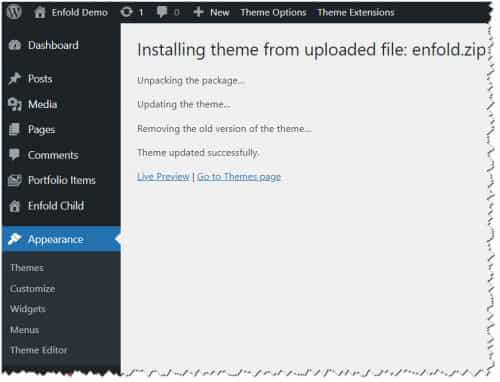
To update your version of Enfold you will need to download the latest installable WP version from your Theme Forest account and upload it to your WordPress ▸ Appearance ▸ Themes ▸ Add Themes ▸ Add New

after you choose the zip file and click install, you will see a This theme is already installed message because you are updating, you can continue

then you will see the Theme updated successfully message.
Best regards,
Mike
@ismael – maybe your snippet works with the add_attachment hook too? So to say on uploading new images.
Otherwise i found this snippet that creates title, alt and description by file name source:
(bring the first Letter of each work to uppercase (ucwords) – and removes the hyphens etc )
function my_set_image_meta_upon_image_upload( $post_ID ) {

	// Check if uploaded file is an image, else do nothing

	if ( wp_attachment_is_image( $post_ID ) ) {

		$my_image_title = get_post( $post_ID )->post_title;

		// Sanitize the title:  remove hyphens, underscores & extra spaces:
		$my_image_title = preg_replace( '%\s*[-_\s]+\s*%', ' ',  $my_image_title );

		// Sanitize the title:  capitalize first letter of every word (other letters lower case):
		$my_image_title = ucwords( strtolower( $my_image_title ) );

		// Create an array with the image meta (Title, Caption, Description) to be updated
		// Note:  comment out the Excerpt/Caption or Content/Description lines if not needed
		$my_image_meta = array(
			'ID'	=> $post_ID,		// Specify the image (ID) to be updated
			'post_title'	=> $my_image_title,		// Set image Title to sanitized title
			'post_excerpt'	=> $my_image_title,		// Set image Caption (Excerpt) to sanitized title
			'post_content'	=> $my_image_title,		// Set image Description (Content) to sanitized title
		);

		// Set the image Alt-Text
		update_post_meta( $post_ID, '_wp_attachment_image_alt', $my_image_title );

		// Set the image meta (e.g. Title, Excerpt, Content)
		wp_update_post( $my_image_meta );

	}
}
add_action( 'add_attachment', 'my_set_image_meta_upon_image_upload' );
Hey bonsaimedia,
I’m not seeing a “Mute” button on mobile in the banner on the homepage.
To add a screenshot of the “Mute” button, please try using an Screenshot service and pasting the image URL in your post.
Best regards,
Mike
This reply has been marked as private.
Hi,
Thanks for that. The reason why the content is disappearing is because you have open html tags in your content:
<strong>Veranstaltungen<strong>
You need to close all tags properly like so:
<strong>Veranstaltungen</strong>
Otherwise it will break the layout builder.
And why does not show date, hederimage and soziallinks in enfold editor after i save the post?
Like we wrote earlier; all content needs to be added manually to posts using the Layout Builder.
Best regards,
Rikard
HI,
ok in all my other website with enfold i dont have this problem.
Did you seen on the video that the content is suddenly deleted?
And why does not show date, hederimage and soziallinks in enfold editor after i save the post?
thank you
Hey Destini Richlin,
Thank you for the inquiry.
The site displays perfectly fine on our end. Would you mind providing a screenshot of the issue? You can use platforms like Savvyify, Imgur or Dropbox to upload and share the screenshot. Here are the steps to follow:
1.) Visit the website of your chosen platform, such as Savvyify, Imgur or Dropbox.
2.) Locate the option to upload a file or an image.
3.) Select the screenshot file from your computer or device and upload it to the platform.
4.) After the upload is complete, you will be provided with a shareable link or an embed code.
5.) Copy the link or code and include it in your message or response to provide us with the screenshot.
Thank you for taking the time to share the screenshot. It will help us better understand the issue you’re facing and provide appropriate assistance.
Best regards,
Ismael
Hi,
Thank you for the update.
The people working on the website might have put some coding in and also
Yes, it’s possible that they accidentally did something that affected the database and caused the alt text to be removed. Please redo this for a few images and wait for a day or two before proceeding with the rest of the images, just in case. Again, make sure to create a site backup after completing each task.
And as mentioned by @Guenni007 above, you could programmatically copy the title or the description and apply them as alt text. Something like this in the functions.php file.
WARNING: This will override the alt text of all images and replace them with the title.
function av_update_existing_image_alt_texts() {
    $args = [
        'post_type'      => 'attachment',
        'post_mime_type' => 'image',
        'post_status'    => 'inherit',
        'posts_per_page' => -1,
    ];

    $images = get_posts($args);

    foreach ($images as $image) {
        $alt_text = get_post_meta($image->ID, '_wp_attachment_image_alt', true);
        if (empty($alt_text)) {
            $title = $image->post_title;
            if (!empty($title)) {
                update_post_meta($image->ID, '_wp_attachment_image_alt', $title);
            }
        }
    }
}
add_action('admin_init', 'av_update_existing_image_alt_texts');
Best regards,
Ismael
Hi, I am having two home pages, if you could help, please.
-After months of working fine, there is again a huge white space under our hero image on the home page of fiestapoolsandspas.com. Any thoughts?
-Also, the menu on the home page has black line separators all of a sudden, while the other pages are fine. Any thoughts why?
I have included images.
Thanks so much!


Hi, I have a image widget with a ligthbox open for a youtube url which is added to the backend. For some reason this particular video is not opening and playing automatically. I added the code ?autoplay=1 to the end of the video in the manual url. I have 2 other videos on that particular page that do work and play automatically in the lightbox… I have added the full url to private content. Please advise.
Do all images got Titles or Descriptions too? – and do they differ from Alt Text?
My question is that there might be a method to generate the alt text from one of the others.
first – maybe you decide not to have this immense padding of 100px of that cell – because expanding the content will end in a very hight container.
next: set for the background-image position : bottom center.
put this to your quick css and adjust to your needs:
#top .av-fold-unfold-container.unfolded {
  background-color: rgba(0,0,0,0.3);
  border-radius: 15px;
  padding: 10px;
  -webkit-backdrop-filter: blur(3px);
  backdrop-filter: blur(3px);
}
if you like to have a semi-transparent white bg – change to rgba(255,255,255,0.6)
but then i would change font color to f.e. #333
#top .av-fold-unfold-container.unfolded p {
  color: #333;
}
The first color-section : got custom class: bg-fixed
this color-section got the one background-image: substrato_background_page_top – but set it to scroll (background-attachment)
this is for quick css ( maybe we had to adjust later on – please activate that example page again):
.bg-fixed {
  background-size: 0px !important;
  overflow: hidden;
  position: relative;
  -webkit-clip-path: polygon(0 0, 100% 0, 100% 100%, 0% 100%);
  clip-path: polygon(0 0, 100% 0, 100% 100%, 0% 100%);
}

.bg-fixed:before {
  background-image: inherit !important;
  background-repeat: inherit !important;
  background-size: cover;
  background-position: inherit;
  content: "";
  position: fixed;
  width: 100%;
  height: 100%;
  top: 0;
  left: 0;
  z-index: -1 !important;
  pointer-events: none;
}
Now for the following color-section ( just for that bg-image) with the substrato_separatore.png – that image is 265px heigh –
On Layout Tab : set section height to “Miniumum custom height in px ” to 265px
Open “Margin and Padding” Tab : check “Custom Margins” and enter -260px (Top and Bottom) – this will shift the section to top.
On Styling Tab – “Custom Background Color” and set the slider on the right to minimum (0.01) that is defacto : transparent
Background Image – now your separator – set to scroll – Bottom Center and repeat-x
on Advanced Tab : set a higher z-Index e.g. 2 – and give (if needed) a custom class to that section f.e. shifted-bg
If you got this we will look what to adjust then.
maybe this might be necessary:
#top .bg-fixed ,
#top .shifted-bg {
  position: relative;
}
HI there,
I’d need to find a solution to make the text more easily readable, how can I change the background default white color of the fold/unfold activated text block container so it’s not white but it is a darker grey or beige?
I herein attach two screenshots to show what I mean.


Also, is it possible to make sure that when the text unfolds and the image is enlarged/zooming, the person doesn’t slide to the left and gets cut off in half, but it remains front and center, or it slides to the right?
Thank you for your support. Love Enfold!
hi
yes i know, i use only the enfold layout builder. As example i open an entry and add some pictures click on save and the content is missing, also the heading, main entry image and date is not showing.
thank you
Hi Rikard,
creat a post and some content save in enfold editor -> in the post the header image, the date and the heading is not showing if you change the editor to wordpress default editor with only the enfold code it works fine.
if i add an image in a page an click on save with the enfold editor, the content are missing
thank you
Hey pietervanzaanen,
Thank you for the inquiry.
You can setup the knowledge base entries as posts with a unique category “documentation”. The demo https://kriesi.at/themes/enfold-2017/blog/ is created using the Advance Layout Builder (ALB) — it has a Color Section at the very top with a background image, Special Heading + Separator + Text Block element combo and Two Blog Posts element below the Color Section. One of the Blog Posts element displays only one entry and the other is set to have a Grid Layout with 2 Columns.
To copy the layout a lot easier, you can set the builder to debug mode then copy these code in the shortcode field: https://pastebin.com/EfxvsDwL
To enable debug mode, please check this documentation: https://kriesi.at/documentation/enfold/intro-to-layout-builder/#debug-mode
Let us now if you need further assistance.
Best regards,
Ismael
First: See here a quick takeover of your logo as svg separators – these are set as patterns, so they are not responsive – but fill the entire width with this pattern unit. On element (color section – or column) you can set a height for them. And of course the fill color.
https://webers-testseite.de/bildvergleich/
Second: have a look at this: https://webers-testseite.de/donkey/
The problem with background-attachment: fixed is that a lot of mobile devices do not support it well. So Enfold decided to switch for mobile devices to background-attachment : scroll.
One trick was to use the background-attachment: scroll from the beginning setup. We can make then a pseudo-container (before or after anyway) that inherited background-image. Because it is now a seperated container we can set it to position : fixed
We then add a clip path to the actual color section so that the inheriting pseudo-container is only displayed below the parent section.
This is well supported by all browsers and mobile devices. etc. – follow the link above.
All is ruled by a custom class for the color-section.
PS: that post is from 2020 – so it might be that inset (0 0 0 0) works now on all browsers for the clip-path. That is much easier to understand and to write down in css code.
But: it will be hard to style with two background-images … i’m afraid we’ll have to go back to your previous solution.
Have a look if this could be a working solution for you – then i will start to explain how:
https://webers-testseite.de/substrato/



