Hi,
Thank you for the info.
You will need to switch to the Advanced Layout Builder to use the Product Grid element on the product page, or use the element’s shortcode in one of the template hooks.
Example:
add_action( 'woocommerce_after_single_product_tabs', 'av_woocommerce_after_single_product_tabs_mod', 100 );

function av_woocommerce_after_single_product_tabs_mod() {
    echo do_shortcode("[av_productgrid select_type='' categories='' link='' term_rel='' wc_prod_visible='' wc_prod_hidden='' wc_prod_featured='' wc_prod_sale='' wc_prod_additional_filter='' sort='dropdown' prod_order='' offset='0' page_element_filter='' columns='3' image_size='shop_catalog' items='9' paginate='yes' av-desktop-hide='' av-medium-hide='' av-small-hide='' av-mini-hide='' alb_description='' id='' custom_class='' template_class='' element_template='' one_element_template='' show_locked_options_fakeArg='' av_uid='' sc_version='1.0']
");
}
For this type of modification, we recommend hiring a freelance developer or contact Codeable.
— https://kriesi.at/contact/customization
Best regards,
Ismael
Hey wesdorman,
Thank you for the inquiry.
There might be a slight difference between the desktop and mobile views due to their aspect ratios, especially with the background image. For the font size, make sure to define a specific size for smaller screens. We tried logging into the site, but it’s asking for .htaccess authentication. Please provide the login info in the private field.
Best regards,
Ismael
Hey limedrop,
Go into the project settings, then click on “hide on mobile”

Best regards,
Mike
I’m using a color section with 1/1 layout element. trying to get simple image with text overlay to display the same between desktop and mobile.
Mobile isn’t responsive at all. mobile image or text does not resize.
supposedly EnFold is suppose to be good at this, but not from my experience?
any help here??
thanks, Wes
Hi,
I believe you are referring to this:

when I test the css above I see this:

If this is not what you meant perhaps a screenshot would help.
To add a screenshot please try using an Screenshot service and pasting the image URL in your post.
Best regards,
Mike
Hi,
I understand that you don’t understand what we are trying to explain, so for this page: https://photomagx.com/travel-photography/photo-magazine-extras-top-hotels-photography-spots-2018/ try this CSS in your Enfold Theme Options ▸ General Styling ▸ Quick CSS field:
.avia_textblock a strong {
  color: blue !important;
}
After applying the css, please clear your browser cache and check.
It should work on other pages, but if you find one that it doesn’t work on, link to it and we will provide another css snippet.

Best regards,
Mike
Hey Kelly,
I believe this is because the sub-menu link “About Us” has a link to your homepage/#top:

Try correcting this link.
Best regards,
Mike
hello,
The gallery outline is not completely green. On the left, there is no green outline, but the image directly. How can I fix this problem?
would also like to have the optimal size for the images in this gallery, vertically. Is 700 x 1020 the optimal size (targeting smartphones)?
Thanks for your help
Sandra
Hi,
Please use the “Shrinking Header” option at Enfold Theme Options ▸ Header ▸ Header behavior ▸ Shrinking Header

Best regards,
Mike
Hey AuroraArcus,
You have a empty image element above each image element, so that is two image elements in each columns, for example this is the empty one:

and this is the one below it with the image:

so please delete the empty ones. You can find them by moving your pointer just above the visible image.
Best regards,
Mike
if you need to do it that way with background-images in columns: give a custom-class to those columns f.e. : with-bg-overlay
and use the psuedo-container before for that:
#top .flex_column.with-bg-overlay::before {
  content: "";
  position: absolute;
  display: block;
  top: 0;
  left: 0;
  width: 100%;
  height: 100%;
  background-color: rgba(0,0,0,0.3);
  visibility: visible;
  z-index: -1;
}
see both variants again on: https://webers-testseite.de/adamad/
PS there is a declaration with backdrop-filter – so you can blur the effect – but that is optional.
PPS: see responsive behaviour on both cases !
i would have made it with images inside the columns – and use the caption setting to have text over the image. In this case there will be an automatic overlay – – on image styling tab then you can set the options for that overly:
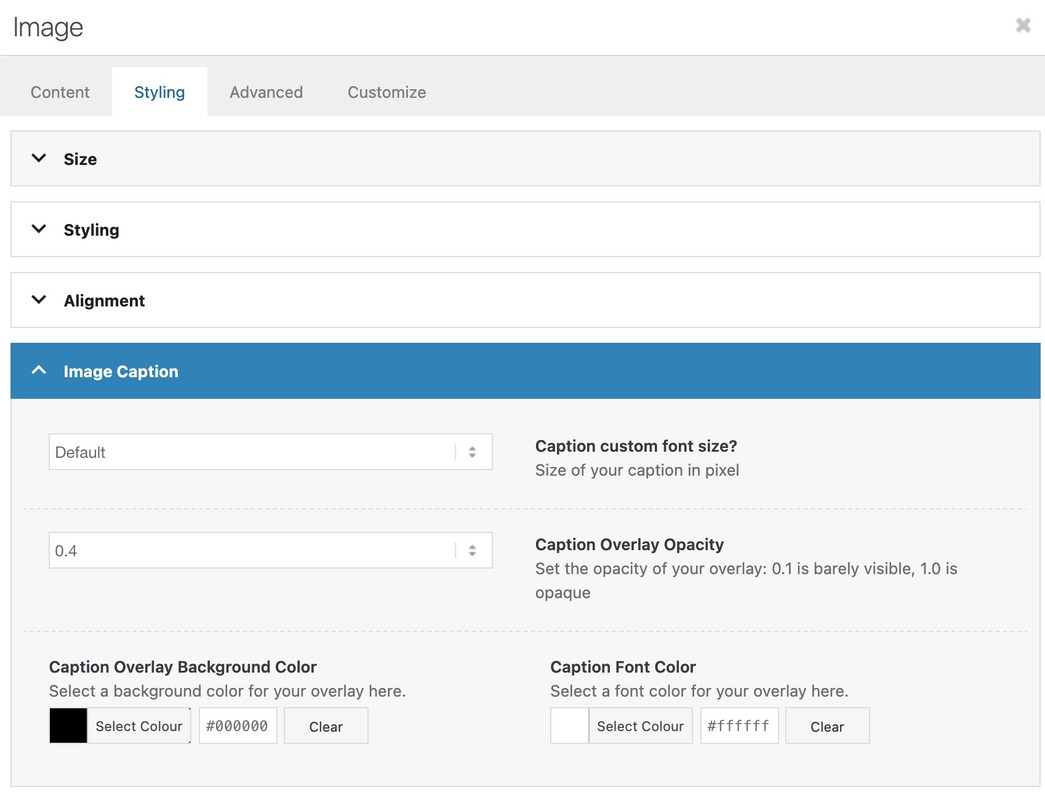
Hi,
You want a 1500x1500px image under the category title?
1500px height would basically be full screen height, right?
Do you want the image under the title or the title to be overlayed on the image?
This will not be so easy.
Best regards,
Mike
Can you help me with making a hover color when the cruiseris over the images in the columns – now there is a slightly lighter color, but how can I change that?
Thank you! This works! Item 3 is now resolved.
The only item unresolved is:
3. I need to add an optional category title image (e.g. 1500x1500px, centred). individual categories would have either a unique title image or no title image. I tried the Categories Images plugin but it didn’t work, as images didn’t display on the category page. Is there a way to display an optional category image under the category title?
Hi,
Thank you for the update.
You can disable the hover animation of the Image element by adjusting the Advanced > Animation > Image Hover Effect settings. You can also add the following css code but it will affect all Image elements in the site.
.avia-image-container .avia_image, .avia-image-container .avia-image-overlay-wrap {
    transition: none;
}

.avia-image-container.av-hover-grow .avia-image-overlay-wrap:hover {
    transform: none;
}
Best regards,
Ismael
Hello there: my apologies, I completely forgot to clear my cache before testing. Your solution works well, the image flashes up on-screen immediately now with no animation.
The only issue is that the text still animates by sliding in from left and right. How can I disable this as well?
Thanks,
Kevin
Hey digitalrefresh,
It looks like your Google reCaptcha setting in the cookies is set to make all items disabled until manually checked:

so if you manually check this and then reload your contact form button will show:

Check your Default Cookie Behaviour settings, I think you are using “Essential cookies are accepted on first page load, user must opt in” try changing to “All cookies and services are accepted on first page load, user can opt out”

and also check “Advanced Options” and use “Auto reload on “Accept Settings …” only” so the page is reloaded.

Best regards,
Mike
Hi,
I added this css:
.category .title_container h1 a {
font-size: 300%!important;
line-height: 55px;
font-family: "sacramento", cursive;
font-weight: 400;
}
and this code to your to the end of your child theme functions.php file in Appearance ▸ Editor:
function custom_script() { ?>
  <script>
(function($){
  $('#top.category .title_container h1.main-title.entry-title  a').contents().filter(function() {
    return this.nodeType == 3
  }).each(function(){
    this.textContent = this.textContent.replace('Archive for category:','');
    this.textContent = this.textContent.replace('Tag Archive for:','');
    this.textContent = this.textContent.replace('Archive for:','');
  });
  })(jQuery);
</script>
  <?php
}
add_action( 'wp_footer', 'custom_script', 99 );
the result now:

Please clear your browser cache and check.
Best regards,
Mike
Hi Ismael,
it works but I had to make a little change to my code.
Here is the full working code to add custom image sizes to WP and enable them in Enfold ALB, in case anybody needs it:
// Add image sizes to WP
function add_custom_image_size() {
    // add_image_size( 'name', width, height, crop );
    add_image_size( 'medium_squared', 600, 600, true );
}
add_action( 'after_setup_theme', 'add_custom_image_size' );

// Make custom image sizes selectable from WP admin
function add_custom_image_sizes_to_editor( $sizes ) {
	return array_merge( $sizes, array(
		'medium_squared' => 'Medium squared',
	) );
}
add_filter( 'image_size_names_choose', 'add_custom_image_sizes_to_editor' );

// Make custom image sizes selectable from Enfold ALB elements
function add_custom_image_sizes_to_enfold_alb( array $selectableImgSize, array $imgSizes ) {
    $selectableImgSize['medium_squared'] = 'Medium squared';
    return $selectableImgSize;
}
add_filter( 'avf_modify_selectable_image_sizes', 'add_custom_image_sizes_to_enfold_alb', 10, 2 );
Thanks
Best regards,
Alessio
Hi Mike
I ask because ENFOLD offers a funtion in VIDEO Mask «Video Steuerung ausblenden» but that unfortunately does not work:

Any other ideas? If not, I’m considering to create an IMAGE gallery for the Video thumbnails and link them to the Original Youtube videos in lightbox as I only need Video thumbnail with PLAY Button centered.
What you think?
Steve
Hi,
I disabled your Enfold Theme Options ▸ Header ▸ Header Layout ▸ Header Title and Breadcrumbs ▸ Display only title and added this to your code to the end of your child theme functions.php file in Appearance ▸ Editor:
add_filter('avf_header_setting_filter', 'avf_header_setting_filter_mod', 50, 1);
function avf_header_setting_filter_mod($header_settings) {
    if (is_tax() || is_archive()) {
        $header_settings['header_title_bar'] = "title_bar";
    }
    return $header_settings;
}
to only show the title on your category pages.
and I added this css:
.category .container_wrap_first {
	border: none;
}
.category .title_container {
	text-align: center;
	padding-top: 50px;
	background-color: #f2f0eb !important;
}
.category .title_container h1 a {
	font-weight: 600 !important;
	line-height: 1.3em;
	font-size: 30px;
}
so compared to one of you posts:

your category title looks like this:

But note that they are both H1, I don’t see H2 like you asked.
Best regards,
Mike
Hiya there!
I’m using the Enfold theme in combination with ACF to create a cool website.
Currently I’m facing an issue on a single blog item. I want to have 2 image galleries on that page, but I needed them filled with external API images.
So I built some code that replicates the standard gallery block, and it all works fine for the first one.
However the images from the second gallery are also loaded into the first gallery. Which I don’t want, because they’ re 2 different image subjects so to speak.
How can I make them unique in the code of the site?
Image of code in private section :)
Also a link to the page I’m working on.
We are using WP Rocket on a few of our websites that use Enfold and it’s fairly common to see background images set in containers such as color sections not displaying for users not logged into WordPress.
Is this a known issue and if so, can you provide some info on how to get around this? Are there specific settings in WP Rocket that do not work with Enfold? I have tried clearing the cache files for individual pages as well as the entire website. Neither seems to help.
-
This topic was modified 1 year ago by
 NicomIT.
Hey rixi,
Thank you for the inquiry.
It’s possible that the sections below the gallery are not loading due to the number of images on the page. There are nearly 80 images in the gallery, and most of them are over 100KB in size, accumulating to almost 12MB in total, which is quite large. This could affect the script that triggers the animation for the elements. We recommend reducing the number of images or enabling the pagination or the “load more” button.
Best regards,
Ismael
Hi,
Thank you for the inquiry.
Did you set the Gallery element’s Advanced > Link Settings > Image Link option to ‘Use custom link (fallback is image link)’? When the custom link field is not set, it should default to the image link and open a lightbox if enabled.
Best regards,
Ismael
Hey mosaic,
Thank you for the inquiry.
Try to add this css code to adjust the aspect ratio of the thumbnails:
#top .av-related-style-full .related_image_wrap, #top .av-related-style-full .related_image_wrap img, #top .av-related-style-full .related_image_wrap .related_posts_default_image {
    object-fit: cover;
}
Best regards,
Ismael
Hi,
It is actually working, but the number of images affects the animation and loading speed. You can see it more clearly on the test page we created. (see private field)
Best regards,
Ismael
Hey ballindigital,
You can remove the linked image overlay under Enfold->Advanced Styling. Please post a link to where we can see the actual elements so that we can have a look at the border.
Best regards,
Rikard



