Hey Marci Rosen,
To update your version of Enfold you will need to download the latest installable WP version from your Theme Forest account and upload it to your WordPress ▸ Appearance ▸ Themes ▸ Add Themes ▸ Add New

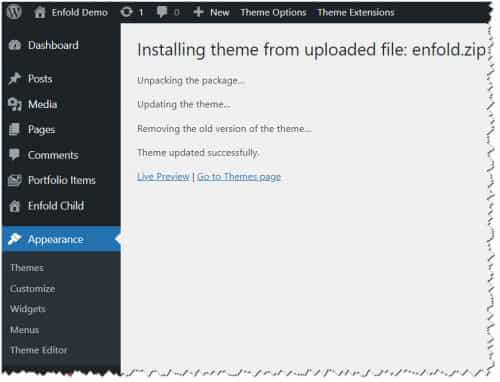
after you choose the zip file and click install, you will see a This theme is already installed message because you are updating, you can continue

then you will see the Theme updated successfully message.
Best regards,
Mike
And a quick side question: Do you have suggestions if I wanted to protect our work photos with a watermark or “no-save” options? I see a couple watermark, but there isn’t much control over opacity and what images it does. thanks!
Hi!
I’d like to replace some submenuitems in my burger menu with seperator images (already uploaded in wordpress). I tried different forum solutions but could’nt get it working.
Thanks for your help!
Best,
Konrad
-
This topic was modified 11 months, 3 weeks ago by
 konradanders.
Hi,
adjusting the slider’s image size for mobile so it runs full height?
You can replace the Fullwidth Easy Slider with Fullscreen Slider or use both, then adjust the Advanced > Responsive > Element Visibility settings to toggle the display of the sliders. You’ll have one slider for desktop and another for mobile view.
To adjust the position of the caption, go to the Styling > Caption panel, then adjust Caption Positioning settings.
Best regards,
Ismael
Is there a way to adjust the slider/image size on mobile? I’d like it to be full-length height-wise on an iPhone screen.
And how do I adjust the layout placement of the caption title, content, and button so it is vertically centered on the image?
I have “Reviews” area on the home page using “Content Slider”. On desktop the Google reviews have a white box around each review, but when I look on mobile, it is on black and not white box. Any ideas on how to fix this?
This is the site: https://sonoranwaters.armourcloud.io/
screenshot of all black on mobile:
https://img.savvyify.com/image/IMG-8AA77C578AD1-1.9tR4u
Yes, that CSS is there but whatever is changed on it affects both the navigation bar search box and the content custom search widget. Below is the CSS for the home page content custom search widget. Is anything is this customization affecting the navigation search box? It was working correctly for several years up until the latest version of Enfold. I don’t know what changed, but rolling back to previous versions of Enfold in a staging area corrects it.
#chsearchbox {
position: relative;
background-color: transparent!important;
margin-top: -15px;
z-index: 55;
border: none!important;
}
#search-3 #s {
left: 35px;
content: url(‘https://riseandshine.childrensnational.org/wp-content/uploads/2017/07/ch-search-icon.png’);
width: 85%;
margin: -32px auto !important;
padding: 41px;
border: none!important;
box-shadow: 0px 5px 15px 0px #cccccc;
}
#search-3 .avia-font-entypo-fontello {
background-image: url(https://riseandshine.childrensnational.org/wp-content/uploads/2017/07/ch-search-icon.png);
background-repeat: no-repeat;
background-position: 50% 50%;
background-size: contain;
background-color: transparent!important;
width: 67px!important;
}
#search-3 #searchform #searchsubmit {
_font-size: 2.5em; /*set the size of the magnifying icon*/
font-size: 1.5em;
color: transparent;
}
#search-3 input[type=”text”] {
font-size: 30px; /*set the size of the search box input font*/
}
#search-3 .button {
left: 95px;
}
#searchsubmit .avia-font-entypo-fontello {
display: none!important;
}
That’s helpful, thank you…I just adjusted the font sizes and the caption title and content are better now, but still running off the bottom of the image…And what about adjusting the slider’s image size for mobile so it runs full height? (I’d like the image to reach to the bottom of the screen.)
-
This reply was modified 11 months, 3 weeks ago by
 dryo1.
Hi,
Thanks for the update. I’ve imported the shortcodes for the front page of the demo to a new page, please have a look at it. Note that images are not imported, but I’m guessing that you are going to use your own? If you need more pages or posts from the demo, then please let us know which ones.
Best regards,
Rikard
I created a fullwidth easy slider that looks fine on desktop. But on mobile, it isn’t responsive at all – the caption title and content are too large, and the image height needs to be a lot larger. Can someone help me figure this out?
Hi,
Your sub-sites show multiple errors: Failed to load resource: the server responded with a status of 500 ()
This looks like a config error on your webhost.
The HTTP 500 Internal Server Error server error response status code indicates that the server encountered an unexpected condition that prevented it from fulfilling the request.
If you’re a visitor seeing 500 errors on a web page, these issues require investigation by server owners or administrators. There are many possible causes of 500 errors, including: improper server configuration, out-of-memory (OOM) issues, unhandled exceptions, improper file permissions, or other complex factors.

Try asking your webhost to review your multisite config, it is not something that can be fixed inside of WordPress.
Best regards,
Mike
Hey diraastro,
Try adding this code to the end of your child theme functions.php file in Appearance ▸ Editor:
function change_the_order_of_milestone_even_on_mobile_screens() { ?>
  <script>
document.addEventListener('DOMContentLoaded', () => {
  const milestones = document.querySelectorAll('.av-milestone-even');
  if (milestones.length === 0) return;
  const mediaQuery = window.matchMedia('(max-width: 989px)');
  const reorderMilestones = () => {
    if (mediaQuery.matches) {
      milestones.forEach(milestone => {
        const date = milestone.querySelector('.av-milestone-date');
        const icon = milestone.querySelector('.av-milestone-icon-wrap');
        const content = milestone.querySelector('.av-milestone-content-wrap');
        if (date && icon && content) {
          milestone.innerHTML = '';
          milestone.appendChild(date);
          milestone.appendChild(icon);
          milestone.appendChild(content);
        }
      });
    }
  };
  reorderMilestones();
  mediaQuery.addEventListener('change', reorderMilestones);
});
</script>
  <?php
}
add_action( 'wp_footer', 'change_the_order_of_milestone_even_on_mobile_screens', 99 );
Please ensure to copy the code from the forum and not an email notification so the symbols are not converted.
If you are not using a child theme you could use the WP Code plugin then add a new snippet, in the top right corner use the PHP snippet as the code type:

and ensure that it is activated, then add the above code and save.
Best regards,
Mike
Hallo Enfold-Team,
ich habe für den Blog Kategorien angelegt. Wenn ich eine daraus auswähle erscheint eine Übersichtsseite, die alle getaggten Artikel auflistet. Leider passt die Seite von der Optik her überhaupt nicht ins Design. Die Fotos fehlen, es ist kein Titelbild drin und die Seite sieht sehr technisch aus und unübersichtlich.
Kann man die gestalten und wenn ja, wie?
I’ve created categories for my blog. When I select one, an overview page appears that lists all tagged articles. Unfortunately, the page doesn’t fit the design at all. The photos are missing, there’s no cover image, and the page looks very technical and confusing.
Can I customize them, and if so, how?
Kind regards,
Constanze
Hi,
Do you mean the blue title, or the black?

Best regards,
Mike
Hey stefpasi,
You probably have the caption set to “bottom without frame” in the slide:

Try this CSS in your Enfold Theme Options ▸ General Styling ▸ Quick CSS field:
.caption_fullwidth {
    position: relative;
    top: 20em;
}

adjust to suit.
Best regards,
Mike
Hey Sylvain,
You can use the layerslider with a transparent header like this: https://kriesi.at/themes/enfold-2017/
or the fullscreen slider with a transparent header like this: https://kriesi.at/themes/enfold-2017/elements/fullscreen-slider/
or add the image as a background image color section: https://kriesi.at/themes/enfold-2017/elements/color-section/
this is another color section example with a transparent header: https://kriesi.at/themes/enfold-2017/pages/blank-pages/coming-soon-page/
Best regards,
Mike
Good morning everyone, I have a site that has an image on the front page which is published with Easy Slider and has a text on the bottom left (caption) I would like the same text to be on the top left instead of being at the bottom, how can I do this is there a possibility to insert a quick CSS code to manage the text inside the image published with Easy Slider?
Hi Mike,
thanks for your help!
I have Safari Version 18.4 , MacOS 15.4. Yes i am clicking the cookie message, then i see the video loading and a play button. I f i click the play-Button the video scales right to 100% percent and plays. Before i click the button i see black stripes above und below the video preview image. (like in the screenshot). Maybe it is an issue with a privacy-setting?
 Sylvain
Guest
Hello, I’m trying a version of Enfold 7.0 loaned by a friend, to be sure before buying it. That looks really good! But I encounter a problem that seems basic to me… Impossible to put a background-image header that stretches over the entire width of the header, I can’t find an option for that… Even customizing the css myself. Could you please tell me if this is possible? Many thanks to you!
Hi Mike,
there is another problem which i can´t figure out:
Is it possible to increase the image size in that cell like in the screenshot?
Hi,
When I first checked, the white area was not fullwidth:

but now it is:

Perhaps you want this:

if so try adding this css:
@media only screen and (max-width: 767px) {
    #top #wrap_all .avia-caption-content p {
    width: 80%;
    margin: auto;
}
    #top #wrap_all .avia-slideshow .avia-caption-title {
        width: 80%;
        margin: auto;
}
}
After applying the css, please clear your browser cache and check.
Best regards,
Mike
Hey Mikoláš,
Try using the Content height > Auto adjust to content option:

Best regards,
Mike
Hey a_edemirci,
I recommend adding two more social media profiles, ones that you don’t plan on using. Then add the link to your language pages, for example 500px & behance:

Then add this css:
.social_bookmarks_five_100_px a:before {
	content: url(https://img.icons8.com/officexs/16/000000/great-britain.png);
	top: 12%;
  position: relative;
}
.social_bookmarks_five_100_px a svg {
	display: none;
}
.social_bookmarks_behance a:before {
	content: url(https://img.icons8.com/officexs/16/000000/switzerland.png);
	top: 12%;
  position: relative;
}
.social_bookmarks_behance a svg {
	display: none;
}
for this result:

to remove the hover title, add this code to the end of your child theme functions.php file in Appearance ▸ Editor:
function custom_script() { ?>
  <script>
(function($){
  $(".social_bookmarks_five_100_px a, .social_bookmarks_behance a").hover(function(){
    $(this).removeAttr("title");
  });
})(jQuery);
</script>
  <?php
}
add_action( 'wp_footer', 'custom_script', 99 );
Best regards,
Mike
Hey oladigital_co,
Thank you for your patience, I don’t have a iPhone, but I tested in Safari on a Mac in Responsive Design Mode iOS simulator, I also checked on live.browserstack.com iOS simulator, and both worked for me, please see the screenshot in the Private Content area.
I do see an error: /?avia_forced_reroute=1 404 (Not Found) in your console, try going to Enfold Theme Options > Custom Error 404 Page > Redirect to selected page and change the settings to “Select page”

you may have an old setting in there.
Please note that testing with iPhones can be hard to clear the cache, often you need to also clear the history to fully purge the cache, following these steps for Safari and note Step 4 where you will Clear the History.
Best regards,
Mike
Hi,
*update* I tested the above script that you posted “Fix Yoast SEO pagination compatibility with Enfold theme using avia-element-paging” and it solved the issue on my site
<link rel="canonical" href="https://enfold.site.com/blog/blog-default/?avia-element-paging=2" class="yoast-seo-meta-tag">
If you are not using a child theme you could use the WP Code plugin then add a new snippet, in the top right corner use the PHP snippet as the code type:
and ensure that it is activated, then add the above code without the leading <?php and save.
Best regards,
Mike
This reply has been marked as private.
well it is the same setting – but you placed on the other textblocks manual breaks:
see:
(click to enlarge the images)

and because of text-align: center – these phrases are not the full width:

Hi Ismael,
Ok. In this case, is it possible to reduce the space between the search bar and the results when the search is carried out on a scrolled page?

Thank you again,
Can you get me CSS code to reduce the stretch of the Easy Sliders on my home page? But need to be careful because I need the stretched image for the Top Full Width Slider images. Last time the code reduced both. I just need the Easy Sliders reduced. Here is screenshot of long images: https://img.savvyify.com/image/Screen-Shot-2025-04-24-at-9.20.36-PM.9qqfd
This same thing happened on this support thread, but it won’t fix this current issue. Here is the old thread: https://kriesi.at/support/topic/i-need-css-code-for-enfold-theme-reduce-stretched-image-on-mobile-view-for-easy/
This code didnt work:
.responsive #top .avia-slideshow-inner, .responsive #top .avia-slideshow-inner img {
height: auto !important;
}
.responsive #top .avia-slideshow-inner, .responsive #top .avia-slideshow-inner img {
height: 450px !important;
object-fit: cover;
}
Hi,
Have you tried checking for the URL? Just replace the $logo_url with the actual URL of the logo image.
Best regards,
Ismael



