-
AuthorSearch Results
-
June 17, 2025 at 9:55 am #1485562
Topic: Glassy and transparent header or transparent header
in forum Enfoldlimedrop
ParticipantCan I please have a css the will give me the opportunities to have a gradient color in top header? Now I have it in the image, but it would be easier to have it in the code.
June 17, 2025 at 8:24 am #1485558In reply to: Reduce loading time with the AJAX portfolio
Hi,
One thing that could probably help speed things up a bit is to preload the images used in the portfolio AJAX preview. This way, the images will be ready prior to opening the portfolio item. Another is image compression and general site or page optimization. Please check the links below for more info.
— https://www.wppagebuilders.com/preload-images-wordpress/
— https://gtmetrix.com/wordpress-optimization-guide.html
— https://wpengine.com/resources/improve-wordpress-site-speed/We also noticed that the images are in webp format. Are you using a plugin to convert them? Does it make any difference when this plugin is disabled?
Best regards,
IsmaelJune 17, 2025 at 8:17 am #1485556In reply to: Reduce loading time with the AJAX portfolio
Thank you very much Ismael,
Yes, I disabled the loading icon because it always looks unprofessional when it appears, even on all other pages. I have enabled it now, but it doesn’t change the fact that it takes a long time to load. So it’s no fun for the user to click through the products later if he has to wait a very long time each time. An image has around 64k, which is not that much. Are there any other settings to speed up the process?
Thank you very much.
BR, MatthiasJune 17, 2025 at 7:39 am #1485551In reply to: Reduce loading time with the AJAX portfolio
Hey klick-design-rbh,
Thank you for the inquiry.
There should be a loading icon displayed while the associated images in the portfolio AJAX item are loading. You can see this behavior in the demo: https://kriesi.at/themes/enfold-2017/portfolio/portfolio-4-columns-centered-ajax/
Did you happen to disable the loading icon or modify any of the theme templates?
Best regards,
IsmaelJune 16, 2025 at 10:26 pm #1485536In reply to: Horizontal gallery on mobile
I’ve created an image without the code added and one with the code added. The one with shows the menu text is a bit smaller: https://img.savvyify.com/image/With-the-mobile-code-added.y87yl
https://img.savvyify.com/image/Without-the-mobile-code-added.y8Gd1How can I check the Accessibility Tools plugin settings?
Thanks!
June 16, 2025 at 10:01 pm #1485533In reply to: Horizontal gallery on mobile
Hi,
I’m not sure what is smaller, did you click your Accessibility Tools plugin?
Try adding a screenshot on the issue, yo add a screenshot please try using an Screenshot service and pasting the image URL in your post.
The css above should only be for the horizontal gallery.Best regards,
MikeJune 16, 2025 at 9:52 pm #1485532In reply to: hide the icon mouse-over label
i use for title attributes on links, images etc. this function in my child-theme functions.php:
function temporary_removal_title_tags(){
?>
<script>
  window.onload = function() {
    var elementsWithTitle = document.querySelectorAll('a, img, *[title]');
    for (var i = 0; i < elementsWithTitle.length; i++) {
        var element = elementsWithTitle[i];

        element.setAttribute("data-original-title", element.title);

        element.addEventListener("mouseenter", function() {
            this.title = "";
        });

        element.addEventListener("mouseleave", function() {
            this.title = this.getAttribute("data-original-title");
        });

        element.addEventListener("mousedown", function() {
            this.title = this.getAttribute("data-original-title");
        });
    }
  };
</script>
<?php
}
add_action('wp_footer', 'temporary_removal_title_tags');
BUT this will not influence the <title> inside the xml code of a svg file!
you can get rid of those <title> but i do not know a way to get them back by mouseleave or mousedown event:
the code above with a little addon – so use instead:function temporary_removal_title_tags_and_get_rid_of_svg_titles(){ ?> <script> window.onload = function() { var elementsWithTitle = document.querySelectorAll('a, img, *[title]'); for (var i = 0; i < elementsWithTitle.length; i++) { var element = elementsWithTitle[i]; element.addEventListener("mouseenter", function() { if (this.title) { this.setAttribute("data-original-title", this.title); this.title = ""; } }); element.addEventListener("mouseleave", function() { var storedTooltip = this.getAttribute("data-original-title"); if (storedTooltip !== null) { // Prüfen, ob ein Originaltitel gespeichert wurde this.title = storedTooltip; this.removeAttribute("data-original-title"); // Aufräumen } }); element.addEventListener("mousedown", function() { var storedTooltip = this.getAttribute("data-original-title"); if (storedTooltip !== null) { this.title = storedTooltip; this.removeAttribute("data-original-title"); } }); } var allSvgs = document.querySelectorAll('svg'); allSvgs.forEach(function(svg) { var svgTitles = svg.querySelectorAll('title'); svgTitles.forEach(function(svgTitleElement) { if (svgTitleElement.textContent.trim() !== '') { svgTitleElement.setAttribute("data-original-svg-title", svgTitleElement.textContent); svgTitleElement.textContent = ""; // Leeren des SVG-Titels } }); }); }; </script> <?php } add_action('wp_footer', 'temporary_removal_title_tags_and_get_rid_of_svg_titles');why not delete all title tags: sometimes these are needed for lightbox bottom bar
June 16, 2025 at 8:05 pm #1485525In reply to: Hiding Image on Mobile not working
I did see that page : https://webers-testseite.de/sam/ and it is fine.
In the past, the when I put in a mobile fall back, it makes two spots, the video and then the image below, so I don’t use the fall back if possible.
BUT, you were on it for sure, I made a 400px x 10px clear image and used it for the fallback and the big blank space and missing pic icon are gone!!!
Thank you so much!
ChrisJune 16, 2025 at 7:42 pm #1485521In reply to: svg logo’s in header and transparant header.
Hey gerardlok1,
We would have to see the actual problem that you are having, please change the images so that we can have a closer look.
Best regards,
RikardJune 16, 2025 at 11:52 am #1485502Bettina
GuestHello,
I am asking a presales question for a starting web project. Our graphic designer created very special layouts. All images and headings should have a special graphical element, a white layer formed as trapezoid.
I did not find any demo that uses something similar…Best regards
BettinaJune 16, 2025 at 9:28 am #1485494In reply to: hide the icon mouse-over label
Hi Ismael,
That functions.php edit didn’t work for me. to be sure we’re on the same page here, please see this image link: http://dev.websitebrew.com/wp-content/uploads/2025/06/map-label.jpg
June 15, 2025 at 2:18 pm #1485470In reply to: Weiterleitung E-mails funktioniert nicht mehr
Hey Susanne Knoll,
Please note that we did not create or host your site, we created the theme that your site uses.
Nonetheless, when I test your contact form it seems to work correctly:

Since you are using an old version of the theme (v4.1.2) you should update to v7.1.1
To update your version of Enfold you will need to download the latest <strong style=’color:#000′>installable WP version from your Theme Forest account and upload it to your <strong style=’color:#000′>WordPress ▸ Appearance ▸ Themes ▸ Add Themes ▸ Add New

after you choose the zip file and click install, you will see a <strong style=’color:#000′>This theme is already installed message because you are updating, you can continue

then you will see the <strong style=’color:#000′>Theme updated successfully message.
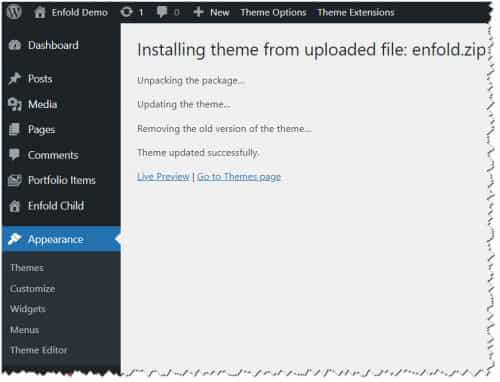
I also see that your updates are disabled, so if you don’t have a theme forest account you will need to purchase a new license. Envato (Theme Forest) handles all of our licenses and we can not create licenses and Envato will only recognize account owners, this sometimes happens with a site is built by a developer who in the future can not be found, Envato will not issue a new license to the website owner, one must be purchased. The upside to this is that by purchasing a new license you will also get 6 months of support on our forum to help with any issues. I recommend upgrading to a full year of support for just a little more, as the cost of the theme and a full year of support costs the same as a single hour of support from many developers.
Then you can register for our support forum and open a new thread. You have asked your question through the contact form which is not for support requests.
Thank you for your understanding.Best regards,
MikeJune 14, 2025 at 11:06 pm #1485463In reply to: Hiding Image on Mobile not working
So sorry to be a pain but (if I did it correctly) it still is showing the big blank space and the missing image icon on the page on a real iPhone. The simulator doesn’t show it nor narrowing your window to a cell phone shape, but on a real iPhone, I still see it.
Please login and take a look again – if you have an iPhone, take a look.
Thanks
ChrisJune 14, 2025 at 8:25 pm #1485459In reply to: Accessibility Issue with Search Icon
Hi,
I have researched this and while there is a long technical explanation for why the WAVE test tool is flagging this, I found a solution in my research. Try adding this code to the end of your child theme functions.php file in Appearance ▸ Editor:function remove_link_from_search_icon_and_add_it_back_on_click() { ?> <script> document.addEventListener('DOMContentLoaded', function() { const searchLink = document.querySelector('#menu-item-search a'); if (searchLink) { // Store the original href const originalHref = searchLink.getAttribute('href'); // Remove the href on page load searchLink.removeAttribute('href'); // Add click event to restore href searchLink.addEventListener('click', function() { if (!searchLink.getAttribute('href')) { searchLink.setAttribute('href', originalHref); } }); } }); </script> <?php } add_action( 'wp_footer', 'remove_link_from_search_icon_and_add_it_back_on_click', 99 );If you are not using a child theme you could use the WP Code plugin then add a new snippet, in the top right corner use the PHP snippet as the code type:

and ensure that it is activated, then add the above code and save.
I tested this on the WAVE Web Accessibility Evaluation Tool and it removed the error.Best regards,
MikeJune 14, 2025 at 4:59 pm #1485458In reply to: Product filter from demo
Hey gerardlok1,
You probably have not finished setting up the woocommerce plugin, try going to woocommerce plugin start, and look for “add your products”:

it probably won’t be crossed out like in the image, click it and on the next screen click “View more product types” then click “Load Sample Products”

This will add 9 sample products and woocommerce will know you have products, then the widgets will show:

Best regards,
MikeJune 14, 2025 at 9:04 am #1485455In reply to: Hiding Image on Mobile not working
Why do you have that text as double content?
Lets try if a css only solution will do the job:
Do not create that extra text section. This means: your 1/3 column on the left – the 2/3 column with your text on the right. As probably before, move the line column upwards (-200px) using the setting via Advanced – Position relative in the Row Settings – Row Screen Options setting and let the columns wrap at 989px. Give the column with the image its own meaningful class, e.g.: hide-on-smallscreens.
Now insert it into the Quick CSS:
@media only screen and (max-width: 989px) {
 #top .flex_column.hide-on-smallscreens {
    display: none !important;
  }
  #top .flex_column.hide-on-smallscreens + .flex_column {
    width: 100%;
  }
}
maybe it is better to shift the image via position relative.
June 13, 2025 at 7:50 pm #1485450In reply to: Hiding Image on Mobile not working
yes, the column has “hide on mobile”
I removed the ID and Class on the image and still see the big blank space on my iPhone
Do you still see it?
Thanks
CcJune 13, 2025 at 6:49 pm #1485443In reply to: border radius on images
Hi,
Thanks for sharing @gerardlok1. If you need further help, then post a link to an example image @limedrop.
Best regards,
RikardJune 13, 2025 at 5:30 pm #1485440In reply to: Hiding Image on Mobile not working
maybe it is because the ID is set twice ID=samhide
remove it from the imageor because the image is inside a column why not using the options inside the column element to hide the column?
June 13, 2025 at 4:47 pm #1485437In reply to: Hiding Image on Mobile not working
I did make a reproduction page top and made it exactly like the homepage – from scratch, not making templates out of the elements, using same settings and set up. It was the same result. I also made other changes experimenting with the image, z index and hiding… same result. Switched the columns where the image was, same result.
https://img.savvyify.com/image/IMG-4759.y8rhx
I am at a loss to what to try next.
Please help.
Did I give credentials? I will add them just in case below.June 13, 2025 at 4:19 pm #1485434Topic: Padding in textboxes
in forum EnfoldSchmidtgrafisk
ParticipantHey Enfold
I’v got 4 columns with 0% space between them.
In top of the columns I got images with no space and that looks great, under the images I got text boxes, I’d like to add left and right padding to the textboxes to make space between the different text’sPlease have a look at the colorsection at the bottom of the frontpage.
Thanks ;)
AlanJune 13, 2025 at 3:31 pm #1485432In reply to: Horizontal gallery on mobile
Do I add this entire code including messages? I added all of it in custom css and I’m still seeing the third slide cropped. I don’t see the image sample you are showing.
June 13, 2025 at 2:33 pm #1485431In reply to: border radius on images
Hi there!
I am not a moderator or in any way someone that works there. I am a customer just like you but i thought maybe i could give you some tips.
The css you are looking for is this:
element.style {
border-radius: 50px;
}The element.style needs to be changed to the img you want to do it to.
if you would use:
img {
border-radius: 50px;
}It should work on all images.
You might need the !important code to overrule things.img {
border-radius: 50px!important;
}If this does not what you want, some mod can probably look at the problem more closely.
PS; the 50px can be adjusted to how much of a radius you need.
June 13, 2025 at 1:24 pm #1485423Topic: border radius on images
in forum EnfoldParticipantCan you please provide me with a css that makes the images have a border radios to appear more softer.
June 13, 2025 at 7:35 am #1485405Hey dpriemer,
Thank you for the inquiry.
border settings have been cleared and the images sit right next to each other with borders.
The images in the logo element don’t have borders on either page when we checked. Just to clarify, are you trying to add borders or remove them? Temporarily, try to disable the Enfold > Performance > File Compression settings.
For example, the 7 logo element on this page respects the settings. Display border –> Yes, Style –> None, Padding –> 13 px left and right https://cerebralselling.com/salesacademy/
Try to set it to “Do not display border” and keep the Border Style to None. Let us know the result.
Best regards,
IsmaelJune 13, 2025 at 7:00 am #1485400In reply to: Hiding Image on Mobile not working
Hi,
We checked every thumbnail in the srcset attribute, and none of them are missing, but it looks you’ve opted to hide the column and image on smaller screens. The image does display when we manually toggle its visibility.
Would you mind creating a test page and apply the same content as the homepage?
Best regards,
IsmaelJune 13, 2025 at 6:31 am #1485396In reply to: Bug report on Masonry Gallery Element
Hi,
Thank you for the clarification.
Unfortunately, that is not possible without modifications to the theme. By default, you would need to display all 50 images on the same page and disable pagination or the “load more” button. If you’re interested in implementing the modification yourself, you can refer to the documentation below.
— https://dimsemenov.com/plugins/magnific-popup/documentation.html#initializing-popup
You’ll need to create a button or use the masonry items as trigger and specify the images manually in the items array.
$('#some-button').magnificPopup({
    items: [
      {
        src: 'path-to-image-1.jpg'
      },
      {
        src: 'http://vimeo.com/123123',
        type: 'iframe' // this overrides default type
      },
      {
        src: $('
<div>Dynamically created element</div>
'), // Dynamically created element
        type: 'inline'
      },
      {
        src: '
<div>HTML string</div>
',
        type: 'inline'
      },
      {
        src: '#my-popup', // CSS selector of an element on page that should be used as a popup
        type: 'inline'
      }
    ],
    gallery: {
      enabled: true
    },
    type: 'image' // this is default type
});
Best regards,
IsmaelJune 12, 2025 at 11:52 pm #1485390In reply to: Unable to ask a question in theme support forum
Hey David Mawad,
Typically, this error is from trying to install the full theme zip file with the documentation, you will need to download the installable WP version from your Theme Forest account and upload it to your WordPress ▸ Appearance ▸ Themes ▸ Add Themes ▸ Add New
as for posting a question on the support forum, if you have not registered to our support forum yet you can do so here and enter your purchase code.Best regards,
MikeJune 12, 2025 at 11:12 pm #1485386In reply to: How to center footer widgets
Hey Alan,
When I check the footer on your site, I see three 1/3 columns which are centered, see image 1 below.
Since each column is 1/3 and the content is minimal there is a lot of empty space, see image 2 below.
I assume that you want to make the two columns with text smaller so they are closer together and the center all of them.
Is the correct?Best regards,
MikeJune 12, 2025 at 10:45 pm #1485383In reply to: blog slider extraction – title above the image
Hey SurigliaStudio,
Try adding this code to the end of your child theme functions.php file in Appearance ▸ Editor:function blog_title_above_image() { ?> <script> window.addEventListener('DOMContentLoaded', function() { (function($){ $('.slide-entry').each(function() { $(this).find('.entry-content-header').insertBefore( $(this).find('a.slide-image')); $(this).find('.av-vertical-delimiter').css('display','none'); }); })(jQuery); }); </script> <?php } add_action( 'wp_footer', 'blog_title_above_image', 99 );If you are not using a child theme you could use the WP Code plugin then add a new snippet, in the top right corner use the PHP snippet as the code type:
and ensure that it is activated, then add the above code and save.
Please ensure to copy the code from the forum and not an email notification so the symbols are not converted.
Please see the screenshot in the Private Content area of the expected results.Best regards,
Mike -
AuthorSearch Results
-
Search Results
-
Can I please have a css the will give me the opportunities to have a gradient color in top header? Now I have it in the image, but it would be easier to have it in the code.
Hello,
I am asking a presales question for a starting web project. Our graphic designer created very special layouts. All images and headings should have a special graphical element, a white layer formed as trapezoid.
I did not find any demo that uses something similar…Best regards
BettinaTopic: Padding in textboxes
Hey Enfold
I’v got 4 columns with 0% space between them.
In top of the columns I got images with no space and that looks great, under the images I got text boxes, I’d like to add left and right padding to the textboxes to make space between the different text’sPlease have a look at the colorsection at the bottom of the frontpage.
Thanks ;)
AlanTopic: border radius on images