Hi,
Thanks for the update. I’ve copied the content shortcodes of the pages for you, and added the images that I think that you want. If you want to add more images, then they can be downloaded in your browser by right clicking and selecting save as on the demo pages. Settings for each page can be made in the Layout menu for each individual page.
Best regards,
Rikard
I see, thanks for the answer. That would be an interesting improvement however! In this way I should avoid creating a custom template from scratch.
Just one question in terms of mysql optimization. I am dealing with hundreds of portfolio items. Until now I was using the application of a Avia Layout Builder template (i.e. creating the page layout ans save it as a template), which I uploaded every time a new portfolio item had to be created and substituting text/images inside. The mysql wp_posts and wp_posts_meta tables are obviously quite big. By using ACF custom fields for the content and apply a Custom Layout with dynamic contents looks to me a “lighter” solution in terms of mysql tables. Am I correct? Thanks
-
This reply was modified 8 months, 3 weeks ago by
 elenapoliti. Reason: I added a further question
Hi,
You can use an image editor like Photoshop or any available online tool, then upload the images again to your media library. Let us know the result.
Best regards,
Ismael
Hi,
We added the filter in the functions.php file. To adjust the size of the shop thumbnails, you can configure the options in the Appearance > WooCommerce > Product Images panel.
Best regards,
Ismael
How did you create this image with text underneath?
See here : https://webers-testseite.de/mie-2/
Hi Genius’
I am trying to add rounded corners to an image (see screenshot).
Screenshot of Desired Look
I can change the image css but that changes everything globally, i.e.
img.avia_image {
padding: 2px 0px 0px 0px;
border-radius: 25px 25px 0 0 !important;
}
I tried adding a class ’rounded’ in the Enfold Child CSS (as below) AND then adding “rounded” in the Advanced – Developer Settings -Custom CSS Class on the image but it didn’t effect the image.
img.avia_image .rounded {
padding: 1px;
border-radius: 25px 25px 0 0 !important;
}
Would really appreciate your help,
Thanks, Annemarie
Hi
If I put the url first image of the lightbox in, only that image loads and not the lightbox gallery.
Please advise.
Thanks
Marcus
I need all the pages and for the images the ones from the front page will be ok for me.
Thank you
Hi,
Thanks for that. Which pages do you need? Note that images will not be included, but those can be downloaded manually from the demo if you need any of them.
Best regards,
Rikard
Hi,
Thank you for the update.
It might be due to the srcset attribute, which allows the browser to select different versions of the image from the available thumbnails based on the current screen size and the device’s DPI. DPI is an important point here, because the browser will not necessarily pick the smallest version on a small phone if the device’s DPI is around 2.5, for example. It will recalculate and compensate for the high-resolution screen and select a larger version of the image, in the case of the first slide, the original version of the image, which is 1335×1333px.
— https://html.com/attributes/img-srcset/
Best regards,
Ismael
Hey Antonio,
Thank you for the inquiry.
You can use this css code to position the image beside the language selector.
#top .av_header_transparency #header_meta li.lang-item {
    padding-left: 30px;
}

#top .av_header_transparency #header_meta li.lang-item:before {
    content: url(https://39897976.servicio-online.net/wp-content/uploads/2025/07/mundo-3.png);
    position: absolute;
    left: 0;
    top: -5px;
}
View post on imgur.com
Best regards,
Ismael
Hi,
I’d like to add the image I sent you to the links next to the language selector, like in the example I sent you.
Can you help me?
Thanks advance,
BR,
Antonio
Dear people on the support forum,
I am wondering for a while if the following is possible:
I have a full-width website with a maximum content width of 1310px.
The header and content sections (color sections) are all 1310px wide.
I would like to create a layout with 2 columns, with text in the left column and an image in the right column. I want the text to align with the standard content width of teh entire website, but I want the image in the right column to stretch to the right edge of the screen. I have set the image as a background image but, naturally, it only stretches to the edge of the 1310px width.
I tried achieving this with a grid-row section, but then the text aligns to the left of the screen. I know I can set a left margin or padding to approximate the same alignment, but I don’t know how to align it exactly with the rest of the content sections.
Any help is highly appreciated.
Hey woogie07,
Thank you for the inquiry.
Have you tried using an image URL as the link for the Button element? This should trigger the lightbox and open the gallery that includes the images on the page. Let us know if this works for you.
Best regards,
Ismael
Hi folks, I realize only now that you introduced a couple of years ago the “swipe” feature on mobile for the lightboxes.
It seems like it is not working very well on my website, please check for instance the first gallery you have on this page (but it is the same on all pages):
Checking it with Chrome and Brave on an IOS phone, if I swipe to the left, the image correctly jumps to the next one, but also the whole screen moves for one second to the left. If I swipe to the right, same behaviour: the whole pages moves for a while, and then I go to the previous slide.
Is this the way it is supposed to be working?
My website is of course updated to the last version of Enfold.
I am afraid there is some customization on my CSS/.PHP made in the past that is preventing it to work correctly…
Thanks & bye!
A.-
Hi
I have a page which loads a lightbox gallery when you click on the image/icon of the image.
I have a button underneath which I want to launch the same lightbox gallery if you click on it.
I can’t see any custom url associated with the lightbox gallery.
Is there any way I can create the actioin on the button that launches the gallery?
Please advise.
Hi,
Thank you for the update.
We checked the site, but we haven’t yet figured out why the featured image option is missing. Please try to clone the site to a staging environment, then provide the WP and FTP login details so we can investigate further.
Best regards,
Ismael
Hi,
We don’t have an IP range, our IP is kriesi.at (85.13.136.225)
Some hosts block us, so we might be on a block list somewhere.
Although, as I recall, v5.1.1 may have had an issue with updating, it was right after Envato switched to the “Token”
I recommend manually updating this, try following these steps.
To update your version of Enfold you will need to download the latest installable WP version from your Theme Forest account and upload it to your WordPress ▸ Appearance ▸ Themes ▸ Add Themes ▸ Add New

after you choose the zip file and click install, you will see a This theme is already installed message because you are updating, you can continue

then you will see the Theme updated successfully message.
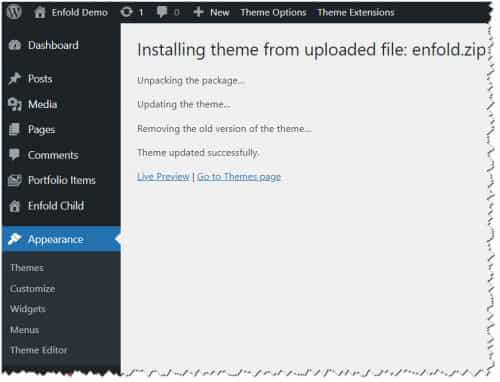
Best regards,
Mike
Hi Ismael,
I agree that you can’t reproduce the issue with the featured image on our installation, In fact, on another site with the same version of enfold, the problem doesn’t occur.
As you suggested I tried removing all the plugins, but the problem persists. Also I reinstalled enfold, again without fixing the problem. Please, can you log in to the site and try to understand the underlying problem?
Thanks again
Andrea
Hey Blatze,
Thank you for the inquiry.
Have you tried using a different image element, maybe a slider (Fullwidth or Fullscreen), on mobile view instead of the Horizontal Gallery element? If you need the slider to resize based on the dimensions of the images, you can use the Fullwidth Easy Slider. Let us know the result.
Best regards,
Ismael
Hey earthnutvt,
Thank you for hte inquiry.
Make sure the aspect ratio of the images is square. Remove any text from the image and use it instead as the Grid Item Title of the icon flipbox item. If that’s not possible, you can add the following css code to make sure the entire image is visible, but the image size may not stay proportional to the flipbox content.
#top .avia-icon-grid-container .avia-icongrid-flipbox .avia-icongrid-wrapper .avia-icongrid-front.bg-img:before {
    background-size: contain;
}
Best regards,
Ismael
Hey cuccarini,
Thank you for the inquiry.
We can’t reproduce the issue with the featured image on our installation, so it’s possible that it’s caused by a plugin or a custom modification.
Regarding the enfold-child notice or warning, you need to add the template declaration at the very top of the style.css file.
/*
Theme Name: Enfold
Description: <strong>A superflexible and responsive Business Theme by Kriesi</strong> -
Update notifications available on Facebook and via newsletter:
- <a href='http://www.facebook.com/pages/Kriesi/333648177216'>Join the Facebook Group</a> - <a href='http://kriesi.at/newsletter'>Subscribe to our Newsletter</a>
Version: 7.1.1
Author: Kriesi
Author URI: https://kriesi.at
License: Themeforest Split Licence
License URI: -
Theme URI: kriesi.at/themes/enfold/
Envato_ID: 4519990
*/

/*
* PLEASE DO NOT EDIT THIS FILE!
*
* This file is only in your themefolder for WordPress to recognize basic theme data like name and version
* CSS Rules in this file will not be used by the theme.
* Instead use the custom.css file that is located in your themes /css/ folder to add your styles.
* You can copy a style rule from any of your css files and paste it in custom.css and
* it will override the original style. If you just want to add small css snippets you might also
* want to consider to add it to the designated CSS option field in your themes backend at: Theme Options->General Styling
*/
Looks like you’ve made some css modifications and removed this part.
Best regards,
Ismael
Hi,
Thanks for the login, your file structure was not correct, it took me a couple of tries and your site crashed a couple of times, but it looks OK now.
Please clear your browser cache and check now.
I note that your header menu is too long for your site, I don’t recall if this was the case before, you can fix this at:
Enfold Theme Options ▸ General Layout ▸ Dimensions

Try 1410px, or larger.
Best regards,
Mike
Hello,
in the editor the Featured image is not shown at the top right of posts and portfolio items so it is unmanageable. Furthermore, there are broken theme messages even though I reinstalled the theme and in the other installation the same version does not create problems.
Error: Template is missing. Standalone themes need to have a templates/index.html or index.php template file. Child themes need to have a Template header in the style.css stylesheet. Broken Themes
The following themes are installed but incomplete.
Name Description
enfold-child Template is missing. Standalone themes need to have a templates/index.html or index.php template file. Child themes need to have a Template header in the style.css stylesheet.
As usual, thanks in advance for your help
Andrea
Hey Jonathan,
Please note that Theme Forest is owned by Envato, we state the two as the same.
Please note that your version, 4.7.6.3, is right about the time Envato (Theme Forest) changed from the API to the Token, which was rocky at first, but by v5 it was sorted out.
Also note that we have an exclusive contract with Envato, we can not provide licenses nor access licenses held by Envato.
Envato will not move licenses held by “developers” to a client, unfortunately many “developers” bought licenses under their login instead of their client, and then decided to “quit or move on”.
Your best option now is to purchase a new license for your client which their email and login at Envato (Theme Forest) and update and then create a new Token.
Please try these steps:
To update your version of Enfold you will need to download the latest installable WP version from your Theme Forest account and upload it to your WordPress ▸ Appearance ▸ Themes ▸ Add Themes ▸ Add New
after you choose the zip file and click install, you will see a This theme is already installed message because you are updating, you can continue
then you will see the Theme updated successfully message.
To create a Token see our documentation here.
Best regards,
Mike
The flip box grid is not working the way I would expect it to. Normally, you could upload a square image, and it would shrink down to the size of the original square. It doesn’t. I’m just seeing the corner of the image I uploaded.
Then, as you shrink the page, all the squares should stay squares. But they do not do that. They squeeze in. Then, when the grid has fewer columns, the squares turn into wide rectangles. (Or, if the image is too small, it just leaves white space to the right of each image.) These should be square all the time and should adjust in size according to the number of columns. Can you help please? This looks terrible the way it is.
The first two images at this link are large squares. They should be showing the whole image, not just a corner. Then, when the page shrinks down, those squares should expand into two columns and still be squares! They should not change into rectangles.
Hello,
I have a horizontal gallery that should be displayed differently on mobile than on desktop. So I have set 2 and show and hide them accordingly. that works so far, but the change of the image size and the height of the gallery are not taken over, no matter what I do. If I change the images in general, the new images are also displayed, but also in the wrong size. What am I doing wrong?
Settings:

I have also tested image size large 1030 x 1030, but it didn’t work either (on the desktop, but not mobile).
thanks in advance
best KiM
This reply has been marked as private.
Hi,
Thank you for the update.
We couldn’t find the favicon tag on the page when we checked. It should look something like this:
<link rel="icon" href="http://site.com/favicon.svg" type="image/x-icon">
If you can provide the login details in the private field, we’ll look into this further. Please make sure that Appearance > Theme File Editor is accessible.
Best regards,
Ismael
Hey steviger,
Thank you for the inquiry.
You may need to adjust the background-position and right padding a bit. Please try this css code:
.av_searchform_wrapper {
    border: #2c7d95 1px solid!important;
    border-radius: 40px!important;
    background-image: url('https://www.steviger.nl/wp-content/uploads/2025/07/vergrootglas.webp');
    background-repeat: no-repeat;
    background-position: right 20px center;
    padding-right: 50px;
}
To disable the ajax response container, include this:
#top .ajax_search_response {
    display: none !important;
}
View post on imgur.com
Best regards,
Ismael



