Hi aliquill!
The fullwidth slider will always stretch the image to 100% width and the height may increase if the screen resolution is higher than the image width. Kriesi uses images with a resolution of 1500px x 430px on his demo website: http://kriesi.at/themes/enfold/shortcodes/easy-slider/ – this should also be a good starting point for your images but you can select a different image size on the option page: http://www.clipular.com/c/6199712663207936.png?k=z3LVqIyzGAvZkbUFp9HSNxvmjwA
Regards,
Peter
Thanks – that did the trick
Hi Yeas!
You can edit config-templatebuilder > avia-shortcodes > postslider.php, look for this code to modify the look of the blog grid layout:
 $markup = avia_markup_helper(array('context' => 'entry','echo'=>false));
					$output .= "<article class='slide-entry flex_column {$style} {$post_class} {$grid} {$extraClass} {$thumb_class}' $markup>";
					$output .= $thumbnail ? "<a href='{$link}' data-rel='slide-".avia_post_slider::$slide."' class='slide-image' title=''>{$thumbnail}</a>" : "";
					$output .= "<div class='slide-content'>";

                    $markup = avia_markup_helper(array('context' => 'entry_title','echo'=>false));
                    $output .= '<header class="entry-content-header">';
                    $output .= !empty($title) ? "<h3 class='slide-entry-title entry-title' $markup><a href='{$link}' title='".esc_attr(strip_tags($title))."'>".$title."</a></h3>" : '';
                    $output .= '</header>';

                    if($show_meta && !empty($excerpt))
					{
						$output .= "<div class='slide-meta'>";
						if ( $commentCount != "0" || comments_open($the_id) && $entry->post_type != 'portfolio')
						{
							$link_add = $commentCount === "0" ? "#respond" : "#comments";
							$text_add = $commentCount === "1" ? __('Comment', 'avia_framework' ) : __('Comments', 'avia_framework' );

							$output .= "<div class='slide-meta-comments'><a href='{$link}{$link_add}'>{$commentCount} {$text_add}</a></div><div class='slide-meta-del'>/</div>";
						}
                        $markup = avia_markup_helper(array('context' => 'entry_time','echo'=>false));
						$output .= "<time class='slide-meta-time updated' $markup>" .get_the_time(get_option('date_format'), $the_id)."</time>";
						$output .= "</div>";
					}
                    $markup = avia_markup_helper(array('context' => 'entry_content','echo'=>false));
					$output .= !empty($excerpt) ? "<div class='slide-entry-excerpt entry-content' $markup>".$excerpt."</div>" : "";

                    $output .= "</div>";
                    $output .= '<footer class="entry-footer"></footer>';
					$output .= "</article>";
Or you can add something like this on Quick CSS or custom.css to align the grid image to the left:
.slide-image {
width: 30%;
margin-right: 10px;
float: left;
}
Regards,
Ismael
Hey!
Open up wp-content/themes/enfold/config-templatebuilder/avia-shortcodes/postslider.php and replace
		                  	if($format == 'link')
		                   	{
			                        $current_post = array();
			                        $current_post['content'] = $entry->post_content;
			                        $current_post['title'] =  $entry->post_title;

			                        if(function_exists('avia_link_content_filter'))
			                        {
			                            $current_post = avia_link_content_filter($current_post);
			                        }

			                        $link = $current_post['url'];
		                    	}
with
			                 $linktarget = '';
		                  	if($format == 'link')
		                   	{
			                        $current_post = array();
			                        $current_post['content'] = $entry->post_content;
			                        $current_post['title'] =  $entry->post_title;

			                        if(function_exists('avia_link_content_filter'))
			                        {
			                            $current_post = avia_link_content_filter($current_post);
			                        }

			                        $link = $current_post['url'];
			                        $linktarget = 'target="_blank"';
		                    	}
and
                    $markup = avia_markup_helper(array('context' => 'entry','echo'=>false));
					$output .= "<article class='slide-entry flex_column {$style} {$post_class} {$grid} {$extraClass} {$thumb_class}' $markup>";
					$output .= $thumbnail ? "<a href='{$link}' data-rel='slide-".avia_post_slider::$slide."' class='slide-image' title=''>{$thumbnail}</a>" : "";
					$output .= "<div class='slide-content'>";

                    $markup = avia_markup_helper(array('context' => 'entry_title','echo'=>false));
                    $output .= '<header class="entry-content-header">';
                    $output .= !empty($title) ? "<h3 class='slide-entry-title entry-title' $markup><a href='{$link}' title='".esc_attr(strip_tags($title))."'>".$title."</a></h3>" : '';
                    $output .= '</header>';
with
                    $markup = avia_markup_helper(array('context' => 'entry','echo'=>false));
					$output .= "<article class='slide-entry flex_column {$style} {$post_class} {$grid} {$extraClass} {$thumb_class}' $markup>";
					$output .= $thumbnail ? "<a href='{$link}' {$linktarget} data-rel='slide-".avia_post_slider::$slide."' class='slide-image' title=''>{$thumbnail}</a>" : "";
					$output .= "<div class='slide-content'>";

                    $markup = avia_markup_helper(array('context' => 'entry_title','echo'=>false));
                    $output .= '<header class="entry-content-header">';
                    $output .= !empty($title) ? "<h3 class='slide-entry-title entry-title' $markup><a href='{$link}' {$linktarget} title='".esc_attr(strip_tags($title))."'>".$title."</a></h3>" : '';
                    $output .= '</header>';
Best regards,
Peter
Hi Stefan!
If you want to use the “load more” button or the pagination you can’t sort the images randomly because wordpress would query/show the same images over and over again. If you do not use a pagination or load more button use this code and insert it at the bottom of functions.php:
add_filter('avia_masonry_entries_query', 'avia_random_image_query', 10, 2);
function avia_random_image_query($query, $params)
{
    if(!empty($query['post_mime_type']) && $query['post_mime_type'] == 'image')
    {
        $query['orderby'] = "rand";
    }

    return $query;
}
for a random sort order.
Best regards,
Peter
Perfect thank you! Excellent support my friend.
Hi!
1-2.) Please add this on Quick CSS or custom.css:
.related_image_wrap {
max-height: 70px;
}

.related_image_wrap img {
height: 100%;
}

.related_entries_container .no_margin.av_one_eighth {
width: 15.5%;
}
2.) Edit includes > related-posts.php, find this code:
$output .= "<h5 class='related_title'>".__('You might also like', 'avia_framework')."</h5>";
Cheers!
Ismael
Hi guys,
First of all, thanks for your great theme. It’s a really cool and handy theme and we love it.
I have a question regarding the layout though:
We would like to make a news page where we will display posts with the category “News”. Right now, we’re using the advanced layout editor with the following settings:
-blog style: grid layout
-blog grid columns: 1
-define blog grid layout: title and excerpt -preview image size: thumbnail(150×150) -post number: 20
-pagination: yes
It is working perfectly, however we would like the thumbnail displayed on the left and the title and excerpt on the right. Is there any way to fix this? or do i have to edit the css code? If so, please tell me which file, where and how to edit.
Another question: is it possible to create a notification widget that tells you new post and custom post type updates in the same widget? It would be great if I could do that, but am I asking too much?
Any help would be appreciated. Thanks in advance.
Yeas
Hi jamlap!
After you upload an image on the fullscreen slider, click on the image list to configure the caption title and description. You can also add a button using the “Slide Link?” and “Where do you want to apply the link?” options.
Best regards,
Ismael
Hey!
Sorry that is not possible with the theme. You can create a page, use an image element for each portfolio categories then link it manually to their respective portfolio category pages. Each portfolio category pages should have their own Portfolio Grid element configured to show specific portfolio items within a category.
Cheers!
Ismael
Hey!
The theme crops down the image to a certain width and height, in this case you can find the thumbnail size on functions.php. Look for this code:
$avia_config['imgSize']['gallery'] = array('width'=>710, 'height'=>575 ); // images for portfolio entries (2,3 column)
I guess photo #2 and #6 are large images and wp crops them to the size specified above while #3 is a small one and wp didn’t crop it. You can tell wp not to crop an image by specifying the crop parameter to false. Replace the code above with this:
$avia_config['imgSize']['gallery'] = array('width'=>710, 'height'=>575, 'crop' => false ); // images for portfolio entries (2,3 column)
You need to regenerate the thumbnails using this plugin: http://wordpress.org/plugins/regenerate-thumbnails/
If you are not comfortable with the above function you can use a plugin like http://wordpress.org/extend/plugins/simple-image-sizes/ to manually crop certain thumbnail size. You can also follow Josue’s suggestion to use images with the same ratio or dimension.
Best regards,
Ismael
Hi fgrippe!
Add the class selector “alignleft” on the anchor tag. You can add something like this on the Text Block:
<a class="alignleft" href="http://localhost/kriesi/enfold/wp-content/uploads/2012/04/21.jpg"><img class="awesome-image" alt="Awesome Balloons" src="http://localhost/kriesi/enfold/wp-content/uploads/2012/04/21-300x195.jpg"/></a>
Use the “awesome-image” selector to specify the width and height of the image on Quick CSS:
.awesome-image {
width: 100px;
height: auto;
}
Best regards,
Ismael
Hi- your theme is amazing- I am new and have searched the forums but haven’t found a clear answer to my question.
I would like to have a single background image throughout my site in the enfold theme and have transparent backgrounds everywhere- like this example- http://geoglassdesign.com/shop/
I have pasted this into the quick css: and it worked for the header. Is there an easy way to do this everywhere?
.header_color .header_bg, .header_color{
background-color: transparent;
}
would really love your help…
Hi,
Try adding this at the end of js/avia.js:
jQuery(function() {
jQuery(".avia-team-member").each(function() {
   var theHref = jQuery(this).find("a.avia-team-icon").attr("href");
   jQuery(this).on("click", function(){
      document.location.href = theHref;
   });
});
});
Then add this to the Quick CSS too:
.avia-team-member:hover{
cursor: pointer;
}
Regards,
Josue
This reply has been marked as private.
Hey Tina!
This website has Sentence active, please activate Enfold and apply the changes Yigit provided so we can continue with the next ones.
Cheers!
Josue
Hi Julien!
Create two custom link in the Menu (both sites) and put them a class of .flag-x and .flag-z. after you done that reply back to this topic so we can try to add the flags with CSS, also provide us with the images you want to use as flags.
Regards,
Josue
Hey!
Try adding this code to the Quick CSS:
@media only screen and (max-width: 767px) {
#top #main .single-product-main-image .sidebar, #top #main .single-product-main-image .inner_sidebar {
display: none;
}
}
Cheers!
Josue
I have spent way too much time trying to insert a tall and thin image the size I want it next to some type that is on the right in a text block. I have resized the image countless times, but it is either really big or really small. The wordpress editor has no effect. I inspected the code, but there is no css that i can insert to stop this from happening. The image size will not change. I have tried multiple column sizes and different ways of putting an image next to text. Nothing.
Utterly frustrating.
Can you help with this?
Hey Josue, thanks for the contribution, however, I only want to do this for single product pages.
On normal, static pages, the sidebar is on the right hand side and when viewed on mobile devices, it moves underneath the main content.
On single product pages, the sidebar is on the left hand side, directly under the product image. When viewed on mobile devices, the sidebar shows under the image, but above the product description etc.
I would like to switch the sidebar OFF for single product pages only.
Any assistance greatly appreciated :)
Thanks,
Mark
To make it more clear i did following screenshots:
1) created the layout
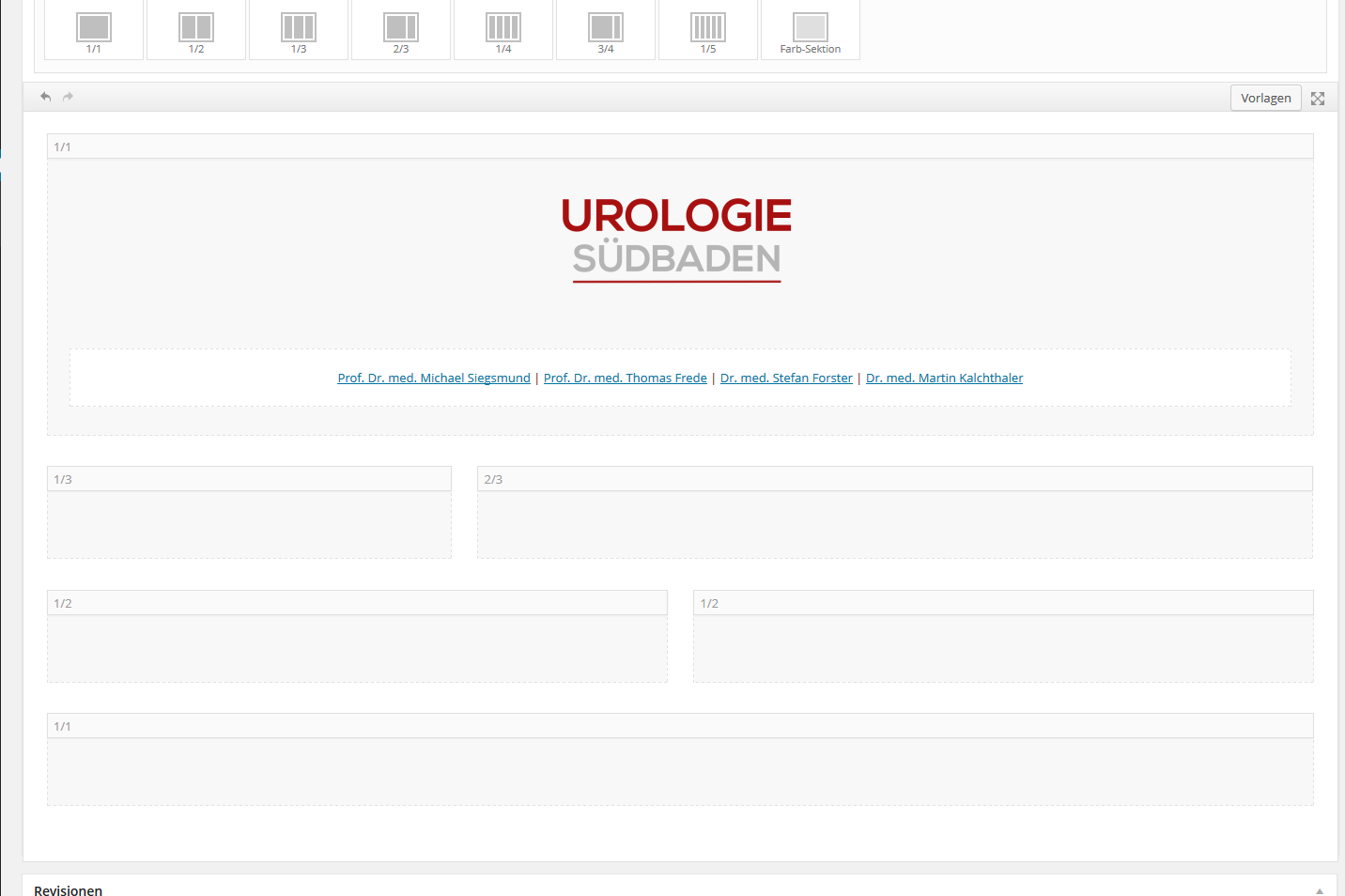
2) filled the layout with content
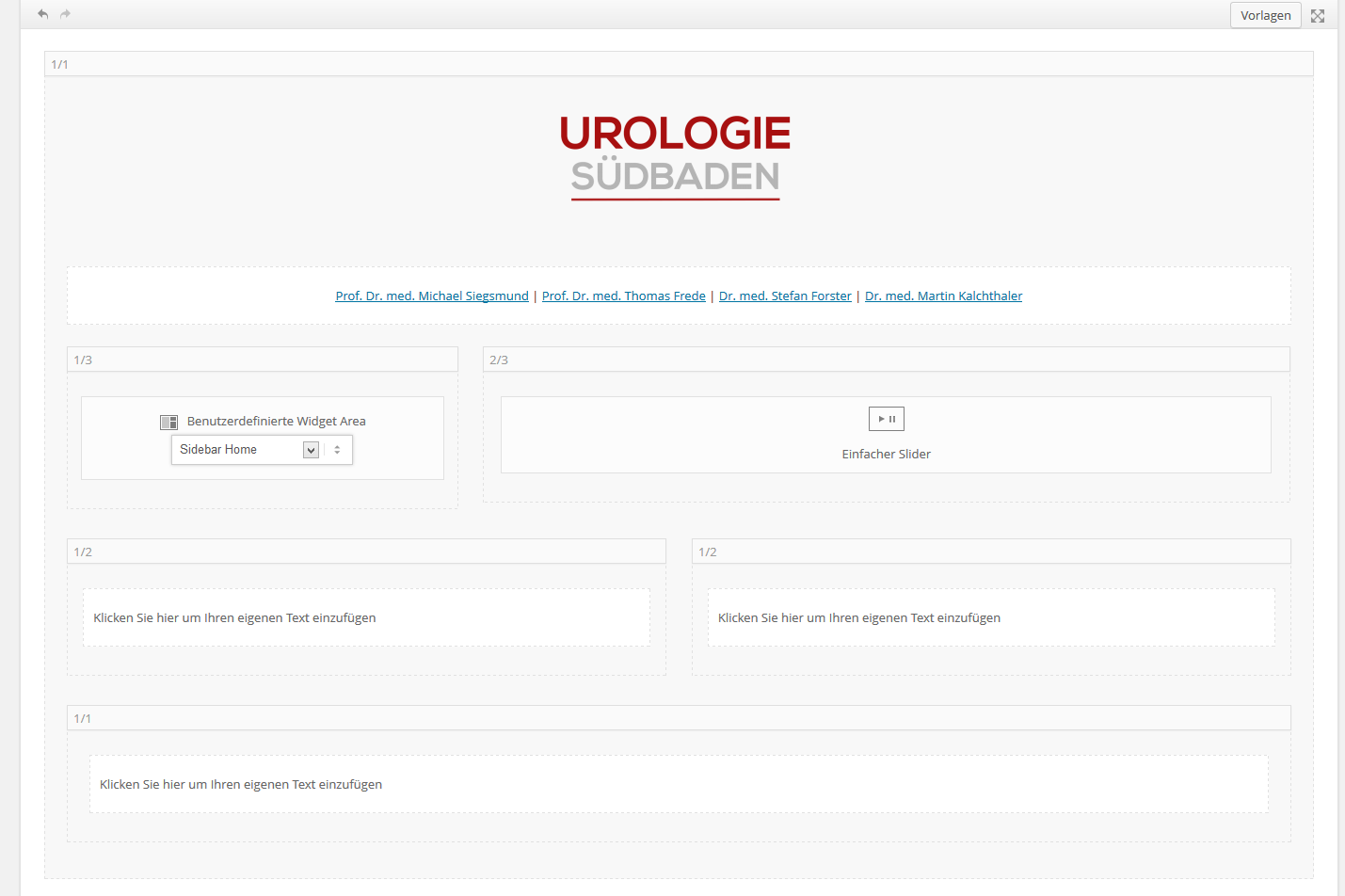
3) that is what it looks like after i hit the publish button. all is gone!
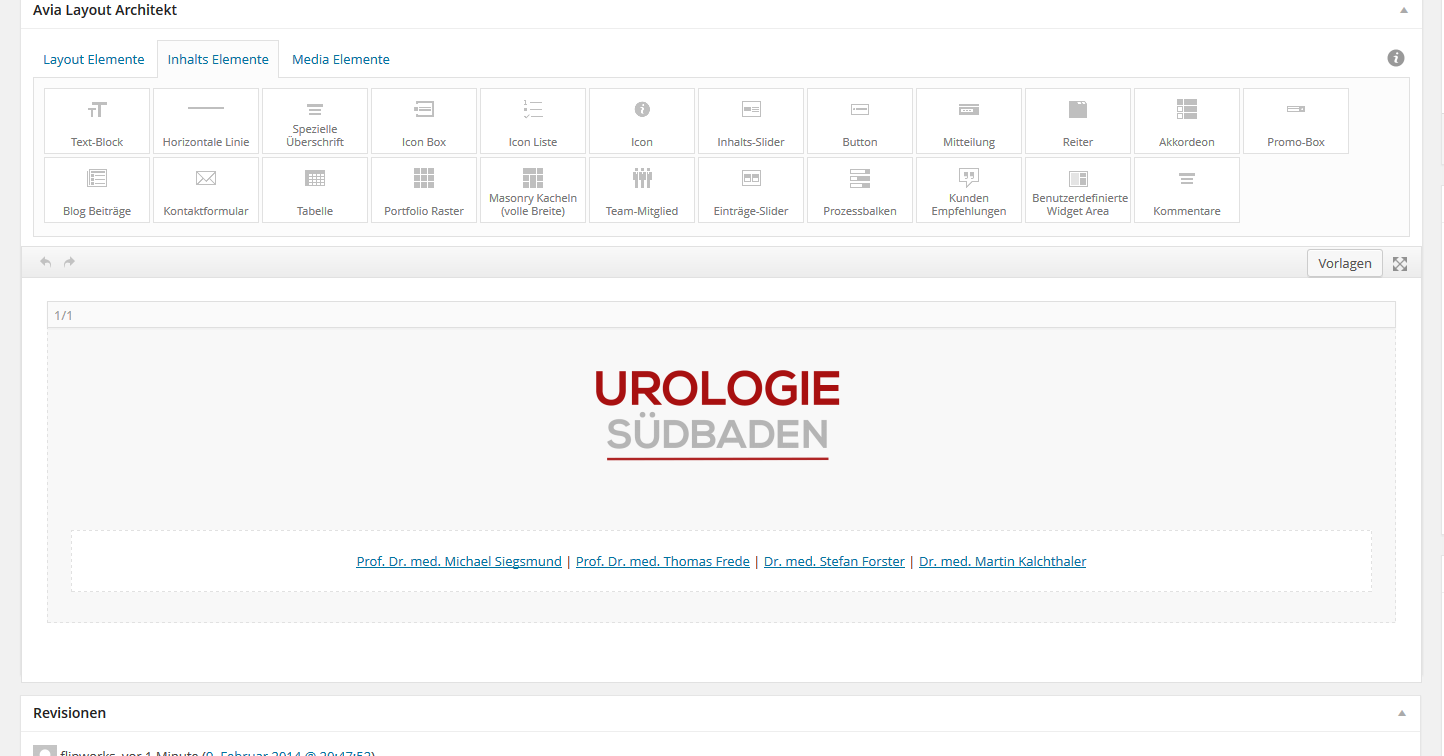
come on guys.. i really need to know what i can do to solve this. is this possible or is just one layout at once possible?
-
This reply was modified 12 years, 2 months ago by
 flipstarmh.
Josue, just to understand better – notice how photo #3 is showing the full image? Well, that photo is very similar in size to #2 and #6. The slide show just won’t be homogeneous because some are portrait and some landscape. Can you help me understand why #3 is resizing effectively, while #2 and #6 are not?
Thanks,
Drew
Hey!
It happens because some of the images don’t have a same aspect ratio, try uploading them with homogeneous width and height.
Cheers!
Josue
Sorted! Thanks as always for great support
I am getting an Http error when uploading images. I was on the phone with Godaddy support and they traced it back to theme (activated twenty13 theme and worked fine). I tried disabling all plugins and still no luck. I am also getting a 30 second timeout error when i disable htaccess file. The file am am trying is less than 1mb in size and takes only a couple seconds to upload. Error seems to occur during crunching.
Also get this sometimes: Fatal error: Maximum execution time of 30 seconds exceeded in /home/content/21/11561321/html/wp-includes/class-wp-image-editor-imagick.php on line 338
-
This topic was modified 12 years, 2 months ago by
 ericdiro.
Hey!
Try adding this code to the Quick CSS:
.image-overlay.overlay-type-extern .image-overlay-inside:before {
    content: "C.V." !important;
    font-family: sans-serif !important;
    font-weight: bold !important;
}
Cheers!
Josue
Hey!
Try with this code instead:
.bottom_nav_header.social_header #header_main {
    background: #ffffff url(https://test.brightminder.co.uk/wp-content/uploads/2013/04/header-710x100.jpg) center left no-repeat scroll;
    background-size: contain;
}
Cheers!
Josue
Hey jes2er!
You can use color sections with an image background set to Fixed to get that. The first part is done with a full screen slideshow and the rest are color sections.
See: https://vimeo.com/channels/aviathemes/64927358 around the 1:30 minute mark.
Best regards,
Devin

Here is an image. This is taken from the advanced page editor, icon list.
Hi All,
I am working on a website and just noticed that the overlay of masonry items is displayed “asif” my laptop is a tablet or phone. However I am on a full hd touchscreen enabled laptop with a pointer.
Does anybody know how I would fix this so that this doesnt happen? I have read a few things about peoples wishes to have a tap1: activate overlay, tap2: clickthrough to item. I think this would be the way to go for smartphones and tablets aswell.
However the handling of a touchscreen enabled laptop in my opinion shouldnt be focused on the fact that it its touch enabled, I have a pointer :)
I think it has something to do with the class .avia_desktop being called on non-touch devices.
.avia_desktop.csstransforms3d .av-caption-on-hover .av-masonry-entry.av-masonry-item-with-image .av-inner-masonry-content{... etc
any help on this would be cool!
thx,
Thomas



