Hi guys,
When adding special characters, I get a warning that it may break the internal structure. I found this post from 2018 and this solution from Guenter: https://kriesi.at/documentation/enfold/intro-to-layout-builder/#using-special-characters.
Guenter’s solution does work, however it makes the code almost unreadable, especially for my client, the end user. They’ll never be able to make changes themselves. So my question is: Is there a more workable solution, especially since this issue has been known for a long time?
Regards,
Steven
Hey jnightingale,
Thank you for the inquiry.
The site is currently in maintenance mode, so we’re not able to access it — we may need to log in. Regarding the menus, please make sure that the current main menu is set as the “Enfold Main Menu” in the Appearance > Menus panel. Kindly refer to the screenshot below.
View post on imgur.com
Let us know the result.
Best regards,
Ismael
Hey Russell,
Thank you for your interest in Enfold.
The videos are not accessible, so we’re not able to view them. In any case, the theme comes with built-in demo content, so you don’t need to start from scratch. You can simply import a demo and then incorporate your existing designs, images, and content to match what you have in mind. It’s very user-friendly, with plenty of customization options and a powerful Advanced Layout Builder where most of the content creation and site building will take place.
If you have any questions or need help with development, feel free to reach out to us here in the forum — we’re happy to help.
You can preview the available theme demos below.
— https://kriesi.at/themes/enfold-overview/
To help you get started, please check out the documentation.
— https://kriesi.at/documentation/enfold/
Let us know if you have any more questions.
Best regards,
Ismael
I am trying to implement an ACF Pro Image Gallery field on my pages/posts, and I’m encountering the following issue.
Even though the ACF Gallery field is correctly set up with no ‘Maximum Images’ limit (it’s empty under Validation settings), in the WordPress editor, the field is only allowing me to select and save a single image at a time (it behaves like a standard ACF Image field where I can only ‘replace’ an image, not ‘add more’). This is happening on new pages as well, regardless of whether I use the default WordPress editor or the Enfold ALB.
Consequently, the gallery is not displaying on the front end, even with the provided PHP code in page.php and single.php (which uses get_field(‘acf_pro_image_gallery’) and a foreach loop).
Could you please advise on how to properly set up and integrate the ACF Pro Gallery field with the Enfold theme? Is there a specific Enfold hook or function I should be using, or any known theme-specific configurations that might cause the ACF Gallery field to limit itself to one image in the backend interface despite its settings?
See admin credentials in Private Content
Hey Katy Maurer,
It should likely not change anythings, but I would advise that you update on a staging site first to check the results there first. If that is not a possibility for you, then make sure that you keep backups of your current site in case you should have to restore it. Once you are ready to update then the update to 7.1.1 has to be done manually from the version you are running, please refer to my replies in this thread: https://kriesi.at/support/topic/enfold-4-5-theme-update-update-failed-download-failed-a-valid-url-was-not-pro/#post-1021541
You can either update manually via FTP: https://kriesi.at/documentation/enfold/how-to-install-enfold-theme/#theme-update, or upload the theme as if it was new under Appearance->Themes->Add New Theme.
If that doesn’t work then please try to delete the whole theme folder, then replace it with the new version. Make sure that you have backups of the site before starting updating.
Also please read this after you have updated: https://kriesi.at/documentation/enfold/theme-registration/
Best regards,
Rikard
 Katy Maurer
Guest
Hi, our website uses Enfold version 4.8.7.1. Our LayerSlider is out of date and I can’t update it because it’s bundled with Enfold. If we decide to purchase/upgrade Enfold for our website, how would that update/change our website? Would it involve a lot of work redesigning/reconfiguring the appearance, widgets, and layouts?
Hi everyone,
I need your help and I’m a bit lost. I’m trying to track form submissions from the Enfold contact form using Google Tag Manager.
I’ve already added the following code to the functions.php file, as recommended in this thread: https://kriesi.at/support/topic/contact-form-tracking-with-gtm/
add_filter(‘avf_contact_form_submit_button_attr’,’avia_add_submit_attributes_to_cf’, 10, 3);
function avia_add_submit_attributes_to_cf($att, $formID, $form_params){
$att = “onsubmit =\” dataLayer.push({‘event’: ‘form-submission’}); \””;
return $att;
}
Everything in GTM seems to be set up correctly, but for some reason, the event isn’t firing. Does anyone have an idea what I might be missing?
Best regards,
Chris
Hi,
You cant see any huge gaps???
[video src="https://www.gwup.org/temporaer/enfold-issue-gap.mp4" /]
You can also find it here – even worse:
In every browser.
Hey Denise Chapman,
Thanks for reaching out.
The site was not loading when we visited it. If the automatic update in the dashboard is not working, you may need to download the latest version of the theme from your Themeforest account and manually upload it to your server via FTP. Please refer to the documentation below for more info on how to update manually via FTP.
— https://kriesi.at/documentation/enfold/theme-update/#update-via-ftp
Let us know if you need more info.
Best regards,
Ismael
I understand that Gemini is likely to get me into trouble but as long as I’m on this ACF journey, triggered by Enfold :), I thought I’d run this by you. Your video tutorial link in the documentation is based on the free version of ACF. I understand that. I asked Gemini:
“I am now doing an ACF tutorial by the author of the Enfold theme. I am at this place in the tutorial. (If that link doesn’t take you to the relevant part of the video, it is at the 8 minute mark). The tutorial is for the free version of ACF. As I have the Pro version which gives me Gallery privileges I would like to know how I can use that at this point in the video where I need to select WP Custom Fields.”
This is the reply by Gemini. I don’t know if you prefer longer responses like this to be entered into the chat itself or via a link. In this case I have created a PDF.
What do you think?
Thank you
John
-
This reply was modified 7 months, 4 weeks ago by
 mediaapps.
-
This reply was modified 7 months, 4 weeks ago by mediaapps.
-
This reply was modified 7 months, 4 weeks ago by mediaapps.
 Denise Chapman
Guest
Hello, purchase code: c2e66504-f68b-4311-b075-6591721a6064
on https://johnstonesbenefits.com will not update. Please advise what the issue is. The admin will not allow any page updates now. Client needs to update site urgently.
Hello,
I would like to have a nice masonry gallery like in the “Enfold one page portfolio demo”. By this I mean a nice and beautiful masonry gallery with only the images and not titles or texts.
I don’t find in the masonry parameters a way to do it, can you help me ?
Thank you
Hi,
we have an Instagram feed on our website and clicking on those images also opens the Enfold lightbox (URL added in the private content section).
While we still need the lightbox for other pages, we’d like to disable it specifically for these elements.
We tried this code, as it was suggested on other threads here:
jQuery(document).ready(function() {
	jQuery('.sbi_link_area').addClass('noLightbox');
});
But even though the class is added properly, it does not remove the lightbox (maybe because it is initiated before we add the class).
What else could we try?
Hey Rikard,
Disabling file compression doesn’t help. The problem is a 15-year-old Vimeo script in the Enfold theme that is no longer supported and conflicts with the current Vimeo API. Here is a migration guide from the old Froogaloop player to Vimeo API: https://github.com/vimeo/player.js/blob/master/docs/migrate-from-froogaloop.md
Without the file compression the error is at Line 806 in wp-content/themes/enfold/config-templatebuilder/slideshow/slideshow-video.js (Froogaloop)
If there is no solution, is it possible to overwrite the slideshow-video.js in the child theme?
Hi Mike,
I added the login info to the private content. I tried upgrading to PHP 8.0 and got this error code which crashed the site again. I believe it’s the same code as before. (ended up reverting again back to 7.4). Thanks,
An error of type E_ERROR was caused in line 32 of the file /home/88346.cloudwaysapps.com/dapmsxrmxu/public_html/wp-content/themes/enfold-child/functions.php. Error message: Uncaught Error: Undefined constant “THEMENAME” in /home/88346.cloudwaysapps.com/dapmsxrmxu/public_html/wp-content/themes/enfold-child/functions.php:32
Stack trace:
#0 /home/88346.cloudwaysapps.com/dapmsxrmxu/public_html/wp-content/themes/enfold-child/functions.php(32): avia_nav_menus()
#1 /home/88346.cloudwaysapps.com/dapmsxrmxu/public_html/wp-settings.php(695): include(‘…’)
#2 /home/88346.cloudwaysapps.com/dapmsxrmxu/public_html/wp-config.php(103): require_once(‘…’)
#3 /home/88346.cloudwaysapps.com/dapmsxrmxu/public_html/wp-load.php(50): require_once(‘…’)
#4 /home/88346.cloudwaysapps.com/dapmsxrmxu/public_html/wp-admin/admin-ajax.php(22): require_once(‘…’)
#5 {main}
thrown
This reply has been marked as private.
Hi Mike,
As you suggested, I changed the block editor to the default one and replaced the duplicate featured images. Everything seemed to be fixed, but when I went back to edit the same portfolio items, I couldn’t save the changes because the same error occurred: Updating failed. Could not update the meta value of footnotes in database.
Interestingly, the same error appears in all the modified portfolio items, while everything works normally for the old portfolio items where I didn’t make the featured images replacement. Evidently, saving the featured images with the standard editor created a write to the DB that now interferes with the normal functioning of the block editor on those items or something like that.
I’ve never had problems like this on a website built with Enfold…. having to deal with problems one after another is not pleasant at all!
Best regards
Andrea
Hey xela,
First off, try turning off file compression under Enfold->Performance to see if that helps. If not, then post a link to where we can see the actual problem on your site.
Best regards,
Rikard
Hi,
Glad we were able to help, if you have any further questions please create a new thread and we will gladly try to help you. Thank you for using Enfold.
Best regards,
Mike
Hey fanlokbun,
Try this CSS in your Enfold Theme Options ▸ General Styling ▸ Quick CSS field:
.page-id-13 .mejs-overlay-button {
	display: none;
}
After applying the css, please clear your browser cache and check.
Best regards,
Mike
Hey DutchPeter,
Try this CSS in your Enfold Theme Options ▸ General Styling ▸ Quick CSS field:
.logo img {
    width: 300px;
}
.logo a {
	display: flex;
  align-items: center;
}
After applying the css, please clear your browser cache and check.
Best regards,
Mike
Hi,
Glad Rikard could help, if you have any further questions please create a new thread and we will gladly try to help you. Thank you for using Enfold.
Best regards,
Mike
We use our own Vimeo iframe solution in a plugin and also load the Vimeo JS API there. Unfortunately, Enfold can’t handle this and causes a JavaScript error that renders the Vimeo API unusable.
Is there any way to prevent Enfold from taking over the Vimeo player (API)?
Thanks, Alex
Hey John,
Thank you for the inquiry.
There is no dedicated video tutorial for the dynamic content and custom layout, but this documentation should help.
— https://kriesi.at/documentation/enfold/custom-layout-and-dynamic-content
Mike also created a few articles that should explain how to utilize ACF fields on custom layouts.
— https://savvyify.com/dynamic-content-custom-page-layouts-and-acf/
— https://savvyify.com/acf-custom-fields-in-woocommerce-products/
Let us know if you need more info.
Best regards,
Ismael
You have deprecated one of your functions that allowed us to insert another Page into a layout element on a different page. I was using it to add footer type content to the bottom of some Pages. You suggest using the ACF plugin for this purpose.
I have started trying to learn how to engage ACF with Enfold. It is a significantly steeper learning curve. Video tutorials tend to be my goto way to learn things these days but I can’t find anything that is specifically about ACF in an Enfold theme. There are plenty out there for Elementor and Divi and others but not Enfold.
As part of a current tutorial I am following at the moment I have created a “Jobs” custom post type. The part that I’m struggling with is how to present that on the front end of the site. I’m using a staging site for this purpose. I have included the relevant credentials in the Private Content field.
I realise that this is a different use case from what I was doing previously but decided that I needed ACF for other purposes as well. Can you point me to a good source of learning for using ACF with Enfold please – using that “Jobs” custom post type as an example as to how I should approach this?
Thank you
John
have you set the custom class on the element?
the element (Icon/Flipbox Grid) itself got that custom class: gridded-flipbox
and if aspect-ratio does not exist, why does it work on my site? (Enfold 7.1.1)
there is a porperty : aspect-ratio – see:
https://developer.mozilla.org/en-US/docs/Web/CSS/aspect-ratio
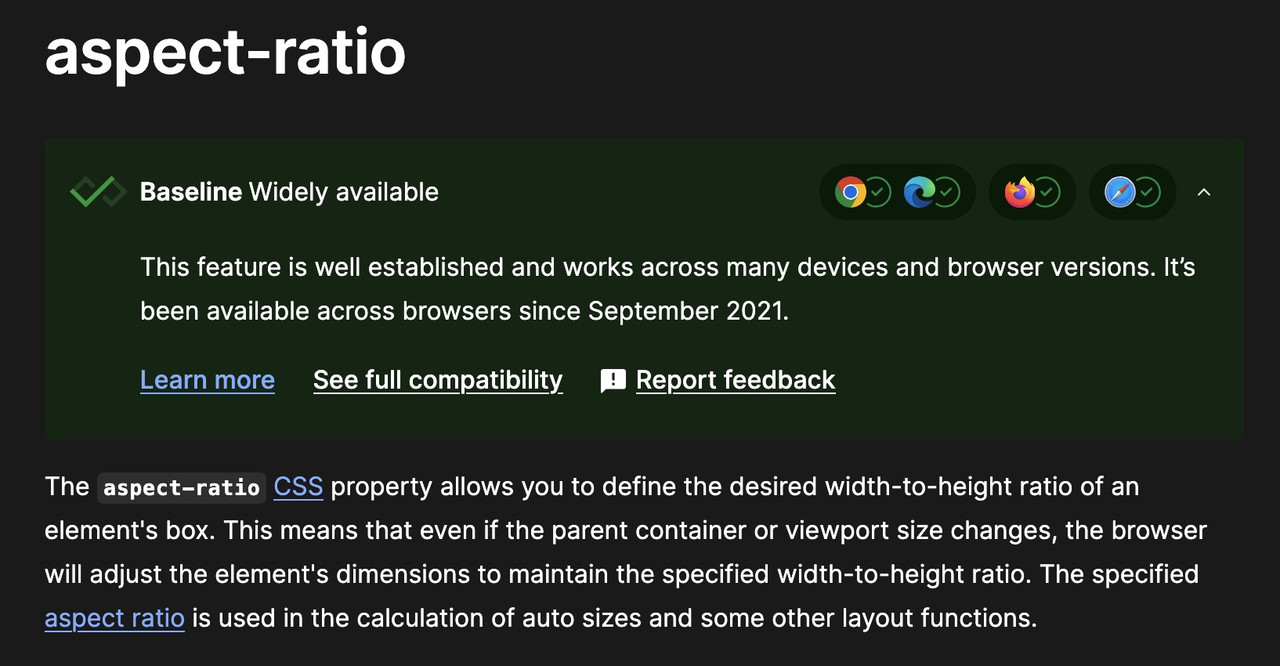
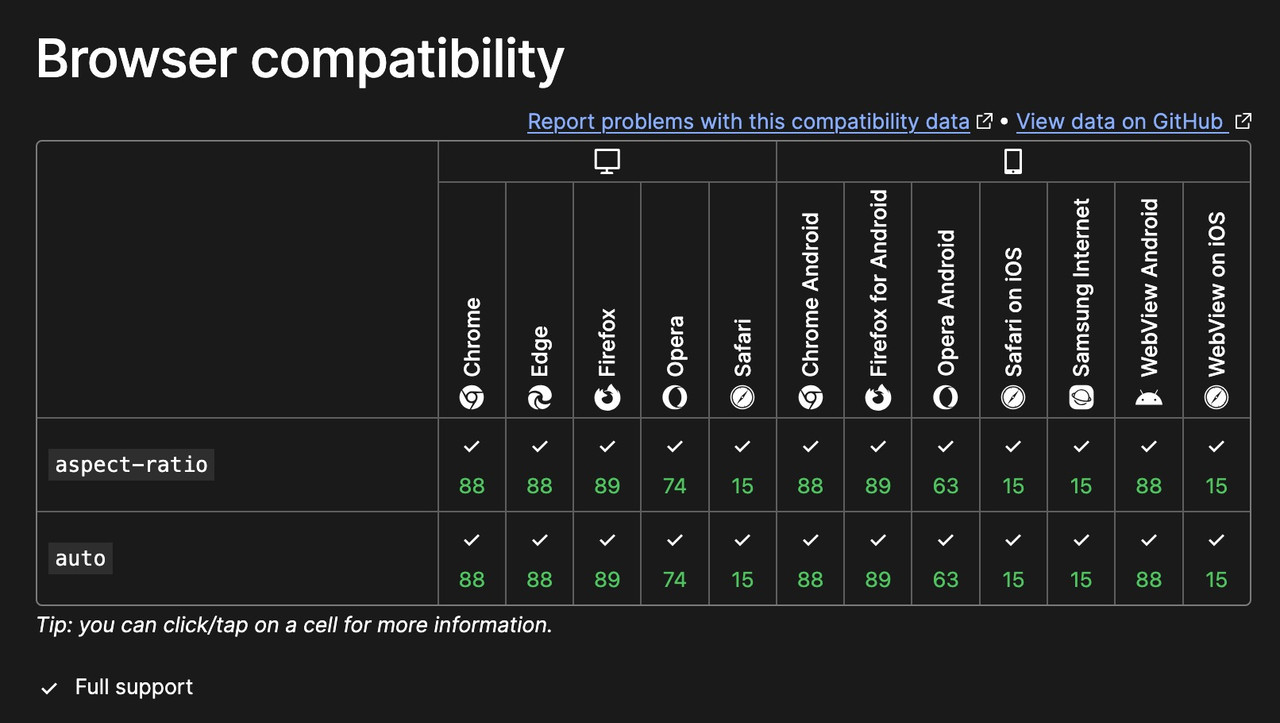
btw: the declaration is :
aspect-ratio: width/height;
but there is a shortform – that if there is no height value – height is 1
so :
aspect-ratio: 1/1 can be written as aspect-ratio: 1
All is based on the square source images – grid layout and – background-size: contain.
Hi,
The error message says it is on: /enfold-child/functions.php on line 32
The theme editor shows line numbers, can you look for line 32 and remove that code block?
It might be in a snippet that starts above 32 and after, so remove the whole snippet.
If you are not sure, add a admin login to the Private Content area so we can look.
Best regards,
Mike
Hey kalla77,
Try this CSS in your Enfold Theme Options ▸ General Styling ▸ Quick CSS field:
@media only screen and (max-width: 767px) {
.page-id-12808 #av_section_3-fold-unfold {
	display: none;
}
}
Please ensure to copy the code from the forum and not an email notification so the symbols are not converted.
After applying the css, please clear your browser cache and check.
Best regards,
Mike
Hi,
Glad Rikard could help, if you have any further questions please create a new thread and we will gladly try to help you. Thank you for using Enfold.
Best regards,
Mike
Hi,
Very good, we will close this thread, you can follow the Github thread as the Dev Team reviews it.
Best regards,
Mike



