I have created blog posts with featured image sizes 613 × 321.
The thumbnail sizes of the related posts distort – it is squashing the landscape image into a square.
I want to keep it square but need it to display a portion of the image instead.
For the next post images, it is displaying as landscape.
I need them to be square and display a portion of the image instead.
I hope this makes sense!
Hey kwanumzen,
Thank you for the inquiry.
The thumbnail used in the actual post page is called entry_with_sidebar and this thumbnail has a maximum size of 845x321px. To be able to adjust the size of the thumbnail in the Settings > Media panel, you have to install the following plugin, and regenerate the thumbnails.
// https://wordpress.org/plugins/simple-image-sizes/
Best regards,
Ismael
Hi jomo5280!
Thank you for the inquiry.
We can use the avf_modify_thumb_size filter to adjust the default size of the registered thumbnails. Usage example can be found in the following threads.
// https://kriesi.at/support/topic/how-to-prevent-images-from-being-resized/#post-1271136
// https://kriesi.at/support/topic/change-widget-image-size/#post-1189038
// https://kriesi.at/support/topic/bildgrose-kategorie-bilder-verandern/#post-1209435
After the adjustment, you have to regenerate the thumbnails either manually or with the help of a plugin.
// https://wordpress.org/plugins/regenerate-thumbnails/
Best regards,
Ismael
Hey extractthomas,
Thank you for the inquiry.
That is actually the default size of the thumbnail used in the single post. You could adjust the default size of the entry_with_sidebar thumbnail in the Settings > Media panel but you have to install the following plugin first.
// https://wordpress.org/plugins/simple-image-sizes/
After adjusting the thumbnail size, save it, then regenerate the thumbnails in the same panel.
Best regards,
Ismael
Hi,
Can we access the file server? Try to allow connections coming from the Philippines. Or try to upload the images again, see if it generates the correct entry_with_sidebar thumbnail size (845x321px).
Best regards,
Ismael
I would like to minimize the gap between columns within one container on the website which is using 1/3 columns. I would also like these to display as one column on iPad portrait.
I would also like to set the thumbnail image to display as a square, rather than a circle. Can this be done with CSS?
-
This topic was modified 5 years, 2 months ago by
 cinchmedia.
Thanks for that. It appears to work now when uploading images to a new gallery/post. I’m not sure how to fix it for the existing posts though. Changing to flexible masonry and regenerating thumbnails hasn’t helped. Any ideas?
Hi,
We downloaded the image and use an image editor to put it in a canvas that is 1500x430px. We then created a test page and place a slider and uploaded the image back. Please check the private field for the result. Again, the aspect ratio of the image has to be at least 3:1, or that it is at least three times wider than it is tall. And since the original image is quite tall, it will not fit in the canvas that we have just created, so parts of the image have been cut off.
You could also select a different thumbnail size in the slider’ Stil > Bild- und Videogröße der Slideshow settings.
Best regards,
Ismael
Hello @yigit (not Nikki, Not Victoria!),
Situation:
– 4 Easy Sliders (One for every screensize)
– Every slider contains the same 4 images – but in different sizes (responsibility!)
– The Slider which is responsible for small sizes does not show images
(Checked:
The missing images are on the server, the CHMOD is correct.
I again added the images in the slider!!! Nothing changed. This means: Regenerate Thumbnails is not a appropriate solution
The reason seems to be the sourceset:
“srcset=”…/wp-content/uploads/slider-angebot-buch-small.jpg 768w, …./wp-content/uploads/slider-angebot-buch-small-705×235.jpg 705w, …/wp-content/uploads/slider-angebot-buch-small-450×150.jpg 450w”
Why is Enfold asking for certain imagedimensions if i already served appropriate images???
How do i get rid of this behaviour?
How do i make Enfold showing the images?
Marcus
PS: No, no live version, still/again localhost
Here I am, sorry the mess.
So, reading from other discussions and suggestions, I removed the small featured image at the top with this Quick CSS:
.blog-meta .small-preview {
    display: none;
}
Then I change the arrows like that
.avia-post-nav .entry-info-wrap {
    width: 240px;
}
But it seems to me that this second command override the blog layout setting about share links and related entries
Look at this

When instead my setting are:
only FB, Tw, email and Waps share links
and show thumbnails by default as related entries
But I re enter the editor, all setting are auto changed themselves?!?!
(Thumbnails by tooltip and all share links on)
very strange
Hi,
Would it be possible to have another Blog style for Blog Posts?
I mean to add another vertical List Layout with thumbnail and excerpt?
An example: 
Thank you.
-
This topic was modified 5 years, 2 months ago by
 jewsforjesus.
Hey connect4consulting,
Thank you for the inquiry.
You have to make sure that the uploaded images have exactly the same size in order to get a consistent grid or to make sure that the generated thumbnails are the same. You could also force the theme or WP to resize the masonry thumbnails to the specified dimension but you have to manually edit the functions.php file or install a plugin (ex. Simple Image Sizes) in order to do so.
Best regards,
Ismael
Hi,
What I meant was where in your theme is that setting?
Which setting? If you are referring to the Preview Image settings, then you have to edit the Blog Posts element in your news page and go to the Styling > Appearance toggle.
The FTP account above is still not working. We have to check the uploads folder and see why the images in the single post entries are not displaying in the designated size, or why the assigned thumbnail (entry_with_sidebar) is not showing.
I will also forward the issue to our channel so that other moderators could check it.
Best regards,
Ismael
Hi,
Thank you for the feedback, I checked your new post and found that it doesn’t include the different images sizes that it should, as your older post does. Please see the screenshots in the Private Content area.
I believe that a plugin is preventing the media upload from creating all of the “thumbnail” [image] sizes, I tried disabling some options in some of your plugins and tried uploading the featured image again but the new sizes don’t seem to have been created.
I restored all of my changes from today’s test, please try disabling your plugins and reupload a test image until the images sizes are created.
I suspect these plugins, based on their image settings:
Autoptimize
JetPack
Compress JPEG & PNG images
Lazy Load – Optimize Images
Smash Balloon
WP Rocket
WPGeared Speed Optimization
*If this setting is your intention and you would like to force the single post featured image to full view on desktop you could use this css:
@media only screen and (min-width: 1440px) {
#top.single-post .fullsize .template-blog .big-preview img {
    height: 95vh !important;
}
}
Then clear your browser cache and any cache plugin, and check.
Best regards,
Mike
Hi,
I’m not sure what you mean with remove the existing thumbnails.
Try to remove the uploaded image first from the Media > Library, before uploading it again. Or make sure that you are uploading different image each time for testing.
This is not so common because most users do not require different cropping position for the same image. This might be the first request that we encountered.
Best regards,
Ismael
Hey elituchy,
Thank you for the inquiry.
We could adjust the border radius property of the testimonial image to remove its roundness or to display its actual shape.
.avia-testimonial-image {
	border-radius: 0;
}
If you want to adjust the thumbnail size, use the avf_testimonials_avatar_size filter in the functions.php file.
function avf_testimonials_avatar_mod( $size, $src, $class ) {
    return 'square';
}

add_filter('avf_testimonials_avatar_size', 'avf_testimonials_avatar_mod', 10, 3);
And make sure that the size of the testimonial image element corresponds to the actual size of the thumbnail.
.avia-slider-testimonials .avia-testimonial-meta .avia-testimonial-image {
    width: 180px;
    height: 180px;
}
Best regards,
Ismael
Hi,
And where specifically is the setting?
As mentioned above, the Preview Image settings is inside the Blog Posts element in the page.
Looks like the designated thumbnails for the posts do not exists, so it falls back to the original image or the default size. Please correct the FTP details above so that we could check the uploads folder. (see private field)
Best regards,
Ismael
Hi Ismael,
sorry for the late reply.
I’m not sure what you mean with remove the existing thumbnails. The labels a wrong for every new uploaded image. Unfortunately it’s very confusing for the editors. Is this no common issue?
Theme Options show the correct resolution but in the select dropdown when you upload images to media library there are completely different resolutions.
Best regards,
Sebastian
Hey navindesigns,
Thank you for the inquiry.
1.) Where would you like the product description to display? When we click the product, it opens up a modal popup window. Is that where you want the description to show? Looks like you are using a custom plugin for the modal popup window.
2.) You should be able to adjust the thumbnail size in the Product Image settings, which can be found under the Customizer, in WooCommerce > Product Images panel.
Best regards,
Ismael
Hi,
You are welcome! Regarding the other question, the size of the thumbnails used in the product page is 495x400px, which means that it is using the portfolio thumbnail. You could install the following plugin to adjust the default size of the portfolio thumbnail in the Settings > Media panel.
// https://wordpress.org/plugins/simple-image-sizes/
Best regards,
Ismael
Hi Chris,
I added following code to bottom of Style.css file of your child theme and that helped
/* Gallery thumbnails */
#top .avia-gallery .avia-gallery-thumb a {
    width: 19.5%;
    display: inline-block;
}
CSS code should not have been necessary. I see that header.php and footer.php files are modified on your child theme so issue might be related to them. We would recommend you to copy fresh footer.php and header.php files from the latest version of Enfold and update the existing ones on your child theme and check if that helps. If you do not mind, you can keep CSS solution :)
Best regards,
Yigit
1- On my page, I have a woo commerce product (The Butcher Special) with a title image and description but the description is NOT showing up. How can I make the description show up?
2- Also, how do I change the thumbnail image? It is currently square size but the uploaded image is horizontal
Hi,
Did you apply the new thumbnail size related_post_mini to the includes > related-posts.php template? The thumbnail should be specified in this code around line 113.
$post_thumb = get_the_post_thumbnail($related_post->ID, $image_size, array('title' => esc_attr(get_the_title($post_thumbnail_id))));
Replace $image_size with the new thumbnail.
$post_thumb = get_the_post_thumbnail($related_post->ID, "related_post_mini", array('title' => esc_attr(get_the_title($post_thumbnail_id))));
Best regards,
Ismael
Hi,
The Preview Image settings is inside the Blog Posts element in the page. Did you adjust the dimension of the entry_with_sidebar thumbnail? This is the name of the thumbnail used in the single post pages. By default, the size of the thumbnail should be 845x321px.
Thank you for your patience.
Best regards,
Ismael
Hi Ismael
In the end I have succeeded, I added a new image size, regenerated the thumbnails, and I put this css:
#top .av-related-style-full .related_image_wrap, #top .av-related-style-full .related_image_wrap img {
    width: 115px !important;
    height: 60px !important;
}
it worked but I would like to deactivate the plugin. Is it correct to put it in functions.php child the following code and then desactivate the plugin?
/* add  related post new size*/
function ava_image_sizes() {
add_image_size('related_post_mini', 115, 60, array('center', 'center'));
}
is it correct? oO
thanks!!!
Hi,
Sorry for the very late reply and thanks for the links, video, and login.
I was able to copy the test page shortcode to my localhost and I found that your shortcode is missing the image attachment ID:

This information is required, it looks like your WP All Import is missing it somehow. In my tests I found that the color section retained the URL to the image in the shortcode, but there is no attachment ID for the image, and this is what WordPress is looking for. Yet because this image doesn’t exist on my server, there is no correct attachment ID to use, thus the image won’t show.
If I then open the color section and click on the image thumbnail and upload that image to my localhost the shortcode is updated with the correct attachment ID and the image shows.
So I don’t know if your WP All Import is missing the attachment ID, or if during the import the actual attachment ID for the newly imported image is different and the error results in the ID being removed, or if your not importing the images and are relying on the URL to include the image, which would not work because you will also need the correct attachment ID.
Best regards,
Mike
Hi Rikard, thanks for your help. I’ve installed the plugin and set the jQuery version to 1.12.4-wp but it hasn’t had any noticeable effect. The galleries still aren’t creating thumbnails properly. The same errors are still in the console.
Cheers,
Chris MacLeay
Hey,
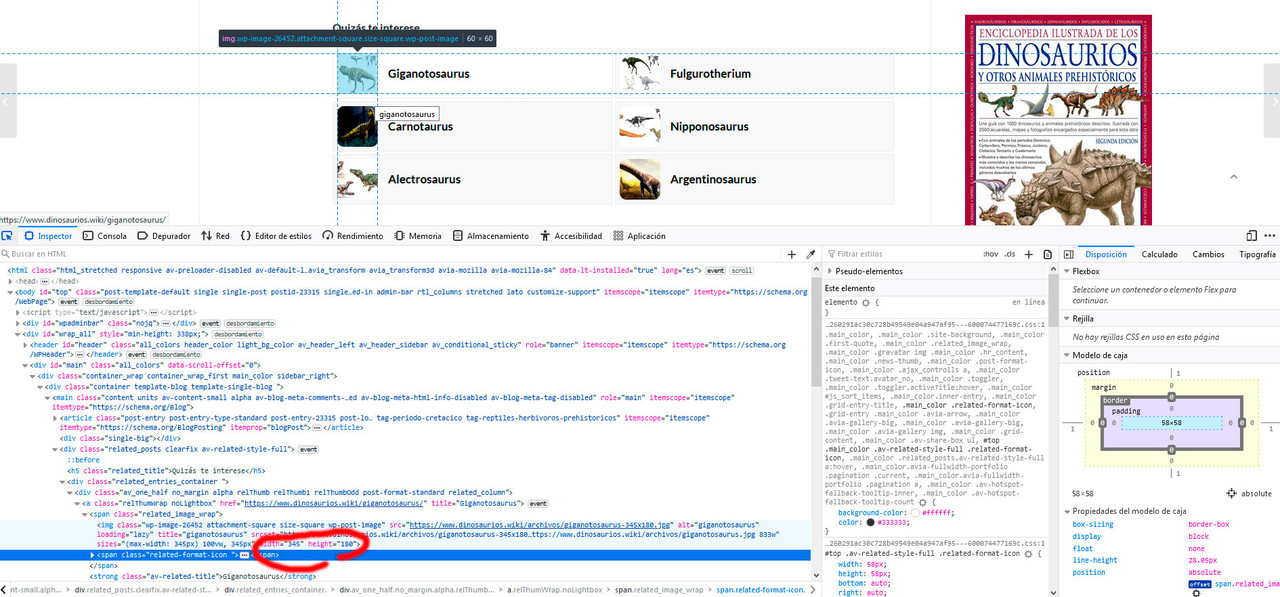
Yes, the thumbnails are already regenerated at 345×180, and I’ve also seen them on the FTP.
But I don’t know why they keep showing square.
Now the code does call the 345×180 images correctly. But it shows them square and squashed.:
Best regards and thanks!!!
Good morning,
Help!! I’m a bit panicked.
I made the update of the Theme and the site started to work badly or in an anomalous way in the home in the frontend some images have disappeared, in the other pages the thumbnails of the photos are very transparent, in the backend a block of code appeared before of the standard composer.
I don’t know what to do.
Give me a hand
Hi,
Glad to know that the solution that we provided above works.
To delete unused images, you could either do it manually by deleting the image from the Media > Library panel — this will also delete the thumbnails for that particular image — or use the following plugin.
// https://wordpress.org/plugins/media-cleaner/
Again it is very IMPORTANT that you have a site backup or a restore point before using the plugin.
Best regards,
Ismael



