I love “Featured Images!” I love the way they translate to a thumbnail on things like the “Recent News” section on the Footer.
What drives me nuts, however, is the way the same image will show up at the top of the post in the context of the way it’s listed with every other article that falls under the same category.
At that point, the Featured Image has been enlarged to the point where it’s pixelated and it looks unprofessional.
What I’d like to do is be able to use the “Featured Image” for the thumbnails in the way I referenced earlier, but avoid the way it’s used when it’s enlarged in the context of a list of posts.
I would be happy to provide some screenshots if that would help better describe my quandary. Otherwise, if you could share with me a piece of syntax I can incorporate into my functions.php or if there’s a setting that I’m overlooking, that would be wonderful.
I’m using the Enfold theme (https://themeforest.net/item/enfold-responsive-multipurpose-theme/4519990).
Thanks so much!
Hi,
One of the users kindly modified one of our snippet and use it to delete other thumbnails from the server which he thought was not necessary for a site that he was working on. Please check these threads.
// https://kriesi.at/support/topic/responsive-content-images-retina-screens/#post-1077293
// https://kriesi.at/support/topic/disable-creation-of-multiple-file-resoltuions-on-media-upload/#post-1172543
Please make sure to create a site backup (database, files etc) after adding the code and before regenerating the thumbnails.
If you have more questions about the theme, please feel free to open a new thread.
Thank you for your patience.
Best regards,
Ismael
Hey nasi,
Thank you for your patience and for the link to your site. I installed the Simple Image Sizes plugin for you to demonstrate that your woocommerce_gallery_thumbnail size is 100px, yet it is showing at 175px so it is blurry:

Try going to WordPress ▸ Settings ▸ Media ▸ Image sizes and change this to 180px and then regenerate the thumbnails

and then clear your browser cache and check again.
Best regards,
Mike
ok – thanks Ismael – on my testinstallation this code works.
this will immediately be added to my large collection of snippets.
And thanks – i did not see that i missed one closing curly bracket ! -Sorry
But i thought that the link function has to be hampered – and not redefine the image source for that image.
Both could be done by echo that new image definition:
function av_remove_featured_image_link($image) {
    if (is_single()) {
        $image = get_the_post_thumbnail( $current_post['the_id'], 'featured' );
    }
    // return : if you only want to have a different image source for that f.e. : entry_with_sidebar
    echo $image;
}
add_filter('avf_post_featured_image_link','av_remove_featured_image_link', 10, 1);
and if you choose a different image-size source for this image it might be good to shift the image again to the center of its container:
( but even here there are a lot of possible selectors depending on the blog settings )
.template-single-blog .wp-post-image {
  position: relative;
  left: 50%;
  -webkit-transform: translateX(-50%);
  transform: translateX(-50%);
}
This reply has been marked as private.
Hey!
Thank you for the info @Guenni007.
I tested the filter on my end and it seems to break the layout of the post, pushing the image outside of the big-preview container.
code from: https://kriesi.at/support/topic/remove-link-from-featured-image-2/
function av_remove_featured_image_link(){
  if(is_single()){
    echo get_the_post_thumbnail( $current_post['the_id'], 'featured' );
  }
}
add_filter('avf_post_featured_image_link','av_remove_featured_image_link');
I adjusted the code a bit.
function av_remove_featured_image_link($image) {
    if (is_single()) {
        $image = get_the_post_thumbnail( $current_post['the_id'], 'featured' );
    }
    return $image;
}
add_filter('avf_post_featured_image_link','av_remove_featured_image_link', 10, 1);
This returns the same markup or image which still contains a link as expected. This is due to this markup in the loop-index.php file.
iif( $slider )
					{
						if( $link_lightbox )
						{
							$slider = '<a ' . $lightbox_attr . ' ' . $featured_img_title . '>' . $slider . '</a>';
						}
						else
						{
							$slider = '<a href="' . $link . '" ' . $featured_img_title . '>' . $slider . '</a>';
						}
					}

					if( $slider )
					{
						echo '<div class="big-preview ' . $blog_style . '" ' . avia_markup_helper( array( 'context' => 'image', 'echo' => false ) ) . '>' . $slider . '</div>';
					}
We can slightly edit the code above to remove the link completely,
iif( $slider )
					if( $slider )
					{
						echo '<div class="big-preview ' . $blog_style . '" ' . avia_markup_helper( array( 'context' => 'image', 'echo' => false ) ) . '>' . $slider . '</div>';
					}
Or just use the css suggestion above.
Best regards,
Ismael
Hi,
The product gallery image thumbnails look blurry in the frontend, but then display great when I open them.
I guess there’s an issue with the thumbnail image size, but I haven’t been able to figure it out.
Help would be much appreciated!
Cheers
Hi,
Thank you for the info.
Is there a staging version of the site? We don’t want to accidentally break the site while editing the code.
Another solution is to extract the actual html of the slideshow and the layer slider and replace the shortcode. This solution works on our end.
This is an example of the fullwidth slider’s html.
$output .= '
<div id="full_slider_1" class="avia-fullwidth-slider main_color avia-shadow container_wrap fullsize">
<div class="avia-slideshow av-41ebxqf-8e1d42e67b1a6175203854efa82b817e avia-slideshow-no scaling av_slideshow_full avia-slide-slider av-slideshow-ui av-control-default av-slideshow-manual av-loop-once av-loop-manual-endless avia-slideshow-1" data-slideshow-options="{"animation":"slide","autoplay":false,"loop_autoplay":"once","interval":5,"loop_manual":"manual-endless","autoplay_stopper":false,"noNavigation":false,"bg_slider":false,"keep_padding":false,"hoverpause":false,"show_slide_delay":0}" itemprop="image" itemscope="itemscope" itemtype="https://schema.org/ImageObject">
<ul class="avia-slideshow-inner " style="padding: 0px; height: 366px;">
<li class="avia-slideshow-slide av-41ebxqf-8e1d42e67b1a6175203854efa82b817e__0 av-single-slide slide-1 slide-odd next-active-slide active-slide" style="visibility: visible; opacity: 1; transition: none 0s ease 0s; transform: translateZ(0px);">
<div data-rel="slideshow-1" class="avia-slide-wrap "><img class="wp-image-3345 avia-img-lazy-loading-not-3345" src="http://site.com/wp-content/uploads/2022/07/teahub.io-spaceship-wallpaper-631136.jpg" width="2560" height="1440" title="teahub.io-spaceship-wallpaper-631136" alt="A new home world. Test our faith." itemprop="thumbnailUrl" srcset="http://site.com/wp-content/uploads/2022/07/teahub.io-spaceship-wallpaper-631136.jpg 2560w, http://site.com/wp-content/uploads/2022/07/teahub.io-spaceship-wallpaper-631136-300x169.jpg 300w, http://site.com/wp-content/uploads/2022/07/teahub.io-spaceship-wallpaper-631136-1030x579.jpg 1030w, http://site.com/wp-content/uploads/2022/07/teahub.io-spaceship-wallpaper-631136-768x432.jpg 768w, http://site.com/wp-content/uploads/2022/07/teahub.io-spaceship-wallpaper-631136-1536x864.jpg 1536w, http://site.com/wp-content/uploads/2022/07/teahub.io-spaceship-wallpaper-631136-2048x1152.jpg 2048w, http://site.com/wp-content/uploads/2022/07/teahub.io-spaceship-wallpaper-631136-1500x844.jpg 1500w, http://site.com/wp-content/uploads/2022/07/teahub.io-spaceship-wallpaper-631136-705x397.jpg 705w" sizes="(max-width: 2560px) 100vw, 2560px" style="left: 0px;"></div></li>
</ul>
</div>
</div>
';
Best regards,
Ismael
First – these are snippets for child-theme functions.php!
to reduce the compression level of calculated images :
/**** abstellen der von Enfold auf 100 gesetzten jpeg Qualität  *****/
add_filter("avf_jpeg_quality", "avf_set_quality_mod", 9999, 1);
add_filter("avf_wp_editor_set_quality", "avf_set_quality_mod", 9999, 1);
function avf_set_quality_mod($quality) { $quality = 55; return $quality;}
A) for WordPress image size formats
// Remove unneeded WP image sizes
// Remove default image sizes here.
function prefix_remove_default_images( $sizes ) {
// do NOT remove small and medium sizes, they are used in backend Media Library!
// unset( $sizes['small']); // 150px
// unset( $sizes['medium']); // 300px
 unset( $sizes['large']); // 1024px
 unset( $sizes['medium_large']); // 768px
 return $sizes;
}
add_filter( 'intermediate_image_sizes_advanced', 'prefix_remove_default_images' );
B) for Enfold image size formats
function remove_enfold_image_sizes() {
// do NOT remove widget size, is used in backend portfolio items!
// remove_image_size('widget');
  remove_image_size('square');
  remove_image_size('featured');
  remove_image_size('featured_large');
  remove_image_size('portfolio');
  remove_image_size('portfolio_small');
  remove_image_size('gallery');
  remove_image_size('magazine');
  remove_image_size('masonry');
  remove_image_size('entry_without_sidebar');
  remove_image_size('entry_with_sidebar');
  remove_image_size('shop_thumbnail');
  remove_image_size('shop_catalog');
  remove_image_size('shop_single');
  remove_image_size('shop_gallery_thumbnail');
}
add_action('init', 'remove_enfold_image_sizes');
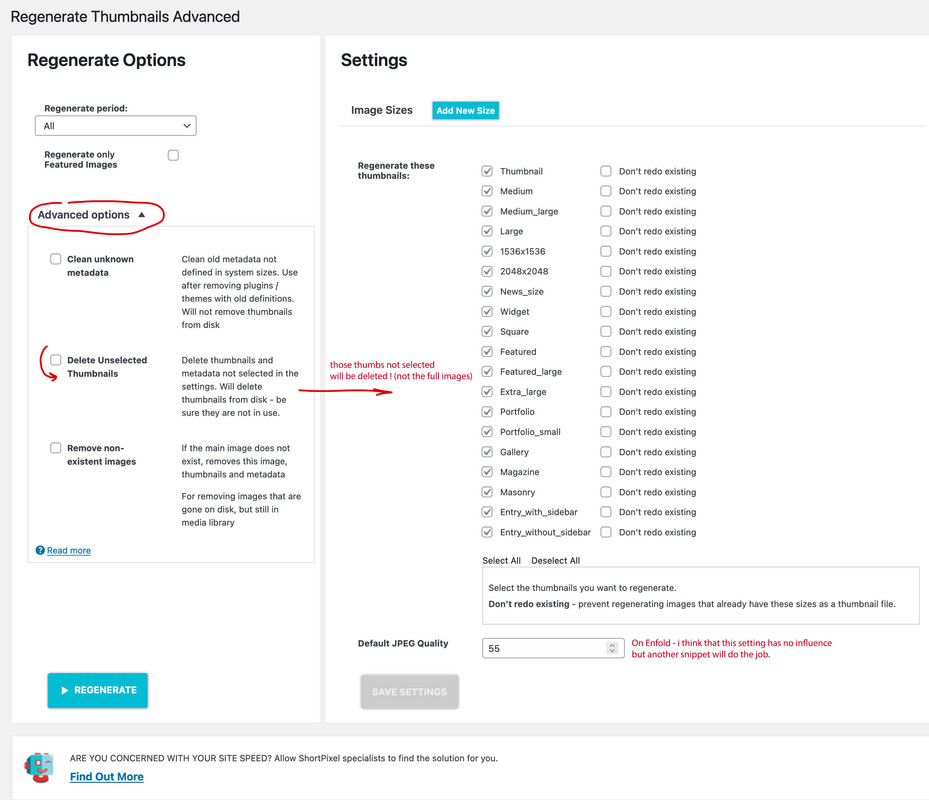
After inserting these snippets you had to recalculate thumbnails – use a plugin for that
i prefer: regenerate-thumbnails-advanced
Hi,
I don’t need alle the thumbnails, how can I disable them
a) while uploading and
b) delete existing ones?
Beste Regards
Tim
try this in your child-theme functions.php:
(it avoids the generation of a link – and did not hamper only the link function – on seo reasons this might be better ):
use Ismaels solution:
function av_remove_featured_image_link($image) {
    if (is_single()) {
        $image = get_the_post_thumbnail( $current_post['the_id'], 'featured' );
    }
    echo $image;
}
add_filter('avf_post_featured_image_link','av_remove_featured_image_link', 10, 1);
-
This reply was modified 3 years, 7 months ago by
 Guenni007.
the only thing i would change is the check – if there is a post thumbnail:
so change ismaels code by surrounding it with an if clause:
$searchthumb = get_the_post_thumbnail( $the_id, 'large' );
if( ! empty( $searchthumb ) ) {
	echo "<span class='search-result-counter {$counterclass}'>{$searchthumb}</span>";
}
_____________________________________________________________________________________________
i prefer to have the link on the image too and use square images : so i insert on that area instead:
$searchthumb = get_the_post_thumbnail( $the_id, 'square' );
if( ! empty( $searchthumb ) ) {
	echo "<a class='slide-image search_image' href='".get_permalink()."'><span class='search-result-image'>{$searchthumb}</span></a>";
}
my solution needs this in quick css:
.search-result-image {
    display: block;
}
.search-result-image img {
    width: 120px;
    border: 1px solid #aaa
}
a.slide-image.search_image {
  overflow: visible !important;
}
a.search_image .image-overlay.overlay-type-extern {
  left: 0 !important
}
see what it looks like on: https://webers-testseite.de/?s=portfolio
Bespoke Ecommerce for a phone case retailer here in the UK.
place4acase – iPhone and Samsung Galaxy phone cases
place4acase are suppliers and retailers of high quality phone cases for iphone and samsung galaxy devices. The company is based in the UK and are able to sell and distribute throughout the world. They work with artists to provide unique phone case designs available in matte, glossy and reinforced options.
The site is based on a modified version of Enfold with WooCommerce. We also use the excellent WooCommerce Extra Product Options Plugin from Code Canyon
The site also uses The Smash Baloon Instragram Feed Plugin.
The following modifications have been made:
-Changed the product page layout with CSS so the thumbnails are beside the image rather than next to it
-Moved the single product image over and made it larger so it is displayed more prominently
-custom header and menu structure with mobile first design
-product pages tweaked with sidebars removed and widget based filters for navigation
The site scores up to 95/100 in mobile speed testing and up to 100/100 on desktops
(Note that ther is currently a bug in the new PayPal plugin causing the mini cart JS to load on every page. This does reduce scores to 85/100 until the new release – This post was created 04/08/2022)
Think Jarvis uses an optimised performance stack for Enfold that includes
– 500 lines of code in functions.php
– font pre-loads
– lazyloading images
– baspoke ht access settings
– 8 core VPS server shared with other optimised sites only
– Caching
– Image compression and WebP generation
– Lazy Load JS on top of Enfolds HTML option so that the Instagram Feed is Lazy Loaded
– Critical CSS generator
– Bespoke Enfold settings
Let me know if you have any feedback :)
-
This reply was modified 3 years, 7 months ago by
 thinkjarvis.
For the gallery it is
function avia_change_gallery_thumbnail_link($link, $attachment, $atts, $meta){
$link = wp_get_attachment_image_src($attachment->ID, “full”);
return $link;
}
add_filter(‘avf_avia_builder_gallery_image_link’, ‘avia_change_gallery_thumbnail_link’, 10, 4);
and how does it work for the slildeshow?
Dear Support Members, I am curious if there is a way to set a default setting for the hover effect on overview pages? On every product page I have a meta_box with settings for the hover effect:
Hover effect on Overview Pages
Do you want to display a hover effect on overview pages and replace the default thumbnail with the first image of the gallery?
• Default: No hover effect
• The other option is: Yes – show first gallery image …
For my pages I use a altered code form your documentation (mentioned in #1341086):
add_action( 'after_setup_theme', 'ava_enfold_builder_layout_mod' );
function ava_enfold_builder_layout_mod(){
  if ( is_page() ) {
	add_filter('avf_builder_elements', 'avf_enfold_builder_layout_settings_mod');
  }
}

function avf_enfold_builder_layout_settings_mod($elements)
{
  $counter = 0;
    foreach($elements as $element)
    {
    if($element['id'] == 'header_transparency')  {
            $elements[$counter]['std'] = 'header_transparent';
        }
        $counter++;
    }
  return $elements;
}
So could I write something like:
add_action( 'after_setup_theme', 'ava_enfold_builder_layout_mod' );
function ava_enfold_builder_layout_mod(){
  if ( is_product() ) {
	add_filter('avf_builder_elements', 'avf_enfold_builder_layout_settings_mod');
  }
}

function avf_enfold_builder_layout_settings_mod($elements)
{
  $counter = 0;
    foreach($elements as $element)
    {
    if($element['id'] == 'product_hover')  {
            $elements[$counter]['std'] = 'hover_active';
        }
        $counter++;
    }
  return $elements;
}
I already did some tests, but with no success. My goal is to set the default to “yes” for all new products. Any chance to do that?
Cheers, Daniel
Hey ivanglaser,
Thank you for the inquiry.
Are you using any kind of image optimization or compression plugin? It seems to be resizing the lightbox thumbnail based on a specific URL parameter or query. (see private field)
Try to add this code in the functions.php file to adjust the default lightbox thumbnail size.
add_filter('avf_avia_builder_helper_lightbox_size', function($size) {
   return 'full';
}, 10, 1);
Best regards,
Ismael
Hey smudgedesign,
Thank you for your patience, the thread from 2015 that you linked to about the Portfolio Grid doesn’t actually have a solution, the Moderator is pointing out the code block that would need to be edited without advising the specific changes. I found in my test that no change is nessary to achieve what you are looking for if you use the Portfolio Grid.
I created a test page with a Portfolio Grid element and with a square “cropped” image the element shows the image square with the title below:

please note that the image is 349×349 square, with the title it’s 349×403

The key to choosing your images is ensuring that the thumbnails are “cropped”, if you use the Simple Image Sizes plugin you will see which ones are actually cropped square, for example while the “medium” image is 300×300 it is not cropped so it shows as 349×249 if the uploaded image is landscape instead of square, compared to the “woocommerce_thumbnail” which is 300×300 and cropped and produce the square images in the screenshots above.
Now one point, the thread from 2015 that you linked to about the Portfolio Grid, often referred to as the Masonry Portfolio, because it has many of the same features as the Masonry element, so please try the Portfolio Grid element.
Best regards,
Mike
Hi, we have some problems with social media widgets.
Instagram – can not connect to Instagram. User name is proper, because button with link to profile, leads to proper account, but widget is not importing thumbnails.
Facebook, not working on mobile.
Hi billbasler,
We apologize for the delayed response as well as the inconvenience.
https://kriesi.at/themes/enfold/portfolio-item/single-portfolio-23-gallery-3/ uses the Gallery element which has a Gallery Style of Big image with thumbnails below.
I have created a portfolio item on your site which is similar to the link you gave, here’s the page: https://phelansinteriors.com/portfolio-item/demo-portfolio-item/
I hope this helps.
Best regards,
Nikko
I solved my issues above through a lot of reading and trial and error. This was very frustrating that I never heard back from support on the issue. I ended up reading dozens of pages of support posts, only to find one that cited “lazy loading” under site Performance Options as a possible culprit. There is absolutely no way that I would hav e found this via searching. This seemingly unrelated setting was the issue. It is not that my Portfolio was improperly configured. It was that the load time on any image other than the Featured Image was absolutely crippled. It would take longer than two minutes for the other thumbnails to load on the page. So frustrating.
So now, my current question is this. My test page currently looks like this: https://phelansinteriors.com/portfolio-item/bridges-senior-lifestyle-living/
Not bad, but I am getting a very horizontal image that a user will then need to click on to get to the thumbnails. )Click the image). The effect I am looking for is like this: https://kriesi.at/themes/enfold/portfolio-item/single-portfolio-23-gallery-3/
In other words, I have no need for the interim click just to get to the thumbnails. I appreciate the help
Hi frankeee,
Thanks for providing us with admin access.
I tried to regenerate the thumbnails using a plugin Simple Image Sizes (have removed it) and it was able regenerate medium sizes (300x300px), there were two images in the masonry that weren’t regenerated so I re-uploaded the image so WordPress can recreate the medium size of those images and it seems to be working properly.
By default when chosen size is not available the full version of that image is used instead.
Best regards,
Nikko
Kreisi Support:
I am a fairly experienced Enfold user with quite a number of licenses. I am delving into a feature that I have previously not used—Portfolio Items.
I think I have a pretty good understanding of the basics. I should be able to get this to work, but yet, I seem to be having an issue. Namely, when I add images to a Portfolio and properly define the grid, a featured image etc., I cannot seem to see all images—not even in their thumbnail form. All I ever see is the larger featured image. No thumbnails below, and no way of advancing through the images using Ajax controls.
What am I missing?
My test Portfolio is titled “Balster Pediatric Dentistry.” And my page which I am trying to get the portfolio to appear on is titled “Projects.” I have copied the site and admin login credentials in Private Content.
Hi,
Looks like it defaults to the “large” thumbnail when using the list style. Please try to edit the enfold/config-templatebuilder/avia-shortcodes/portfolio/portfolio.php file and look for this code around line 1470.
//	create array with responsive info for lightbox
				$img = Av_Responsive_Images()->responsive_image_src( $attachment->ID, 'large' );
Replace “large” with “full”.
//	create array with responsive info for lightbox
				$img = Av_Responsive_Images()->responsive_image_src( $attachment->ID, 'full' );
Best regards,
Ismael
Hey navindesigns!
Thank you for the inquiry.
You can set a different thumbnail size in the Blog Posts element’s Styling > Appearance > Preview Image Size settings. The default size of the portfolio thumbnail, which is the thumbnail currently selected, can be also adjusted using the following plugin.
// https://wordpress.org/plugins/simple-image-sizes/
Best regards,
Ismael
How do I change the thumbnail dimension of the blog grid seen on this page – https://laserclinicsasia.com.sg/blog/
I would like it to be more of a rectangle dimension so there is no white space on the left and right. The exact size should be 520 px by 220px
Thanks
Thanks @Ismael, much appreciated.
Your solution has narrowed the gap between each element, which is fantastic, so thank you for that.
However, unfortunately it’s introduced a new problem – the thumbnail for the very first element no longer appears (you can only see the title). I’m guessing it gets cut-off somehow?
As a side note, I also note there seems to be a much bigger gap between the last element in the Masonry and the footer, which this change caused somehow.
I can’t believe how frustrating this is – it feels like 2 steps forward and 1 step back.
Any ideas?
Hi Guenni007, thanks again for all the help. The last message regarding the styling tab unfortunately doesn’t work for me. It’s something I tried initially and I was hoping that setting the “preview image size” would fix the issue, but it didn’t. I actually do not know what this option does to be honest. It either does something completely different that what I’m expecting it to do, or it doesn’t work and is buggy.
Anyway, I revisited the code you sent previously that should set the image to full size and I was able to get that to work. At first the code was not working but I removed the “if” statement and after I removed that code the feature images went to full size and resolution. I’m not sure if this will affect other parts of the website but so far it’s looking good. Here is the code I ended up using:
function custom_post_featured_image_link( $image_link, array $current_post, $size ){
    $image_link = get_the_post_thumbnail( $current_post['the_id'], 'full' );
  return $image_link;
}
add_filter( 'avf_post_featured_image_link', 'custom_post_featured_image_link', 10, 3 );
For now I think I am good to go. I really appreciate your help, thank you!
or do you realy mean “widget” – this is kind of technical term.
I now think you are talking about the postslider – and the thumbnails shown on this.
But be carefull – if you got a big list of portfolio – and each got a full resolution – performance will suffer on that.
Try this snippet in your child-theme functions.php:
f.e. on archiv pages like categories :
function custom_post_featured_image_link( $image_link, array $current_post, $size ){
  if(is_tag() || is_archive()){
    $image_link = get_the_post_thumbnail( $current_post['the_id'], 'full' );
  }
  return $image_link;
}
add_filter( 'avf_post_featured_image_link', 'custom_post_featured_image_link', 10, 3 );
Hi,
You could try to remove all your customisations, then add them back one by one, to see which function is causing the problem. I think this is something you shouldn’t need at all:
/*
Woocommerce 3.0.0 Compatibility Fix
Remove Enfold’s custom functions that conflict with the new image display in WooCommerce 3.0.0
*/
global $woocommerce;
if( version_compare( $woocommerce->version, ‘3.0.0’, “>=” ) ) {
function avia_woocommerce_gallery_thumbnail_description($img, $attachment_id, $post_id, $image_class ) {
return $img;
}
function avia_woocommerce_post_thumbnail_description($img, $post_id){
return $img;
}
}
Best regards,
Rikard
Hi Rikard,
I have tried restoring but I get critical errors. The host 123-reg say the problem is with the child theme I created for Enfold. Please can you look at my child theme functions,php code and see if it has errors. Apparently it is line 23. My child theme is called Orion I.T. Theme:
<?php
/*
* Add your own functions here. You can also copy some of the theme functions into this file.
* WordPress will use those functions instead of the original functions then.
*/
//set builder mode to debug
add_action(‘avia_builder_mode’, “builder_set_debug”);
function builder_set_debug()
{
return “debug”;
}
/* Add Custom class to all ALB elements */
add_theme_support(‘avia_template_builder_custom_css’);
/*
Woocommerce 3.0.0 Compatibility Fix
Remove Enfold’s custom functions that conflict with the new image display in WooCommerce 3.0.0
*/
global $woocommerce;
if( version_compare( $woocommerce->version, ‘3.0.0’, “>=” ) ) {
function avia_woocommerce_gallery_thumbnail_description($img, $attachment_id, $post_id, $image_class ) {
return $img;
}
function avia_woocommerce_post_thumbnail_description($img, $post_id){
return $img;
}
}
add_action( ‘woocommerce_single_product_summary’, function() {
echo ” – FREE SHIPPING IN THE UK!”;
}, 10);



