Viewing 30 results - 2,641 through 2,670 (of 18,719 total)
  • Author
    Search Results
  • #1303710

    Hi,

    Thank you for the update.

    In the layer settings, there is an option where you can define the minimum font size. The option is located in the layers’ Styles > Text | Font Style panel. For images or non-text layers, you can use the Custom CSS field in the same Styles panel to define a minimum height or width for the layer.

    Best regards,
    Ismael

    #1303685

    Hi Steven,

    Please try this CSS instead:

    h1.paginatitel_vervolg2021 {
        font-size: 60px;
        font-family: 'Dosis', sans-serif;
        font-weight: 600;
        text-transform: none!important;
        color: #fff;
        padding: 20px 40px!important;
        background: #0054a4!important;
        -webkit-border-radius: 10px!important;
        -moz-border-radius: 10px!important;
        border-radius: 10px!important;
        display: initial;
    }

    Best regards,
    Rikard

    #1303668
    envato99
    Participant

    Hi

    How do I edit the font sizing the footer menu? [On our site, the menu at the very bottom of the page, with links to: HOME | RBI | MODULES | SERVICES…]

    Thanks

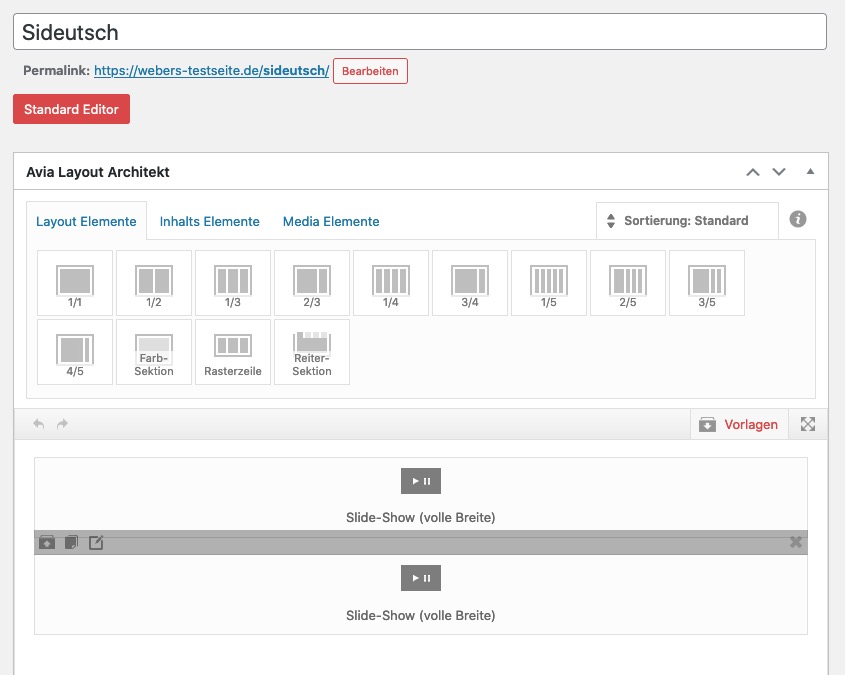
    The button that is part of the fullwidth slider can only be placed on default to the left side. But with a bit css in quick css you can shift this button to a right position.

    In the Element ( as on most of the advanced Layout Builder Elements ) they have the opportunity to show or hide on 4 differnt screensizes.
    So i placed two fullwidth sliders on top:
    ( click to enlarge the images )


    The second fullwidth slider with the oposite setting.

    For the button positioning i gave a custom-class to the sliders : homeslider

    .homeslider .avia-slideshow-button {
        position: absolute;
        right: 5vw;
        bottom: 5vw;
        padding: 15px 25px !important;
        box-shadow: 2px 2px 15px -5px #000;
        font-size: 18px;
    }
    #1303241

    In reply to: Format this text

    Hey Franz,

    Thanks for contacting us!

    Please add following code to bottom of Quick CSS field as well

    .av-catalogue-list .av-catalogue-content {
        color: red;
        font-size: 14px;
    }
    
    #top .av-catalogue-list .av-catalogue-item {
        padding-bottom: 5px;
    }

    Regards,
    Yigit

    #1303240

    Topic: Masonry gallery

    in forum Enfold
    Schmidtgrafisk
    Participant

    Hi,
    I have the “display excerpt” activated, I would like to:
    increase the font size
    Be able to place the text in the bottom of the box, still centered
    Change font color

    If I choose to go with the “Load more” setup, I need to:
    Translate to danish “Vi flere billeder”
    And I want the Load more” textbox to be transparent

    Cheers ;)

    #1303080

    Topic: Format this text

    in forum Enfold
    schweg33
    Participant

    Hello together
    have created here a price list
    I was able to do all the formatting with CSS below

    Now I would like to format this text font size and font color (link printscreen below)

    Then I would like to reduce the line spacing? (Link Printscreen below)

    Both changes with CSS

    Thanks in advance
    Kind regards
    Franz

    #1302897

    Hey Stephen,

    Add the following to quick css:

    #avia-menu a{
    font-size:20px!important;
    }

    Best regards,
    Jordan Shannon

    #1302844
    envato99
    Participant

    Hi

    Is it possible to increase the font size of the top menu on our site [Link below]?

    Thanks

    #1302734

    Hi and thanks for that, it didn’t work. The font is a custom font. No matter where I try to control this the menu font remains the same, either using the ‘Use any font’ plugin or editing the CSS. Any ideas?
    Here’s the code I used based on your suggestion.
    .av-main-nav > li > a {
    display: block;
    text-decoration: none;
    padding: 0 13px;
    font-weight: normal;
    font-weight: 600;
    font-size: 13px;
    font-family: “verlag-light”, serif;
    }

    #1302699
    agentbuzzdev
    Participant

    I can’t change the default size of the text on my site. When I change the font size values in General Styling the changes don’t take at all. When changing the text style in the block editor, the line spacing changes with font size but not the actual text size. However, when changing in the block editor, it does change correctly for UL tags but not P tags, so it appears the P tag style is being overridden somewhere but I can’t see where. Please help!

    • This topic was modified 4 years, 9 months ago by agentbuzzdev.
    #1302670

    Topic: Yigit. Logo lost link

    in forum Enfold
    EnvatoOvis
    Participant

    Hello again,

    confused, logo link is active :/ but not working, mouse not active (desktop only)

    Link

    http://www.silutevb.lt

    My functions.php:

    add_action( 'after_setup_theme', 'my_theme_setup' );
    function my_theme_setup() {
        add_editor_style();
        // For the Block Editor.
        add_theme_support( 'editor-styles' );
    }
    function wp_23223255_6469586506596() { 
    	add_image_size('entry_with_sidebar', 999, 999);
    	add_image_size('entry_without_sidebar', 999, 999);
    }
    add_action( 'after_setup_theme', 'wp_23223255_6469586506596', 11 );
    
    function add_logos($logo) {
    /*	$logo .= '<span class="logo first-logo"><a href="/aaaaa">' ;
    	$logo .= '<img src="https://www.silutevb.lt/silute/wp-content/uploads/2021/05/Logo_30Proc_mazesnis.png"/>';
    	$logo .= '</a></span>';*/
    	$logo .= '<span class="logo second-logo"><a href="/darbo-laikas" target="_blank">' ;
    	$logo .= '<img src="https://www.silutevb.lt/silute/wp-content/uploads/Darbo_laikas.png"/>';
    	$logo .= '</a></span>';
    	return $logo;
    }
    add_filter('avf_logo_final_output', 'add_logos');

    Quick CSS:

    .av-main-nav ul {
        width: 260px;
    }
    @media only screen and (max-width: 767px) { 
    .logo.second-logo img {
        padding-top: 20px;
    }}
    @media only screen and (max-width: 480px) { 
    .responsive .logo img {
        max-width: 90%;
    }}
    @media only screen and (min-width: 768px) { 
    .logo img {
        padding: 15px 0;
    }}
    
    /*.logo, .logo a { display: inline-block}*/
    /*.logo:first-child img {display: none}*/
    /*.logo.first-logo { z-index: 3 }*/
    .logo.second-logo { z-index: 3 }
    .logo.second-logo { width: 100% }
    .logo.second-logo a { float: right !important }
    /*.logo.first-logo a, */ .logo.second-logo a { display: inline-flex }
    /*.main_menu:not(:first-of-type) { display: none !important }*/
    /*.responsive #top .logo.first-logo {
        float: left;*/
    }
    /*hide auto sidebar from magazine*/
    .page-id-2967 .sidebar .widget_nav_hide_child {
    display: none;
    }
    /*2.8 firefox problem*/
    .avia-image-container-inner, .avia_image {
        max-width: 100%;
    }
    #header_main .avia-menu-text {
        font-size: 16px;
    }
     .entry-content p {
    font-size: 18px;
    margin: 20px 0;
    line-height: 24px;
    }
    .header-scrolled #header_main > .container {
    display: none !important;
    }
    #socket .avia-bullet, #socket .avia-menu-fx {
      display: none;
    }
    • This topic was modified 4 years, 9 months ago by EnvatoOvis.
    #1302569
    amyteslin
    Participant

    Hi Guys,
    A couple of things:
    1. On mobile I have hidden the phone menu but it has also hidden the burger menu. How can I get it to look like this with also a phone icon instead of the text that is on mobile?
    Screenshot-2021-05-27-at-09-46-44

    I’ve created an advanced slider that looks amazing on desktop but has scaled badly on mobile. I need it to look like the above screen shot too.
    I did play with some css changing the margins but it looked bad when rotating to landscape on mobile.
    Is there a way to get the scaling more accurate?

    I need it looking like this https://ibb.co/mq9X14V

    The CSS I tried
    @media only screen and (max-width: 480px) {
    h5.ls-layer {
    height: 100px !important;
    margin-top: -40px!important;
    line-height: 2em !important;
    position: static!important;
    }

    h2.ls-layer {
    font-size: 15px!important;
    margin-left:-25px!important;
    max-width: 200px!important;
    margin-top: -70px!important;
    border: none !important;
    }
    h3.ls-layer {
    font-size: 15px!important;
    margin-left:-60px!important;
    max-width: 100px!important;
    margin-top: 10px!important;
    }
    .rotate {
    width: 130px!important;
    height: 130px!important;
    margin-left: -30px!important;
    margin-top: -50px!important;
    }
    .arrow {
    margin-top: 30px !important;
    margin-left: -10px!important;
    font-size: 30px !important;
    }}
    media only screen and (max-width: 767px) {
    #top #wrap_all .av_header_transparency {
    background: transparent!important;
    position: absolute!important;
    }}

    #1302509

    Hey Mark,

    Add this to quick css:

    h3.slide-entry-title.entry-title {
    font-size:18px!important;
    }

    Best regards,
    Jordan Shannon

    #1302486
    markacramer
    Participant

    Hello All, I am trying to reduce the font size for the title of posts displayed with the Blog Posts Content Element but there is no font setting so I need some CSS for the Quick Css entry. Also to change font color. Can you assist?

    andotek
    Participant

    Hi Team,
    Ive followed the documentation to add a widget to the header area so I can create a button (https://kriesi.at/documentation/enfold/header/#adding-a-header-widget-area). The button gets created perfectly, however when clicked the URL link does not activate. The button just does not do anything!

    I’m using the short code
    [av_button label='Refer A Friend' link='manually,/refer-a-friend/' link_target='' size='small' position='right' icon_select='no' icon='ue800' font='entypo-fontello' color='theme-color' custom_bg='#444444' custom_font='#ffffff' av_uid='av-5obiu2i']

    How do I get the button URL to activate?

    #1302221

    Mike – that works! Thank you. I will leave it there now, as that’s the size that fits all screens.
    (in fact, I lowered the font to 12 – I can always up it slowly if there’s complaints)

    Thanks again for making this painless.

    Much appreciated.
    Steve :-)

    #1302205

    Hi,
    On my desktop the text is 16px, and the actual css font-size is 1em which will show different px sizes based on screen size, anyways to change the font-size to 14px try this css:

    #top.page-id-22914 #tonic-ticket-widget.tw-widget h4.tw-text--flush,
    #top.page-id-22914 #tonic-ticket-widget.tw-widget p.tw-text--flush,
    #top.page-id-22914 #tonic-ticket-widget.tw-widget p span {
    	font-size: 14px;
    }

    but to change the font-size only on hover try this css instead:

    #top.page-id-22914 #tonic-ticket-widget.tw-widget .tw-item:hover h4.tw-text--flush,
    #top.page-id-22914 #tonic-ticket-widget.tw-widget .tw-item:hover p.tw-text--flush,
    #top.page-id-22914 #tonic-ticket-widget.tw-widget .tw-item:hover p span {
    	font-size: 14px;
    }

    After applying the css, please clear your browser cache and check.

    Best regards,
    Mike

    #1302171

    In reply to: CSS

    Hi Nikko,
    Thank you for that!
    But: I need this similar now also for the start page / home (page-id 74) .
    But ONLY the headlines of the WCFM store titles must be smaller (instead of H2 just H3) and not all titles. With the last CSS code all titles on the page will be smaller … I need another one.
    Please tell me how to change ONLY the WCFM store title font size.
    Thanks and greetings

    #1302141

    Hi,

    Thanks for that. I see that some of the CSS is coming from the theme, but they are possible to override, even though they are using !important. I added this to the top of your Quick CSS box for example:

    .responsive #top .slideshow_caption h2{
        font-size: 26px !important;
    }

    And it’s applying to your site. You should be able to do the same thing with the other blocks as well.

    Best regards,
    Rikard

    #1301985

    In reply to: Page has shifted

    I have not added any of that – this is my custom CSS

    #header_meta .container {
        min-height: 50px;
    }
    .phone-info {
        line-height: 2.35em;
        font-size: 1.0em;
    }
    #top .social_bookmarks li a { 
        font-size: 22px; 
        margin-top: 10px;
    }
    #top .social_bookmarks li {
        border: none;
    }
    #top .av-caption-style-overlay .av-masonry-entry .av-masonry-entry-title {
        font-size: 2.0em;
        color: #ffffff !important;
    }
    #top .av-large-testimonial-slider .avia-testimonial-content {
        font-size: 1.1em;
        line-height: 1.6em;
    }
    .av-special-heading-h2 .special-heading-border {
        display: none;
    }
    .html_modern-blog #top .post-entry .blog-categories {
        display: none;
    }
    .html_modern-blog #top .post-entry .post-meta-infos, .html_modern-blog .avia-content-slider .slide-meta {
        display: none;
    }
    .main_color .special-heading-inner-border {
        display: none;
    }
    
    
    #1301947

    Ooh! PS… Is there a simple CSS to lower the font size in those same boxes?

    (I noticed on mouseover that the box is still clipped by the font)

    Steve😊

    #1301911

    In reply to: Tab Section problems

    Hi Martin,

    Thanks for that. Please try this CSS as well for the Tab Section:

    .av-tab-with-image .av-inner-tab-title {
        width: 100% !important;
        text-align: center !important;
    }
    
    .avia-tab-title-padding-default .av-outer-tab-title {
        display: flex !important;
        text-align: center !important;
    }

    And this for the Accordion:

    @media only screen and (max-width: 767px) {
    #top .aviaccordion-preview-title h3 {
        font-size: 12px !important;
        word-break: break-all;
    }
    .aviaccordion-excerpt p {
        font-size: 12px !important;
    }
    }

    Best regards,
    Rikard

    #1301874

    Hi projectt_co_uk,

    Please add this CSS code in Enfold > General Styling > Quick CSS:

    #top #footer .widgettitle {
        border: none;
    }
    
    #top #footer .avia-button {
        font-size: 24px;
    }

    Just adjust the font size value.
    Hope this helps.

    Best regards,
    Nikko

    Hi Ismael,

    thanks for your reply!

    unfortunately this code didn’t work.

    Also I do have the grid layout on more pages of my website – it is important, that the font size only changes on the individual blog post sides.

    Best regards,
    Raphaela

    #1301709
    projectt_co_uk
    Participant

    Hi,

    On my website https://www.viaremovals.co.uk.

    I would like to remove the lines showing at the top and bottom of the footer widget titles.

    I also want to increase the width, icon size, phone number font size of the button in the footer 2nd column.

    Please can you help.

    Kind regards,

    #1301685

    Hi,

    – I removed the code from Customizer (you can find it here as well – https://pastebin.com/j9Yj3wKM)
    – Disabled header widget code in Functions.php file of your child theme
    – Added a new menu item to your menu and chose to display it as button
    – Went to Enfold theme options > Advanced Styling and adjusted button menu item colors
    – Added following code to bottom of Quick CSS field

    #menu-item-61 .avia-menu-text {
        border-left: none;
    }
    #menu-item-8182 {
        right: 100px;
    }
    @media only screen and (max-width: 1200px) {
    #top #header .av-main-nav > li > a {
        font-size: 15px !important;
    }}
    @media only screen and (max-width: 1055px) { 
    #menu-item-8182 {
        right: 30px;
    }}

    Please review your website :)

    Best regards,
    Yigit

    #1301609

    Topic: Iframe Fullwidth?

    in forum Enfold
    digitalprint2222
    Participant

    Hi,
    how can i make an Iframe stretch to full width?
    It doesnt even stretch full width when putting in a colorsection.

    <iframe src="https://example.org/test/test/" style="border:0px #ffffff none;" name="myiFrame" scrolling="no" frameborder="0" marginheight="0px" marginwidth="0px" height="1080px" width="1920px" allowfullscreen></iframe>

    This is the section:
    `[av_section min_height='' min_height_pc='25' min_height_px='500px' padding='default' margin='' custom_margin='0px' color='main_color' background='bg_color' custom_bg='' background_gradient_color1='' background_gradient_color2='' background_gradient_direction='vertical' src='' attach='scroll' position='top left' repeat='no-repeat' video='' video_ratio='16:9' video_mobile_disabled='' overlay_enable='' overlay_opacity='0.5' overlay_color='' overlay_pattern='' overlay_custom_pattern='' shadow='no-border-styling' bottom_border='no-border-styling' bottom_border_diagonal_color='#333333' bottom_border_diagonal_direction='' bottom_border_style='' scroll_down='' custom_arrow_bg='' av-desktop-hide='' av-medium-hide='' av-small-hide='' av-mini-hide='' id='' custom_class='' template_class='' aria_label='' av_element_hidden_in_editor='0' av_uid='av-449u' sc_version='1.0']
    [av_heading heading='Headline' tag='h2' style='blockquote modern-quote modern-centered' subheading_active='subheading_below' show_icon='' icon='ue800' font='entypo-fontello' size='4vw' av-medium-font-size-title='' av-small-font-size-title='' av-mini-font-size-title='' subheading_size='' av-medium-font-size='' av-small-font-size='' av-mini-font-size='' icon_size='' av-medium-font-size-1='' av-small-font-size-1='' av-mini-font-size-1='' color='' custom_font='' icon_color='' margin='' margin_sync='true' padding='10' icon_padding='10' link='' link_target='' id='' custom_class='' template_class='' av_uid='av-koxeaaox' sc_version='1.0' admin_preview_bg='']
    Komm rein
    [/av_heading]

    [av_textblock size='' av-medium-font-size='' av-small-font-size='' av-mini-font-size='' font_color='' color='' id='' custom_class='' template_class='' av_uid='av-koxechgf' sc_version='1.0' admin_preview_bg='']
    <iframe src=”https://example.org/test/test/&#8221; style=”border:0px #ffffff none;” name=”myiFrame” scrolling=”no” frameborder=”0″ marginheight=”0px” marginwidth=”0px” height=”1080px” width=”1920px” allowfullscreen></iframe>
    [/av_textblock]
    [/av_section]

    Kind regards
    Max

    #1301588

    Hi,

    Thanks for that. You have this somewhere in the theme, which is setting the size on mobile:

    @media only screen and (max-width: 479px) {
    .responsive #top .slideshow_caption h2 {
        font-size: 20px !important;
    }
    }

    I can’t check where it’s coming from, since /wp-admin/ redirects to an account page.

    This CSS which is likely added in the same place, is setting the size for the caption:

    @media only screen and (max-width: 479px) {
    .responsive #top .slideshow_caption .avia-caption-content {
        font-size: 13px !important;
    }
    }

    This CSS is controlling the position of the numbers:

    @media only screen and (max-width: 767px) {
    .av-no-preview .avia-timeline .milestone_icon.milestone-icon-hasborder .milestone_inner {
        line-height: 60px;
    }
    }

    And this controls the timeline:

    @media only screen and (max-width: 767px) {
    .av-no-preview .avia-timeline-vertical .av-milestone-icon-wrap:after {
        left: 32px;
    }
    }

    Best regards,
    Rikard

    Hey Raphaela_Pla,

    Thank you for the inquiry.

    Based on the screenshot, looks like the Blog Posts element is set to have a grid layout. If that is true, you can use this css code to adjust the font size of the post title.

    .avia-content-slider .slide-entry-title {
        font-size: 0.8em;
        line-height: 1.2em;
        margin: 0;
    }
    

    And regarding the image borders, please post the site URL in the private field so that we can actually check the blog posts element.

    Best regards,
    Ismael

Viewing 30 results - 2,641 through 2,670 (of 18,719 total)