Hey Coiffure-christele,
Your website is well optimized – see https://gtmetrix.com/reports/www.coiffure-christele-extensions.fr/ThLAWAXc but the size is over 2,3 mb (equals the size of a mp3 file!)
The images visage-femme-cheveux-lisses.png, cheveux-ciseaux-peigne.png, lissage-bresilien-chocolizzi.png, steam-pod.png, background-abstrait.jpg, entree-salon-coiffure-christele-705×469.jpg and vitrine-salon-coiffure-christele-705×469.jpg add over 1 mb to the website size – I’d recommend to reduce the image file sizes.
You can also try to install a cache like Borlabs Cache to speed up your website or to enable gzip by adding this code to your htaccess file:
<IfModule mod_deflate.c>
  # Compress HTML, CSS, JavaScript, Text, XML and fonts
  AddOutputFilterByType DEFLATE application/javascript
  AddOutputFilterByType DEFLATE application/rss+xml
  AddOutputFilterByType DEFLATE application/vnd.ms-fontobject
  AddOutputFilterByType DEFLATE application/x-font
  AddOutputFilterByType DEFLATE application/x-font-opentype
  AddOutputFilterByType DEFLATE application/x-font-otf
  AddOutputFilterByType DEFLATE application/x-font-truetype
  AddOutputFilterByType DEFLATE application/x-font-ttf
  AddOutputFilterByType DEFLATE application/x-javascript
  AddOutputFilterByType DEFLATE application/xhtml+xml
  AddOutputFilterByType DEFLATE application/xml
  AddOutputFilterByType DEFLATE font/opentype
  AddOutputFilterByType DEFLATE font/otf
  AddOutputFilterByType DEFLATE font/ttf
  AddOutputFilterByType DEFLATE image/svg+xml
  AddOutputFilterByType DEFLATE image/x-icon
  AddOutputFilterByType DEFLATE text/css
  AddOutputFilterByType DEFLATE text/html
  AddOutputFilterByType DEFLATE text/javascript
  AddOutputFilterByType DEFLATE text/plain
  AddOutputFilterByType DEFLATE text/xml

  # Remove browser bugs (only needed for really old browsers)
  BrowserMatch ^Mozilla/4 gzip-only-text/html
  BrowserMatch ^Mozilla/4\.0[678] no-gzip
  BrowserMatch \bMSIE !no-gzip !gzip-only-text/html
  Header append Vary User-Agent
</IfModule>
Reference: https://gtmetrix.com/enable-gzip-compression.html
I’ll look into the amp issue – I need to test this on my server…
Best regards,
Dude
Hi,
Add this to quick css:
#js_sort_items{
font-size:20px!important;
}
Best regards,
Jordan Shannon
Hi Victoria,
Thanks for the advice! I updated my PHP and the code works fine, but I’m actually trying to change the font size of this:
https://ibb.co/jU1yeT
Hi atifaijaz123,
You should be running at least php5.6.3 for the code to work properly. Please consider upgrading your php version.
Here is the code you can put in Enfold > General Styling > Quick Css, if it does not work, put into themes/enfold/css/custom.css
.grid-entry.flex_column .grid-entry-title {
    font-size: 16px;
}
If you need further assistance please let us know.
Best regards,
Victoria
Hi darnott75,
Here is the code you can put in Enfold > General Styling > Quick Css, if it does not work, put into themes/enfold/css/custom.css
@media only screen and (max-width: 767px) {
    .html_modern-blog .avia-content-slider h3.slide-entry-title {
        font-size: 20px;
    }
}
If you need further assistance please let us know.
Best regards,
Victoria
Dear Rikard,
I tried to change the menu font size in Enfold>advanced styling. But nothing seems to change?
-
This reply was modified 7 years, 9 months ago by
 leonfib.
Hi,
Could you post a link to the page in question so that we can take a closer look please? You can set the transparent logo under Enfold->Header->Transparency Options, and you can adjust the menu font size under Enfold->Advanced Styling.
Best regards,
Rikard
Hi!
I have run into a problem and need some help. I Have a site in multiple languages and the job count above and to the right works in English, The childtheme CSS is as follows:
/* Job count above Career menu*/
li#menu-item-702 > a > .avia-menu-text:after {
content: "1";
font-size: 9px;
color: #FFF;
background: #22689E;
line-height: 17px;
width: 17px;
display: inline-block;
text-align: center;
border-radius: 100px;
position: relative;
top: -9px;
left: 2px;
}
I am using the same code in for the Japanese version, but with that menu item and it is not working. See that code below:
li#menu-item-2165 > a > .avia-menu-text:after {
content: "1";
font-size: 9px;
color: #FFF;
background: #22689E;
line-height: 17px;
width: 17px;
display: inline-block;
text-align: center;
border-radius: 100px;
position: relative;
top: -9px;
left: 2px;
}
The site is translated with WPML, but when I inspect the code I do not see it. All languages us the same child sytle sheet, correct?
Thank you in advance.
Thanks for your response Jordan. I have another question.
How can I increase the font size of the categories?
I also can not make changes to the font size and colour to the text sitting within the header.
I assume this is called ‘main menu’. I have tried changing the font sizes and colour within the ‘Advanced Styling’ tab, with no changes coming through.
Whatever have I done to loose control of my header settings?! Please help.
Thank you!
Hi,
I’m trying to customize the portfolio grid categories and can’t figure out how.
I’m trying to get the categories from this:
https://ibb.co/jU1yeT
to this:
https://ibb.co/gO44m8
Each category should have a bigger font size with an icon above it. When the category is clicked, the icon’s colour should change. I don’t need the green line underneath the categories though.
Thanks!
Hello,
I wanted to add it as a feature request but I don’t manage to do it.
It would be great to have by default the phone icon but with the speaking side on the right and not on the left. Each time I have to upload a new icon.
Or is it possible to do it with a transform rotate ?
Here is my code :
.phone::before {
    content: "\e854";
    font-family: entypo-fontello;
    font-size: 15px;
    position: relative;
    right: 5px;
}
And this in the Phone area / top bar:
<span class="phone">02 340 32 40</span> <span class="btn-top"><a href="#">COMMANDE</a></span>
Website access below.
Tx guys !!
 Max Cooper
Thanks Yigit. So if I want to change the size of the preview image and article title would I have to go into the css in the general styling? Right now when I try and edit the blog post element I don’t see an option to change the font size of the of the article title and it looks way too big in the grid layout. I also don’t see a preview image size option that looks like the one in the demo (https://kriesi.at/documentation/enfold/blog-post/).
Hi, I hope my questions fit to this topic. I use single post style with big preview image, style modern business. Post titles are huge on mobile. How can I make them smaller? I used various CSS classes I found on the forum. None of them worked. This was the last one, didn’t work either: template-blog .post-title { font-size: 22px !important; }
One more question related to archive pages layout. Unfortunately the category pages list full-length posts rather than feature images+excerpt+read more. How can I modify the layout? Thanks in advance.
Hi, I hope my questions fit to this topic. I use single post style with big preview image, style modern business. Post titles are huge on mobile. How can I make them smaller? I used various CSS classes I found on the forum. None of them worked. This was the last one, didn’t work either: template-blog .post-title { font-size: 22px !important; }
One more question related to archive pages layout. Unfortunately the category pages list full-length posts rather than feature images+excerpt+read more. How can I modify the layout? Thanks in advance.
Hi!
Is there a way of adding this to quick CSS
.entry-content {
font-size: 16px !important;
}
but the font on mobile devices must not change, that must stay standard – only the font size on the ‘big screen’.
Thank you!
Kind regards
capuchin
Hey DianaLoola73,
Thank you for using Enfold.
1.) The menu item drops when the screen width is less than 1150px. Adjust the font size and padding of the menu items for that screen size.
@media only screen and (max-width: 1150px) {
.av-main-nav > li > a {
    padding: 0 20px;
    font-size: 13px;
}
}
2.) I can’t reproduce this issue. The logo should be center aligned regardless of the screen size because of the following css code.
.html_header_top.html_logo_center .logo {
    left: 50%;
    -webkit-transform: translate(-50%, 0);
    -ms-transform: translate(-50%, 0);
    transform: translate(-50%, 0);
}
Best regards,
Ismael
Hi,
I see that you had the “body” font size set to 13px in the Enfold Theme Options > Advanced Styling > Body
The advanced styling typically overrides the general stylings, you also have many other fonts set there, perhaps that is the conflict.
I tested by changing the “body” to “default” in the advanced stylings and cleared my browser cache. Please check.
Best regards,
Mike
Hi Mike,
if i deactivate CSS Hero, went to Enfold Child / Options / General Options / Fonts / Default Theme content font size and change these values from 13 px to 25 px, save it and load the site new i see no difference. (i’ve cleared the cache before)
if i make the same procedere with enfold parent theme i see the change of the font size very well.
Best regards,
Markus
Hi,
Can you tell us which font sizes you would like and we will assist with enforcing them.
Best regards,
Mike
Hi Mike, thank you very much for looking at my problem.
But if i deactivate CSS Hero and want to change the fontsizes in the child options they do not work.
If i aktivate the Enfold parent theme i can change the fontsizes correctly. with CSS hero or without.
That’s what i not understand. The fontsizes are blocked.
Best regards,
Markus
-
This reply was modified 7 years, 9 months ago by
 LFK.
LFK.
Hello support,
I urgently need help. I have a problem with enfold and enfold child which I can not solve alone. Unfortunately, I find no similar case here in the support forum. My problem is that I can not change the size of fonts used in the theme. I have disabled all plugins to see if a plugin is responsible. But without success. I then uninstalled enfold and enfold kind and reinstalled.
I activate the enfold theme I can easily change the size of the fonts. I activate the child theme I can not change the sizes. I’m going crazy and can not find an explanation how I can solve the problem.
The website should go online urgently, but I would like to make some visual adjustments.the functions.php and the individual CSS code are deleted.
Can someone please explain to me what causes the error, and how to solve this problem? I do not want to have to rebuild the website completely or install wordpress new.
I put the website in maintenance mode and created a userprofile in the private content for the moderators of this forum. If no access is possible please write me a short message.
Best Regards
Markus
Hi,
When I looked at your page I found a magazine element on the bottom half of your page so I assume it is the section you are working on. To make the images larger try this code in the General Styling > Quick CSS field:
.av-magazine .av-magazine-thumbnail,.av-magazine .av-magazine-thumbnail img  {
width: 180px !important;
}
I also assume that you will want the text larger too, so try this css:
.av-magazine .av-magazine-content-wrap h3.av-magazine-title{
font-size: 3em!important;
}
Please feel free to adjust both to suit.
You may notice that the images are blurry because the magazine thumbnails are actually half the size and then scaled up to fit, to correct this please install the plugin Simple Image Sizes and go to WordPress > Dashboard > Settings > Media > Media Settings and change the size of the thumbnail size to your new size. Then use the “Thumbnail regeneration” option lower on the same page.
Best regards,
Mike
Hello Yigit ,
Thanks for the documentation! That is super helpful going forward.
I am still not sure how to replace the menu icon on desktop (similar to what I did on mobile with this code):
/*————————*/
/* Add word menu next to hamburger icon
/*————————*/
.av-hamburger strong {
display: block!important;
position: absolute;
left: -90%;
top: 0;
font-size: 20px;
transform: translate(-90%, -44%);
}
I can hide the av-hamburger-inner class, but then it is also hidden when the menu is active, which hides the “X” to close the menu.
Any tips would be much appreciated!
Thanks!
Hi,
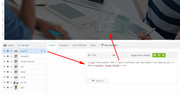
Please try this solution for adding a down arrow to a layerslider, I have just tested to ensure that it works.
Please add a new html layer to your slide, and drag it into place and resize it to around 60px square, it doesn’t need to be exact.
Then in the layerslider content box for the html layer, please add:
<a href="#next-section" title="" class="scroll-down-link" aria-hidden="true" data-av_icon="" data-av_iconfont="entypo-fontello"></a>
and save.
If you add any more layers afterwards, such as a overlay, ensure the html layer is on top so you can click it.

Best regards,
Mike
Hi,
To reduce the gutter, Please try this code in the General Styling > Quick CSS field:
#top.page-id-3370 .post-entry-3370 .av-flex-placeholder {
    width: 2% !important;
}
currently it is set to 6% on your site, please adjust to suit.
For the blue panels, we will add padding, so the text isn’t close to the edges.
padding: 0 30px !important;
we will also add font weight to have the Lato light, I went to Google fonts to find the correct weight number:
font-weight: 300 !important;
This is your new css with these adjustments:
#top.page-id-3370 .post-entry-3370 .av-flex-placeholder {
    width: 2% !important;
}
#top.page-id-3370 .blue-head h3 {
font-size: 30px !important;
padding: 0 30px !important;
font-family: Lato !important;
}
#top.page-id-3370 .blue-text p {
font-size: 20px !important;
padding: 0 30px !important;
font-family: Lato !important;
font-weight: 300 !important;
}
Best regards,
Mike
Hey Rupert,
For the column padding, Please try this code in the General Styling > Quick CSS field:
#top.page-id-3370 #main .container {
padding: 0px !important;
}
#top.page-id-3370 #main .container .content {
padding: 0px !important;
}
For the blue sections, please go to and enable: Enfold Theme Options > Layout Builder > Show element options for developers
so you can add a custom class to the text blocks for the headings & text, such as “blue-head” & “blue-text”
Then you can use this code in the General Styling > Quick CSS field to adjust the font-size:
.blue-head h3 {
font-size: 30px !important;
}
.blue-text p {
font-size: 20px !important;
}
Best regards,
Mike
Hey saniyaskitchen,
1) Please refer to the following for dealing with the Enfold logo as well as adding a mobile specific one:
2) To increase the size of the social icons add this to quick css:
.social_bookmarks a{
font-size:20px;
}
3) Yes you could remove a menu for specific page, but it would require you to get that specific page ID first.
Best regards,
Jordan Shannon
Hi,
Please try adding this code to the Quick CSS section under Enfold > General Styling or to your child theme’s style.css file:
CSS Snippet:
@media only screen and (max-width: 1340px) and (min-width: 990px) {
#top #header .avia_mega_div > .sub-menu {
    padding: 10px 15px 15px;
}
#top #header .mega_menu_title a {
    font-size: 16px
}
#top #header .avia_mega_div > .sub-menu > li > ul > li a {
    font-size: 15px;
}
#top #header .avia_mega_div > .sub-menu > li {
    padding-top: 5px;
}}
Best regards,
Yigit



