Viewing 30 results - 5,641 through 5,670 (of 18,738 total)
  • Author
    Search Results
  • #1058769
    ginnywills
    Participant

    Is there a way to change the font size just on mobile on one headline? I have one headline that I want big (60px) but the word is too long and it’s getting cut off on the phone. You can see here: fairshareeverywhere.com. Towards the bottom, there is a big #FAIRSHAREEVERWHERE.

    Am I better off making it an image?

    #1058607
    swing127
    Participant

    Hi,
    i have a code here that is working but i still cant figure how to get a space between the text
    example:
    Home(space)(space)About(space)(space)[LOGO IMAGE](space)(space)Categories(space)(space)Find us
    means the gap between the text need to be bigger.
    any code that i can use? thanks!

    btw im using this code to make my menu:

    @media only screen and (min-width: 780px) {
    /*In the below code nth-child(x) the value of x should be half the number of total menu items*/
    #top #header .av-main-nav li:nth-child(2) {
      /* Adjust the width of the logo */
        margin-right:300px;
    }
    
    #header .main_menu {
        /*background: gold;*/
        width: 100%;
        left: 20%;
        transform: translateX(-20%);
    }
    
    .av-main-nav-wrap {
        left: 50%;
        transform: translateX(-50%);
    }
    
    #header_main .avia-menu-text {
        font-size: 25px;
    }
    #header .logo {
        left: 50%;
        transform: translateX(-50%);
        z-index:999;
    }
    
    #header .logo img {    
        top: 50%;
        transform: translateY(-50%);
        max-width: 100px;  
    }
    
    #1058595

    In reply to: Text neben Logo

    so now we had to find the solution for small screens so complete code could be:

    #top .logo,
    #top .logo a {
      overflow: visible;
    }
    
    /* Subtext styling */
    .logo .subtext h2 {
      font-size: 20px;
      font-weight: 600;
      line-height: 26px
    }
    
    .logo .subtext {
      position: absolute;
      top: 60%;
      right: 0;
      transform: translate(110%, -50%);
      z-index: 2;
      width: 500px;
    }
    
    @media only screen and (max-width: 768px) {
    /* Reduce the logo height to make space for the subtext below */
    #top #header .logo img {  
      max-height: 70%!important;
      margin-top: 10px;
    }
    
    /* OPTIONAL CHOICE : Change position of subtext when scrolled */
    #top #header .logo img {  
      max-height: 100%!important;
    }
    #top #header .logo .subtext {
      position: relative;
        top: 10px;
        left: 0;
    }
    }
    #1058592

    In reply to: Text neben Logo

    You see the link above – under it there is: “Subtext style and position”
    Open the toggle “Add subtext to the right of the logo”
    This css you need to add to your Quick css.

    So add to quick css:

    #top .logo,
    #top .logo a {
      overflow: visible;
    }
    
    /* Subtext styling */
    .logo .subtext h2 {
      font-size: 20px;
      font-weight: 600;
      line-height: 26px
    }
    
    .logo .subtext {
      position: absolute;
      top: 60%;
      right: 0;
      transform: translate(120%, -50%);
      z-index: 999;
      width: 500px;
    }
    #1058481

    Hi Malina,

    Thanks for the update. I see this applying to the h3 element:

    #top #wrap_all .all_colors h3 {
        color: #6f6f6f;
        background-color: #6abe72;
        font-size: 20px;
        font-family: 'open sans', 'HelveticaNeue', 'Helvetica Neue', 'Helvetica-Neue', Helvetica, Arial, sans-serif;
    }

    That seems to correspond to the settings you have under Enfold->Advanced Styling. The text can’t be seen since it looks like you have set the same green colour to the h3 element on that page.

    Best regards,
    Rikard

    #1058419
    webworm72
    Participant

    I used the code below to substitute an image instead of the pencil icon , however the grey background color of the box is still there, how can I change it to white ?

    .blog-meta span.iconfont {
    background-image: url(https://sprenzlaw.com/wp-content/uploads/2019/01/sprenz-law-new-logo-layout-2.png);
    background-size: contain;
    background-repeat: no-repeat;
    background-position: center center;
    }
    .blog-meta span.iconfont:before { display: none; }

    #1058368
    difu
    Participant

    Hi Enfold team,

    I’m working on customising the dark contact form and was able to adjust quite a bit thanks to your documentation.
    As of now everything I added is working except for some or the ‘button’ adjustments.
    1. I’m trying to get the border-width of the send button to be 3px – even though I added it it is not changing on my site, but it does work when hovering over the button.
    2. I’m trying to change the button font-color to be #cf3662
    3. I trying to change the button hover font-color to be white

    4. Additionally I would like to change the font-size and color of the text I added to a check-box label and for the Captcha Text – but couldn’t find anything that was working

    I’m posting what I have added to the Quick CSS styling area here. Please let me know if you need any further information. Thanks :)

    #top div .av-dark-form input[type=’text’] {
    border-color: #333333 !important;
    background-color: transparent;
    border-radius: 6px;
    font-family: ‘montserrat-regular’
    }

    #top .avia_ajax_form .text_area {
    border-color: #333333 !important;
    background-color: transparent;
    border-radius: 6px;
    font-family: ‘montserrat-regular’;
    }

    .av-custom-form-color .button {
    border-color: #cf3662 !important;
    border-width: 3px !important;
    font-color: #cf3662 !important;
    background-color: transparent !important;
    border-radius: 6px;
    font-family: ‘montserrat-regular’;
    font-size: 17px;
    }

    .av-custom-form-color .button:hover {
    border-color: #cf3662 !important;
    border-width: 3px !important;
    font-transform: #ffffff !important;
    background-color: #cf3662 !important;
    border-radius: 6px;
    font-family: ‘montserrat-regular’;
    font-size: 17px;
    }

    #top .avia_ajax_form .error input[type=’text’],
    #top .avia_ajax_form .error .text_area {
    background: #ffffff!important;
    }

    #1058306

    In reply to: Header – Logo

    Hi Victoria,

    vielen Dank, aber ich kriege es nicht hin. Hab jetzt alles Mögliche probiert. Der Text taucht einfach nicht auf.
    Hier der Inhalt meiner custom.css:
    /* CSS – Subtext on right */
    #top .logo,
    #top .logo a {
    overflow: visible;
    }
    /* Subtext styling */
    .logo .subtext h1 {
    font-size: 20px;
    font-weight: 600;
    }
    .logo .subtext {
    position: absolute;
    top: 50%;
    right: 0;
    transform: translate(120%, -50%);
    z-index: 999;
    }
    .logo .subtext {
    margin-top: -55px;
    margin-left: 107px;
    display: block;
    }

    Und hier der Text aus der function.php:
    add_filter(‘avf_logo_subtext’, ‘kriesi_logo_addition’);
    function kriesi_logo_addition($sub) {
    $sub .= ‘<h1>Company Name</h1>’;
    return $sub;
    }

    Wo liegt das Problem? Ich hab das Gefühl, der Container, in dem der Subtext steht, wird durch die css-Befehle nicht beeinflusst. In der Webconsole steht er immer an der gleichen Stelle, egal welche Ziffern ich eingebe.

    Viele Grüße
    Daniel

    Hey creatiffco,

    Which grey board are you referring to? I cannot see it.

    Could you please attach some screenshots of the issue?

    As for the “RESERVE YOUR SEAT” button text size, here is the code you can put in Enfold > General Styling > Quick Css,  if it does not work, put into themes/enfold/css/custom.css

    
     #top #reserve-my-seat .avia-button-fullwidth .avia_iconbox_title {
         font-size: 24px;
     }
    

    If you need further assistance please let us know.

    Best regards,
    Victoria

    #1058245
    andreasconstantin
    Participant

    Hallo,

    ich will die Überschriften NICHT in VERSALIEN haben. Dazu habe ich einen Code von euch bekommen, der funktioniert aber nicht:

    h1, h2, h3, h4 {
    text-transform: none !important;
    }

    ich kann die Schriftart oder Schriftgröße nicht ändern. Ich bin schon auf ganz groß und ganz klein gewesen, um einen Unterschiede zu sehen. Es hat sich nichts geändert.

    dann möchte ich auch die Größe der Typo in der Menuzeile ändern, geht auch nicht. Dazu hatte ich diesen Code:

    .main_menu ul:first-child>li>a {
    font-size: 25px;
    font-style: normal ;
    }

    Bitte mal schauen

    #1058101
    ovacam
    Participant

    Hi Enfold Team,

    I need some help to change the colour and size of a custom font I added with Use Any Font. It’s added correctly, but I cannot cange the colour and size in H2.

    I’m not experienced with web design, but I tried with:

    .title_container h2 {
    color: #ff7337;
    font-size: 40px;
    }
    h2 { font-size: 28px; }

    But didnt’ work! Could you help me please?

    Thank you.

    Hey empiread201,
    I took a look at your page and wrote this css to make the font size smaller and reduce the padding around the caption for medium screens. You can adjust to suit your needs. But for it to work best you should remove some of your css because I rewrote it with a media queries to control when it triggers.
    Please remove this from your child theme css:

    /*---Masonry Gallery----*/
    #top #wrap_all figcaption.av-inner-masonry-content .av-masonry-entry-title {
        color: #f05a1a;
        text-align: center;
        font-weight: bold;
        font-size: 16px !important;
    }

    Then add this css:

    @media only screen and (min-width: 998px) {
    #top.home #wrap_all .av-masonry-col-5 figcaption.av-inner-masonry-content .av-masonry-entry-title {
        color: #f05a1a;
        text-align: center;
        font-weight: bold;
        font-size: 16px !important;
    }
    #top.home .av-masonry-col-5 .av-masonry-entry .av-inner-masonry-content {
        padding: 10px !important; 
    }
    } 
    @media only screen and (max-width: 997px) { 
    #top.home #wrap_all .av-masonry-col-5 figcaption.av-inner-masonry-content .av-masonry-entry-title {
        font-size: 8px !important;
    }
    #top.home .av-masonry-col-5 .av-masonry-entry .av-inner-masonry-content {
        padding: 4px !important; 
    }
    }

    Then Please clear your browser cache and check.

    Best regards,
    Mike

    #1058016

    In reply to: Table Colours

    Hey projectt_co_uk,
    To change the alt row colors on desktop, above 1024px:

    @media only screen and (min-width: 1023px) { 
    .main_color tr:nth-child(odd) {
        background: #f97e12 !important; 
    }
    }

    To change the data section colors for mobile:

    @media only screen and (max-width: 767px) { 
    .main_color tr:nth-child(odd) {
        background: #95588a !important; 
    }
    }

    To change the mobile font:

    @media only screen and (max-width: 767px) {
    .responsive .avia_responsive_table .avia-data-table td:before {
        font-size: 14px !important; 
        font-family: "Arial" !important; 
        font-style: normal !important; 
    }
    }

    Best regards,
    Mike

    #1058006

    Hey!

    You can start with the following css code.

    /* mega menu title */
    #top #header .mega_menu_title a {
        color: inherit;
        font-size: 17px;
        line-height: 1.1em;
        padding: 0;
        margin: 0;
        background: transparent;
        border: none;
    }
    
    /* mega menu links */
    #top #header .avia_mega_div > .sub-menu > li > ul > li a {
        width: auto;
        float: none;
        display: block;
        border: none;
        padding: 3px 12px 3px 12px;
        font-weight: normal;
        height: auto;
        line-height: 23px;
    }

    Cheers!
    Ismael

    #1057991

    Topic: Table Colours

    in forum Enfold
    projectt_co_uk
    Participant

    Hi
    I have inserted few tables in this section

    They look good on desktop with header colour being different. I managed to change the header colour using some css code.
    How I have following questions, please can you provide me some CSS code or instructions as to how can I change these.

    1: How can I change the alternative row colours on Desktop only.
    2. How can I show the alternative data section colours on Mobile.
    3. How can I change the font type, size on mobile (Headings and Content)

    These are the final changes and then the website is going live … :)

    Please help.

    Kind regards,
    http://www.projectt.co.uk

    #1057970

    In reply to: Main Menu Link Colour

    I found my issue, it may help you, I had not closed a piece of css – this one to be precise, it was missing a }.

    @media only screen and (max-width: 990px) {
    footer a {
    font-size: 18px;
    }}

    #1057967

    In reply to: Main Menu Link Colour

    I’ve found that if I remove all custom css it clears and works. Here is my custom .css – do you have custom css set up? Perhaps paste yours and we can see if we have anything similar that might be the cause.

    #top .social_bookmarks li a {
    color: white;
    }

    .avia-slideshow-arrows {display: none !important;}

    @media only screen and (max-width:767px) {

    .html_av-overlay-side #top #wrap_all .av-burger-overlay-scroll #av-burger-menu-ul a {
    color: black;
    }

    #top .header_color .av-hamburger-inner,
    #top .header_color .av-hamburger-inner::before,
    #top .header_color .av-hamburger-inner::after {
    background-color: black !important;
    }
    }

    #top #wrap_all .av-social-link-SnapChat:hover a{
    color:#fff;
    background-color:#9fae37;
    }

    #header_meta { background-color: #fdb5d3; box-shadow: none; }
    #header_main { border-top: none !important;
    border-bottom: none !important;}

    @media only screen and (max-width: 990px) {
    #top #menu-item-search {
    display: none !important; }}

    @media only screen and (max-width: 768px) {
    #header_meta { display: none !important; }}

    /*——————————–*/

    /* Header widget */

    /*——————————–*/

    /* Widget text and background */
    #top #header #header_main .widget {
    line-height: 14px;
    color:#ffffff;

    }

    /* Widget title */
    #top #header #header_main .widget h3.widgettitle {
    color: #fffff;
    }

    /* Widget link */
    #top #header.header_color #header_main .widget a {
    color: #ffffff;
    clear: none;
    position: absolute;
    z-index: 100;
    line-height: 30px;
    height: 100%;
    margin-top: 19px;
    right: 21px;
    }

    @media only screen and (max-width: 990px) {
    #top #header.header_color #header_main .widget a {
    display: none;
    margin-top: 0px !important;}}

    #socket .sub_menu_socket {
    float: none !important;
    }
    #socket .sub_menu_socket ul {
    text-align: center;
    margin-bottom: 6px;
    }
    #socket .sub_menu_socket li {
    float: none !important;
    display: inline;
    }

    @media only screen and (max-width: 990px) {
    footer a {
    font-size: 18px;
    }

    #socket .container {
    display: flex;
    flex-direction: column-reverse;
    }

    #socket .copyright {
    text-align: center;
    }

    #socket .social_bookmarks {
    margin: -10px 0 0 100px;
    }
    #socket .av-social-link-facebook a {
    color: #fff !important;
    background-color: #37589b !important;
    }
    #socket .av-social-link-twitter a {
    color: #fff !important;
    background-color: #46d4fe !important;
    }
    #socket .av-social-link-youtube a {
    color: #fff !important;
    background-color: #a72b1d !important;
    }
    #socket .av-social-link-gplus a {
    color: #fff !important;
    background-color: #de5a49 !important;
    }
    #socket .av-social-link-instagram a {
    color: #fff !important;
    background-color: #a67658 !important;
    }
    #socket .av-social-link-mail a {
    color: #fff !important;
    background-color: #e6cede !important;
    }
    #socket .av-social-link-SnapChat_Icon a {
    color: #fff !important;
    background-color: #fffc00 !important;
    }

    #1057634
    This reply has been marked as private.
    #1057476

    In reply to: RSS Widget

    Hi,

    Adjust the code to the following:

    #rss-3, #rss-3 a{
    color:#fff!important;
    font-size:20px!important;
    }

    Best regards,
    Jordan Shannon

    #1057344

    Hey r2chh,

    You can also try this code instead:

    @media only screen and (max-width: 767px) {
      #top .avia-slideshow-arrows a {
        width: 20px;
        height: 40px;
        font-size: 12px;
        line-height: 20px;
      }
    
      #top .avia-slideshow-arrows a:before {
        line-height: 40px !important;
      }
    }

    However I don’t see any of your code being reflected probably because of caching, please try to flush out the cache and check.
    If that doesn’t work, try to go to Enfold > Performance > disable CSS file merging and compression
    Hope this helps.

    Best regards,
    Nikko

    #1057312

    In reply to: RSS Widget

    Thanks! It works. How can I change the font size in the RSS widget as well?

    #1057237

    In reply to: Burger Menu at 1280

    Hi whdsolutions,

    I have added this inside the media query of Rikard’s code:

      #header #menu-item-search {
        display: block;
      }
    
      #header #menu-item-search a {
        font-size: 24px !important;
      }

    Let us know if you need further assistance.

    Best regards,
    Nikko

    r2chh
    Participant

    Hello, Your theme is great, Thank you.
    Today I ask about easy slider size in mobile

    as you see in the link below,

    the navigation arrow in slider is too big in mobile
    I tried to change in mobile, but I failed.

    It would be great , You let me know How to do that.
    Thank you.

    It would be great, You let me know about this
    this is my css for that, but only stroke box could change and arrow could not see.
    ——————————————————————————————

    @media only screen and (max-width: 600px) {
    #top .avia-slideshow-arrows a {
    display: block;
    text-decoration: none;
    color: #fff;
    visibility: visible;
    position: absolute;
    width: 20px;
    text-align: center;
    height: 20px;
    line-height: 32px;
    font-size: 12px;
    top: 50%;
    margin: -30px 15px 0;
    z-index: 99;
    overflow: hidden;
    text-indent: -600%;
    }

    }
    ——————————————————————————————————-

    #1057026

    Hey Kurt,
    I didn’t see the “frame grab” in your post, but I’m fairly sure I know which area you mean. Please try this code in the General Styling > Quick CSS field or in the WordPress > Customize > Additional CSS field:

    .phone-info.with_nav span {
    font-size: 14px !important;
    color: red !important;
    }

    This will make the text larger and red, but you can adjust the size and color to suit, then going forward you can change the text in the “Phone number or small info text” field and the color and size will stay the same.
    Please let us know if you would like help adjusting this to your exact needs.

    Best regards,
    Mike

    #1056988

    Hi,
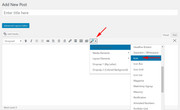
    I added the email icon next to your email address as an example, first I went to a post using the classic editor and use the shortcode wand to get the icon:
    wand-tool-1
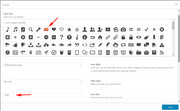
    then I choose the icon and changed the size to 20px:
    wand-tool-2
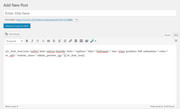
    the tool gave the shortcode for the icon:
    wand-tool-3
    you could use the shortcode as is, but I want to remove the left alignment, so I used this code:

    [av_font_icon icon='ue805' font='entypo-fontello' size='20px'][/av_font_icon]

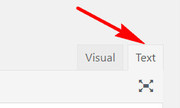
    I then pasted it in your text editor in the “text” tab, not the visual tab:
    text-tab
    Please give this a try if you want to add more icons.

    Best regards,
    Mike

    #1056787

    I was able to stop the jumping testimonial slider on mobile by using this code, ajusting the figure for px until it worked.

    @media only screen and (max-width: 767px) {
    .avia-testimonial-wrapper {
    height:500px !important;
    min-height:500px !important;
    }
    }

    Here comes my question:
    I would like to get more space for the text. The arrows are taking up to much of it in the mobile version.
    How can I reduce the size of the arrows, so there is more space for words? Smaller fontsize would also help.

    Thanks!

    #1056184

    Hi,
    Sorry, I added this css to make the font bigger starting at the laptop size and up, this way at mobile and tablet it will stay small enough for the screen:

    @media only screen and (min-width: 998px) { 
    #hometab .av-tab-section-tab-title-container .av-inner-tab-title {
        font-size: 1.2em !important; 
    }
    }

    Please feel free to adjust to suit, and please clear your browser cache.

    Best regards,
    Mike

    #1056023

    It is not working for me either? I am changing only the font size in Main Menu Links from Default to 30 px and when I view the site there is no change?
    I also edited the element for the Menu Item Button and see no change?
    Admin login is below:

    #1055899

    In reply to: Drop Down List Styling

    Hi Dan,

    It is using this css code:

    #top .main_color .input-text, 
    #top .main_color input[type='text'], 
    #top .main_color input[type='input'], 
    #top .main_color input[type='password'], 
    #top .main_color input[type='email'], 
    #top .main_color input[type='number'], 
    #top .main_color input[type='url'], 
    #top .main_color input[type='tel'], 
    #top .main_color input[type='search'], 
    #top .main_color textarea, 
    #top .main_color select {
        background-image: url('image_url_here')!important;
        box-shadow: 2px 2px 5px rgba(0,0,0,0.7)!important;
        background-size: 100% 100%;
        background-repeat: no-repeat;
        background-color: rgba(255,255,255,0.5)!important;
        font-size: 10pt!important;
        color: #ffffff!important;
        border: none!important;
    }

    however you will need to change the background-image url from image_url_here to the right url (the board image).
    Then finally you will need some chalkboard fonts: http://www.ucreative.com/resources/20-free-chalkboard-fonts/
    Hope this helps.

    Best regards,
    Nikko

    Hi ezvisa,

    Try replacing the code I gave you with:

    #top.woocommerce-checkout textarea,
    #top.woocommerce-checkout input[type="text"],
    #top.woocommerce-checkout input[type="email"],
    #top.woocommerce-checkout input[type="tel"],
    #top.woocommerce-checkout select {
        font-size: 16px !important;
    }

    Let us know if this helps.

    Best regards,
    Nikko

Viewing 30 results - 5,641 through 5,670 (of 18,738 total)