

Forum Replies Created
-
AuthorPosts
-
October 27, 2019 at 6:54 pm in reply to: Different logos in the multilingual Enfold theme … #1151598
Hi,
Sorry for the late reply, please try this solution for PolylangBest regards,
MikeHi,
Sorry for the late reply, please try this solution for PolylangBest regards,
MikeHi,
Perhaps you missed the links I included above:Best regards,
MikeHi,
Glad we were able to help, we will close this now. Thank you for using Enfold.For your information, you can take a look at Enfold documentation here
For any other questions or issues, feel free to start new threads in the Enfold forum and we will gladly try to help you :)Best regards,
MikeOctober 27, 2019 at 6:35 pm in reply to: show arrows in easy slider and full screen slider but not dot things #1151588Hi,
I looked into this further and found that this is not available for the full screen slider, you could try mixing the slides order up since they are drag and drop in the element, or you could use the layerslider instead.Best regards,
MikeHi,
Is this what you had in mind:

it doesn’t seem to match the transparent header, where the icon is white and a transparent background, and the after scroll where the icon is black and the background is white, since a lot of your page after scroll is white the icon doesn’t show well, if the icon is the same white as before scroll, it won’t be seen.
The current full width white header would stand out better but with no logo it looks odd, I guess I’m not understanding very well.Best regards,
MikeHi,
Thanks you too, I will close this now the dev team has this thread and your email address now.Best regards,
MikeHi,
Glad we were able to help, we will close this now. Thank you for using Enfold.For your information, you can take a look at Enfold documentation here
For any other questions or issues, feel free to start new threads in the Enfold forum and we will gladly try to help you :)Best regards,
MikeOctober 27, 2019 at 5:32 pm in reply to: Android / Samsung 10 not showing pop-up video correctly #1151581Hi,
Glad to help, we will keep this open until we hear back from you.Best regards,
MikeHi,
Sorry for the late reply, I took a look at this and Enabled the Avia Layout Builder Debugger but it found no errors in the parser, the debugger allowed me to copy your page shortcode and test in on my localhost which also gave no errors, even after publishing and editing several times, yet I did find that on your site I couldn’t edit or create a new page with the shortcode without getting the 403. I then removed the check marks and the “greater than” symbol on a new test page in the Private Content area, but no luck. I then noticed your bullet points were not really “li” so I converted them, again with no luck. I then added each section one at a time, and found that this text seems to be breaking the page:- the aesthetics of normal glass, as the transparency remains high
- normal daylight to pass through and brighten up your room or car
- maintained transparency and natural color experience as offered by normal glass
- decreased air-conditioning needs hence lower your energy bill
- improved comfort feeling and temperature regulation
this doesn’t make since, so I tried pasting the text in a plain text editor and coping it again thinking there was a hidden character, and I tried removing other sections thinking there was an unclosed tag somewhere before it, but this didn’t work either.
I also see that your other settings seem fine, I’m not sure how much this will help you but you can check the page in the Private Content area.Best regards,
MikeOctober 27, 2019 at 1:26 pm in reply to: "Weiter einkaufen" / Continue Shopping – Button in Checkout-Page #1151553Hey michi,
Sorry for the late reply, I added an item to your cart but I saw the “Weiter einkaufen” (continue shopping) button, is the WooCommerce Germanized disabled right now? Please see the screenshot in Private Content area.
I see that you are using Enfold v4.5.7 and I believe that was about the time we were having an issue with WooCommerce Germanized, please try updating the theme and the plugins. You may need to update via FTP because of an Envato Token issue we had at the same time.
The easiest and safest way to do this is to download the newest version from Theme Forest and rename your current theme folder to “enfold-old” via ftp then upload the new “enfold” folder and check that your site is working correctly.
Once you are happy you can delete the “enfold-old” via ftp, (not the WP theme page)
Should for some reason you wish to roll-back to the old version, it’s easy to do, simply rename the new “enfold” folder to “enfold-new” via ftp and then rename “enfold-old” to “enfold” then refresh your page.
Please don’t try to overwrite the theme folder, as this will leave old files behind and cause errors.Best regards,
MikeHi,
Sorry for the late reply, I tried to take a look but got the error “user not found” please check.
I also checked the page you linked to and the one in the Private Content area but didn’t see an edit icon and border on the Blog grid.
Is this the correct page, can you link to a screenshot for us to see?Best regards,
MikeHey pixelize,
Sorry for the late reply, I believe that you will need to create a Strings translations for this element, please see the documented link.
Here is a Polylang Step-by-Step Tutorial that may help.Best regards,
MikeHi,
Thank you for the feedback, I have an Android mobile and when I check your page now the outline doesn’t show for me, but I researched some more on the -webkit (Safari) version of this and this may be better:#top .main_color .toggler:focus { outline: 0 !important; outline: 0 -webkit-focus-ring-color !important; }Please give this a try.
Best regards,
MikeHi,
Glad we were able to help, we will close this now. Thank you for using Enfold.For your information, you can take a look at Enfold documentation here
For any other questions or issues, feel free to start new threads in the Enfold forum and we will gladly try to help you :)Best regards,
MikeOctober 27, 2019 at 11:36 am in reply to: comment field on blogpost shows in german language #1151511Hi,
Very good then, we will close this then. Thank you for using Enfold.For your information, you can take a look at Enfold documentation here
For any other questions or issues, feel free to start new threads in the Enfold forum and we will gladly try to help you :)Best regards,
MikeHey Michael,
Sorry for the late reply, unfortunately, the lightbox finds all of the images on the page and displays them. Currently, we do not have a way to limit the lightbox galleries. For cases when the lightbox is wanted to show only one image we can use css to hide the image numbers below the image and the next / previous arrows and make the pointer not work on the image so it won’t show the next image. But this doesn’t seem like it will help in your case.Best regards,
MikeOctober 27, 2019 at 5:01 am in reply to: Pop-up video not shown as demo (start-up) example | mobile version #1151454Hey badoes,
Sorry for the late reply, I answered a duplicate post of yours for this topic, this was the css:@media only screen and (max-width: 767px) { #top.home .mfp-wrap.avia-popup.mfp-ready { height: auto !important; } }Please only answer one of these threads, thanks for your understanding.
Best regards,
MikeOctober 27, 2019 at 4:53 am in reply to: Move menu to footer and create a Login button in Header #1151451Hey sanjamarinkson,
Sorry for the late reply, I believe this is the thread and answer you were looking for: https://kriesi.at/support/topic/move-menu-to-footer/#post-1151119Best regards,
MikeHi,
Sorry my mistake, I found your post and it has been answered, please see: https://kriesi.at/support/topic/move-menu-to-footer/#post-1151119Best regards,
MikeHey Sanja Marinkson,
Sorry for the late reply, I don’t see any posts from you so perhaps this is a strange error, please try starting a new thread and posting your question again.
Sorry for the trouble and thanks for your patience and using Enfold.Best regards,
MikeHey Sophieja23,
Sorry for the late reply, I see that the inline css for the slider image on the new site has this:min-height: 700px; min-width: 1667px; left: -98.6667px; }but your old site has this css:
min-width: 1191px;
    left: 0px;
To correct the new site, Please try this code in the General Styling > Quick CSS field or in the WordPress > Customize > Additional CSS field:
#top.home #full_slider_1 .avia-slide-wrap img {
	min-height: 630px !important;
	min-width: 100% !important;
    left: 0 !important;
}
After applying the css, Please clear your browser cache and check.
Best regards,
MikeOctober 27, 2019 at 4:08 am in reply to: Android / Samsung 10 not showing pop-up video correctly #1151442Hey badoes,
Sorry for the late reply, Please try this code in the General Styling > Quick CSS field or in the WordPress > Customize > Additional CSS field:@media only screen and (max-width: 767px) { #top.home .mfp-wrap.avia-popup.mfp-ready { height: auto !important; } }After applying the css, Please clear your browser cache and check.
Best regards,
MikeHey Camila,
Sorry for the late reply, Please try this code in the General Styling > Quick CSS field or in the WordPress > Customize > Additional CSS field:#nav_menu-2.widget_nav_menu li.menu-item-has-children ul.sub-menu { display: none !important; }After applying the css, Please clear your browser cache and check.
Another option is to create a custom menu for the widget to use.Best regards,
MikeHi,
Our Dev Team has gone over this very carefully and we believe they do, but it seems that people can interpret information differently.
Anyways, is this plugin your product, I’m guessing from your username and email domain that it is.
I can add this to our feature request thread for the dev team to review, do you want to add some information about what is not working correctly between Borlabs Cookie and Enfold along with any solutions that you have found and a dev version in the Private Content area for them to test with? It looks like a paid product not in the WordPress library.
If this is your plugin it may go quicker to create the integration and submit it to the dev team for their review so to not take them off of their current projects.Best regards,
MikeOctober 27, 2019 at 2:24 am in reply to: How to create a sidebar for single product page with LAYOUT BUILDER? #1151437Hey HeeHA,
Sorry for the late reply, if I understand correctly you want left & right sidebars in your custom product page created with the layout builder, for this use the layout options to choose your right sidebar and a widget in a 1/3 column for your left sidebar, like this:
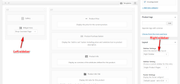
but please note that product pages are not quite the same when built with the layout builder and not all woocommerce plugins work with this layout.
Another option might be the Spiderfly Addons, but be sure to ask if this is still working after our last update.
I see that you do not want to use any functions to create a product sidebar but this link will help if you change your mind.Best regards,
MikeHi,
Sorry for the late reply, please try this solution, please note there are a couple of functions in the thread, some for pages and others for posts.Best regards,
MikeHi,
Glad that you have found the issue. Unfortunately, the cookie settings are required for our EU customers.
The lightbox popup is being improved for all elements and should be available in the next update.Best regards,
MikeHi,
Thanks, I found that the border is actually created by the user agent for “:focus”, which is core css built into the browsers, this also explains why it looks different on your iPad. Anyways, please try this code in the General Styling > Quick CSS field or in the WordPress > Customize > Additional CSS field:.main_color .toggler:focus { outline: -webkit-focus-ring-color auto 0px !important; }Best regards,
Mike -
AuthorPosts
